
How to fix KB5014668 fails to install in Windows 11?

Prefer to fix it yourself? The manual steps follow.
6 methods in this guide
Hello. I tried to install the KB5014668 update on my Windows 11 computer several times but the installation process fails. What should I do?
Recently, Microsoft released an update for Windows 11. KB5014668 is an optional update that is supposed to fix issues that may cause some games to crash. More specifically, certain games stop working when they use the XAudio API to play sound effects. It also fixes a bug that prevents Bluetooth from reconnecting to devices after a restart.
Unfortunately, many people are experiencing problems when trying to install the update. Users report KB5014668 failing to install halfway through the process. It is unknown what exactly could be causing this but most of the time, Windows updates fail to install because of the same things.
In this guide, you will find 6 steps that could help you fix the KB5014668 fails to install in Windows 11 issue. You will learn how to use the built-in troubleshooter, fix corrupted files, reset Windows update components, and more.
It can scan the machine and fix most system errors, BSODs, corrupted files, and registry issues. Besides, it can automatically clear cookies and cache which are often the culprits of many malfunctions. Otherwise, follow the step-by-step instructions below.
Solution 1. Run Windows Update Troubleshooter
- Click the Windows button and select Settings
- Select System from the left pane, then scroll down on the right pane, and click on Troubleshoot
- Click on Other troubleshooters
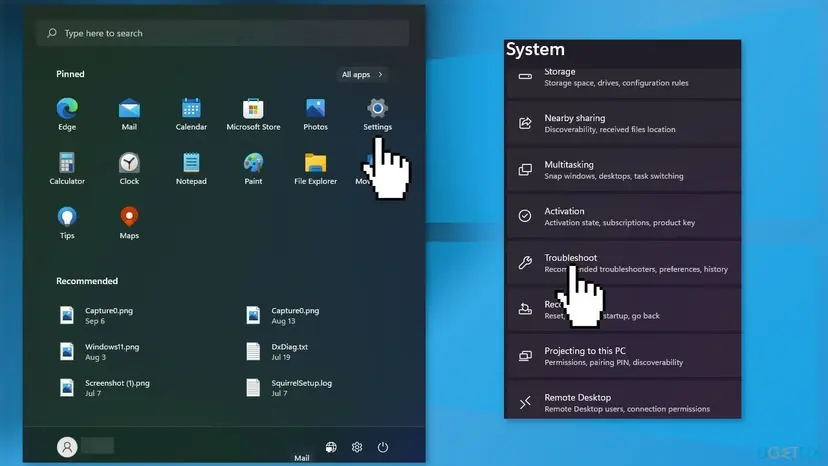
- Locate the Windows Update troubleshooter and hit the Run button
Solution 2. Restart Windows Services
- Type services in the search bar and launch the Services utility
- Find Windows Update in the list
- Double-click on it, set the Startup type to Automatic, and click Apply
- Now click on Restart the Service
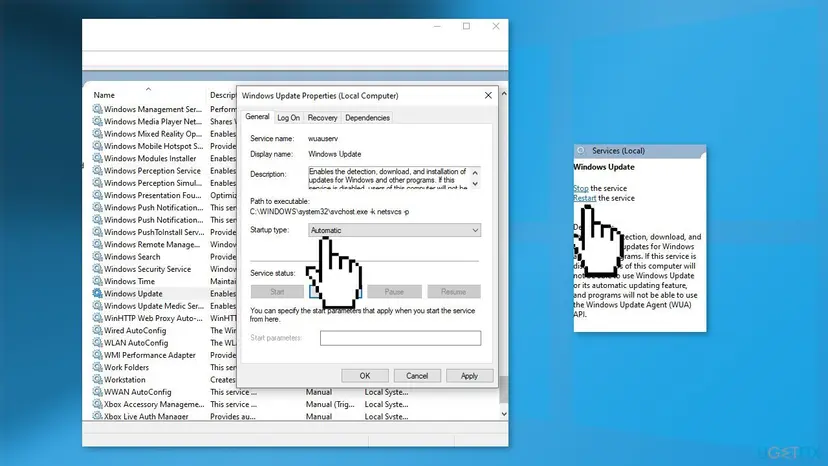
- Do the same with Background Intelligent Transfer Service
Solution 3. Fix Corrupted System Files
Use Command Prompt commands to repair system file corruption:
- Open Command Prompt as administrator
- Use the following command and press Enter:
sfc /scannow
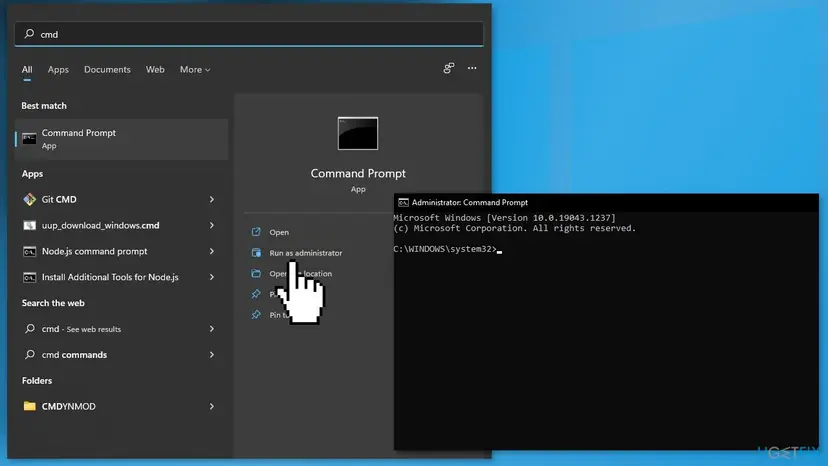
- Reboot your system
- If SFC returned an error, then use the following command lines, pressing Enter after each:
DISM /Online /Cleanup-Image /CheckHealth
DISM /Online /Cleanup-Image /ScanHealth
DISM /Online /Cleanup-Image /RestoreHealth
Solution 4. Reset Windows Update Components
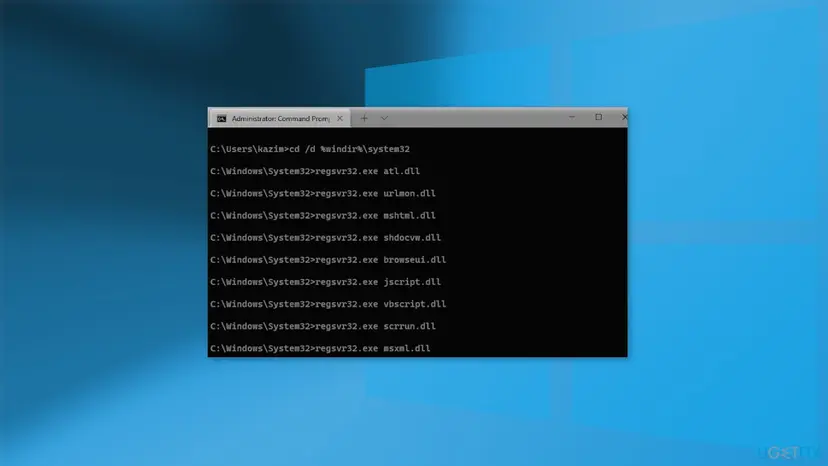
- Open the Command Prompt as an Administrator
- Type the following commands one by one and press Enter after each:
net stop bits
net stop wuauserv
net stop cryptsvc
Del "%ALLUSERSPROFILE%\Application Data\Microsoft\Network\Downloader\qmgr*.dat"
Ren %Systemroot%\SoftwareDistribution\DataStore DataStore.bak
Ren %Systemroot%\SoftwareDistribution\Download Download.bak
Ren %Systemroot%\System32\catroot2 catroot2.bak
sc.exe sdset bits D:(A;;CCLCSWRPWPDTLOCRRC;;;SY)(A;;CCDCLCSWRPWPDTLOCRSDRCWDWO;;;BA)(A;;CCLCSWLOCRRC;;;AU)(A;;CCLCSWRPWPDTLOCRRC;;;PU)
sc.exe sdset wuauserv D:(A;;CCLCSWRPWPDTLOCRRC;;;SY)(A;;CCDCLCSWRPWPDTLOCRSDRCWDWO;;;BA)(A;;CCLCSWLOCRRC;;;AU)(A;;CCLCSWRPWPDTLOCRRC;;;PU)
cd /d %windir%\system32
regsvr32.exe atl.dll
regsvr32.exe urlmon.dll
regsvr32.exe mshtml.dll
regsvr32.exe shdocvw.dll
regsvr32.exe browseui.dll
regsvr32.exe jscript.dll
regsvr32.exe vbscript.dll
regsvr32.exe scrrun.dll
regsvr32.exe msxml.dll
regsvr32.exe msxml3.dll
regsvr32.exe msxml6.dll
regsvr32.exe actxprxy.dll
regsvr32.exe softpub.dll
regsvr32.exe wintrust.dll
regsvr32.exe dssenh.dll
regsvr32.exe rsaenh.dll
regsvr32.exe gpkcsp.dll
regsvr32.exe sccbase.dll
regsvr32.exe slbcsp.dll
regsvr32.exe cryptdlg.dll
regsvr32.exe oleaut32.dll
regsvr32.exe ole32.dll
regsvr32.exe shell32.dll
regsvr32.exe initpki.dll
regsvr32.exe wuapi.dll
regsvr32.exe wuaueng.dll
regsvr32.exe wuaueng1.dll
regsvr32.exe wucltui.dll
regsvr32.exe wups.dll
regsvr32.exe wups2.dll
regsvr32.exe wuweb.dll
regsvr32.exe qmgr.dll
regsvr32.exe qmgrprxy.dll
regsvr32.exe wucltux.dll
regsvr32.exe muweb.dll
regsvr32.exe wuwebv.dll
netsh winsock reset
net start bits
net start wuauserv
net start cryptsvc
- Wait for the process to finish and restart your PC
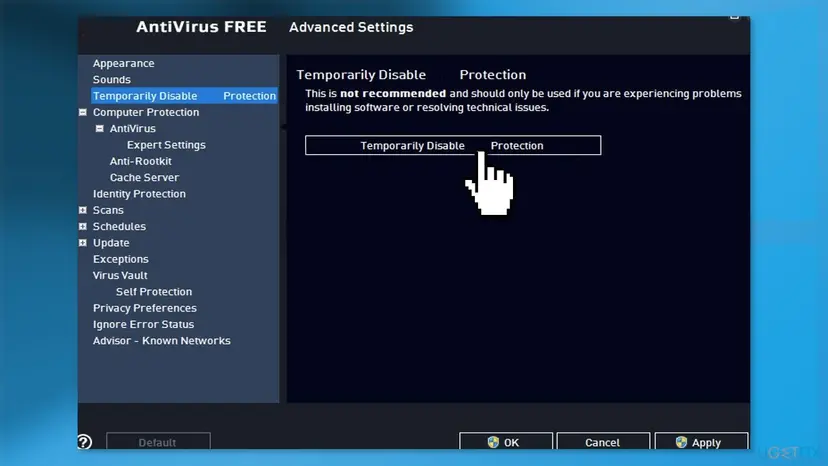
Solution 5. Disable Third-Party Security Software
Sometimes antivirus software can block legitimate processes mistakenly. You should try disabling your antivirus and trying to run the update again.
Solution 6. Perform a Repair Install
- Visit the official Microsoft website to download Windows 11 Installation Media
- Run the Media Creation Tool and select Create Installation Media for another PC
- Select your USB drive
- Let the Process complete of writing the Installation files to the USB drive
- Click Finish
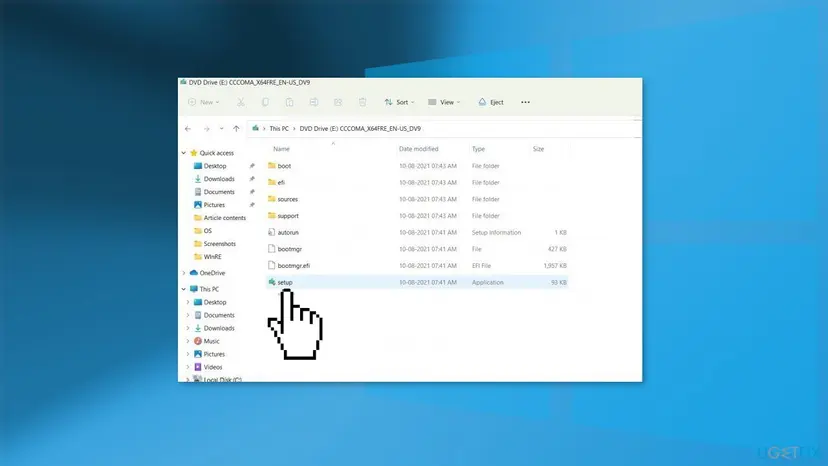
- On the PC you wish to upgrade, Press Windows + E to open the File Explorer
- Open the Removable drive and click Setup.exe
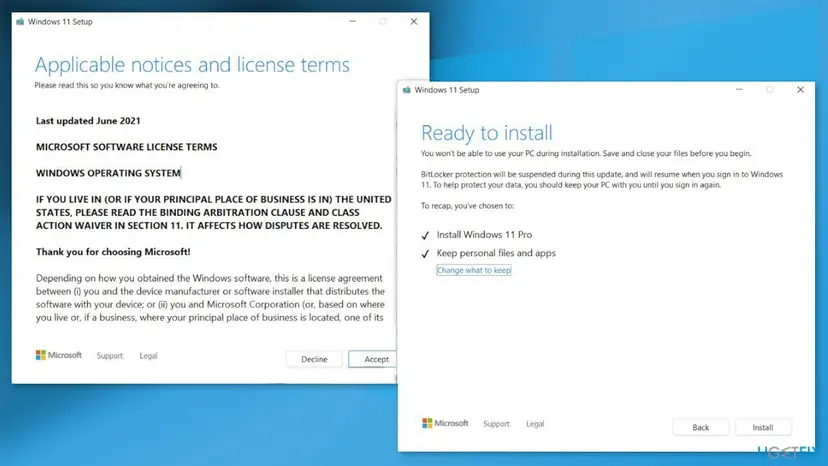
- Accept the license terms on the next screen
- Confirm the Upgrade options – Files, apps and Settings are kept
- Click Install, and the upgrade should start
Did this fix work?
One click, no account. It tells the next reader which guides are worth their time.
Questions and experiences: fix KB5014668 fails to install in Windows 11
Still broken, or found a fix we did not cover? Ask here: members and our editors answer. Reading is open; writing needs a free account.
…