How to fix
KB5015882 fails to install
on Windows
Resolve KB5015882 installation failures on Windows 11 effortlessly. Follow our expert-tested tips and get your system running smoothly in no time.

What causes How to fix KB5015882 fails to install on Windows 11?
- Insufficient free space on the device
- File corruption or missing system files
- Issues with drivers indicated by yellow exclamation points
- Malware or damaged components in the system
- Failure to run Windows Update multiple times
Repairs Windows system files, removes malware, and restores a clean OS state — without reinstalling.
Hello. I need help with the KB5015882. It fails to install properly on the machine. This is the new Windows 11 upgrade, so it might be the issue on their end, but I can't find any details on this issue. Help me solve this.
KB5015882 fails to install on Windows 11 is the issue related to the major Windows 11 operating system update.[ref en-1] This update brings new features and fixes common issues with the Windows system. It solves particular errors and should improve performance significantly. However, the installation can fail due to some issues with the machine or lack of required space.
The most common reason for the installation failure could be space on the device. Make sure that the machine has enough space for the installation of a major upgrade. It requires at least 16 GB of free space. Free some space of it is not enough for the wanted download. You might also want to run the Windows Update a few times to install all available updates and fix any common update errors this way,[ref en-2] so the further processes run smoothly.
This check might also include checking drivers and, fixing issues with the extra hardware, checking for the device manager errors. Yellow exclamation points near the drivers indicate some kind of errors that can be fixed by updating the said driver. KB5015882 fails to install on Windows 11 when the machine is not prepared to run the procedure smoothly.
Any file corruption or missing pieces can lead to failure. If you need to repair some system files or check for malware[ref en-3] issues, or damaged components of the system, you can run [d1] and repair anything that got altered before and keeps these major processes from running smoothly. There are ways to troubleshoot these issues and methods to fix KB5015882 that fails to install on Windows 11, but all of these require attention to detail. Follow the instructions step by step.
1. Troubleshoot Windows Update
- Click the Windows button and open Settings.
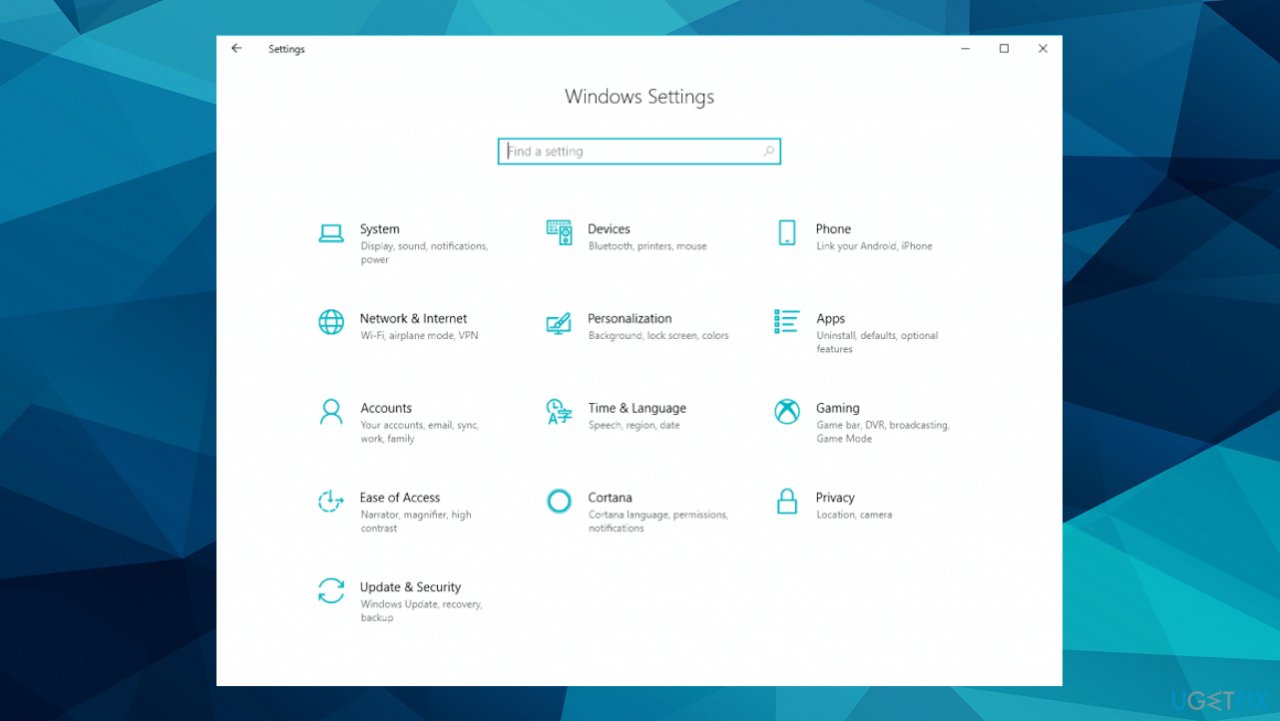
Kb5015882 fails to install on windows settings - Select System, then scroll down on the right pane and click on Troubleshoot.
- Click on Other troubleshooters.
- Locate the Windows Update troubleshooter and hit the Run troubleshooter button.
- Fix issues if anything is offered.
- Restart the PC.
2. Restart Windows Services
- Type services in the search bar and launch the Services utility.
- Find Windows Update on the list.
- Double-click on it to open the Properties.
- Then set the Startup type to Automatic, and click Apply.
- Now hit Restart the Service.
- Do the same with Background Intelligent Transfer Service.
3. Fix issues via Command Prompt
- Search for CMD in the bottom bar.
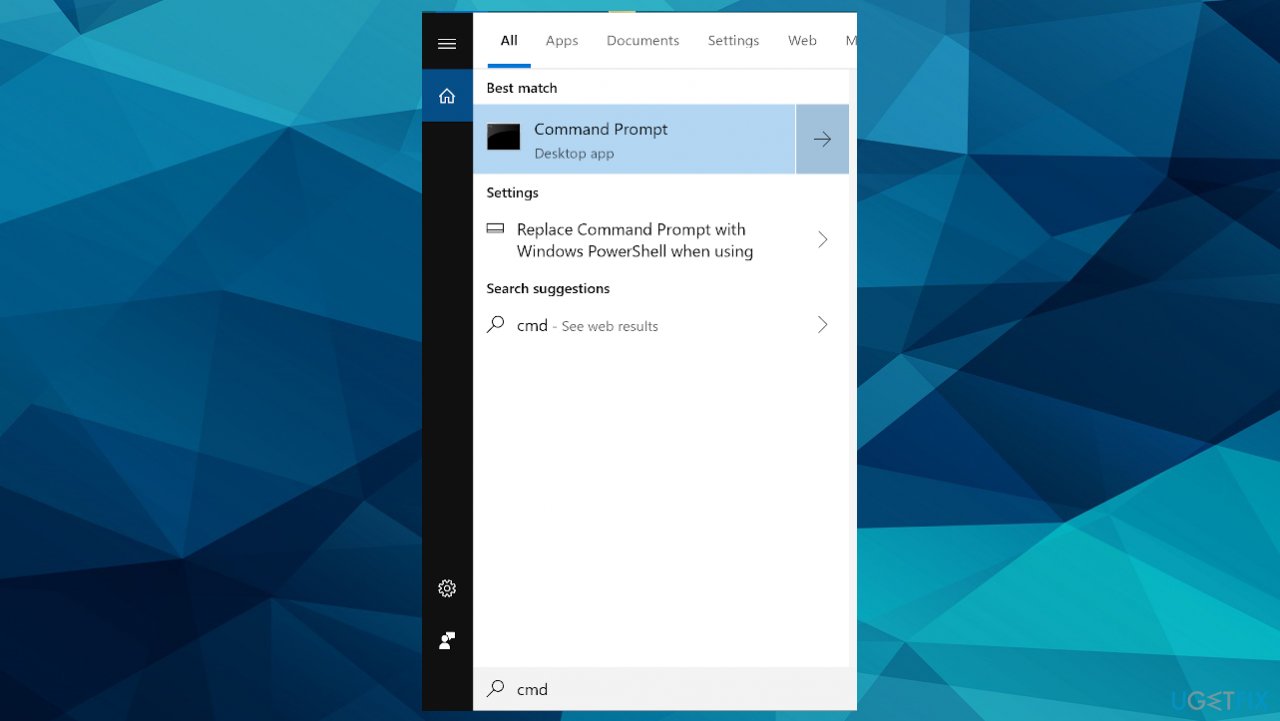
Kb5015882 fails to install on windows cmd - Open Command Prompt as administrator.
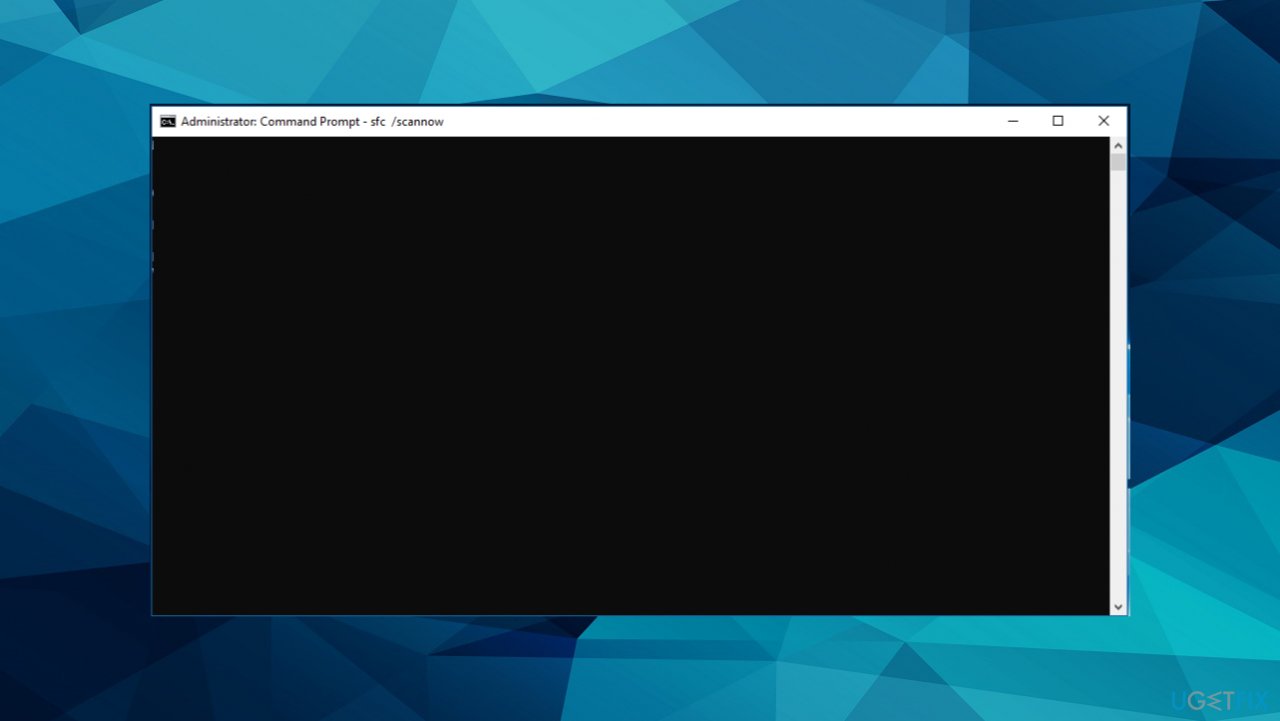
Kb5015882 fails to install on windows cmd scan - Use the following command and press Enter:
SC config trustedinstaller start=auto
net stop bits
net stop wuauserv
net stop msiserver
net stop cryptsvc
net stop appidsvc
Ren %Systemroot%\SoftwareDistribution SoftwareDistribution.old
Ren %Systemroot%\System32\catroot2 catroot2.old
regsvr32.exe /s atl.dll
regsvr32.exe /s urlmon.dll
regsvr32.exe /s mshtml.dll
netsh winsock reset
netsh winsock reset proxy
rundll32.exe pnpclean.dll,RunDLL_PnpClean /DRIVERS /MAXCLEAN
dism /Online /Cleanup-image /ScanHealth
dism /Online /Cleanup-image /CheckHealth
dism /Online /Cleanup-image /RestoreHealth
dism /Online /Cleanup-image /StartComponentCleanup
sfc /scannow
net start bits
net start wuauserv
net start msiserver
net start cryptsvc
net start appidsvc
4. Use Windows installation assistant
- Go to the Software download page and download Installation assistant.
- Run the tool as administrator by right-clicking the Windows Installation Assistant file.
- Allow the application to run and wait for the result.
- The window might inform that machine is already running the latest version, if so, move to the manual installation.
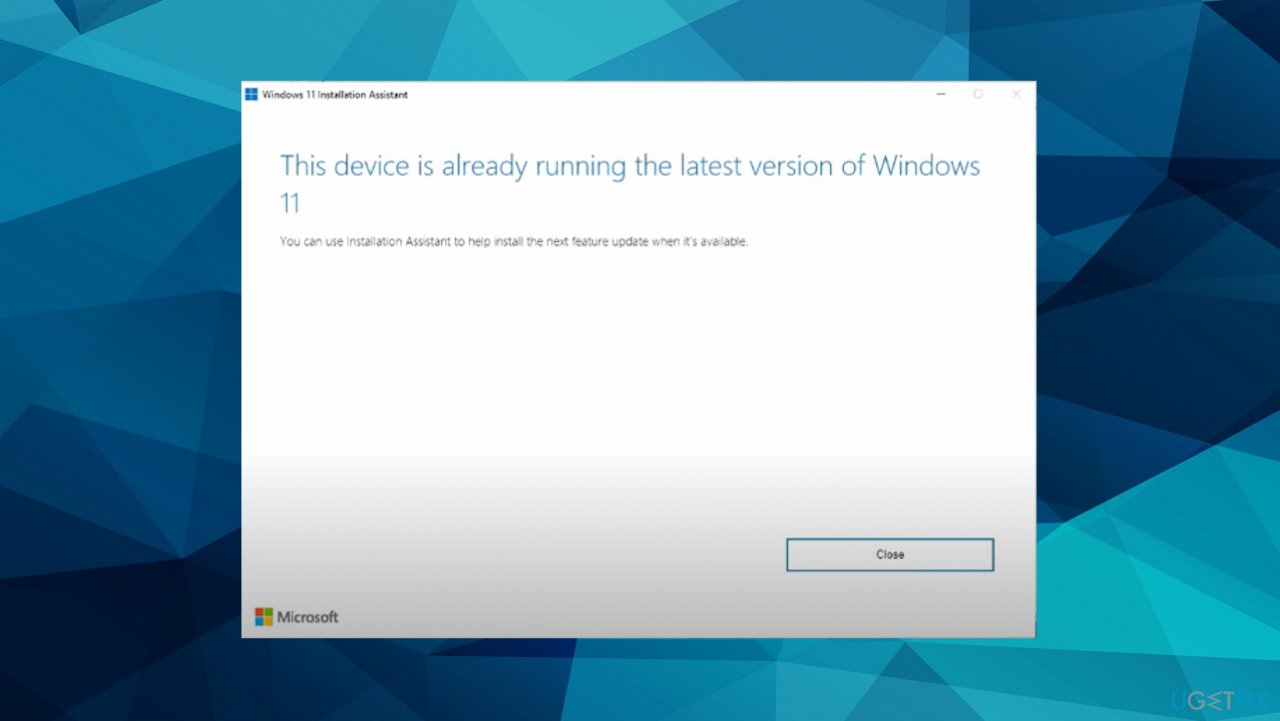
Kb5015882 fails to install on windows update check
5. Manually download Windows 11
- Go to the same software download page.
- Choose Download Windows 11 disk image (ISO) option.
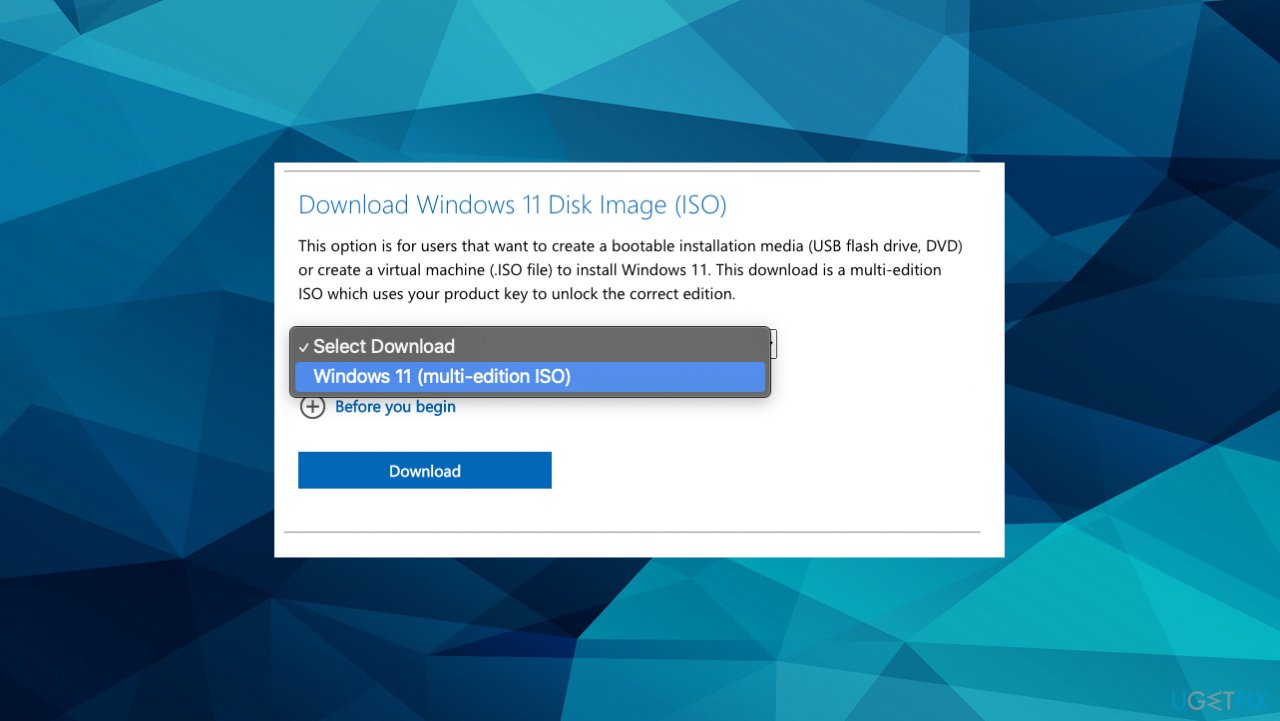
Kb5015882 fails to install on windows 11 select - Choose Windows 11 from the options menu.
- Select the language and the right bit size.
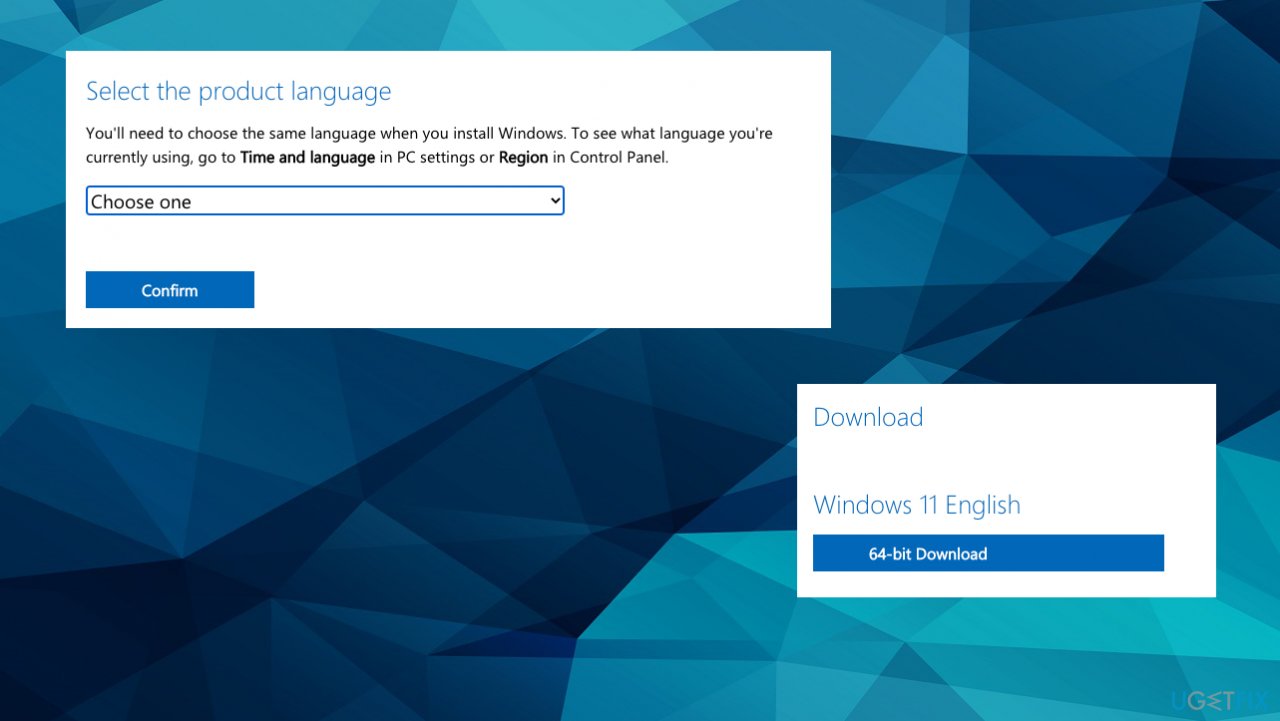
Kb5015882 fails to install on windows choosing - Wait for the download.
- Run the setup file and install the software.
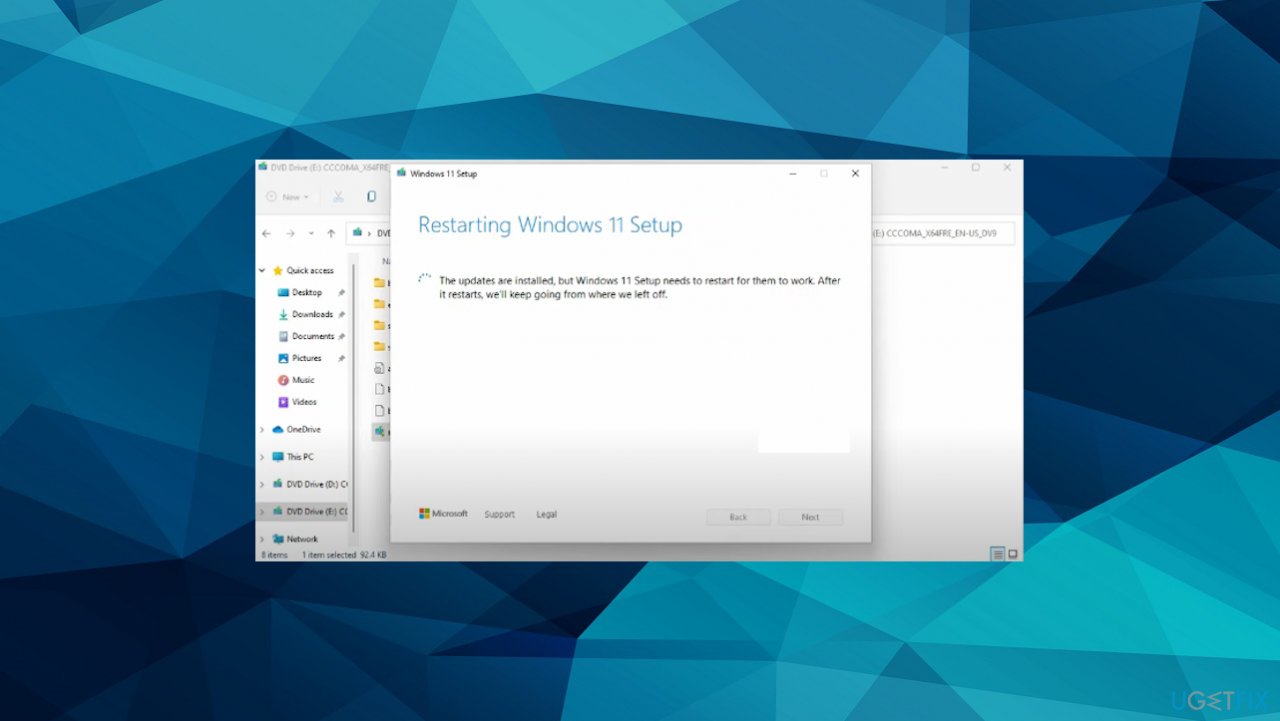
Kb5015882 fails to install on windows install - PC will restart after.
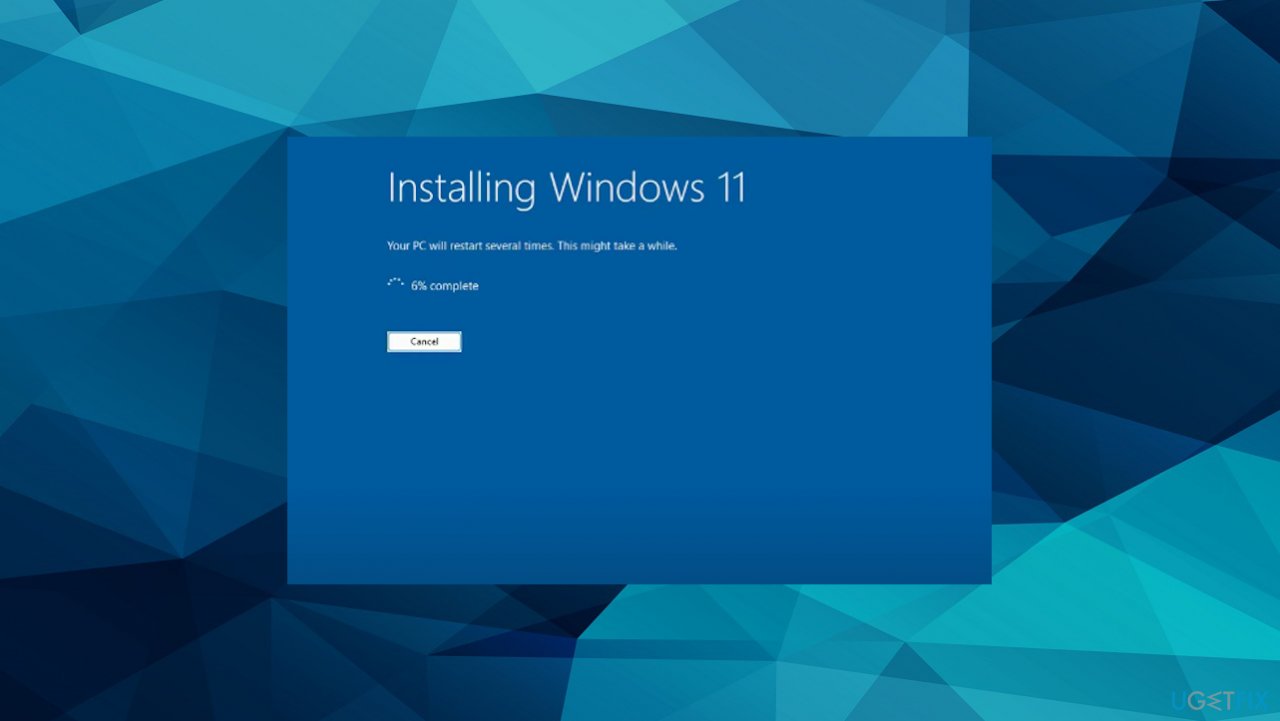
Kb5015882 fails to install on windows installation
Bottom line
To fix the KB5015882 installation failure, ensure there is at least 16 GB of free space, check for file corruption, update drivers, and run Windows Update several times. If these steps do not resolve the issue, consider running a system repair tool or checking for malware.
Frequently asked questions
You can try running the Windows Update Troubleshooter, which can help identify and fix issues related to Windows Update errors. Additionally, ensure that your system is fully updated by manually checking for updates in Windows Settings.
Run the System File Checker (SFC) tool by executing 'sfc /scannow' in the Command Prompt as an administrator. This will scan and repair any corrupted system files that might be causing the installation issue.
Yes, you can manually download the KB5015882 update from the Microsoft Update Catalog website, selecting the appropriate version for your system. After downloading, double-click the file to initiate the installation process.




Report an issue
What's wrong with this guide? We review every report and update or remove content.
Report received — thank you. We'll review and fix it.
You need a free account to submit a report.
Be the first to comment