How to fix
KB5016632 fails to install
on Windows
Resolve KB5016632 installation issues on Windows 11 effortlessly with our expert-tested solutions. Get your updates running smoothly again!

What causes How to fix KB5016632 fails to install in Windows 11?
- Corrupted system files
- Malfunctioning Windows services
- Third-party security software interference
- Outdated drivers
Repairs Windows system files, removes malware, and restores a clean OS state — without reinstalling.
Hello. I tried to install the newest update KB5016632 on my Windows 11 PC but the process failed. Is there a way to fix this issue?
Windows 11 was released by Microsoft at the end of 2021. Just like any other operating system, it has to be updated to keep it running smoothly. Microsoft regularly releases updates that include new features, bug fixes, and security patches. It is extremely important to install them as soon as they come out to prevent hackers from exploiting software vulnerabilities.[ref en-1]
Unfortunately, quite often people run into issues when trying to install Windows updates. Recently, some users reported that KB5016632 fails to install in Windows 11. It is unknown why exactly this could be happening but there are general reasons why sometimes the updating process fails.
Most of the time, Windows updates do not install because of corrupted system files, malfunctioning Windows services, third-party security software interference, and outdated drivers. In this guide, you will find 7 steps that should help you fix this problem and let you install KB5016632 with no issues.
However, manual troubleshooting can be a lengthy process. You can use a maintenance tool like [d1] to scan your machine. It can automatically fix various system errors, BSODs,[ref en-2] corrupted files, and registry[ref en-3] issues. Otherwise, follow the step-by-step instructions posted below.
Solution 1. Run Windows Update Troubleshooter
- Click the Windows button and select Settings
- Select System from the left pane, then scroll down on the right pane, and click on Troubleshoot
- Click on Other troubleshooters
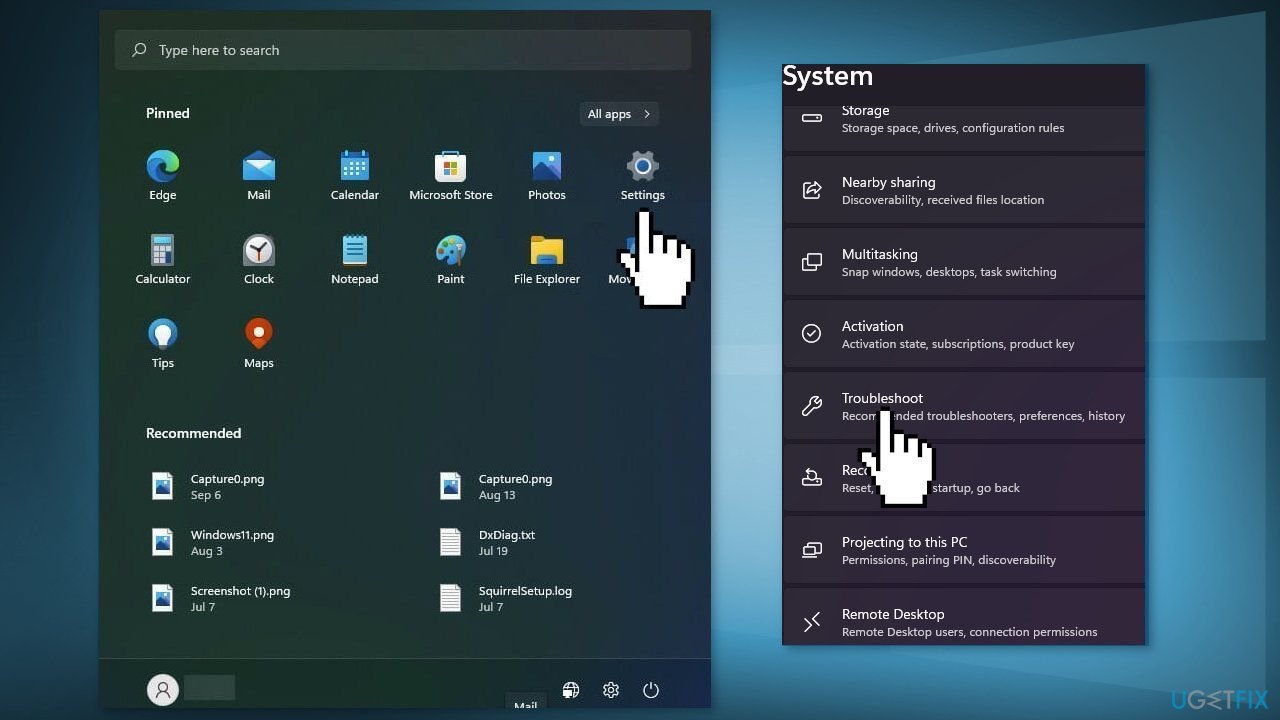
- Locate the Windows Update troubleshooter and hit the Run button
Solution 2. Repair Corrupted System Files
Use Command Prompt commands to repair system file corruption:
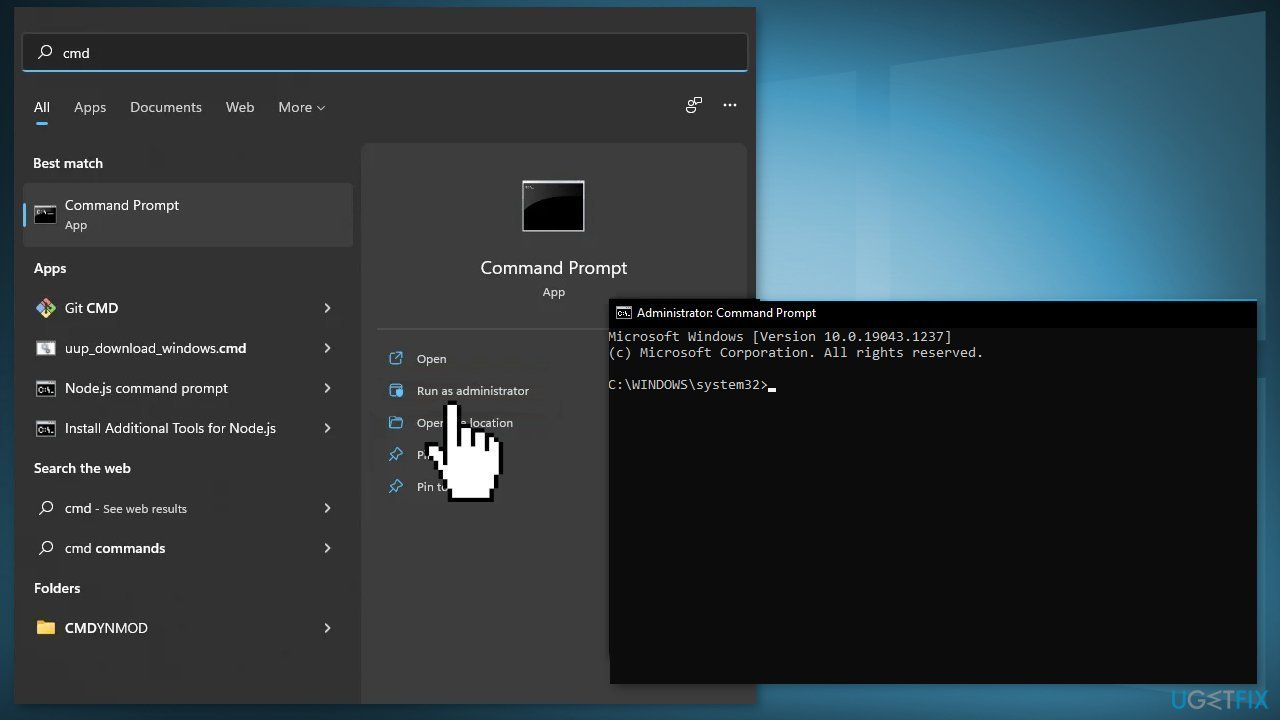
- Open Command Prompt as administrator
- Use the following command and press Enter:
sfc /scannow
- Reboot your system
- If SFC returned an error, then use the following command lines, pressing Enter after each:
DISM /Online /Cleanup-Image /CheckHealth
DISM /Online /Cleanup-Image /ScanHealth
DISM /Online /Cleanup-Image /RestoreHealth
Solution 3. Disable Third-Party Security Software
Sometimes antivirus software can block legitimate processes mistakenly. You should try disabling your antivirus and trying to run the update again.
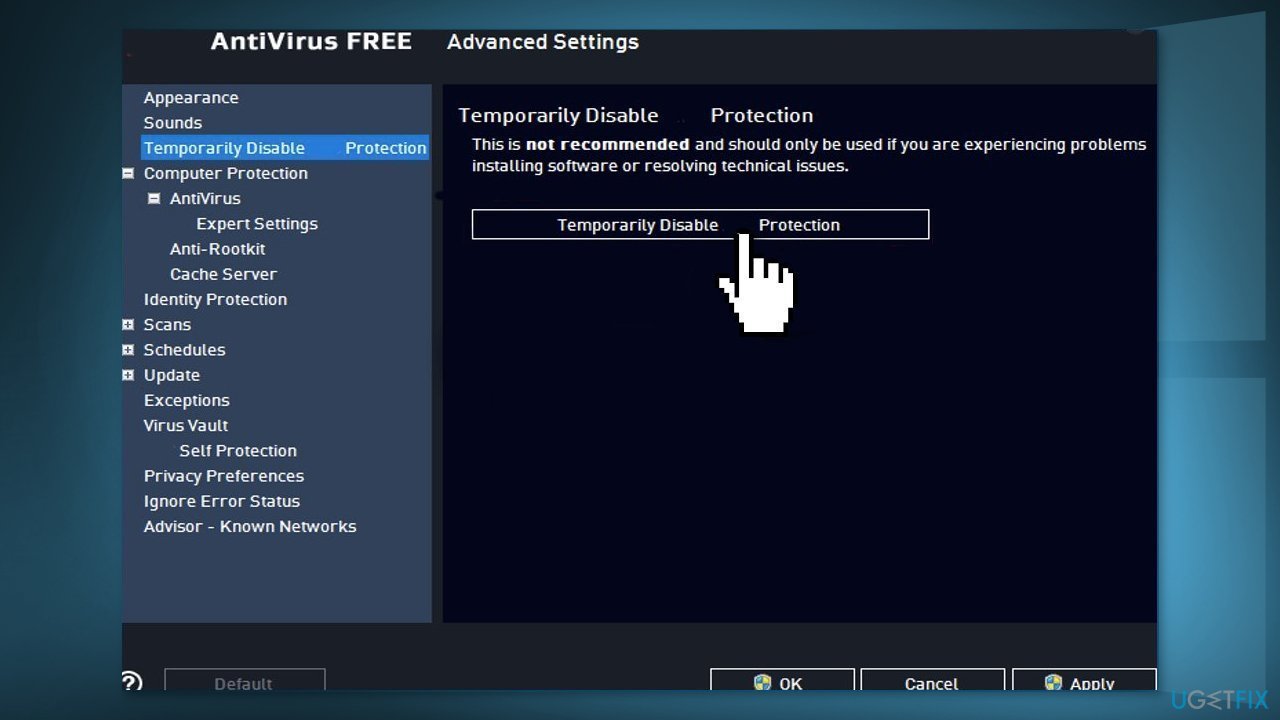
Solution 4. Use the Command Prompt
- Open Command prompt as an Administrator
Type the following commands and press Enter after each one:
net stop wuauserv
net stop cryptSvc
net stop bits
net stop msiserver
ren C:\Windows\SoftwareDistribution SoftwareDistribution.old
ren C:\Windows\System32\catroot2 catroot2.old
net start wuauserv
net start cryptSvc
net start bits
net start msiserver
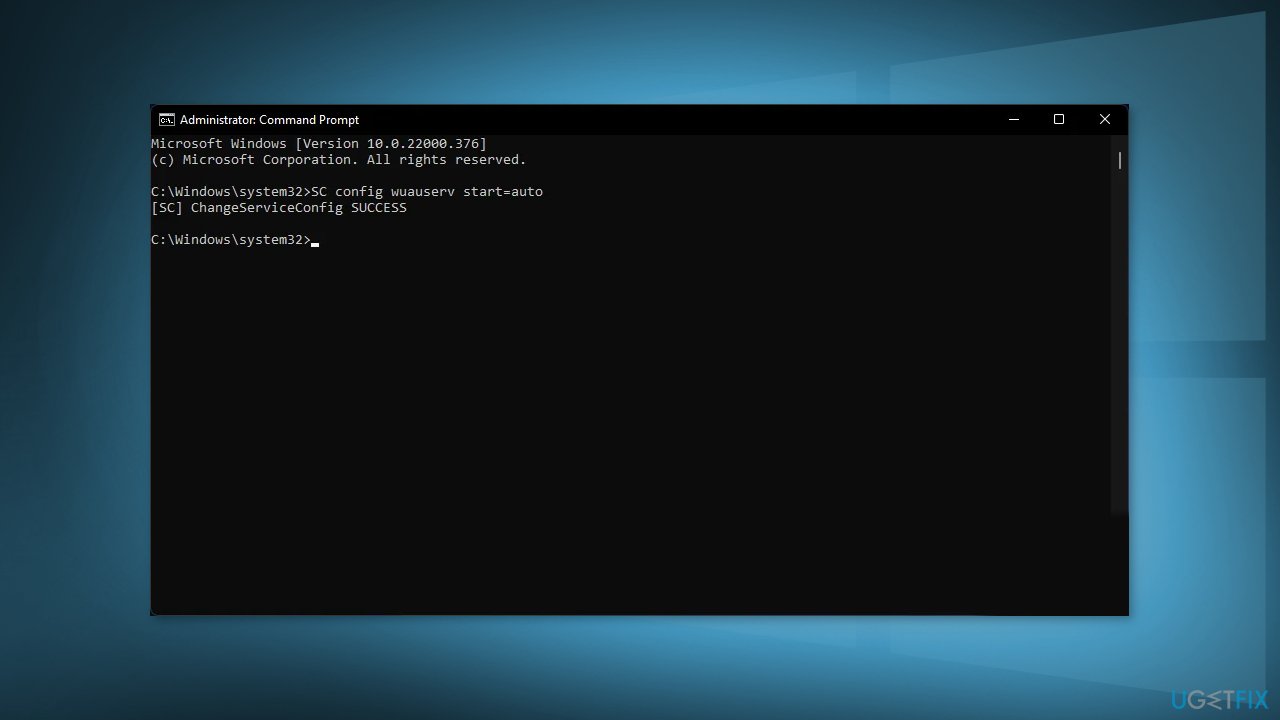
- Close the Command Prompt and restart your computer
Solution 5. Restart Windows Services
- Type services in the search bar and launch the Services utility
- Find Windows Update in the list
- Double-click on it, set the Startup type to Automatic, and click Apply
- Now click on Restart the Service
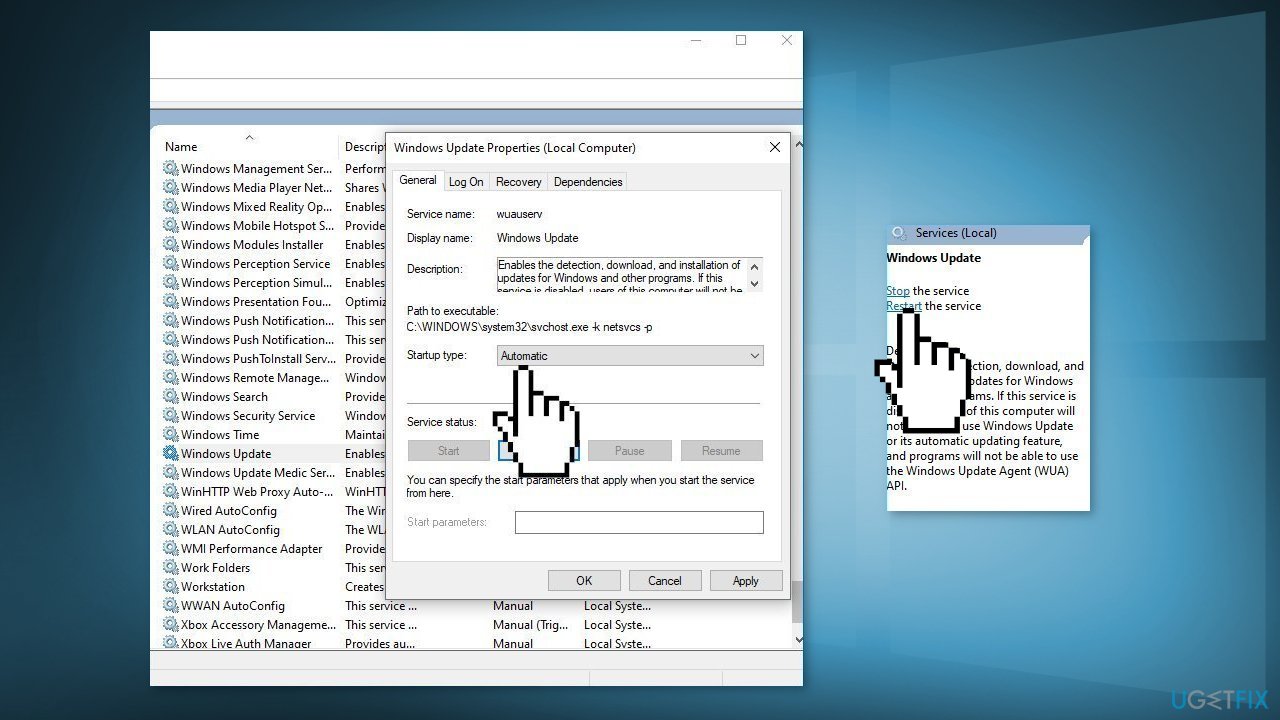
- Do the same with Background Intelligent Transfer Service
Solution 6. Update Device Drivers
Outdated drivers could be the cause of the error. In this case, you can fix it automatically by using [rev id="DriverFix"], which will scan your PC for missing and out-of-date device drivers. Or you can update them manually:
- Open Settings
- Click on Update & Security
- Click on Windows Update
- Click the Check for updates button
- Click the View optional updates option
- Click the Driver updates tab
- Select the driver you want to update
- Click the Download and install button
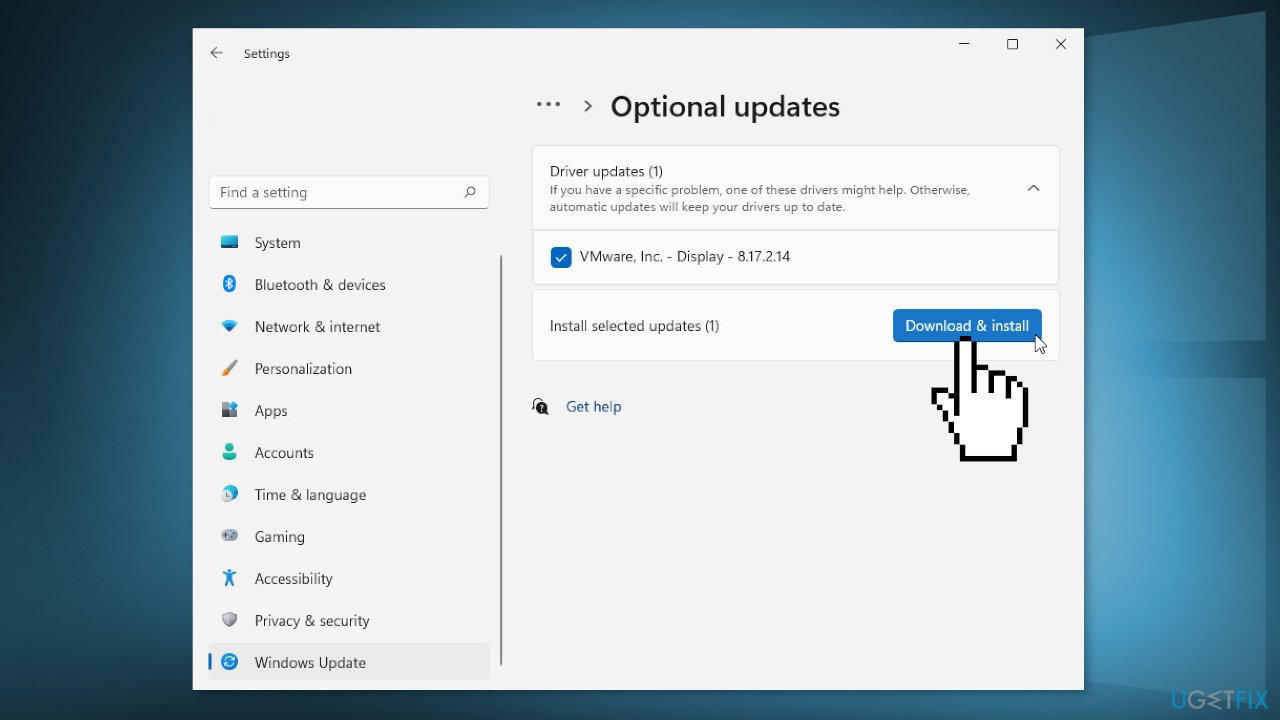
If the View optional updates link is not available after checking for updates, then Windows Update does not have any new drivers or any updates for other products at that particular time.
Solution 7. Repair Install Windows
- Visit the official Microsoft website to download Windows 11 Installation Media
- Run the Media Creation Tool and select Create Installation Media for another PC
- Select your USB drive
- Let the Process complete of writing the Installation files to the USB drive
- Click Finish
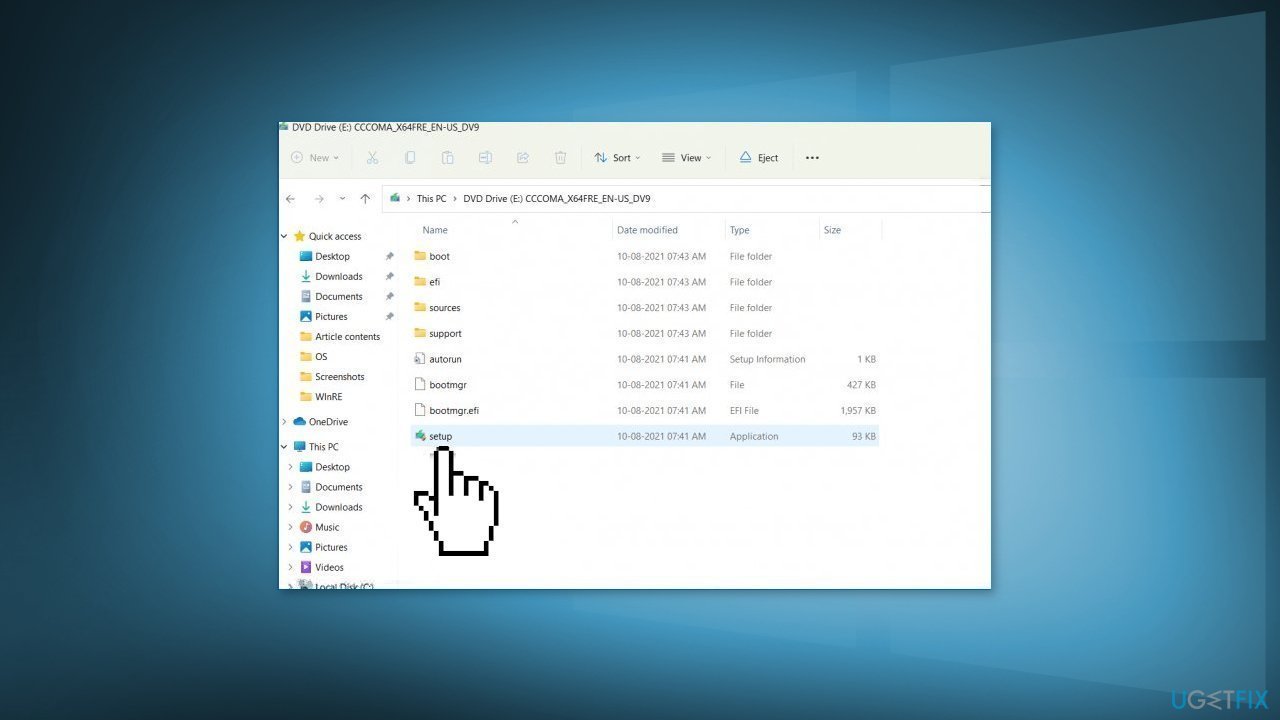
- On the PC you wish to upgrade, Press Windows + E to open the File Explorer
- Open the Removable drive and click Setup.exe
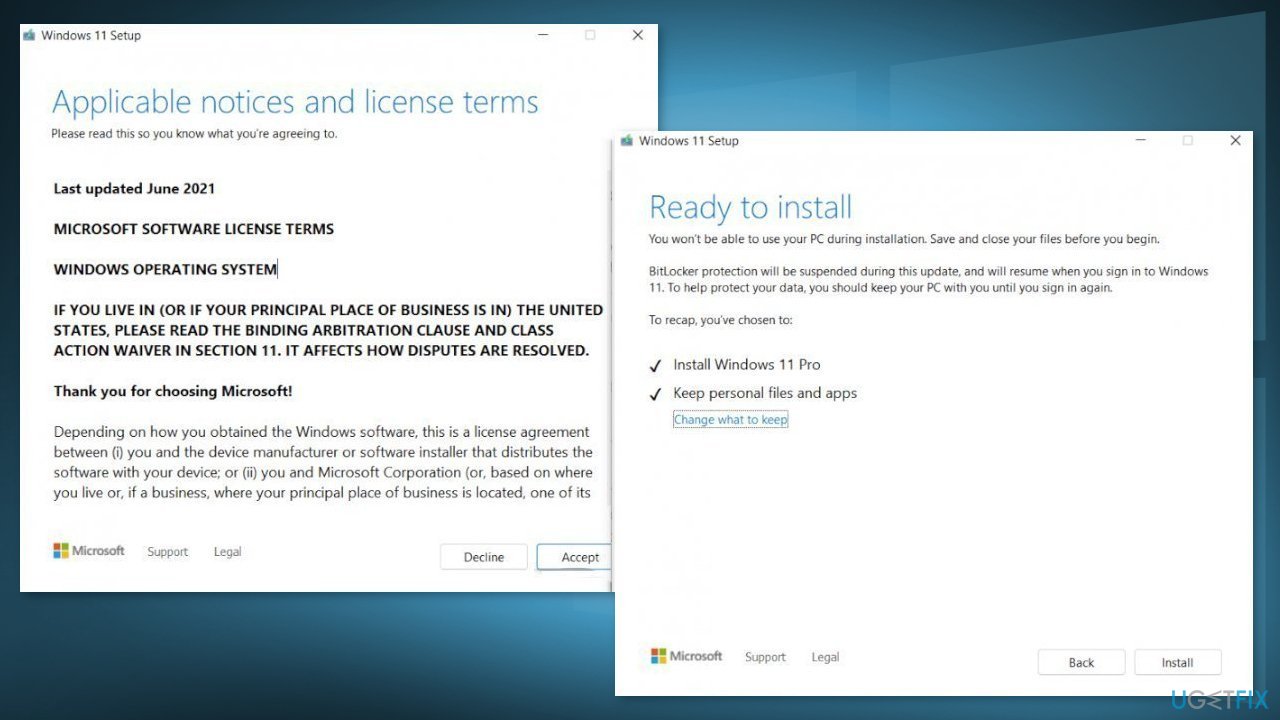
- Accept the license terms on the next screen
- Confirm the Upgrade options – Files, apps and Settings are kept
- Click Install, and the upgrade should start
Bottom line
To fix the KB5016632 installation failure, you can run the Windows Update Troubleshooter, repair corrupted system files using Command Prompt, and disable any third-party security software. If these steps do not resolve the issue, consider using a maintenance tool to automatically fix various system errors.
Frequently asked questions
Try running the Windows Update Troubleshooter, which can help identify and resolve common update issues. You can access it through Settings > Update & Security > Troubleshoot > Additional troubleshooters.
You can download the KB5016632 update directly from the Microsoft Update Catalog website and install it manually. Make sure to choose the correct version for your system architecture (32-bit or 64-bit).
Yes, you can uninstall KB5016632 from Settings > Update & Security > Windows Update > View update history > Uninstall updates to revert the changes until a fix is available.




Report an issue
What's wrong with this guide? We review every report and update or remove content.
Report received — thank you. We'll review and fix it.
You need a free account to submit a report.
Be the first to comment