
How to fix KB5017859 fails to install on Windows 11?

Prefer to fix it yourself? The manual steps follow.
6 methods in this guide
Hi, I keep getting this notification on Windows that I miss some important updates. I tried installing KB5017859 several times, and it just gets stuck in the middle and says it is unable to install it. Please help me with this, thanks.
Updates are downloaded and installed automatically as soon as the system is started, at least if the update settings were not tampered with. Microsoft usually delivers them on Patch Tuesday, which is the second Tuesday of every month. KB5017859 is another typical update that should have arrived in millions of Windows 11 users' systems, but it didn't happen that way.
Many users were unable to install the KB5017859 patch successfully. This problem is not unique to this particular update but is more prominent for installation failures with this release. Users may experience various error codes when dealing with update failures, such as 0x8024A003 or 0x80004002.
The update was released on September 20, 2022, to the public. It is an Update Preview for cumulative dependability improvements to the .NET Framework 3.5, 4.8, and 4.8.1 for Windows 11. While the update is nothing out of the ordinary, users are recommended to apply the latest version as soon as possible for more stability and better performance.
KB5017859 fails to install issue might not sound significant, but update failures should be taken seriously, as there could be underlying issues occurring with the system. For example, incorrectly installed updates may prevent newer versions from being installed in the future. Likewise, malware could be causing the problem, hence we recommend scanning the system with security software as a precautionary measure.
This will likely help you solve such as Blue Screen crashes, system errors, registry corruptions, and other similar problems in the future.
Fix 1. Run the troubleshooter
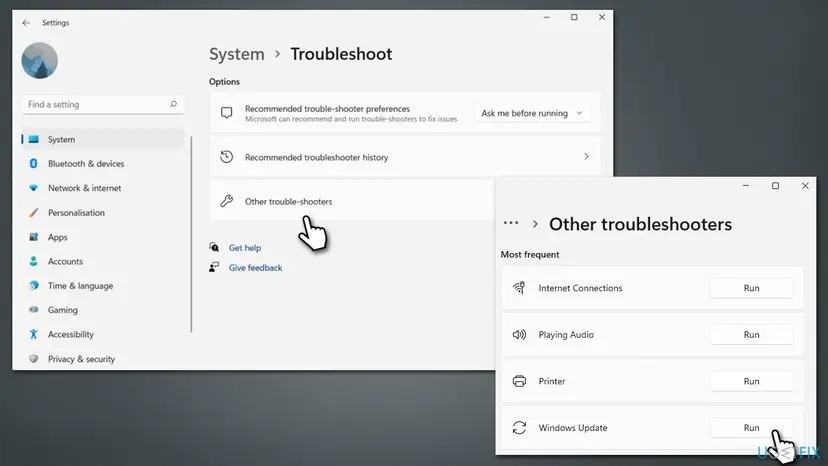
Whenever dealing with Windows update problems, you should always attempt fixing them with the built-in troubleshooter first. Here's how to use it:
- In Windows search, type in troubleshoot and press Enter (you can also go to Start > Settings > System > Troubleshoot)
- Select Other troubleshooters
- Find Windows Update from the list
- Click Run
- Apply the suggested fixes and restart your computer.
Fix 2. Check BITS and Windows Update services
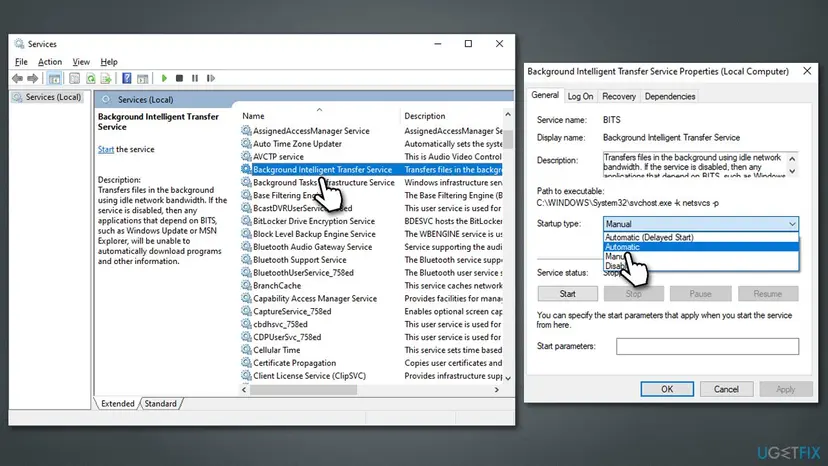
For the update process to be installed smoothly, certain services need to be running
- Type in Services in Windows search and hit Enter
- Scroll down a bit to find Background Intelligent Transfer Service (BITS)
- If it is already running, right-click and select Restart
- if the service is not running, double-click it, pick Automatic under the Startup type drop-down menu
- Click Start, Apply, and OK
- Locate Windows Update Service and repeat this process.
Fix 3. Temporarily disable third-party antivirus
As we mentioned, you should always check your system for malware if you suffering from some unexpected malfunctions, as it could be causing them. However, third-party security software is also known to be causing some issues for Windows users, and update failures are some of the most common ones people encounter.
Once you install security software from a third party, it changes how your operating system runs. Certain processes go through the application first to check for safety. We have seen in many cases that users cannot update their systems because of the anti-malware program installed on their devices. Thus, you can either uninstall the app or disable it temporarily and try updating again - this should help users to fix KB5017859 update failures.
Fix 4. Check for system file corruption
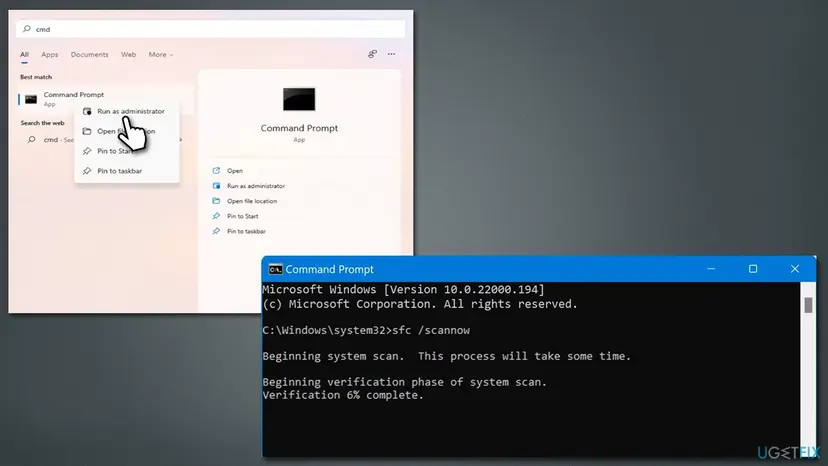
- Type cmd in Windows search
- Right-click on Command Prompt and pick Run as administrator
- When User Account Control shows up, click Yes
- Use the following command lines, pressing Enter after each:
sfc /scannow
DISM /Online /Cleanup-Image /CheckHealth
DISM /Online /Cleanup-Image /ScanHealth
DISM /Online /Cleanup-Image /RestoreHealth - Restart your PC.
Fix 5. Reset Windows Update Components
- Open Command Prompt as administrator again
- In the new window, copy and paste the following commands, pressing Enter each time:
net stop bits
net stop wuauserv
net stop appidsvc
net stop cryptsvc
Del “%ALLUSERSPROFILE%\Application Data\Microsoft\Network\Downloader\*.*”
rmdir %systemroot%\SoftwareDistribution /S /Q
rmdir %systemroot%\system32\catroot2 /S /Q
regsvr32.exe /s atl.dll
regsvr32.exe /s urlmon.dll
regsvr32.exe /s mshtml.dll
netsh winsock reset
netsh winsock reset proxy
net start bits
net start wuauserv
net start appidsvc
net start cryptsvc - Restart your system.
Fix 6. Use Media Creation Tool
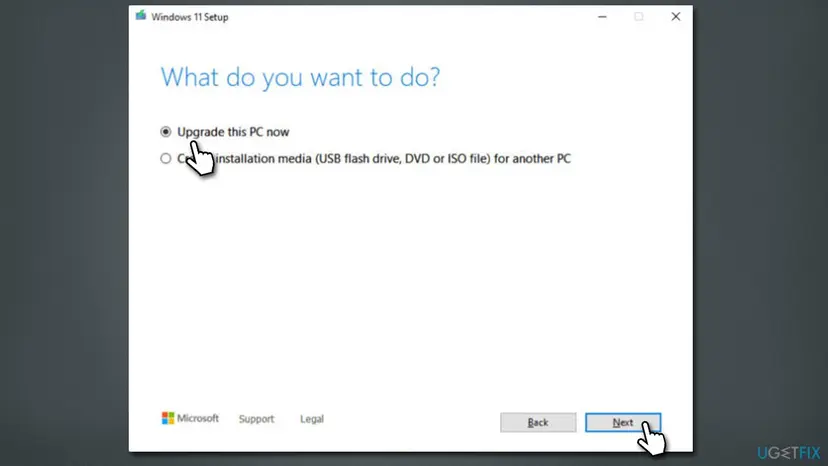
Use the official tool from Microsoft to update your system to the latest version.
- Visit the official Microsoft website and download Windows installation media
- Double-click the installer and select Yes when UAC shows up
- Agree to terms and click Next
- Select Upgrade this PC now and pick Next
- Windows will now download all the necessary files – wait till it's complete
- Agree to terms once again and click Next
- Before installing, make sure that you are happy with your choices (although you can click Change what to keep option)
- Click Install to begin the upgrade process.
Did this fix work?
One click, no account. It tells the next reader which guides are worth their time.
Questions and experiences: fix KB5017859 fails to install on Windows 11
Still broken, or found a fix we did not cover? Ask here: members and our editors answer. Reading is open; writing needs a free account.
…