How to fix
KB5018427 fails to install
on Windows
Resolve KB5018427 installation issues on Windows 11 quickly with our expert-tested solutions. Get back to smooth performance in minutes!

What causes How to fix KB5018427 fails to install in Windows 11?
- Corrupted system files
- Malfunctioning Windows services
- Network configurations
- Issues with the servicing stack
- Errors in the Windows Update process
Repairs Windows system files, removes malware, and restores a clean OS state — without reinstalling.
Hello. I tried to install the newest Windows 11 update KB5018427 but the process fails. How do I fix this?
Microsoft regularly releases updates for Windows. They contain new features, bug fixes, or security patches. They are incredibly important and help keep the operating system running smoothly as well as protect it from various vulnerabilities that can be exploited by hackers.
Recently, Microsoft released a new update KB5018427[ref en-1] for Windows 11. It addresses security issues and makes quality improvements to the servicing stack, which is the component that installs Windows updates. However, some people were unsuccessful when trying to install it.
There are many things that could cause KB5018427 to fail to install. Generally, the updating process is interrupted because of corrupted system files, malfunctioning Windows services, or network configurations. In this guide, you will find 6 steps that should help you fix the issue.
Keep in mind, that manual troubleshooting can be a lengthy process. You can use a maintenance tool, like [d1] to scan your machine. It can fix most system errors, BSODs,[ref en-2] corrupted files, and registry[ref en-3] issues automatically Otherwise, follow the step-by-step instructions below.
Method 1. Run Windows Update Troubleshooter
- Click the Windows button and select Settings
- Select System from the left pane, then scroll down on the right pane, and click on Troubleshoot
- Click on Other troubleshooters
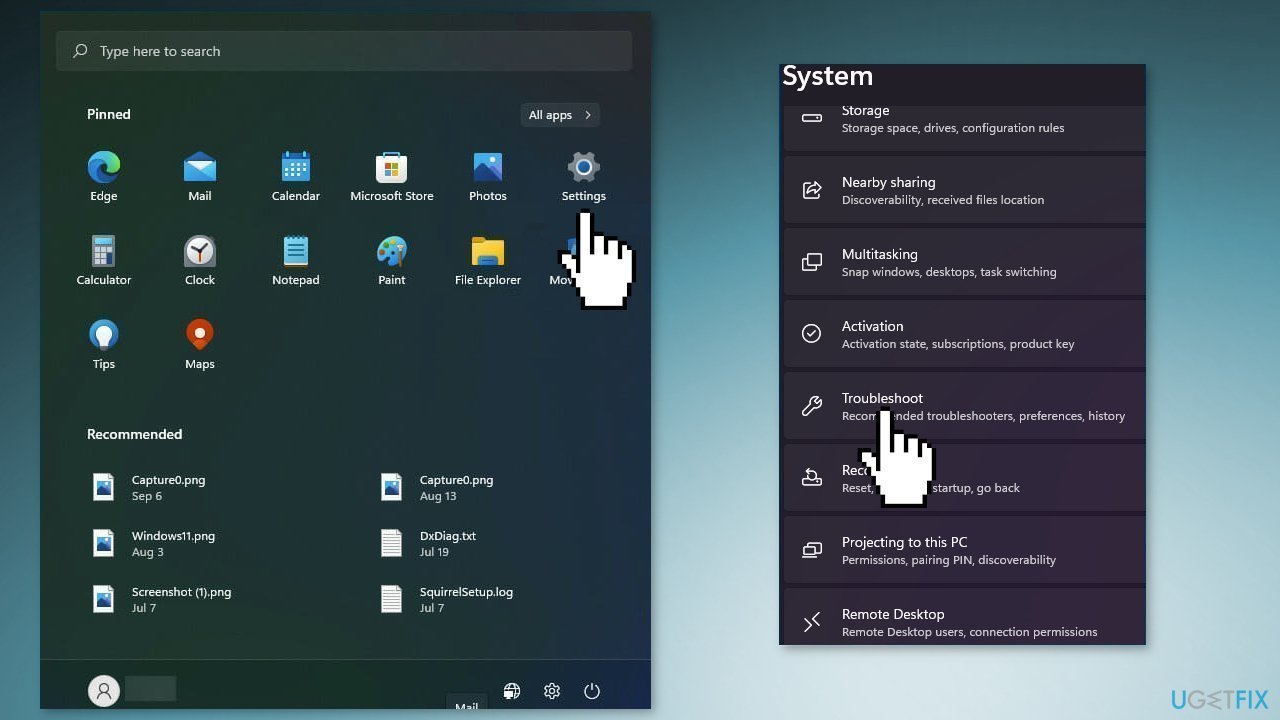
- Locate the Windows Update troubleshooter and hit the Run button
Method 2. Fix Corrupted System Files
Use Command Prompt commands to repair system file corruption:
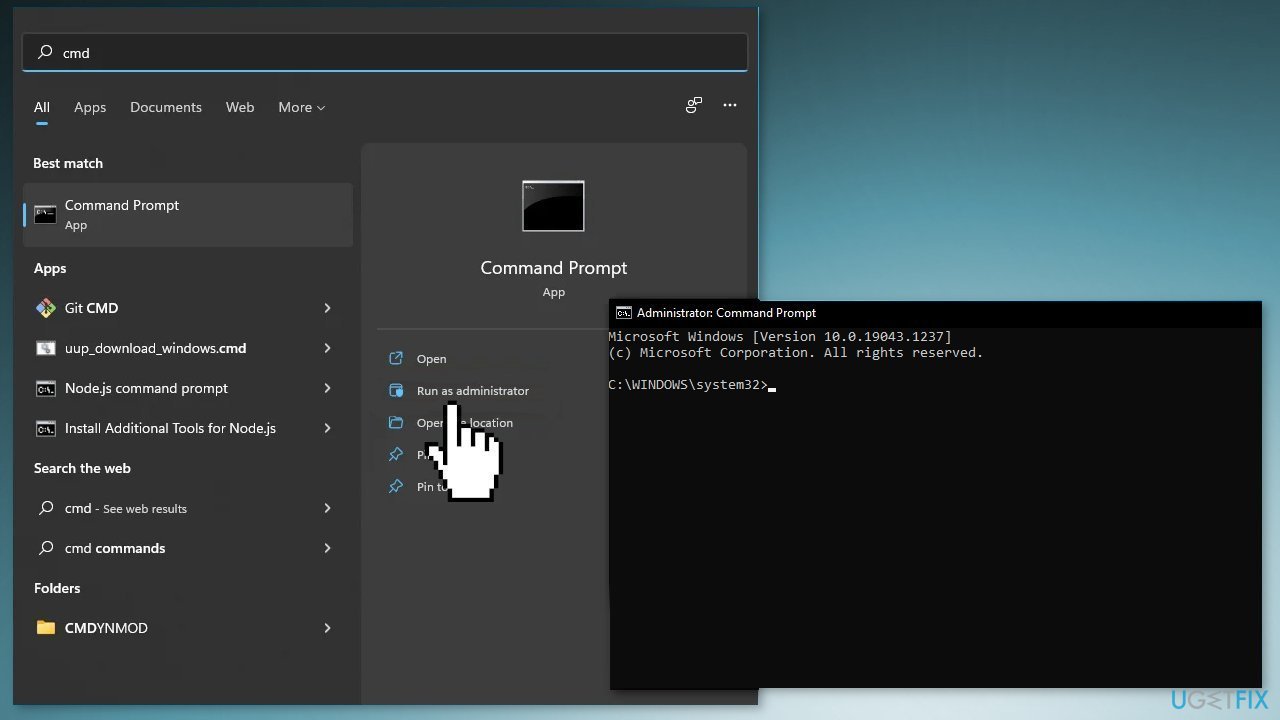
- Open Command Prompt as administrator
- Use the following command and press Enter:
sfc /scannow
- Reboot your system
- If SFC returned an error, then use the following command lines, pressing Enter after each:
DISM /Online /Cleanup-Image /CheckHealth
DISM /Online /Cleanup-Image /ScanHealth
DISM /Online /Cleanup-Image /RestoreHealth
Method 3. Restart Windows Services
- Type services in the search bar and launch the Services utility
- Find Windows Update in the list
- Double-click on it, set the Startup type to Automatic, and click Apply
- Now click on Restart the Service
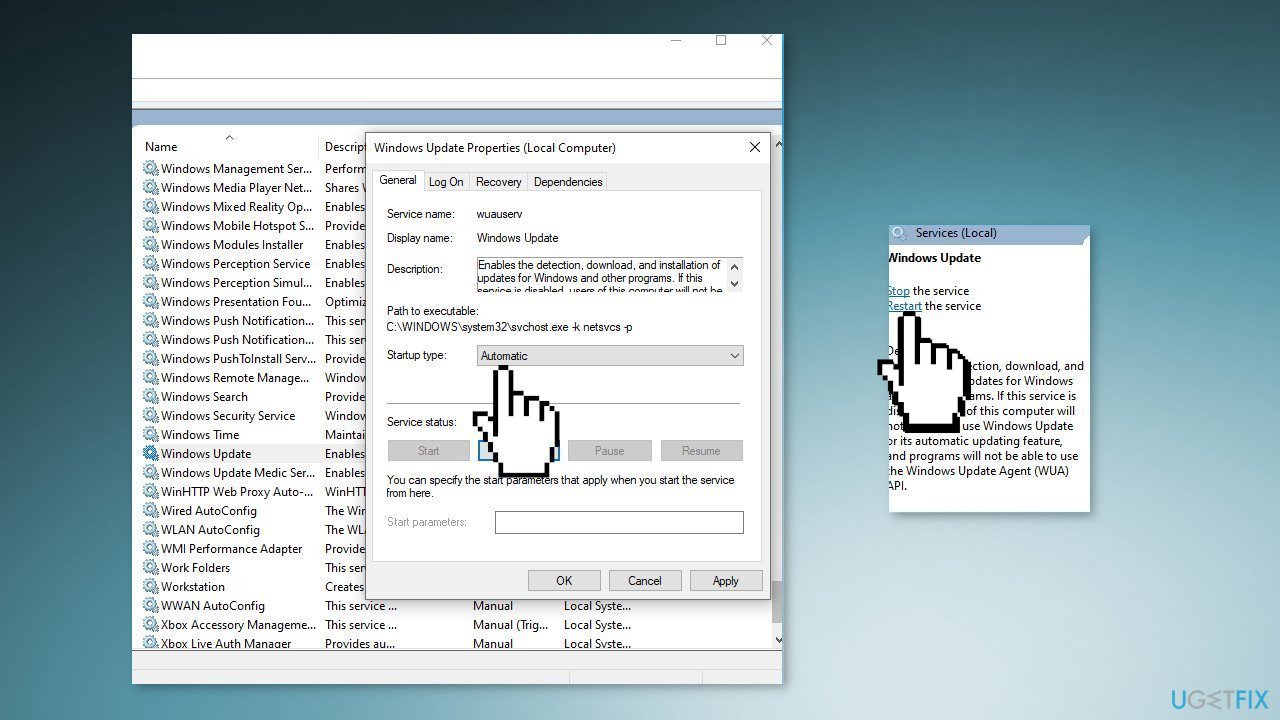
- Do the same with Background Intelligent Transfer Service
Method 4. Switch to Google DNS
- Press the Windows key + R to open the Run box
- Type ncpa.cpl and press Enter
- Right-click on your network adapter and choose Properties
- Select Internet Protocol version 4 (TCP/IPv4), then click on Properties
- Check Use the following DNS server addresses
- Set Preferred DNS server to 8.8.8.8 and Alternate DNS server to 8.8.4.4
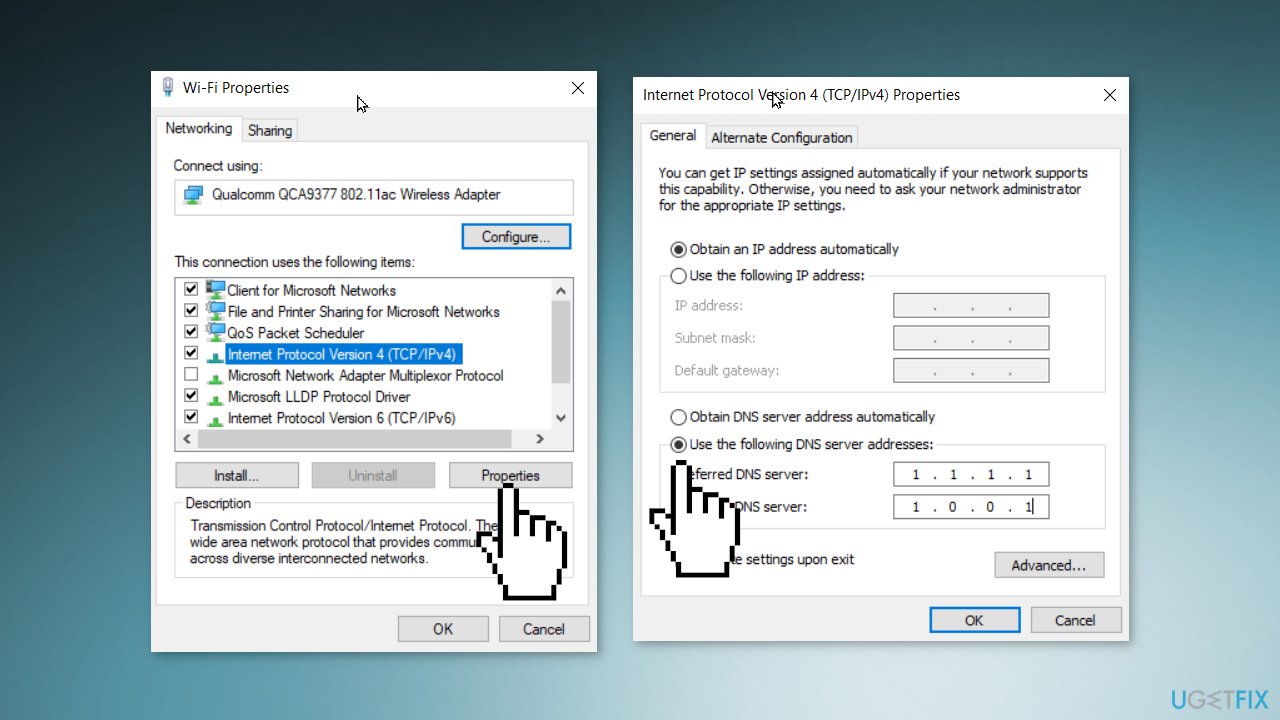
- Click on Apply to save the changes and restart your PC
- Check for updates
Method 5. Install the Update Manually
If automatic download would not succeed, we recommend trying to download and install the update manually.
- Go to the official Microsoft Update Catalog website
- Type the KB number KB5018427 into the search bar, and press Enter or click Search
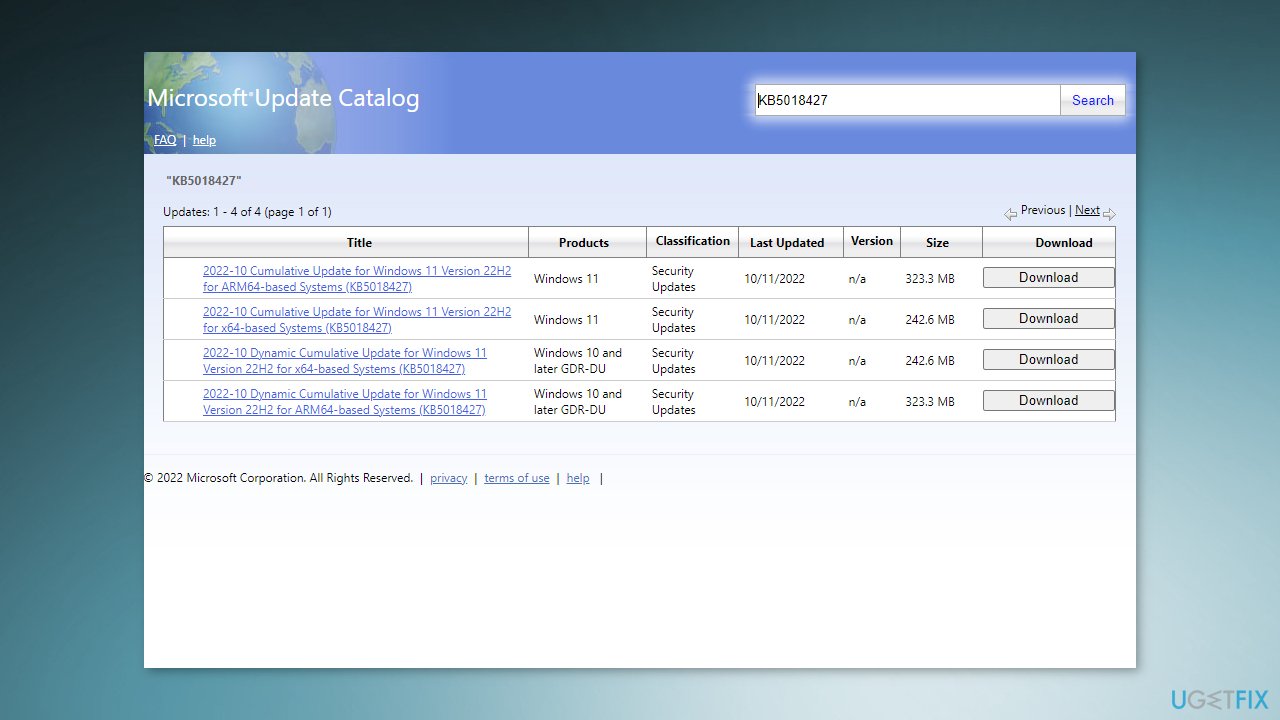
- You will find many different versions on the update – you need to find the one that matches your PC specs and Windows version (as a home user, ignore Windows server versions)
- After picking the correct version, click the Download button and proceed with on-screen instructions
- Restart your system once done.
Method 6. Repair Install Windows
- Visit the official Microsoft website to download Windows 11 Installation Media
- Run the Media Creation Tool and select Create Installation Media for another PC
- Select your USB drive
- Let the Process complete of writing the Installation files to the USB drive
- Click Finish
- On the PC you wish to upgrade, Press Windows + E to open the File Explorer
- Open the Removable drive and click Setup.exe
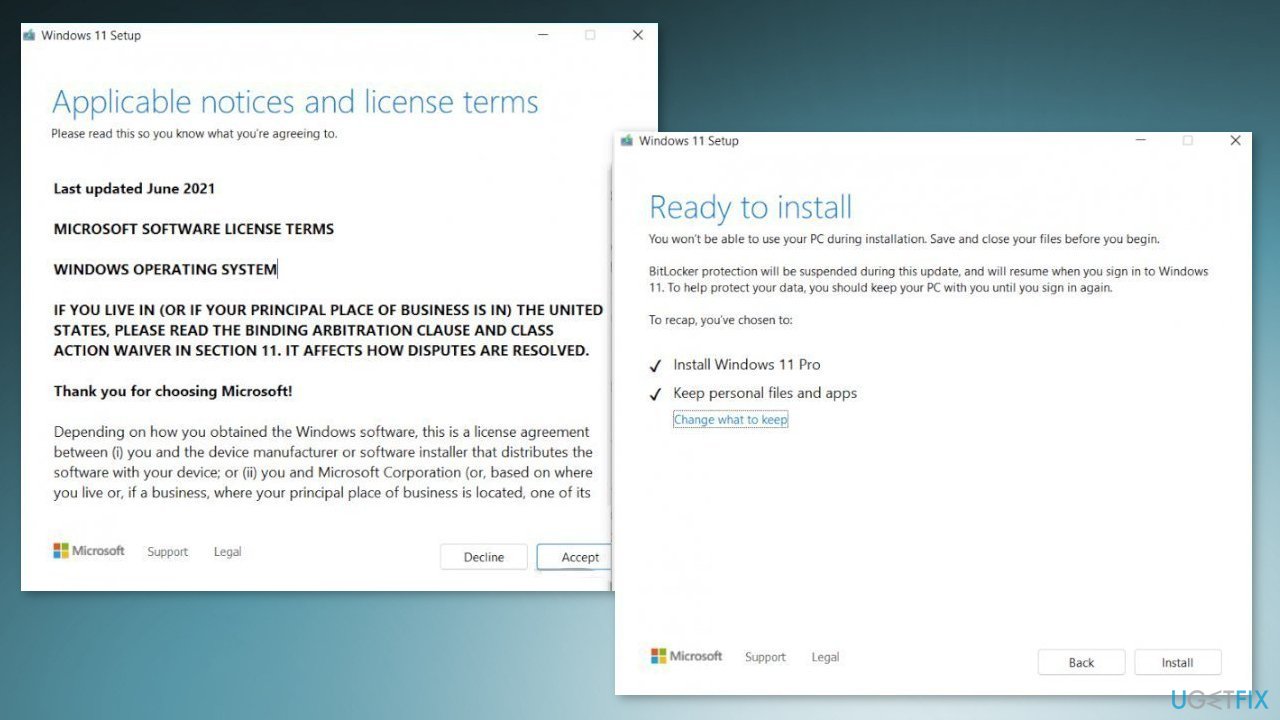
- Accept the license terms on the next screen
- Confirm the Upgrade options – Files, apps and Settings are kept
- Click Install, and the upgrade should start
Bottom line
To fix the KB5018427 installation failure, you can run the Windows Update Troubleshooter, repair corrupted system files using Command Prompt, and restart relevant Windows services. If these methods do not resolve the issue, consider using a maintenance tool to automatically fix system errors.
Frequently asked questions
First, try running the Windows Update Troubleshooter from Settings > Update & Security > Troubleshoot. If that doesn't work, consider manually downloading the update from the Microsoft Update Catalog.
Yes, you can uninstall the update by going to Settings > Update & Security > Windows Update > View update history > Uninstall updates.
You can check if KB5018427 is installed by navigating to Settings > Update & Security > Windows Update > View update history, where it will be listed if it has been successfully installed.




Report an issue
What's wrong with this guide? We review every report and update or remove content.
Report received — thank you. We'll review and fix it.
You need a free account to submit a report.
Be the first to comment