How to fix
KB5018499 fails to install
on Windows
Resolve the KB5018499 installation error in Windows 11 with expert-tested solutions. Get your updates running smoothly, fixed in minutes!

What causes How to fix KB5018499 fails to install in Windows 11?
- Windows update process is hindered by errors
- System files may be damaged
- Malware could be affecting Windows functionality
- User preferences for manual updates may lead to issues
- Incompatibility with existing system configurations
Repairs Windows system files, removes malware, and restores a clean OS state — without reinstalling.
Every time I check my Windows updates, I see that KB5018499 failed to install. After clicking "Retry," I get the same error every time. Is there a way to get rid of this and install the newest update for Windows 11? I really appreciate any help you can provide.
The Windows operating system has undergone significant development. With the most recent releases, Microsoft started offering Windows support as a service, which means that users now receive frequent security, feature, cumulative, and other upgrades. They increase the device's stability, enhance already-existing features or add new ones, fix security flaws,[ref en-1] distribute the most recent drivers, and more. Updates are unquestionably essential for everyone and shouldn't be ignored.
Usually, pre-set options start the Windows update process automatically, ensuring prompt delivery. Some users prefer to start the process manually, which is another option. Regardless of preferences, there are problems that hinder the deployment of both types of updating methods.
KB5018499 is a routine update released on October 20 as a Preview Build for Windows 11, incorporating builds 22621.870 and 22623.870. The update is meant to show users all sorts of new features, such as Task Manager being added to the taskbar when right-clicking it or upgrades to the system tray. As evident, many users were eager to check these newest improvements, but some have received an error 0x800f0806 when trying to install the latest build (can vary).
Windows Insider program[ref en-2] is completely optional, but there are many users who eagerly participate in it. When KB5018499 fails to install, people are not able to experience them, rendering the program useless. Therefore, there is a great need to fix the issue and install the update.
Below you will find several methods that should help you deal with the annoying error. Before proceeding, we recommend running a check with [d1] to ensure that the system is not damaged and it's not malware that's causing Windows to malfunction.
1. Start with the troubleshooter
While running a troubleshooter is one of the simplest solutions, some people forget them. Thus, if you haven't done so yet, please run the troubleshooter for Windows updates as follows:
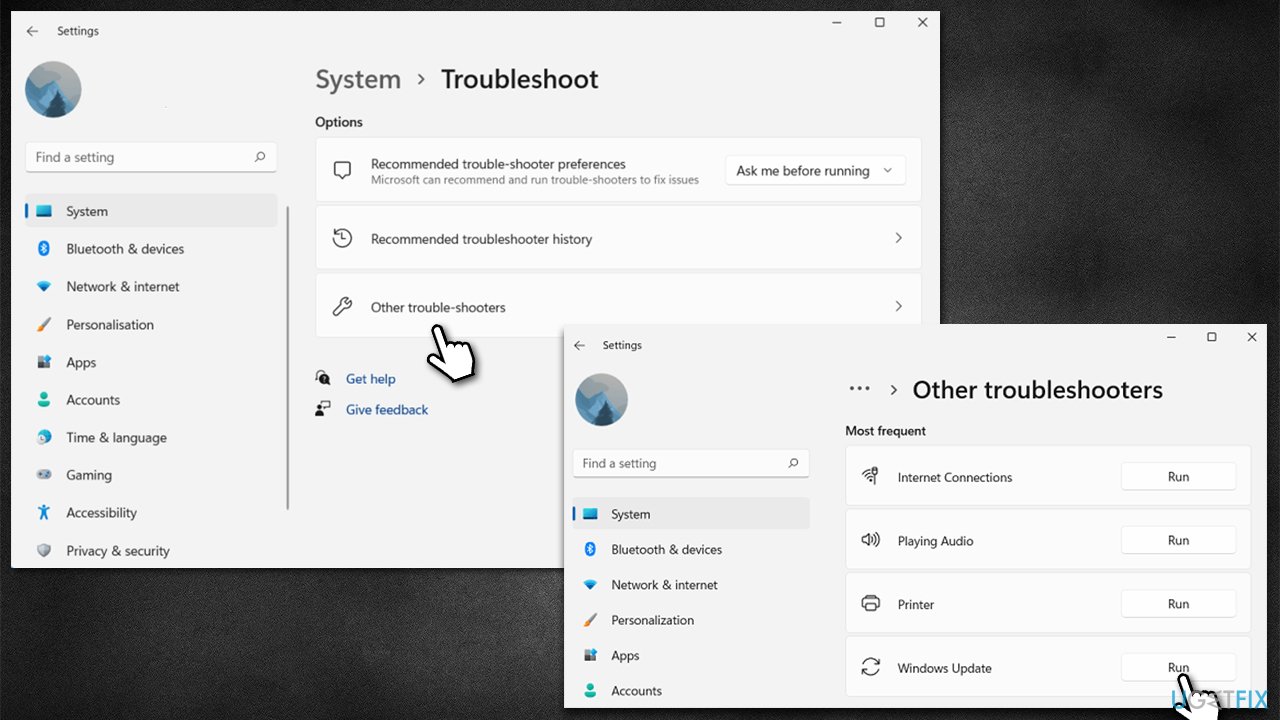
- In Windows search, type in troubleshoot and press Enter (you can also go to Start > Settings > System > Troubleshoot)
- Pick Other trouble-shooters (in Windows 10, pick Additional troubleshooters)
- Scroll down to locate the Windows Update option and click Run
- Wait till the scan is finished, apply the changes, and try running the update process once again.
2. Diable third-party antivirus
Third-party security is known for users' not being able to install the newest Windows updates and may, in some cases, cause errors when trying to do so. This is because, upon installation, security software modifies settings on the kernel[ref en-3] level, which may impact how connections to certain servers are handled. In some cases, legitimate connections may be misinterpreted as malicious ones, hence Windows update errors occur. To check if it's the case, you should either temporarily disable protection and attempt to download the newest update or simply uninstall the software.
3. Run SFC and DISM
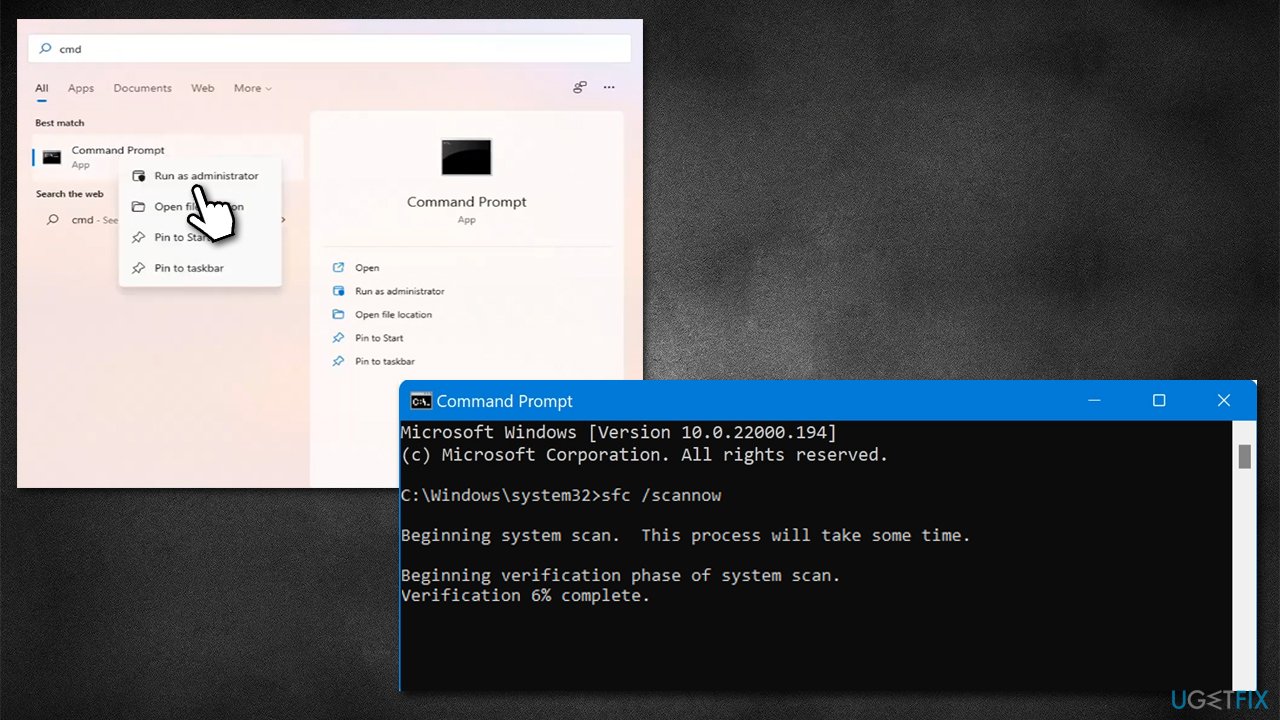
- Type cmd in Windows search
- Right-click on Command Prompt and pick Run as administrator
- When User Account Control shows up, click Yes
- Use the following command lines, pressing Enter after each:
sfc /scannow
DISM /Online /Cleanup-Image /CheckHealth
DISM /Online /Cleanup-Image /ScanHealth
DISM /Online /Cleanup-Image /RestoreHealth - Restart your PC.
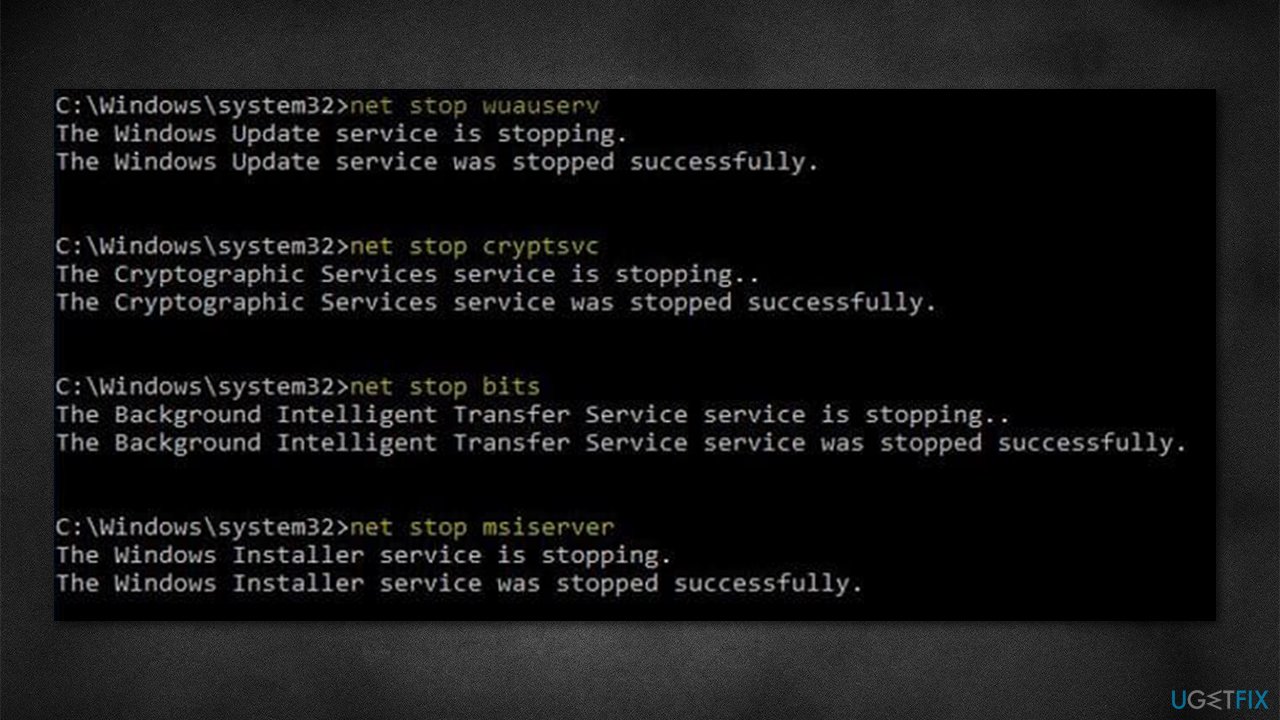
4. Reset Windows update components
Windows update caches might get bugged. Resetting Windows update components might be helpful.
- Open Command Prompt as administrator again
- In the new window, paste in each of these commands, pressing Enter every time:
net stop bits
net stop wuauserv
net stop appidsvc
net stop cryptsvc
Del “%ALLUSERSPROFILE%\Application Data\Microsoft\Network\Downloader\*.*”
rmdir %systemroot%\SoftwareDistribution /S /Q
rmdir %systemroot%\system32\catroot2 /S /Q
regsvr32.exe /s atl.dll
regsvr32.exe /s urlmon.dll
regsvr32.exe /s mshtml.dll
netsh winsock reset
netsh winsock reset proxy
net start bits
net start wuauserv
net start appidsvc
net start cryptsvc - Restart your device.
5. Perform in-place upgrade
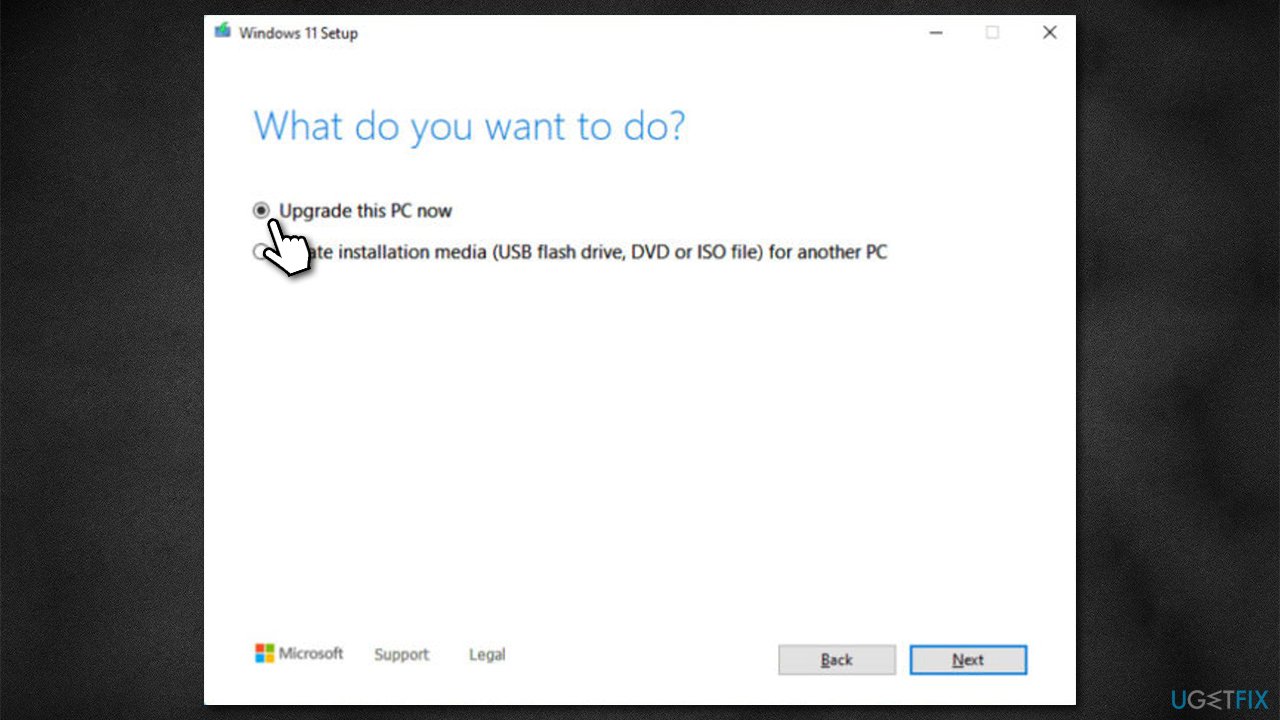
This step will allow you to upgrade your system using files from Media Creation Tool. Before proceeding, make sure that any security software from third parties is uninstalled and
- Visit the official Microsoft website and download the Windows installation media
- Double-click the installer and select Yes when UAC shows up
- Agree to the terms and click Next
- Select Upgrade this PC now and select Next
- Windows will now download all the necessary files – it might take sometime
- Agree to terms once again and click Next
- Before installing, make sure that you are happy with your choices (otherwise, you can click Change what to keep option)
- Click Install to begin the upgrade process.
Bottom line
To resolve the KB5018499 installation failure, you can start by running the troubleshooter, checking for system damage, and ensuring that malware is not present. If these methods do not work, consider seeking further assistance or exploring additional troubleshooting steps.
Frequently asked questions
You can try running the Windows Update Troubleshooter from the Settings app, which may help resolve the issue. Additionally, ensure that you have enough disk space available and try disabling any third-party antivirus software temporarily.
You can download the standalone update package directly from the Microsoft Update Catalog website and install it manually. Make sure to select the correct version that matches your system architecture.
Yes, certain software or system configurations may conflict with the update, leading to installation failures. It's recommended to check for any known issues on Microsoft's official support page related to KB5018499.




Report an issue
What's wrong with this guide? We review every report and update or remove content.
Report received — thank you. We'll review and fix it.
You need a free account to submit a report.
Be the first to comment