How to fix
KB5018545 fails to install
on Windows
Resolve KB5018545 installation issues on Windows 10 effortlessly. Get expert-tested solutions with screenshots for a quick fix in minutes!

What causes How to fix KB5018545 fails to install in Windows 10?
- Corrupted files
- Malfunctioning update components
- Outdated drivers
- Third-party antivirus interference
Repairs Windows system files, removes malware, and restores a clean OS state — without reinstalling.
Hello. I tried to install the most recent Windows 10 update KB5018545 but the process fails. How can I fix this?
KB5018545[ref en-1] is a cumulative update for .NET Framework 3.5, 4.8, and 4.8.1 released on October 11. It contains quality and reliability improvements. It is important to keep the operating system updated to keep it running smoothly. The updates offer bug fixes, new functions, and security patches.
However, sometimes people run into issues when trying to install them. Some people report that KB5018545 fails to install in Windows 10. It is unknown why exactly this could be happening. In most cases, Windows updates cannot install because of corrupted files, malfunctioning update components, outdated drivers, or third-party antivirus interference.
In this guide, you will find 7 steps that should help you fix KB5018545 fails to install in Windows issue. Keep in mind, that manual troubleshooting can be a lengthy process, so you can also use a maintenance tool like [d1] to scan your machine. This powerful software can fix most system errors, BSODs,[ref en-2] corrupted files, and registry[ref en-3] issues automatically. Otherwise, follow the step-by-step instructions below.
Solution 1. Uninstall Third-Party Antivirus
Sometimes third-party security tools can interfere with legitimate Windows processes because it is seeing them as malicious. If you have any antivirus installed on your computer, remove it to see if it fixes the issue:
- Go to Apps & features
- Find third-party antivirus in the list
- Click on it once and then click Uninstall
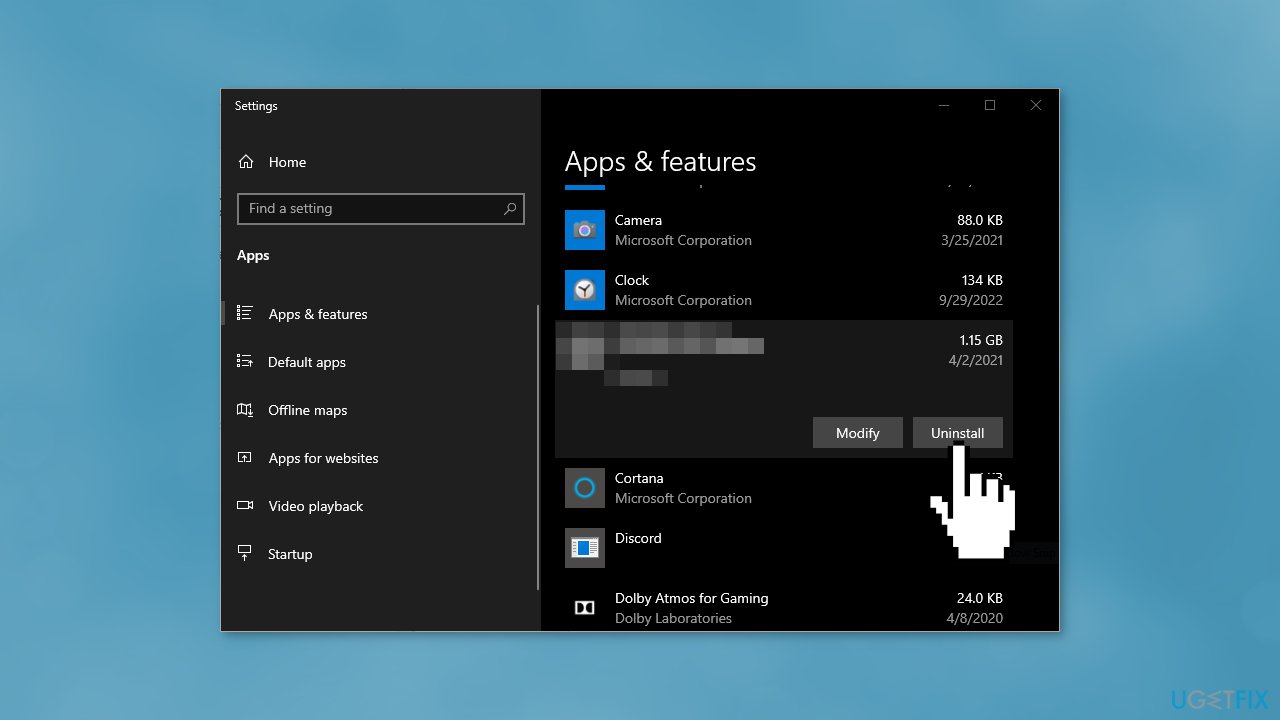
- Wait for the process to finish and check if you can install updates
Solution 2. Remove Windows Update Files
- Press the Windows key + X and click on PowerShell (Admin)
- Copy and paste the following commands and press Enter after each one:
net stop bits
net stop wuauserv
net stop msiserver
net stop cryptsvc - Press the Windows key + R to open the Run box
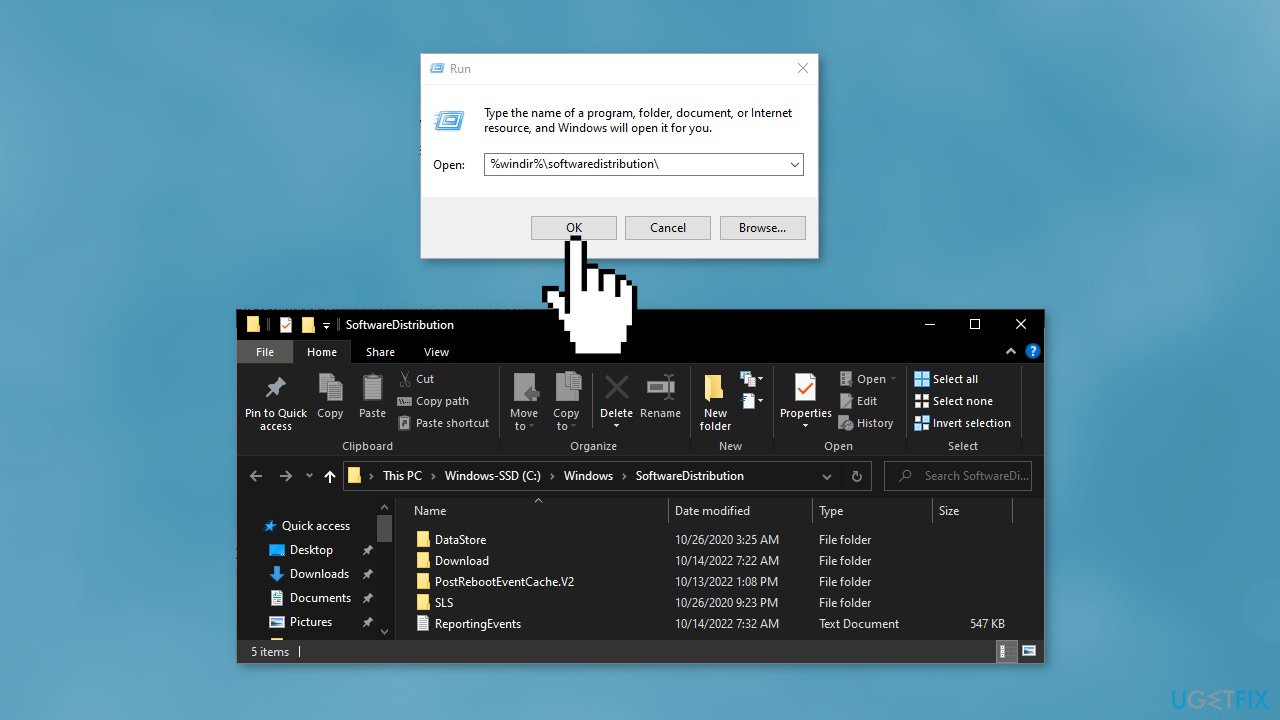
- Type %windir%\softwaredistribution\ press Enter
- Delete all content inside the SoftwareDistribution folder
- Press the Windows key + X and click PowerShell (Admin) again
- Copy and paste the commands below and press Enter after each one:
net start bits
net start wuauserv
net start msiserver
net start cryptsvc - Check if you can install Windows updates
Solution 3. Run the Windows Update Troubleshooter
- Press the Windows + X keys and go to Settings
- Go to Update and Security
- Click Troubleshooter
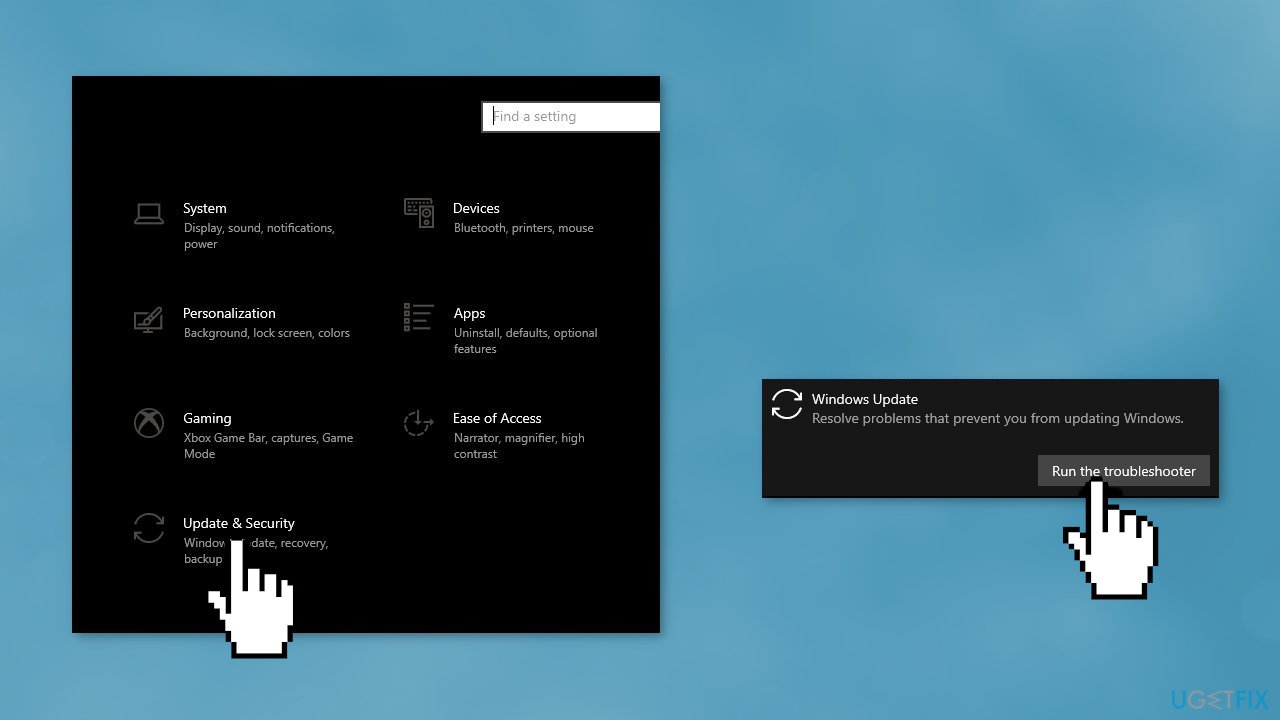
- Select Additional troubleshooters
- Run the Update troubleshooter
- Restart
Solution 4. Fix Corrupted System Files
Use Command Prompt commands to repair system file corruption:
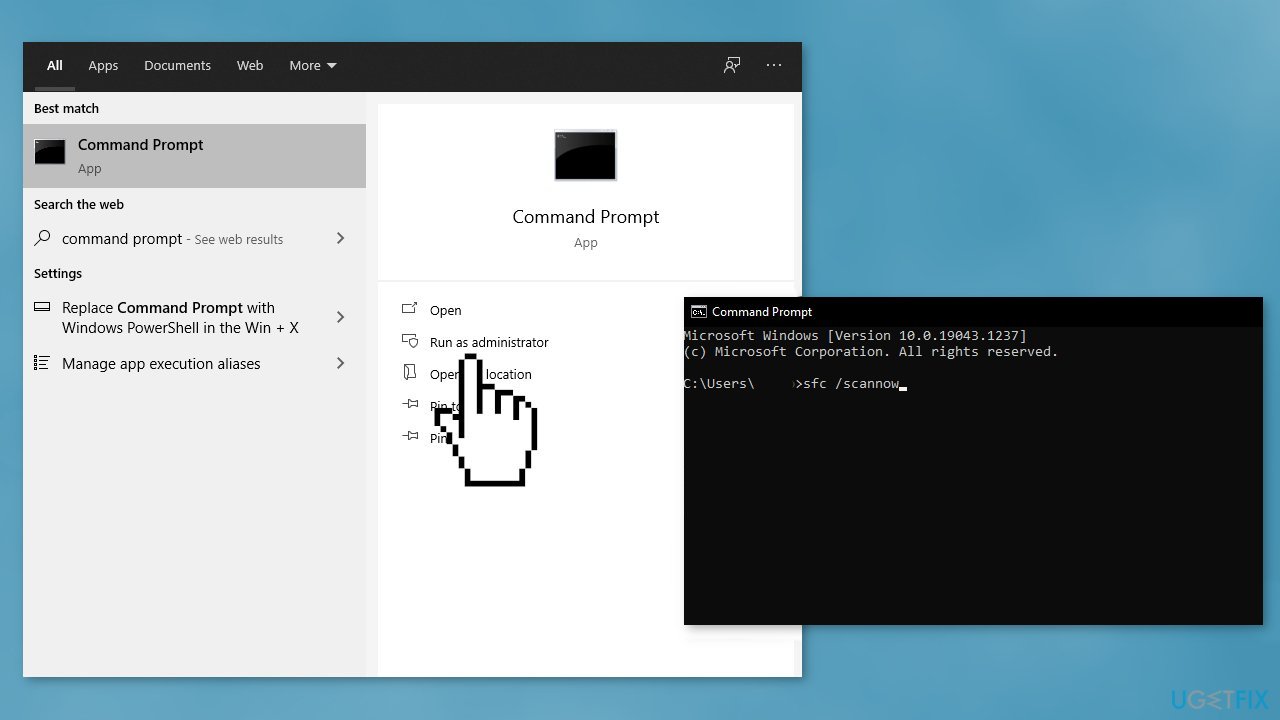
- Open Command Prompt as administrator
- Use the following command and press Enter:
sfc /scannow
- Reboot your system
- If SFC returned an error, then use the following command lines, pressing Enter after each:
DISM /Online /Cleanup-Image /CheckHealth
DISM /Online /Cleanup-Image /ScanHealth
DISM /Online /Cleanup-Image /RestoreHealth
Solution 5. Update Drivers
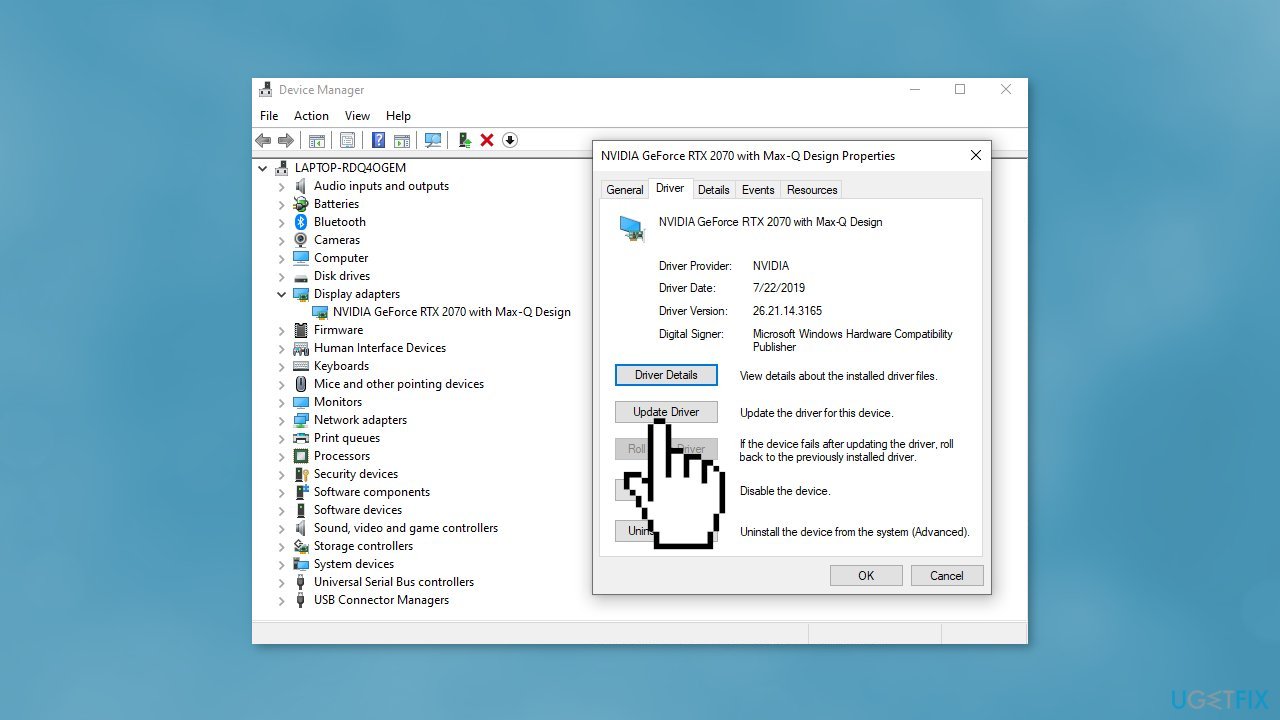
- In the search box on the taskbar, enter device manager, then select Device Manager
- Select a category to see the names of devices, then right-click the one you’d like to update
- Select Search automatically for updated driver software
- Select Update Driver
- If Windows doesn't find a new driver, you can try using an automatic tool like [rev id="DriverFix"] which can find the best drivers for your system
Solution 6. Install the Update Manually
Whenever Windows updates fail to install automatically, you can always try doing it manually. First, you need to find out which KB number is relevant to you.
- Right-click Start button and pick Settings
- Go to Update & Security
- On the right, locate and click View update history
- From the list, note the KB number that fails to install with the error code
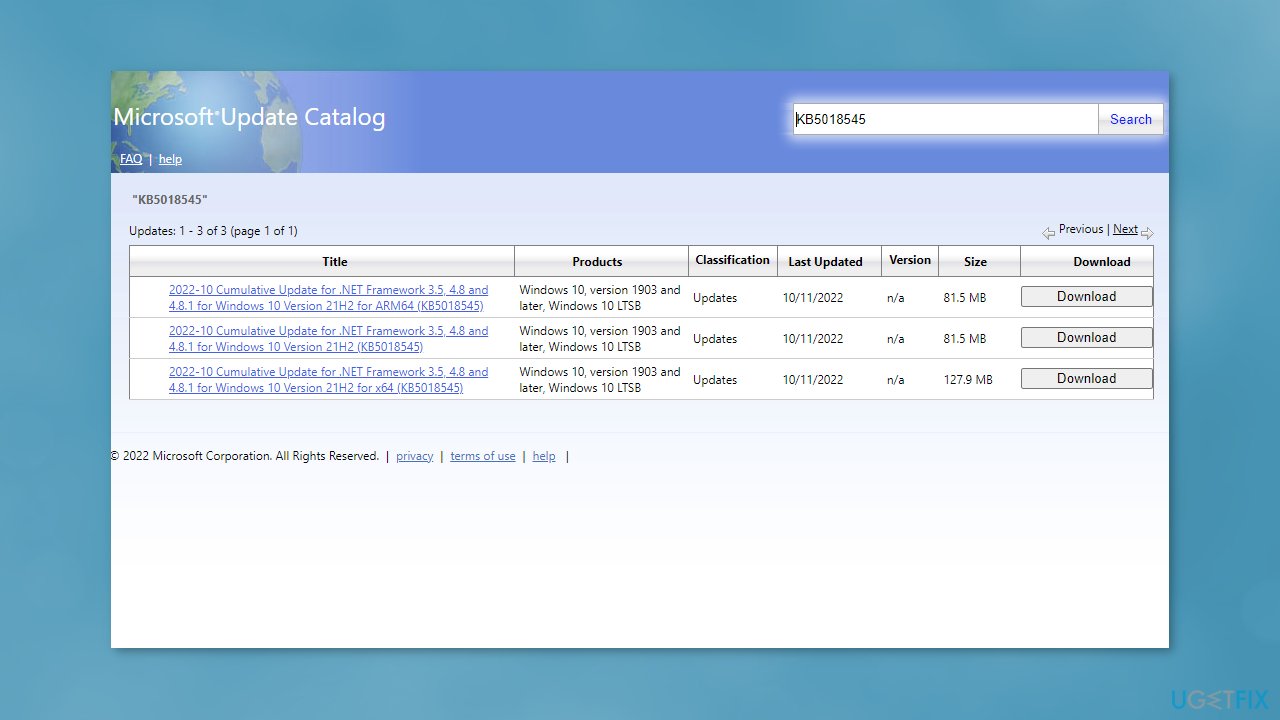
- Go to Microsoft Update Catalog page, type in the KB number and press Search
- Download the update and install it manually
Solution 7. Update via Media Creation Tool
- Download Windows 10 installation media from the official website
- Open the tool once it installed
- Agree to license terms
- Choose Upgrade this PC now
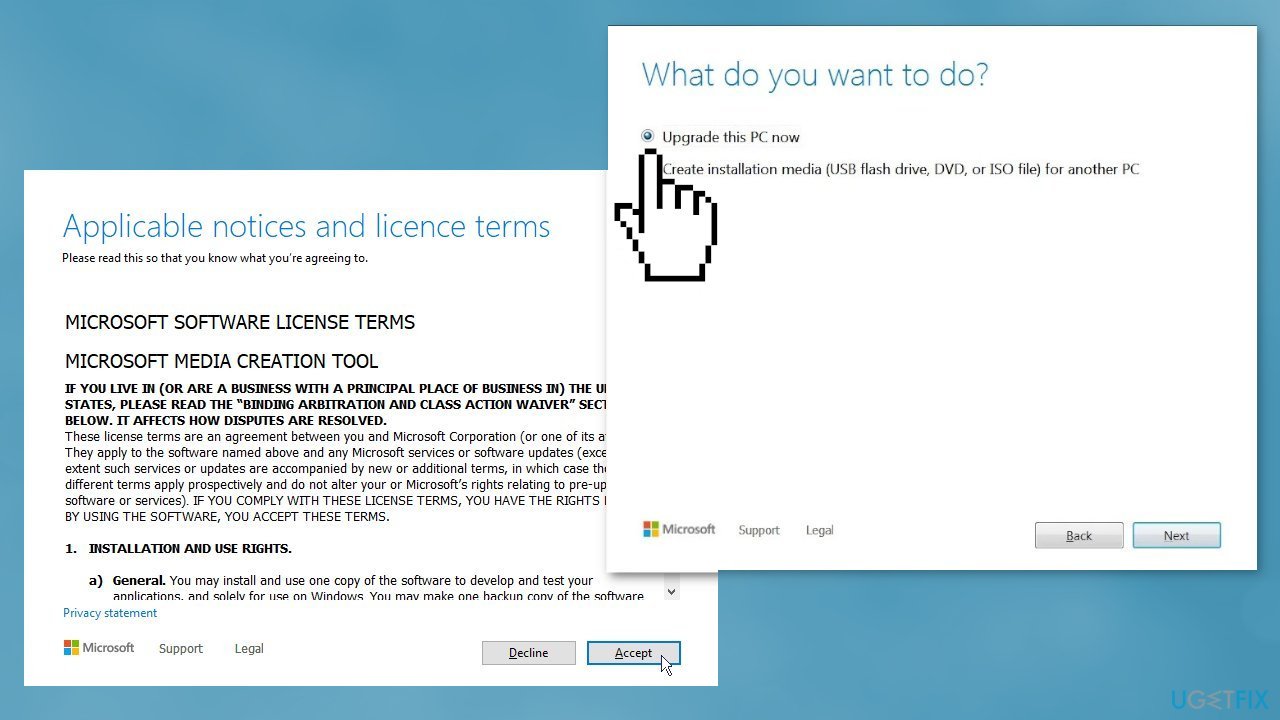
- Wait for the update to be installed
Bottom line
To fix the KB5018545 installation failure, you can uninstall third-party antivirus software, remove Windows update files, and follow additional troubleshooting steps. If these solutions do not resolve the issue, consider using a maintenance tool to automatically fix system errors.
Frequently asked questions
First, try running the Windows Update Troubleshooter to identify and fix issues. If that doesn't work, consider manually downloading and installing the update from the Microsoft Update Catalog.
Yes, common error codes include 0x800F0922 and 0x8007000d, which indicate issues with the update process or missing files. You can look up these codes for tailored troubleshooting steps.
Yes, you can temporarily pause updates in Windows 10 settings to prevent this update from installing until you resolve the underlying issues.




Report an issue
What's wrong with this guide? We review every report and update or remove content.
Report received — thank you. We'll review and fix it.
You need a free account to submit a report.
Be the first to comment