How to fix
KB5019275 fails to install
on Windows
Struggling with KB5019275 installation errors on Windows 10? Discover effective fixes that work seamlessly. Get your system back on track—expert-tested!

What causes How to fix KB5019275 fails to install in Windows 10?
- Corrupted or missing system files
- Connection issues with the update server
- Incompatible hardware drivers
- Antivirus software preventing the download
- Generic error message without a code
Repairs Windows system files, removes malware, and restores a clean OS state — without reinstalling.
Hello, I have recently initiated a Windows 10 update, KB5019275, and it failed without any explanation. I tried initiating the update again but to no avail - it failed again. Any ideas on how to resolve this? I appreciate the help.
Windows updates are important because they help keep your computer secure and running smoothly. Updates contain essential security patches, bug fixes, and performance improvements that protect your system from malicious attacks and provide a better user experience.
While Microsoft releases two major updates for Windows, there are monthly updates that are shipped in the process known as Patch Tuesday. KB5019275 is one of the updates that was set to be released as one of several updates shipped in January 2023 for Windows 10. This preview build includes several bug fixes in ReFS and FIDO2, as well as several improvements to the system.
Unfortunately, not everyone could implement these new features because KB5019275 failed to install for some users. Windows update failures are not uncommon, and most users come across them at some point.
These events are usually accompanied by an error code (for example, 0x800f080a or 0xc1190011f), which can point to what is going wrong. In other cases, users reported that no error code was reported, and a generic message was provided instead. In both cases, the issue is persistent and does not go away by itself.
Windows updates might fail for a number of reasons, such as corrupted or missing system files, connection issues with the update server, incompatible hardware drivers, and antivirus software preventing the download from being initiated. Below we provide detailed instructions on how to fix KB5019275 failing to install issue for good.
If you are willing to reduce the troubleshooting time, we recommend trying an automatic PC repair software [d1] before following the manual steps below.
Solution 1. Run the troubleshooter
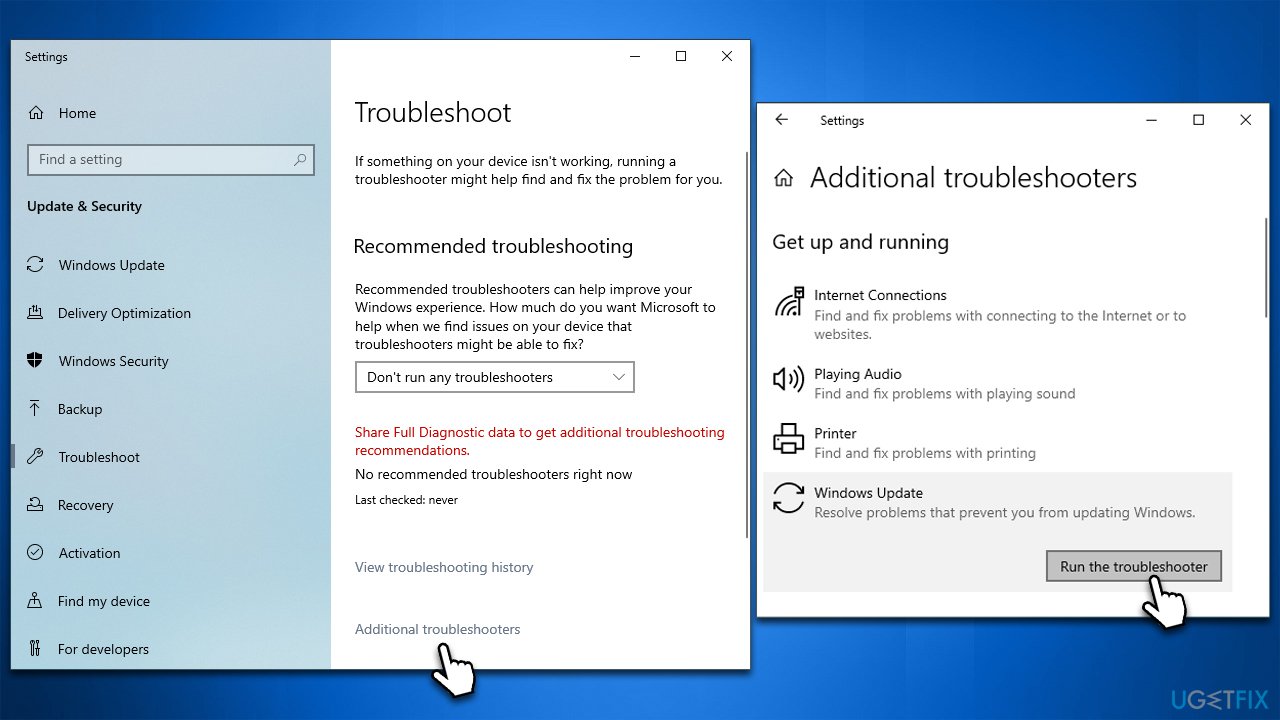
Troubleshooters are built-in tools that are an excellent help for users who run into problems when using Windows, including the update process. Thus, if you haven't done so yet, please run the related as follows:
- Type Troubleshoot in Windows search.
- Select Additional troubleshooters.
- Find Windows Update from the list.
- Click it and pick Run the troubleshooter.
- Apply the suggested steps and restart your device.
Solution 2. Repair corrupted system files
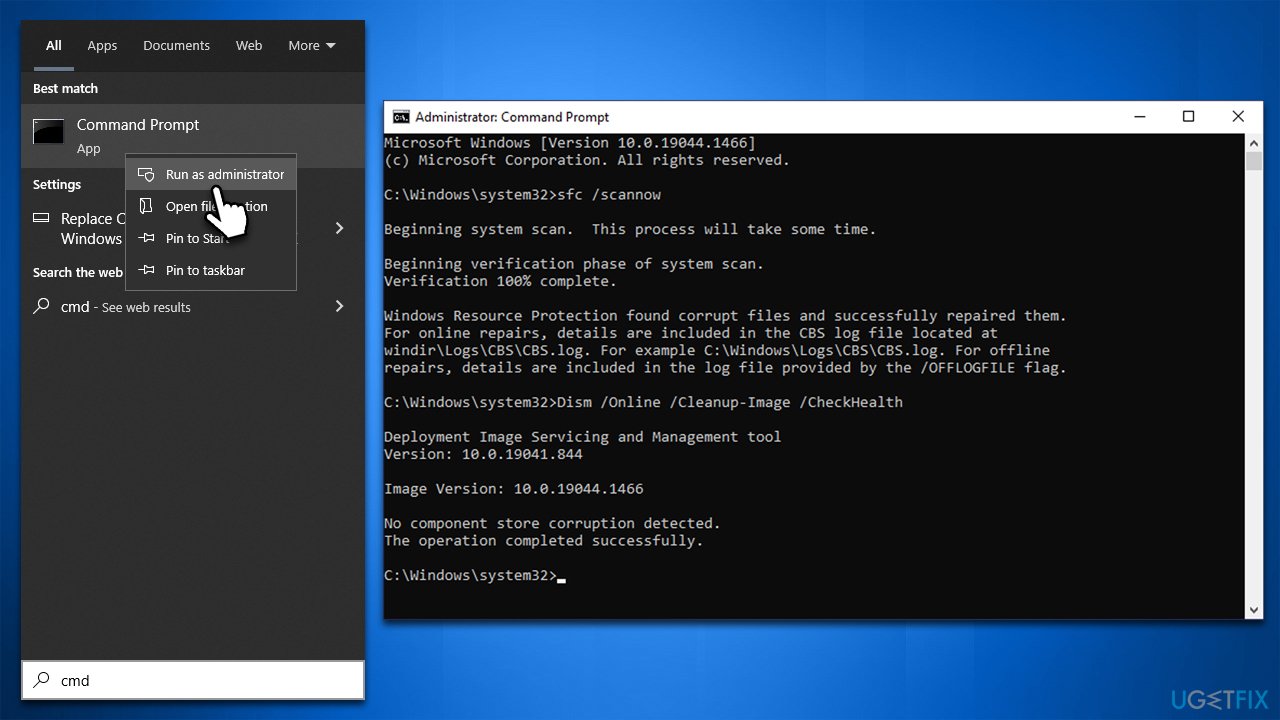
System file corruption can happen when updates are not properly installed, malware has infiltrated a system, and applications have been improperly removed. Fortunately, Windows provides the capacity to repair this damage with specific commands through an elevated Command Prompt.
- Open the Windows search bar and type cmd.
- Right-click on the Command Prompt search result and select Run as administrator.
- When prompted by the User Account Control, click Yes to allow the changes.
- In the Command Prompt, type sfc /scannow and press Enter.
- Next, type dism /online /cleanup-image /scanhealth, press Enter.
- Then type dism /online /cleanup-image /checkhealth, press Enter.
- And lastly, type dism /online /cleanup-image /restorehealth, press Enter.
- Restart your system.
Solution 3. Attempt to install the update manually
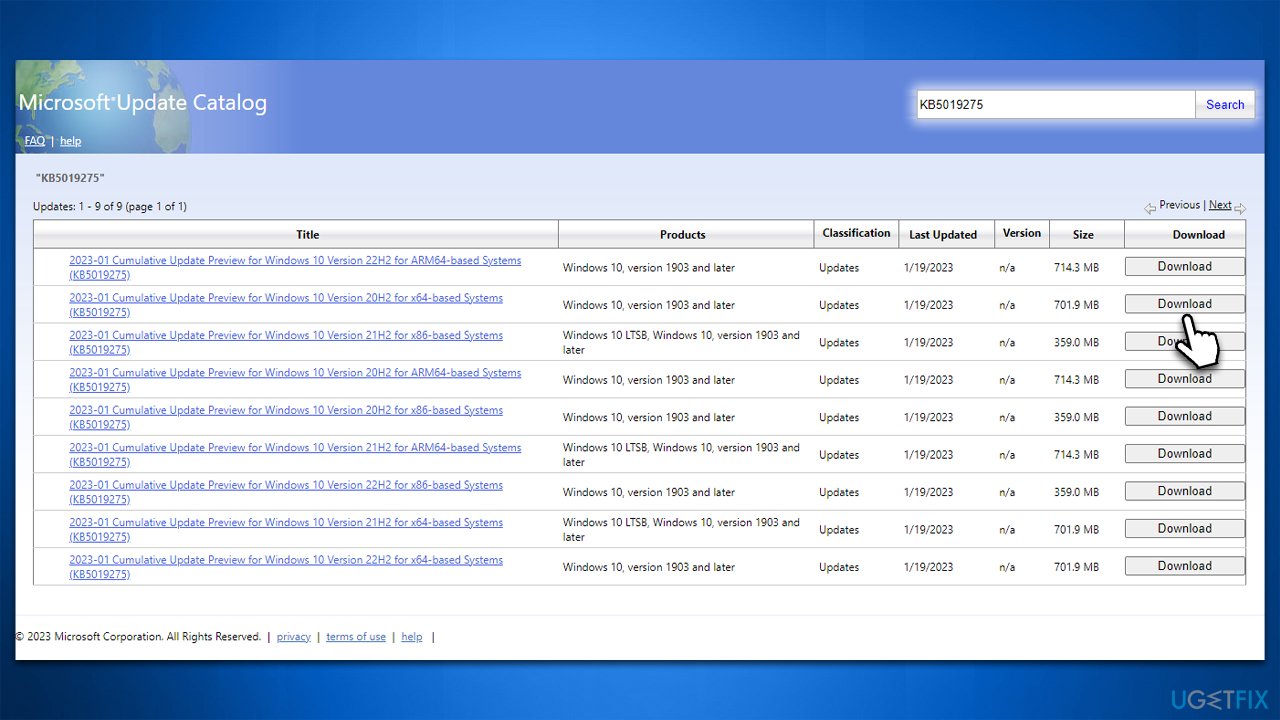
- Open your browser and go to Microsoft Update Catalog
- Copy and paste KB5019275 to the search box and click Search
- Here, find the correct version of the update for your operating system (to check this, right-click on Start and pick System. Under Device specifications and check the System type)
- Click Download and follow the on-screen instructions
- Reboot the system once the process is finished.
Solution 4. (Re)start BITS and Windows Update services
To ensure a successful update, the BITS (Background Intelligent Transfer Service) and Windows Update services need to be enabled and running. If you encounter issues with the update process, restarting these services may resolve them.
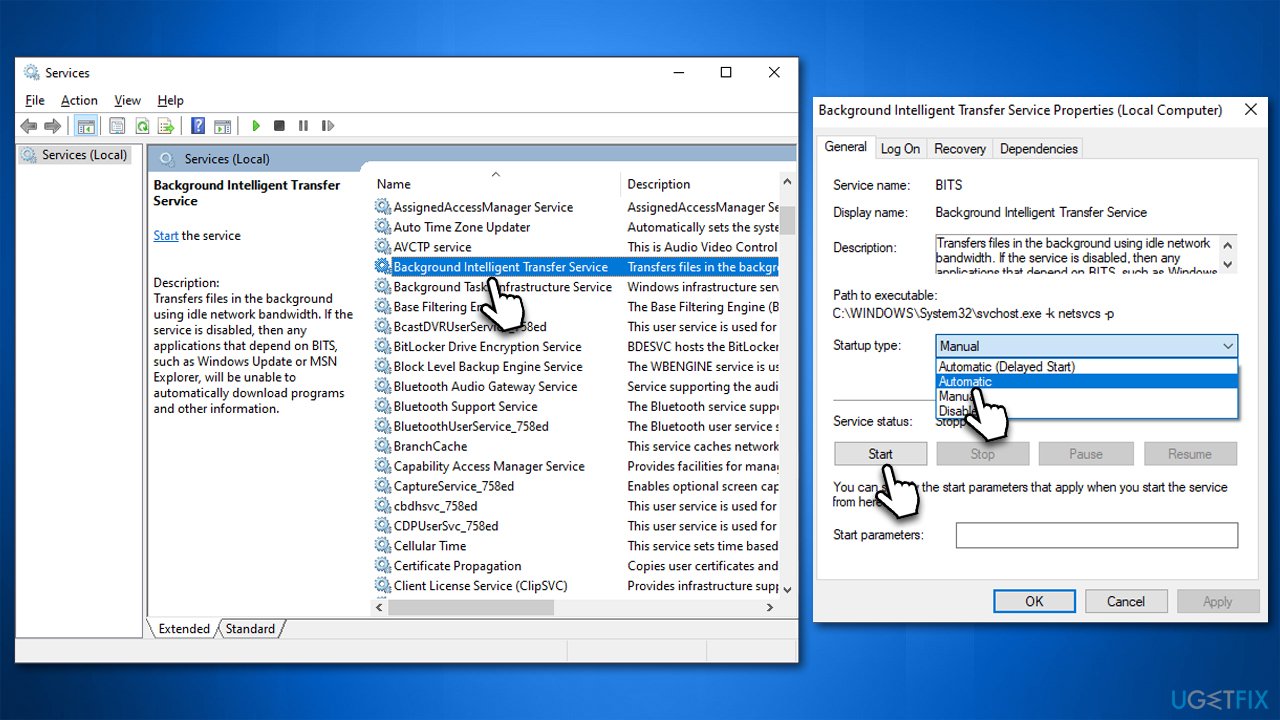
- Open the Windows search bar and type Services, and press Enter.
- Scroll through the list of services to locate the Background Intelligent Transfer Service (BITS).
- If the service is currently running, right-click and select Restart.
- If the service is not running, double-click it and select Automatic from the drop-down menu under Startup type.
- Click Start, Apply, and OK.
- Repeat the process for the Windows Update Service.
Solution 5. Reset Windows Update Components
If the restarting of relevant services did not do the trick, clearing the Software Distribution folder might work.
- Open Command Prompt as administrator, as previously explained.
- Copy and paste each of the command lines, pressing Enter after each and waiting till each of the commands is executed properly:
net stop bits
net stop wuauserv
net stop appidsvc
net stop cryptsvc
Del "%ALLUSERSPROFILE%\Application Data\Microsoft\Network\Downloader\*.*"
rmdir %systemroot%\SoftwareDistribution /S /Q
rmdir %systemroot%\system32\catroot2 /S /Q
regsvr32.exe /s atl.dll
regsvr32.exe /s urlmon.dll
regsvr32.exe /s mshtml.dll
netsh winsock reset
netsh winsock reset proxy
net start bits
net start wuauserv
net start appidsvc
net start cryptsvc - Restart your device.
Solution 6. Use Media Creation Tool
Prior to continuing, ensure you unplug any superfluous external devices such as printers or cameras and back up any vital personal files just in case. Also, disable or uninstall third-party security app.
- Visit the official Microsoft website and download Windows 10 installation media
- Double-click the installer and select Yes when UAC shows up
- Agree to terms and click Next
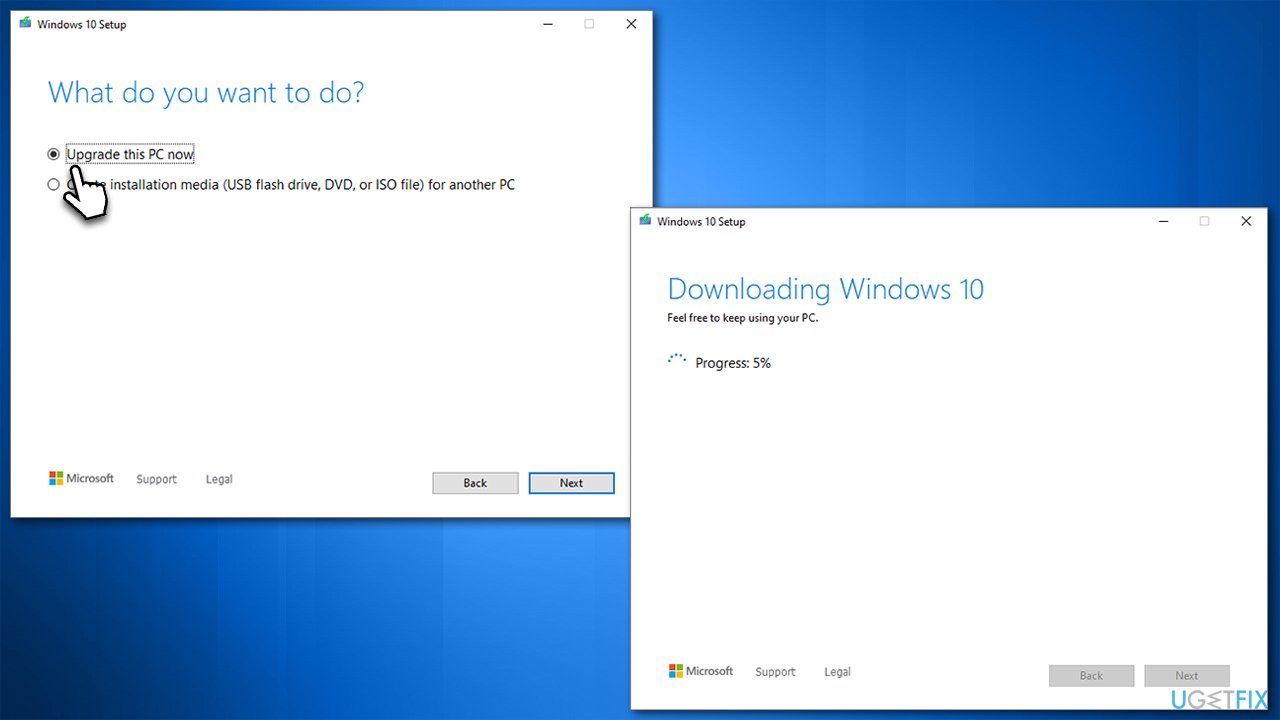
- Select Upgrade this PC now and click Next
- Wait till Windows downloads all the necessary files
- Restart your system as required.
Bottom line
To fix the KB5019275 installation failure, you can run the Windows troubleshooter, check for corrupted files, and ensure your antivirus is not blocking the update. If these solutions do not resolve the issue, consider using automatic PC repair software or seeking further assistance.
Frequently asked questions
First, try running the Windows Update Troubleshooter to identify and fix any issues. If that doesn't work, consider manually downloading the update from the Microsoft Update Catalog.
Yes, users often encounter error codes like 0x800f0922 or 0x8007000d when the KB5019275 update fails to install. These codes typically indicate problems with system files or insufficient disk space.
Absolutely, resetting Windows Update components can help resolve issues with update installation, including KB5019275. You can do this by running specific commands in Command Prompt as an administrator.




Report an issue
What's wrong with this guide? We review every report and update or remove content.
Report received — thank you. We'll review and fix it.
You need a free account to submit a report.
Be the first to comment