How to fix
KB5020035 fails to install
on Windows
Resolve the KB5020035 installation issue on Windows 11 effectively. Get expert-tested solutions and fixes in minutes for a smoother experience!

What causes How to fix KB5020035 fails to install in Windows 11?
- General bugs within cache components related to the updating process
- Corrupted system files
- Incorrectly installed applications
- Registry database corruption
- Services related to the update process not configured correctly
Repairs Windows system files, removes malware, and restores a clean OS state — without reinstalling.
Hey, I have a problem with the KB5020035 update - it is not installing for me at all. I decided to wait a few days and try again, but the problem persisted. Any tips on resolving this would be appreciated.
Windows updates are essential for keeping your computer running smoothly and securely. However, sometimes these updates can fail to install, leaving your computer vulnerable to security threats and bugs. There are a few reasons why this might happen and some steps you can take to fix the problem.
KB5020035 is one of the newer updates that was released for all Windows 11 Insider program participants and is applicable to all users who run builds 22621.1020 and 22623.1020. While these types of updates are not strictly necessary, they provide users with a glimpse of what's coming next in Windows by testing some newer features. Just as with any other preview builds, this one comes with plenty of bug fixes, improvements of the existing features, and the implementation of new ones.
Unfortunately, the KB5020035 update was not reachable to everyone, as some users reported it failed to install. As usual, these failures could be marked with an error code such as 0xc1900201 or 0x800701b1, although sometimes users may get the standard "There were problems installing some updates, but we'll try later" message.
There could be plenty of reasons why KB5020035 may be failing to install. One of the most common reasons is the general bugs within cache components related to the updating process. This can be fixed by resetting them.
Sometimes, a corrupted system file can prevent updates from installing properly - this in itself could be caused by numerous reasons, for example, an incorrectly installed application or registry database corruption. In this case, you can try using the Windows SFC and DISM tools to scan your system for errors and repair any corrupted files.
In other cases, services related to the update process may not be configured correctly, so addressing this may resolve the problem. In any case, below you will find all the fixes and suggestions on how to tackle the KB5020035 failing in Windows issue. Before proceeding, we recommend running a scan with an automatic repair tool [d1] if you'd rather fix the issue without going through manual solutions.
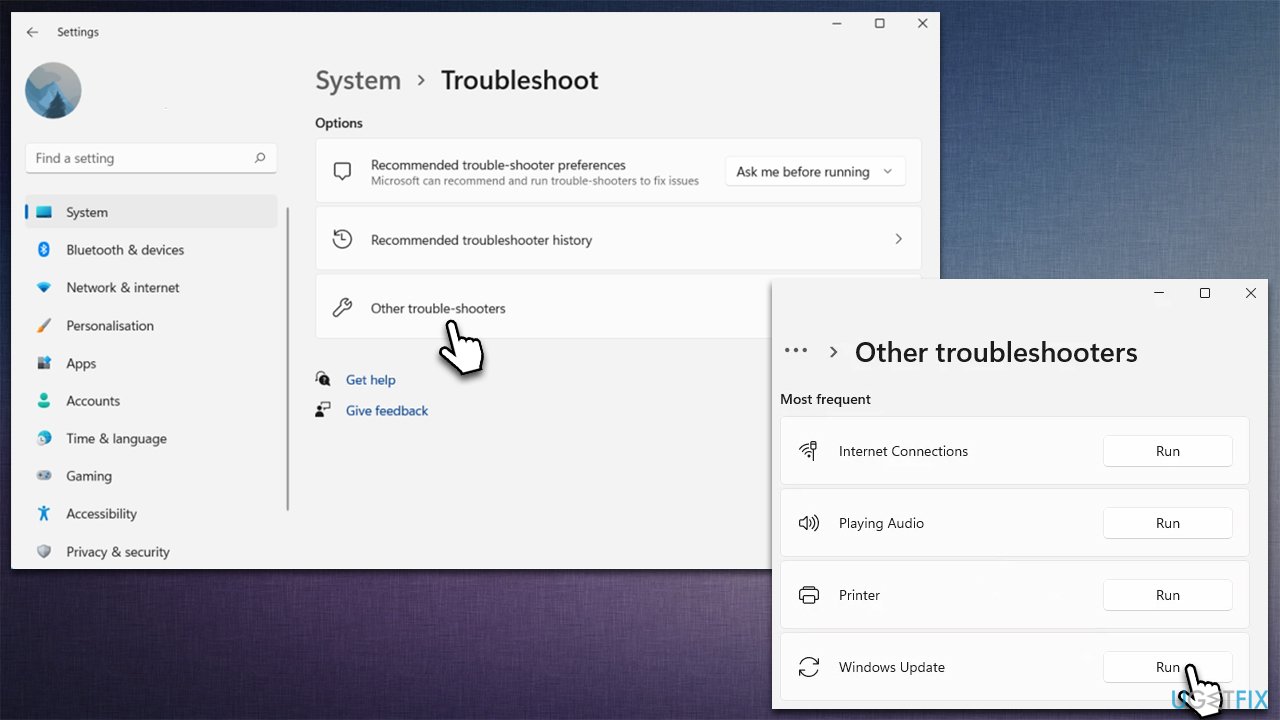
Fix 1. Start with the troubleshooter
Running the troubleshooter is among the first things you should do.
- In Windows search, type in troubleshoot and press Enter (you can also go to Start > Settings > System > Troubleshoot)
- Select Other troubleshooters
- Location Windows Update on the list
- Click Run
- Apply the suggested fixes and restart Windows.
Fix 2. Run SFC and DISM
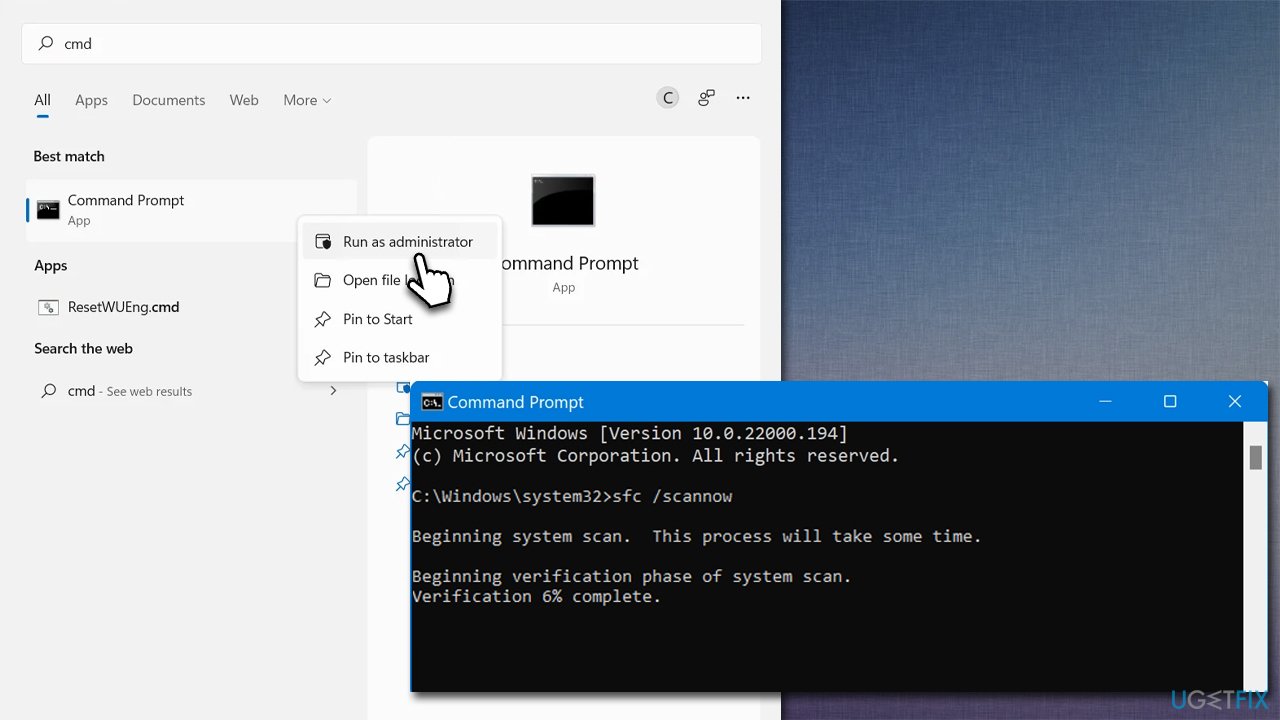
Corrupted system files are among the most common reasons for Windows updates failing. To address this, you can run commands via an elevated Command Prompt:
- Type cmd in Windows search
- Right-click on Command Prompt and pick Run as administrator
- When User Account Control asks you whether you want this program to allow make changes to this PC, click Yes
- Use the following commands, pressing Enter after each:
sfc /scannow
DISM /Online /Cleanup-Image /CheckHealth
DISM /Online /Cleanup-Image /ScanHealth
DISM /Online /Cleanup-Image /RestoreHealth - Restart your system.
Fix 3. Check BITS and Windows Update services
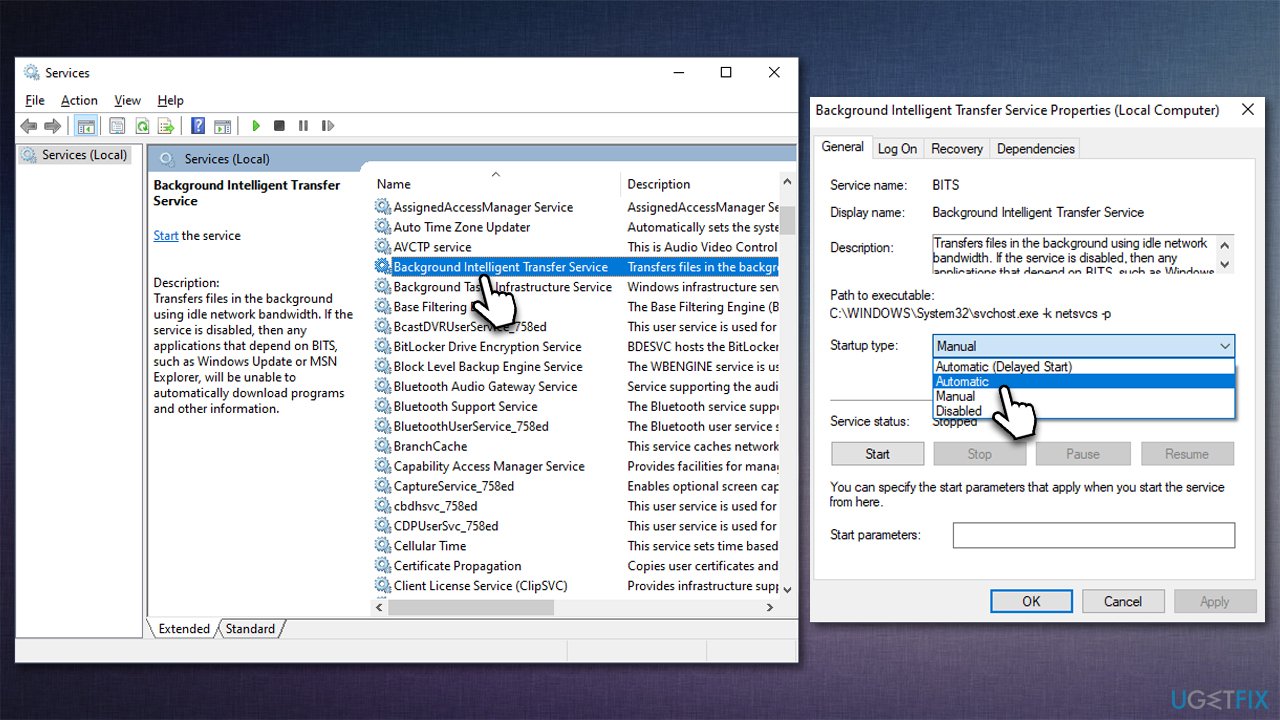
- Type in Services in Windows search and hit Enter
- Please scroll down to Background Intelligent Transfer Service (BITS) and double-click it
- Under the Startup type section, click on the dropdown menu and pick Automatic, then click on Start, Apply, and OK
- Apply the same steps with the Windows update service
- Restart your device.
Fix 4. Reset Windows Update Components
- Open Command Prompt as administrator, as we already explained in the previous step
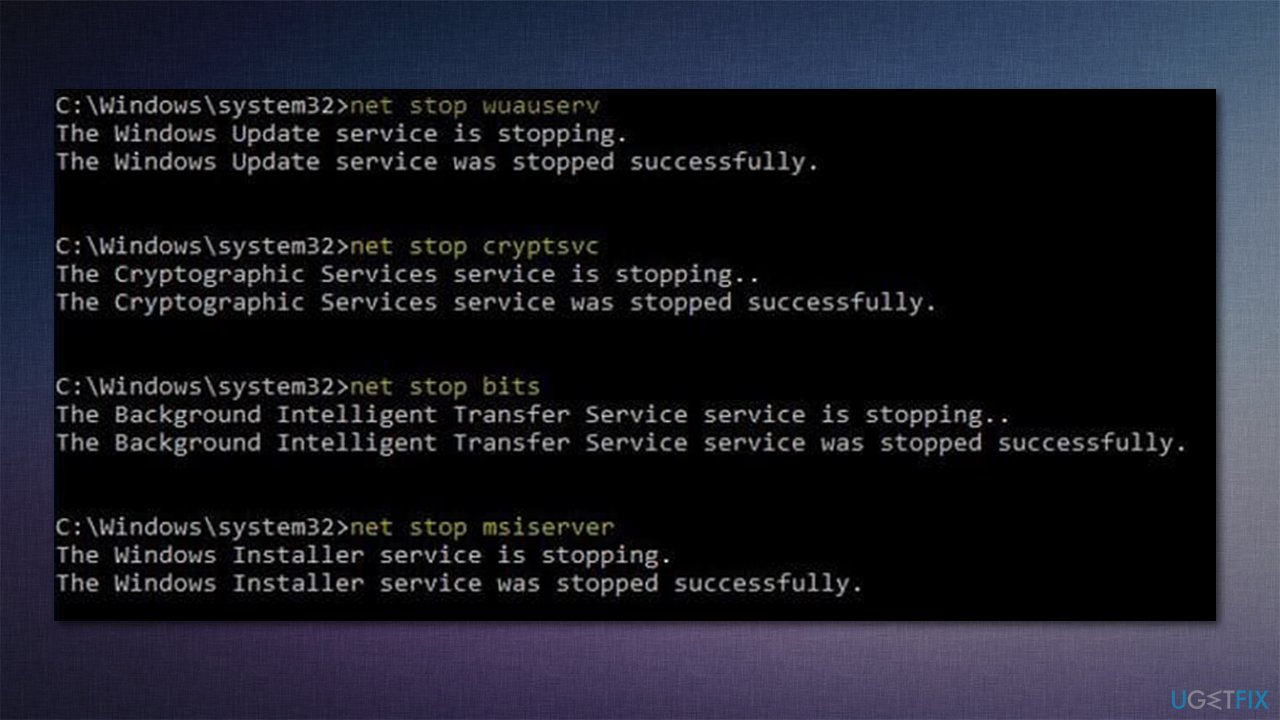
- In the new window, copy and paste the following commands, pressing Enter each time:
net stop bits
net stop wuauserv
net stop appidsvc
net stop cryptsvc
Del “%ALLUSERSPROFILE%\Application Data\Microsoft\Network\Downloader\*.*”
rmdir %systemroot%\SoftwareDistribution /S /Q
rmdir %systemroot%\system32\catroot2 /S /Q
regsvr32.exe /s atl.dll
regsvr32.exe /s urlmon.dll
regsvr32.exe /s mshtml.dll
netsh winsock reset
netsh winsock reset proxy
net start bits
net start wuauserv
net start appidsvc
net start cryptsvc - Reboot your PC.
Fix 5. Disable third-party antivirus
If you are experiencing issues with Windows updates, it is sometimes necessary to disable your antivirus program temporarily. This is because some antivirus programs can interfere with the update process and cause it to fail. In order to disable your antivirus program, you should first consult the documentation for your specific program to determine the proper steps to take.
Once you have disabled your antivirus program, you can try to install the updates again. It is important to remember to re-enable your antivirus program once the update process has been completed successfully. Failing to do so can leave your computer vulnerable to viruses and other security threats.
Fix 6. Check Time and date settings
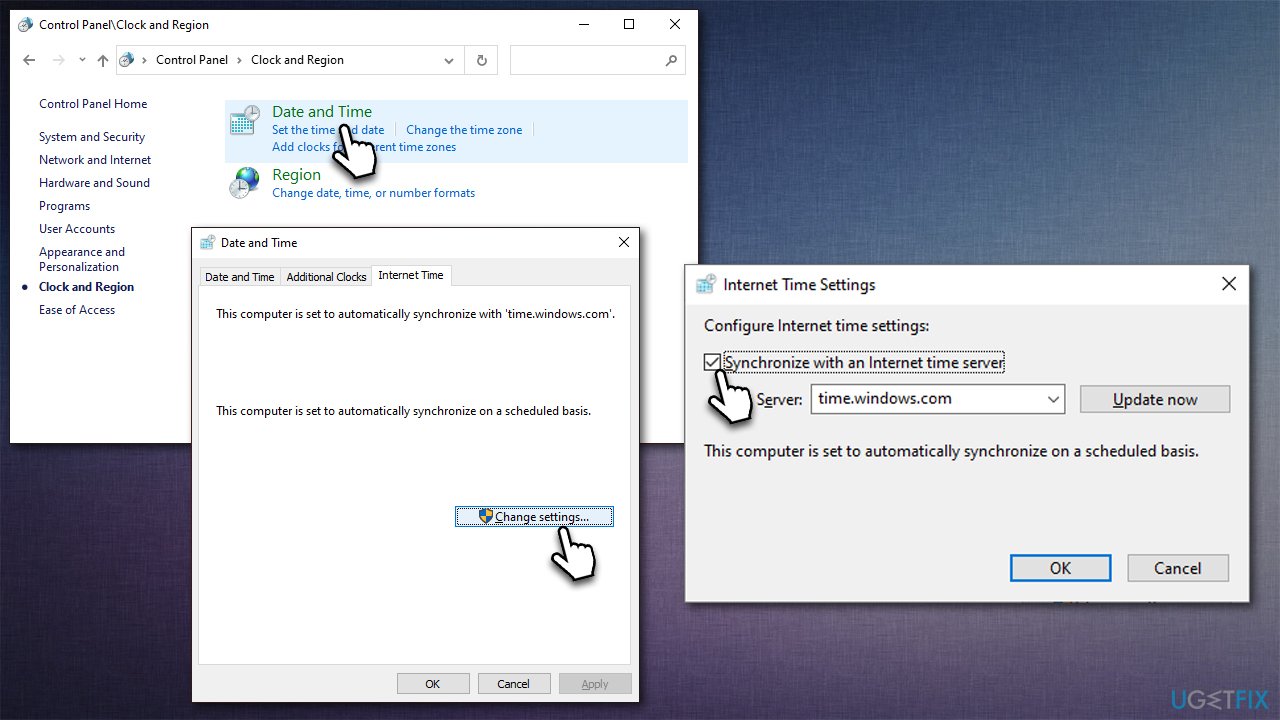
- Type in Control Panel in Windows search and press Enter
- Go to Clock and Region and click on Date and Time
- Pick the Internet Time tab and select Change Settings
- Make sure that Synchronize with an Internet time server box is ticked
- Click Update now and OK.
Bottom line
To resolve the KB5020035 installation failure, you can reset the cache components, use the Windows SFC and DISM tools to scan for and repair corrupted files, and ensure that update-related services are correctly configured. If these steps do not work, consider seeking further assistance or checking for additional updates.
Frequently asked questions
First, try running the Windows Update Troubleshooter to identify and fix any issues preventing the installation. If that doesn't work, consider resetting the Windows Update components manually.
Yes, you can download the KB5020035 update manually from the Microsoft Update Catalog and install it directly on your Windows 11 system.
You can check the Windows Update log for specific error codes by using the Event Viewer or by reviewing the Windows Update history in the Settings app under 'Update & Security'.




Report an issue
What's wrong with this guide? We review every report and update or remove content.
Report received — thank you. We'll review and fix it.
You need a free account to submit a report.
Be the first to comment