How to fix
KB5021866 fails to install
on Windows
Resolve the KB5021866 installation error on Windows 10 and 11 quickly and effortlessly. Expert-tested methods guarantee a seamless fix in minutes.


What causes How to fix KB5021866 fails to install?
- Fault with the update itself
- Power outage during installation
- Network connectivity issues
- Malware infections
- Outdated or faulty drivers
- Conflicts with other software
Repairs Windows system files, removes malware, and restores a clean OS state — without reinstalling.
I tried downloading KB5021866 to check the newest updates and fixes, but it just keeps failing with no concrete error. Not sure if there's something wrong with my internet, but it stops at approximately 80% every time. Any ideas on how to deal with this? Thanks in advance.
Updates failing on Windows 11 can be a frustrating and potentially harmful issue. Windows updates are important for maintaining the security and performance of your system, and failing to install them can leave your device vulnerable to malware and other threats.
There are plenty of updates that Microsoft releases to the public, and these usually come every month on the second or third Tuesday of the month - the process is commonly referred to as Patch Tuesday. Besides new features, security vulnerability patches, stability improvements, and cumulative updates, Microsoft also released Preview builds that can be downloaded as an optional update, and KB5021866 is one such example.
KB5021866 was released on December 6, 2022, for Windows 11 builds 22621.1028 and 22623.1028 and was available for all Windows Insider participants. It includes numerous bug fixes, such as the Nvidia icon not showing properly in the system tray, Explorer.exe crashes, GDI handle leak, and much more.
Besides, there are plenty of improvements to the existing features, such as the battery icon's tooltip and the transition animation when switching between collapsed and expanded views of the tablet-optimized taskbar.
Unfortunately, not everyone could install KB5021866 to test it out, and some users reported it failing under varying circumstances. Since this patch addressed numerous bugs, installing it became a necessity for those strongly affected.
There are several reasons why Windows updates may fail. Mostly, it is a fault with the update itself - it may be interrupted by a power outage, network connectivity issues, or other factors. In these cases, the update may become corrupted and unable to complete the installation process.
Other factors that can cause updates to fail include malware infections, outdated or faulty drivers, and conflicts with other software on the system. In some cases, the user may have manually disabled the Windows Update service, preventing updates from being installed automatically.
Before proceeding with the solutions below, we would like to offer to scan the system with [d1] automatic repair - it is a perfect solution for those who are less tech-savvy or/and want their Windows issues to be dealt with efficiently.
Fix 1. Check for system file corruption
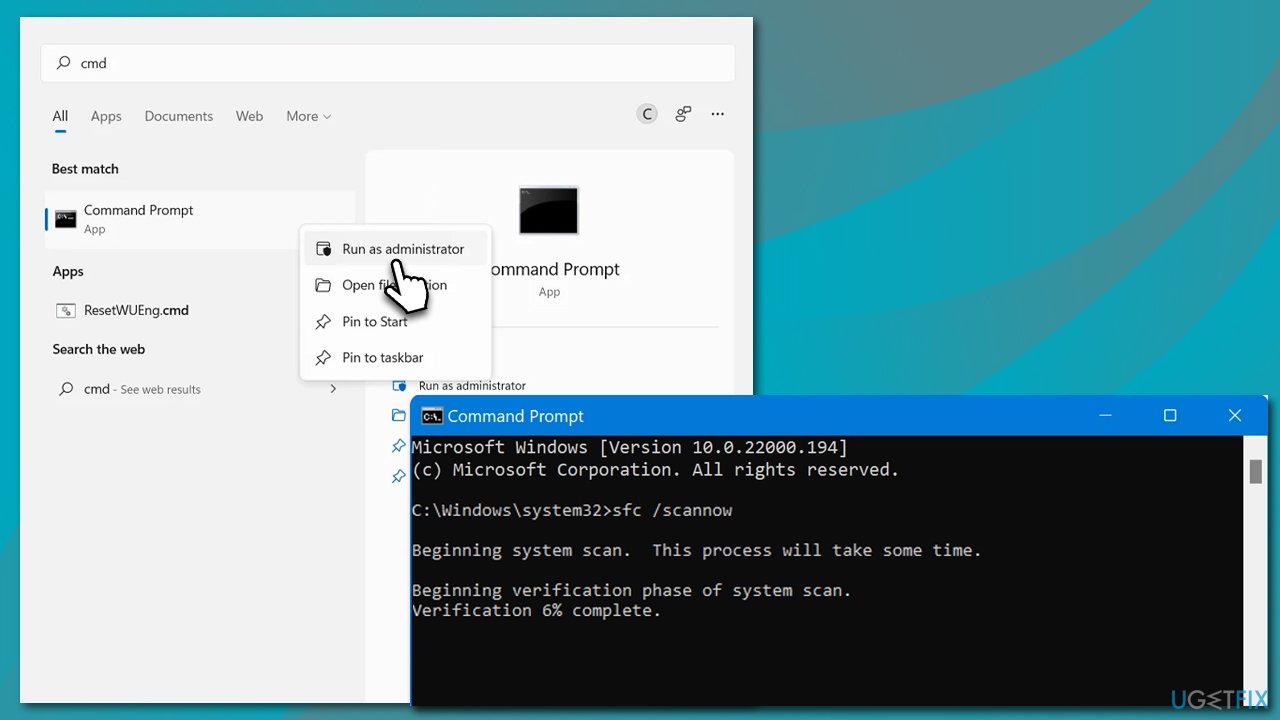
SFC and DISM are excellent tools that can find and fix corrupted system files. To use them, you need to access the elevated Command Prompt as follows:
- Type cmd in Windows search
- Right-click on Command Prompt and pick Run as administrator
- When User Account Control shows up, pick Yes
- Use the following command lines, pressing Enter after each:
sfc /scannow
DISM /Online /Cleanup-Image /CheckHealth
DISM /Online /Cleanup-Image /ScanHealth
DISM /Online /Cleanup-Image /RestoreHealth - Restart your computer.
Fix 2. Run the troubleshooter
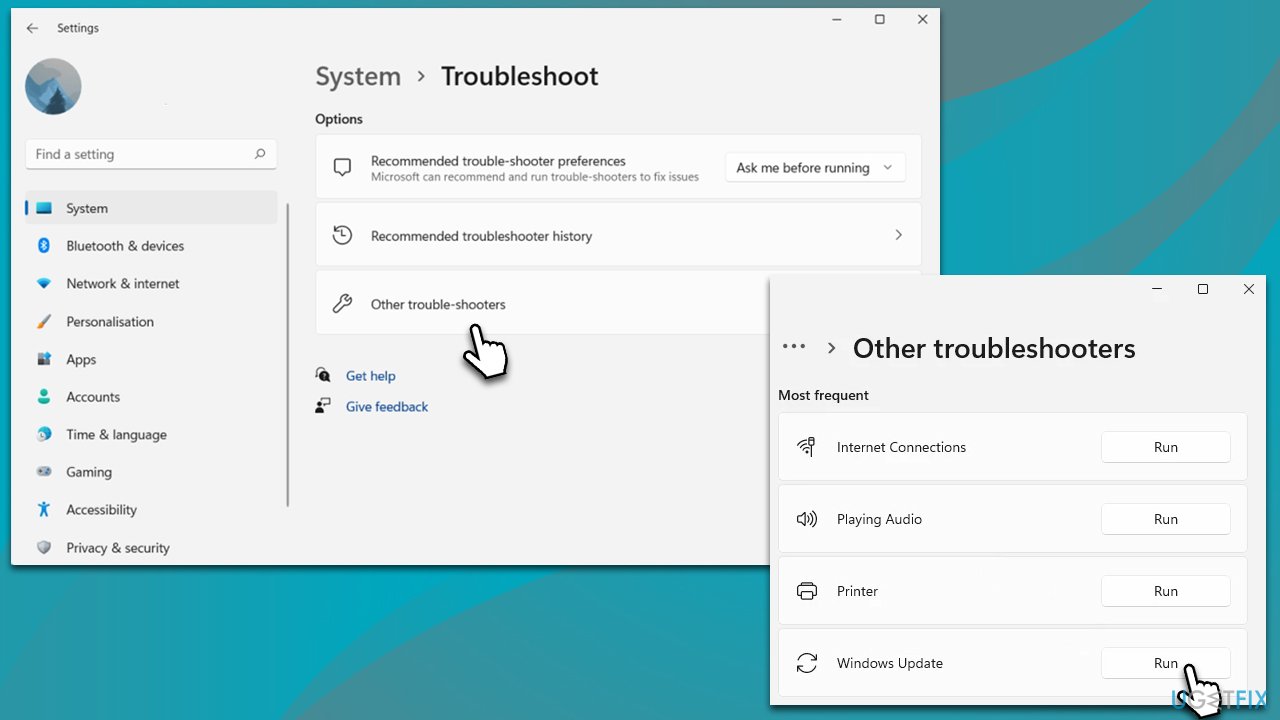
- In Windows search, type in troubleshoot and press Enter (you can also go to Start > Settings > System > Troubleshoot)
- Pick Other trouble-shooters (in Windows 10, pick Additional troubleshooters)
- Scroll down to locate the Windows Update option and click Run
- Wait till the scan is finished, apply the changes, and try running the update process once again.
Fix 3. Disable third-party anti-malware
Security software is a mandatory tool for any modern computer user, as malware such as ransomware is rampant, and attacks are becoming more sophisticated. However, it is a well-known fact that not all third-party offered security tools work well all the time on a Windows machine - there could be conflicts with other software, or it may even block the installation of the newest update, such as KB5021866.
It is recommended to disable any third-party security tools that are running on your device. This can help to prevent conflicts and ensure that updates are installed properly. To do that, you can either disable the real-time protection feature on your anti-malware tool or temporarily uninstall the app. If you are not using a third-party app, move on to the next step.
Fix 4. Check relevant services
Restarting BITS and Windows Update services could help you tackle update problems.
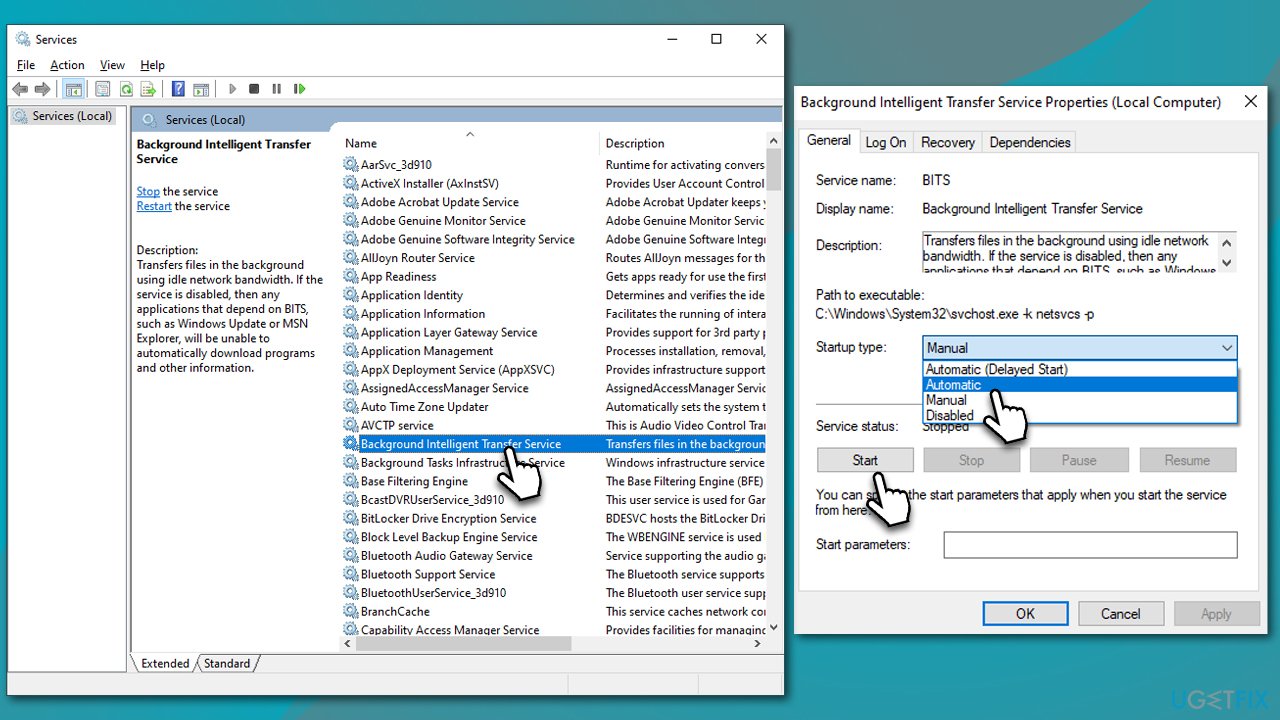
- Open the Start menu and type Services into the search bar
- Click on the Services app to open the Services window
- Scroll down the list of services and locate the Background Intelligent Transfer Service and Windows Update Service
- Right-click on each service and select Restart from the context menu
- If the service is not running, double-click it, and under Startup type, select Automatic
- Then, click Start and OK.
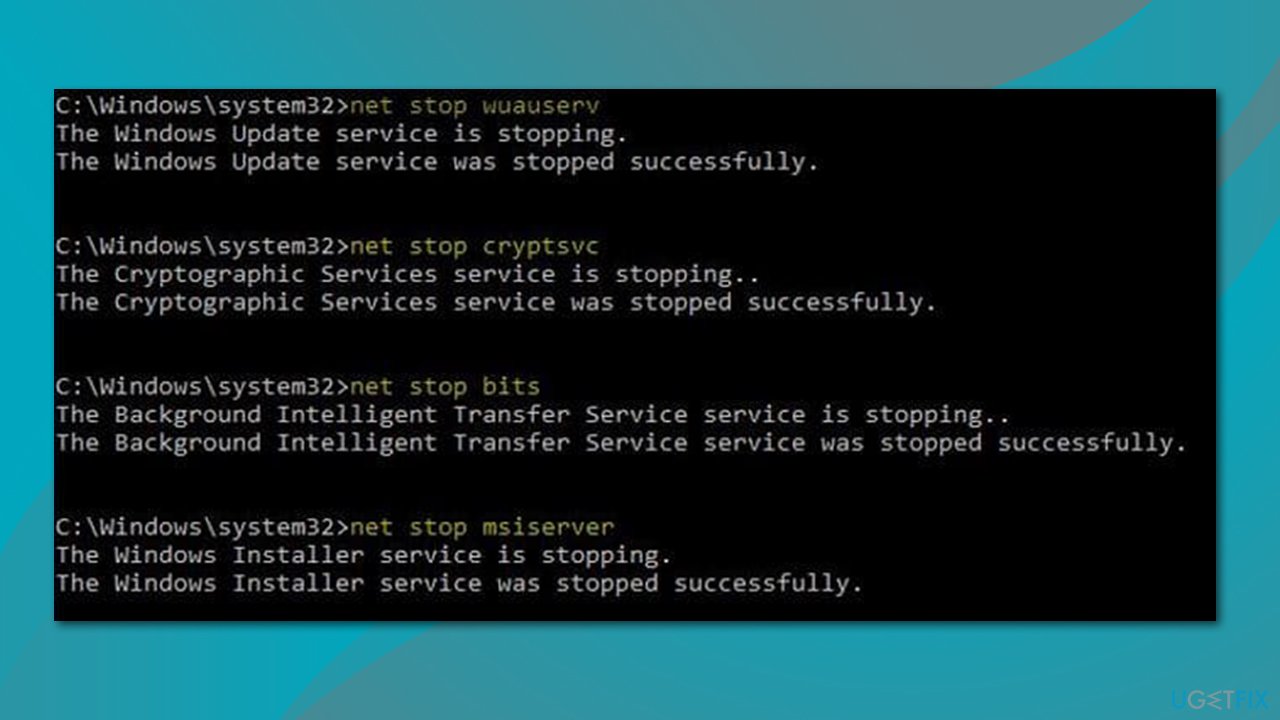
Fix 5. Reset Windows update components
If the previous step did not help, try resetting Windows update components:
- Open Command Prompt as administrator
- Run the following commands, pressing Enter after each:
net stop bits
net stop wuauserv
net stop appidsvc
net stop cryptsvc
Del "%ALLUSERSPROFILE%\Application Data\Microsoft\Network\Downloader\*.*"
rmdir %systemroot%\SoftwareDistribution /S /Q
rmdir %systemroot%\system32\catroot2 /S /Q
regsvr32.exe /s atl.dll
regsvr32.exe /s urlmon.dll
regsvr32.exe /s mshtml.dll
netsh winsock reset
netsh winsock reset proxy
net start bits
net start wuauserv
net start appidsvc
net start cryptsvc - Restart your PC.
Bottom line
To fix the KB5021866 installation failure, you can check your internet connection, ensure your device is free from malware, update your drivers, and resolve any software conflicts. If these steps do not work, consider seeking further assistance or checking for additional updates.
Frequently asked questions
You can try running the Windows Update Troubleshooter to diagnose and fix any issues preventing the installation of KB5021866. Additionally, ensure you have enough disk space and that your system is up to date with previous updates.
You can manually download the KB5021866 update from the Microsoft Update Catalog and install it by running the downloaded file. Make sure to check for compatibility with your Windows 11 version before proceeding.
Common reasons include corrupted system files, insufficient disk space, or conflicts with antivirus software. Running a system file check and temporarily disabling your antivirus may help resolve these issues.




Report an issue
What's wrong with this guide? We review every report and update or remove content.
Report received — thank you. We'll review and fix it.
You need a free account to submit a report.
Be the first to comment