How to fix
KB5022845 fails to install
on Windows
Resolve KB5022845 installation issues on Windows 11 swiftly. Get expert-tested solutions and fix errors in minutes for a smooth experience.

What causes How to fix KB5022845 fails to install in Windows 11?
- Corrupted system files
- Incorrectly configured services
- Registry corruption
- System damage
- Common Windows issues
Repairs Windows system files, removes malware, and restores a clean OS state — without reinstalling.
KB5022845 fails to install for me, and I can't get it working. I tried several times, and it just keeps failing every time. Restarting my PC did not help. Please provide any solutions.
Experiencing updates that fail to install on your Windows 11 device can be a frustrating and potentially harmful issue that needs to be addressed as soon as possible. Windows updates play a crucial role in maintaining the security and optimal performance of your system. They contain essential fixes, patches, and updates that protect your device from vulnerabilities and security threats.
Microsoft releases a significant number of updates to the public, and these are typically released on the second or third Tuesday of each month. This process, commonly known as Patch Tuesday, is a crucial aspect of Microsoft's strategy to address security concerns, bugs, and other issues affecting Windows 11.
KB5022845 (OS build 22621.1265) is a scheduled update that was released on February 14, 2023, for versions 22H2 and 21H2. It includes various security improvements and vulnerability fixes to the internal OS functionality and Windows 11 servicing pack updates.
Some users said that KB5022845 failed to install for them, and while update failures are not something unusual, they are not consistent - not all people will get them, although some updates are more prone to fail due to one reason or another.
Corrupted system files, incorrectly configured services, and other reasons could be causing KB5022845 to fail to install. Below we address this by providing several solutions, so check them all out before one works for you. If you would like to try an automatic approach, we recommend trying a PC repair tool [d1], which can easily deal with registry corruption, system damage, and other common Windows issues.
Method 1. Run the troubleshooter
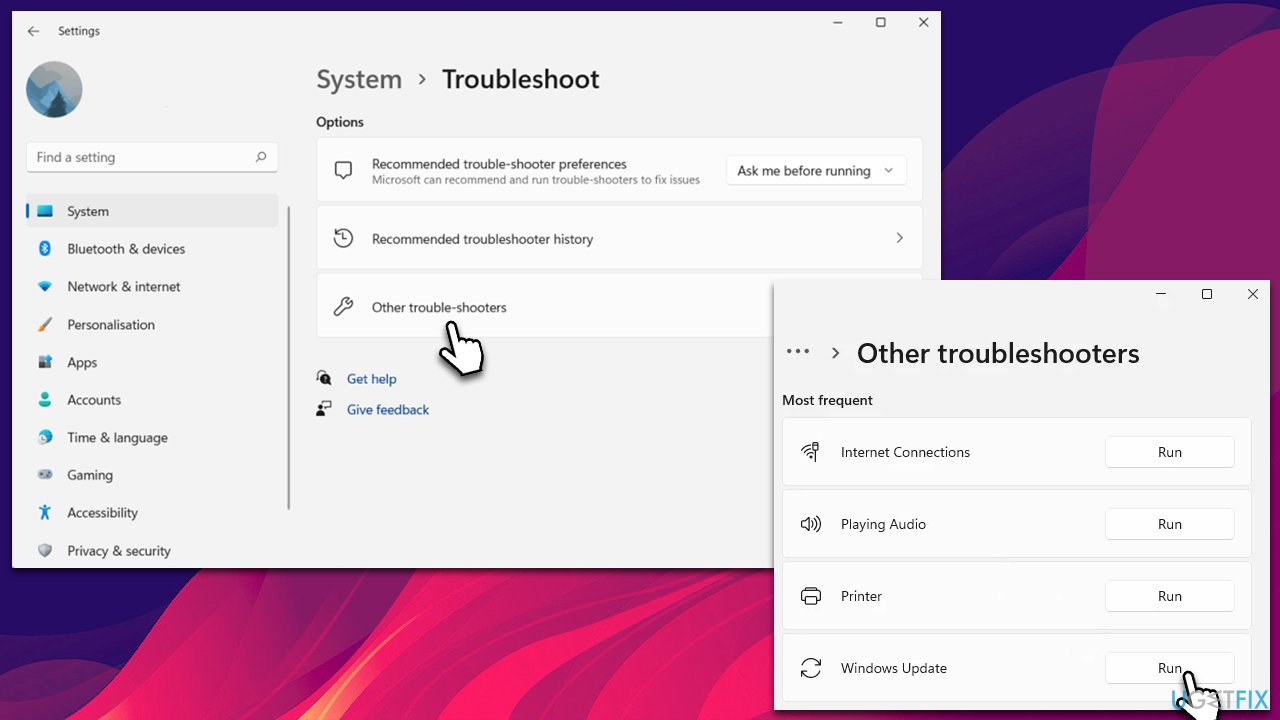
Troubleshooters can be extremely useful when dealing with Windows update failures. To run one, please follow these steps:
- In Windows search, type in troubleshoot and press Enter (you can also go to Start > Settings > System > Troubleshoot).
- Pick Other trouble-shooters (in Windows 10, pick Additional troubleshooters).
- Scroll down to locate the Windows Update option and click Run.
- Wait till the scan is finished, apply the changes, and try running the update process once again.
Method 2. Check the system for corruption
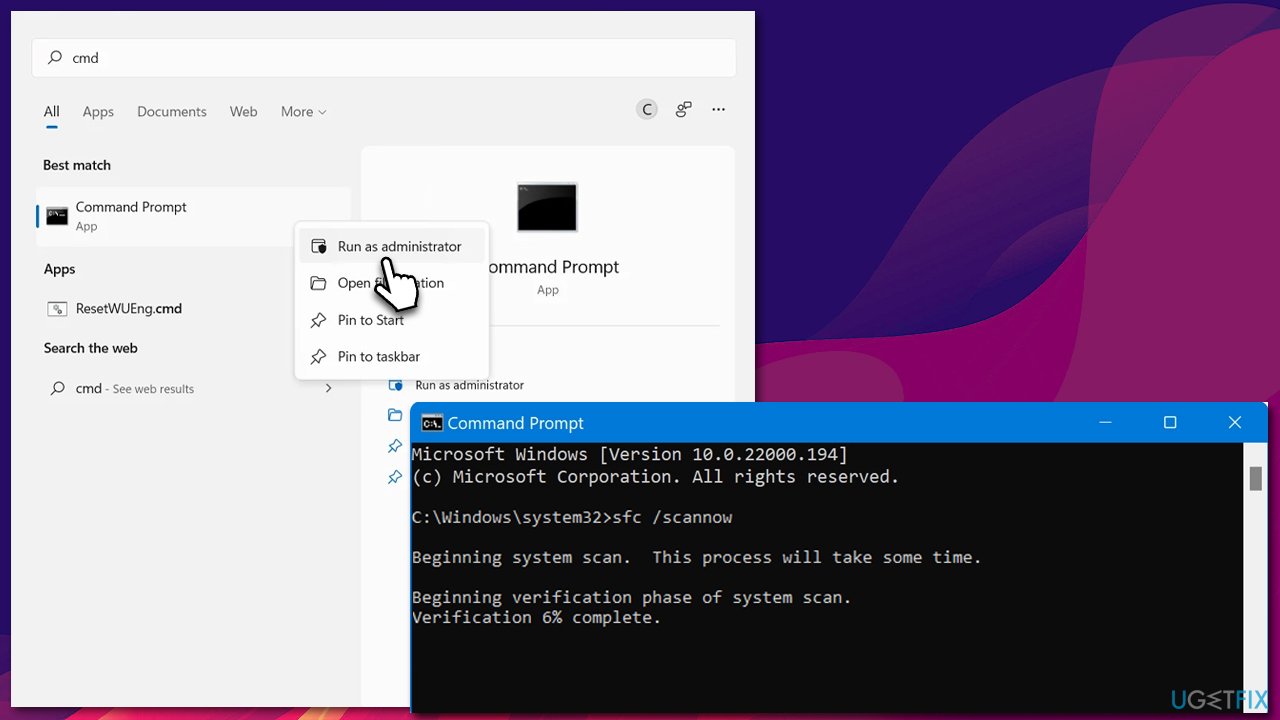
You can check for corrupted system files by running commands via an elevated Command Prompt.
- Type cmd in Windows search, right-click on Command Prompt, and select Run as administrator.
- When User Account Control shows up, click Yes.
- Use the following command and press Enter:
sfc /scannow - Once the scan is complete, you should also run the following commands to repair Windows image files (don't forget to press Enter after each):
DISM /Online /Cleanup-Image /CheckHealth
DISM /Online /Cleanup-Image /ScanHealth
DISM /Online /Cleanup-Image /RestoreHealth - Restart your PC.
Method 3. Make sure relevant services are running or restart them
You can restart relevant services or make sure they are running as follows:
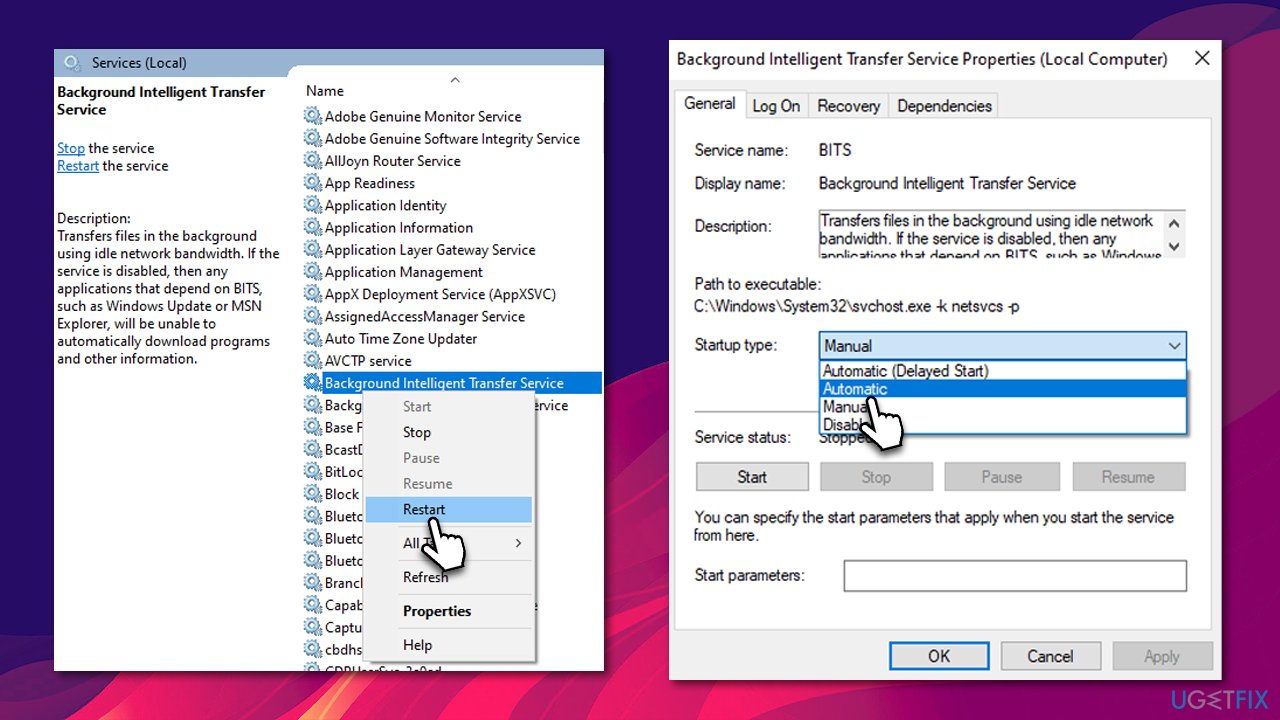
- Access the Services window by opening the Start menu and typing Services into the search bar, then pressing Enter.
- Next, locate the Background Intelligent Transfer Service and Windows Update Service by scrolling through the list of services.
- Right-click on each service, and from the context menu, select Restart.
- In case a service is not running, double-click on it and select Automatic under the Startup type. Afterward, click on Start and then click OK.
Method 4. Update manually
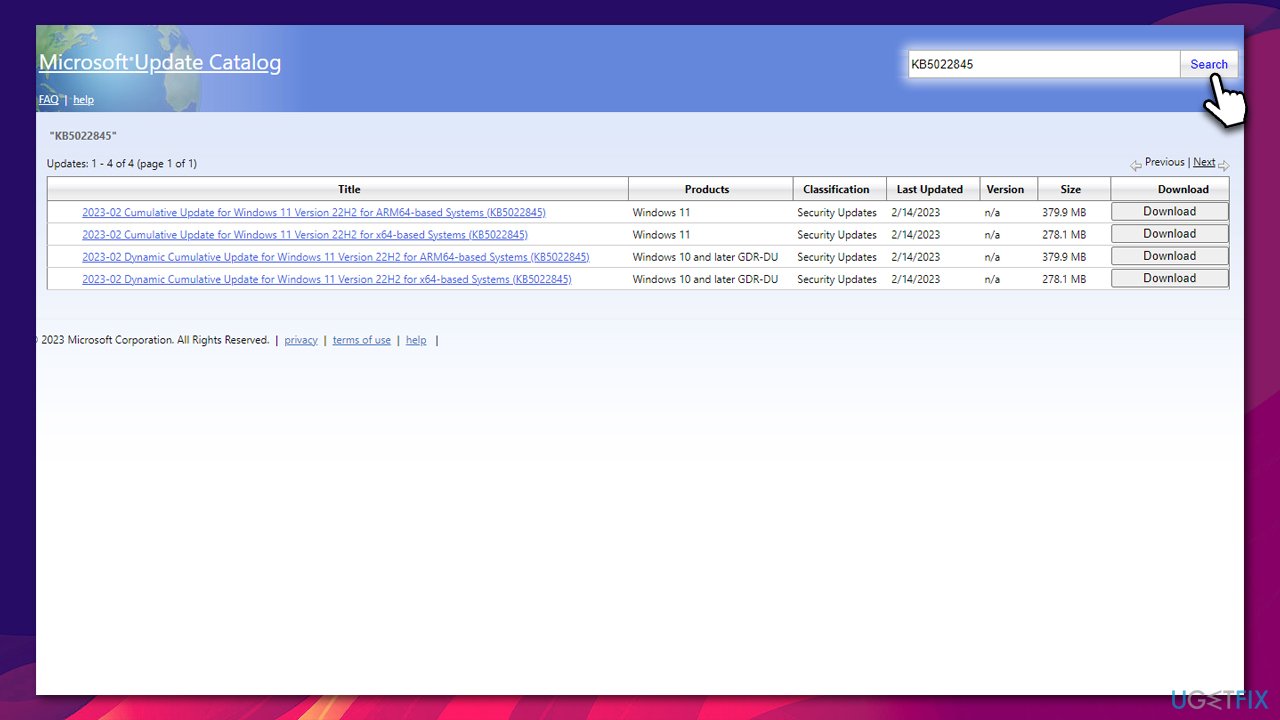
- Go to the official Microsoft Update Catalog website - a database of all available updates for Windows.
- In the search box, type in KB5022845 and hit Enter.
- Select the appropriate version of the update and click Download.
- Proceed with on-screen instructions to install the update.
- Restart your system.
Method 5. Disable security software
In today's digital age, having security software installed on your computer is essential, as the risk of malware attacks such as ransomware continues to rise. While many third-party security tools are available to Windows users, not all of them work seamlessly with the operating system. Issues such as software conflicts or hindrances to installing the latest updates, such as KB5022845, can occur.
To prevent these issues, it is recommended that you temporarily disable any third-party security tools running on your device. This helps to eliminate potential conflicts and ensures that updates are installed correctly.
Method 6. Use Media Creation Tool
- Visit the official Microsoft website to download Windows 11 ISO.
- Double-click the installer and click Yes when prompted
- Agree to the terms and click Next
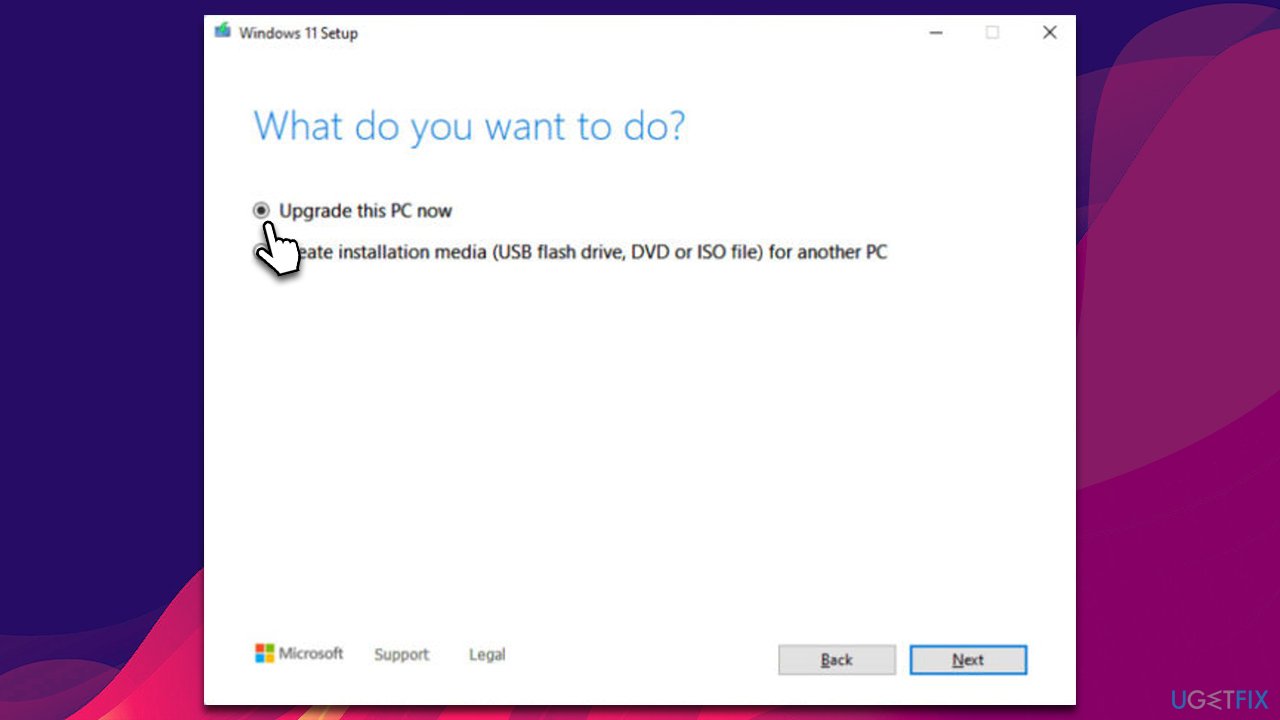
- Select Upgrade this PC now > Next
- Windows will now download all the necessary files – wait till it is finished
- Agree to terms once again and click Next
- Before installing, make sure that you are happy with your choices (otherwise, you can click Change what to keep option)
- Click Install to begin the upgrade process.
Other related topics:
Bottom line
To fix the KB5022845 installation failure, you can run the troubleshooter, try a PC repair tool, and check for other common issues. If none of these solutions work, consider seeking further assistance or checking for additional updates.
Frequently asked questions
Try running the Windows Update Troubleshooter to automatically detect and fix issues related to Windows updates. Additionally, ensure your system has enough disk space and that your internet connection is stable.
Yes, you can manually download the KB5022845 update from the Microsoft Update Catalog website and install it directly on your Windows 11 machine.
Common reasons include insufficient disk space, network issues, or conflicts with antivirus software that may block the update process.




Report an issue
What's wrong with this guide? We review every report and update or remove content.
Report received — thank you. We'll review and fix it.
You need a free account to submit a report.
Be the first to comment