How to fix
KB5022913 fails to install
on Windows
Resolve KB5022913 installation issues in Windows 11 effortlessly with our expert-tested solutions. Get it fixed in minutes, guaranteed!


What causes How to fix KB5022913 fails to install in Windows 11?
- Corrupted system files
- Corrupted update caches
- Stopped services responsible for Windows update transfer
- General update process failure
- High CPU usage when running Windows Update
Repairs Windows system files, removes malware, and restores a clean OS state — without reinstalling.
Hi. Just as usual, I was trying to install the KB5022913 preview build on Windows 11, but it did not work, so I tried again. Now, it seems like I'm stuck, and the updates just fail to install. Are there any tips you could provide me to solve this?
Windows updates are software patches or enhancements that are released by Microsoft to fix bugs, improve security, and add new features to the Windows operating system. These updates are essential for ensuring the stability, performance, and security of the system. They fix known issues and vulnerabilities that can cause crashes, errors, or even system failures, protecting users from potential threats.
In addition, updates can also introduce new functionalities or improvements, such as better performance or user interface changes. Microsoft typically releases updates on the second Tuesday of each month, known as "Patch Tuesday," but may also release urgent updates outside this schedule in response to critical issues or security threats.
The latest Windows 11 KB5022913 update, which was released on February 28, 2023, includes security and reliability improvements. It also addresses an issue that causes high CPU usage when running Windows Update. Additionally, the update resolves a problem with signing in to a Microsoft account on devices that have been re-imaged. Overall, this update aims to enhance the stability and performance of Windows 11 for users.
Unfortunately, some users reported that KB5022913 fails to install whenever they try to initiate a regular update process. While some people might be presented with an error, such as 0x800f081f or 0x80070012, others are provided no explanation apart from a general message which says that the update failed.
There could be many reasons for KB5022913 failing to install on Windows. For example, corrupted system files or update caches could be one of the leading culprits. In other cases, stopped services responsible for Windows update transfer could be the cause.
Because the reasons for Windows update failures can be so diverse, it is impossible to provide a universal solution for everyone. Thus, look at the methods below and try all of them until you find the one that works for you. A small tip is to try running a scan with [d1] PC repair software that can conduct many of the troubleshooting steps automatically.

Fix 1. Run the troubleshooter
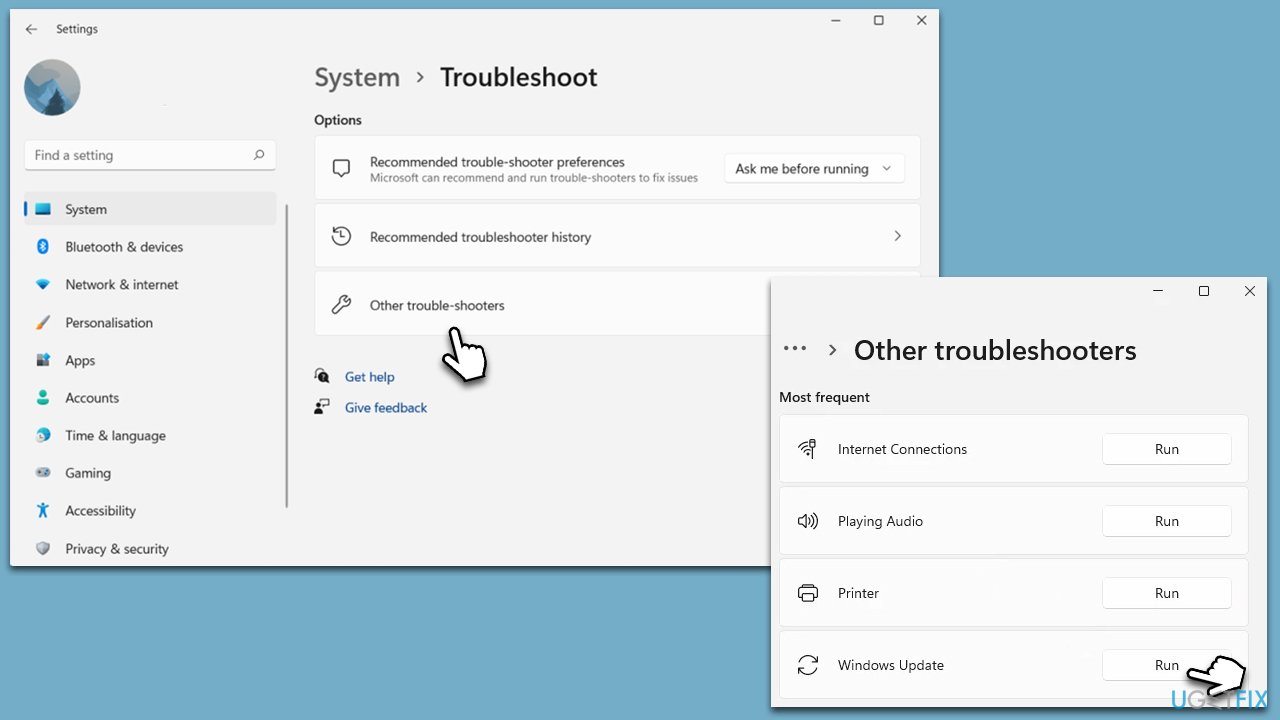
Troubleshooters are built-in tools that are excellent when it comes to resolving various common PC issues, so we recommend starting with this option.
- In Windows search, type in troubleshoot and press Enter (you can also go to Start > Settings > System > Troubleshoot).
- Pick Other trouble-shooters (in Windows 10, pick Additional troubleshooters).
- Scroll down to locate the Windows Update option and click Run.
- Wait until the scan is finished, apply the changes, and try running the update process again.
Fix 2. Check BITS and Windows Update service
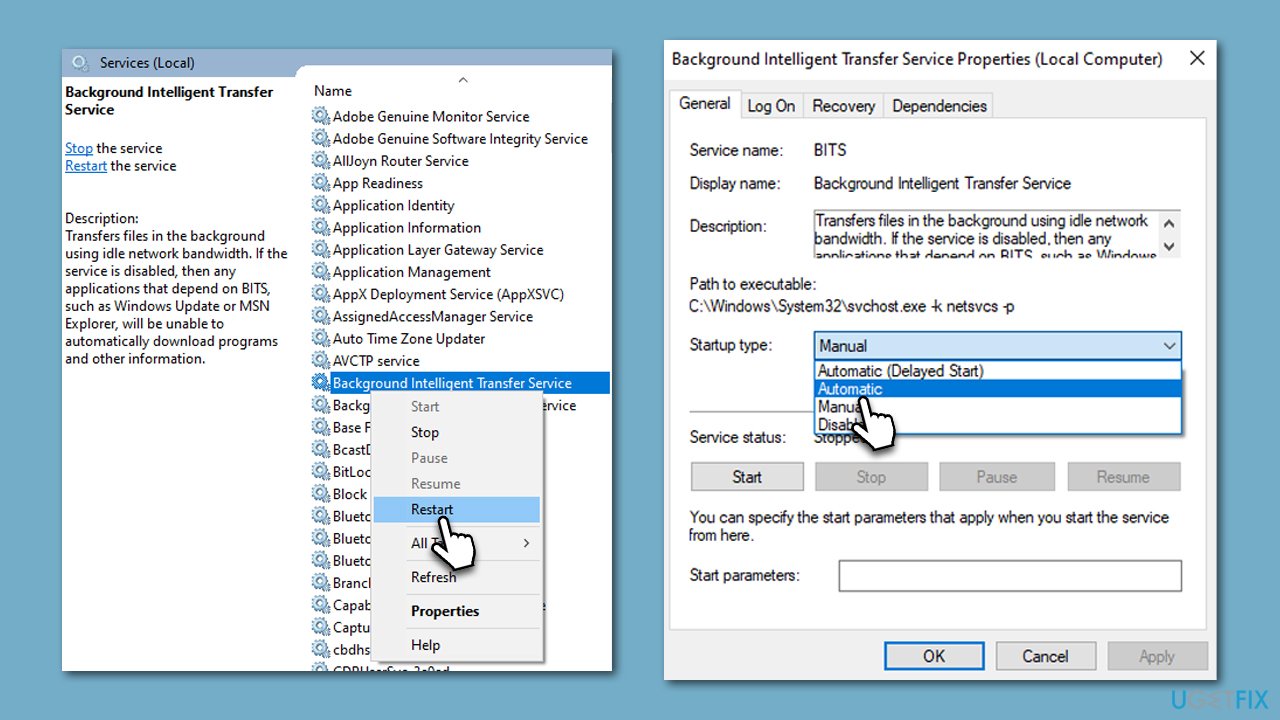
Windows Update and Background Intelligent Transfer Service (BITS) need to be running in order for the update to go through. If these services are not running, start them up, if they are running, restart them instead.
- In Windows Start search, type in Services and press Enter.
- When the new window opens, scroll down a bit to find Background Intelligent Transfer Service (BITS).
- If the service is already running, right-click and select Restart.
- Otherwise, double-click the service and select Automatic under the Startup type.
- Click Start, Apply, and OK.
- Perform the same steps with the Windows update service.
Fix 3. Disable or uninstall third-party security software
Third-party security software can interfere with Windows updates, resulting in install errors. This is because the security software may detect the update as a threat and block it from installing on the system. In some cases, the software may also prevent certain components of the update from installing, leading to errors or system crashes.
To avoid this issue, it is recommended to temporarily disable the third-party security software before installing Windows updates. Alternatively, users can configure their security software to allow Windows updates to install without interference. This can help ensure that the system remains secure while receiving the latest updates from Microsoft.
Fix 4. Run and SFC scans
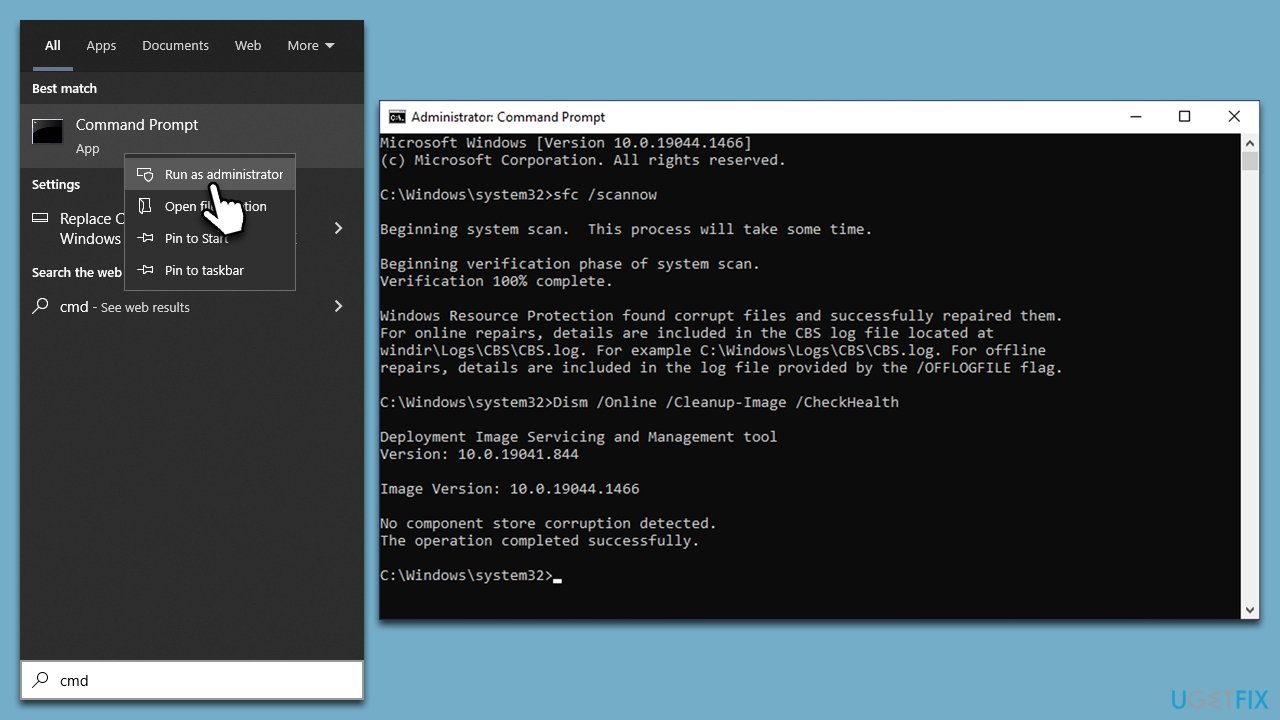
Check system files for corruption - you can repair them with certain commands via an elevated Command Prompt.
- Type cmd in Windows search
- Right-click on Command Prompt and pick Run as administrator
- When User Account Control shows up, click Yes
- Use the following command lines, pressing Enter after each:
sfc /scannow
DISM /Online /Cleanup-Image /CheckHealth
DISM /Online /Cleanup-Image /ScanHealth
DISM /Online /Cleanup-Image /RestoreHealth - Restart your PC.
Fix 5. Install it manually
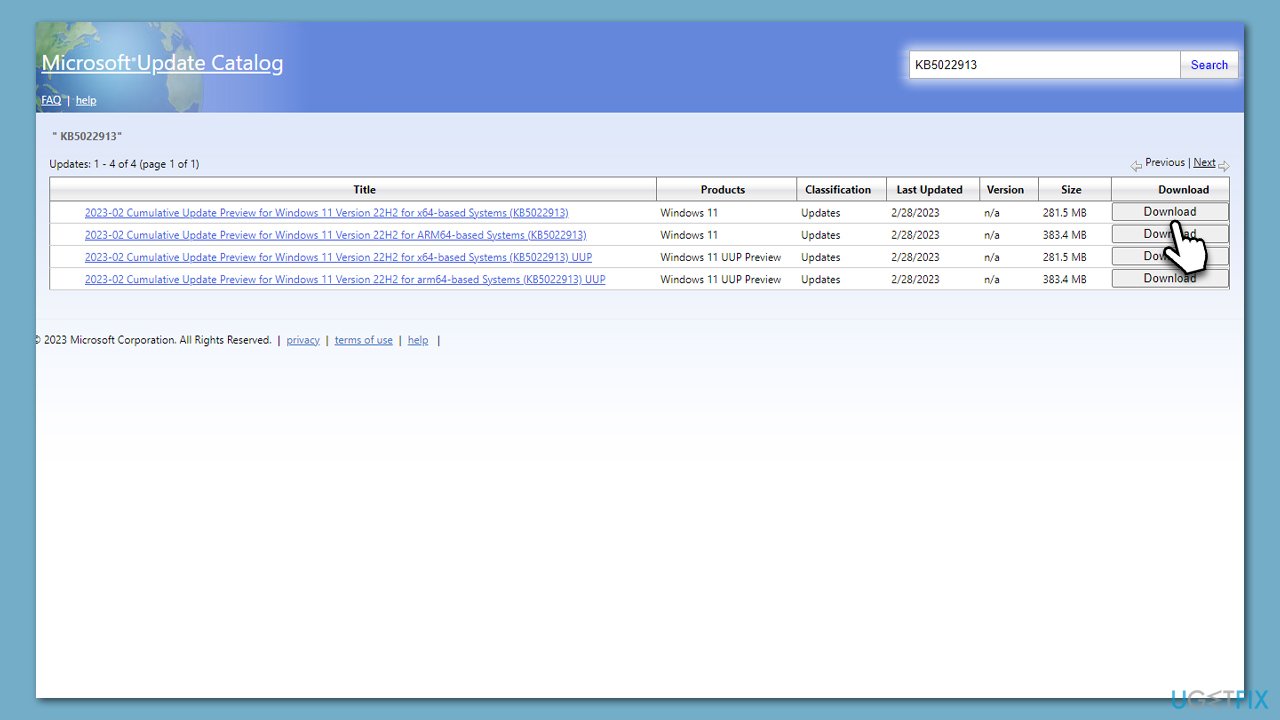
You can always attempt to install the update manually if automatic method fails.
- Open your web browser and navigate to the Microsoft Update Catalog.
- In the search box, enter KB5022913 and click Search.
- Locate the correct version of the update for your operating system by checking your System type (Right-click on Start and select System. Under Windows specifications, check the Version).
- Click on Download and follow the prompts to complete the process.
- Once the update is installed, reboot your system.
6. Use Media Creation Tool to upgrade
You can attempt to install the latest edition of Windows utilizing the Windows installation media. It is recommended that you first disconnect any unnecessary peripherals, such as printers or scanners, and take the necessary measures to disable or uninstall any third-party security software. This will ensure that the installation process proceeds smoothly and without errors.
- Visit the official Microsoft website and download the Windows installation media.
- Double-click the installer and select Yes when UAC shows up.
- Agree to the terms and click Next.
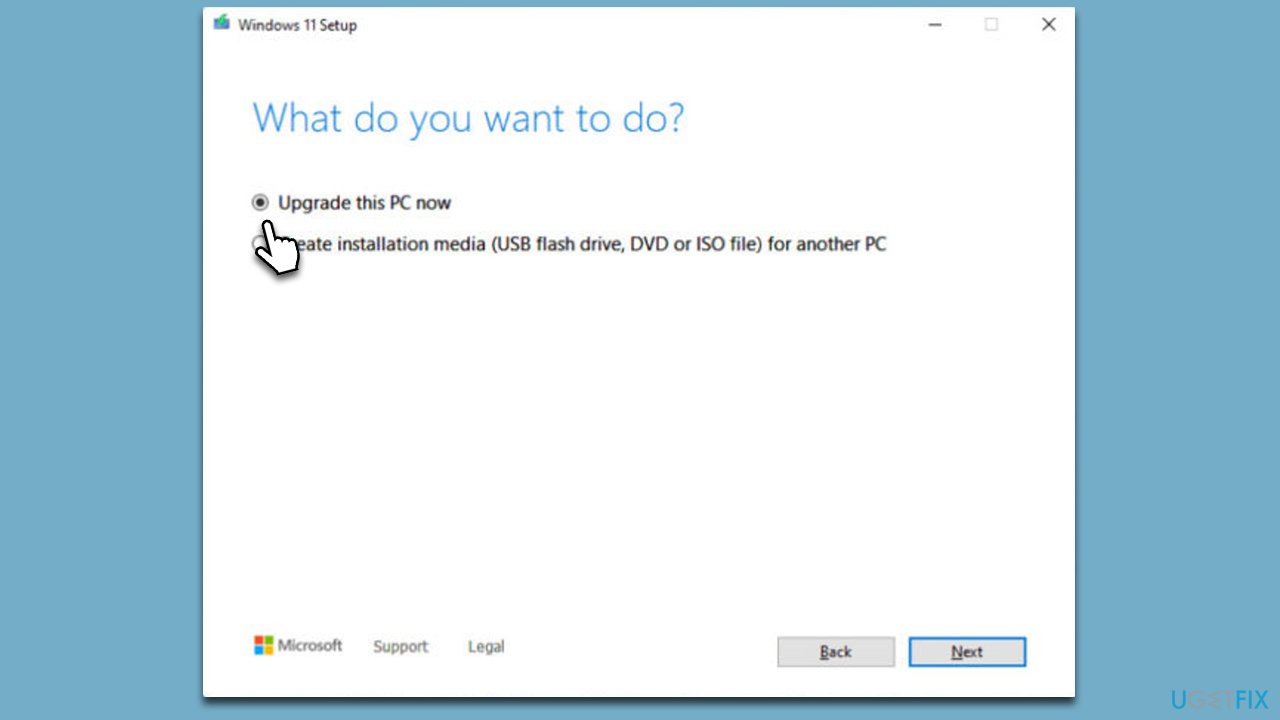
- Select Upgrade this PC now and select Next
- Windows will now download all the necessary files, which might take some time.
- Agree to the terms once again and click Next.
- Before installing, ensure you are happy with your choices (otherwise, you can click Change what to keep option).
- Click Install to begin the upgrade process.
- Your computer will restart as required.
Bottom line
To resolve the installation failure of KB5022913, you can try repairing corrupted system files, clearing the update cache, or ensuring that the necessary services for Windows Update are running. If none of these methods work, consider seeking additional support or checking for further updates from Microsoft.
Frequently asked questions
Try running the Windows Update Troubleshooter found in Settings > Update & Security > Troubleshoot. If that doesn't work, ensure that your system has enough disk space and check for any pending updates.
You can manually download the update from the Microsoft Update Catalog by searching for 'KB5022913' and selecting the appropriate version for your system. Once downloaded, run the installer and follow the prompts to complete the installation.
Common reasons include insufficient disk space, corrupted system files, or conflicts with third-party software. Running the System File Checker tool can help identify and fix any corrupted files.




Report an issue
What's wrong with this guide? We review every report and update or remove content.
Report received — thank you. We'll review and fix it.
You need a free account to submit a report.
Be the first to comment