How to fix
KB5023706 fails to install
on Windows
Resolve KB5023706 installation issues in Windows 11 quickly and effectively. Expert-tested solutions ensure a smooth update experience. Fixed in minutes!


What causes How to fix KB5023706 fails to install in Windows 11?
- System restart needed
- Windows Update troubleshooter not run
- Corrupted system files
- Registry corruptions
- Pending updates not installed
Repairs Windows system files, removes malware, and restores a clean OS state — without reinstalling.
Hi, I have a Windows update problem with KB5023706 - it simply doesn't install. I tried several times, and it still fails with an error 0x80070103. Is there a way of fixing this at all?
Windows updates are important to keep your system secure and up-to-date with the latest features and bug fixes. These updates are implemented to address various security issues and to improve system performance.
One of the latest Windows 11 updates, KB5023706, was released on March 14, 2023, and it upgrades the build to 22621.1413. This update fixes several security issues and resolves some known bugs, including joining Active Directory failures and Distributed Component Object Model (DCOM) hardening issues.
However, some Windows 11 users have reported issues with KB5023706 failing to install. The error message may vary from user to user, and in some cases, there might be no error message at all. This can be frustrating for users who want to ensure that their systems are up-to-date with the latest security patches.
If you're one of the users who are facing issues with installing KB5023706, there are some things you can try. Firstly, try restarting your computer and then check for updates again. Sometimes, simply restarting your system can help resolve update installation issues. If that doesn't work, try running the Windows Update troubleshooter, which can detect and fix common update-related issues.
There are also several other solutions that could help you fix KB5023706 failing to install, and we explain all the recommended fixes below. It is noteworthy that each Windows machine is different, so there is no universal solution for everybody - you might have to go through several steps before finding one that works for you.
If you find that prospect rather tiring, we recommend running a potent PC repair tool [d1], which is designed to identify and fix common computer problems such as system errors, startup issues, and registry corruptions. With its user-friendly interface and advanced features, it can help optimize your PC's performance and keep it running smoothly.

Solution 1. Check for system file corruption
Corrupted system files could easily cause an update to fail - you can address this by running SFC and DISM scans.
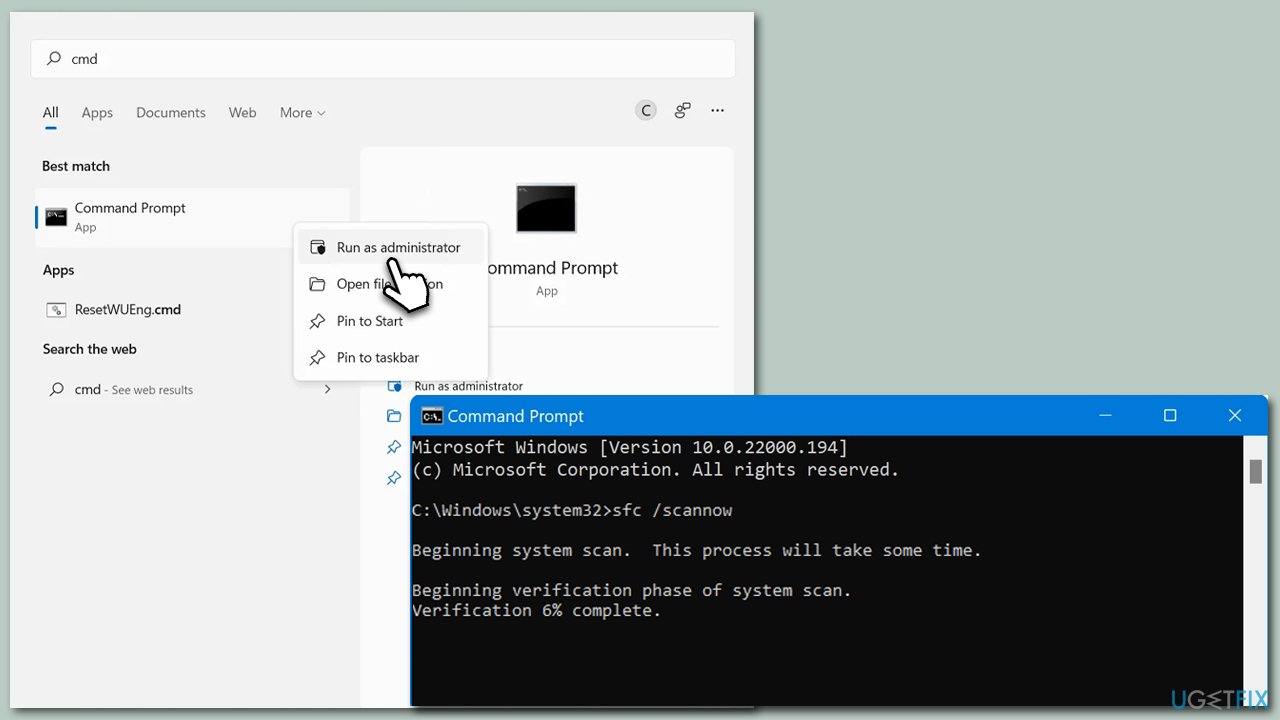
- Open Windows search and type cmd.
- Right-click on Command Prompt and select Run as administrator.
- Click Yes when the User Account Control prompt appears.
- Type the following command lines, pressing Enter after each:
sfc /scannow
DISM /Online /Cleanup-Image /CheckHealth
DISM /Online /Cleanup-Image /ScanHealth
DISM /Online /Cleanup-Image /RestoreHealth - Restart your PC.
Solution 2. Disable security software
To effectively address Windows update installation problems, it is necessary to fulfill specific requirements. One such requirement is to ensure a consistent connection between your device and the Windows servers by removing any third-party security software on your system.
In case you encounter issues with Windows updates, it may be beneficial to disable or uninstall the security software temporarily as a possible solution. Additionally, check if any other software, such as VPNs, is affecting the update process and make the necessary adjustments to see if it resolves the problem.
Solution 3. Check Windows Update and BITS services
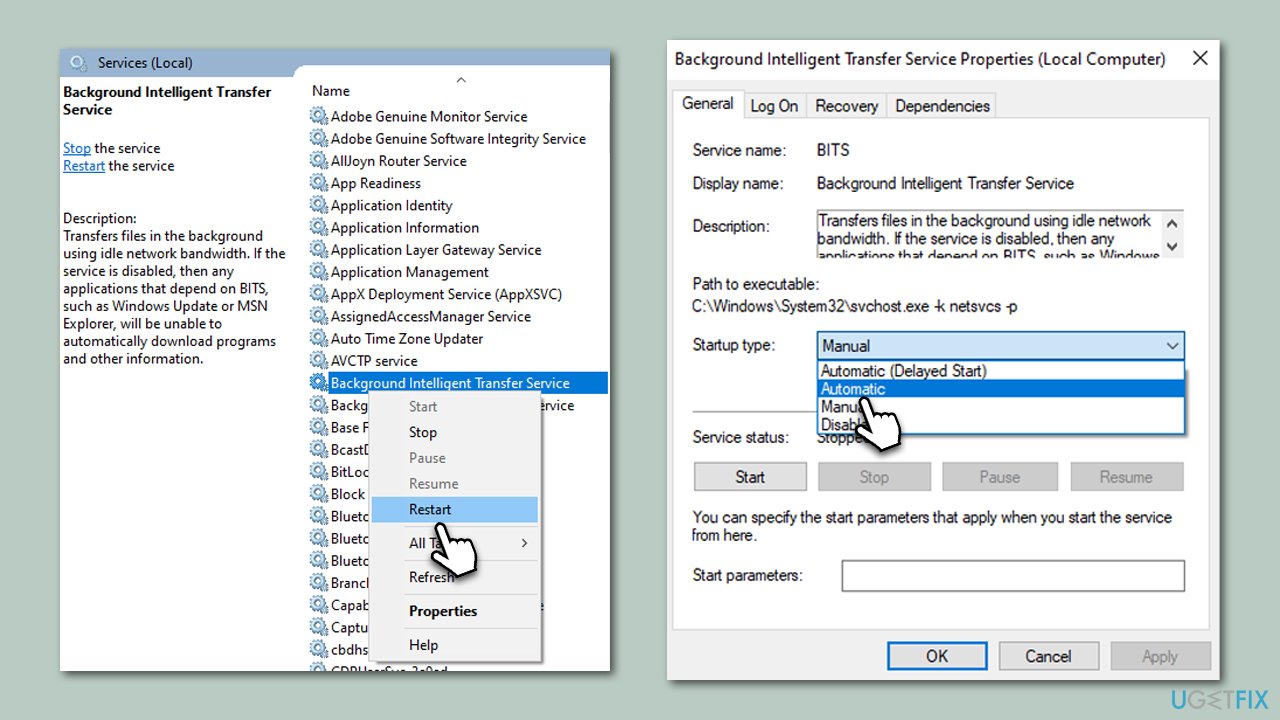
- Type in Services in Windows search and press Enter on your keyboard.
- Find Background Intelligent Transfer Service (BITS).
- If it is already running, right-click and select Restart.
- If the service is not running, double-click it to open Properties.
- Under the Startup type, select Automatic from the drop-down menu.
- Click Start, Apply, and OK.
- Locate Windows Update Service and perform the same steps.
Solution 4. Run the troubleshooter
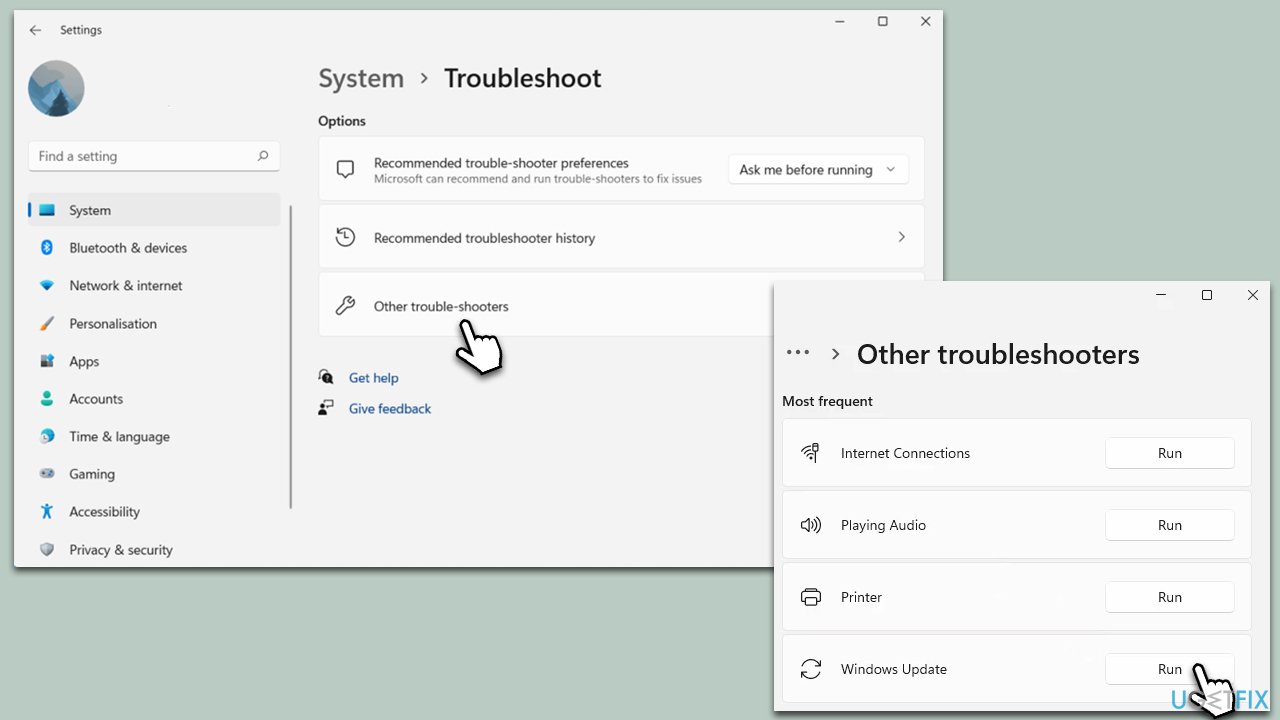
- In Windows search, type in troubleshoot and press Enter (you can also go to Start > Settings > System > Troubleshoot).
- Pick Other troubleshooters.
- Find Windows Update on the list and click Run.
- Apply the suggested fixes and restart your device.
Solution 5. Use Windows 11 Installation Media
You can rely on a special Windows tool from Microsoft that would allow you to upgrade your operating system to the latest version.
- Visit the official Microsoft website and download Windows installation media.
- Double-click the installer and select Yes when UAC shows up.
- Agree to the terms and click Next.
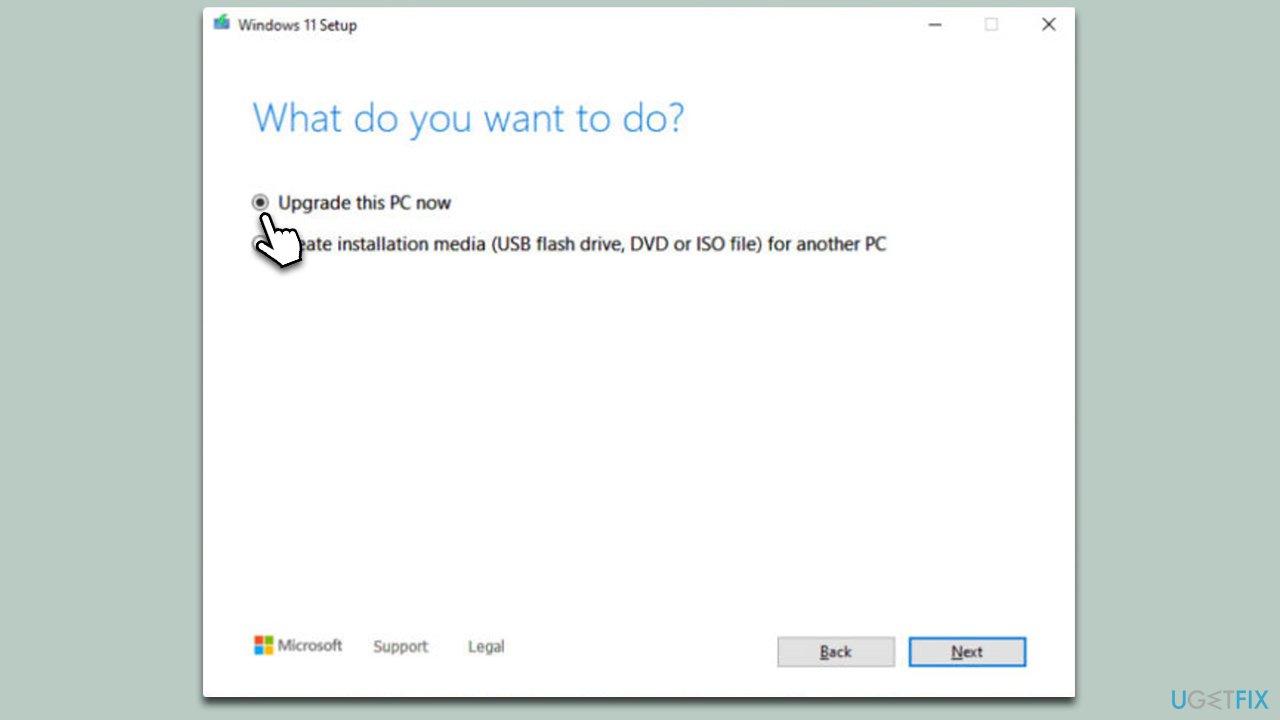
- Select Upgrade this PC now and pick Next.
- Windows will now download all the necessary files – wait till it's complete.
- Agree to the terms once more and click Next.
- Before installing, make sure that you are happy with your choices (although you can click Change what to keep option).
- Click Install to begin the upgrade process.
Solution 6. Install the update manually
You can always try to install the update manually as follows:
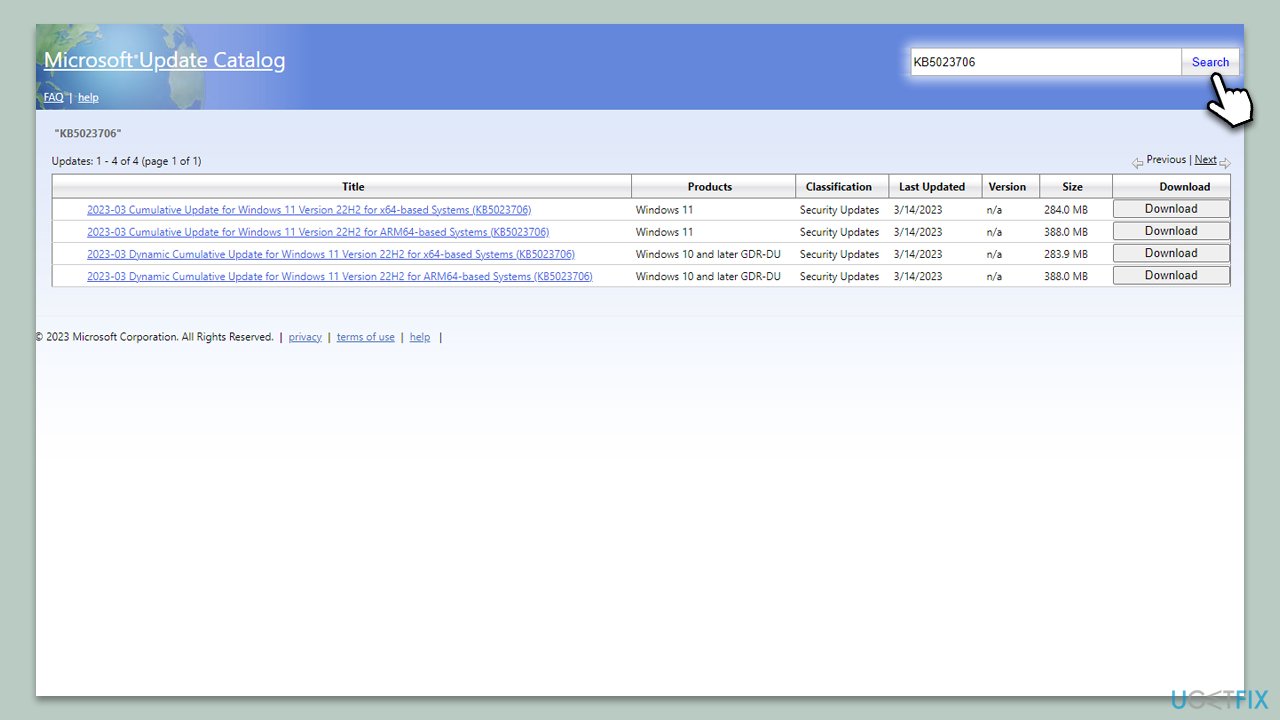
- Go to the official Microsoft Update Catalog website.
- Type KB5023706 into the search bar and press Enter or click Search.
- Find the correct version of the update for your device (as a home user, ignore all Windows server versions) and click Download.
- Follow the on-screen instructions to install the update and then restart your system.
Bottom line
To fix the KB5023706 installation failure, try restarting your computer and running the Windows Update troubleshooter. If these steps do not resolve the issue, consider using a PC repair tool to identify and fix common problems. If none of these solutions work, further troubleshooting may be necessary.
Frequently asked questions
First, try running the Windows Update Troubleshooter by going to Settings > Update & Security > Troubleshoot > Additional troubleshooters. If that doesn't work, consider resetting the Windows Update components manually.
Yes, some antivirus programs can block Windows updates; temporarily disable your antivirus software and attempt the installation again. Remember to re-enable it after the update.
You can check the Windows Update log or the Event Viewer for specific error codes; this will help you identify the problem. Once you have the error code, you can look it up for targeted solutions.




Report an issue
What's wrong with this guide? We review every report and update or remove content.
Report received — thank you. We'll review and fix it.
You need a free account to submit a report.
Be the first to comment