How to fix
KB5023773 fails to install
on Windows
Troubleshoot and resolve the KB5023773 installation failure on Windows 10 quickly and efficiently. Expert-tested solutions for hassle-free updates!

What causes How to fix KB5023773 fails to install in Windows 10?
- Compatibility issues with other software
- Compatibility issues with drivers
- Lack of disk space
- Corrupted system files
- Interference from third-party antivirus
Repairs Windows system files, removes malware, and restores a clean OS state — without reinstalling.
Hello. I tried to install the newest KB5023773 update available for Insiders on Windows 10 but the installation failed. What can I do?
Windows updates are critical for ensuring the operating system's security, performance, and stability. These updates include bug fixes, security patches, and enhancements that address various system issues and vulnerabilities. It is strongly advised to install them as soon as they become available.
The KB5023773[ref en-1] update for Windows 10, version 22H2, addresses a number of critical issues, including a race condition between the DCOM and the Microsoft RPC endpoint mapper, a halt in code execution when using Microsoft HTA, and the loss of previously configured Desired State Configuration options.
However, some users may experience problems while attempting to install this update. Compatibility issues with other software or drivers installed on the system could be one reason. Another possible cause is a lack of disk space.
Users can try a variety of solutions to resolve issues with Windows updates. The most basic is to run the Windows Update Troubleshooter. Users can also try uninstalling third-party security software and restarting Windows services. This guide will walk you through 7 steps to resolve KB5023773 fails to install in Windows 10.
Keep in mind that the manual troubleshooting process can be lengthy. You can use a system repair tool, like [d1] that can fix most system errors, BSODs,[ref en-2] corrupted files, and registry[ref en-3] issues automatically. Otherwise, follow the step-by-step instructions below.
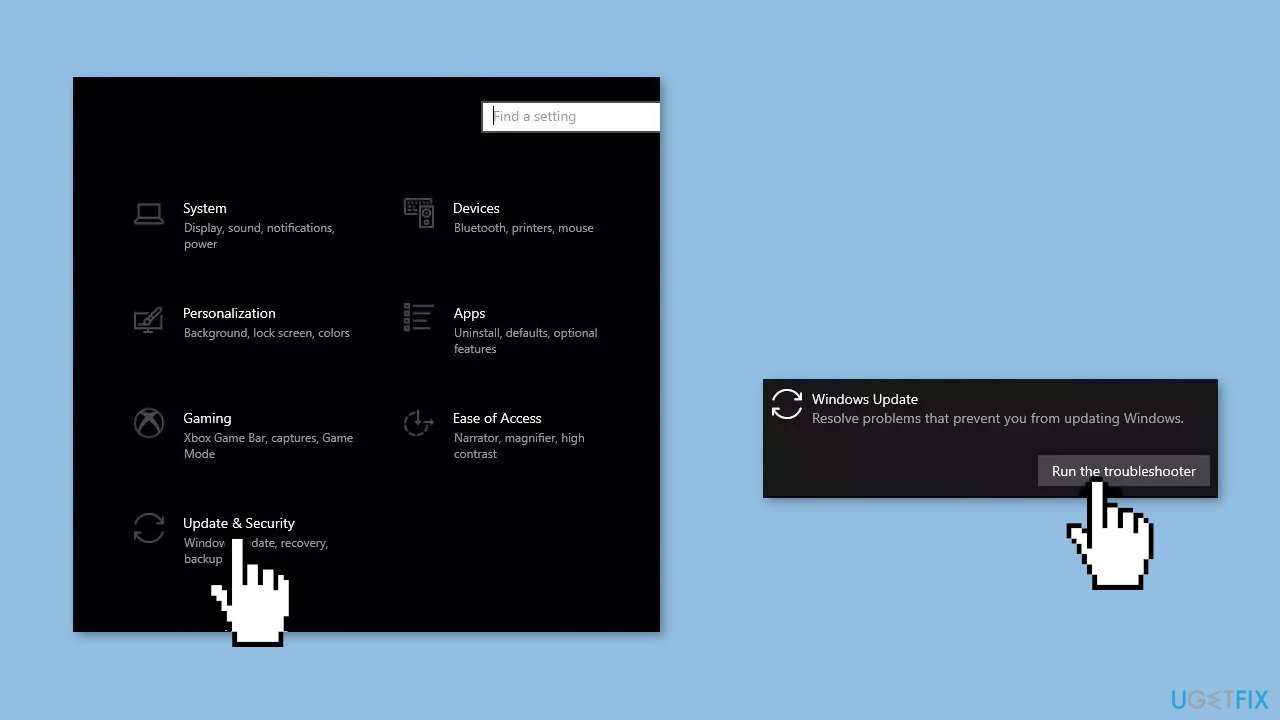
Solution 1. Run the Windows Update Troubleshooter
- Press the Windows + X keys and go to Settings
- Go to Update and Security
- Click Troubleshooter
- Select Additional troubleshooters
- Run the Update troubleshooter
- Restart
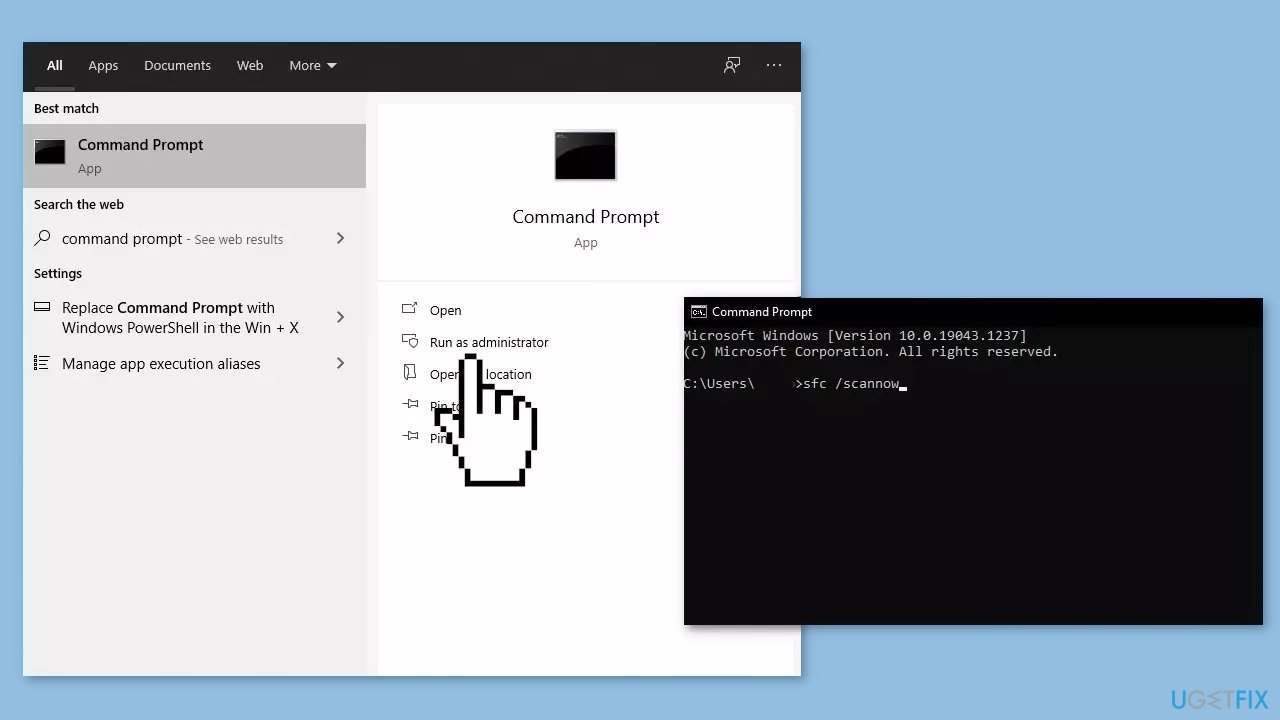
Solution 2. Fix Corrupted System Files
Use Command Prompt commands to repair system file corruption:
- Open Command Prompt as administrator
- Use the following command and press Enter:
sfc /scannow
- Reboot your system
- If SFC returned an error, then use the following command lines, pressing Enter after each:
DISM /Online /Cleanup-Image /CheckHealth
DISM /Online /Cleanup-Image /ScanHealth
DISM /Online /Cleanup-Image /RestoreHealth
Solution 3. Uninstall Third-Party Antivirus
Sometimes third-party security tools can interfere with legitimate Windows processes because it is seeing them as malicious. If you have any antivirus installed on your computer, remove it to see if it fixes the issue:
- Go to Apps & features
- Find third-party antivirus in the list
- Click on it once and then click Uninstall
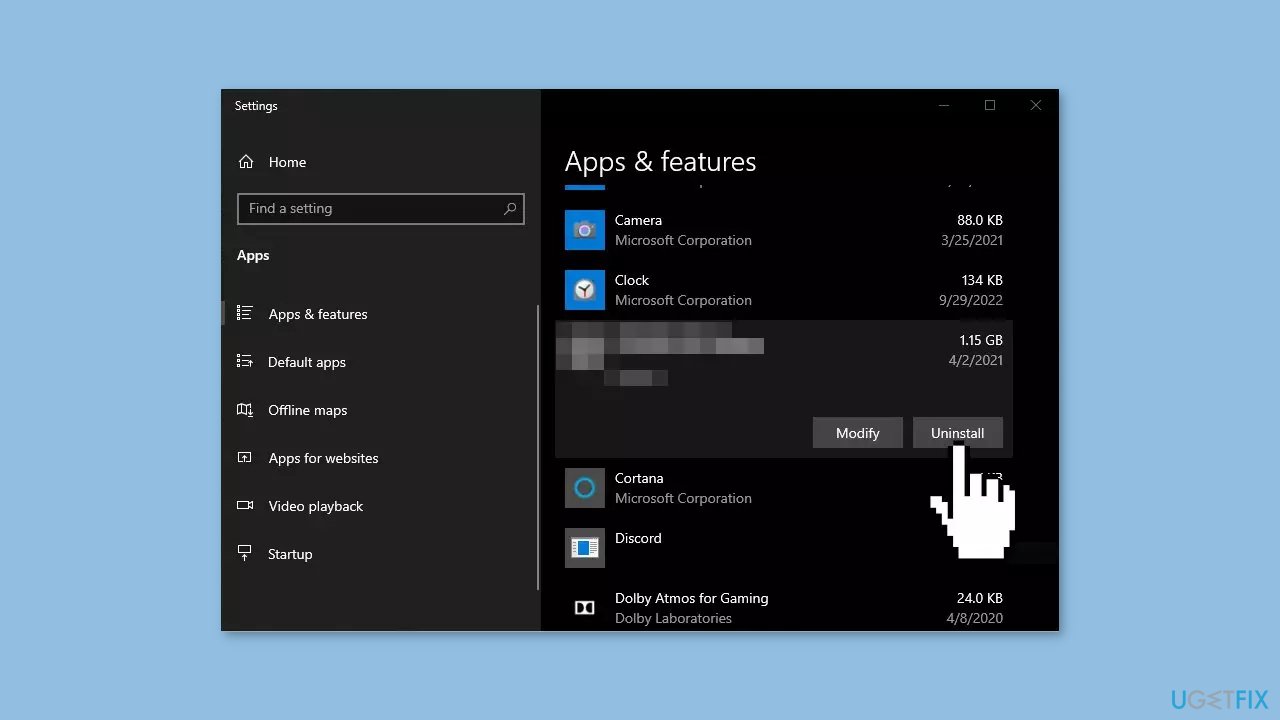
- Wait for the process to finish and check if you can install updates
Solution 4. Remove Windows Update Files
- Press the Windows key + X and click on PowerShell (Admin)
- Copy and paste the following commands and press Enter after each one:
net stop bits
net stop wuauserv
net stop msiserver
net stop cryptsvc
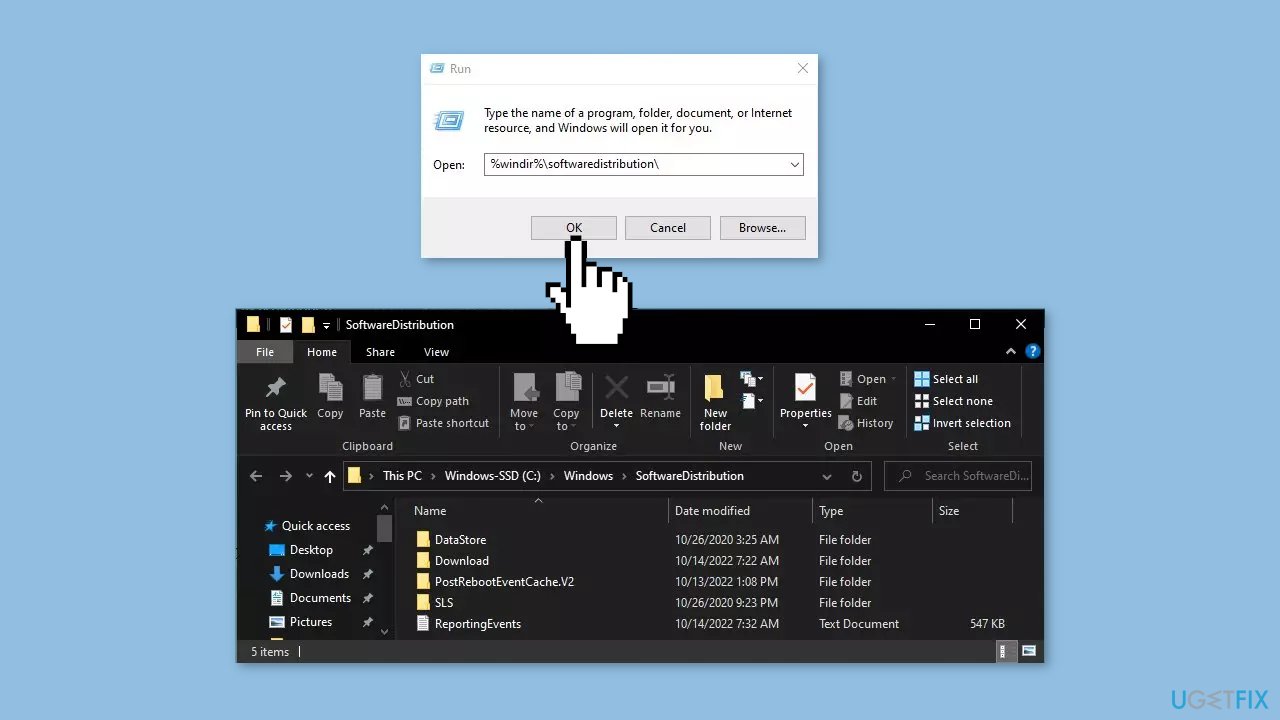
- Press the Windows key + R to open the Run box
- Type %windir%\softwaredistribution\ press Enter
- Delete all content inside the SoftwareDistribution folder
- Press the Windows key + X and click PowerShell (Admin) again
- Copy and paste the commands below and press Enter after each one:
net start bits
net start wuauserv
net start msiserver
net start cryptsvc - Check if you can install Windows updates
Solution 5. Update Drivers
- In the search box on the taskbar, enter device manager, then select Device Manager
- Select a category to see the names of devices, then right-click the one you’d like to update
- Select Search automatically for updated driver software
- Select Update Driver
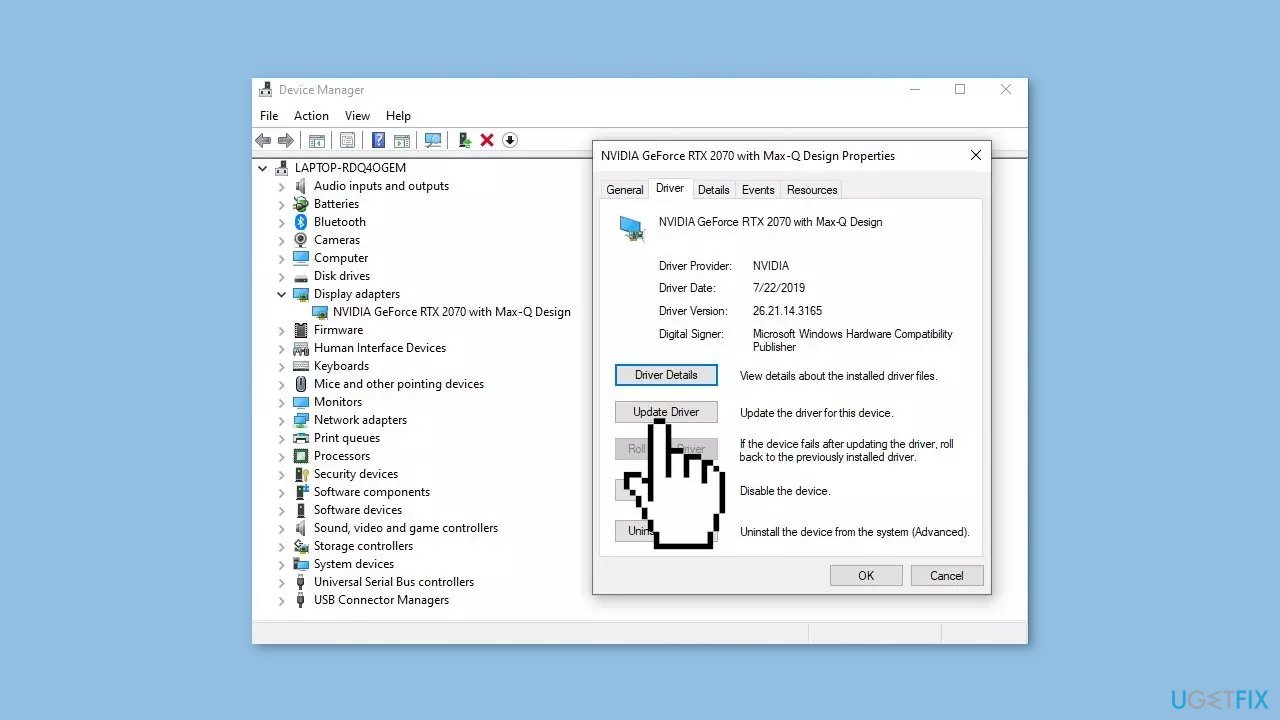
- If Windows doesn't find a new driver, you can try using an automatic tool like [rev id="DriverFix"] which can find the best drivers for your system
Solution 6. Restart Windows Services
- Type services in the search bar and launch the Services utility
- Find Windows Update in the list
- Double-click on it, set the Startup type to Automatic, and click Apply
- Now click on Restart the Service
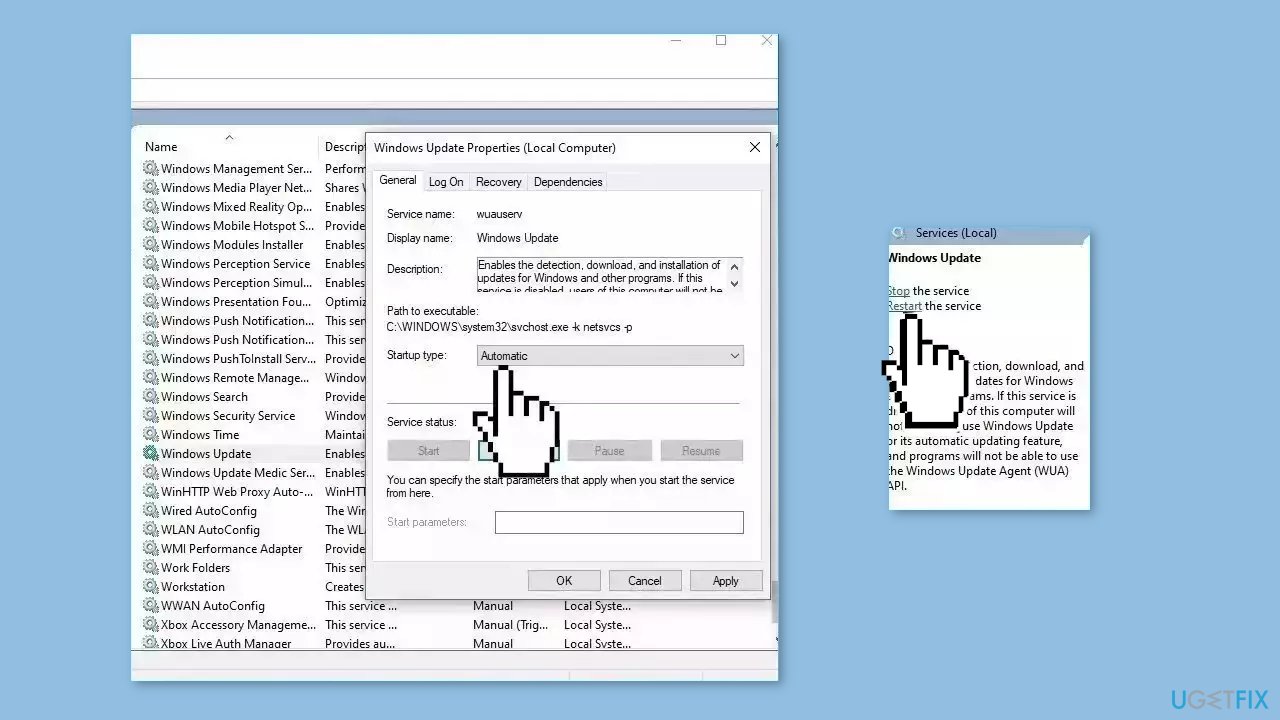
- Do the same with Background Intelligent Transfer Service
Solution 7. Try Clean Boot
- Open the Search menu, type in system configuration, and press Enter
- Under the Services tab, tick the Hide all Microsoft services box
- Click on Disable all button
- Head over to the Startup tab and click on Open Task Manager
- Select a third-party program and click on Disable at the top
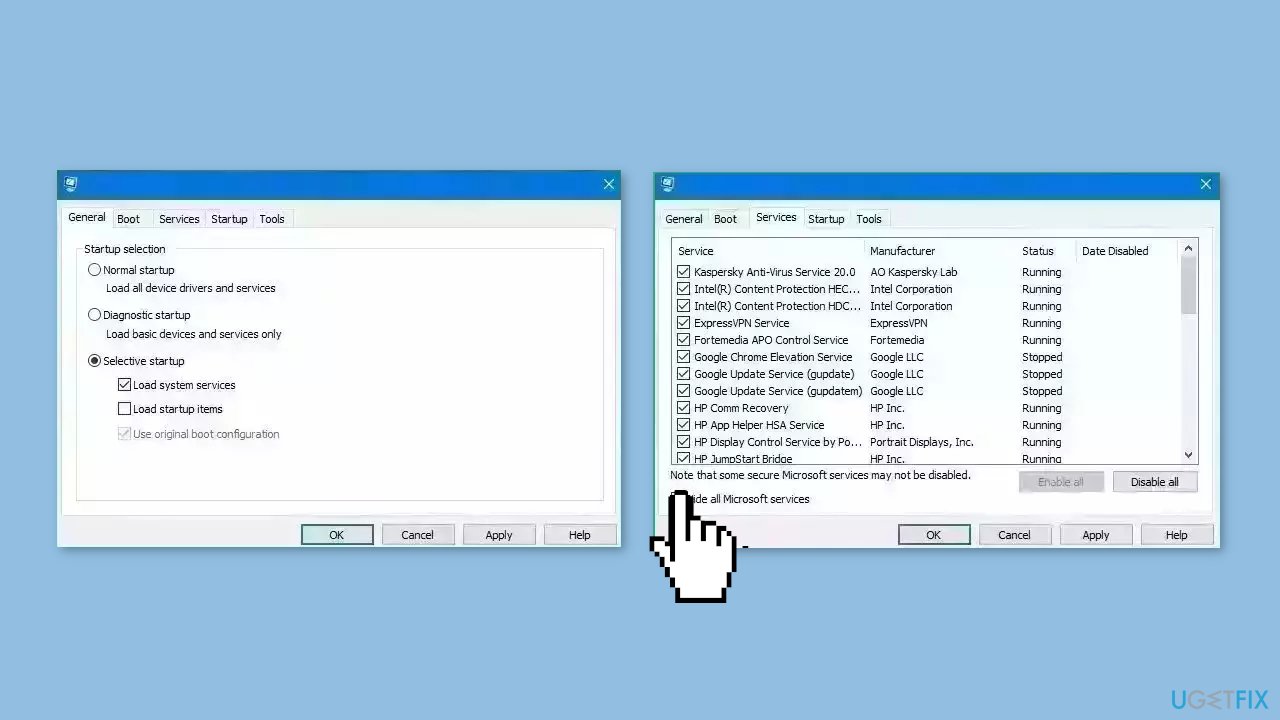
- Repeat this step to disable all third-party apps and programs
- Restart your PC to enter the clean boot state and see if the issue persists
- If the issue disappeared in the clean boot state, then you can be certain that a third-party app is causing it
- Go through all recently installed apps or programs and remove them one by one
Bottom line
To resolve the KB5023773 installation failure, you can run the Windows Update Troubleshooter, fix corrupted system files using Command Prompt, or uninstall third-party antivirus software. If these solutions do not work, consider using a system repair tool or following additional troubleshooting steps.
Frequently asked questions
You can try running the Windows Update Troubleshooter, which can help identify and fix issues related to updates. Additionally, ensure your system has enough disk space and try restarting your computer before attempting the installation again.
If the update fails to install automatically, you can download it manually from the Microsoft Update Catalog and install it. Make sure to select the correct version that matches your system architecture (32-bit or 64-bit).
Yes, some users have reported compatibility issues with specific software or drivers that may prevent the update from installing. It’s advisable to check for known issues on the Microsoft support page related to this update.




Report an issue
What's wrong with this guide? We review every report and update or remove content.
Report received — thank you. We'll review and fix it.
You need a free account to submit a report.
Be the first to comment