How to fix
KB5025221 fails to install
on Windows
Resolve the KB5025221 installation error on Windows 10 with our expert-tested solutions. Get your updates running smoothly again, fixed in minutes!


What causes How to fix KB5025221 fails to install in Windows 10?
- Incompatible hardware or drivers
- Conflicting software
- Corrupted system files
- Insufficient disk space
- Disabled Windows Update services
Repairs Windows system files, removes malware, and restores a clean OS state — without reinstalling.
KB5025221 is not installing for me on Windows. I have tried to reboot the PC and waited, and it still fails every time I try. Any tips on how to resolve this would be appreciated.
Updates are an essential part of maintaining a healthy and secure operating system on your Windows device. They are released by Microsoft periodically to provide bug fixes, security patches, and performance improvements. These updates are crucial for ensuring your device runs smoothly and protects against potential security vulnerabilities.
KB5025221 is one such update that was released on April 11, 2023, for Windows 10 versions 22H2, 21H2, and 20H2. It consists of quality improvements to the servicing pack, which handles the Windows update process. However, despite the intention to improve the performance of Windows, some users have reported issues with KB5025221 failing to install on their devices.
There could be various reasons why KB5025221 fails to install on Windows 10 devices. One common reason is incompatible hardware or drivers, which may not meet the minimum requirements for the update. Another reason could be conflicting software or corrupted system files that prevent the update from installing successfully.
The failure to install KB5025221 can disrupt the normal functioning of the device, as it may not receive important security patches and bug fixes. This can leave the device vulnerable to potential security threats and cause performance issues in the long run.
It's worth noting that Microsoft is constantly working to address these issues and release fixes for failed updates. However, troubleshooting and resolving the problem may require technical knowledge and expertise, which can be daunting for some users. Therefore, we compiled a set of fixes that should address the issue where KB5025221 fails to install in Windows.
Before proceeding, we recommend you try running a powerful PC repair tool [d1], capable of performing many of the troubleshooting steps automatically, ultimately resolving the problem within just a few minutes.
Fix 1. Check the services
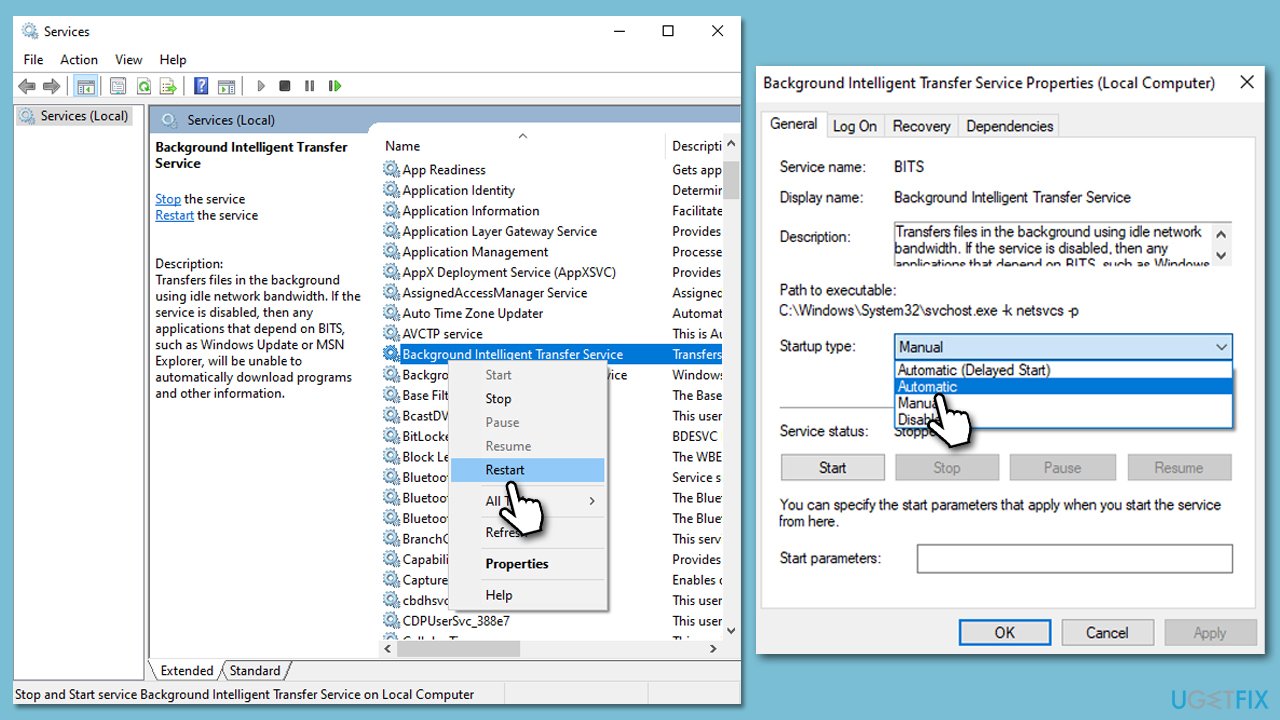
Several services are required to install Windows updates on a Windows 10 device. These services work together to ensure that the update process is smooth and successful. Thus, you can restart them and, if they are not running, set their startup mode to automatic:
- Type in Services in Windows search and press Enter.
- Scroll down to locate Background Intelligent Transfer Service (BITS).
- If it is already running, right-click and pick Restart.
- If the service is not running, double-click it, select Automatic under the Startup type from the drop-down menu.
- Click Start, Apply, and OK.
- Perform the same steps with Windows update and Cryptographic services.
Fix 2. Run the troubleshooter
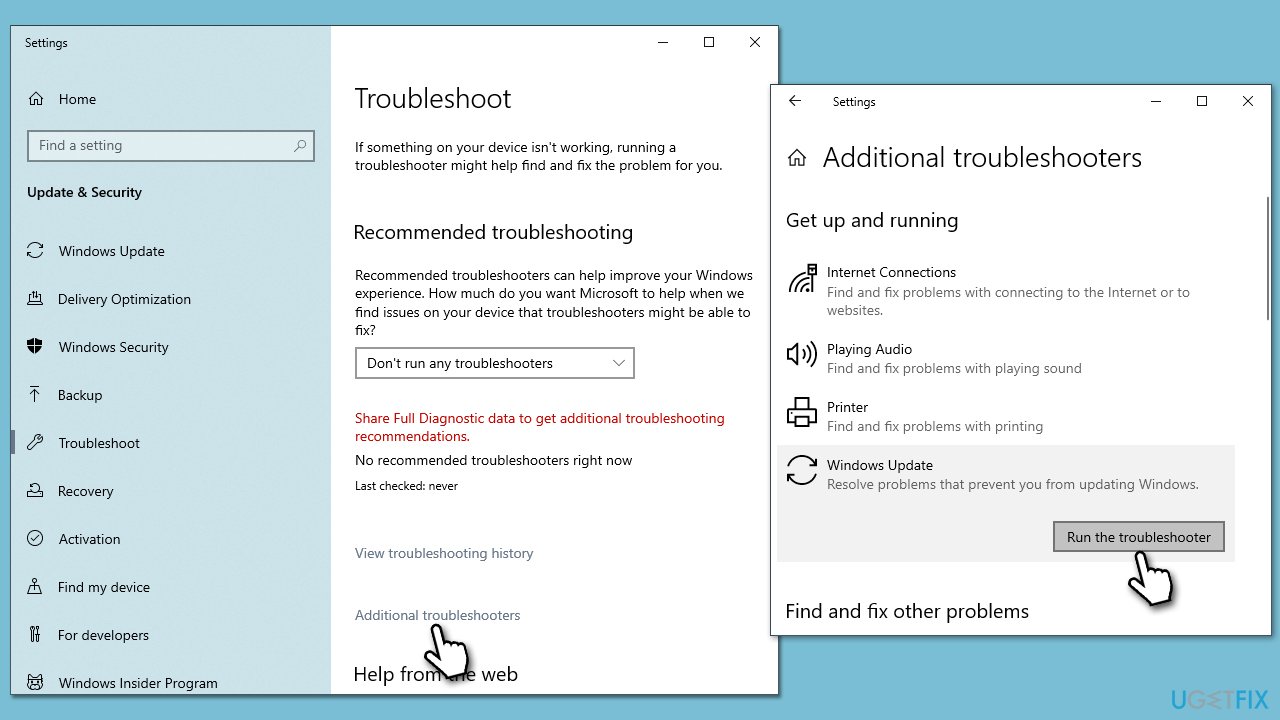
Windows Update Troubleshooter is a built-in tool provided by Microsoft in Windows designed to diagnose and fix issues related to Windows updates.
- Type Troubleshoot into the Windows search bar and press Enter.
- Next, on the right side of the window, select Additional troubleshooters.
- Scroll down to locate the Windows update option and click on it.
- Click on Run the troubleshooter and allow the process to complete.
- Once it is finished, implement any recommended fixes and restart your PC.
Fix 3. Clean your disk from junk
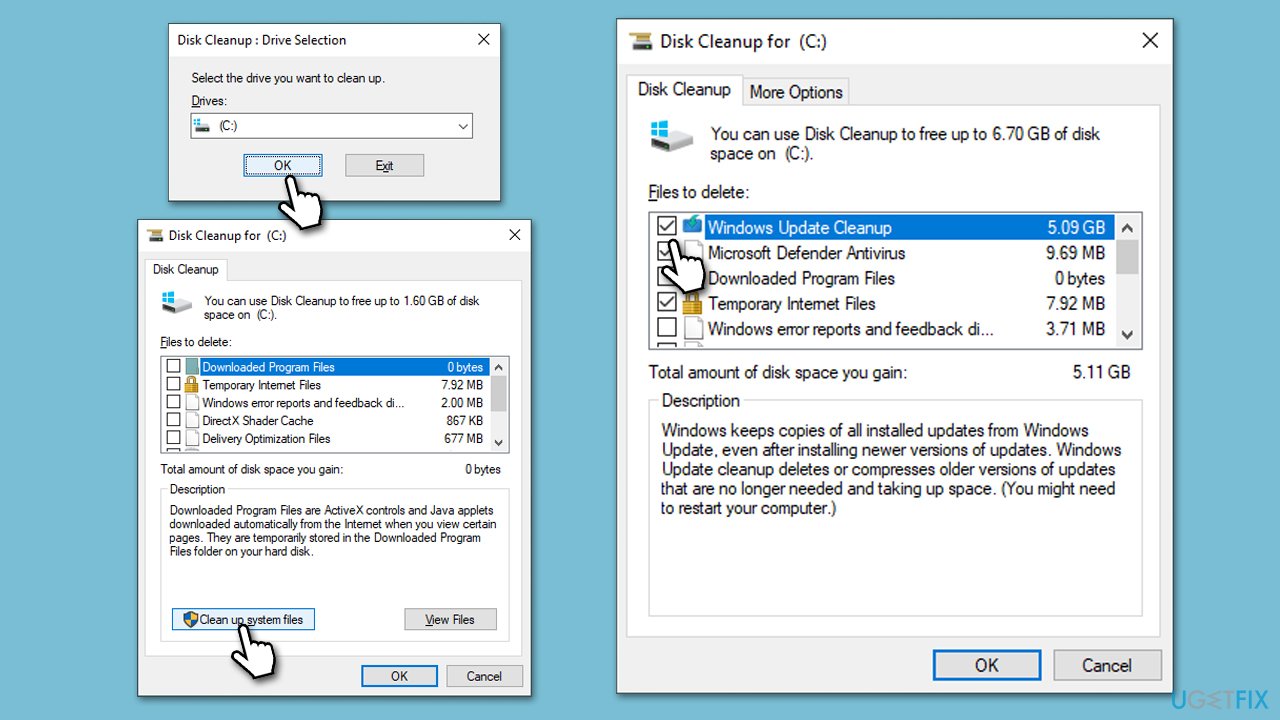
Insufficient disk space may result in updates failing. You can clean your system by using the Disk Cleanup function:
- Type Disk Cleanup in Windows search and hit Enter.
- If your Windows is installed on drive C, pick it from the list (it should be by default) and press OK.
- Click Clean up system files.
- Select your main disk again and click OK.
- Here, select the largest portions of the data used - these typically include Temporary Internet Files, Windows Update, Temporary Files, Recycle Bin, Delivery Optimization Files, and others.
- Click OK - the process should be finished shortly.
Fix 4. Disable security or other software
Windows updates, such as KB5025221, may fail to install due to conflicts with third-party security software, firewall settings, or VPN software. These programs can block or interfere with the update process, flag update files as threats, block communication with Windows Update servers, or alter network configurations. Configuring, updating, or temporarily disabling these third-party programs may be necessary to allow successful Windows update installations.
Fix 5. Repair corrupted files
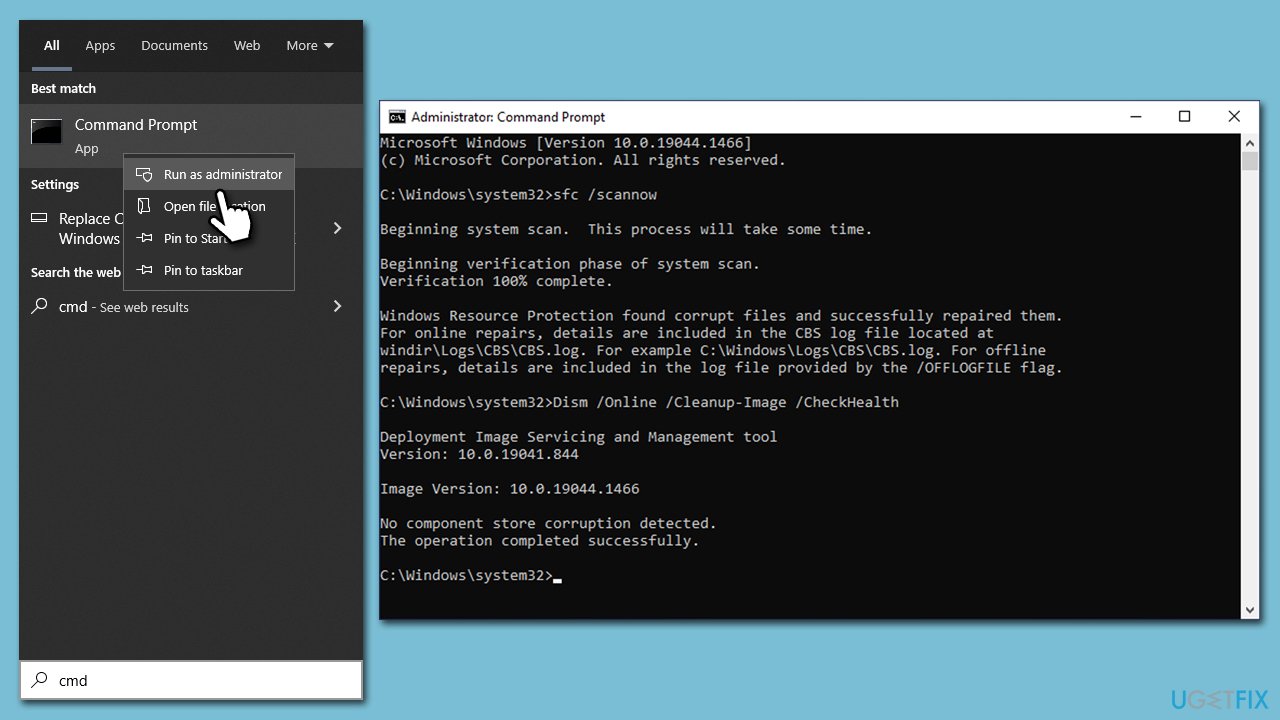
- Type cmd in Windows search.
- Right-click on Command Prompt and pick Run as administrator.
- When User Account Control shows up, click Yes.
- Use the following command lines, pressing Enter after each:
sfc /scannow
DISM /Online /Cleanup-Image /CheckHealth
DISM /Online /Cleanup-Image /ScanHealth
DISM /Online /Cleanup-Image /RestoreHealth - Restart your system.
Fix 6. Install the update manually
If KB5025221 keeps failing, you can try installing it manually from the official Microsoft website:
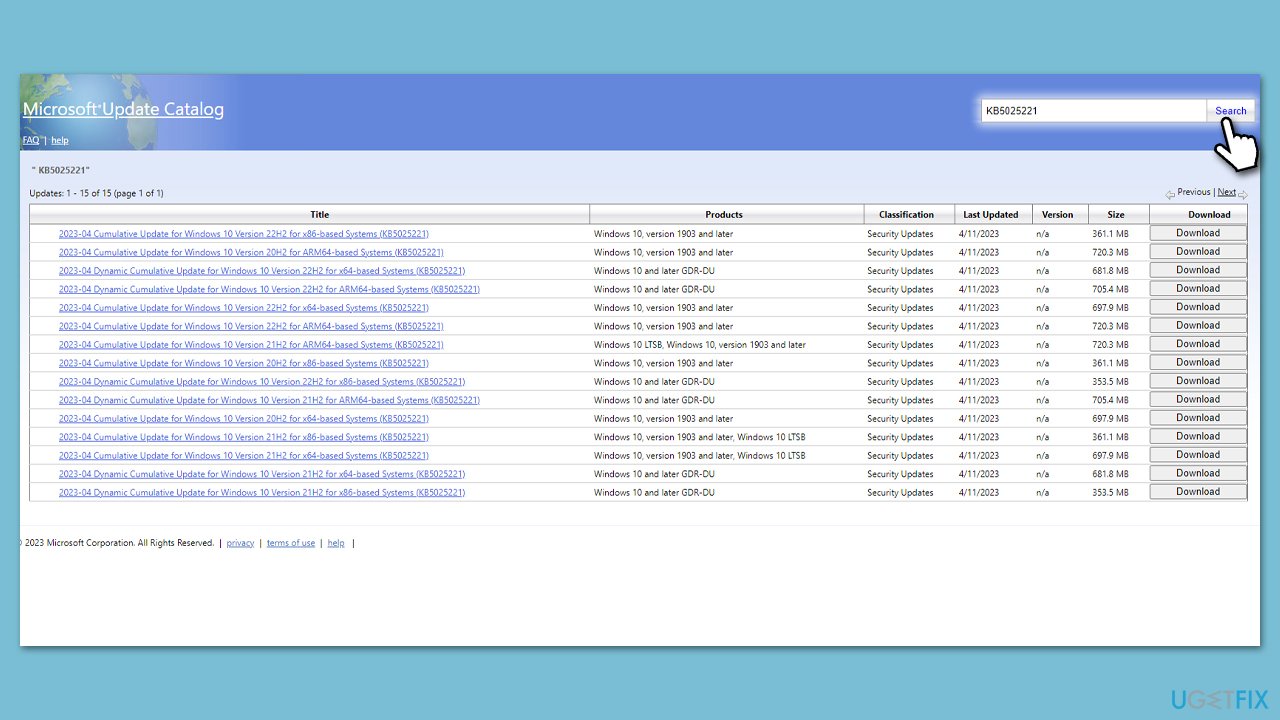
- Open your web browser and navigate to the Microsoft Update Catalog.
- In the search box, enter the KB number of the update that failed to install.
- Locate the correct version of the update for your operating system by checking your System type (Right-click on Start and select System. Under Device specifications, check the System type).
- Click on Download and follow the prompts to complete the process.
- Once the update is installed, reboot your device.
Fix 7. Use Media Creation Tool
If the previously mentioned methods do not resolve the issue, an alternative approach is to use the Media Creation Tool. Prior to proceeding with the update, it is important to disconnect any unnecessary external devices, such as printers or USB flash drives. Also, uninstalling third-party security applications that may interfere with the update process is advised.
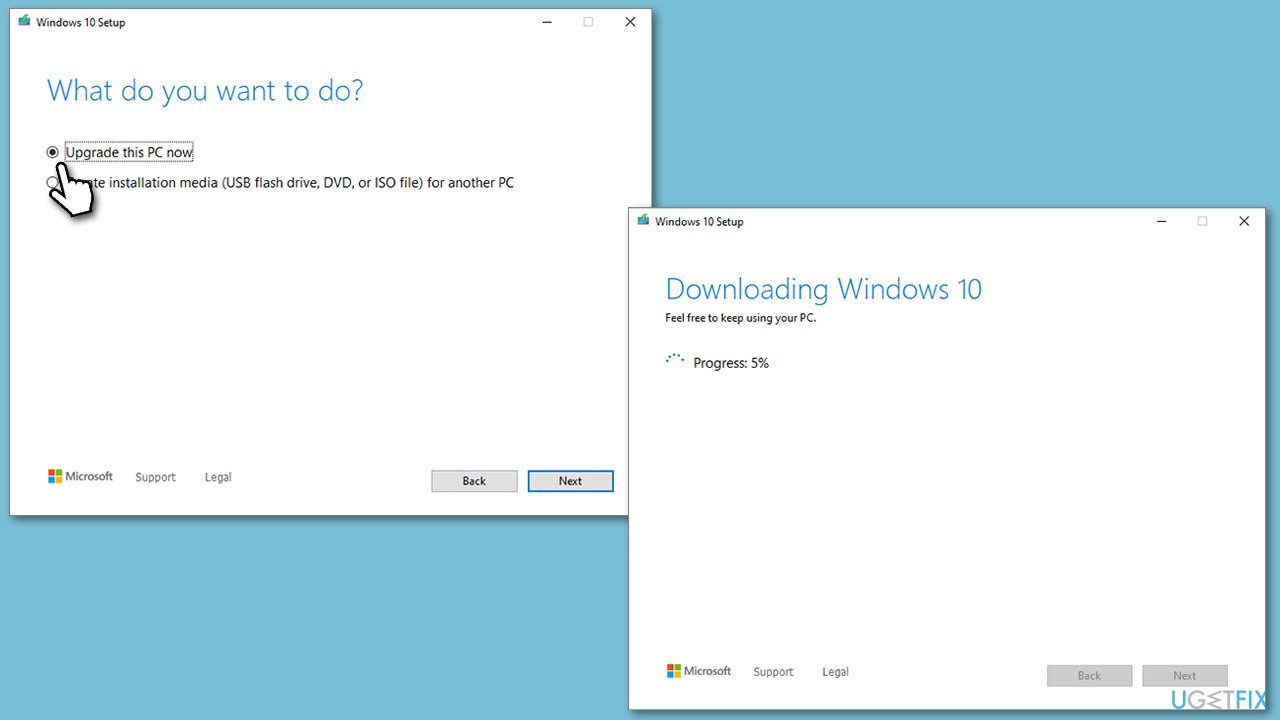
- Visit the official Microsoft website and download Windows 10 installation media.
- Double-click the installer and click Yes when the User Account Control window shows up.
- Agree to the terms and click Next.
- Select Upgrade this PC now and click Next.
- Wait for Windows to download files.
- Agree to the terms once again and click Next.
- Before installing, ensure you are happy with your choices (otherwise, you can click the Change what to keep option).
- Click Install to begin the upgrade process.
Bottom line
To resolve the issue of KB5025221 failing to install, you can check the required services, ensure your hardware and drivers are compatible, and run a powerful PC repair tool. If these steps do not work, consider seeking further technical assistance.
Frequently asked questions
You can try running the Windows Update Troubleshooter, which can help identify and fix issues related to updates. Additionally, ensure that you have enough disk space and try disabling your antivirus temporarily.
You can download the standalone KB5025221 update from the Microsoft Update Catalog and install it manually. Make sure to select the correct version that matches your Windows 10 architecture.
Common reasons include corrupted system files, insufficient disk space, or conflicts with third-party software. Running a system file check or ensuring your system is up to date can often resolve these issues.




Report an issue
What's wrong with this guide? We review every report and update or remove content.
Report received — thank you. We'll review and fix it.
You need a free account to submit a report.
Be the first to comment