How to fix
KB5025229 fails to install
on Windows
Resolve KB5025229 installation issues in Windows 10 effortlessly. Get expert-tested solutions to fix errors quickly and efficiently. Fixed in minutes!

What causes How to fix KB5025229 fails to install in Windows 10?
- Insufficient disk space on the system drive
- Conflicting software or drivers
- Third-party antivirus programs interfering
- Corrupted system files
- Corrupted registry entries
Repairs Windows system files, removes malware, and restores a clean OS state — without reinstalling.
Hi, I can't install the KB5025229 update on Windows - I keep receiving an error. Is there anything I could do to avoid this and install the update?
When it comes to keeping Windows operating systems secure and up-to-date, Microsoft regularly releases updates on a designated day known as "Patch Tuesday." These updates typically include security fixes, bug fixes, and enhancements to improve the performance and functionality of Windows.
On April 11, 2023, Microsoft released KB5025229, a routine update for Windows 10 that addressed numerous security issues and implemented several improvements, including new features for Microsoft Defender for Endpoint and fixes for known compatibility issues with printers.
Despite the improvements and enhancements, some users have reported issues with KB5025229 failing to install on their Windows 10 machines. There could be several reasons for this failure, ranging from system configuration issues to software conflicts.
One common reason for installation failure is insufficient disk space on the system drive. Windows updates require a certain amount of free space to be installed successfully, and if the system drive is running low on space, it can prevent KB5025229 from being installed.
Another reason for installation failure could be conflicting software or drivers on the system. Sometimes, third-party antivirus programs or other security software can interfere with the installation process of Windows updates, including KB5025229. In such cases, temporarily disabling or uninstalling the conflicting software may allow the update to be installed successfully.
In some cases, corrupted system files or registry entries can also prevent the successful installation of KB5025229. This can occur for various reasons, such as improper shutdowns, malware infections, or system errors.
For users who are looking for a quicker resolution, Microsoft also provides a repair tool called [d1] that can automatically diagnose and fix issues related to Windows updates. This tool can help identify and resolve common problems that prevent updates from being installed, including KB5025229.
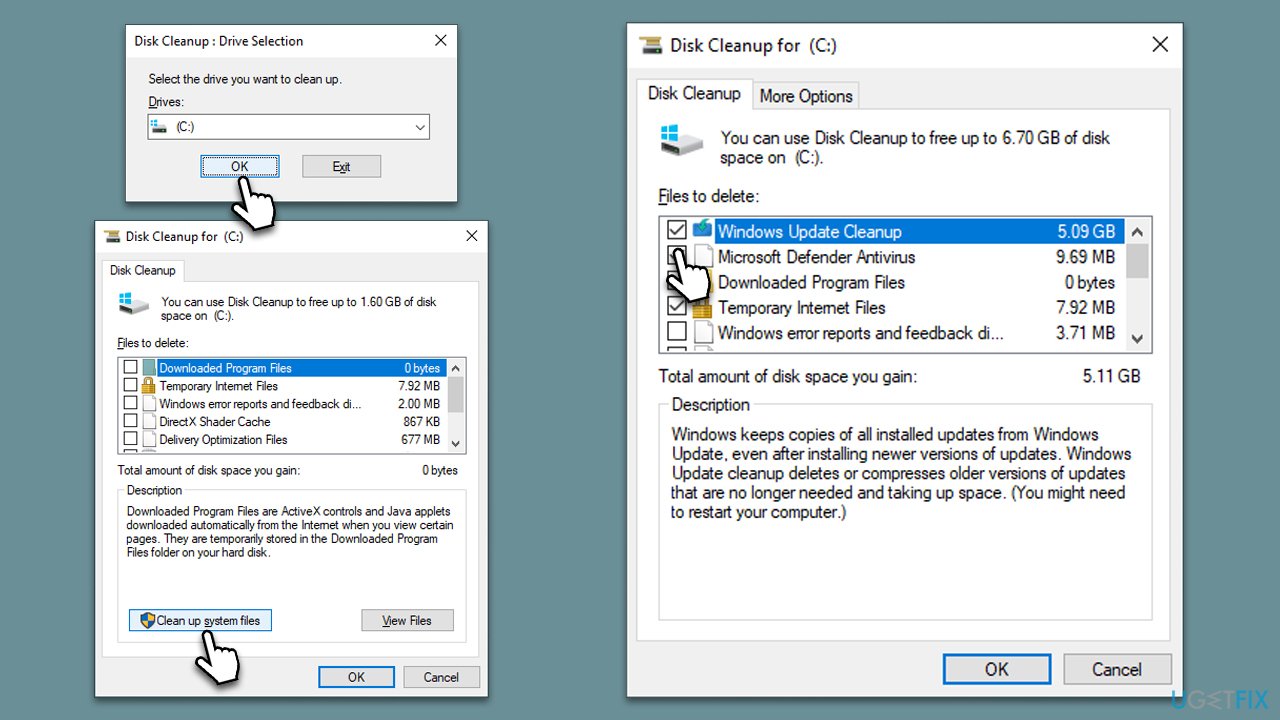
Fix 1. Clean your disk
Make sure you have sufficient space. Removing previous Windows update files could help as well.
- Type Disk Cleanup in Windows search and press Enter.
- Select your main drive (C: by default).
- Click Clean up system files and select your main drive again.
- Select the largest sections you'd like to remove, for example, Temporary Internet Files, Windows Update Cleanup, Delivery, and Optimization Files
- Click OK, and Windows will begin the disk cleanup process.
Fix 2. Run the troubleshooter
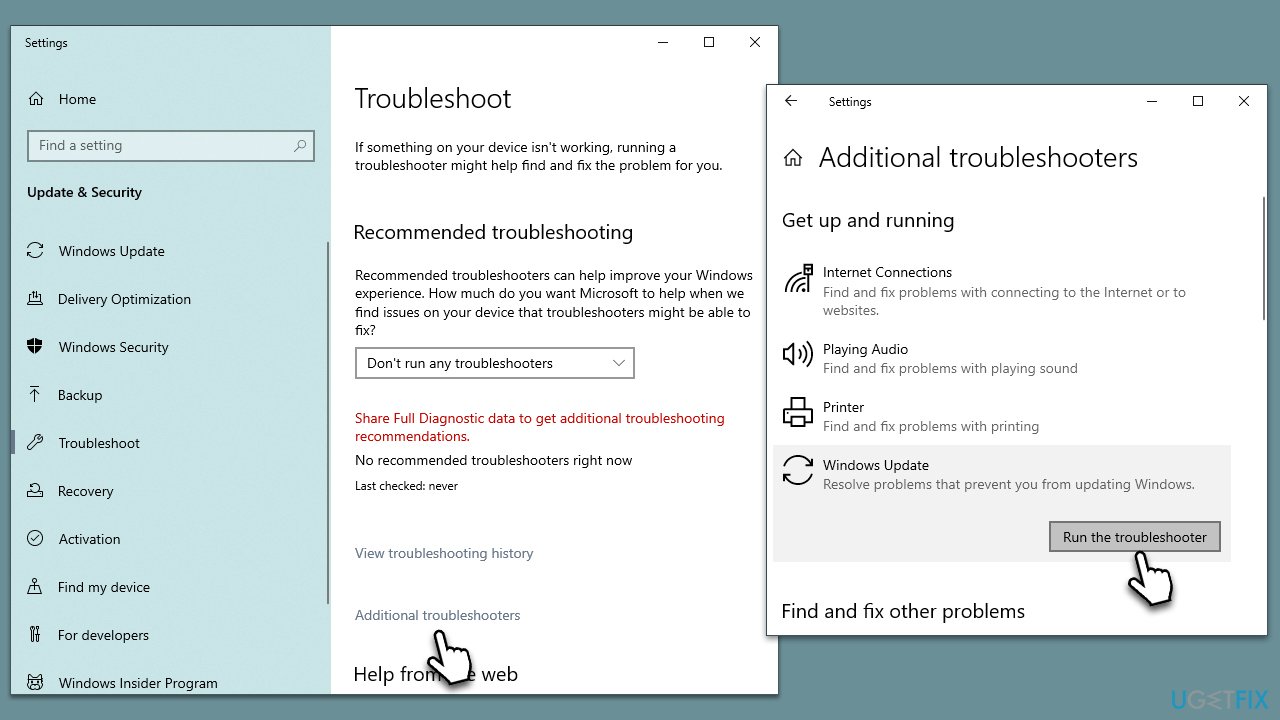
A troubleshooter can often point you in the right direction when having problems with Windows updates. To run it, proceed with the following step:
- Type Troubleshoot in Windows search.
- Select Additional troubleshooters.
- Find Windows Update from the list.
- Click it and pick Run the troubleshooter.
- Apply the suggested steps and restart your device.
Fix 3. Disable your third-party anti-malware or access Clean Boot mode
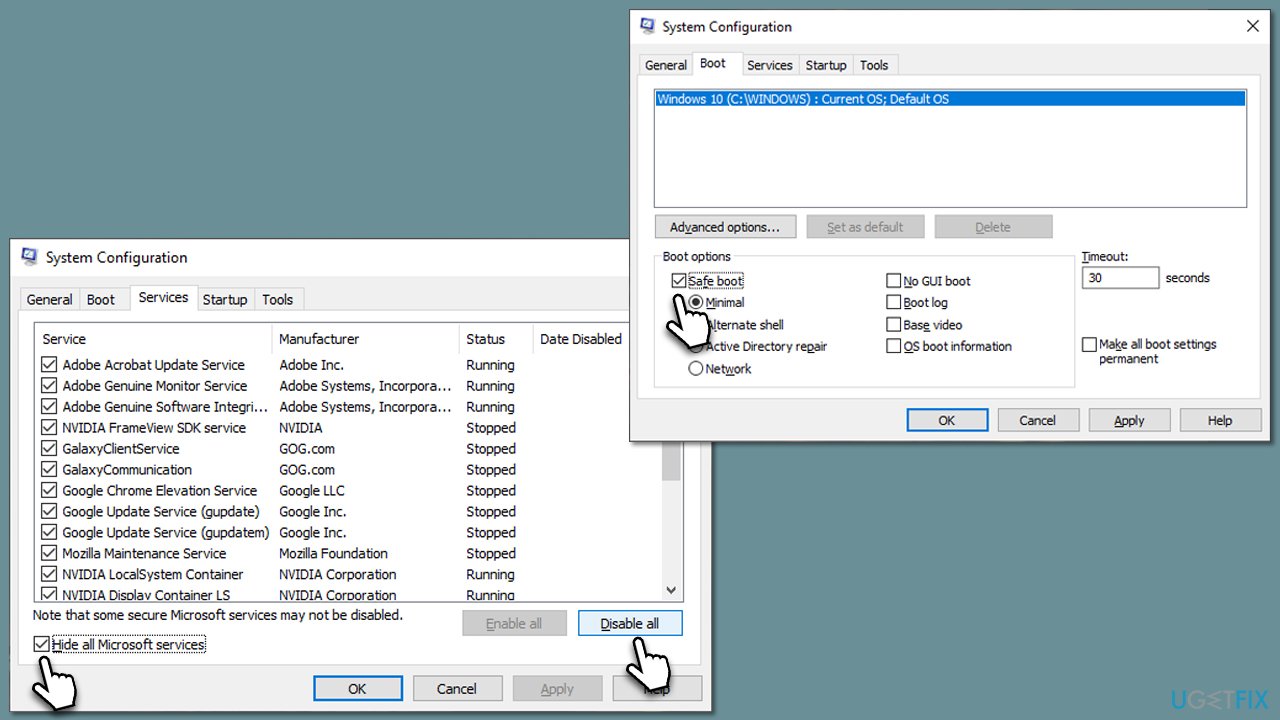
Disabling third-party security software temporarily and performing a Clean boot are effective troubleshooting methods to prevent Windows updates from failing to install. Disabling security software can bypass potential conflicts with real-time scanning or firewall features, while Clean Boot helps identify which software may interfere with the update installation process. To access Clean Boot, follow these steps:
- Press Win + R, type msconfig, and hit Enter.
- Go to the Services tab and tick the Hide all Microsoft services checkbox.
- Select Disable all.
- Go to the Startup tab and click Open Task Manager.
- Here, right-click on each of the non-Windows entries and select Disable.
- Close down the Task Manager.
- Go to the Boot tab and tick the Safe boot option.
- Restart your device.
Fix 4. Run SFC and DISM
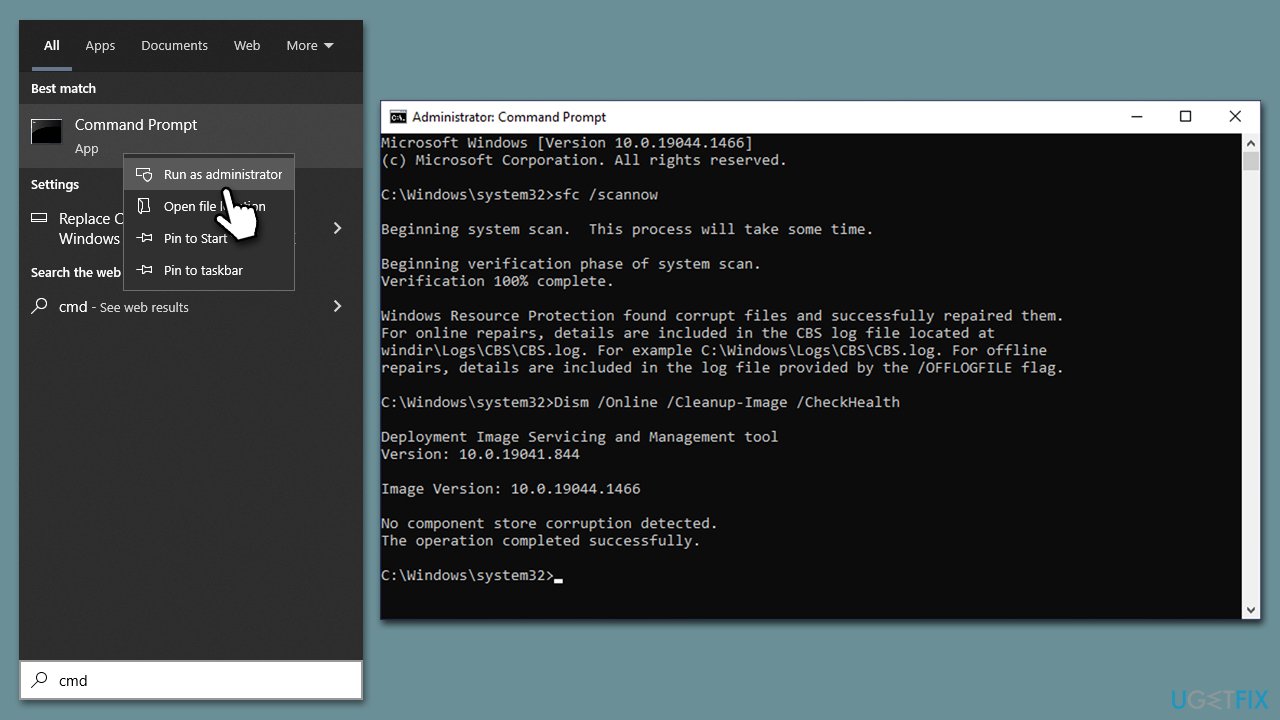
You can check whether system file corruption is causing issues by running commands in elevated Command Prompt:
- Type cmd in Windows search.
- Right-click on the Command Prompt result and select Run as administrator.
- User Account Control will ask whether you want to allow changes - click Yes.
- Next, copy and paste the following command and press Enter:
sfc /scannow - When the scan is complete, run the these commands as well:
dism /online /cleanup-image /scanhealth
dism /online /cleanup-image /checkhealth
dism /online /cleanup-image /restorehealth - Restart your system.
Fix 5. Reset Windows Update components
Resetting Windows Update components can be done by following these steps:
- Open Command Prompt with administrative privileges.
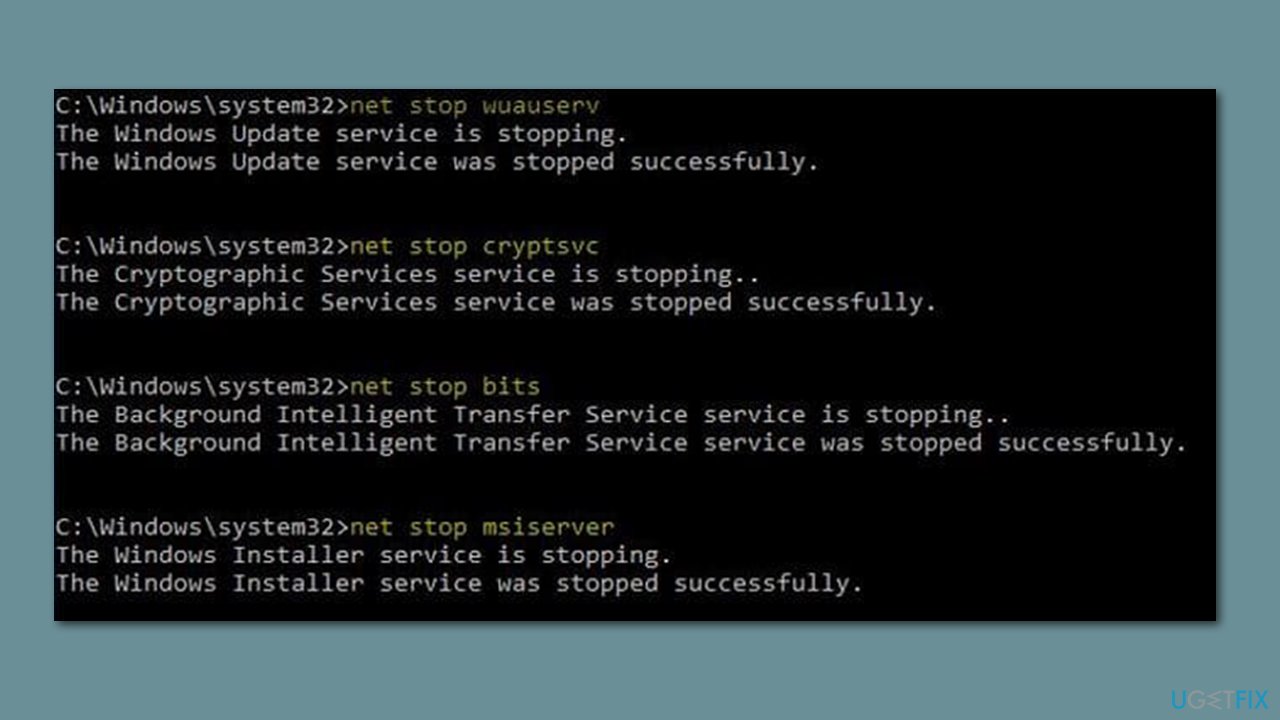
- Type the following commands one by one in Command Prompt and press Enter after each command :
net stop wuauserv
net stop cryptSvc
net stop bits
net stop msiserver
Ren C:\Windows\SoftwareDistribution SoftwareDistribution.old
Ren C:\Windows\System32\catroot2 Catroot2.old - Once these commands are executed, the last thing to do is to re-enable relevant services. Use these commands:
net start wuauserv
net start cryptSvc
net start bits
net start msiserver - Reboot your system when done.
Fix 6. Use Media Creation Tool
Despite being an option that some may shy away from, utilizing Windows ISO files for a repair installation of the latest Windows version can actually be a surprisingly uncomplicated process.
Prior to proceeding, it's essential to uninstall any third-party security software and disconnect any unnecessary peripherals, leaving only the keyboard and mouse connected. However, rest assured that all your personal files, apps, and settings will be preserved during the repair installation, eliminating the need for concern about data loss.
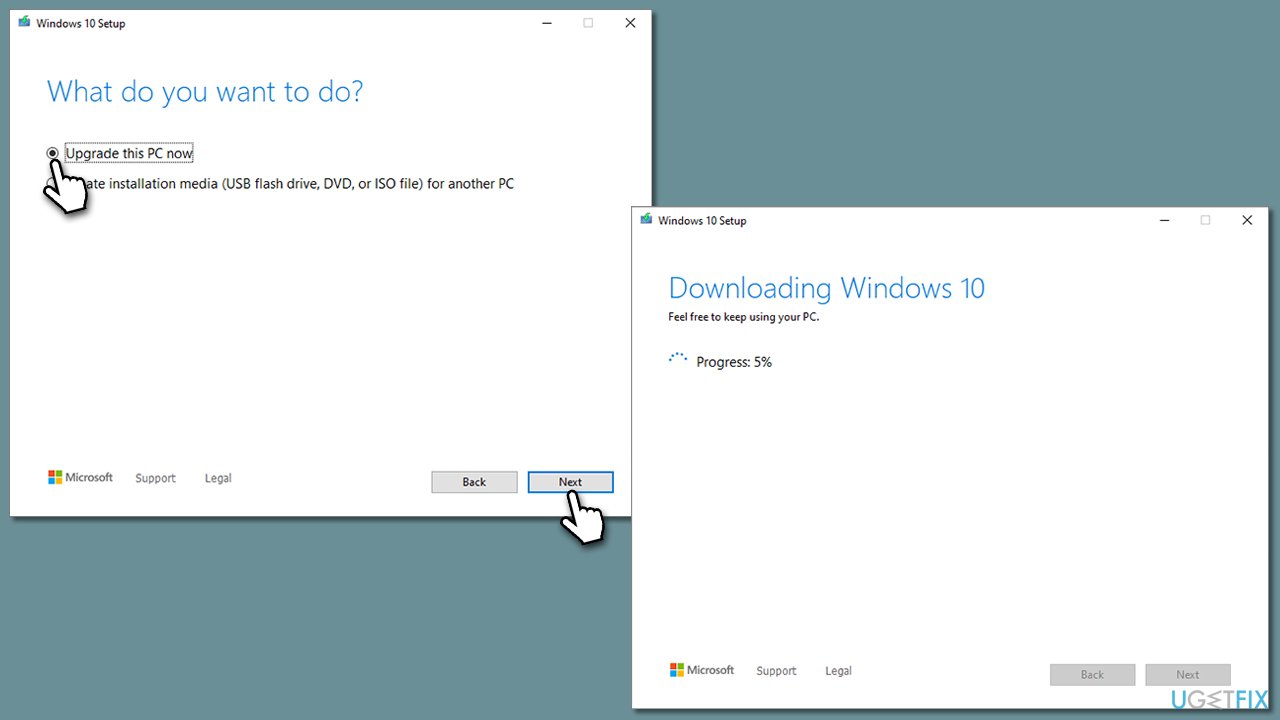
- Visit the official Microsoft website and download Windows 10 installation media.
- Double-click the installer and select Yes when UAC shows up.
- Agree to the terms and click Next.
- Select Upgrade this PC now and click Next.
- Wait till Windows downloads all the necessary files.
- Restart your PC once finished.
Bottom line
To fix the KB5025229 installation failure, ensure you have sufficient disk space, consider removing previous Windows update files, and check for conflicting software. If issues persist, using Microsoft's repair tool may help diagnose and resolve the problem. If none of these solutions work, further investigation may be necessary.




Report an issue
What's wrong with this guide? We review every report and update or remove content.
Report received — thank you. We'll review and fix it.
You need a free account to submit a report.
Be the first to comment