How to fix
KB5026361 fails to install
on Windows
Resolve the KB5026361 installation issue on Windows 10 quickly and easily. Get expert-tested solutions to ensure a smooth update experience. Fixed in mi…

What causes How to fix KB5026361 fails to install in Windows 10?
- Issues with the Windows Update service
- Corruption in system files
- Overloaded temporary folder
- Insufficient free storage space
- Multiple updates being downloaded simultaneously
Repairs Windows system files, removes malware, and restores a clean OS state — without reinstalling.
Hello, I have been trying to install the latest update KB5026361, but it fails. I waited a while, and I keep getting the "Updates failed" error. Could you provide some solutions to this?
Microsoft, a tech giant known for its Windows operating system, has an established tradition of releasing updates to ensure the system's security, stability, and performance are at their peak. Typically, these updates are delivered to users via Windows Update, a built-in tool that automatically downloads and installs updates based on the settings chosen by the user.
Updates are generally categorized into two types: Feature updates and Quality updates. Feature updates introduce new functionalities and improvements, while Quality updates focus on smaller, yet significant changes including security patches and bug fixes. Each update is designated by a Knowledge Base (KB) number, making it easier for users and administrators to track and understand the specific changes being implemented.
One such update is KB5026361, released on May 16, 2023. This was a routine Quality update aimed at Windows 10 versions 22H2, 21H2, and select editions of 20H2. The update was designed to address multiple security vulnerabilities and enhance the performance of the Windows 10 operating system. Additionally, it included quality improvements to the servicing stack, a vital component that manages the installation and removal of Windows updates.
However, some users have reported that KB5026361 fails to install correctly. This could be due to a variety of reasons, such as issues with the Windows Update service, corruption in system files, or an overloaded temporary folder. Windows Update can sometimes encounter problems if it tries to download multiple updates simultaneously or if there isn't enough free storage space on the computer. Additionally, corrupted system files can prevent the update from installing correctly, and if the Windows temporary folder is full, it may also inhibit the update process.
While these issues can be frustrating, it's important to remember that they are solvable, often with just a few troubleshooting steps. However, these are complex systems, and it's crucial to approach any changes with caution.
In light of these issues, [d1] PC repair tool offers an ideal solution. This tool is designed to detect and repair common computer problems, helping you to maintain optimal system performance. It scans your computer to identify issues that may be causing problems, such as those preventing the installation of updates like KB5026361.
Fix 1. Repair corrupted system files
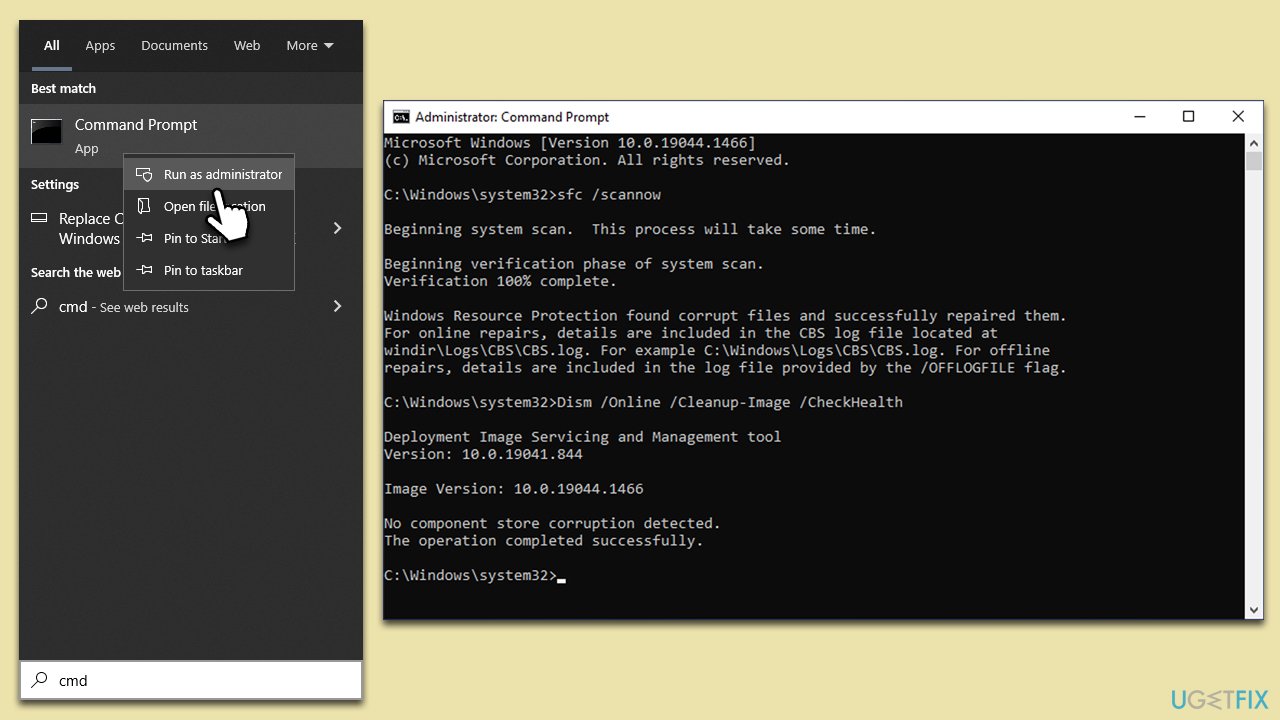
- Type cmd in Windows search.
- Right-click on the Command Prompt result and select Run as administrator.
- UAC (User Account Control) will ask whether you want to allow changes - click Yes.
- Next, type in the following command and press Enter:
sfc /scannow - When done, run the following commands as well:
dism /online /cleanup-image /scanhealth
dism /online /cleanup-image /checkhealth
dism /online /cleanup-image /restorehealth - Restart your computer.
Fix 2. Disable third-party anti-malware
At times, Windows update errors can be resolved by temporarily deactivating third-party security software. These programs, which include antivirus applications, can occasionally misinterpret Windows updates as potential security risks, consequently obstructing their installation. Such misinterpretations can lead to errors during the update process and inhibit the successful installation of updates on your system.
Similarly, network-oriented applications such as firewalls, VPNs, and other similar apps can contribute to complications with Windows updates. They can potentially block connections or meddle with network configurations, causing disruptions in the update process. A potential solution to circumvent these problems involves temporarily suspending or entirely uninstalling these apps. This step can ensure that the Windows update operation can proceed without any hindrances.
Fix 3. (Re)start BITS and other services
Windows Services are background software in the Windows OS that support critical functions like security and networking. The non-functioning of essential services such as BITS, Windows Update, or Cryptographic services could sometimes lead to update failures. You need to make sure they are running; if they are already, restarting them might be helpful.
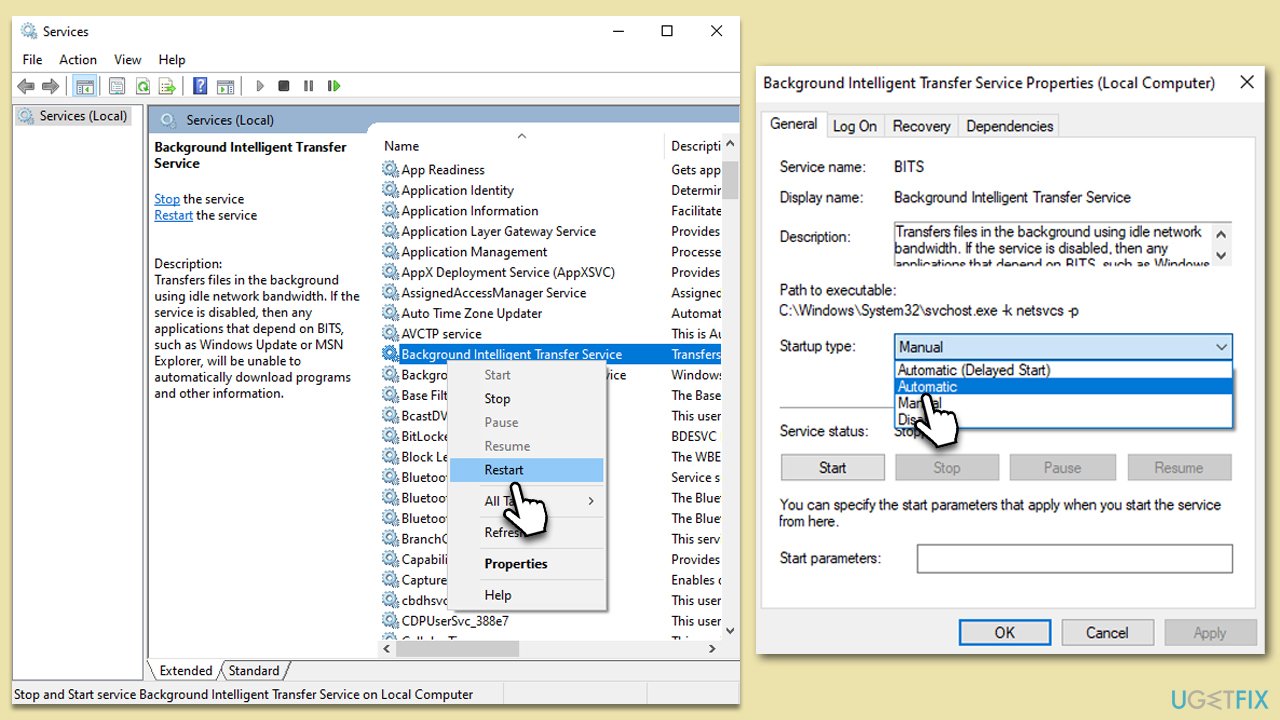
- Type in Services in Windows search and hit Enter.
- Scroll down a bit to find Background Intelligent Transfer Service (BITS).
- If it is already running, right-click and select Restart.
- If the service is not running, double-click it, pick Automatic under the Startup type drop-down menu.
- Click Start, Apply, and OK.
- Repeat this process for Windows Update and Cryptographic services.
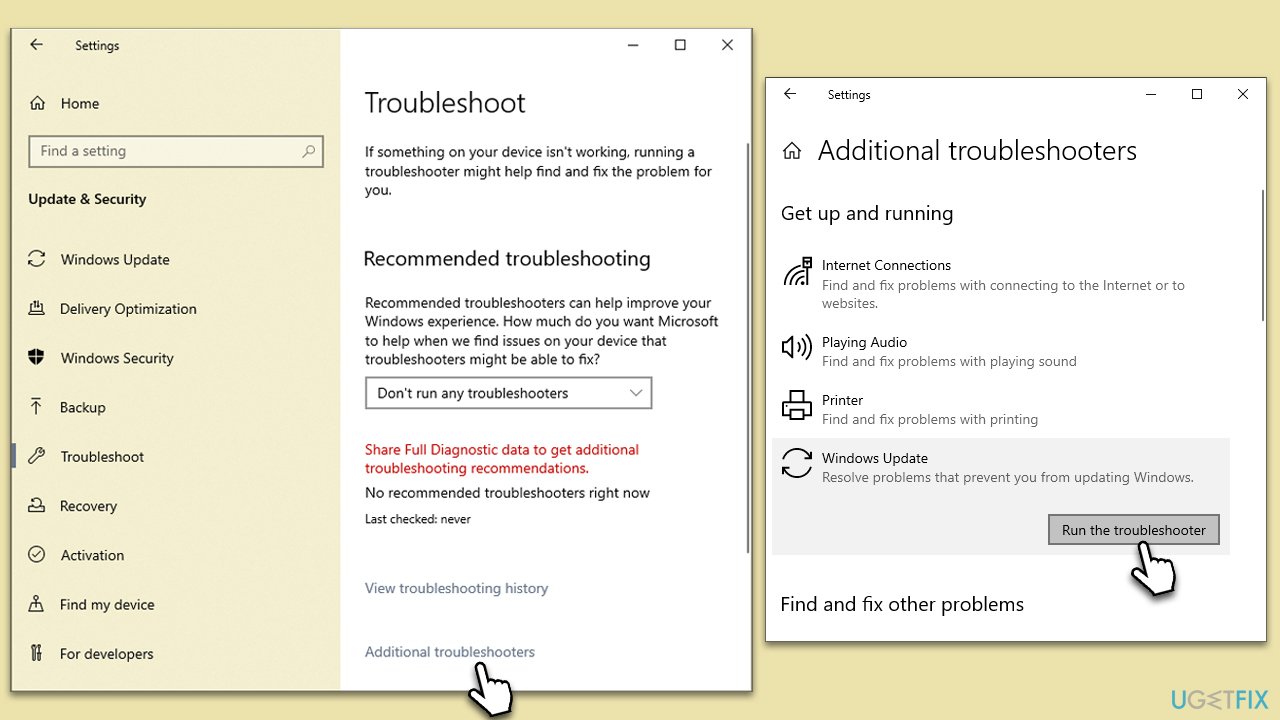
Fix 4. Run the troubleshooter
- Type Troubleshoot in Windows search and press Enter.
- Click Additional troubleshooters if you can't see them listed.
- Scroll down to find the Windows Update option.
- Click and select Run the troubleshooter.
- Apply the offered changes and close down the troubleshooter - see if that helps solve your problem.
Fix 5. Install the update manually
You can try installing the failing update manually:
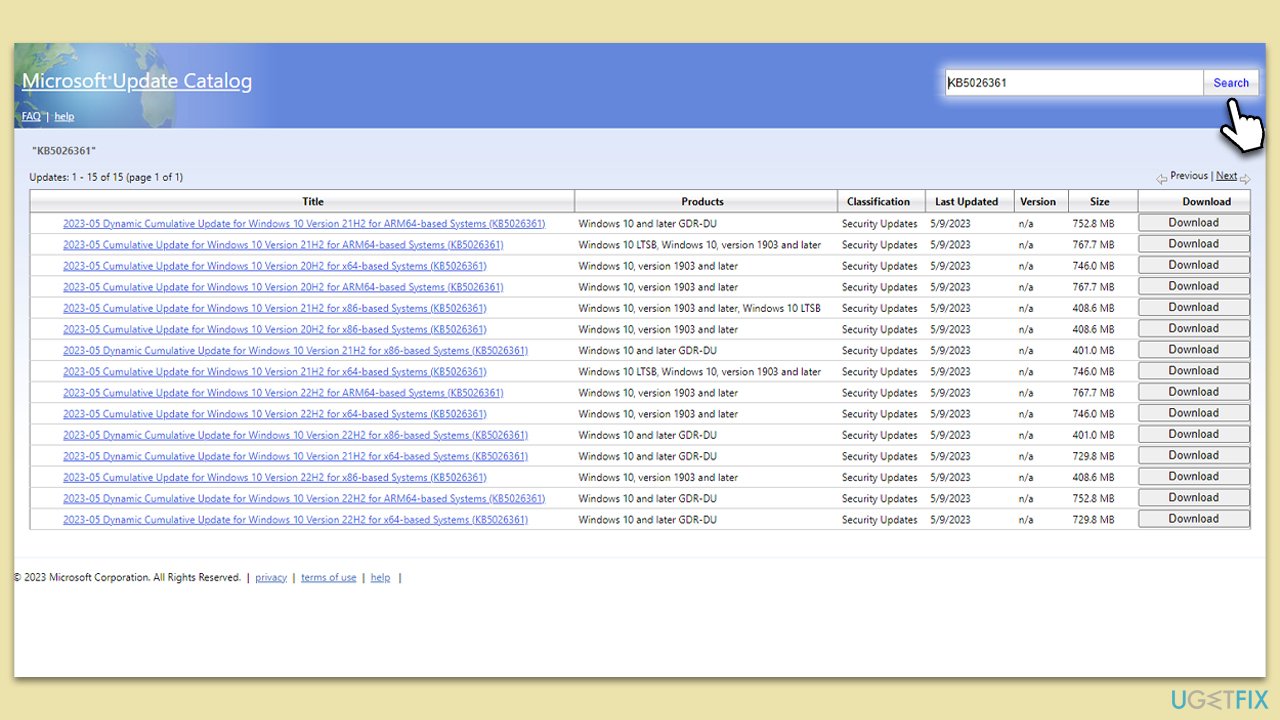
- Open your browser and go to Microsoft Update Catalog.
- Within the search bar, type in KB5026361 and click Search.
- Find the correct version of the update for your operating system (to check this, right-click on Start and pick System. Under Device specifications and check the System type) and click Download.
- Use on-screen guidelines to finish the installation process and restart your device.
Fix 6. Reset Windows update components
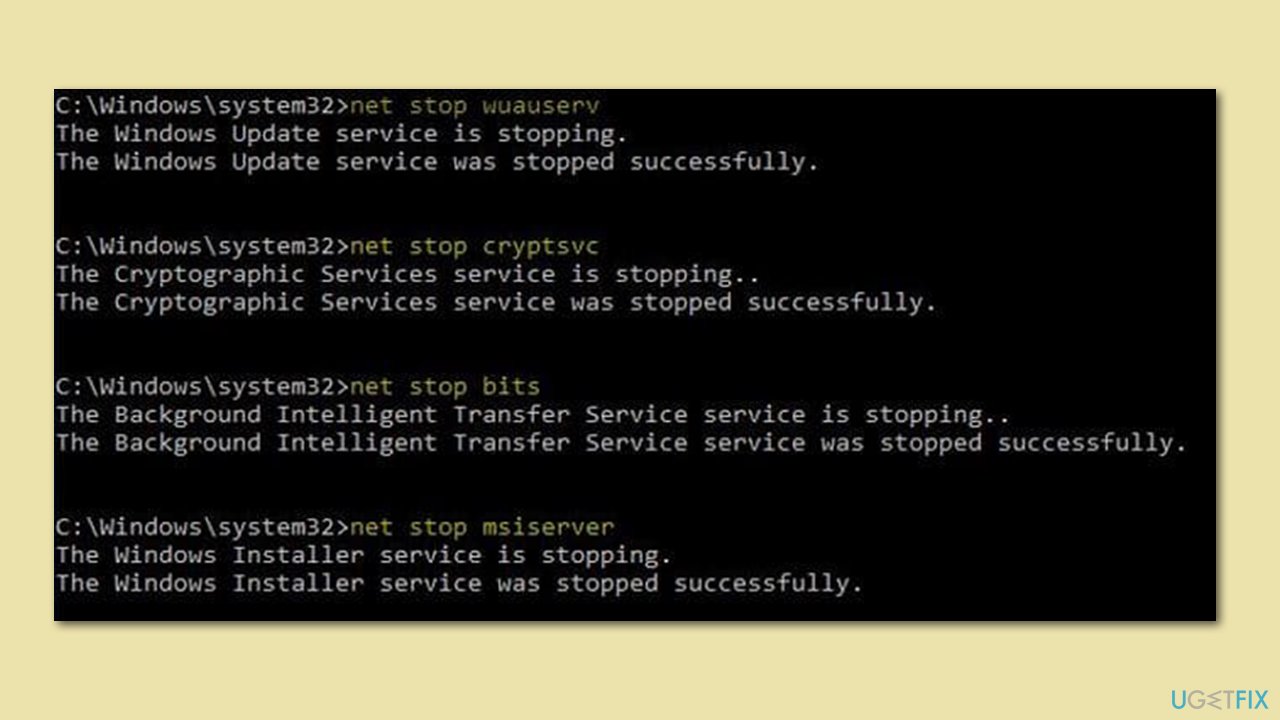
- Open Command Prompt as administrator.
- Type each of these command lines, pressing Enter every time (wait till the command is fully executed):
net stop bits
net stop wuauserv
net stop appidsvc
net stop cryptsvc
Del "%ALLUSERSPROFILE%\Application Data\Microsoft\Network\Downloader\*.*"
rmdir %systemroot%\SoftwareDistribution /S /Q
rmdir %systemroot%\system32\catroot2 /S /Q
regsvr32.exe /s atl.dll
regsvr32.exe /s urlmon.dll
regsvr32.exe /s mshtml.dll
netsh winsock reset
netsh winsock reset proxy
net start bits
net start wuauserv
net start appidsvc
net start cryptsvc - Restart your device and attempt to download the update once more.
Bottom line
To fix the installation failure of KB5026361, users can troubleshoot by checking the Windows Update service, clearing the temporary folder, ensuring there is enough storage space, and repairing corrupted system files. If these solutions do not resolve the issue, consider seeking further assistance or exploring additional troubleshooting methods.
Frequently asked questions
First, try running the Windows Update Troubleshooter by going to Settings > Update & Security > Troubleshoot. If that doesn't work, consider resetting the Windows Update components using Command Prompt.
Yes, you can manually download the KB5026361 update from the Microsoft Update Catalog and install it directly. Ensure you select the correct version for your system architecture.
You can check the installed updates by going to Settings > Update & Security > Windows Update > View update history. Look for KB5026361 in the list of installed updates.




Report an issue
What's wrong with this guide? We review every report and update or remove content.
Report received — thank you. We'll review and fix it.
You need a free account to submit a report.
Be the first to comment