How to fix
KB5026435 fails to install
on Windows
Fix the KB5026435 installation error in Windows 10 effortlessly with our expert-tested solutions to restore your system's functionality. Fixed in minutes!

What causes How to fix KB5026435 fails to install in Windows 10?
- Security vulnerability exposure
- Compatibility issues with hardware or software
- Performance issues due to missing fixes
- Usability issues with the touch keyboard
- Problems with multi-function label printers
Repairs Windows system files, removes malware, and restores a clean OS state — without reinstalling.
Hello. When I try to install the latest update in Windows 10, the process fails. Is there anything I can do to fix it?
Windows updates are necessary for a variety of reasons. For starters, they offer bug fixes and security patches to help protect your computer from vulnerabilities and potential threats. Installing updates ensures that your operating system is up to date and can defend against the most recent security threats.
Updates also add new features and improvements to the Windows operating system. These enhancements can improve your computer's overall performance, stability, and functionality, resulting in a better user experience. The KB5026435 update, for example, aims to restore an improved search box experience on the Windows 10 taskbar.
Regarding the specific issue, when KB5026435 fails to install, users may be affected in a number of ways. First, if the update addresses a security vulnerability, failing to install it may expose your computer to potential threats. Second, if the update addresses specific hardware or software issues, failure to install those fixes may result in compatibility or performance issues.
In this case, the update also addresses a multi-function label printer issue, so users who rely on such printers may encounter issues if they do not receive the update. Furthermore, the touch keyboard issue may cause usability issues for users who rely on the touch keyboard input method.
Users can try a few general troubleshooting steps to resolve the issue with failed installation. Restarting the computer and attempting the update again, running the Windows Update Troubleshooter, or manually downloading and installing the update from the Microsoft Update Catalog are all options. It is important to note, however, that specific solutions may differ depending on the underlying cause of the installation failure.
In this guide, you will find 6 steps that should help you fix KB5026435 fails to install in Windows 10. You can also try using a maintenance tool like [d1] that can fix most system errors, BSODs,[ref en-1] corrupted files, registry[ref en-2] issues, or clear cookies and cache.[ref en-3] Otherwise, follow the step-by-step instructions below.
Solution 1. Fix Corrupted System Files
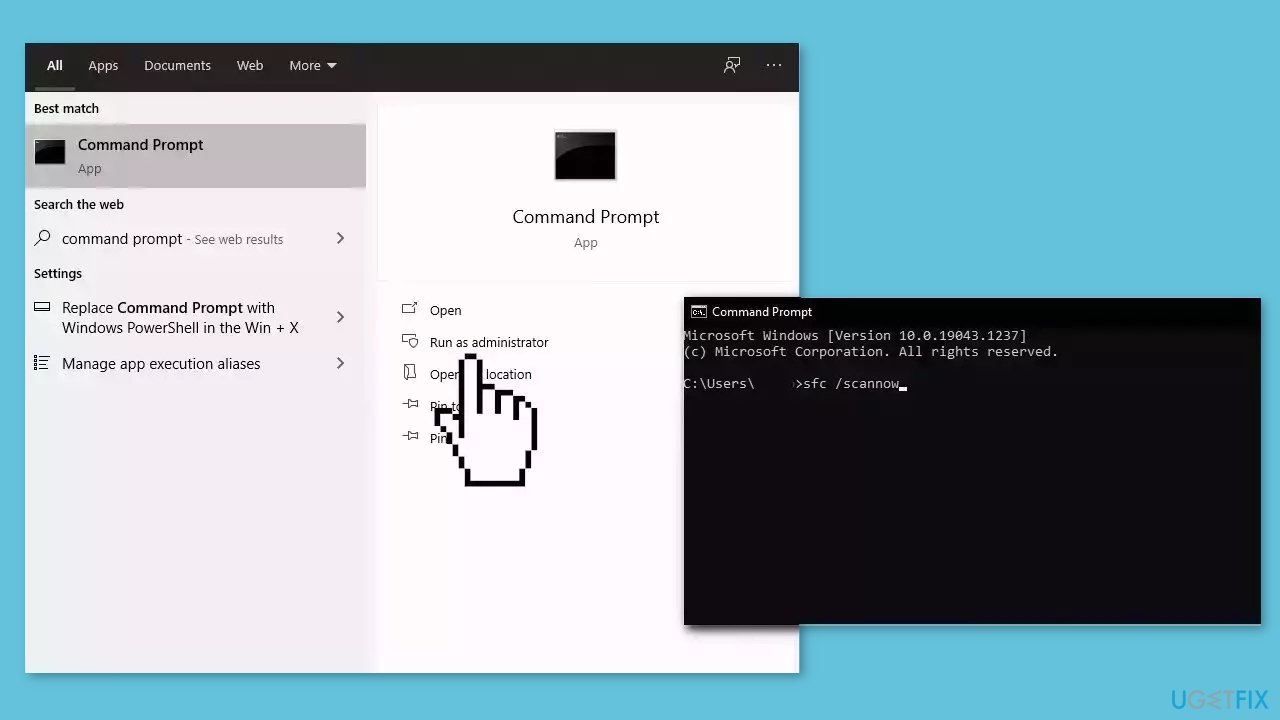
Use Command Prompt commands to repair system file corruption:
- Open Command Prompt as administrator
- Use the following command and press Enter:
sfc /scannow
- Reboot your system
- If SFC returned an error, then use the following command lines, pressing Enter after each:
DISM /Online /Cleanup-Image /CheckHealth
DISM /Online /Cleanup-Image /ScanHealth
DISM /Online /Cleanup-Image /RestoreHealth
Solution 2. Run the Windows Update Troubleshooter
- Press the Windows + X keys and go to Settings.
- Go to Update and Security.
- Click Troubleshooter.
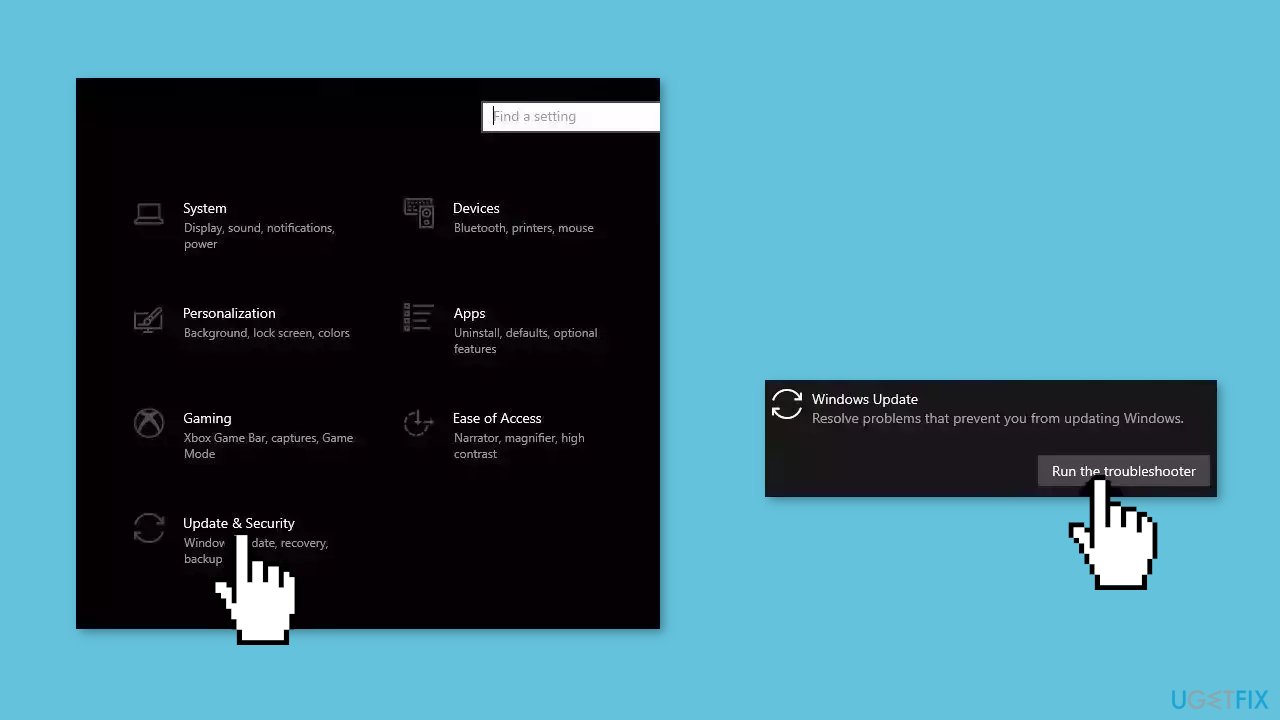
- Select Additional troubleshooters.
- Run the Update troubleshooter.
- Restart.
Solution 3. Update Drivers
- In the search box on the taskbar, enter device manager, then select Device Manager.
- Select a category to see the names of devices, then right-click the one you’d like to update.
- Select Search automatically for updated driver software.
- Select Update Driver.
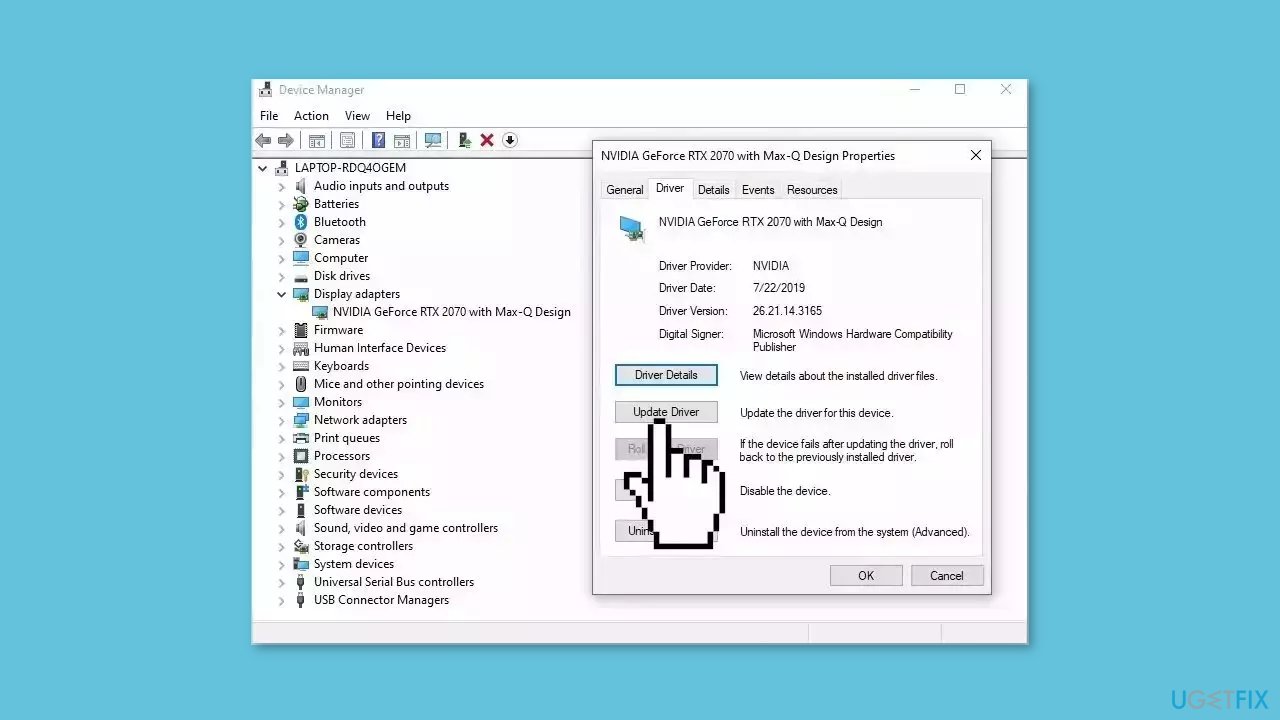
- If Windows doesn't find a new driver, you can try using an automatic tool like [rev id="DriverFix"] which can find the best drivers for your system.
Solution 4. Restart Windows Services
- Type services in the search bar and launch the Services utility.
- Find Windows Update in the list.
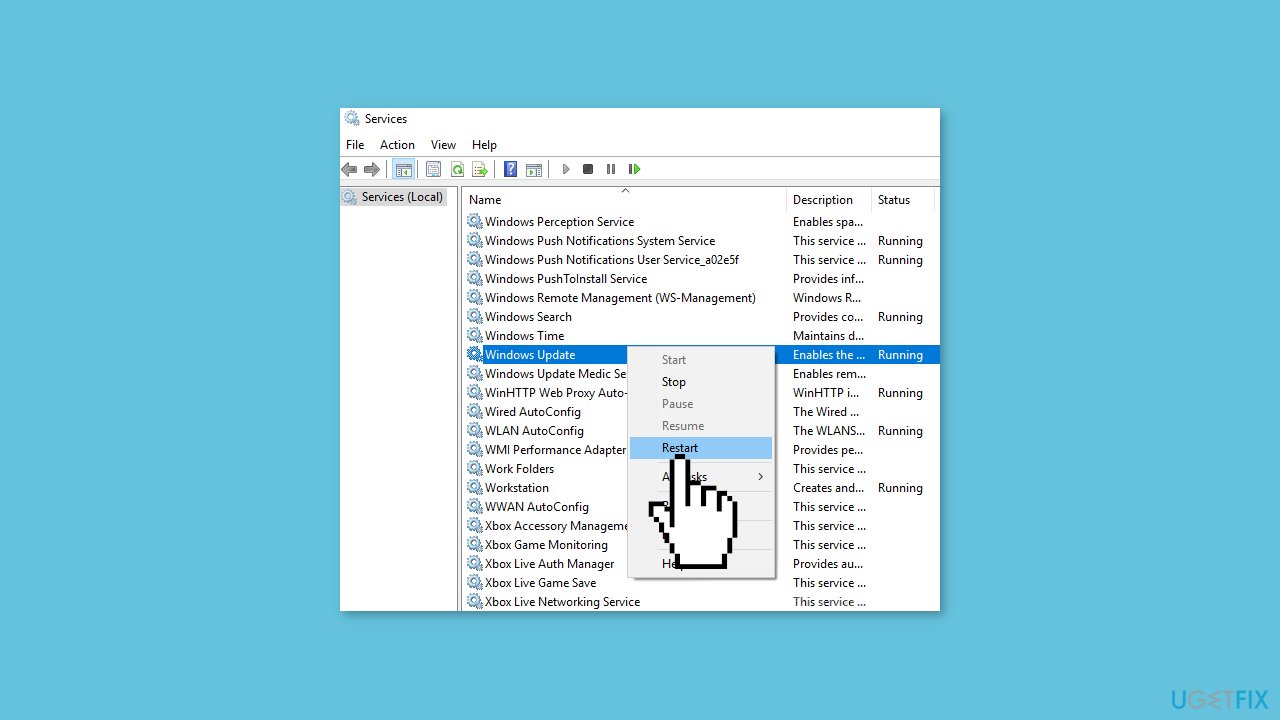
- Double-click on it, set the Startup type to Automatic, and click Apply.
- Now click on Restart the Service.
- Do the same with Background Intelligent Transfer Service.
Solution 5. Try Clean Boot
- Open the Search menu, type in system configuration, and press Enter.
- Under the Services tab, tick the Hide all Microsoft services box.
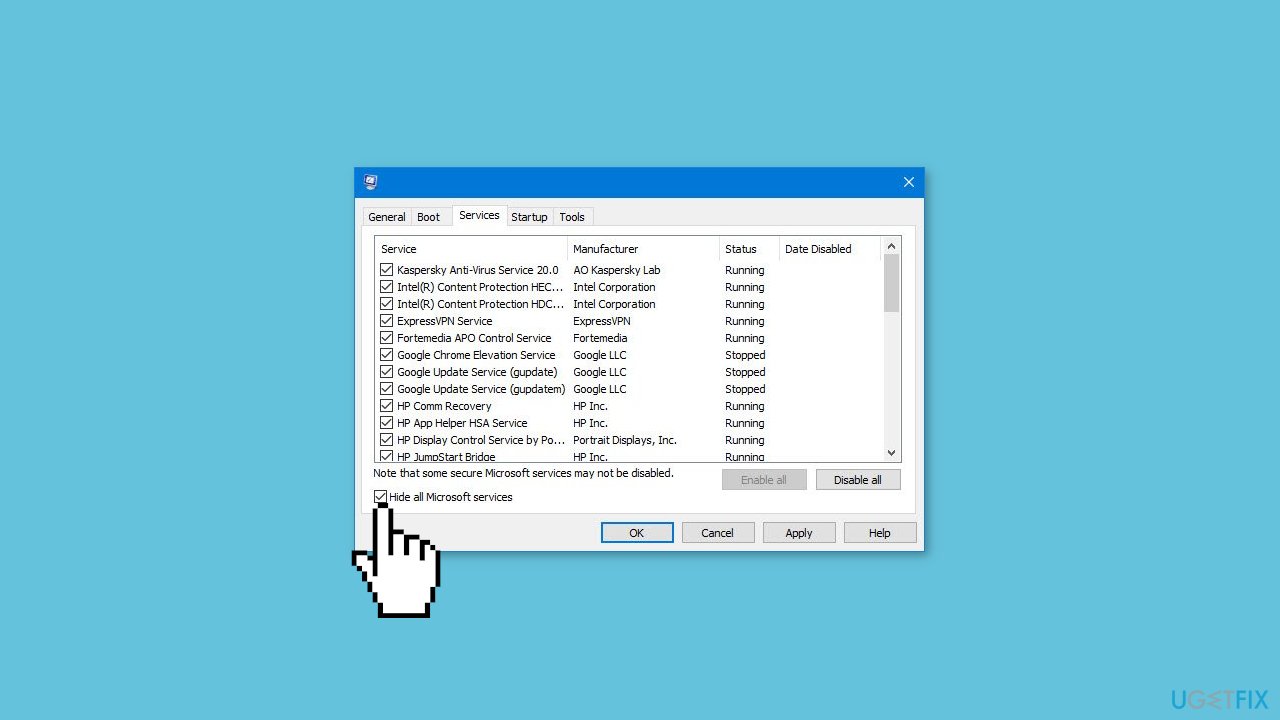
- Click on Disable all button.
- Head over to the Startup tab and click on Open Task Manager.
- Select a third-party program and click on Disable at the top.
- Repeat this step to disable all third-party apps and programs.
- Restart your PC to enter the clean boot state and see if the issue persists.
- If the issue disappeared in the clean boot state, then you can be certain that a third-party app is causing it.
- Go through all recently installed apps or programs and remove them one by one.
Solution 6. Update via Media Creation Tool
- Visit the official Microsoft website and download Windows 10 installation media.
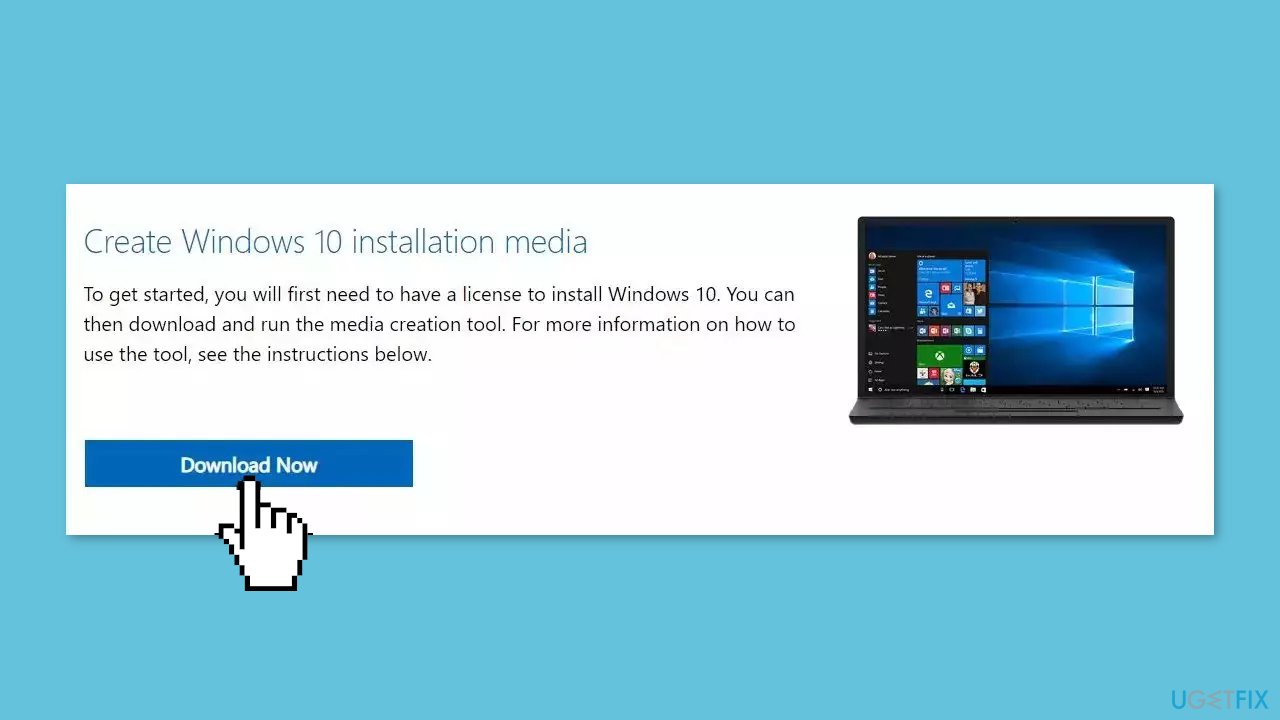
- Double-click the installer and select Yes when UAC shows up.
- Agree to terms and click Next.
- Select Upgrade this PC now and select Next.
- Proceed with on-screen instructions.
- Your PC will restart.
Bottom line
To fix the KB5026435 installation failure, users can try restarting their computer, running the Windows Update Troubleshooter, or manually downloading the update from the Microsoft Update Catalog. If these steps do not resolve the issue, consider using a maintenance tool to address system errors.
Frequently asked questions
You can check for specific error codes in Windows Update settings and search for solutions related to those codes. Additionally, running the Windows Update Troubleshooter may help resolve the issue.
You can manually download the update from the Microsoft Update Catalog website and install it by double-clicking the downloaded file. Ensure that you select the correct version for your Windows 10 architecture.
Common reasons include insufficient disk space, corrupted system files, or conflicts with third-party antivirus software. Make sure to free up space and disable any conflicting software before attempting the installation again.




Report an issue
What's wrong with this guide? We review every report and update or remove content.
Report received — thank you. We'll review and fix it.
You need a free account to submit a report.
Be the first to comment