How to fix
KB5026436 fails to install
on Windows
Resolve the KB5026436 installation error in Windows 11 effortlessly. Follow our expert-tested solutions for a hassle-free fix, updated 2025.

What causes How to fix KB5026436 fails to install in Windows 11?
- Misconfigured services
- Incompatible software or drivers
- Bugged or corrupted cache files
- Insufficient storage space
- Interference from third-party software
Repairs Windows system files, removes malware, and restores a clean OS state — without reinstalling.
Hi. The newest Windows 11 Preview update, KB5026436, fails to install for me. I tried rebooting the PC and waiting, but the problem continued. Any tips on this?
Windows updates are essentially a way for Microsoft to distribute software patches and improvements to Windows users. These updates can include general improvements, security enhancements, and bug fixes for various components of the Windows operating system. The KB number associated with an update is a unique identifier, known as a Knowledge Base number, assigned to each update for easier tracking and reference.
Microsoft also operates a program called the Windows Insider Program. This initiative allows participants, known as "Insiders," to receive early access to updates and new features before they're released to the general public. It's a way for Microsoft to beta-test new updates and gather feedback to make necessary improvements.
KB5026436 was yet another routine update for members of the Windows Insider Program, released on May 11, 2023. This update was designed to address a variety of issues, including problems with multi-function label printers, audio playback, searchindexer.exe, and more. The goal of this update, as with all Windows updates, was to improve the overall functionality and stability of the Windows 11 operating system.
However, some users have reported that KB5026436 fails to install correctly. Failure to install updates can occur due to various reasons, such as misconfigured services, incompatible software or drivers, and bugged or corrupted (cache) files. Specifically for this update, users have reported installation failures with error messages that do not pinpoint a particular problem, making it difficult to identify a singular cause. It is also possible that the update itself may contain a bug causing the installation to fail.
If KB5026436 fails to install for you, you should perform general troubleshooting steps such as restarting your computer, ensuring they have sufficient storage space, temporarily disabling any third-party software that might interfere with the update, checking for file corruption, and enabling relevant services.
For a comprehensive list of potential solutions to this problem, please refer to the section below this article. If you would rather take an automatic approach, we recommend scanning the system with a powerful PC repair tool [d1].
1. Run the troubleshooter
Troubleshooter is a built-in tool that could help you automatically resolve various issues with Windows updates.
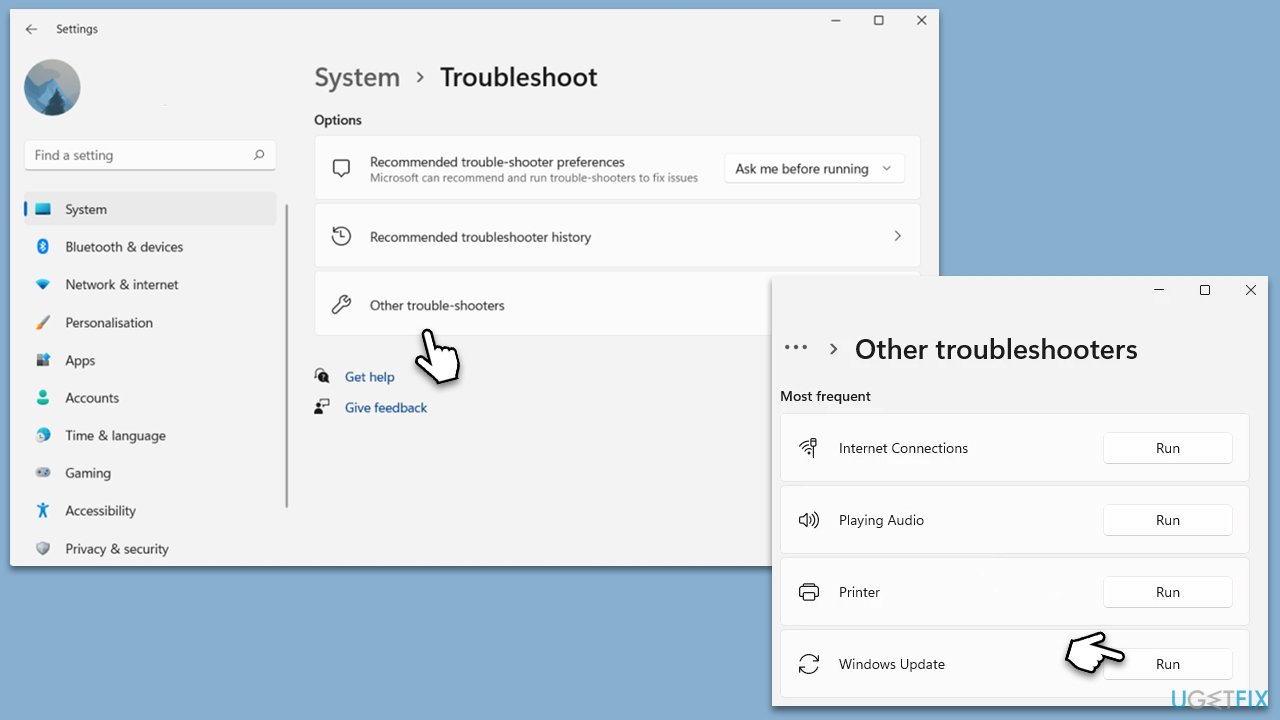
- In Windows search, type in troubleshoot and press Enter (you can also go to Start > Settings > System > Troubleshoot).
- Pick Other trouble-shooters (in Windows 10, pick Additional troubleshooters).
- Scroll down to locate the Windows Update option and click Run.
- Wait until the scan is finished, apply the changes, and try rerunning the update process.
2. Fix corrupted files
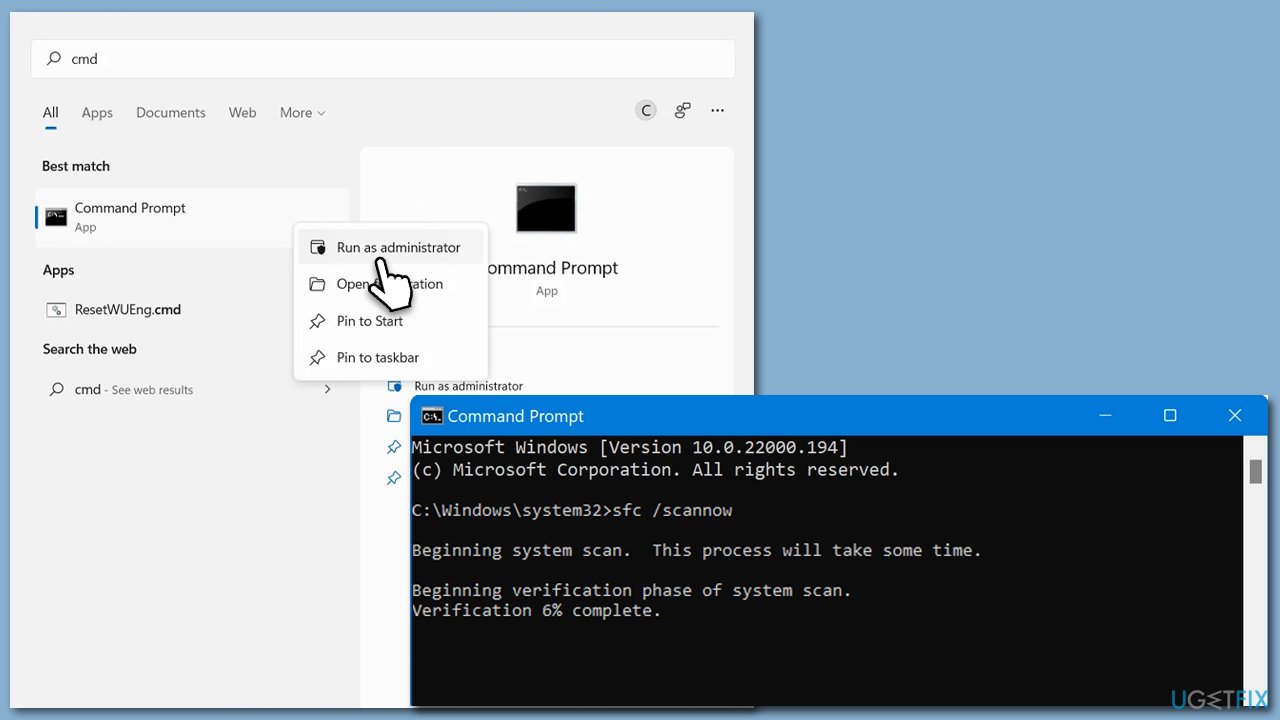
- Type cmd in Windows search.
- Right-click on Command Prompt and select Run as administrator.
- When User Account Control window shows up, click Yes.
- Paste the following command into the new window:
sfc /scannow - Press Enter and wait till the scan is executed.
- Once done, run this set of commands, pressing Enter after each:
DISM /Online /Cleanup-Image /CheckHealth
DISM /Online /Cleanup-Image /ScanHealth
DISM /Online /Cleanup-Image /RestoreHealth - Restart your PC.
3. Disable third-party security software
Third-party security applications can sometimes disrupt the installation of Windows updates, causing error messages or even system crashes. This typically occurs because these security programs may mistakenly identify the update as a potential risk and consequently block its implementation. Occasionally, they may also obstruct specific elements of the update from installing, which can lead to complications.
To circumvent this problem, it is advisable to momentarily deactivate any third-party security applications prior to initiating the Windows update. An alternate solution would be to adjust the settings of the security software to permit the seamless installation of Windows updates.
4. Check services
For updates to be successful, you need certain services to be running. In other cases, restarting them might also help.
- Open the Start menu.
- Type Services in the search bar and press Enter.
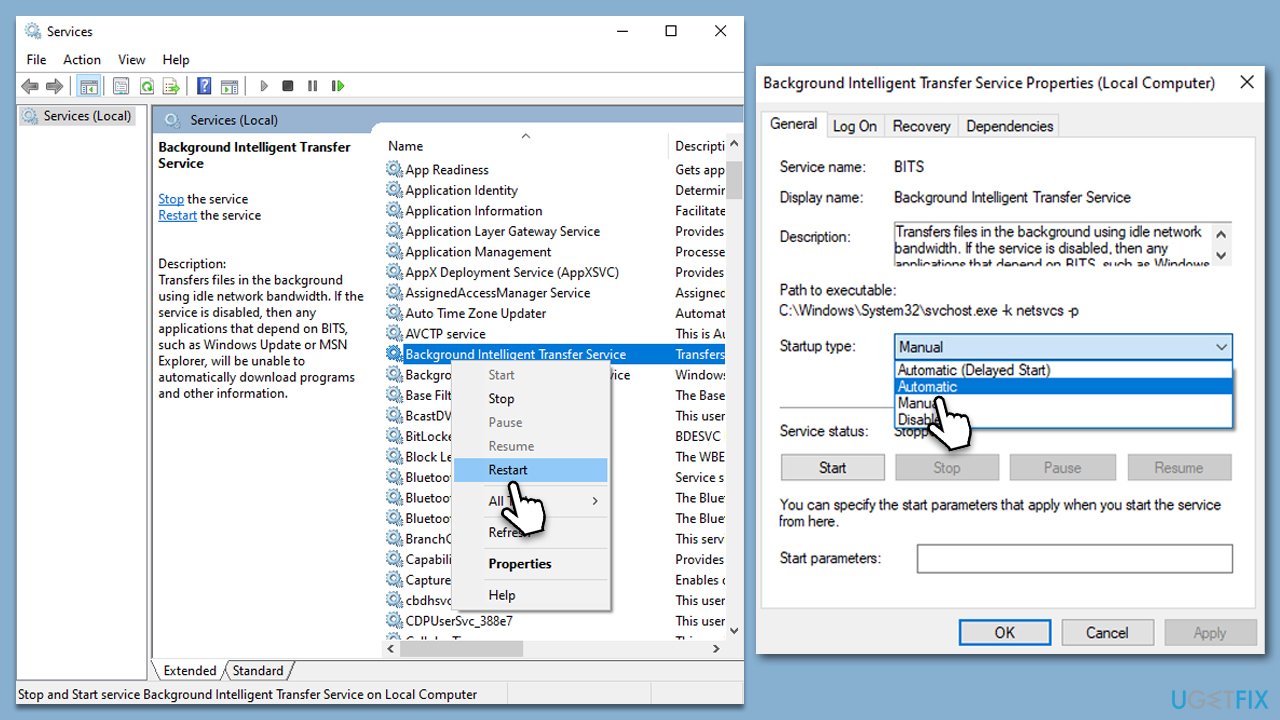
- In the Services window, locate the Background Intelligent Transfer Service, Cryptographic Service, and Windows Update Service.
- Right-click on each of these services and select Restart from the dropdown menu.
- If any service is not currently active, double-click on it to open Properties.
- In the window that opens, select Automatic under the Startup type.
- Click Start, followed by OK.
5. Reset Windows update components
- Open Command Prompt as administrator.
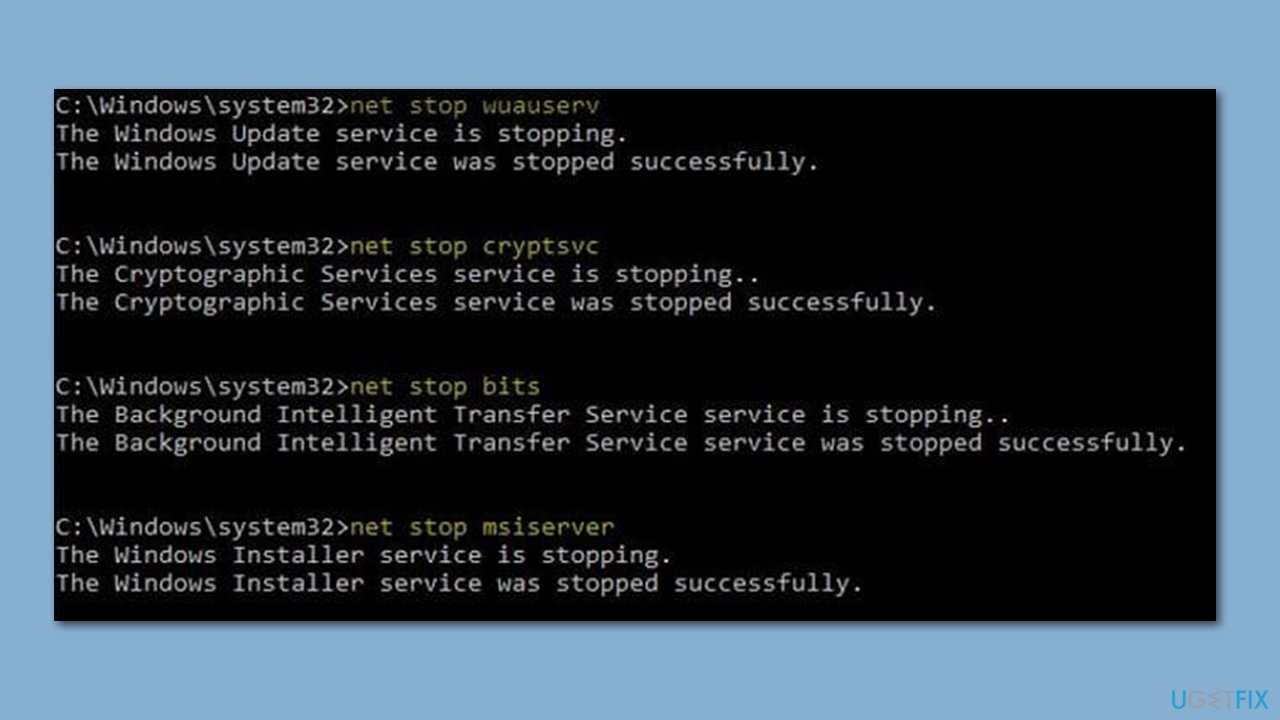
- Type the following commands one by one and press Enter after each:
net stop wuauserv
net stop cryptSvc
net stop bits
net stop msiserver
Del /s /q /f %windir%\SoftwareDistribution\*
net stop cryptSvc
md %systemroot%\system32\catroot2.old
xcopy %systemroot%\system32\catroot2 %systemroot%\system32\catroot2.old /s
net start wuauserv
net start cryptSvc
net start bits
net start msiserver - Close Command Prompt and restart your device.
6. Free up some space
In some cases, insufficient space might trigger Windows update errors.
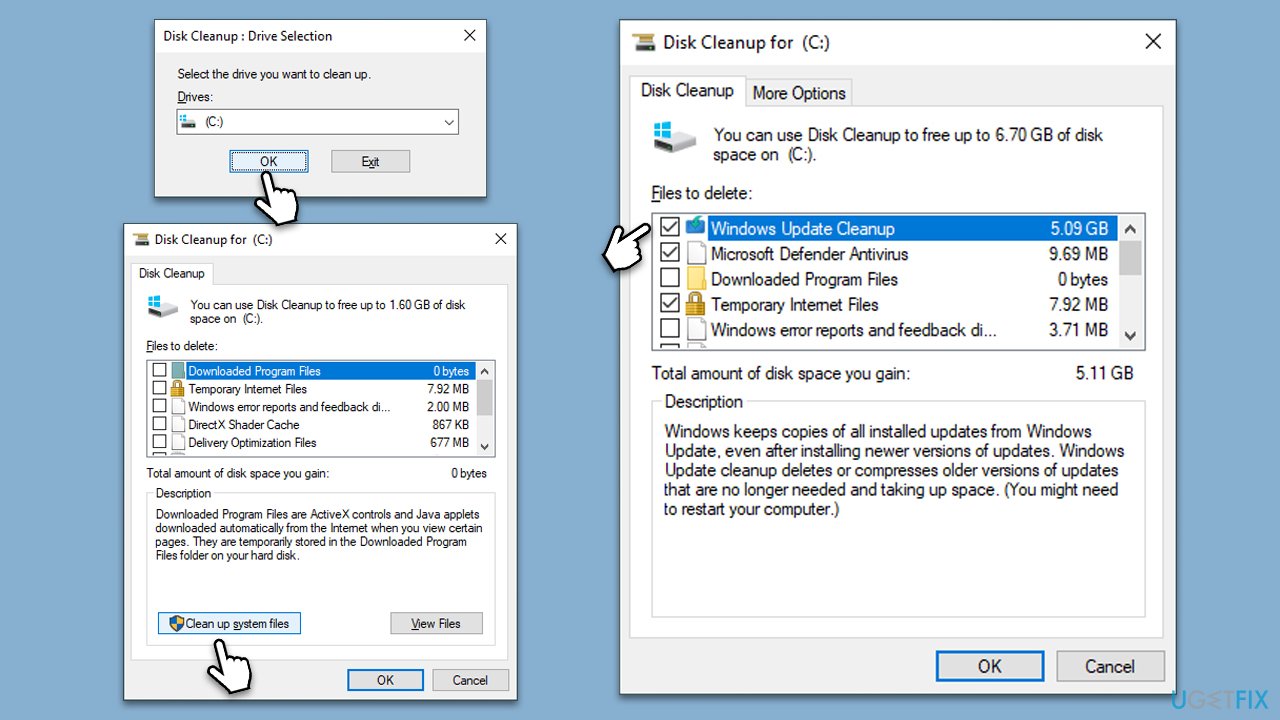
- Type Disk Cleanup in Windows search and hit Enter.
- If your Windows is installed on drive C, pick it from the list (it should be by default) and press OK.
- Click Clean up system files.
- Select your main disk again and click OK.
- Here, select the largest portions of the data used - these typically include Temporary Internet Files, Windows Update, Temporary Files, Recycle Bin, Delivery Optimization Files, and others.
- Click OK - the process should be finished shortly.
Bottom line
To fix the installation failure of KB5026436, you should try general troubleshooting steps such as restarting your computer, ensuring sufficient storage space, temporarily disabling third-party software, checking for file corruption, and enabling relevant services. If none of these solutions work, refer to the comprehensive list of potential solutions provided in the article.
Frequently asked questions
First, try running the Windows Update Troubleshooter to identify and fix issues. If that doesn't work, consider manually downloading and installing the update from the Microsoft Update Catalog.
Yes, some users have reported installation failures or system instability after installing KB5026436. It's advisable to check the Microsoft support page for any updates on known issues.
Make sure your system is fully updated and that you have enough disk space available before attempting to install KB5026436. Additionally, disabling third-party antivirus temporarily might help prevent installation conflicts.




Report an issue
What's wrong with this guide? We review every report and update or remove content.
Report received — thank you. We'll review and fix it.
You need a free account to submit a report.
Be the first to comment