How to fix
KB5027223 fails to install
on Windows
Resolve KB5027223 installation issues on Windows 11 effortlessly with expert-tested solutions and tips for a smooth update experience. Fixed in minutes!

What causes How to fix KB5027223 fails to install in Windows 11?
- Corrupt system files
- Insufficient hard drive space
- Issues with the Windows Update service
- Conflicts with third-party software
- Certain hardware configurations
Repairs Windows system files, removes malware, and restores a clean OS state — without reinstalling.
KB5027223 update is stuck - I keep getting an error saying that updates failed. How do I fix this? I never had problems with Windows 11 updates before, so I'm not sure where to start.
Windows Updates are a core component of the Microsoft ecosystem, providing users with frequent improvements to both system performance and security. Usually, these updates are automatically downloaded and installed on the user's device through a stable internet connection.
These updates not only address known software vulnerabilities but also refine the system's efficiency and adaptability, ensuring that Windows remains a robust and reliable operating system. Regrettably, there are times when users are unable to receive updates due to certain issues, often marked by an error message which may or may not be accompanied by an error code.
KB5027223 is a Windows 11 update that was dispatched as part of the June Patch Tuesday, 2023. Its primary purpose is to rectify several security issues, including the notable CVE-2023-32019 vulnerability, which is associated with the Windows Kernel.
In addition to that, KB5027223 also introduces improvements to the servicing stack, which plays a significant role in the Windows update process. This not only boosts the overall security of the system but also enhances the fluidity and consistency of future updates.
The installation failure of the KB5027223 update could be attributed to a variety of factors. It could be due to the presence of corrupt system files, insufficient hard drive space, or even issues with the Windows Update service itself. Moreover, it's also possible that third-party software or certain hardware configurations are causing conflict with the update. Rest assured, a comprehensive guide on how to resolve this issue is provided in the subsequent section of this article.
The use of reliable PC repair software like [d1] can also be beneficial in these scenarios. Such software can help detect and rectify system errors that might hinder the installation of updates like KB5027223, thereby ensuring a smooth and hassle-free Windows experience.
1. Check for corrupted system files
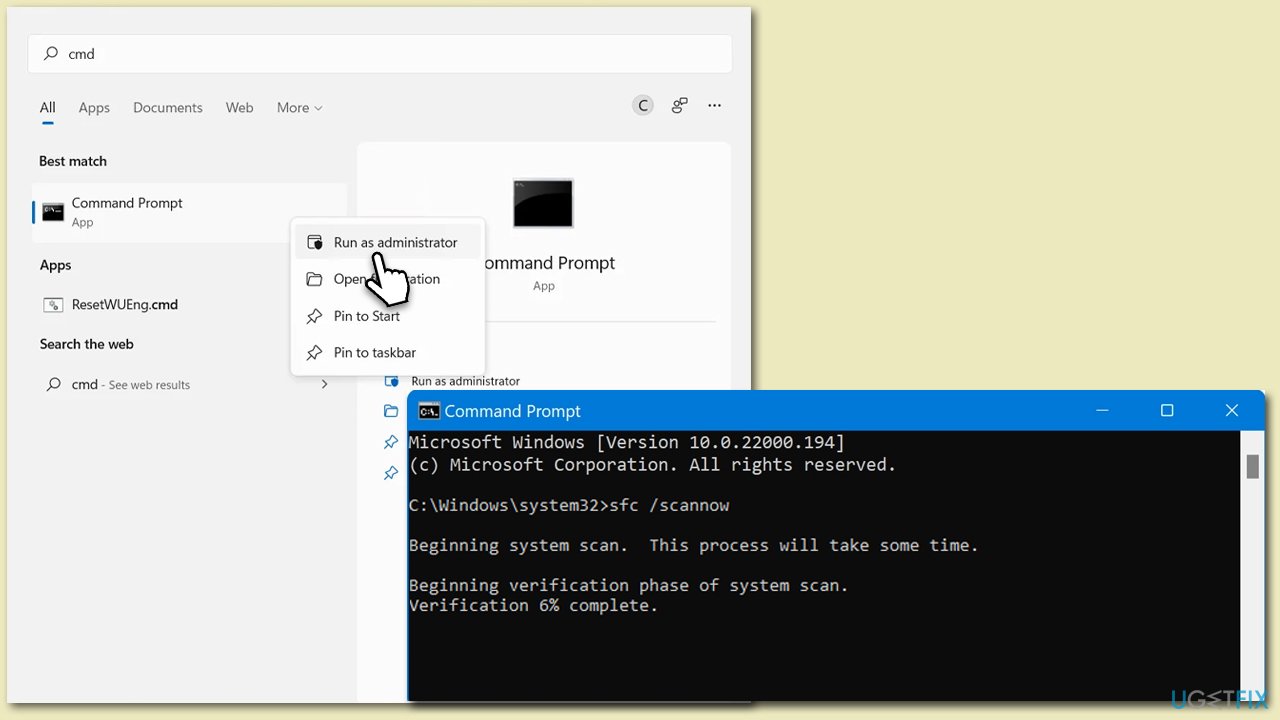
System File Checker and Deployment Image Servicing and Management are inbuilt utilities in Windows used for repairing system files. SFC scans and fixes corrupted system files, while DISM rectifies Windows system image issues. Both tools can repair system file problems that may prevent the successful installation of updates like KB5027223.
- Type cmd in Windows search.
- Right-click on Command Prompt and select Run as administrator.
- When the User Account Control window pops up, click Yes.
- Use the following command and press Enter:
sfc /scannow - After the SFC scan is complete, use the following commands, pressing Enter after each:
DISM /Online /Cleanup-Image /CheckHealth
DISM /Online /Cleanup-Image /ScanHealth
DISM /Online /Cleanup-Image /RestoreHealth - Restart your system.
2. Run Windows Update troubleshooter
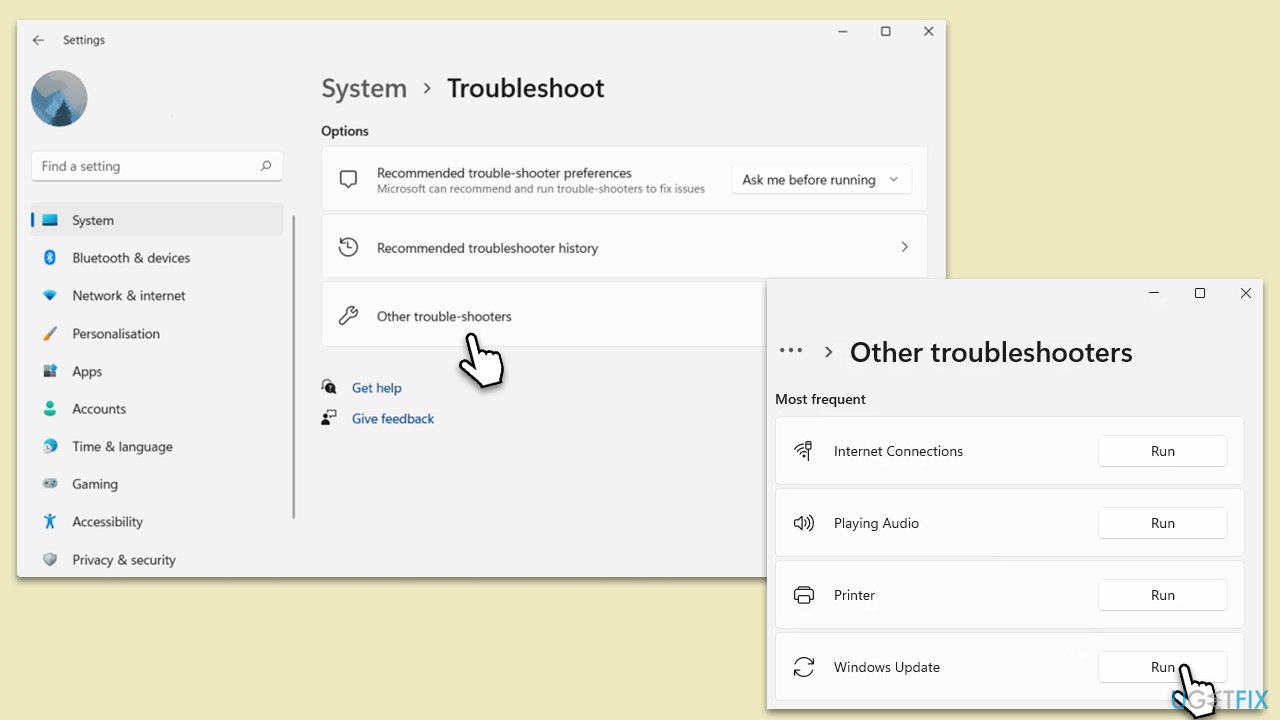
Running the Windows Update troubleshooter is a straightforward way to resolve common issues with Windows updates.
- Type Troubleshoot in Windows search and press Enter.
- Go to Other troubleshooters.
- Find Windows Update from the list and click Run.
- The troubleshooter will automatically scan your system for potential problems and display any issues it finds.
- If the troubleshooter finds any issues, it will provide recommended solutions.
3. Disable or uninstall third-party security software
Third-party security software can occasionally interfere with Windows updates, as they might mistakenly identify the update files as a potential security risk. Temporarily disabling or uninstalling these programs can eliminate this obstruction, allowing the KB5027223 update to install without issues. Users should remember to re-enable or reinstall their security software once the update is successfully installed to keep their system protected.
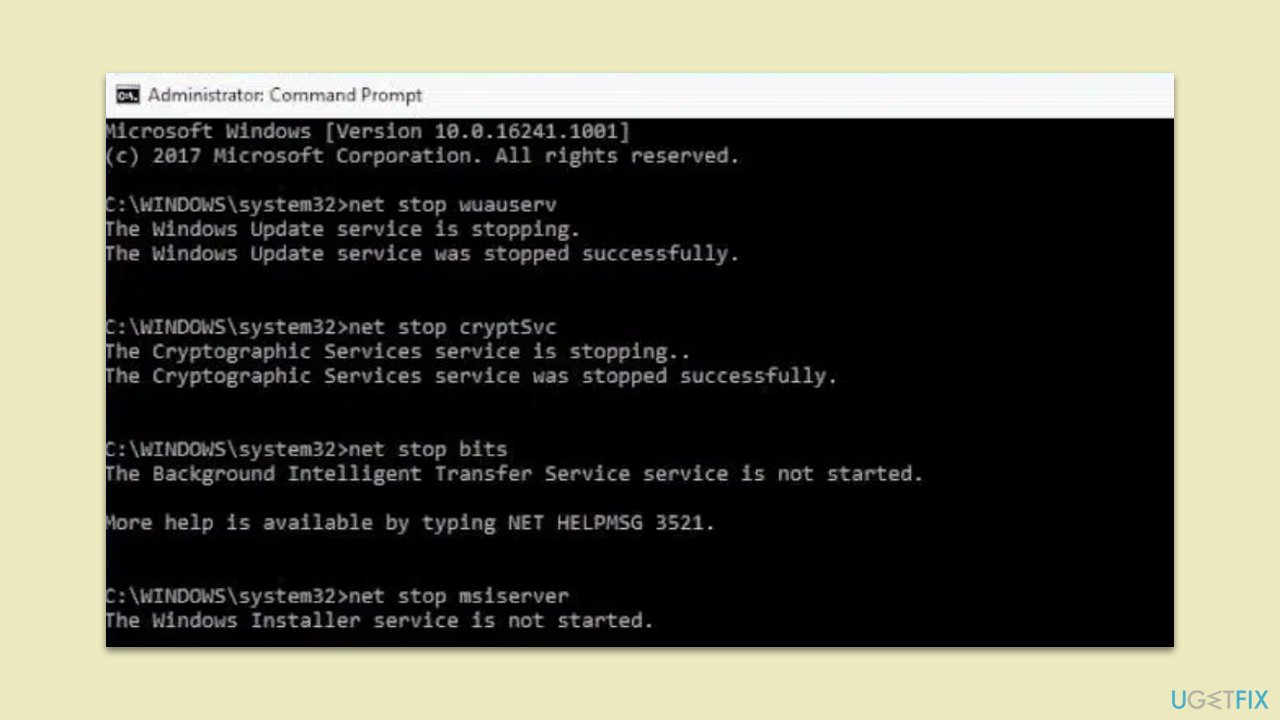
4. Reset Windows update components
- Open Command Prompt as administrator, as explained before.
- In the new window, copy and paste the following commands, pressing Enter after each to execute them:
net stop bits
net stop wuauserv
net stop appidsvc
net stop cryptsvc
Del “%ALLUSERSPROFILE%\Application Data\Microsoft\Network\Downloader\*.*”
rmdir %systemroot%\SoftwareDistribution /S /Q
rmdir %systemroot%\system32\catroot2 /S /Q
regsvr32.exe /s atl.dll
regsvr32.exe /s urlmon.dll
regsvr32.exe /s mshtml.dll
netsh winsock reset
netsh winsock reset proxy
net start bits
net start wuauserv
net start appidsvc
net start cryptsvc - Restart your PC.
5. Install the update manually
If updating automatically does not work, you can always opt for a manual update. Follow these steps:
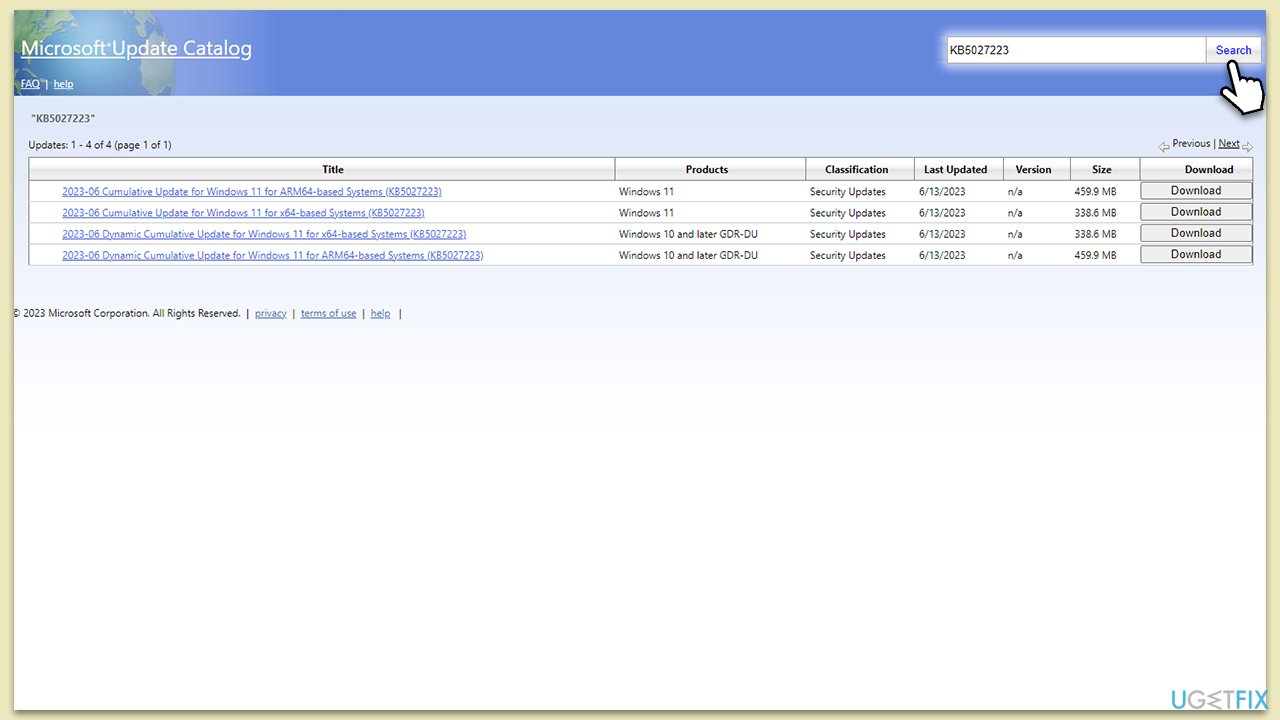
- Go to the official Microsoft Update Catalog website.
- Type KB5027223 into the search bar and press Enter or click Search.
- Find the correct version of the update for your device (as a home user, ignore all Windows server versions) and click Download.
- Follow the on-screen instructions to install the update and then restart your system.
6. Perform in-place upgrade
Performing an in-place upgrade allows users to install the latest version of Windows while keeping their files, settings, and applications intact. This method is helpful when conventional update methods fail because it effectively reinstalls Windows, which can resolve any underlying system issues that might be preventing the update from installing. After the upgrade, the system should be up-to-date with the latest updates and patches.
- Visit the official Microsoft website and download the Windows installation media.
- Double-click the installer and select Yes when UAC shows up.
- Agree to the terms and click Next.
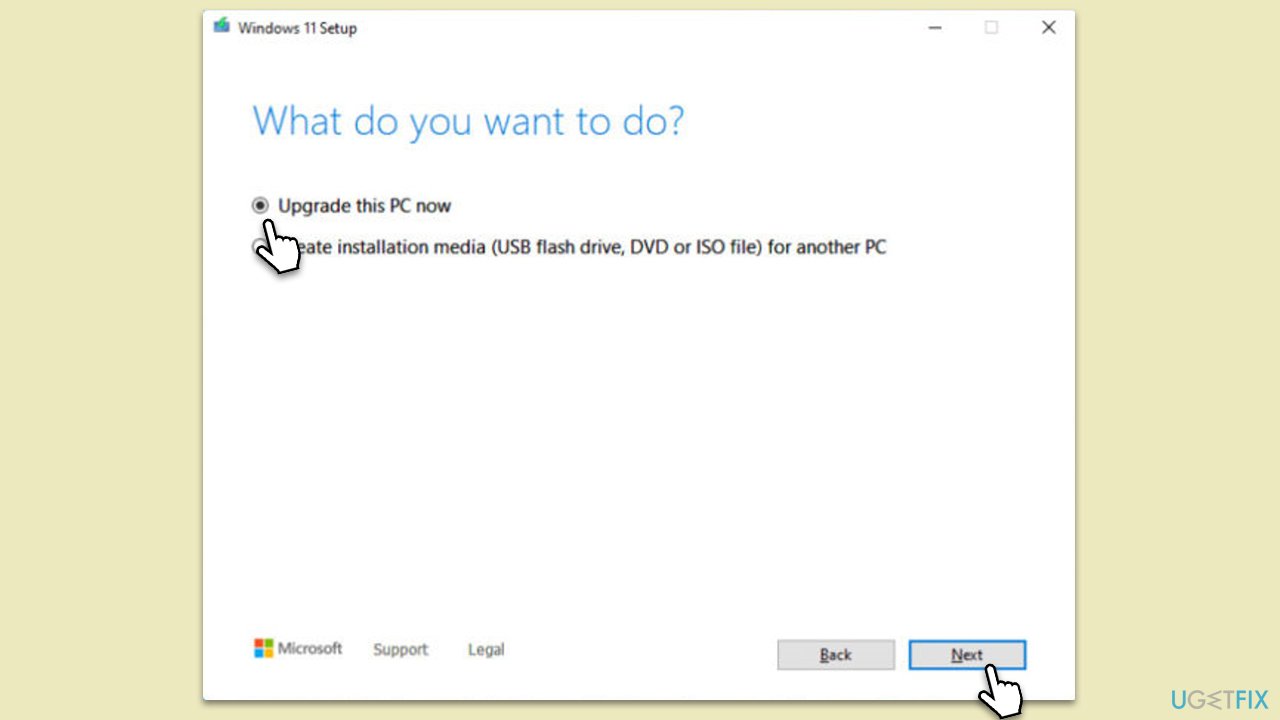
- Select Upgrade this PC now and select Next.
- Windows will now download all the necessary files – it might take some time.
- Agree to the terms once again and click Next.
- Before installing, ensure you are happy with your choices (otherwise, you can click the Change what to keep option).
- Click Install to begin the upgrade process.
Bottom line
To fix the installation failure of the KB5027223 update, you can check for corrupted system files, ensure you have enough hard drive space, and troubleshoot the Windows Update service. If these steps do not resolve the issue, consider using reliable PC repair software to detect and rectify any system errors.
Frequently asked questions
You can try running the Windows Update Troubleshooter by going to Settings > Update & Security > Troubleshoot and selecting Windows Update. Additionally, ensure your system has enough disk space and restart your PC before attempting the installation again.
Yes, common error codes include 0x800F0988 and 0x8024200D, which indicate issues with the update files or system components. You can look up these error codes for targeted troubleshooting steps.
You can manually download the KB5027223 update from the Microsoft Update Catalog website and install it by running the downloaded file. Ensure that you have the correct version that matches your system architecture (32-bit or 64-bit).




Report an issue
What's wrong with this guide? We review every report and update or remove content.
Report received — thank you. We'll review and fix it.
You need a free account to submit a report.
Be the first to comment