How to fix
KB5027231 fails to install
on Windows
Resolve KB5027231 installation issues in Windows 11 effortlessly. Follow expert-tested tips to get your updates fixed in minutes and enhance your system…

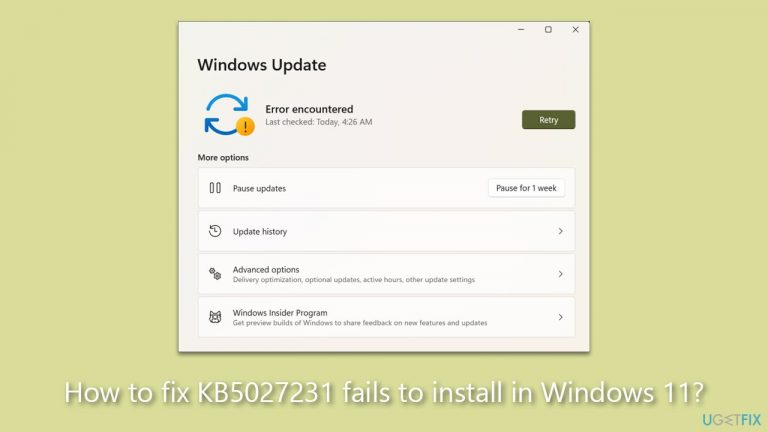
What causes How to fix KB5027231 fails to install in Windows 11?
- Inadequate storage space
- System conflicts
- Malfunctioning update services
- Damaged system files
- Antivirus software interference
Repairs Windows system files, removes malware, and restores a clean OS state — without reinstalling.
Hi, I have problems with installing the latest Windows update, namely KB5027231, on Windows 11. Any idea on what I should do to fix it?
Microsoft is highly recognized for its regular updates that help in optimizing system performance and enhancing security features. However, occasionally, these updates may fail to install successfully, causing some inconvenience for users. One such example recently reported by a number of users is the failed installation of the KB5027231 update.
KB5027231, released on June 16, 2023, specifically for Windows 11, is a noteworthy update designed to remedy several pressing issues. It targets issues in 32-bit apps that use the CopyFile API, a compatibility issue due to unsupported registry use, and a vulnerability in the Windows Kernel associated with CVE-2023-32019.
Nevertheless, the focus here lies in the complexities that might be causing the update's installation failure. These setbacks can happen due to a multitude of reasons. For instance, inadequate storage space, system conflicts, malfunctioning update services, or even damaged system files can prevent the update from being installed successfully. Additionally, sometimes, the antivirus software might mistakenly view the update files as potential threats, causing interference in the installation process.
While these complications can certainly pose a challenge, they are not insurmountable. Detailed instructions for addressing these issues will be provided below. These step-by-step guidelines aim to help users overcome the obstacles preventing the successful installation of KB5027231.
For those seeking an all-in-one solution to rectify many underlying Windows issues automatically, using a dedicated PC repair tool like [d1] is highly recommended. Although it may not address this specific issue, it can significantly improve overall system health and performance, paving the way for smoother updates in the future.
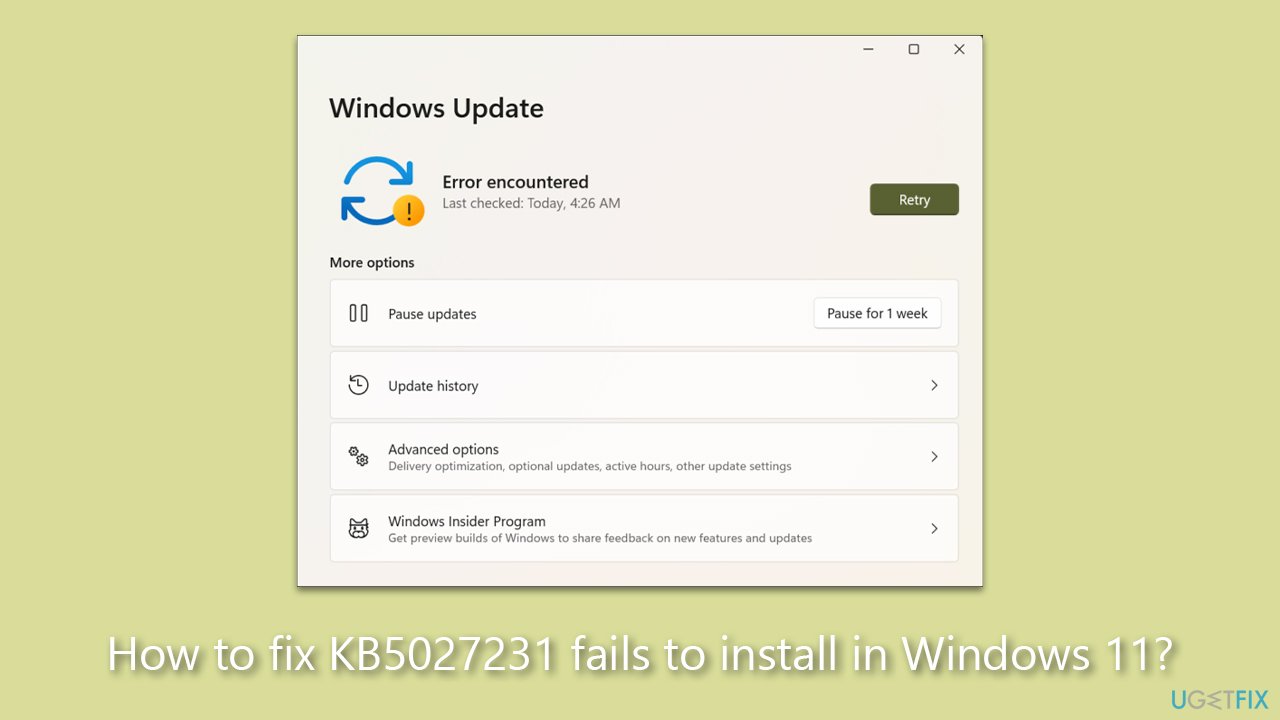
Basic checks to make
- Check and correct your computer's date and time settings, as they can inadvertently interfere with updates.
- Run a scan for potential malware using the Microsoft Safety Scanner or a trusted third-party software to ensure a secure environment.
- Try restarting your computer, as it can often clear minor system issues that might be hindering the update process.
- If you're using non-Microsoft security software, think about temporarily disabling it before installing the update again.
Method 1. Run SFC and DISM
System File Checker (SFC) and Deployment Image Servicing and Management (DISM) are powerful utilities designed to repair system file inconsistencies or corruption that might be impeding the update process. Through scanning and repairing, these tools can enhance the integrity of system files, often paving the way for smooth Windows updates.
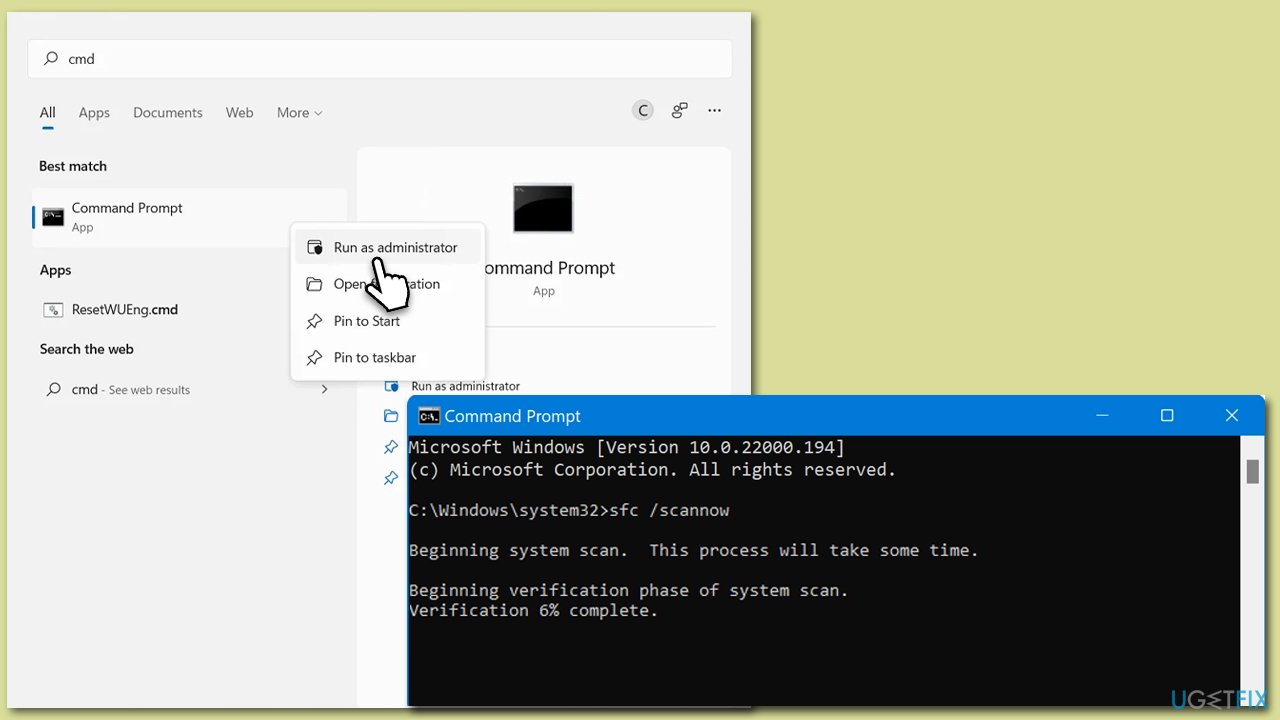
- Type cmd in Windows search.
- Right-click on Command Prompt and pick Run as administrator.
- When UAC asks you whether you want to make changes, agree by pressing Yes.
- Next, copy and paste the following commands, pressing Enter each time:
sfc /scannow
DISM /Online /Cleanup-Image /CheckHealth
DISM /Online /Cleanup-Image /ScanHealth
DISM /Online /Cleanup-Image /RestoreHealth
(Note: if you get an error executing the last command, add /Source:C:\RepairSource\Windows /LimitAccess to it and try again.) - Restart your computer.
Method 2. Employ the built-in troubleshooter
The Windows Update Troubleshooter is an in-built tool designed to diagnose and rectify common issues related to the update process. By scanning and applying automatic fixes, it often effectively resolves problems that may prevent the successful installation of Windows updates.
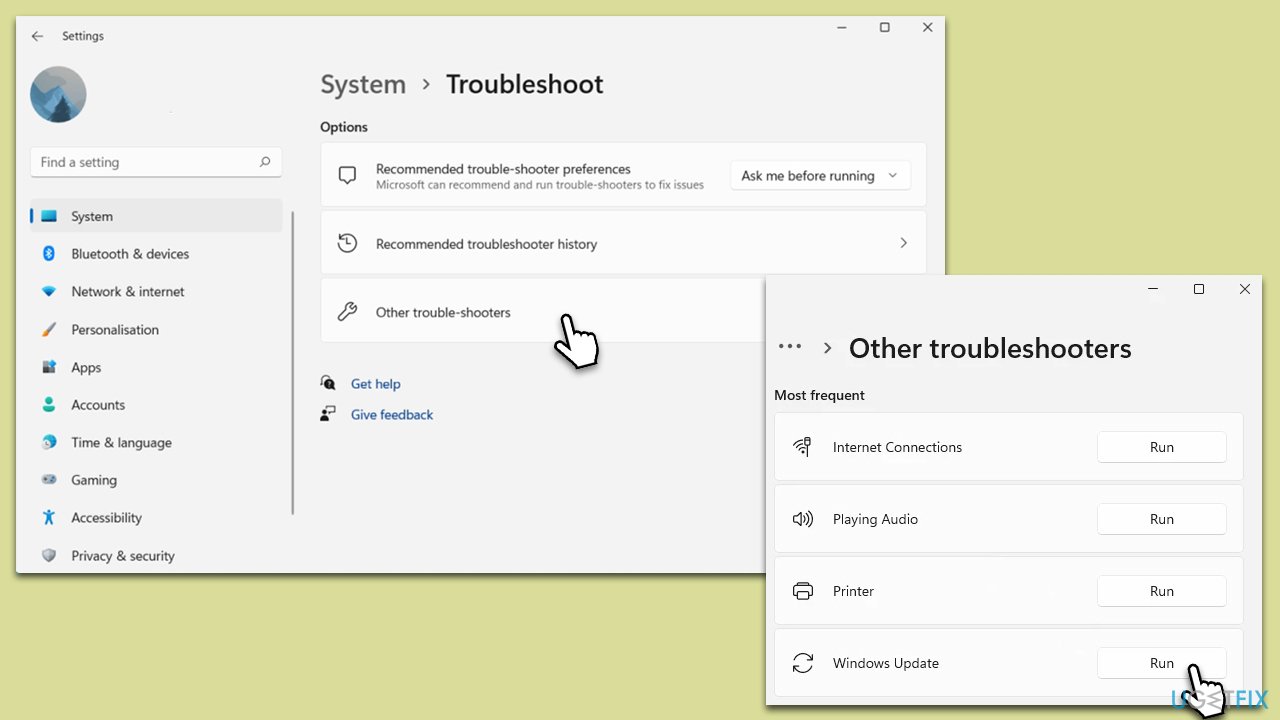
- In Windows search, type in troubleshoot and press Enter (you can also go to Start > Settings > System > Troubleshoot).
- Pick Other trouble-shooters.
- Scroll down to locate the Windows Update option and click Run.
- Wait until the scan is finished, apply the changes, and try running the update process again.
Method 3. Check services
Windows Services act as silent workhorses within the Windows OS, executing critical tasks related to security, networking, and overall system administration. Essential services such as Background Intelligent Transfer Service (BITS), Windows Update, and Cryptographic services operate behind the scenes.
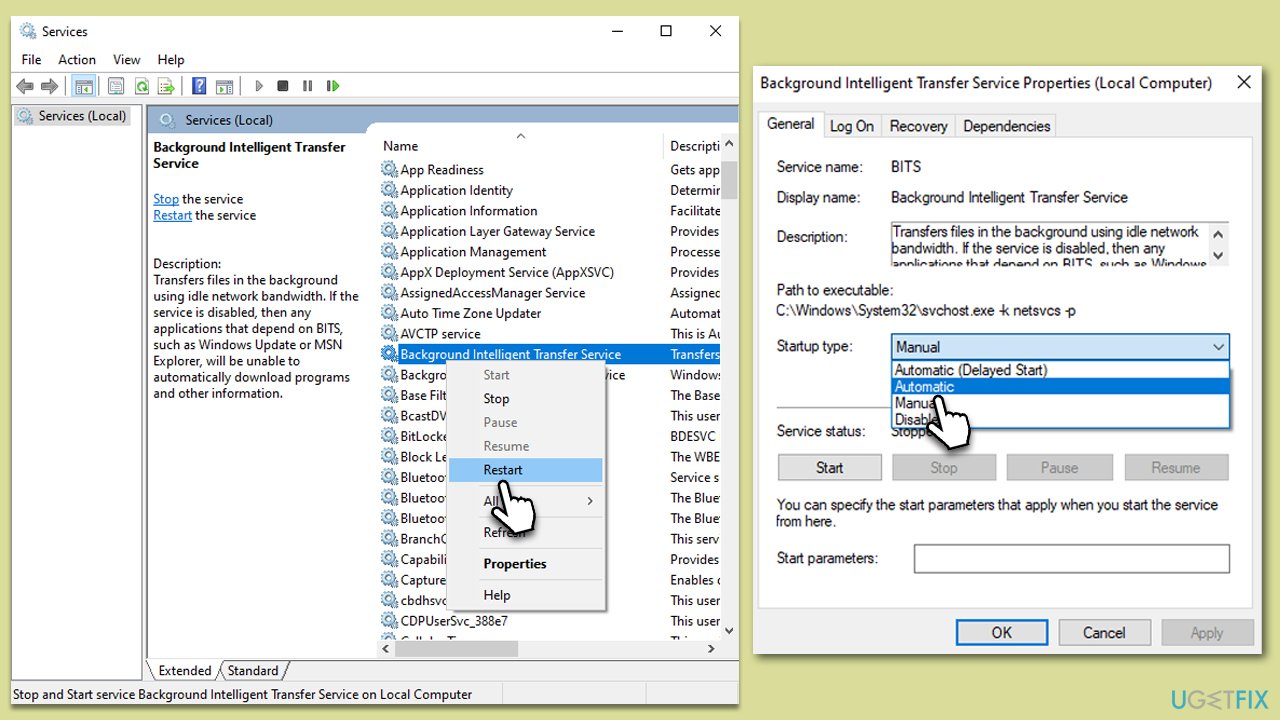
- Type in Services in Windows search and press Enter.
- Locate Background Intelligent Transfer Service (BITS).
- If it is already running, right-click and select Restart.
- If the service is not running, double-click it, and pick Automatic under the Startup type from the drop-down menu.
- Click Start, Apply, and OK.
- Repeat this process with Windows Update and Cryptographic services.
Method 4. Reset Windows update components
Resetting Windows Update components helps to rectify issues that stem from interrupted or malfunctioning update services and temporary folders. This process essentially "reboots" these components, resolving inconsistencies and paving the way for the smooth installation of Windows updates.
- Open Command Prompt as administrator
- Copy and paste each of the command lines, pressing Enter each time and waiting till each of the commands is executed:
net stop bits
net stop wuauserv
net stop appidsvc
net stop cryptsvc
Del “%ALLUSERSPROFILE%\Application Data\Microsoft\Network\Downloader\*.*”
rmdir %systemroot%\SoftwareDistribution /S /Q
rmdir %systemroot%\system32\catroot2 /S /Q
regsvr32.exe /s atl.dll
regsvr32.exe /s urlmon.dll
regsvr32.exe /s mshtml.dll
netsh winsock reset
netsh winsock reset proxy
net start bits
net start wuauserv
net start appidsvc
net start cryptsvc - Restart your computer.

Method 5. Use Media Creation tool
The Media Creation Tool offers an alternative method for updating Windows, creating an installation media with the latest version. Before using this tool, it's advisable to uninstall any third-party security software to prevent potential interference.
- Visit the official Microsoft website and download the Windows installation media.
- Double-click the installer and select Yes when UAC shows up.
- Agree to the terms and click Next.
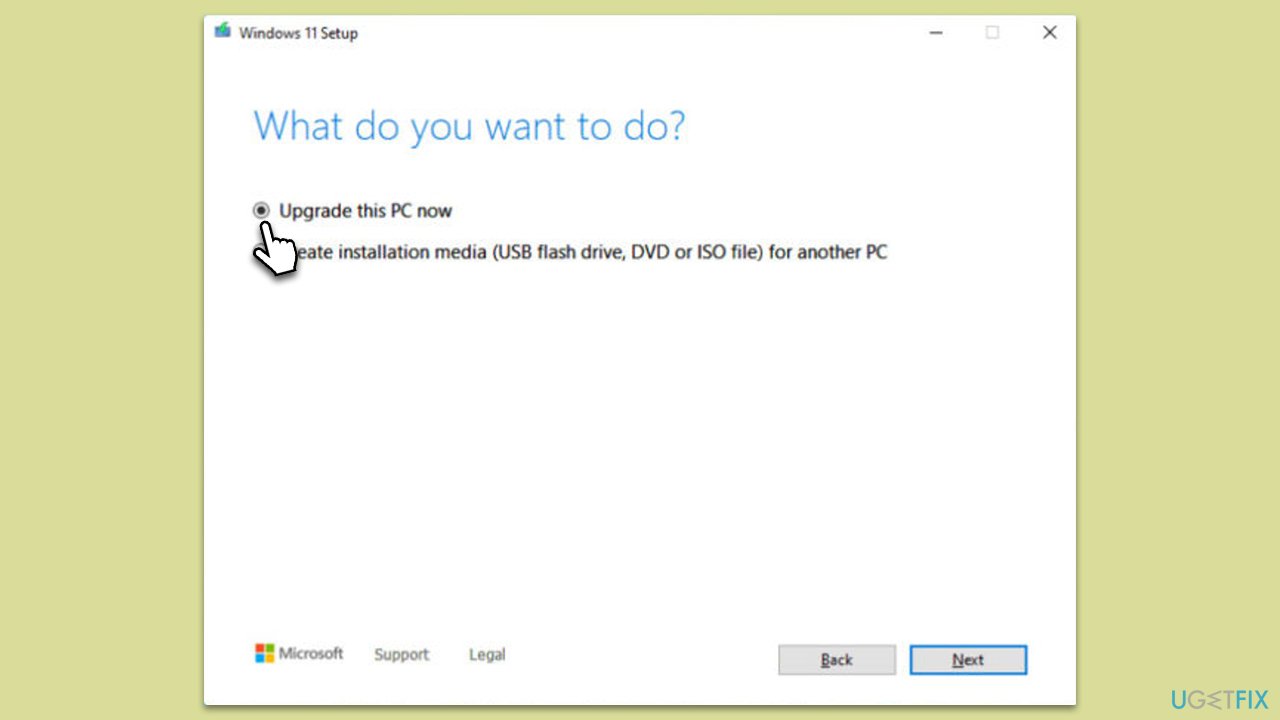
- Select Upgrade this PC now and select Next
- Windows will now download all the necessary files, which might take some time.
- Agree to the terms once again and click Next.
- Before installing, ensure you are happy with your choices (otherwise, you can click Change what to keep option).
- Click Install to begin the upgrade process.
- Your computer will restart as required.
Method 6. Install Manually
Manual installation of Windows updates serves as a direct approach to system upgrades, bypassing the automatic update process. This can often be an effective solution, especially when automatic updates encounter issues, ensuring that your system stays up-to-date with the latest enhancements and security patches.
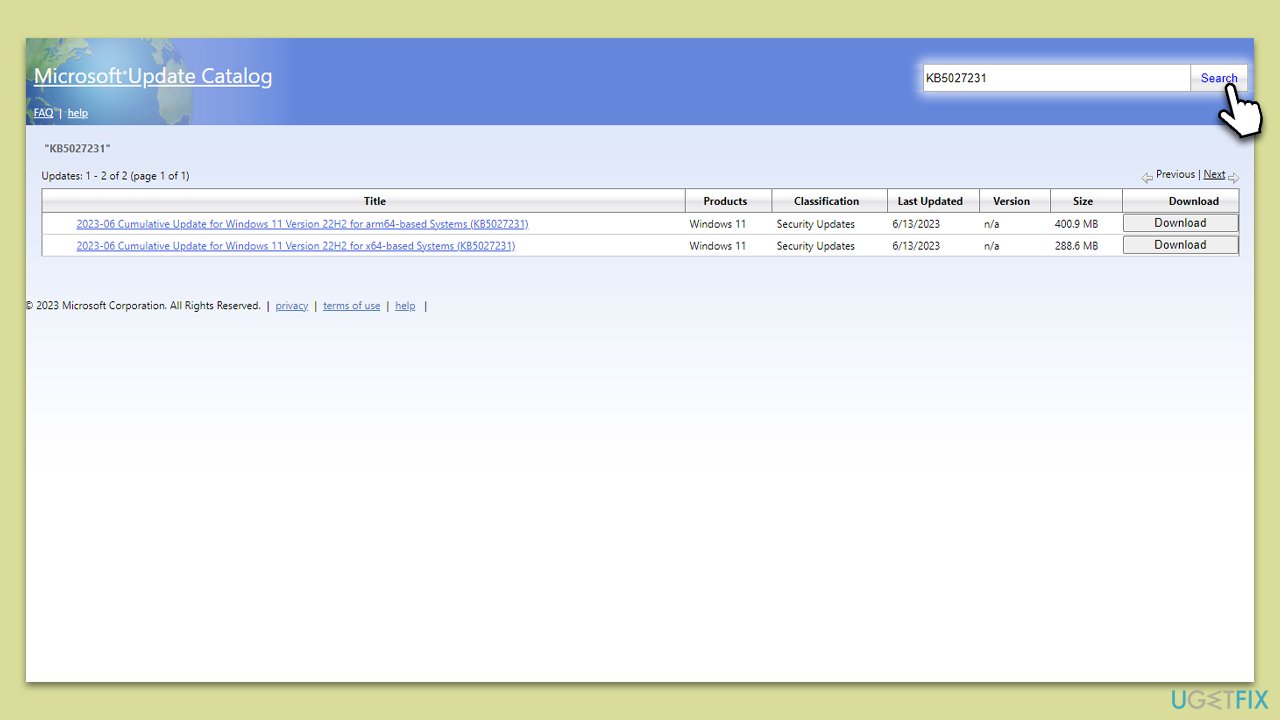
- Open your web browser and navigate to the Microsoft Update Catalog.
- In the search box, enter KB5027231 and click Search.
- Locate the correct version of the update for your operating system by checking your System type (Right-click on Start and select System. Under Windows specifications, check the Version).
- Click on Download and follow the prompts to complete the process.
- Once the update is installed, reboot your system.
Bottom line
To fix the installation failure of KB5027231, check and correct your computer's date and time settings, run a malware scan, and try restarting your computer. If these steps do not resolve the issue, consider using a dedicated PC repair tool to improve overall system health.
Frequently asked questions
Common reasons include insufficient disk space, corrupted system files, or conflicts with third-party software. Ensuring your system is up to date and running a DISM scan can often resolve these issues.
You can manually download the KB5027231 update from the Microsoft Update Catalog website and install it by running the downloaded file. Make sure to choose the correct version that matches your system architecture.
If KB5027231 continues to fail, consider performing a clean boot to eliminate software conflicts or using the Windows Update Troubleshooter. If problems persist, further investigation into system logs may be necessary.




Report an issue
What's wrong with this guide? We review every report and update or remove content.
Report received — thank you. We'll review and fix it.
You need a free account to submit a report.
Be the first to comment