How to fix
KB5027293 fails to install
on Windows
Resolve the KB5027293 installation issue on Windows 10 effortlessly. Follow expert-tested solutions and get your system running smoothly again. Fixed in…


What causes How to fix KB5027293 fails to install in Windows 10?
- Unstable internet connection
- Insufficient storage space
- Software conflicts
- Underlying system corruption
Repairs Windows system files, removes malware, and restores a clean OS state — without reinstalling.
Hello, I have issues installing the latest preview build (KB5027293) on Windows 10. It just keeps failing with an error 0x800F0922. Any tips on how should I proceed?
The Microsoft Windows operating system regularly receives patches and updates through unique identifiers referred to as Knowledge Base, or KB, numbers. These identifiers allow users and administrators to track and manage updates effectively, and they function as the key to understanding the specific changes that each update introduces.
Updates are typically shipped out through the Windows Update service, making it easy for users to keep their systems up-to-date with the latest security patches, bug fixes, and improvements. They are distributed periodically, often on a monthly basis, and include minor adjustments, major feature upgrades, or significant version changes, depending on the situation.
The recently released KB5027293 update is a prime example of this process. Shipped on June 27, 2023, this preview build was designed specifically for Windows 10 versions 22H2. It introduces a plethora of enhancements, including improvements to Microsoft Defender Endpoint, a robust anti-malware component, refinements to Chinese fonts, and streamlined authentication processes across Microsoft Clouds. Furthermore, the KB5027293 update also rectifies various bugs, one notable fix being an issue with the on-screen keyboard.
However, despite the numerous benefits that KB5027293 promises to deliver, some users have been unable to successfully install the update due to varying error messages. These errors could arise from numerous factors, including but not limited to an unstable internet connection, insufficient storage space, software conflicts, or underlying system corruption.
Moreover, the very nature of the software updates implies that they interact with countless unique hardware and software configurations across different systems, which can sometimes result in unforeseen incompatibility issues.
It is crucial to understand that while these installation failures may pose temporary setbacks, solutions to these problems are available. Detailed instructions to resolve these update installation issues can be found below this article.
In situations where manual troubleshooting appears daunting or ineffective, users might also consider utilizing a tool like [d1] PC Repair. This automated software can handle numerous troubleshooting operations, offering an efficient and user-friendly approach to resolving several issues that may prevent successful Windows updates.
Fix 1. Check if Windows Update and other services are running
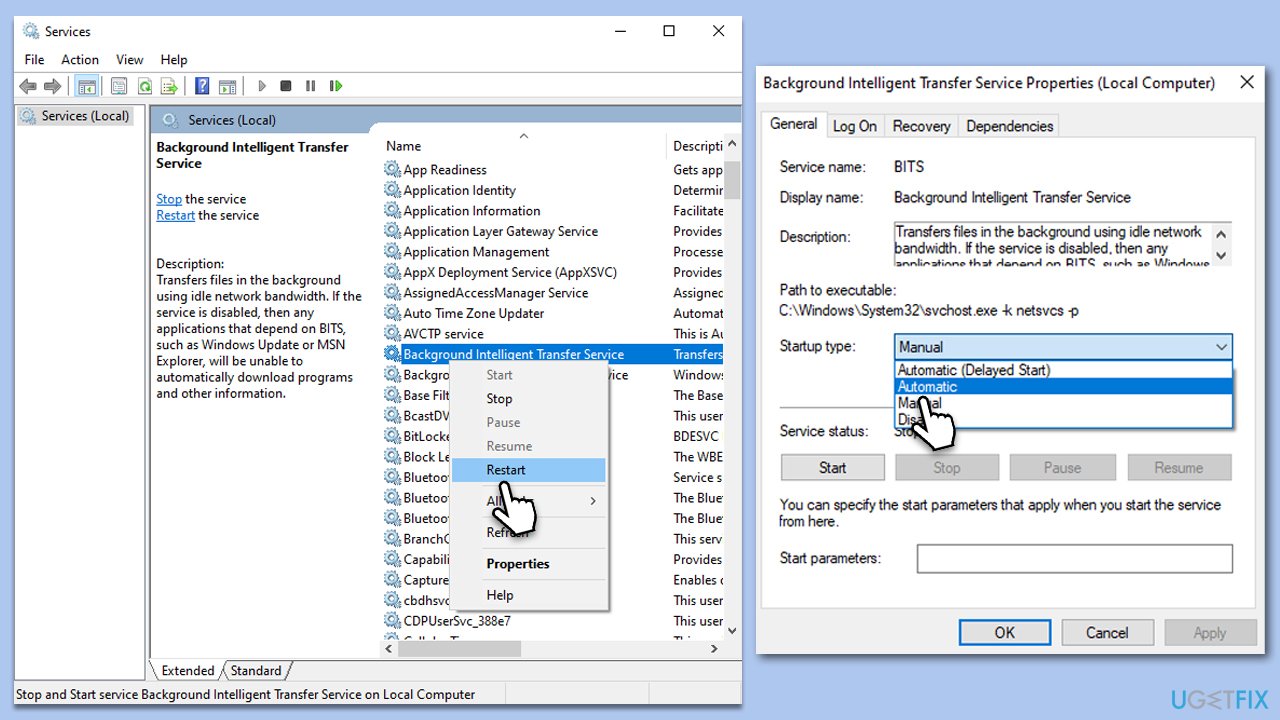
Numerous services collaboratively function to facilitate the smooth installation of Windows updates on a Windows 10 device. These services are designed to work in synergy to make sure the update process is executed without any issues. Thus, make sure that the relevant services are running. Alternatively, you should restart them:
- Type in Services in Windows search and press Enter.
- Scroll down to locate Background Intelligent Transfer Service (BITS).
- If it is already running, right-click and pick Restart.
- If the service is not running, double-click it, select Automatic under the Startup type from the drop-down menu.
- Click Start, Apply, and OK.
- Perform the same steps with Windows update and Cryptographic services.
Fix 2. Employ Windows Update Troubleshooter
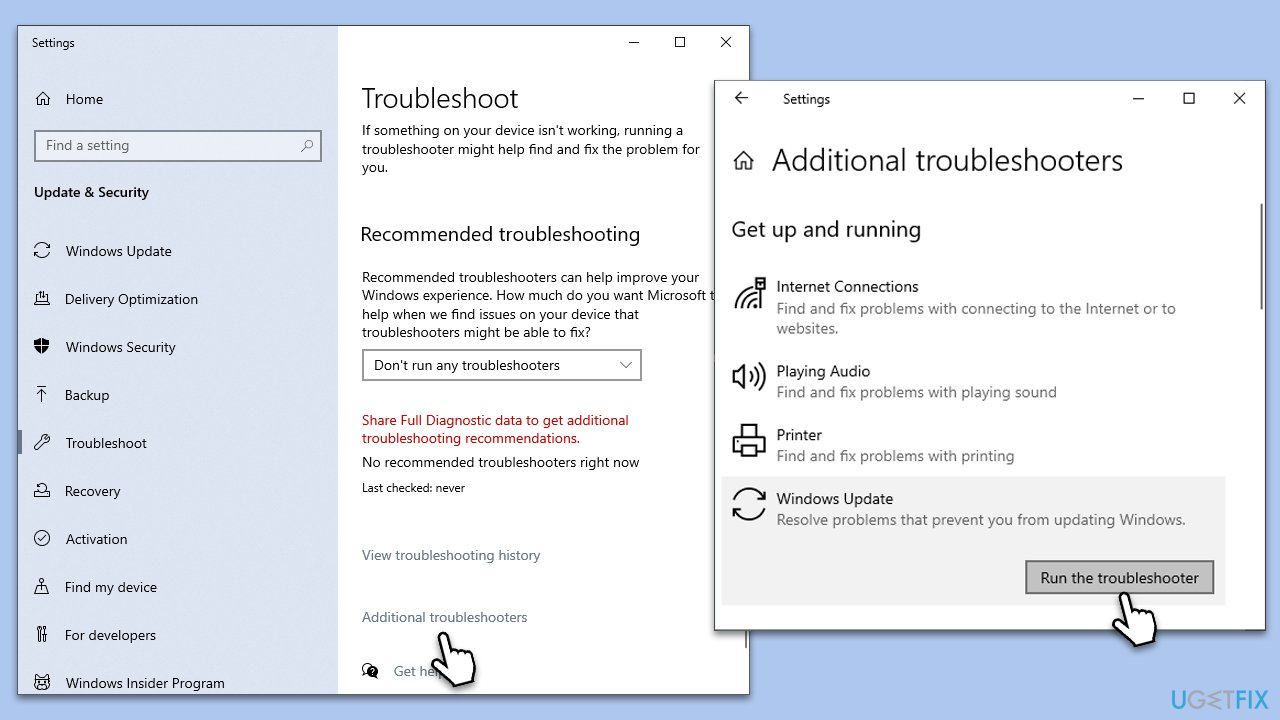
Windows includes built-in troubleshooting tools designed to automatically detect and repair specific types of problems. The Windows Update Troubleshooter is particularly tailored to identify and resolve issues related to Windows Update.
- Type Troubleshoot in Windows search and hit Enter.
- Select Additional troubleshooters/Other troubleshooters.
- Find Windows Update from the list and select Run the troubleshooter/Run.
- Wait till the scan is finished - you will be provided with potential causes so you can proceed with fixes.
- If no suggestions were given, proceed with the solutions below.
Fix 3. Run SFC and DISM scans
System File Checker and Deployment Image Servicing and Management are Windows tools that can repair corrupted system files which may be preventing updates.
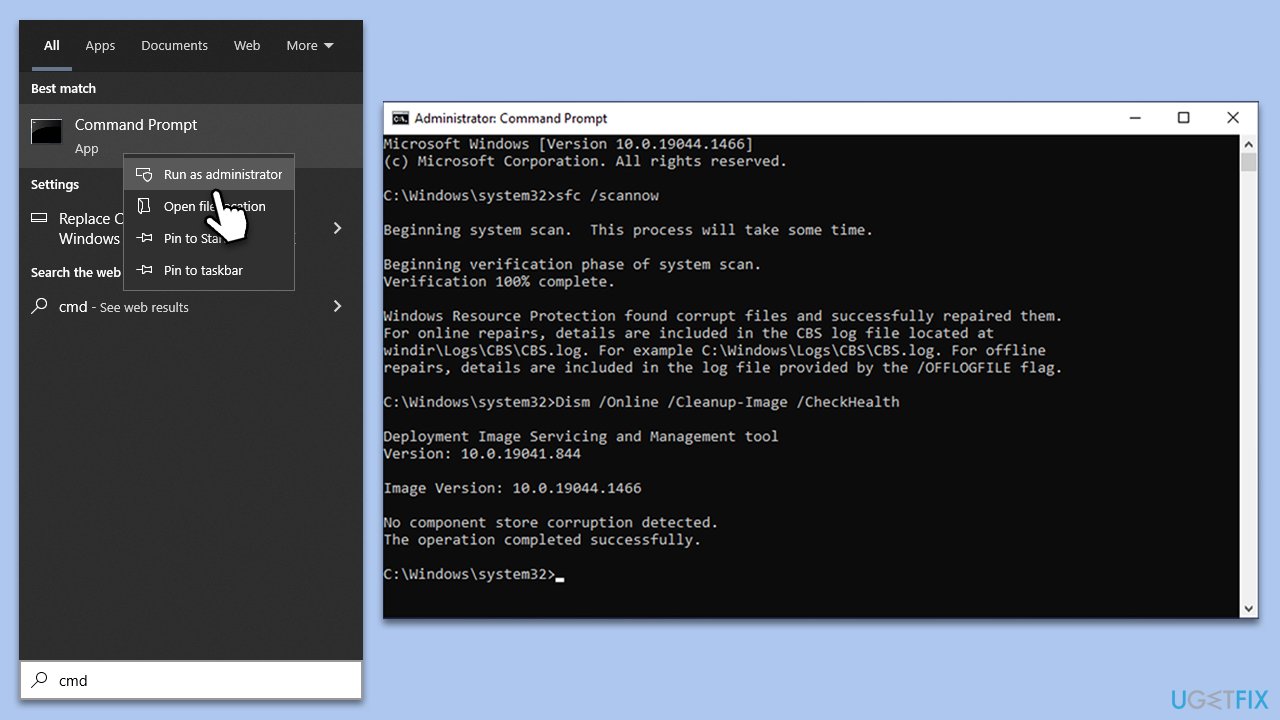
- Type in cmd in Windows search.
- Right-click on Command Prompt and select Run as administrator.
- When User Account Control asks you whether you allow changes to your system - click Yes.
- In the Command Prompt window, paste the following command and hit Enter:
sfc /scannow - Next, use the following commands, pressing Enter each time:
Dism /Online /Cleanup-Image /CheckHealth
Dism /Online /Cleanup-Image /ScanHealth
Dism /Online /Cleanup-Image /RestoreHealth
(Note: if you get an error executing this last command, add /Source:C:\RepairSource\Windows /LimitAccess to it and try again). - Reboot your device.
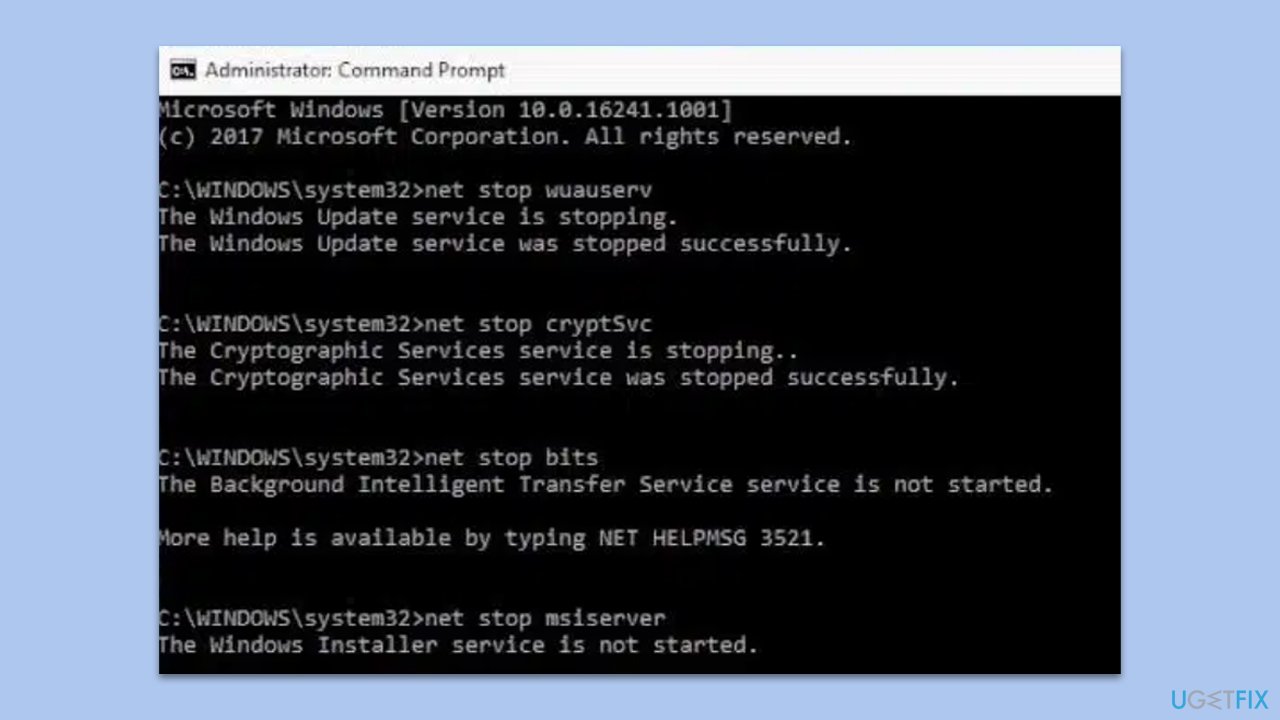
Fix 4. Reset Windows Update components
- Open Command Prompt with administrative privileges.
- Type the following commands one by one in Command Prompt and press Enter after each command :
net stop wuauserv
net stop cryptSvc
net stop bits
net stop msiserver
Ren C:\Windows\SoftwareDistribution SoftwareDistribution.old
Ren C:\Windows\System32\catroot2 Catroot2.old - Once these commands are executed, the last thing to do is to re-enable relevant services. Use these commands:
net start wuauserv
net start cryptSvc
net start bits
net start msiserver - Reboot your system when done.
Fix 5. Install the update manually
Sometimes, resetting the software distribution and catroot2 folders, which store update files, can resolve issues.
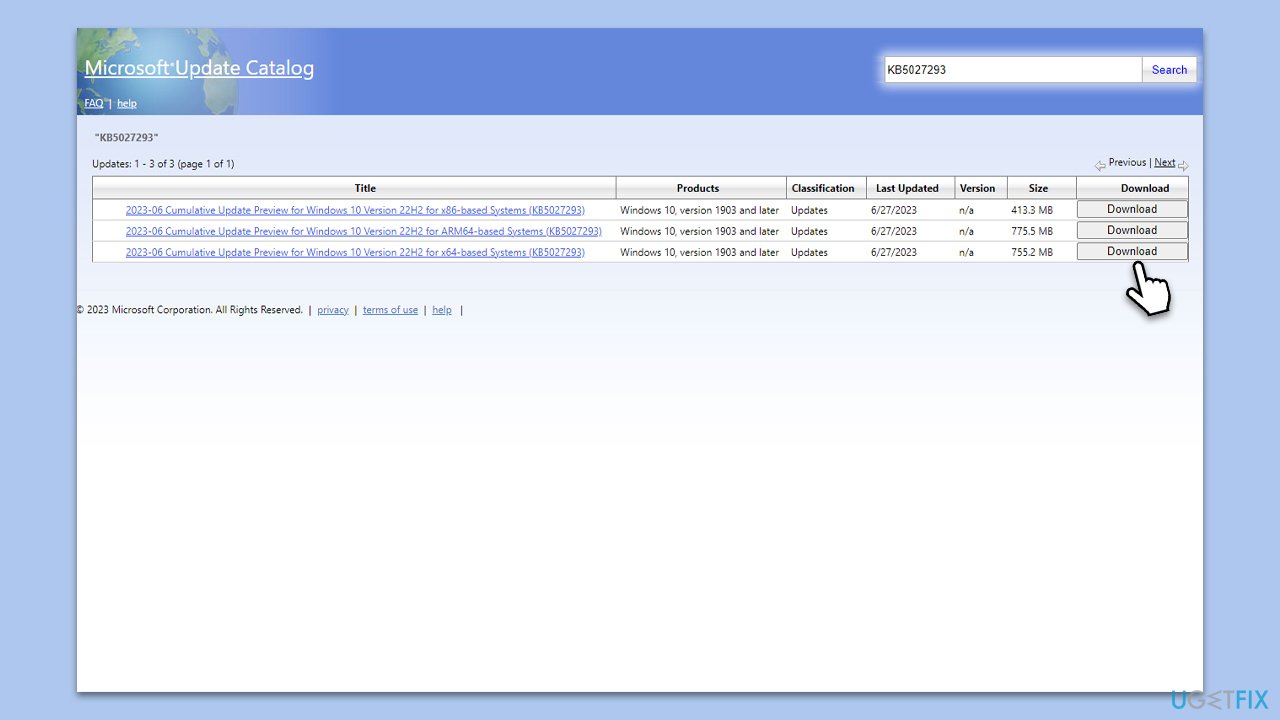
- Open your browser and go to Microsoft Update Catalog.
- Within the search bar, type in KB5027293 and click Search or press Enter.
- Find the correct version of the update for your operating system (to check this, right-click on Start and pick System. Under Device specifications and check the System type) and click Download.
- Use on-screen guidelines to finish the installation process and restart your computer.
Fix 6. Try Clean Boot
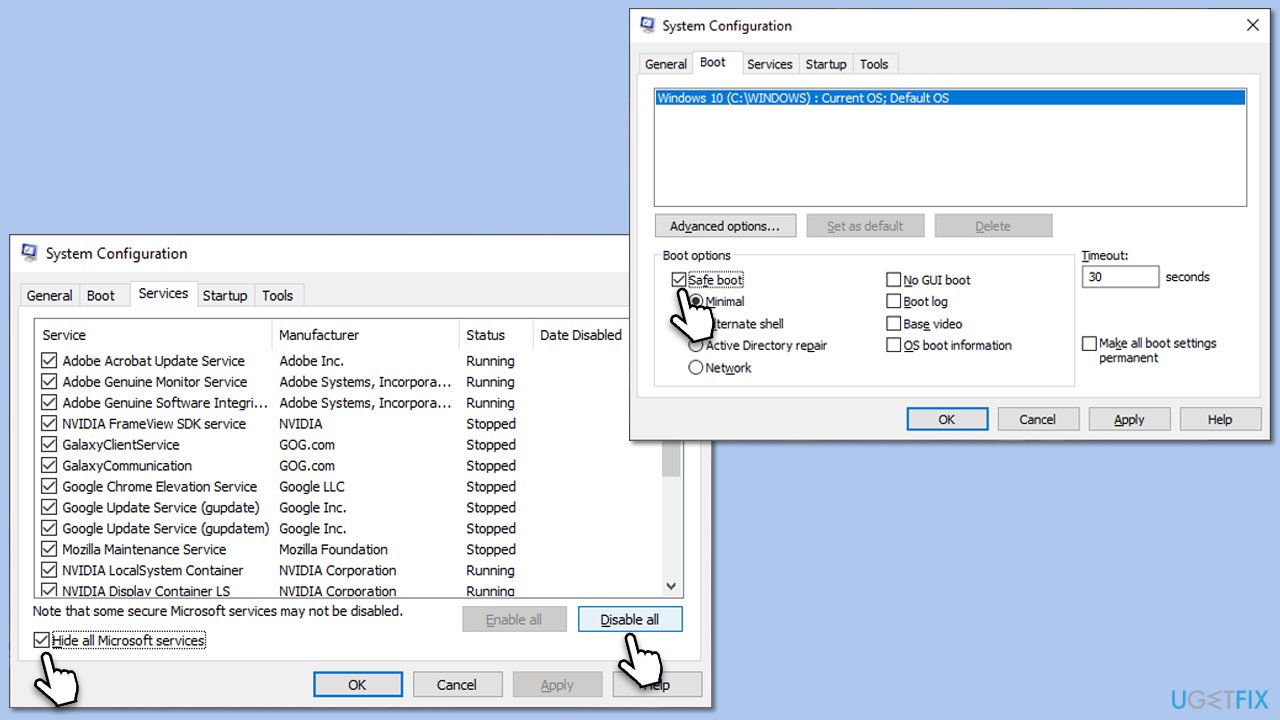
A clean boot starts Windows with minimal drivers and services, which can help identify and avoid conflicts that prevent updates.
- Press Win + R, type msconfig, and hit Enter.
- Go to the Services tab and tick the Hide all Microsoft services checkbox.
- Select Disable all.
- Go to the Startup tab and click Open Task Manager.
- Here, right-click on each of the non-Windows entries and select Disable.
- Close down the Task Manager.
- Go to the Boot tab and tick the Safe boot option.
- Restart your system.
Bottom line
To resolve the installation failure of KB5027293, users can check their internet connection, ensure there is enough storage space, and look for any software conflicts. If these steps do not work, consider using a tool like PC Repair for automated troubleshooting.
Frequently asked questions
First, try running the Windows Update Troubleshooter, which can help identify and fix issues preventing the installation. If that doesn't work, consider downloading the update manually from the Microsoft Update Catalog.
Yes, resetting Windows Update components can resolve issues related to update failures, including KB5027293 on Windows 10. Follow the specific steps to stop services, rename folders, and restart the services to refresh the update mechanism.
Before installation, ensure that your Windows 10 system is fully updated and that there are no pending updates that could conflict with KB5027293. Additionally, check for any third-party software that may interfere with the update process.




Report an issue
What's wrong with this guide? We review every report and update or remove content.
Report received — thank you. We'll review and fix it.
You need a free account to submit a report.
Be the first to comment