How to fix
KB5028168 fails to install
on Windows
Resolve KB5028168 installation issues in Windows 10 quickly and easily. Our expert-tested solutions ensure a smooth update process, fixed in minutes!

What causes How to fix KB5028168 fails to install in Windows 10?
- Conflicting software or drivers
- Corrupted system files
- Outdated drivers
- Issues with Windows Update
- Problems with the Microsoft Pinyin Input Method Editor (IME)
Repairs Windows system files, removes malware, and restores a clean OS state — without reinstalling.
Hello. I tried installing the newest Windows 10 update KB5028168 but I receive an error. Is there any way I can fix this?
Failure to install KB5028168, a Windows 10 update, can cause a number of problems for users. This update aims to improve several simplified Chinese fonts and the Microsoft Pinyin Input Method Editor (IME), as well as add new features and improvements to Microsoft Defender for Endpoint. Among other things, it adds the ability to share cookies between Microsoft Edge IE mode and Microsoft Edge.
Users may have difficulty benefiting from the improvements and new features introduced in KB5028168 if the update fails to install. Those who use simplified Chinese fonts or the Microsoft Pinyin Input Method Editor (IME), for example, may not experience the enhanced functionality intended by the update. Furthermore, users of Microsoft Defender for Endpoint may miss out on the updated security features and improvements, potentially making their systems more vulnerable to threats.
To resolve the installation failure of KB5028168, the underlying cause must be identified. Possible solutions include troubleshooting steps such as checking for conflicting software or drivers, running the Windows Update troubleshooter, or manually installing the update.
In this guide, you will find 7 steps that should help you fix KB5028168 fails to install in Windows 10. You can also try running a maintenance tool like [d1] that can fix most system errors, BSODs,[ref en-1] corrupted files, registry[ref en-2] issues, or clear cookies and cache.[ref en-3] Otherwise, follow the step-by-step instructions below.
Solution 1. Run the Windows Update Troubleshooter
- Press the Windows + X keys and go to Settings.
- Go to Update and Security.
- Click Troubleshooter.
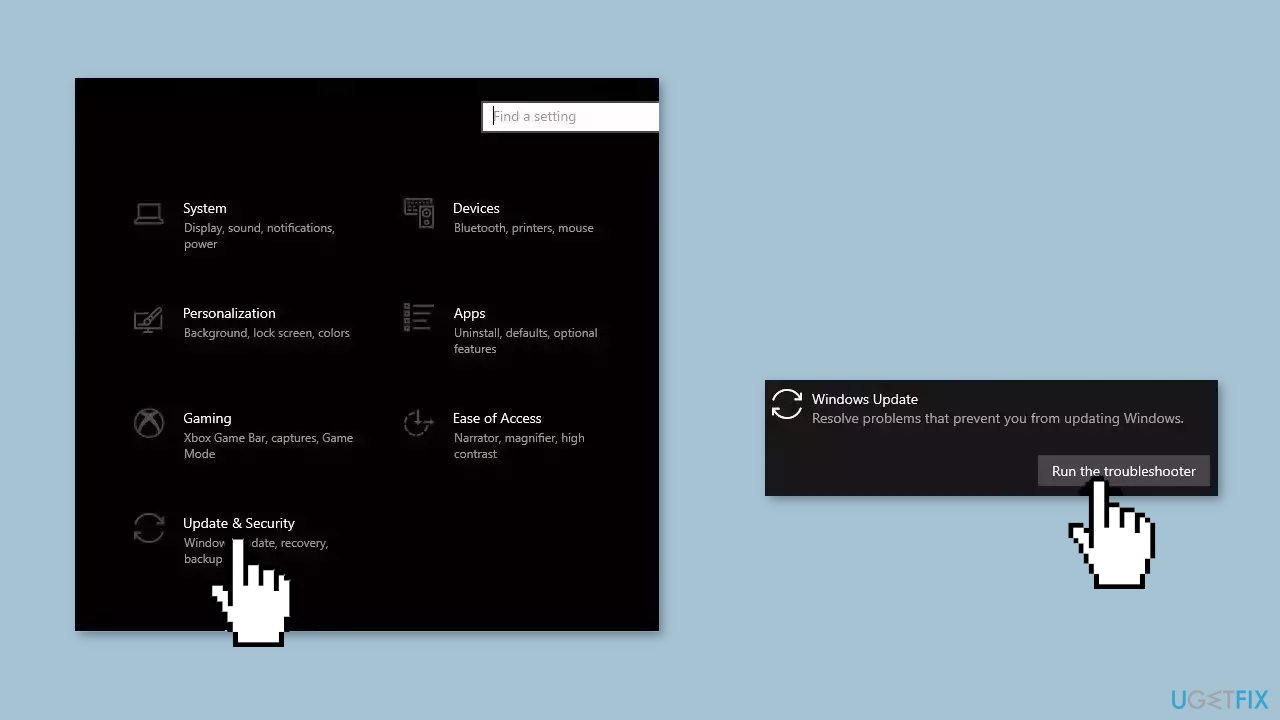
- Select Additional troubleshooters.
- Run the Update troubleshooter.
- Restart.
Solution 2. Fix Corrupted System Files
Use Command Prompt commands to repair system file corruption:
- Open Command Prompt as administrator
- Use the following command and press Enter:
sfc /scannow

- Reboot your system
- If SFC returned an error, then use the following command lines, pressing Enter after each:
DISM /Online /Cleanup-Image /CheckHealth
DISM /Online /Cleanup-Image /ScanHealth
DISM /Online /Cleanup-Image /RestoreHealth
Solution 3. Update Drivers
- In the search box on the taskbar, enter device manager, then select Device Manager.
- Select a category to see the names of devices, then right-click the one you’d like to update.
- Select Search automatically for updated driver software.
- Select Update Driver.
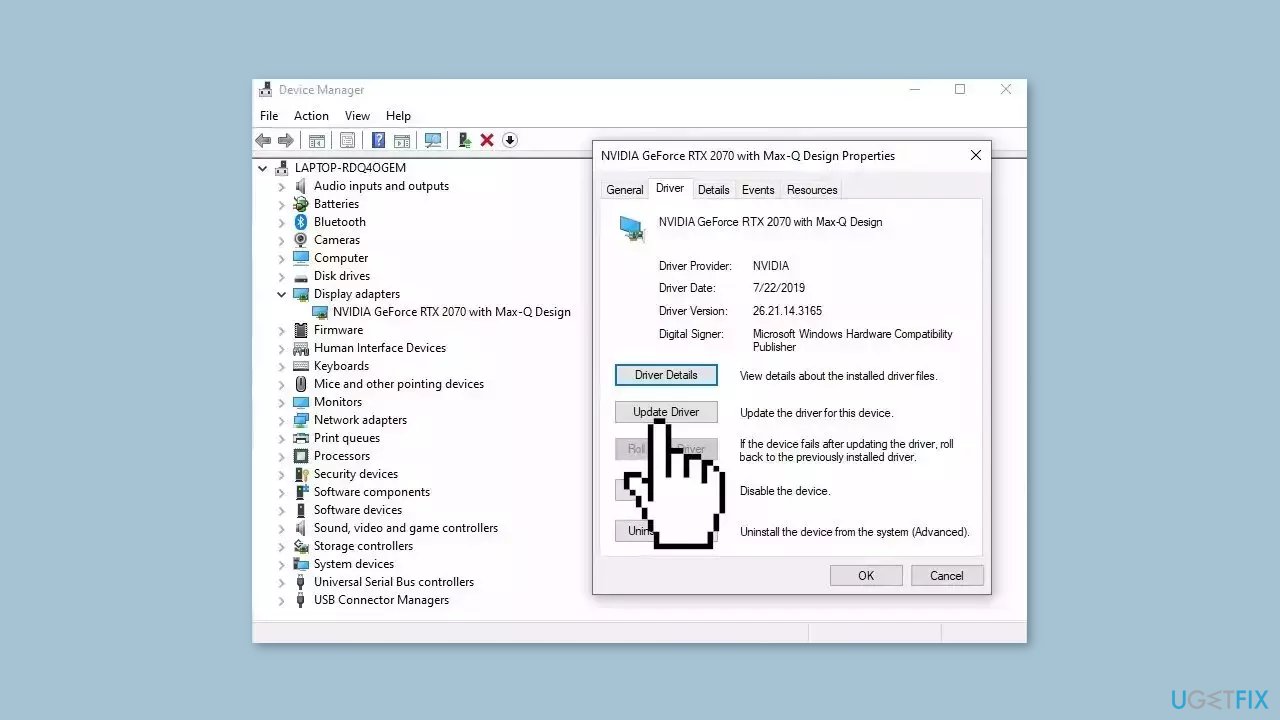
- If Windows doesn't find a new driver, you can try using an automatic tool like [rev id="DriverFix"] which can find the best drivers for your system.
Solution 4. Restart Windows Services
- Type services in the search bar and launch the Services utility.
- Find Windows Update in the list.

- Double-click on it, set the Startup type to Automatic, and click Apply.
- Now click on Restart the Service.
- Do the same with Background Intelligent Transfer Service.
Solution 5. Try Clean Boot
- Open the Search menu, type in system configuration, and press Enter.
- Under the Services tab, tick the Hide all Microsoft services box.

- Click on Disable all button.
- Head over to the Startup tab and click on Open Task Manager.
- Select a third-party program and click on Disable at the top.
- Repeat this step to disable all third-party apps and programs.
- Restart your PC to enter the clean boot state and see if the issue persists.
- If the issue disappeared in the clean boot state, then you can be certain that a third-party app is causing it.
- Go through all recently installed apps or programs and remove them one by one.
Solution 6. Install the Update Manually
- Open your browser and go to the Microsoft Update Catalog.
- You will be presented with several versions of the KB5028168 update.
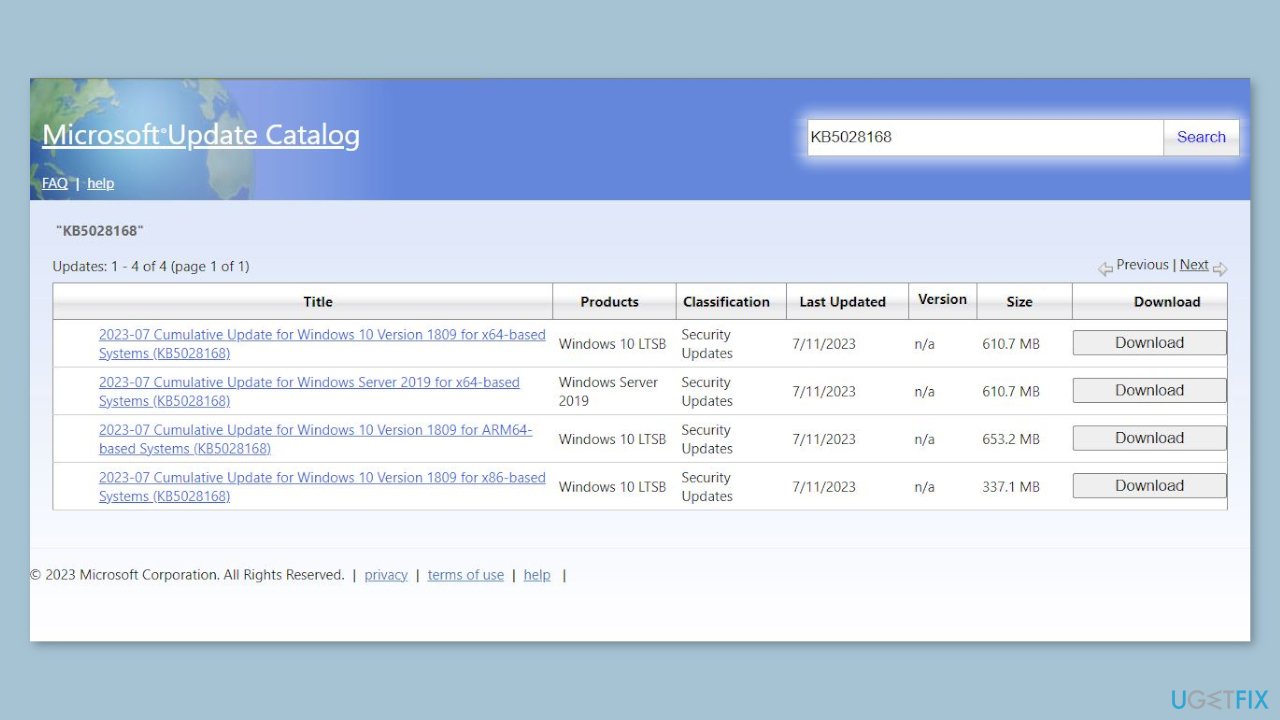
- Find the correct update for your OS version (you can check it by right-clicking Start and picking System > Windows specifications > Version is what you are looking for) and click Download.
- Follow the on-screen instructions and install the update.
- Reboot your system.
Solution 7. Update via Media Creation Tool
- Visit the official Microsoft website and download Windows 10 installation media.
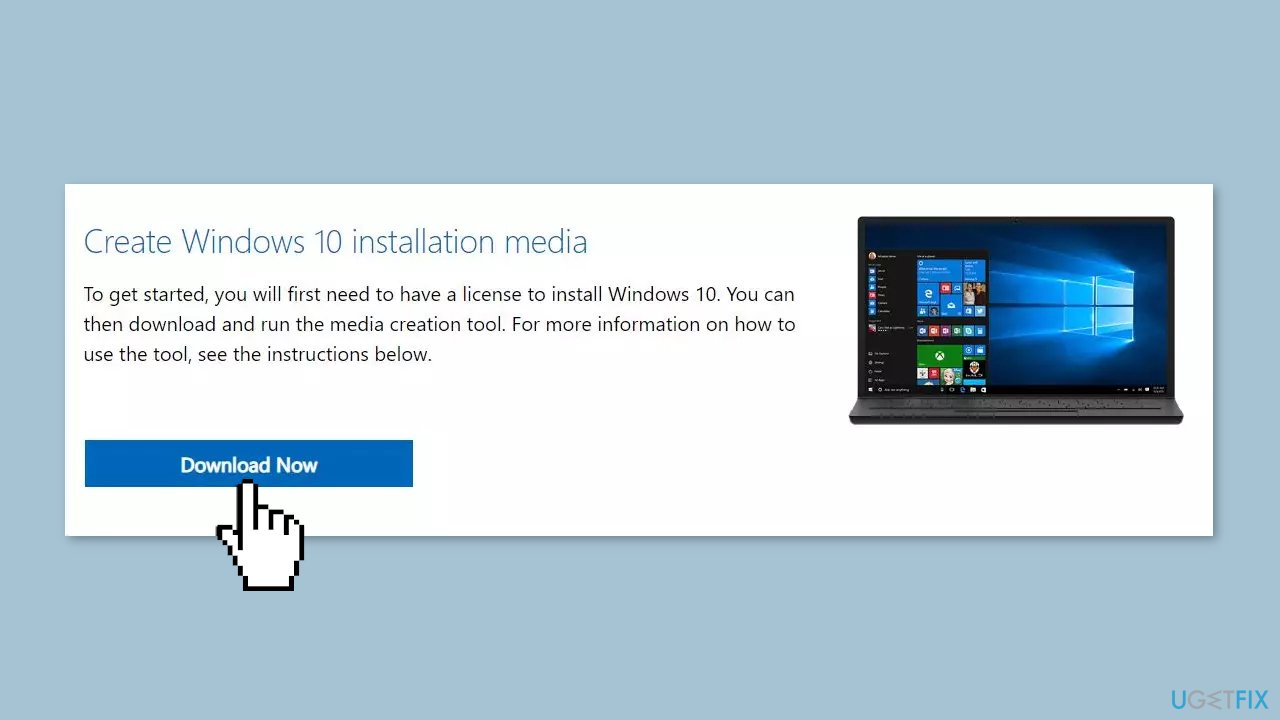
- Double-click the installer and select Yes when UAC shows up.
- Agree to terms and click Next.
- Select Upgrade this PC now and select Next.
- Proceed with on-screen instructions.
- Your PC will restart.
Bottom line
To fix the installation failure of KB5028168, you can run the Windows Update troubleshooter, repair corrupted system files using Command Prompt, or update your drivers. If these solutions do not resolve the issue, consider using a maintenance tool to address system errors or manually installing the update.
Frequently asked questions
Common reasons include insufficient disk space, corrupted system files, or conflicting software. Ensure your system is up to date and has enough storage before attempting the installation.
You can resolve error codes by running the Windows Update Troubleshooter and performing a system file check. Additionally, consider resetting Windows Update components if the problem persists.
Yes, manually downloading and installing the update from the Microsoft Update Catalog is safe if the automatic installation fails. However, ensure you are downloading the correct version for your system architecture.




Report an issue
What's wrong with this guide? We review every report and update or remove content.
Report received — thank you. We'll review and fix it.
You need a free account to submit a report.
Be the first to comment