How to fix
KB5028185 fails to install
on Windows
Resolve the KB5028185 installation issue on Windows 11 effortlessly. Follow our expert-tested solutions to get your updates back on track! Fixed in minu…

What causes How to fix KB5028185 fails to install in Windows 11?
- Windows Update settings are misconfigured
- Conflicting software is interfering with the installation
- Corrupted system files are present
- Windows services related to updates are not running properly
Repairs Windows system files, removes malware, and restores a clean OS state — without reinstalling.
Hello. I tried installing the newest Windows 11 update KB5028185 but it fails. Is there anything I can do to fix this?
The failure of KB5028185[ref en-1] to install in Windows 11 can be frustrating for users who are looking forward to the improvements and features that this update will bring. Among other things, this update intends to broaden the rollout of notification badging for Microsoft accounts on the Start menu, improve the sharing of local files in File Explorer with Microsoft Outlook contacts, and redesign the in-app voice access command help page.
Failure to install KB5028185 can have a number of consequences for users. For starters, they might overlook the new notification badging feature on the Start menu, which provides visual indicators for notifications associated with Microsoft accounts. This can make it more difficult for users to keep track of their emails, messages, and other account-related activities.
There are a few possible solutions to the problem that could be considered. Users can try restarting their computers and reinstalling the update. If that doesn't work, they should check their Windows Update settings or look for any conflicting software that might be interfering with the installation process.
In this guide, you will find 8 steps that should help you fix KB5028185 fails to install in Windows 11. You can also try a maintenance tool like [d1] that can fix most system errors, BSODs,[ref en-2] corrupted files, and registry[ref en-3] issues. Otherwise, follow the step-by-step instructions below.
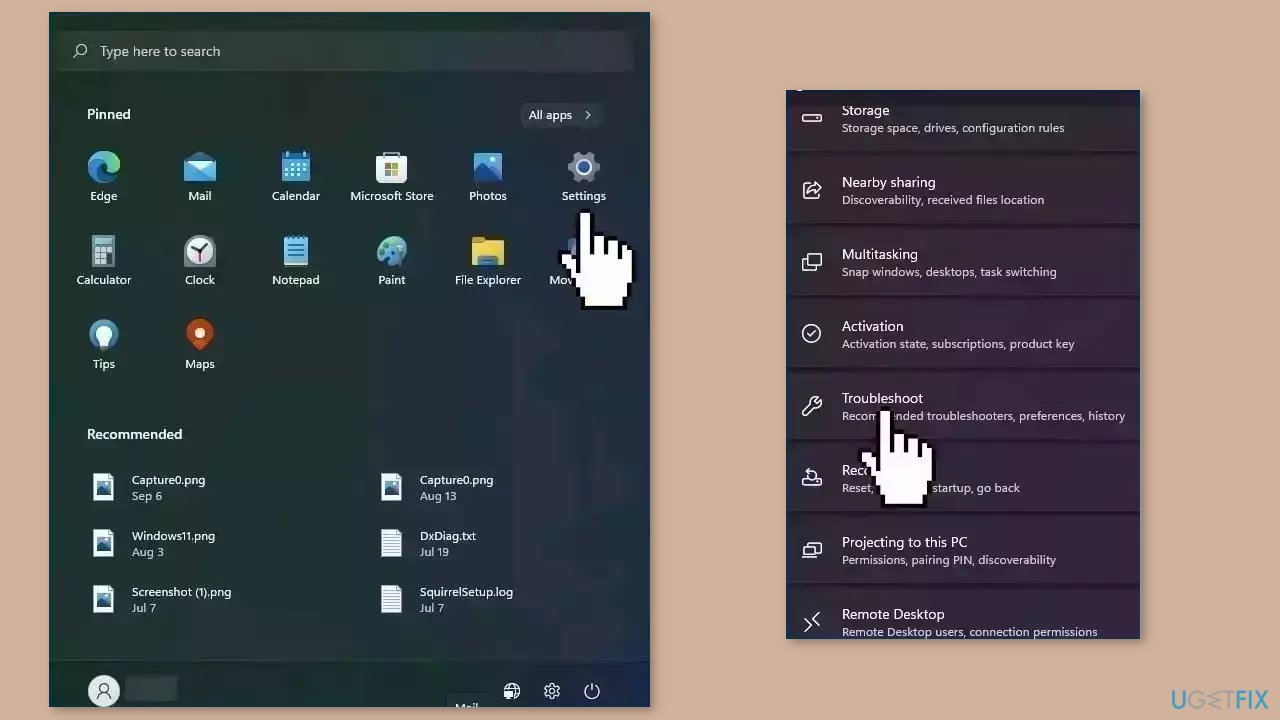
Solution 1. Run Windows Update Troubleshooter
- Click the Windows button and select Settings.
- Select System from the left pane, then scroll down on the right pane, and click on Troubleshoot.
- Click on Other troubleshooters.
- Locate the Windows Update troubleshooter and hit the Run button.
Solution 2. Restart Windows Services
- Type services in the search bar and launch the Services utility.
- Find Windows Update in the list.
- Double-click on it, set the Startup type to Automatic, and click Apply.
- Now click on Restart the Service.
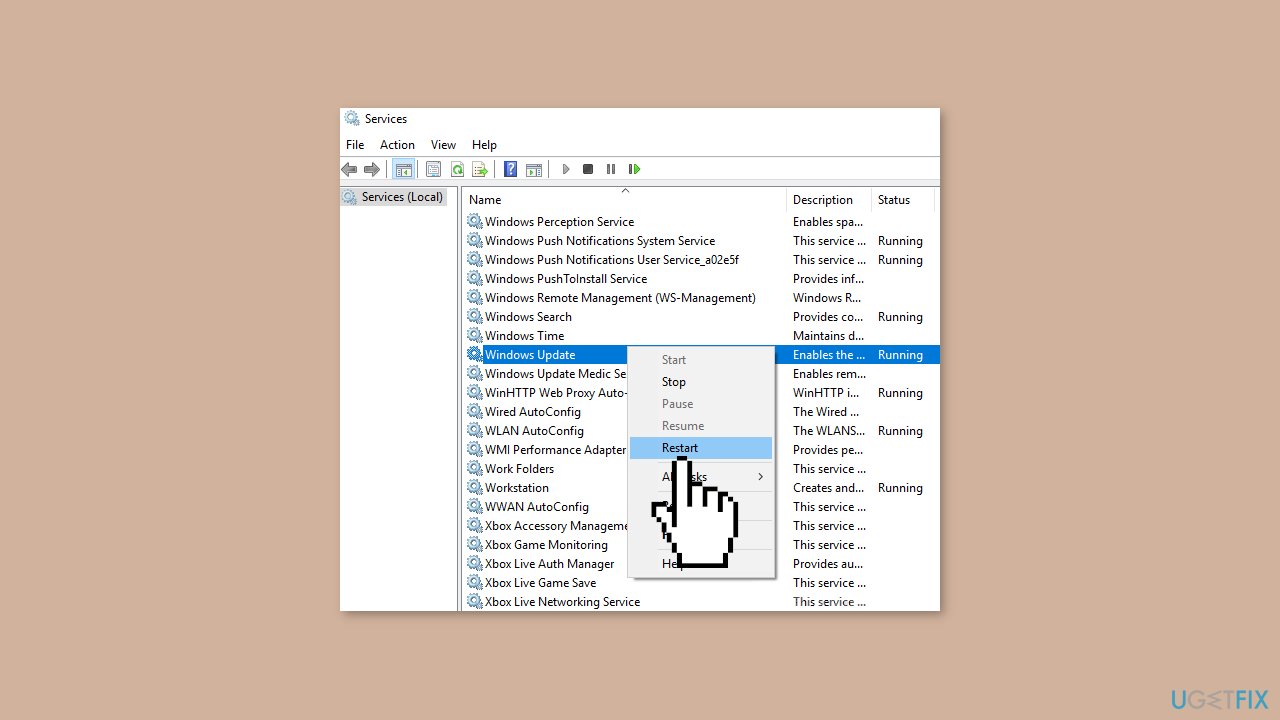
- Do the same with Background Intelligent Transfer Service.
Solution 3. Repair Corrupted System Files
Use Command Prompt commands to repair system file corruption:
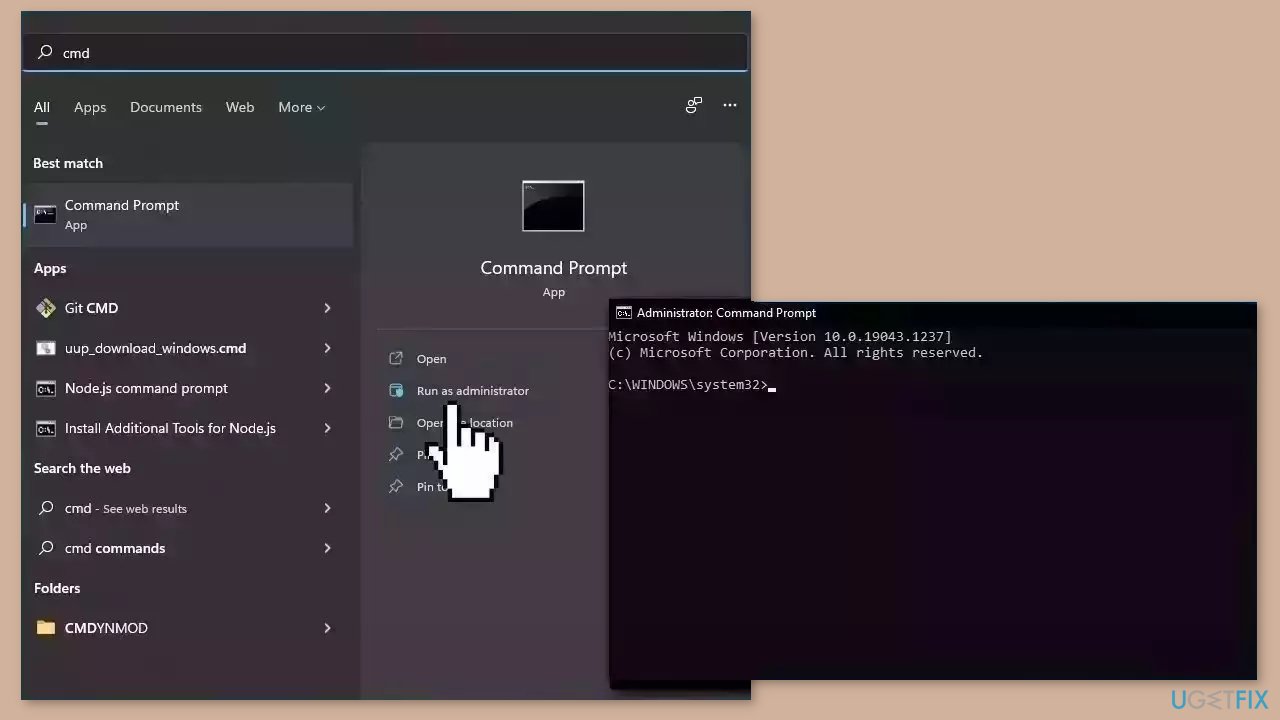
- Open Command Prompt as administrator
- Use the following command and press Enter:
sfc /scannow
- Reboot your system
- If SFC returned an error, then use the following command lines, pressing Enter after each:
DISM /Online /Cleanup-Image /CheckHealth
DISM /Online /Cleanup-Image /ScanHealth
DISM /Online /Cleanup-Image /RestoreHealth
Solution 4. Use the Microsoft Update Catalog
- Go to the official Microsoft Update Catalog website.
- Type the KB number KB5028185 into the search bar, and press Enter or click Search.
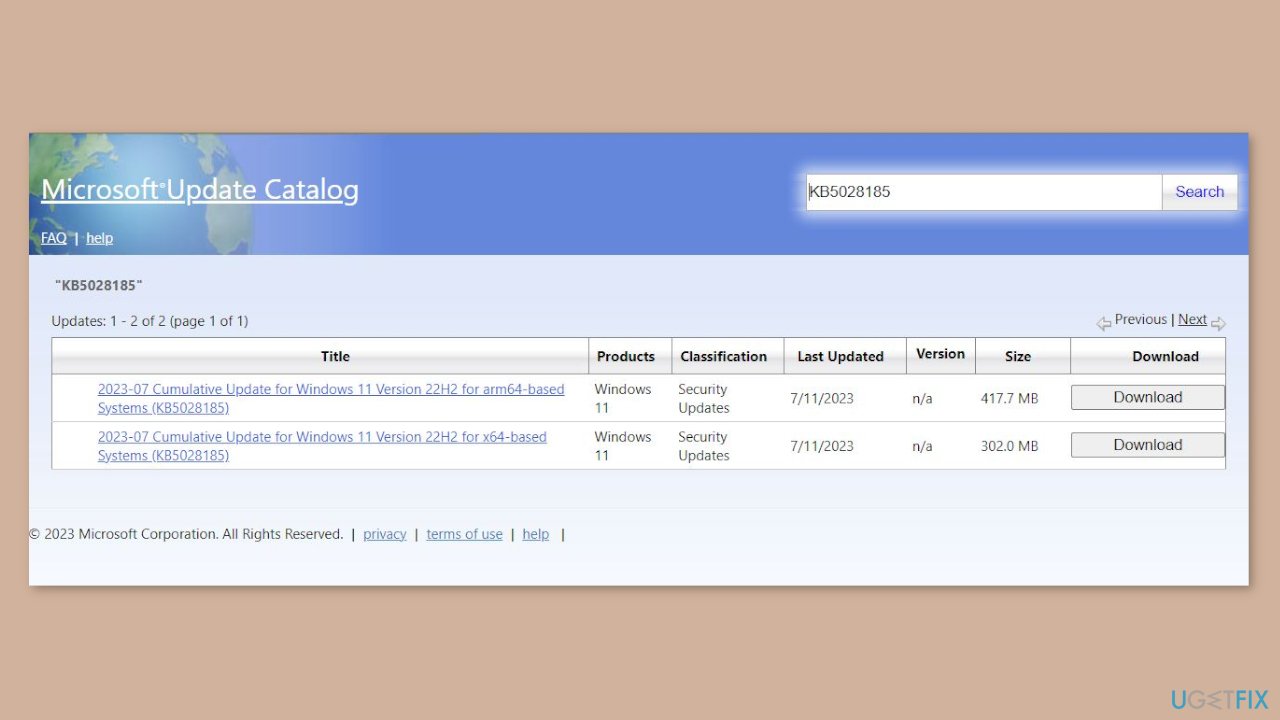
- You will find many different versions on the update – you need to find the one that matches your PC specs and Windows version (as a home user, ignore Windows server versions).
- After picking the correct version, click the Download button and proceed with the on-screen instructions.
- Restart your system once done.
Solution 5. Try Clean Boot
- Open the Search menu, type in system configuration, and press Enter.
- Under the Services tab, tick the Hide all Microsoft services box.
- Click on Disable all button.

- Head over to the Startup tab and click on Open Task Manager.
- Select a third-party program and click on Disable at the top.
- Repeat this step to disable all third-party apps and programs.
- Restart your PC to enter the clean boot state and see if the issue persists.
- If the issue disappeared in the clean boot state, then you can be certain that a third-party app is causing it.
- Go through all recently installed apps or programs and remove them one by one.
Solution 6. Disable Third-Party Antivirus
Disabling a third-party antivirus can help fix the issue with KB5028185 failing to install on Windows 11, as antivirus programs can sometimes interfere with the Windows update process. Antivirus software often uses deep system hooks to monitor and protect the system, and these hooks can sometimes interfere with the Windows Update process, preventing updates from being installed correctly.
By disabling the antivirus temporarily, users can ensure that the update installation process is not being blocked or interrupted by the antivirus software. Once the update has been successfully installed, users can re-enable the antivirus software to ensure continued protection of their device.
Solution 7. Reset Windows Update Components
- Open the Command Prompt as an Administrator
- Type the following commands one by one and press Enter after each:
net stop bits
net stop wuauserv
net stop cryptsvc
Del “%ALLUSERSPROFILE%\Application Data\Microsoft\Network\Downloader\qmgr*.dat”
Ren %Systemroot%\SoftwareDistribution\DataStore DataStore.bak
Ren %Systemroot%\SoftwareDistribution\Download Download.bak
Ren %Systemroot%\System32\catroot2 catroot2.bak
sc.exe sdset bits D:(A;;CCLCSWRPWPDTLOCRRC;;;SY)(A;;CCDCLCSWRPWPDTLOCRSDRCWDWO;;;BA)(A;;CCLCSWLOCRRC;;;AU)(A;;CCLCSWRPWPDTLOCRRC;;;PU)
sc.exe sdset wuauserv D:(A;;CCLCSWRPWPDTLOCRRC;;;SY)(A;;CCDCLCSWRPWPDTLOCRSDRCWDWO;;;BA)(A;;CCLCSWLOCRRC;;;AU)(A;;CCLCSWRPWPDTLOCRRC;;;PU)
cd /d %windir%\system32
regsvr32.exe atl.dll
regsvr32.exe urlmon.dll
regsvr32.exe mshtml.dll
regsvr32.exe shdocvw.dll
regsvr32.exe browseui.dll
regsvr32.exe jscript.dll
regsvr32.exe vbscript.dll
regsvr32.exe scrrun.dll
regsvr32.exe msxml.dll
regsvr32.exe msxml3.dll
regsvr32.exe msxml6.dll
regsvr32.exe actxprxy.dll
regsvr32.exe softpub.dll
regsvr32.exe wintrust.dll
regsvr32.exe dssenh.dll
regsvr32.exe rsaenh.dll
regsvr32.exe gpkcsp.dll
regsvr32.exe sccbase.dll
regsvr32.exe slbcsp.dll
regsvr32.exe cryptdlg.dll
regsvr32.exe oleaut32.dll
regsvr32.exe ole32.dll
regsvr32.exe shell32.dll
regsvr32.exe initpki.dll
regsvr32.exe wuapi.dll
regsvr32.exe wuaueng.dll
regsvr32.exe wuaueng1.dll
regsvr32.exe wucltui.dll
regsvr32.exe wups.dll
regsvr32.exe wups2.dll
regsvr32.exe wuweb.dll
regsvr32.exe qmgr.dll
regsvr32.exe qmgrprxy.dll
regsvr32.exe wucltux.dll
regsvr32.exe muweb.dll
regsvr32.exe wuwebv.dll
netsh winsock reset
net start bits
net start wuauserv
net start cryptsvc
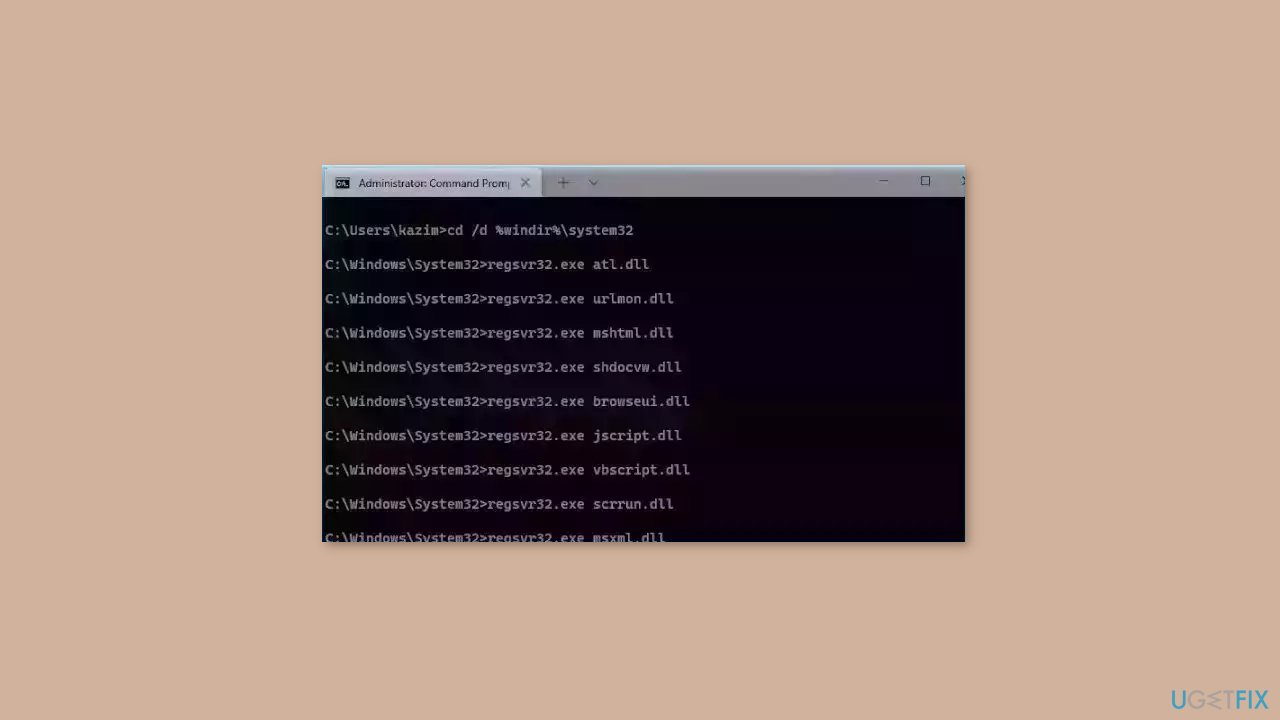
- Wait for the process to finish and restart your PC
Solution 8. Use Installation Media
If none of the previous steps helped you resolve the issue, your current installation of Windows may be corrupt. Perform a repair installation and see if it fixes the issue of updates not installing.
- Visit the official Microsoft website to download Windows 11 Installation Media.
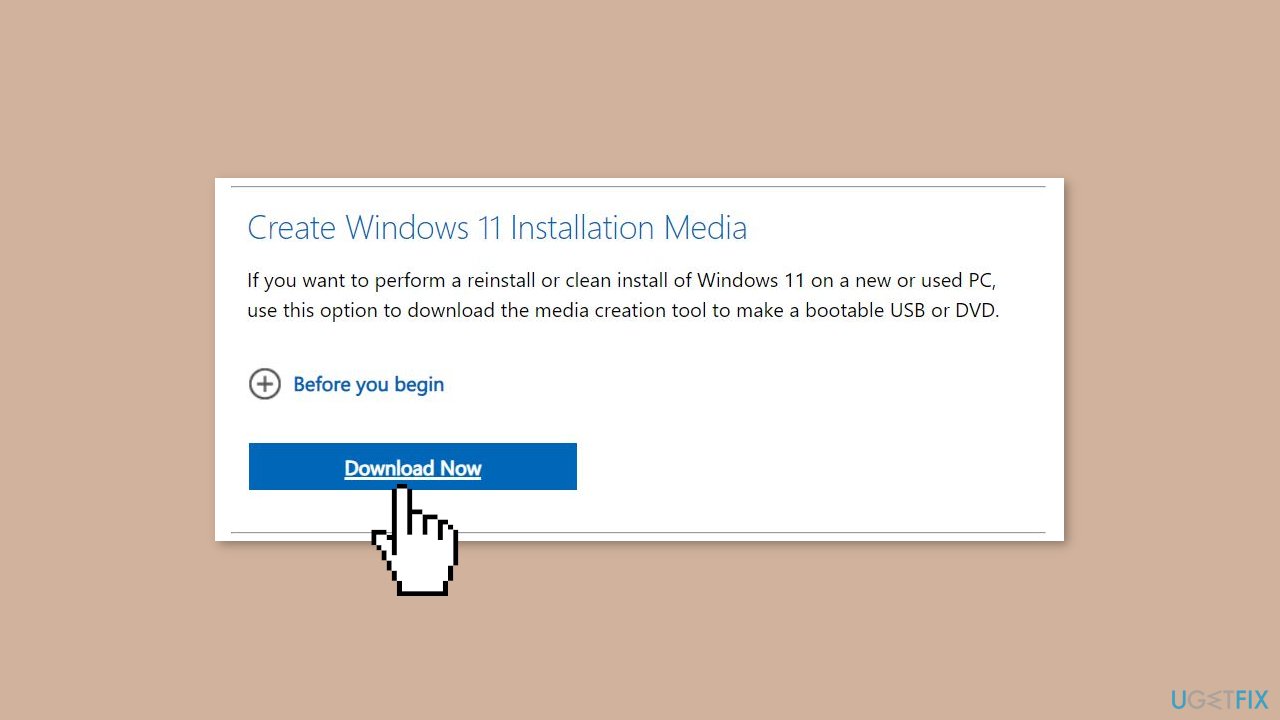
- Run the Media Creation Tool and select Create Installation Media for another PC.
- Select your USB drive.
- Let the Process complete of writing the Installation files to the USB drive.
- Click Finish.
- On the PC you wish to upgrade, Press Windows + E to open the File Explorer.
- Open the Removable drive and click Setup.exe.
- Accept the license terms on the next screen.
- Confirm the Upgrade options – Files, apps and Settings are kept.
- Click Install, and the upgrade should start.
Bottom line
To fix the KB5028185 installation failure, users can run the Windows Update Troubleshooter, restart Windows services, and repair corrupted system files. If these solutions do not resolve the issue, consider using a maintenance tool to address system errors.
Frequently asked questions
You can try running the Windows Update Troubleshooter found in Settings > Update & Security > Troubleshoot to identify and fix issues preventing the installation.
Yes, you can manually download the update from the Microsoft Update Catalog website and install it directly.
Common error codes include 0x800f0922 and 0x80073701, which indicate different underlying issues that may require additional troubleshooting steps.




Report an issue
What's wrong with this guide? We review every report and update or remove content.
Report received — thank you. We'll review and fix it.
You need a free account to submit a report.
Be the first to comment