How to fix
KB5028254 fails to install
on Windows
Resolve the KB5028254 installation issue in Windows 11 effortlessly. Follow our expert-tested solutions and get your system updated in minutes.

What causes How to fix KB5028254 fails to install in Windows 11?
- Conflicts with existing software
- Corruption within the system files
- Inadequate system resources
- Compromised servicing stack
- Inherent glitches due to the preview nature of the build
Repairs Windows system files, removes malware, and restores a clean OS state — without reinstalling.
I can't seem to install the newest Windows 11 update KB5028254 because I keep getting a 0x80070002 error. Any tips on this would be appreciated.
Windows updates are essential components of the operating system's functionality, ensuring that the software stays current with the latest security patches, bug fixes, and feature enhancements. Updates are usually released under unique Knowledge Base (KB) numbers, serving as their identifier. Among these, preview builds are special updates that provide a glimpse into upcoming features and improvements before they become widely available to the public. They often come with their own set of challenges, as the case of KB5028254 for Windows 11 illustrates.
Launched on July 26, 2023, KB5028254 is a preview build for Windows 11. It offers a range of enhancements, particularly geared towards troubleshooting bugs and refining the operating system's performance. Significantly, it brings updates to the servicing stack, which is the component that orchestrates the installation and removal of Windows updates, update packages, and service packs.
However, users have reported issues regarding the installation of KB5028254. The update sometimes fails to install, which can be attributed to a variety of reasons. Often, these failures are a result of conflicts with existing software, corruption within the system files, inadequate system resources, or a compromised servicing stack. It's also possible that the issues are rooted in the preview nature of the build, which means that it's a version still under refinement and might carry inherent glitches.

In the event of an unsuccessful installation, there are several potential solutions users can resort to. These include simple fixes such as restarting the system, freeing up system resources, or running a system file checker, to more complex procedures like manually downloading and installing the update or resetting the Windows Update components. Specific instructions for these methods can be found in the sections below this article.
Finally, utilizing tools like the [d1] PC repair tool can be beneficial in addressing these problems. This tool is designed to detect and resolve common issues that might prevent updates from installing properly, making it a viable option for troubleshooting the KB5028254 installation issue on Windows 11.
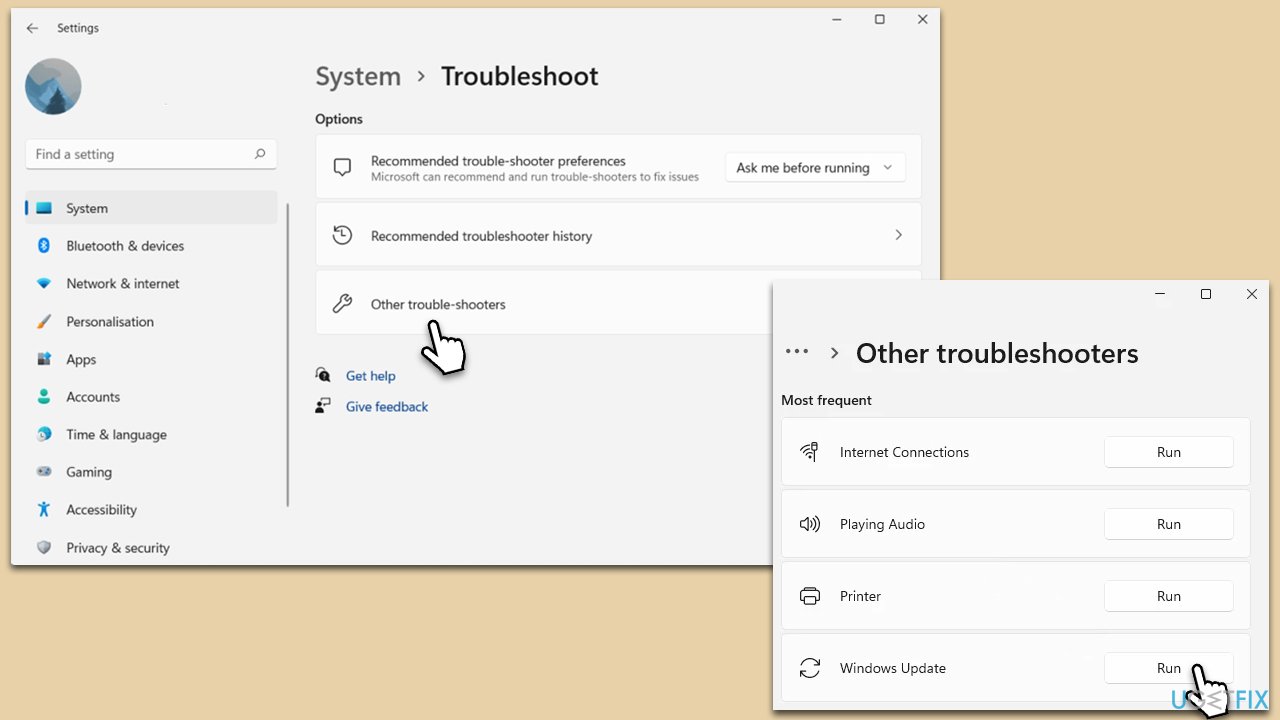
Fix 1. Run Windows update troubleshooter
The Windows update troubleshooter is a built-in tool in Windows 11 that identifies and solves common problems that may prevent updates from installing. It can handle issues with network connectivity, corrupted system files, and erroneous configurations, among others.
- Type troubleshoot in Windows search and press Enter or go to Start > Settings > System > Troubleshoot.
- From the list of Options, pick Other trouble-shooters.
- Scroll down to locate the Windows Update and click Run.
- Wait for it to finish, then apply changes and reboot the system.
Fix 2. Perform SFC and DISM scans
SFC and DISM are command-line tools used to repair corrupted system files. SFC checks for corrupt files, while DISM repairs the system image.
- Type cmd in Windows search.
- Right-click on Command Prompt and select Run as administrator.
- User Account Control will ask whether you want to make changes - click Yes.
- Use the following command lines, pressing Enter each time:
sfc /scannow - After the scan is done, copy the following commands and press Enter:
DISM /Online /Cleanup-Image /CheckHealth
DISM /Online /Cleanup-Image /ScanHealth
DISM /Online /Cleanup-Image /RestoreHealth
(Note: if you get an error executing this last command, add /Source:C:\RepairSource\Windows /LimitAccess to it and try again). - Restart your system.

Fix 3. Use Disk Cleanup
Disk Cleanup is a utility that helps free up disk space, which might be necessary for installing updates. It removes temporary files, system logs, and other unnecessary files.
- Type Disk Cleanup in Windows search and press Enter.
- If your Windows is installed on drive C, pick it from the list (it should be by default) and press OK.
- Click Clean up System Files.
- Here, mark the areas you want to be deleted, such as Windows update files, Setup log files, Recycle bin, Temporary files, etc.
- Click OK - the removal process of various leftover files will begin.
Fix 4. Install the update manually
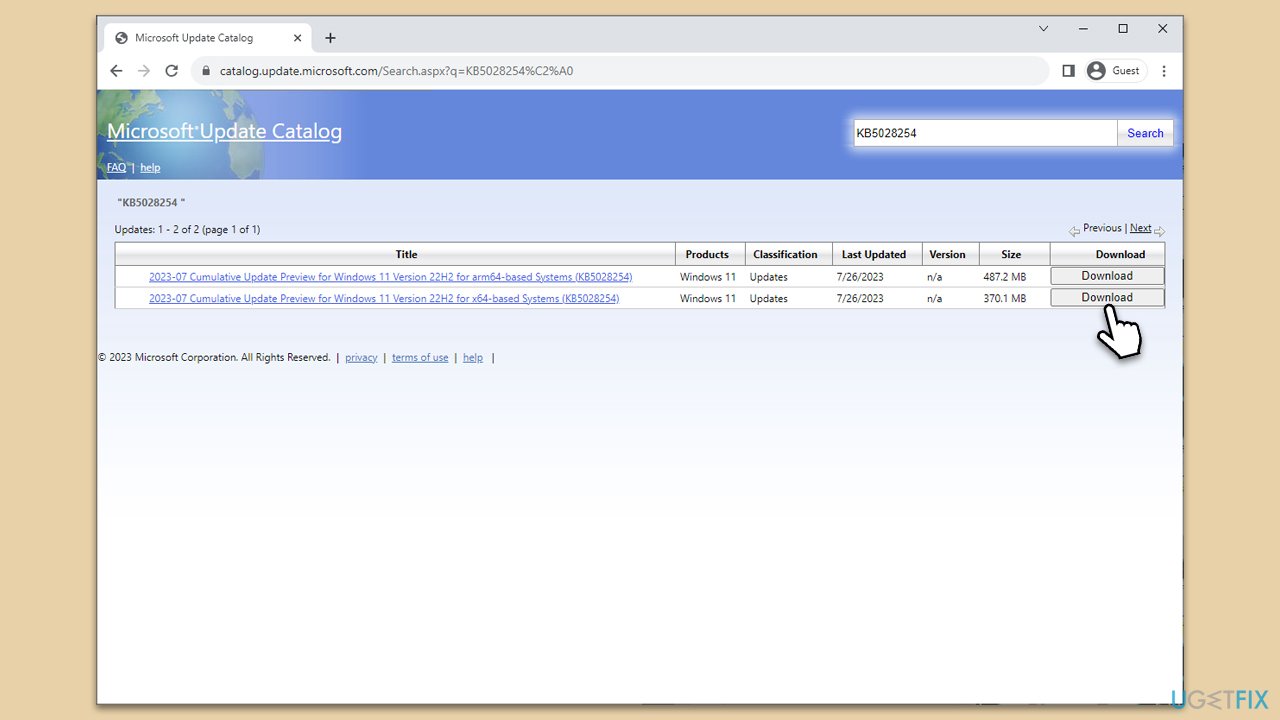
Manually downloading and installing the update bypasses the Windows Update service, which might be malfunctioning. You can download the update from the Microsoft Update Catalog.
- Open your browser and go to Microsoft Update Catalog
- In the search box, type in KB5028254 and press Search.
- Find the correct version of the update for your operating system (to check this, right-click on Start and pick System. Under Device specifications and check the System type) and click Download.
- Use on-screen guidelines to finish the installation process and restart your PC.
Fix 5. Disable third-party security software, VPN, and similar apps
Third-party security software, VPNs, and similar apps can sometimes interfere with Windows updates. This is because these applications monitor and control network traffic and system processes, which can inadvertently block the update process. By temporarily disabling these, you allow the update to download and install without interference.
It's essential to remember that these applications are designed to protect your system and privacy. Once the update is successfully installed, re-enabling these applications should be done immediately to ensure your system is not left vulnerable to threats.
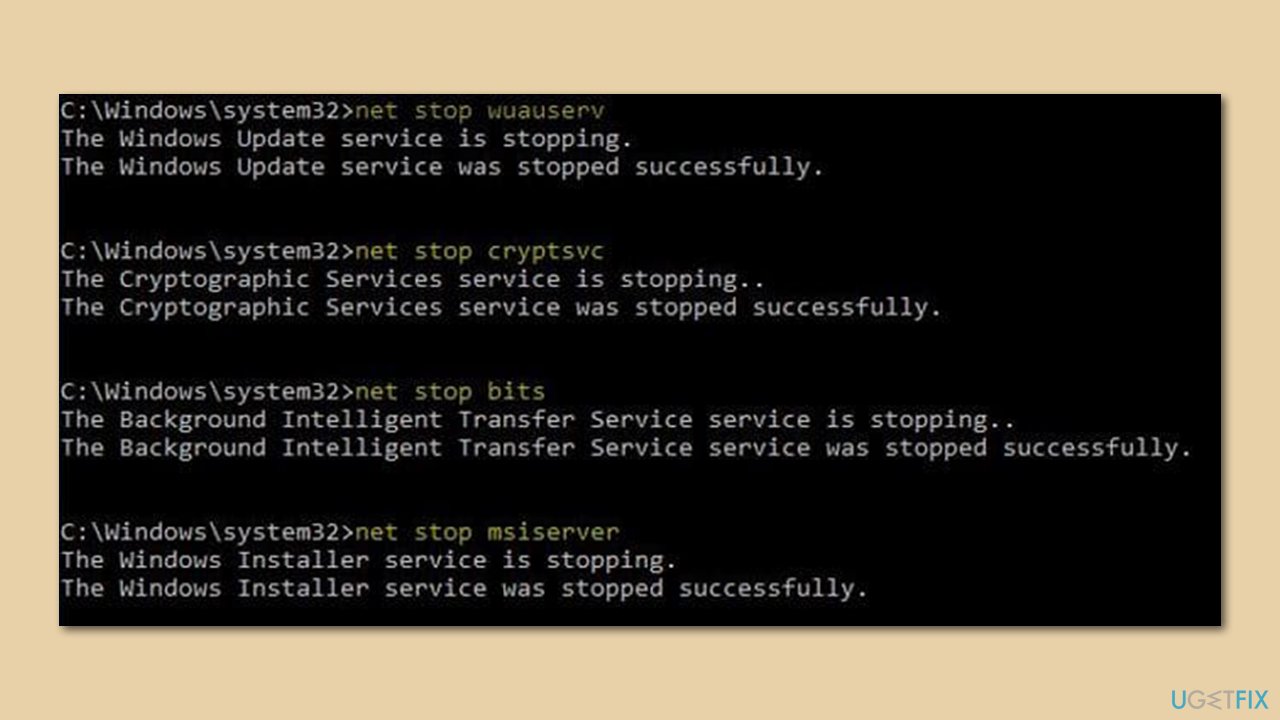
Fix 6. Reset Windows update components
Windows update components handle the process of downloading and installing updates. If they are corrupted or not functioning correctly, resetting them may solve the issue.
- Open Command Prompt as an administrator.
- Type these commands in order and press Enter after each one:
net stop wuauserv
net stop cryptSvc
net stop bits
net stop msiserver
ren C:\Windows\SoftwareDistribution SoftwareDistribution.old
ren C:\Windows\System32\catroot2 catroot2.old
net start wuauserv
net start cryptSvc
net start bits
net start msiserver - When done, close down everything and reboot your PC.
Bottom line
To resolve the installation failure of KB5028254, users can try simple fixes like restarting the system, freeing up resources, or running a system file checker. More complex solutions include manually downloading the update or resetting the Windows Update components. If none of these methods work, consider using a PC repair tool to diagnose and fix the issues.
Frequently asked questions
First, note the error code and search for it online to find specific solutions. You can also try running the Windows Update Troubleshooter to automatically fix common problems.
You can manually download the KB5028254 update from the Microsoft Update Catalog website and install it by following the on-screen instructions. Ensure you have the correct version for your system architecture.
Yes, ensure your Windows 11 is up to date and meets the minimum system requirements for the update, which can be found on the Microsoft website.




Report an issue
What's wrong with this guide? We review every report and update or remove content.
Report received — thank you. We'll review and fix it.
You need a free account to submit a report.
Be the first to comment