How to fix
KB5029263 fails to install
on Windows
Resolve KB5029263 installation issues in Windows 11 quickly and effectively. Expert-tested solutions ensure your system runs smoothly. Fixed in minutes!

What causes How to fix KB5029263 fails to install in Windows 11?
- Compatibility issues with existing software
- Corrupted update files
- Network disruptions during the download process
- Conflicts with system configurations
- Underlying hardware problems
Repairs Windows system files, removes malware, and restores a clean OS state — without reinstalling.
I am not sure how to install the latest KB5029263 update on Windows because it just keeps failing. Any tips yo could give me?
Windows 11 is the latest version of the operating system developed by Microsoft, designed to provide a myriad of features and enhancements over previous versions. A key aspect of keeping any operating system running smoothly is the routine installation of updates. These updates, often labeled with KB numbers, are packages containing various improvements, bug fixes, and security patches. The KB numbers allow users to identify specific updates, facilitating a transparent and organized management of system improvements. Updates are vital as they ensure the optimal performance, security, and stability of the system.
A recent issue that has come to light involves the failure of the update labeled KB5029263 to install in Windows 11 for some users. This particular update was released on August 8 and is designed to address various security issues within the Windows environment. The inability to install this update might pose a significant problem, as security vulnerabilities left unpatched can expose the system to potential risks, including data breaches and malware attacks.
The failure of updates like KB5029263 to install could be attributed to several factors. Compatibility issues with existing software, corrupted update files, or network disruptions during the download process are common reasons that might hinder the installation. It may also be due to conflicts with system configurations or underlying hardware problems.
Hinting at solutions to this pressing issue, there are different troubleshooting methods that users can apply, including running the Windows Update Troubleshooter, clearing the update cache, or even manually downloading and installing the update package. Detailed instructions for these methods will be provided below the article.
In conclusion, updates are essential for maintaining the security and performance of a computer system, and failure to install crucial patches like KB5029263 can lead to serious problems. If users are struggling with this or other Windows issues, [d1] PC repair software is a perfect solution that offers a comprehensive approach to resolving various Windows-related problems.
Fix 1. Run the Windows Update Troubleshooter
Windows Update Troubleshooter is a built-in tool designed to automatically detect and resolve problems that might prevent updates from installing. It scans for issues and attempts to fix them, making it an ideal first step even for less PC-savvy users.
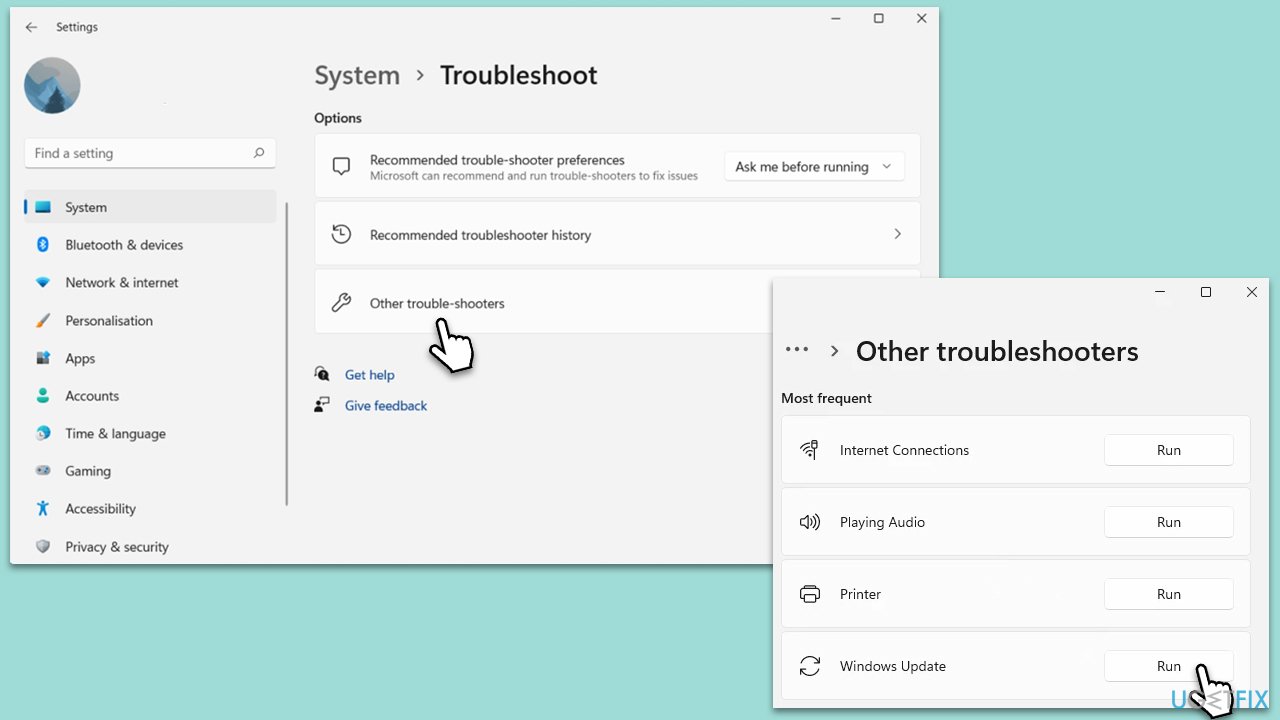
- Type Troubleshoot in Windows search and press Enter.
- Go to Other troubleshooters.
- Find Windows Update from the list and click Run.
- The troubleshooter will automatically scan your system for potential problems and display any issues it finds.
- If the troubleshooter finds any issues, it will provide recommended solutions.
Fix 2. Clear the update cache
Sometimes, corrupted files in the update cache can prevent an update from installing. Clearing these files can solve the issue by allowing Windows to download fresh files.
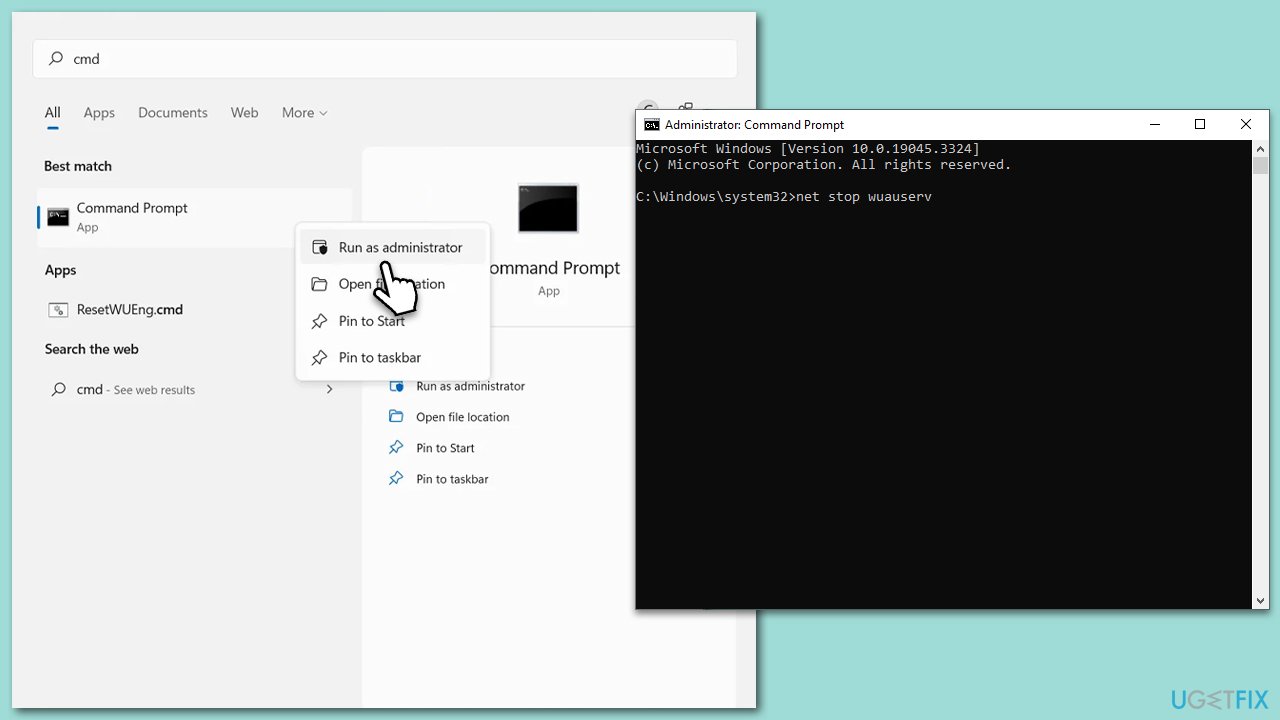
- Type cmd in Windows search, right-click on Command Prompt result, and select Run as administrator.
- When the UAC window pops up, click Yes.
- Copy and paste the following commands, pressing Enter each time:
net stop wuauservrmdir %windir%\SoftwareDistribution /s /qnet start wuauserv - Restart the computer.
Fix 3. Manually download and install the update
Downloading the update manually from the Microsoft Update Catalog and installing it allows users to bypass potential issues with the automatic update process.
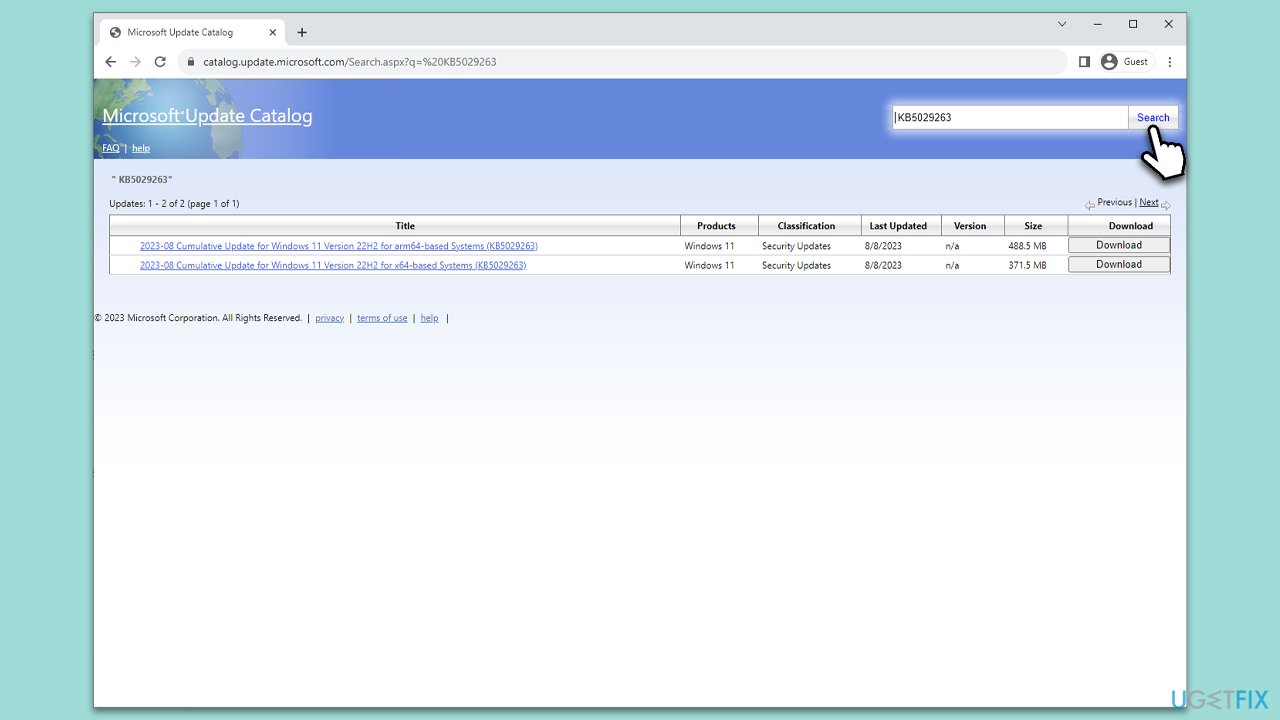
- Go to the official Microsoft Update Catalog website.
- Type KB5029263 into the search bar and press Enter or click Search.
- Find the correct version of the update for your device (as a home user, ignore all Windows server versions) and click Download.
- Follow the on-screen instructions to install the update and then restart your system.
Fix 4. Reset Windows Update components
Resetting the Windows Update components can clear any underlying issues that might be causing the update to fail.
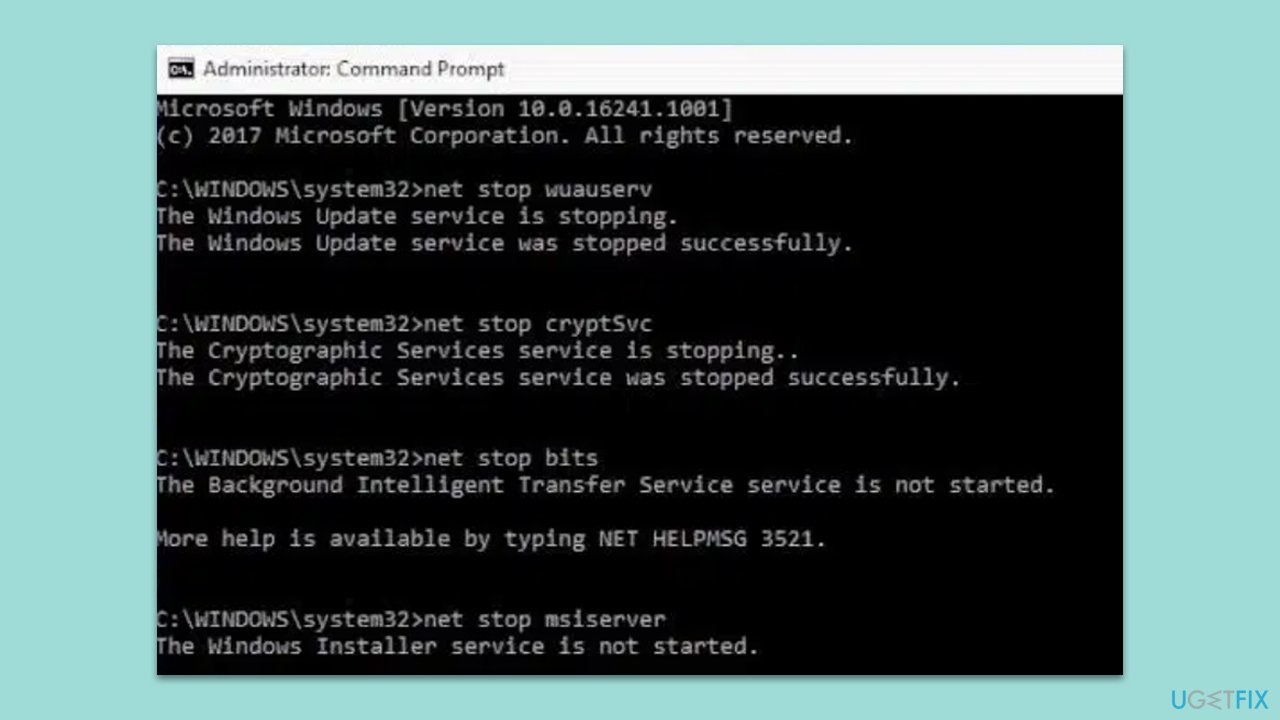
- Open Command Prompt as an administrator.
- Run the following commands in sequence:
net stop wuauservnet stop cryptSvcnet stop bitsnet stop msiserverren C:\Windows\SoftwareDistribution SoftwareDistribution.oldren C:\Windows\System32\catroot2 catroot2.oldnet start wuauservnet start cryptSvcnet start bitsnet start msiserver - Reboot your device.
Fix 5. Perform a Clean Boot
A Clean Boot starts Windows with a minimal set of drivers and services, which can help identify if any third-party applications are causing the issue.
- Press the Win + R to open the Run dialog.
- Type msconfig and press Enter.
- In the System Configuration window, select the Services tab.
- Check the box that says Hide all Microsoft services.
- Click on Disable all.
- Go to the Startup tab and click on Open Task Manager.
- Disable all startup items.
- Restart your computer.

Fix 6. Run SFC and DISM
The System File Checker (SFC) and Deployment Image Servicing and Management (DISM) are two powerful tools integrated into Windows to repair system files and Windows images. Here's how to run both scans:
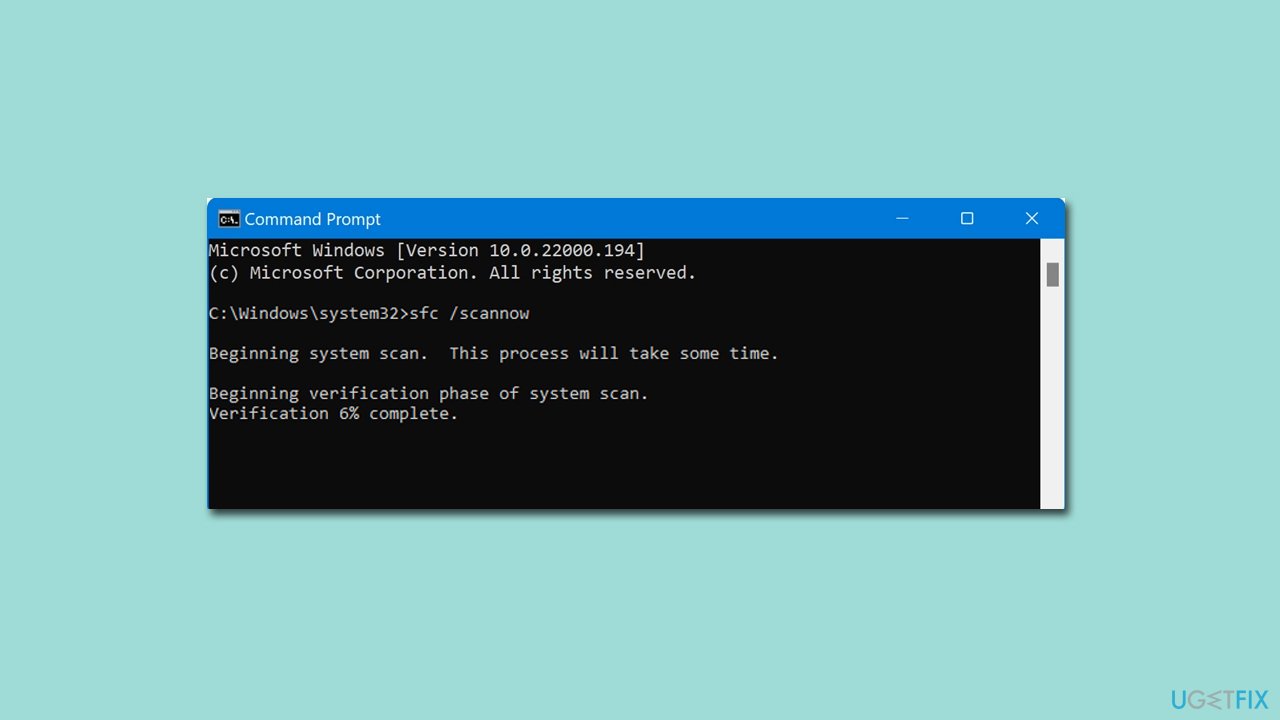
- Run Command Prompt as administrator.
- In the Command Prompt window, paste the following command and press Enter:
sfc /scannow - Wait for the scan to complete.
- Once the SFC scan is finished, run the following set of DISM commands, pressing Enter after each one:
DISM /Online /Cleanup-Image /CheckHealth
DISM /Online /Cleanup-Image /ScanHealth
DISM /Online /Cleanup-Image /RestoreHealth - After completing the DISM commands, restart your computer.
Fix 7. Perform Disk Cleanup
Disk Cleanup is a maintenance utility that comes pre-installed with Windows. It scans your hard drive for temporary files, system cache, and other unnecessary files that might be taking up space. In some instances, these files can interfere with Windows updates like KB5029263. Clearing them may resolve the installation issue.
- Open the Windows search bar and type Disk Cleanup. Press Enter to open the Disk Cleanup utility.
- In the Disk Cleanup window, click Clean up system files.
- Select the drive again and click OK.
- In the list of files that can be cleaned up, select the largest portions of data, such as Windows Update, Temporary Internet Files, Temporary Files, and others.
- Click OK to begin the cleanup process.

Bottom line
To fix the installation failure of KB5029263, users can try running the Windows Update Troubleshooter, clearing the update cache, or manually downloading and installing the update package. If these methods do not resolve the issue, consider using PC repair software for a comprehensive solution.
Frequently asked questions
Try running the Windows Update Troubleshooter, which can automatically identify and fix issues related to updates. You can access it by going to Settings > Update & Security > Troubleshoot > Additional troubleshooters.
You can manually download the update from the Microsoft Update Catalog website by searching for KB5029263 and downloading the appropriate version for your system. After downloading, run the installer to apply the update directly.
Common reasons include corrupted system files, insufficient disk space, or conflicts with third-party antivirus software. Make sure your system is updated and check for any software that might be interfering with the installation.




Report an issue
What's wrong with this guide? We review every report and update or remove content.
Report received — thank you. We'll review and fix it.
You need a free account to submit a report.
Be the first to comment