How to fix
KB5029331 fails to install
on Windows
Resolve the KB5029331 installation error on Windows 10 quickly and easily. Follow our expert-tested solutions for a hassle-free experience!

What causes How to fix KB5029331 fails to install in Windows 10?
- System configuration issues
- Compatibility problems with existing software or drivers
- Inadequate storage space
- Glitches within the update package
- Network interruptions during download
Repairs Windows system files, removes malware, and restores a clean OS state — without reinstalling.
Please help me with a problem I'm having - I can't seem to be able to install the latest Windows update KB5029331. It simply keeps telling me to try again later, but it never works, and it's been several days already.
Windows, the flagship operating system from Microsoft, receives periodic updates to enhance performance, rectify issues, and introduce new features. These updates are organized using the "KB" (Knowledge Base) numbering system, which assigns a unique identification number to every update for ease of reference.
Typically, Microsoft rolls out these updates on the second Tuesday of every month, known informally as "Patch Tuesday." Updates are categorized into various types, such as security updates, critical updates, and feature updates, each catering to the specific needs of the operating system.
One such update introduced recently is KB5029331. Launched on August 22, 2023, for Windows 10 version 22H2, this preview build brought several refinements. Among them, users would find the addition of the Windows Backup app and resolutions for certain glitches in settings and the search box. However, in the midst of these advancements, an issue arose. For some users, KB5029331 has proven problematic, failing to install successfully.
Several factors could be causing the installation failure of KB5029331. It could range from issues related to the user's system configuration, compatibility problems with existing software or drivers, inadequate storage space, or even glitches within the update package itself. Sometimes, network interruptions during the download can also lead to incomplete update files, resulting in failed installations.
While users facing this problem may feel frustrated, there are solutions available, which include checking the system for corruption, resetting Windows update components, and other troubleshooting methods that can often address the root causes. However, before diving into detailed resolutions, users should ensure that their system meets the prerequisites for the update and that they're not experiencing general network or storage issues.
For those looking for a comprehensive solution to address not just this but a multitude of Windows challenges, the [d1] PC repair tool is an excellent all-in-one option to consider.
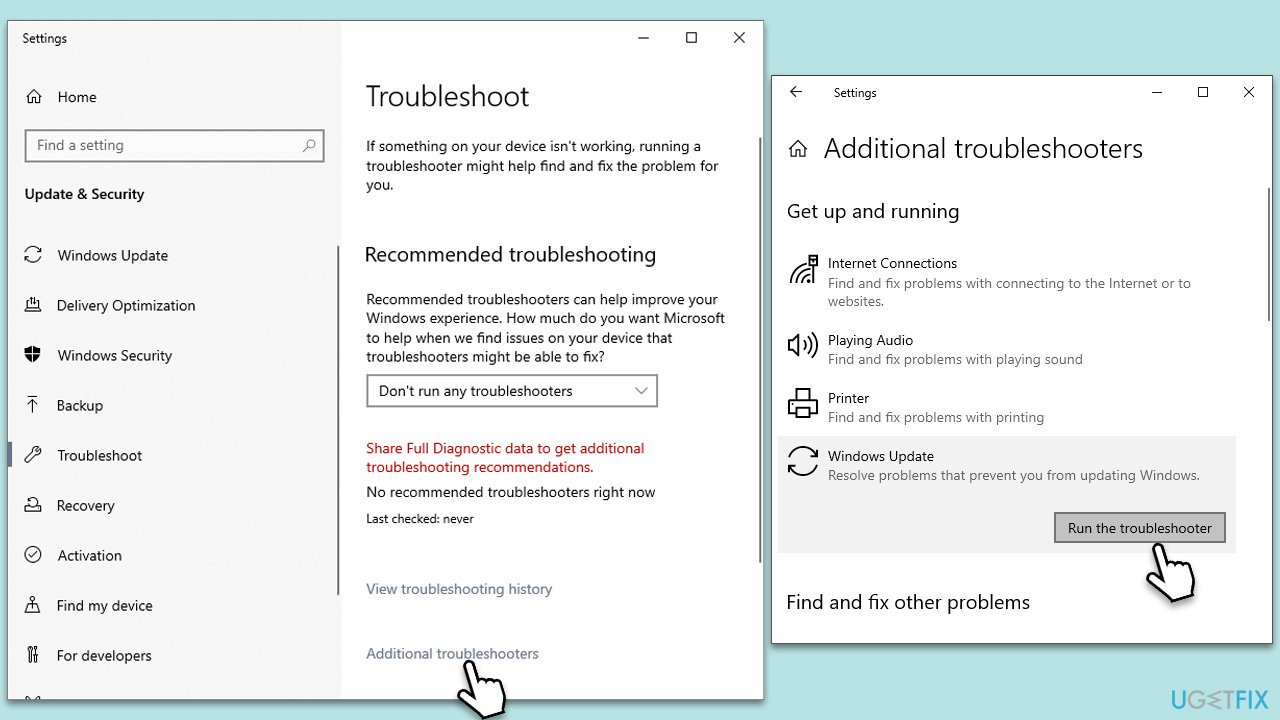
1. Windows update troubleshooter
The Windows update troubleshooter is an in-built tool designed by Microsoft to diagnose and automatically rectify issues related to Windows updates. It's user-friendly and doesn't require any technical know-how.
- Type Troubleshoot in Windows search and press Enter.
- Select Additional troubleshooters/Other troubleshooters.
- Find Windows Update from the list.
- Click it and select Run the troubleshooter/Run.
- Restart your computer when the update process is finished.
2. Restart or launch relevant services
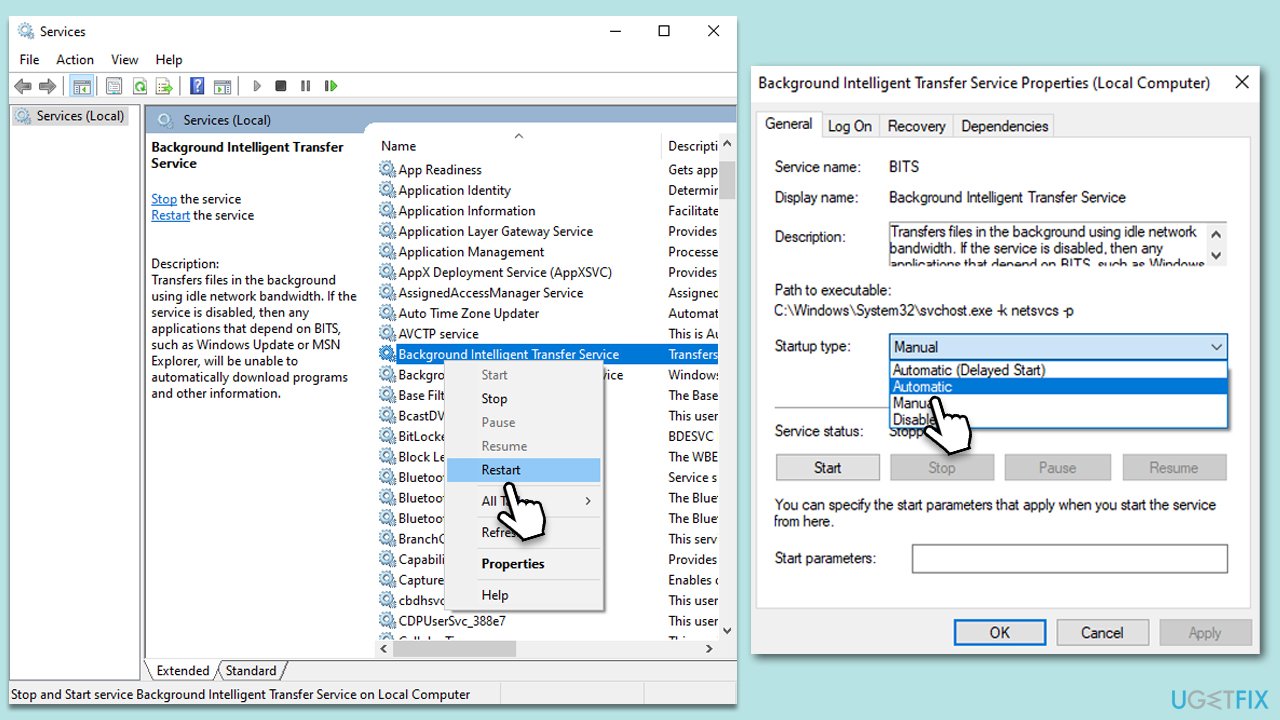
Some essential services need to be running for the Windows update process to work correctly. If any of these services are stopped or malfunctioning, it can impede updates.
- Type in Services in Windows search and press Enter.
- Scroll down to locate Background Intelligent Transfer Service (BITS).
- If it is already running, right-click and pick Restart.
- If the service is not running, double-click it, select Automatic under the Startup type from the drop-down menu.
- Click Start, Apply, and OK.
- Perform the same steps with Windows update and Cryptographic services.
3. Reset Windows update components
Resetting Windows update components can resolve any underlying issues that prevent updates from installing.
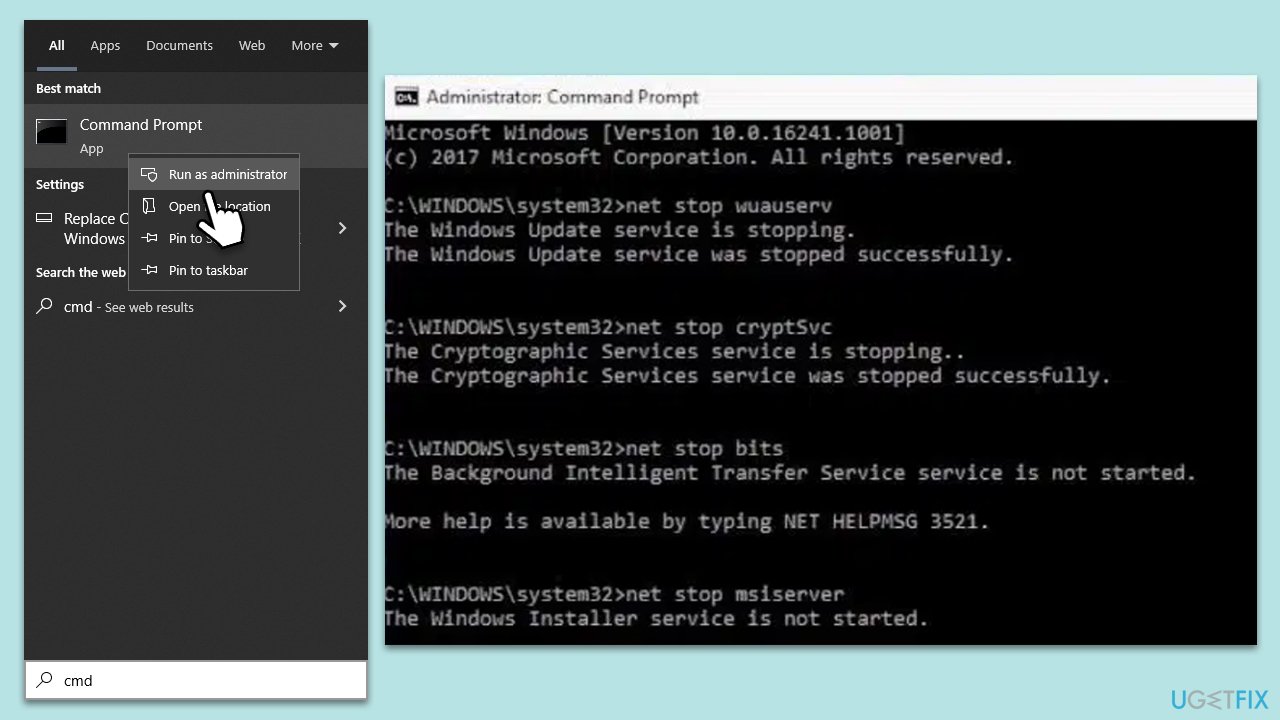
- Type cmd in Windows search.
- Right-click on Command Prompt and select Run as administrator.
- When UAC shows up, click Yes.
- Copy and paste each of the command lines, pressing Enter each time and waiting till each of the commands is executed:
net stop bits
net stop wuauserv
net stop appidsvc
net stop cryptsvc
Del “%ALLUSERSPROFILE%\Application Data\Microsoft\Network\Downloader\*.*”
rmdir %systemroot%\SoftwareDistribution /S /Q
rmdir %systemroot%\system32\catroot2 /S /Q
regsvr32.exe /s atl.dll
regsvr32.exe /s urlmon.dll
regsvr32.exe /s mshtml.dll
netsh winsock reset
netsh winsock reset proxy
net start bits
net start wuauserv
net start appidsvc
net start cryptsvc - Restart your system.
4. Install the update manually
You can download the update directly from Microsoft's Update Catalog and install it without relying on the automatic update process.
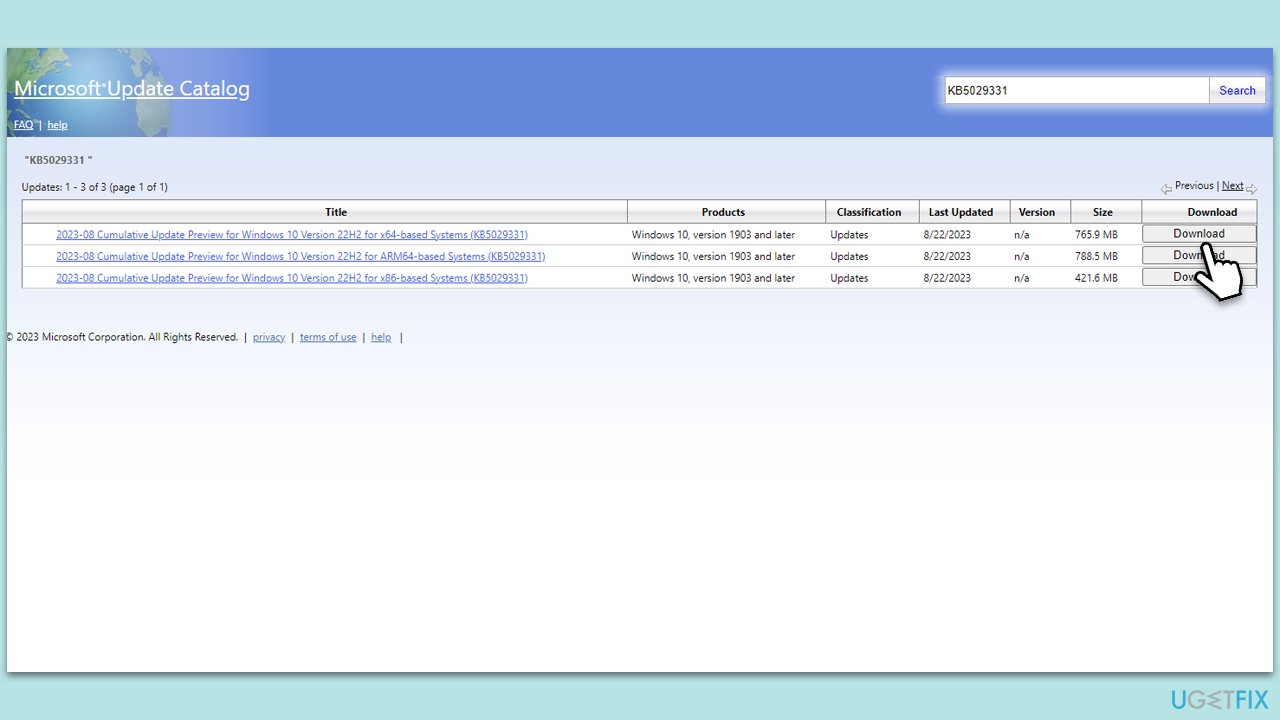
- Go to the official Microsoft Update Catalog website.
- Type the KB5029331 into the search bar, and press Enter or click Search.
- You will find many different versions on the update – you need to find the one that matches your PC specs and Windows version (as a home user, ignore Windows server versions).
- Right-click on Start and pick System.
- Under Device specifications, check the System type section: it should either be 64-bit or 32-bit.
- Scroll down to Windows specifications and check the Version section.
- Return to the Microsoft Update catalog, download the correct version and install it.
- Restart your PC.
5. Run SFC and DISM
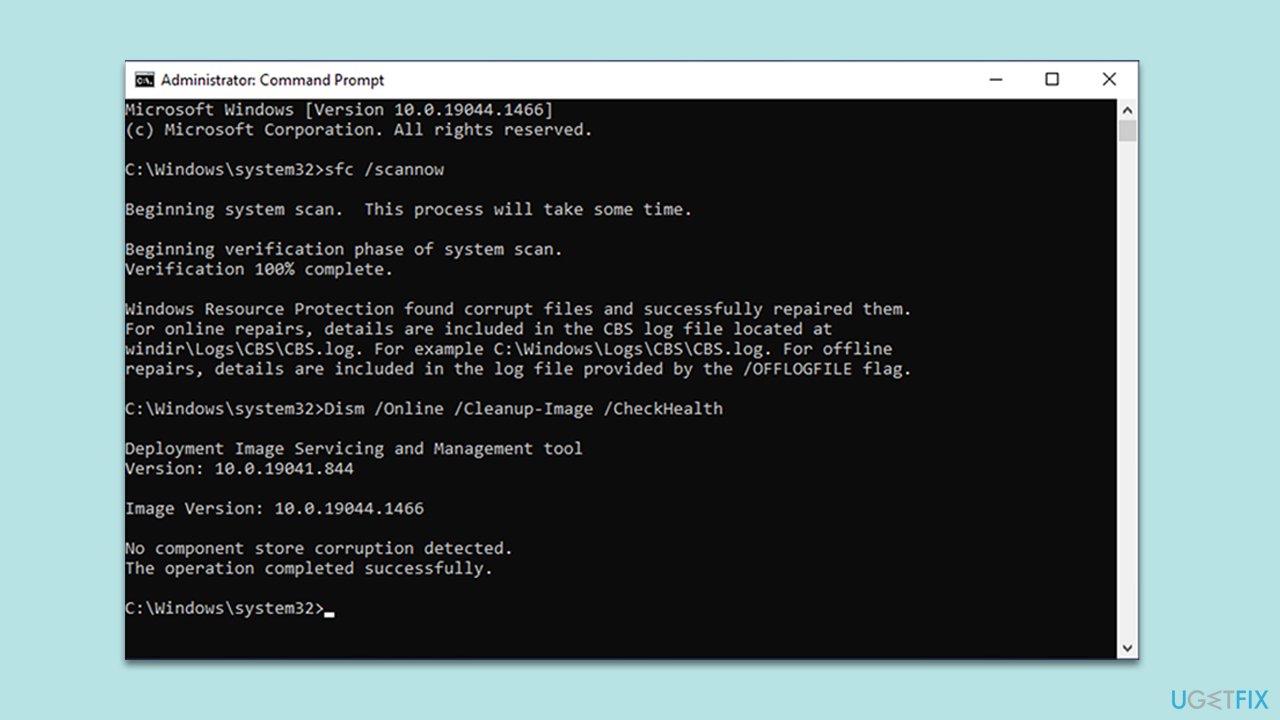
System File Checker (SFC) and Deployment Image Service and Management Tool (DISM) can repair corrupt system files that may be hindering the update process.
- Open Command Prompt as administrator.
- Use the following command lines, pressing Enter after each:
sfc /scannow
DISM /Online /Cleanup-Image /CheckHealth
DISM /Online /Cleanup-Image /ScanHealth
DISM /Online /Cleanup-Image /RestoreHealth - Restart your system.
6. Free up space with Disk Cleanup
A lack of storage space can prevent updates from being installed. Disk Cleanup is a built-in tool that removes unnecessary files.
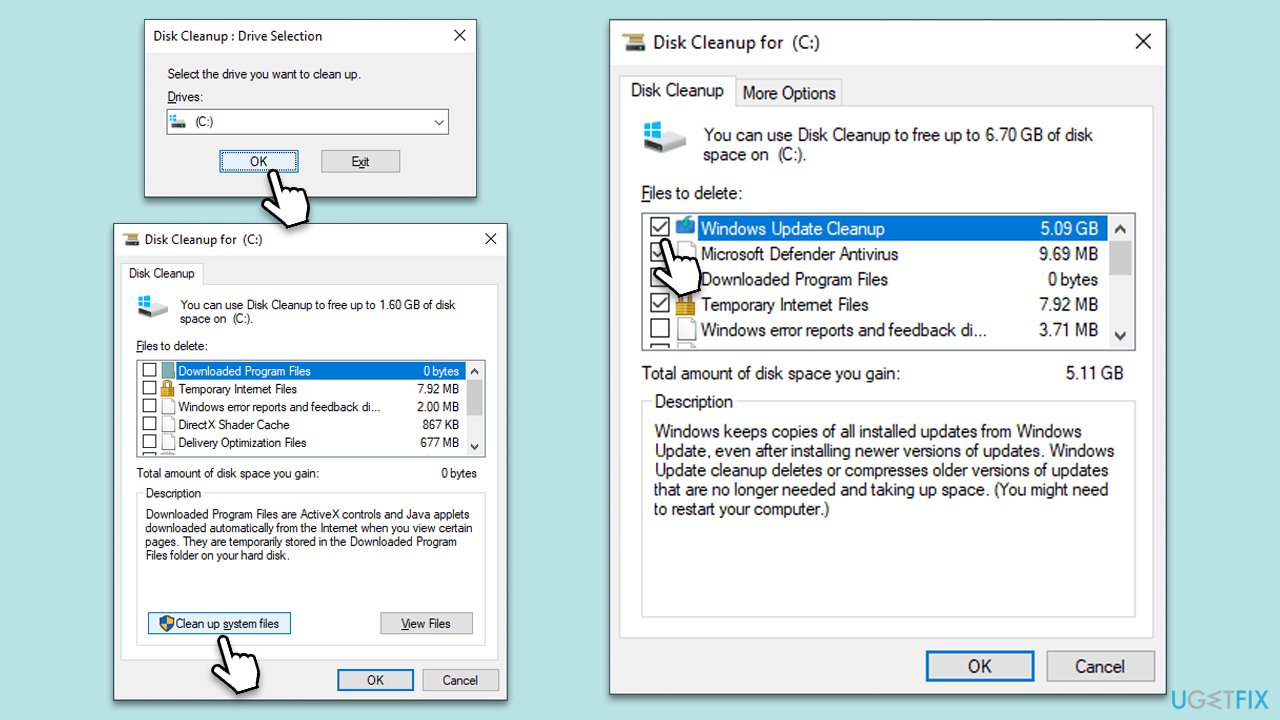
- Open the Windows search bar and type Disk Cleanup. Press Enter to open the Disk Cleanup utility.
- In the Disk Cleanup window, select the drive where your Windows operating system is installed (C: by default), and click OK.
- Click Clean up system files.
- Select the drive again and click OK.
- In the list of files that can be cleaned up, select the largest portions of data, such as Temporary Internet Files, Windows Update, Temporary Files, and others.
- Click OK to begin the cleanup process.
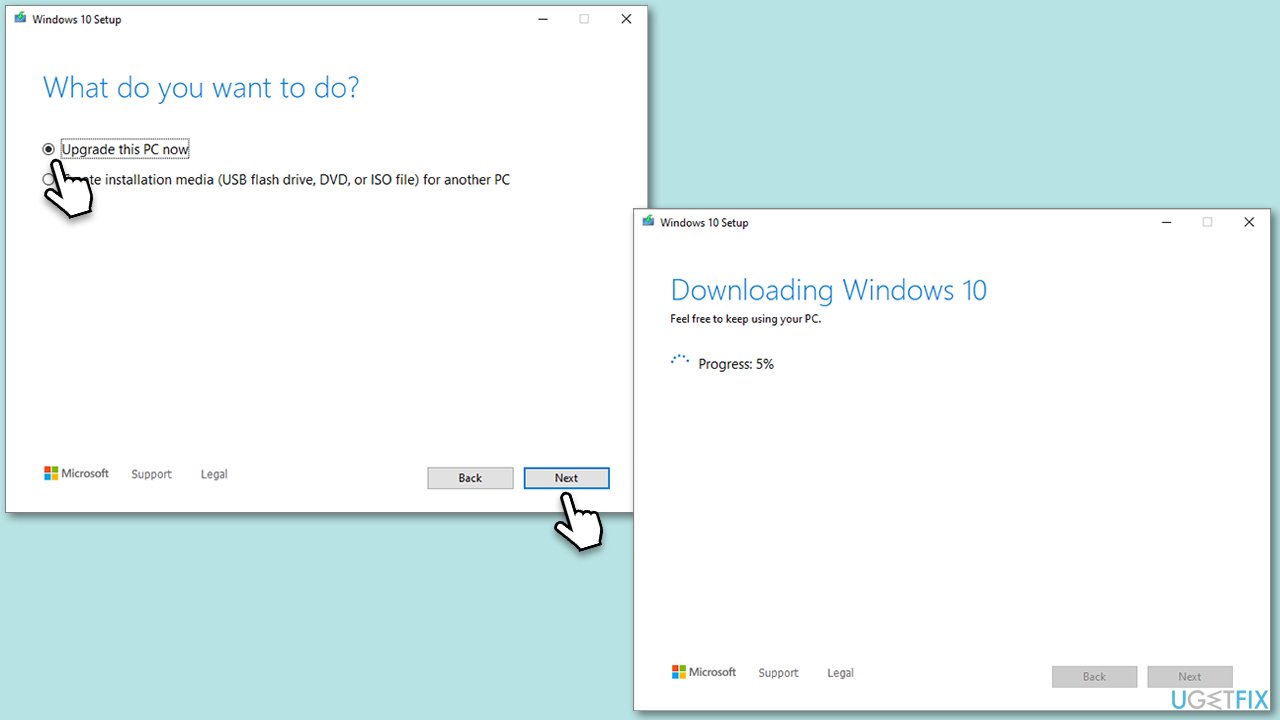
7. Use Media Creation Tool
Media Creation Tool allows you to upgrade your system or create installation media. Using this tool can bypass typical update routes, which might be causing issues.
- Visit the official Microsoft website and download Windows 10 installation media.
- Double-click the installer and select Yes when UAC shows up.
- Agree to terms.
- Select Upgrade this PC now and select Next.
- Windows will now download all the necessary files – it might take a while.
- Agree to the terms once again and click Next.
- Before installing, ensure you are happy with your choices (otherwise, you can click the Change what to keep option).
- Click Install to begin the upgrade process.
Bottom line
To fix the installation failure of KB5029331, users can check their system for corruption, reset Windows update components, and troubleshoot other related issues. It's important to ensure that the system meets the prerequisites for the update and that there are no general network or storage problems. If none of these solutions work, consider using a comprehensive PC repair tool.
Frequently asked questions
Try running the Windows Update Troubleshooter to identify and fix the issue automatically. If that doesn't work, consider resetting the Windows Update components manually.
Yes, outdated drivers can interfere with the installation of updates like KB5029331, so ensure all your device drivers are updated before attempting the installation again.
You can verify compatibility by checking the official Microsoft support page for KB5029331, which lists the system requirements and any known issues related to the update.




Report an issue
What's wrong with this guide? We review every report and update or remove content.
Report received — thank you. We'll review and fix it.
You need a free account to submit a report.
Be the first to comment