How to fix
KB5030211 fails to install
on Windows
Resolve KB5030211 installation errors in Windows 10 swiftly with our expert-tested solutions. Get your updates back on track today!

What causes How to fix KB5030211 fails to install in Windows 10?
- Conflicting software
- Outdated drivers
- Corrupted system files
- Limited storage space
Repairs Windows system files, removes malware, and restores a clean OS state — without reinstalling.
For the first time, I am having problems with Windows updates - I can't install KB5030211. Please advise, I never had any problems with something like that before.
Microsoft Windows is an evolving operating system, consistently updated to ensure optimal performance and security for its users. These updates are shipped periodically, typically on the second Tuesday of each month, popularly known as "Patch Tuesday." There are various types of updates: security updates, critical updates, service packs, and feature packs, each with its distinct purpose to improve and protect the system.
One standard notation that Microsoft employs to label these updates is the "KB," followed by a sequence of numbers. The "KB" stands for Knowledge Base, a comprehensive database maintained by Microsoft that contains articles addressing a wide spectrum of issues and queries. Each KB number corresponds to a specific issue or set of changes addressed by that update.
Recently, several users have noted problems with the KB5030211 update for Windows 10 22H2 and 21H2 editions. This particular update, designated under the OS Builds 19044.3448 and 19045.3448, was launched on September 12, 2023, alongside the KB5030214 update. Much like other regular monthly patches, KB5030211 was formulated to address a range of security vulnerabilities detected in the operating system. Additionally, it aimed to bolster the servicing stack, paving the way for more seamless updates in the future.
However, not all installations have been smooth sailing. Several factors might hinder the successful installation of KB5030211. One of the common culprits is conflicting software. Software that isn't compatible with the new update or outdated drivers can block the installation process.
Additionally, corrupted system files might be a hidden impediment, preventing the update from settling in. Limited storage space can also play a role; insufficient space can halt the installation, making it appear as if the update is failing.
For those that KB5030211 fails to install, a detailed instruction set for troubleshooting and solutions will be provided below this article. Furthermore, for individuals looking for a more streamlined solution, the [d1] PC repair tool is a recommended choice. This tool offers an automated solution to fix various Windows-related issues, simplifying the process for users.
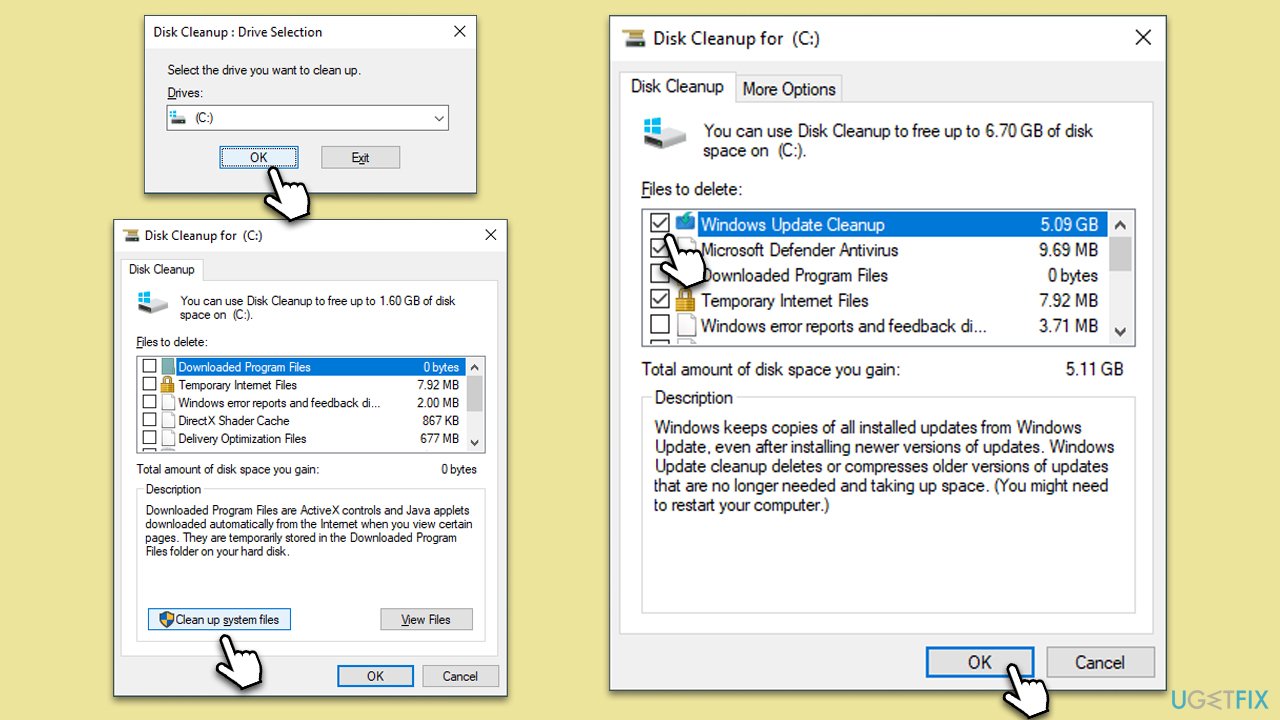
Fix 1. Perform disk cleanup
Over time, your computer accumulates a myriad of unused files that eat away at your storage. Disk Cleanup is akin to a digital broom, sweeping away old and redundant files, which can occasionally obstruct or impede an update's installation. Clearing space not only provides room for new updates but can enhance system performance.
- Press the Win + S, which brings up the search function.
- Type "Disk Cleanup" and select the tool that appears.
- Choose the drive you wish to clean, commonly the C: drive.
- Review the categories available for cleanup. For updates, focus on Windows Update Cleanup, although we recommend cleaning other sections, such as Temporary Files.
- Select OK, and the tool will cleanse the selected categories.
Fix 2. Run the troubleshooter
Consider the troubleshooter as your computer's own diagnostic doctor. When something goes wrong, especially with updates, this tool can delve into the system, diagnose the issue, and even prescribe a solution, automating the repair process for you.
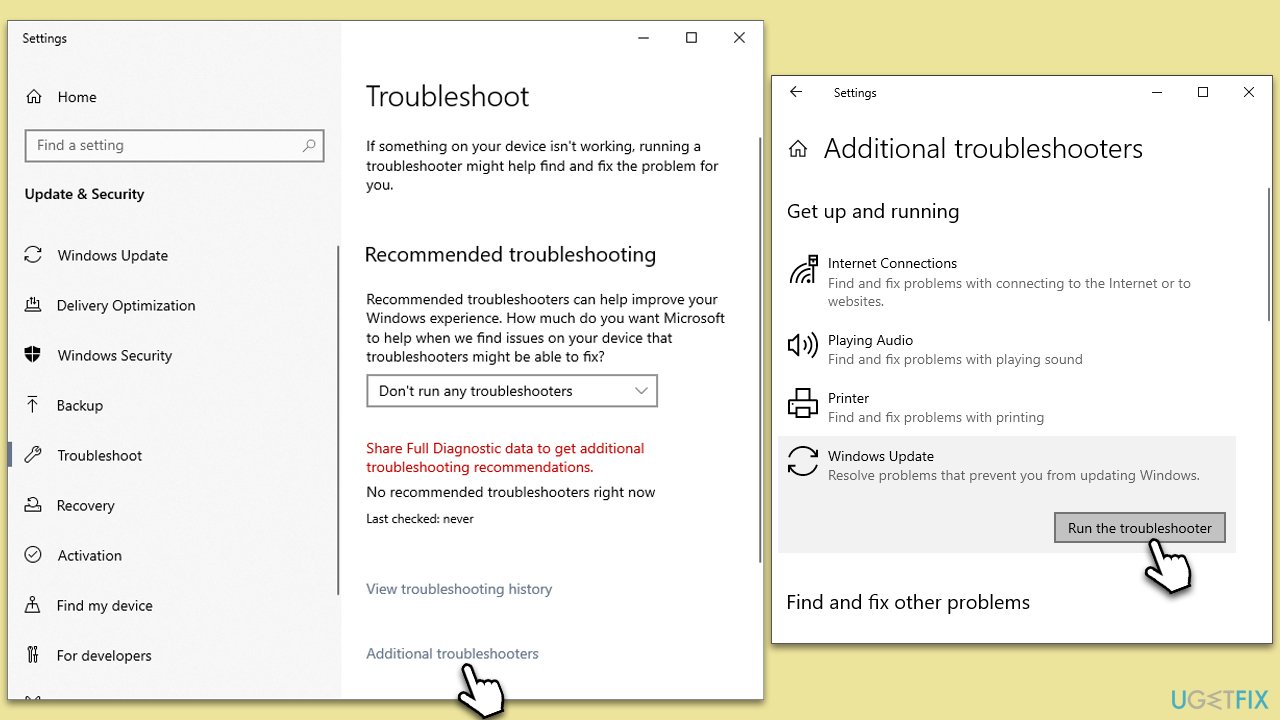
- Type in Troubleshoot in Windows search and hit Enter.
- Go to Additional Troubleshooters.
- Select Windows update and click Run the troubleshooter.
- Wait till the scan is finished, and then apply the suggested fixes.
- Restart your device.
Fix 3. Use SFC and DISM
Your computer operates using a vast library of files. Occasionally, some of these become corrupted. SFC (System File Checker) and DISM (Deployment Image Service and Management Tool) can scan and repair any that are damaged.
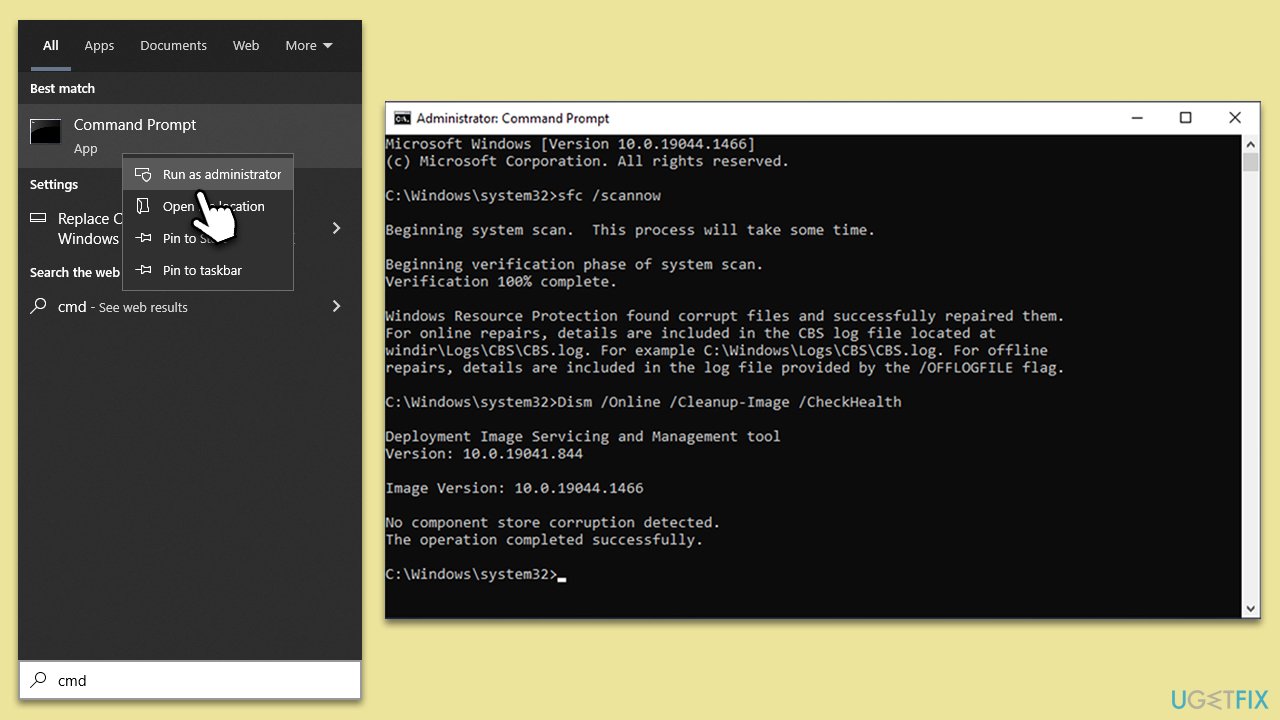
- Type cmd in Windows search.
- Right-click on Command Prompt and select Run as administrator.
- When the User Account Control window pops up, click Yes.
- Use the following command and press Enter:
sfc /scannow - After the SFC scan is complete, use the following commands, pressing Enter after each:
DISM /Online /Cleanup-Image /CheckHealth
DISM /Online /Cleanup-Image /ScanHealth
DISM /Online /Cleanup-Image /RestoreHealth - Restart your computer.
Fix 4. Restart relevant services
Think of services as the unseen workforce behind your computer's operations. Occasionally, a simple restart of these services, especially those linked with updates, can iron out any issues in the system.
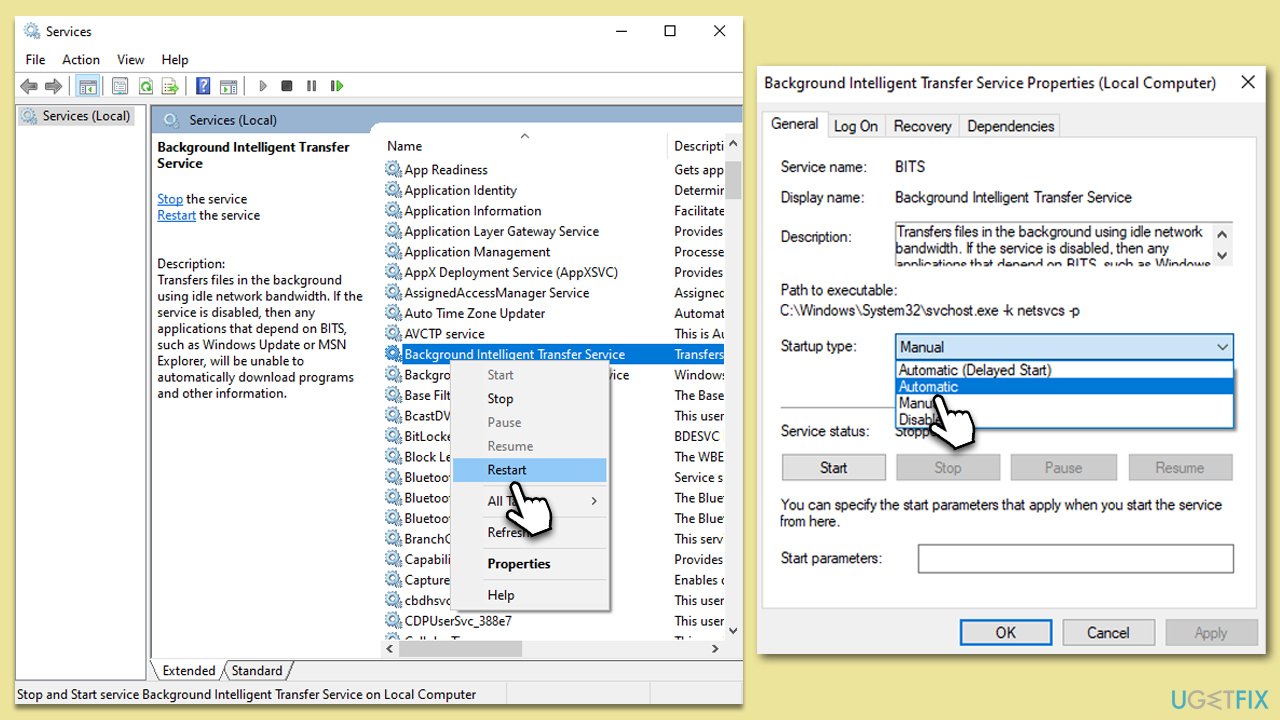
- Type in Services in Windows search and hit Enter.
- Scroll down a bit to find Background Intelligent Transfer Service (BITS).
- If it is already running, right-click and select Restart.
- If the service is not running, double-click it, pick Automatic under the Startup type drop-down menu.
- Click Start, Apply, and OK.
- Repeat this process for Windows Update and Cryptographic services.
Fix 5. Reset Windows update components
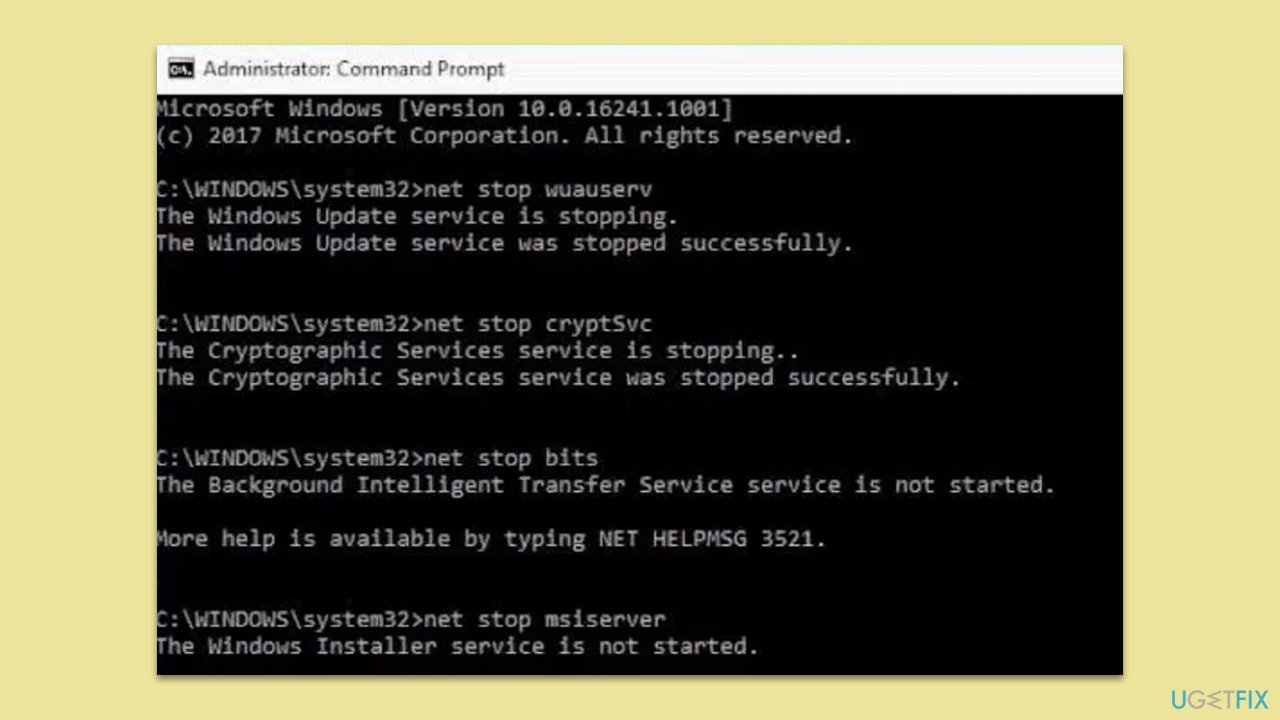
- Open Command Prompt (Admin).
- Copy and paste the following commands, pressing Enter after each:
net stop bits
net stop wuauserv
net stop appidsvc
net stop cryptsvc
Del “%ALLUSERSPROFILE%\Application Data\Microsoft\Network\Downloader\*.*”
rmdir %systemroot%\SoftwareDistribution /S /Q
rmdir %systemroot%\system32\catroot2 /S /Q
regsvr32.exe /s atl.dll
regsvr32.exe /s urlmon.dll
regsvr32.exe /s mshtml.dll
netsh winsock reset
netsh winsock reset proxy
net start bits
net start wuauserv
net start appidsvc
net start cryptsvc - Restart your device.
Fix 6. Disable security software
Your computer's security software, while vital for protection, can sometimes be overly vigilant, blocking new updates and mistaking them for threats. Temporarily disabling this software can allow updates to install smoothly.
- Access your security software's main dashboard.
- Navigate to find the option to pause or stop it only for the duration of the update.
- Post update, crucially remember to reactivate it.
Fix 7. Install the update manually
Sometimes, taking matters into your own hands yields results. If automated updates falter, manually downloading and installing the update can be a solid workaround.
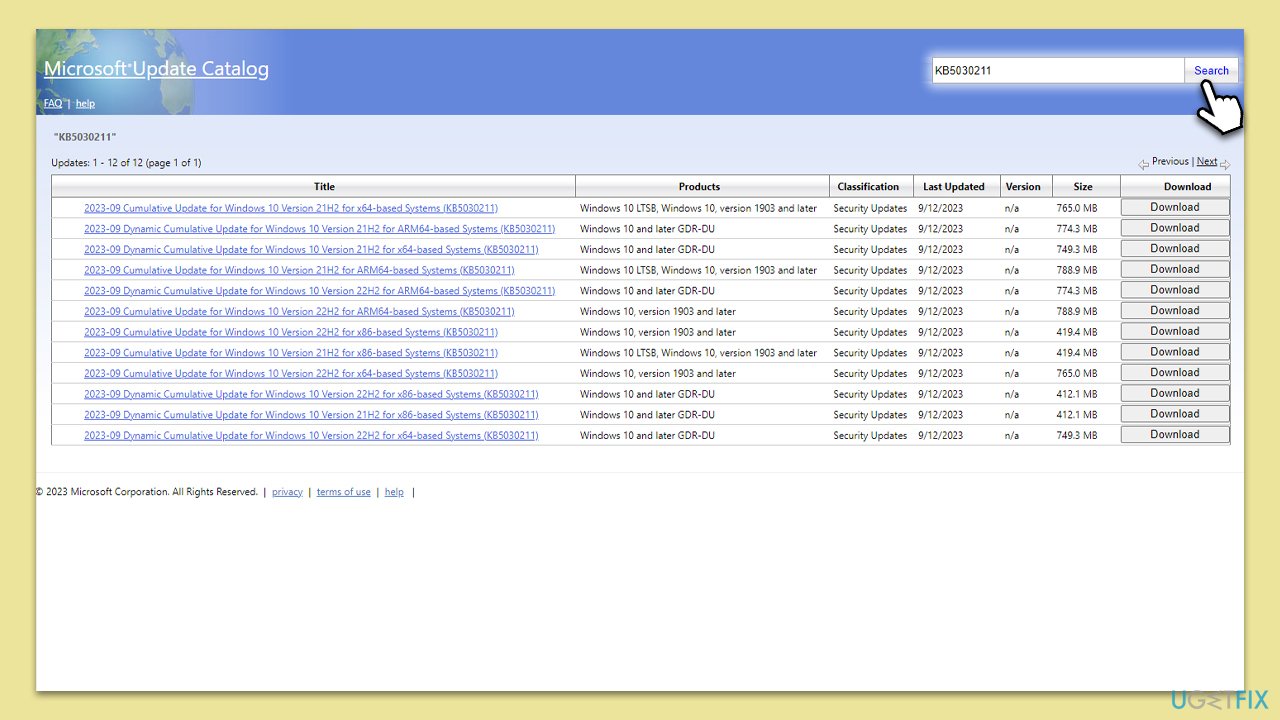
- Go to the official Microsoft Update Catalog website.
- Type the KB5027215 into the search bar, and press Enter or click Search.
- You will find many different versions on the update – you need to find the one that matches your PC specs and Windows version (as a home user, ignore Windows server versions).
- Right-click on Start and pick System.
- Under Device specifications, check the System type section: it should either be 64-bit or 32-bit.
- Scroll down to Windows specifications and check the Version section.
- Return to the Microsoft Update catalog, download the correct version, and install it.
- Restart your system.
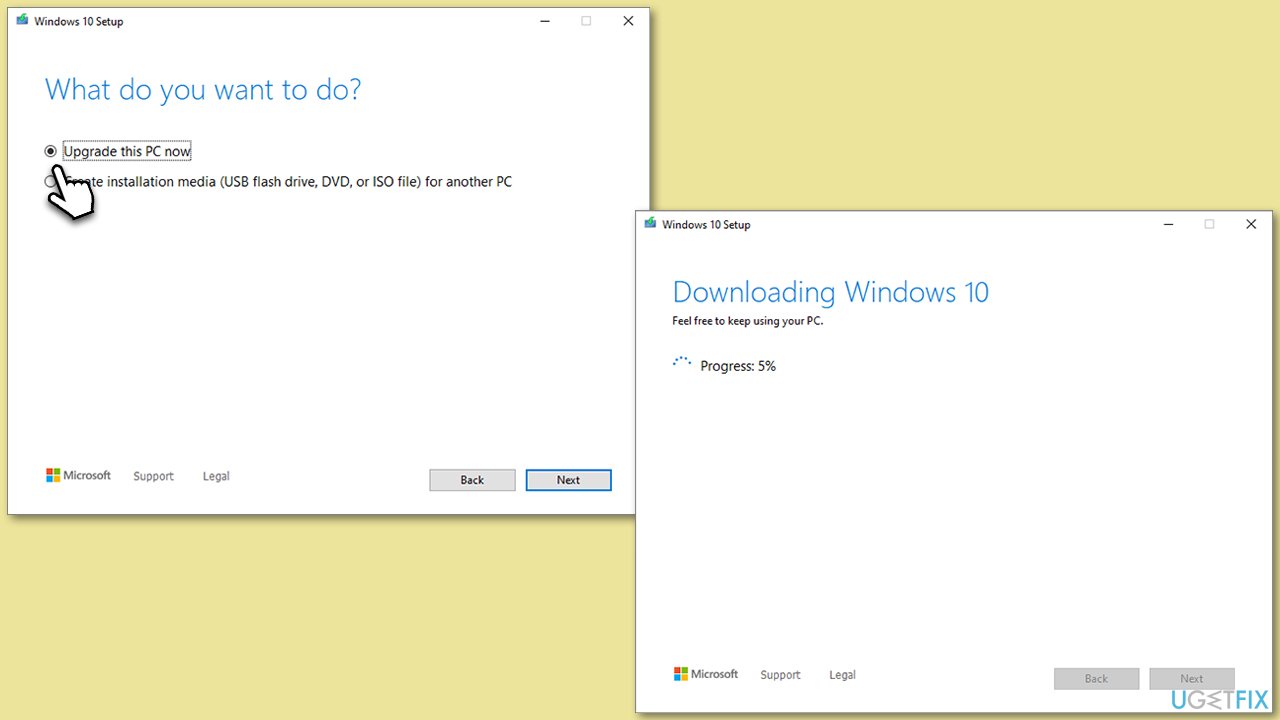
Fix 8. Use Media Creation Tool
Media Creation Tool is provided by Microsoft. If regular routes fail, this tool can facilitate an OS upgrade, ensuring you get the update alongside a refreshed version of Windows.
- Visit the official Microsoft website and download Windows 10 installation media.
- Double-click the installer and select Yes when UAC shows up.
- Agree to the terms and click Next.
- Select Upgrade this PC now and click Next.
- Wait till Windows downloads all the necessary files.
- Restart your PC once finished.
Bottom line
To fix the installation failure of KB5030211, users can troubleshoot by checking for conflicting software, updating drivers, repairing corrupted system files, and ensuring sufficient storage space. If these solutions do not resolve the issue, further assistance may be required.
Frequently asked questions
First, try running the Windows Update Troubleshooter to identify and fix any underlying issues. If that doesn't work, consider manually downloading and installing the update from the Microsoft Update Catalog.
Yes, some third-party antivirus programs can interfere with the update process, so temporarily disabling them may help. Remember to re-enable your antivirus once the update is successfully installed.
Yes, common error codes include 0x800f0922 and 0x8007000d, which indicate different issues with the update process. You can search for these error codes for more detailed troubleshooting steps.




Report an issue
What's wrong with this guide? We review every report and update or remove content.
Report received — thank you. We'll review and fix it.
You need a free account to submit a report.
Be the first to comment