How to fix
KB5030217 fails to install
on Windows
Fix the KB5030217 installation issue on Windows 11 with our expert-tested solutions. Get your update installed quickly and hassle-free!

What causes How to fix KB5030217 fails to install in Windows 11?
- Third-party software conflicts
- Corrupted system files
- Remnants from past updates
- Insufficient storage space
Repairs Windows system files, removes malware, and restores a clean OS state — without reinstalling.
Hello. Today I noticed that Windows can't install KB5030217. I have tried restarting the computer and trying again later (as the message told me) but to no avail. How do I resolve this?
The unveiling of Windows 11 brought a whirlwind of excitement to the digital landscape. With its modernized design, amplified capabilities, and superior security provisions, it was a testament to Microsoft's dedication to innovation. However, akin to all complex software, it isn't exempt from occasional update hitches.
In the realm of software, updates serve as the lifeblood, ensuring that the system remains robust, efficient, and fortified against potential threats. One such update for Windows 11, the KB5030217, has recently been at the epicenter of discussions.
Released on the 12th of September, 2023, KB5030217 was designed to address multiple challenges, especially in the sphere of authentication - a critical aspect in today's digitally interconnected world. This release also introduced a myriad of security improvements, reinforcing Windows 11's defense mechanisms.
But why does an update as vital as KB5030217 face installation issues? The intricacies behind such issues often lie in the delicate balance of software interactions. Occasionally, third-party software, particularly those dabbling in security or system enhancements, might conflict with components of updates like KB5030217.
At other times, the wear and tear of consistent usage can corrupt system files. When an update tries to latch onto or modify these corrupted files, it finds itself in a quandary. Additionally, remnants from past updates, if not perfectly integrated, can create stumbling blocks for new ones. And, in more mundane scenarios, simple constraints like a lack of sufficient storage space can hamper the smooth installation of extensive updates, and KB5030217 may fail to install.
Navigating this maze might seem daunting, but solutions abound for those facing issues with KB5030217. While in-depth strategies to tackle this are provided below, the [d1] PC repair tool offers a formidable solution for users eager for a one-stop, hassle-free remedy. Designed to address Windows issues comprehensively, this tool can simplify the troubleshooting process, ensuring that updates find their place in your Windows 11 system.
Fix 1. Run the troubleshooter
The troubleshooter is a built-in diagnostic tool in Windows, acting like an initial health check-up for your system. When there's an issue, especially with updates, this tool dives deep into the system, identifying the core problem and often automating the solution process for users.
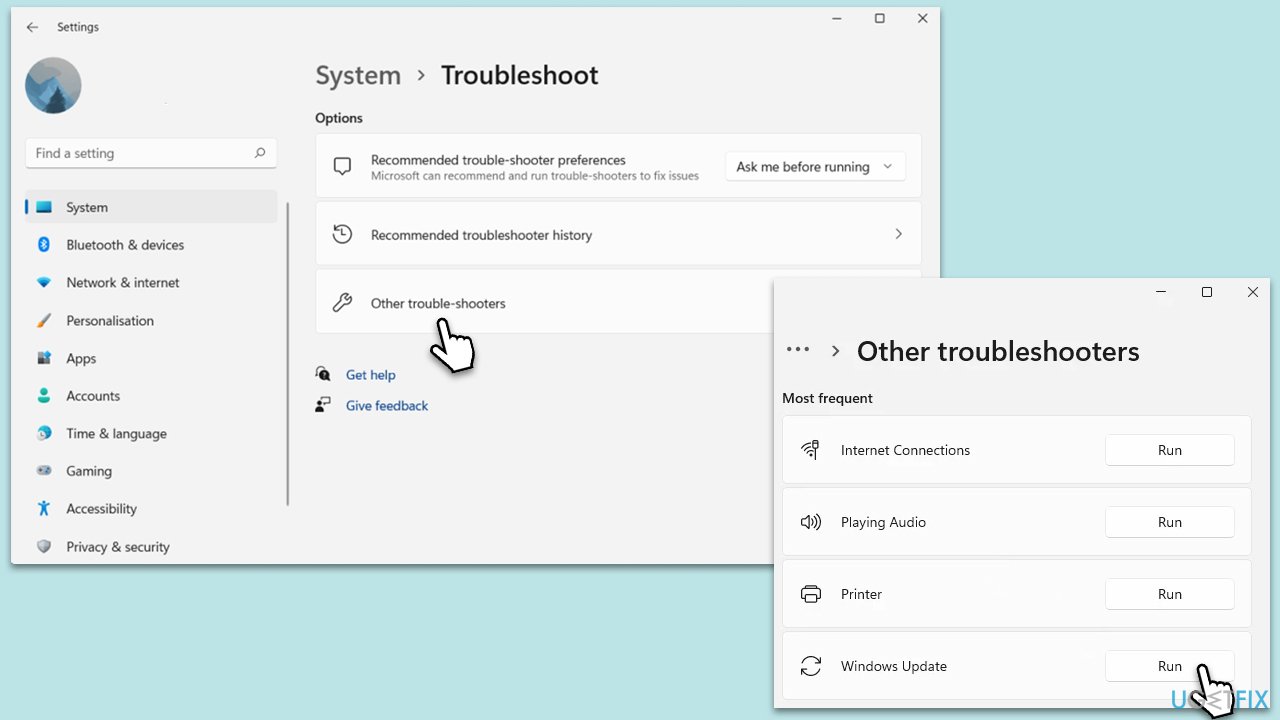
- Type troubleshoot in Windows search and press Enter or go to Start > Settings > System > Troubleshoot.
- From the list of Options, pick Other trouble-shooters.
- Scroll down to locate the Windows Update and click Run.
- Wait for it to finish, then apply changes and reboot the system.
Fix 2. Install the update manually
Sometimes, directly downloading and installing the update sidesteps potential hiccups that arise with automatic installations. This approach gives you hands-on control over the update process.
- Open your web browser and navigate to the Microsoft Update Catalog.
- In the search box, enter KB5030217 and click Search.
- Locate the correct version of the update for your operating system by checking your System type (Right-click on Start and select System. Under Windows specifications, check the Version).
- Click on Download and follow the prompts to complete the process.
- Once the update is installed, reboot your system.

Fix 3. Check the disk for errors
Discrepancies or errors on your hard drive can obstruct a seamless update process. The Check Disk tool identifies and rectifies these errors, smoothing the path for updates.
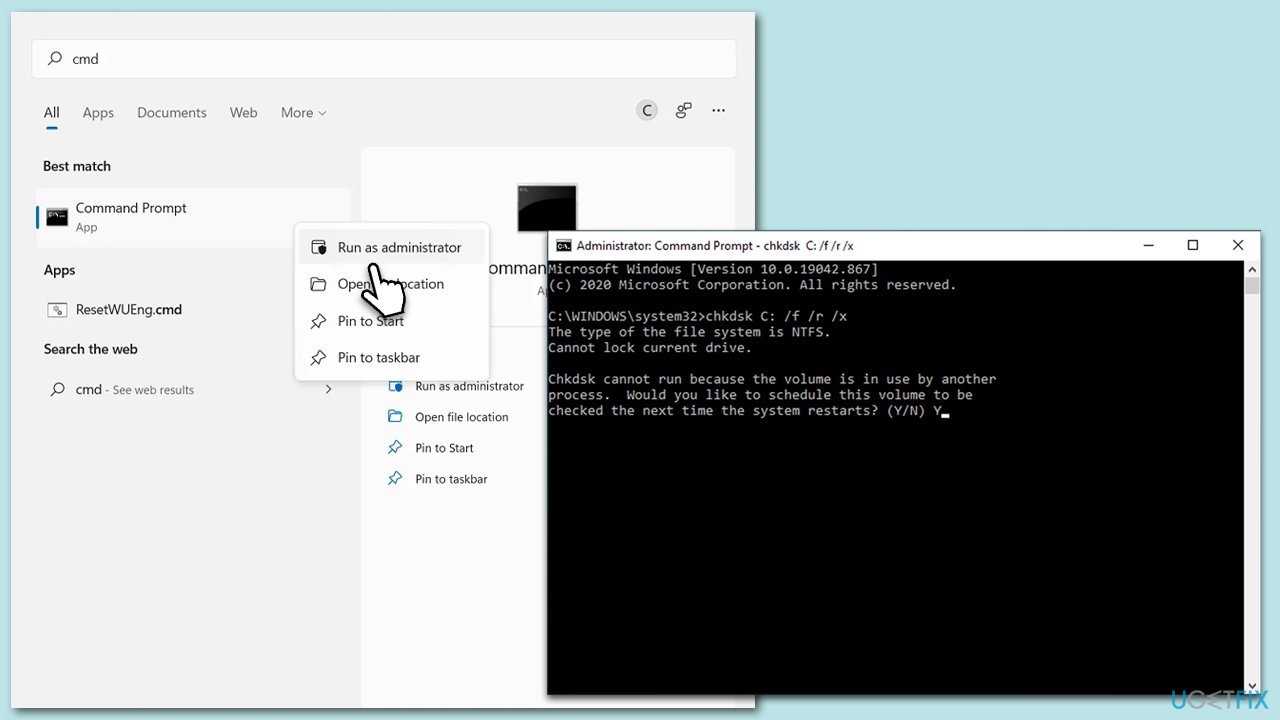
- Type in cmd to search for Command Prompt.
- Right-click on Command Prompt and select Run as administrator.
- When User Account Control shows up, click Yes.
- In the Command Prompt window, type the following (replace X with the disk number of your USB drive):
chkdsk X: /f /r /x - Hit Enter.
- If an error shows up, type Y and press Enter.
- The chkdsk tool will now scan your USB drive for bad sectors and attempt to repair them if found.
- Wait for the process to complete. It may take a while, depending on the size of your USB drive.
Fix 4. Restart relevant services
Behind the scenes, services work tirelessly to ensure the Windows operating system runs smoothly. A simple restart of crucial services can sometimes clear out glitches that hinder updates.
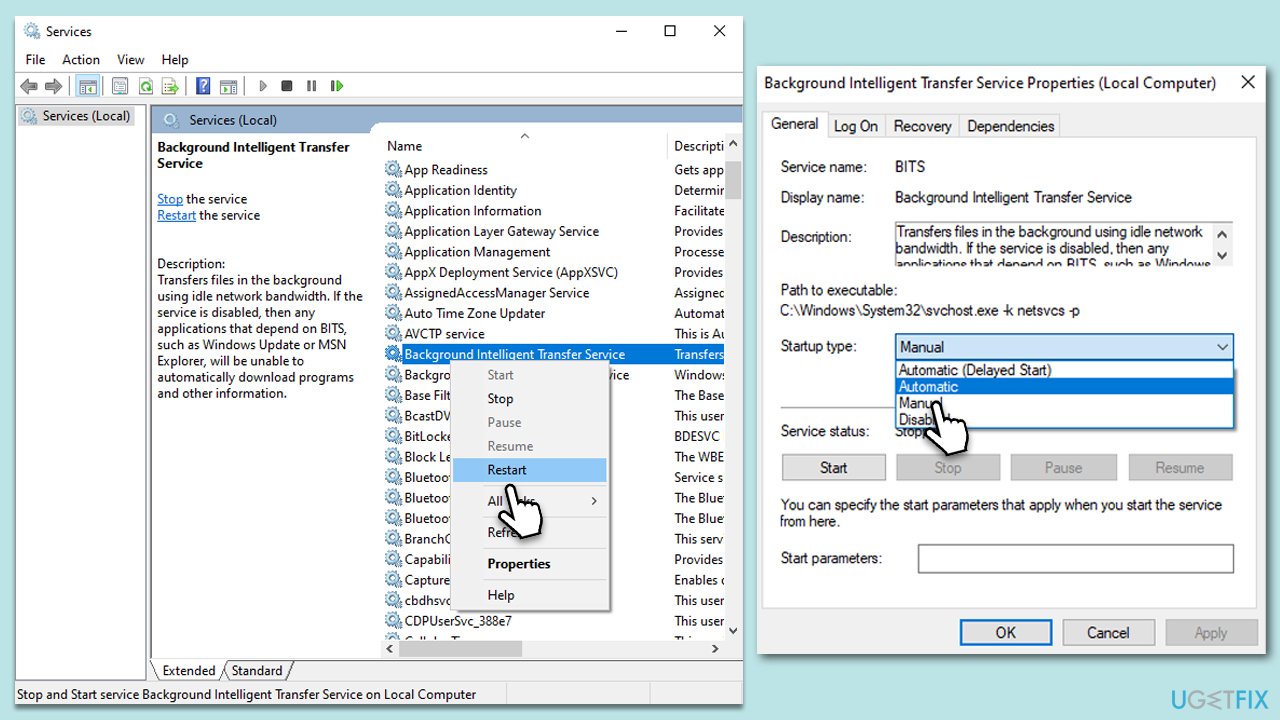
- Type in Services in Windows search and hit Enter.
- Scroll down a bit to find Background Intelligent Transfer Service (BITS).
- If it is already running, right-click and select Restart.
- If the service is not running, double-click it, pick Automatic under the Startup type drop-down menu.
- Click Start, Apply, and OK.
- Repeat this process for Windows Update and Cryptographic services.
Fix 5. Use Disk Cleanup
Accumulated redundant files can sometimes block update installations. Disk Cleanup ensures that these unnecessary files are swept away, creating room for new updates.
- Type Disk Cleanup in Windows search and hit Enter.
- If your Windows is installed on drive C, pick it from the list (it should be by default) and press OK.
- Click Clean up system files.
- Select your main disk again and click OK.
- Here, select the largest portions of the data used - these typically include Temporary Internet Files, Windows Update, Temporary Files, Recycle Bin, Delivery Optimization Files, and others.
- Click OK - the process should be finished shortly.
Fix 6. Reset Windows update components
Resetting update components is like recalibrating the parts of a machine to make sure they operate harmoniously. It can remove roadblocks faced during the update process.
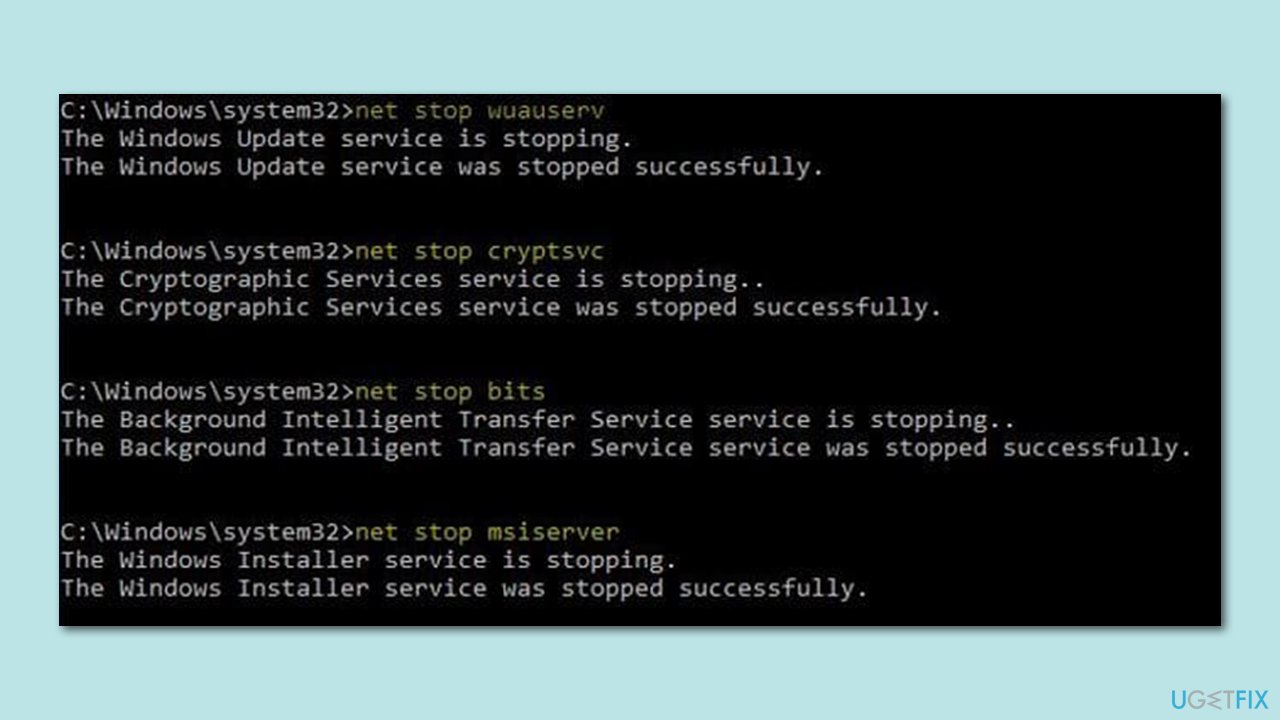
- Open Command Prompt as administrator, as explained before.
- In the new window, copy and paste the following commands, pressing Enter after each to execute them:
net stop bits
net stop wuauserv
net stop appidsvc
net stop cryptsvc
Del “%ALLUSERSPROFILE%\Application Data\Microsoft\Network\Downloader\*.*”
rmdir %systemroot%\SoftwareDistribution /S /Q
rmdir %systemroot%\system32\catroot2 /S /Q
regsvr32.exe /s atl.dll
regsvr32.exe /s urlmon.dll
regsvr32.exe /s mshtml.dll
netsh winsock reset
netsh winsock reset proxy
net start bits
net start wuauserv
net start appidsvc
net start cryptsvc - Restart your computer.
Fix 7. Run SFC and DISM
SFC and DISM are like the guardians of system files, ensuring their integrity. When these files go awry, these tools set them right.
- Run Command Prompt as administrator.
- Use the following command lines, pressing Enter after each:
sfc /scannow
DISM /Online /Cleanup-Image /CheckHealth
DISM /Online /Cleanup-Image /ScanHealth
DISM /Online /Cleanup-Image /RestoreHealth - Restart your computer.

Fix 8. Use media creation tool
Media Creation Tool is a versatile assistant for Windows installations, ensuring you get the latest updates along with a refreshed version of Windows.
- Visit the official Microsoft website and download the Windows installation media.
- Double-click the installer and select Yes when UAC shows up.
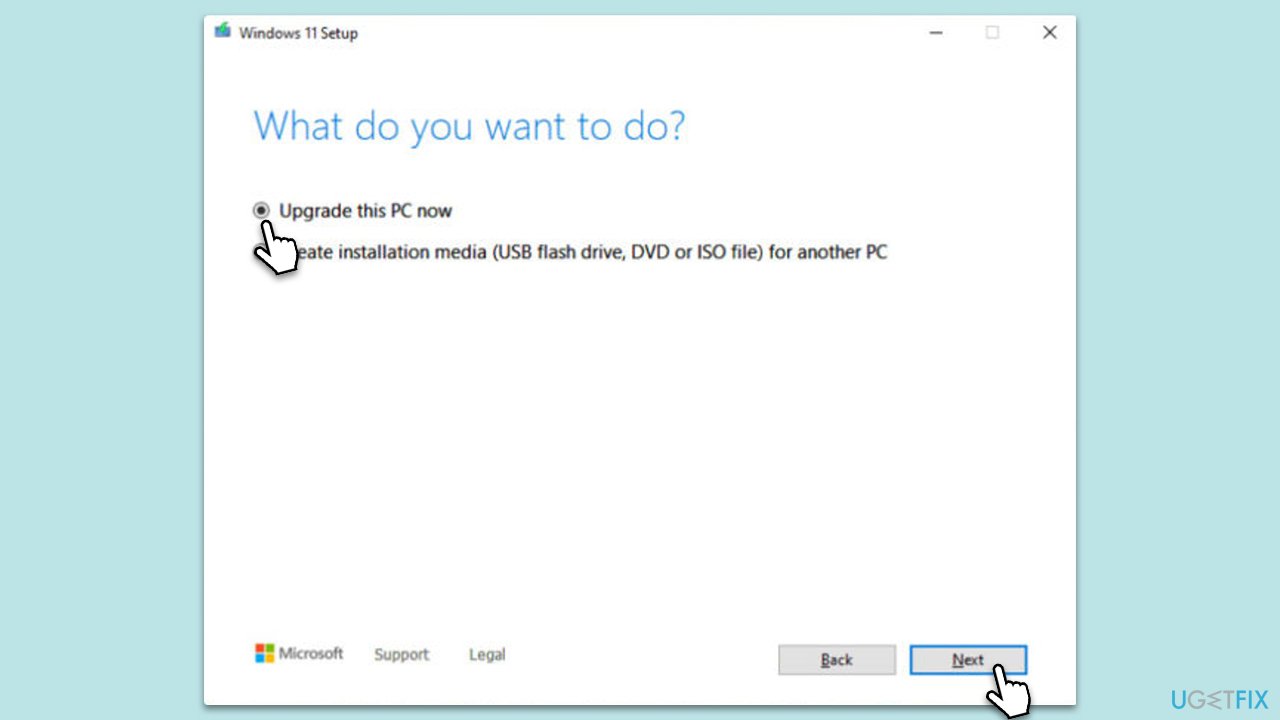
- Agree to the terms and click Next.
- Select Upgrade this PC now and select Next.
- Windows will now download all the necessary files – it might take some time.
- Agree to the terms once again and click Next.
- Before installing, ensure you are happy with your choices (otherwise, you can click the Change what to keep option).
- Click Install to begin the upgrade process.
Bottom line
To resolve the installation issues with KB5030217, consider using a PC repair tool, checking for third-party software conflicts, and ensuring sufficient storage space. If these solutions do not work, further troubleshooting may be necessary.
Frequently asked questions
Common reasons include insufficient disk space, corrupted system files, or conflicts with third-party software. Ensuring you have enough storage and running a system file check can help resolve these issues.
You can manually download the update from the Microsoft Update Catalog website and install it by running the downloaded file. Make sure to select the correct version that matches your Windows 11 architecture.
If the update persists in failing, try resetting Windows Update components or performing a clean boot to eliminate software conflicts. Additionally, consider checking for any pending updates or errors in the Windows Update Troubleshooter.




Report an issue
What's wrong with this guide? We review every report and update or remove content.
Report received — thank you. We'll review and fix it.
You need a free account to submit a report.
Be the first to comment