How to fix
KB5030219 fails to install
on Windows
Resolve KB5030219 installation errors in Windows 11 quickly and effectively. Follow our expert-tested solutions to fix this issue in minutes.

What causes How to fix KB5030219 fails to install in Windows 11?
- Authentication problem after installing Windows updates from October 2022 or later
- Smart card-based authentication failure when joining or rejoining a machine to an Active Directory domain
- Conflicts with other software during the update installation
- Corrupted system files or registry issues
- Less secure authentication methods being used due to the failure
- Network resource access issues for users
Repairs Windows system files, removes malware, and restores a clean OS state — without reinstalling.
Hello. When I try to install the newest KB5030219 update on my Windows 11 PC, I receive an error. How do I fix this?
Users should be concerned about the problem with the KB5030219 security update failing to install in Windows 11, especially those who utilize smart cards for authentication when adding or removing computers from Active Directory domains. This patch was created especially to fix an authentication problem that appears after installing Windows updates from October 2022 or later. The authentication process while using a smart card in an Active Directory domain context is largely impacted.
The issue is that when attempting to join or rejoin a machine to an Active Directory domain, smart card-based authentication fails. Such authentication errors can seriously impair a user's ability to use the network, safely enter into their computers, and carry out necessary functions inside the domain. When smart card authentication fails, users may turn to less secure authentication methods, which can cause downtime, productivity losses, and other security threats.
Users who are directly impacted by this problem can find themselves unable to access network resources necessary for their everyday duties or locked out of their workstations. The ramifications for businesses are more extensive because if users try to get around the problem by utilizing less secure authentication techniques, sensitive data may become vulnerable and there may be a security gap.
Installing the KB5030219 security update is usually the best course of action to take in order to solve this issue. However, due to a number of variables, including system setups or conflicts with other software, users may have trouble installing the update. Users would need to debug the installation procedure in such situations.
In this guide, you will find 6 steps that should help you fix KB5030219 fails to install in Windows 11. You can also run a maintenance tool like [d1] that can fix most system errors, BSODs,[ref en-1] corrupted files, registry[ref en-2] issues, or clear cookies and cache[ref en-3] automatically. Otherwise, follow the step-by-step instructions below.

Solution 1. Repair Corrupted System Files
Use Command Prompt commands to repair system file corruption:
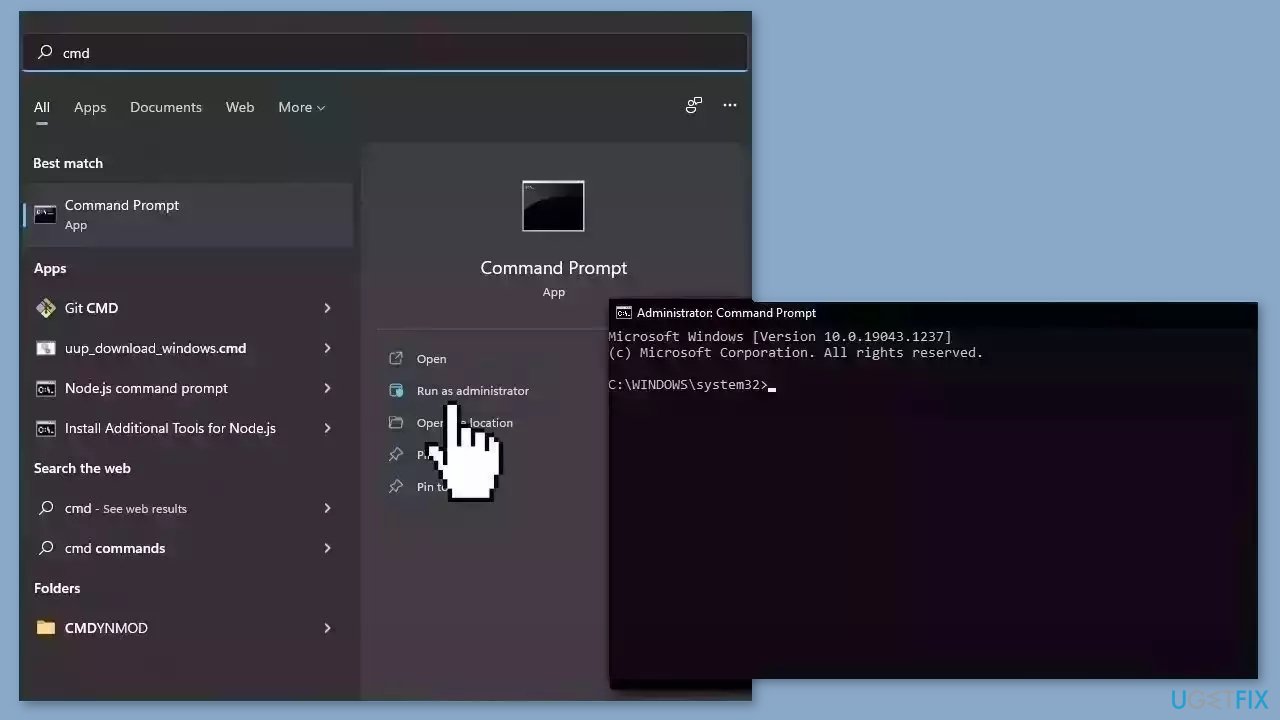
- Open Command Prompt as administrator
- Use the following command and press Enter:
sfc /scannow
- Reboot your system
- If SFC returned an error, then use the following command lines, pressing Enter after each:
DISM /Online /Cleanup-Image /CheckHealth
DISM /Online /Cleanup-Image /ScanHealth
DISM /Online /Cleanup-Image /RestoreHealth
Solution 2. Run Windows Update Troubleshooter
- Click the Windows button and select Settings
- Select System from the left pane, then scroll down on the right pane, and click on Troubleshoot
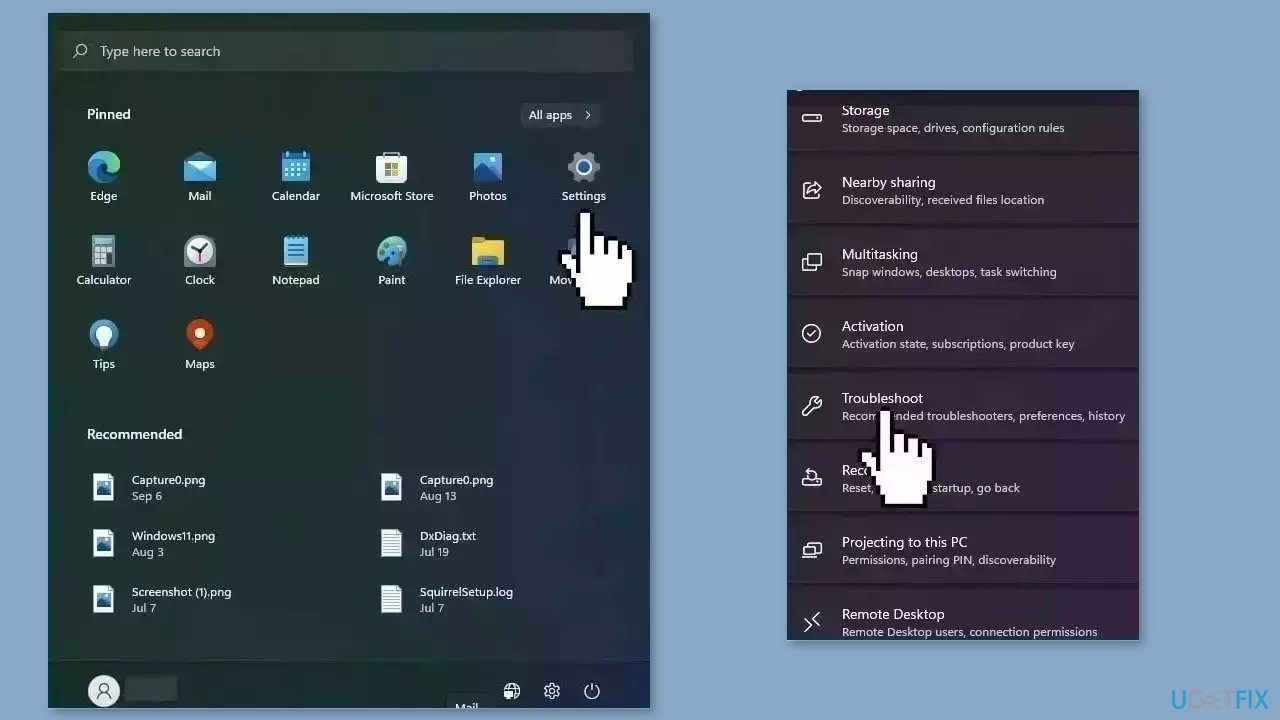
- Click on Other troubleshooters
- Locate the Windows Update troubleshooter and hit the Run button
Solution 3. Restart Windows Services
- Type services in the search bar and launch the Services utility
- Find Windows Update in the list
- Double-click on it, set the Startup type to Automatic, and click Apply
- Now click on Restart the Service

- Do the same with Background Intelligent Transfer Service
Solution 4. Use the Microsoft Update Catalog
- Go to the official Microsoft Update Catalog website
- Type the KB number KB5030219 into the search bar, and press Enter or click Search

- You will find many different versions on the update – you need to find the one that matches your PC specs and Windows version (as a home user, ignore Windows server versions)
- After picking the correct version, click the Download button and proceed with the on-screen instructions
- Restart your system once done
Solution 5. Reset Windows Update Components
- Type cmd in the search bar.
- Right-click on Command Prompt in the search results.
- Select Run as administrator.
- In the Command Prompt window:
- Type the following commands one by one and press Enter after each:
net stop wuauserv
net stop cryptSvc
net stop bits
net stop msiserver

- Execute the following commands one by one:
net start wuauserv
net start cryptSvc
net start bits
net start msiserver
- Restart your PC.
- Check to see if the issue has been resolved.
Solution 6. Use Installation Media
If none of the previous steps helped you resolve the issue, your current installation of Windows may be corrupt. Perform a repair installation and see if it fixes the issue of updates not installing.
- Visit the official Microsoft website to download Windows 11 Installation Media
- Run the Media Creation Tool and select Create Installation Media for another PC
- Select your USB drive
- Let the Process complete of writing the Installation files to the USB drive
- Click Finish
- On the PC you wish to upgrade, Press Windows + E to open the File Explorer
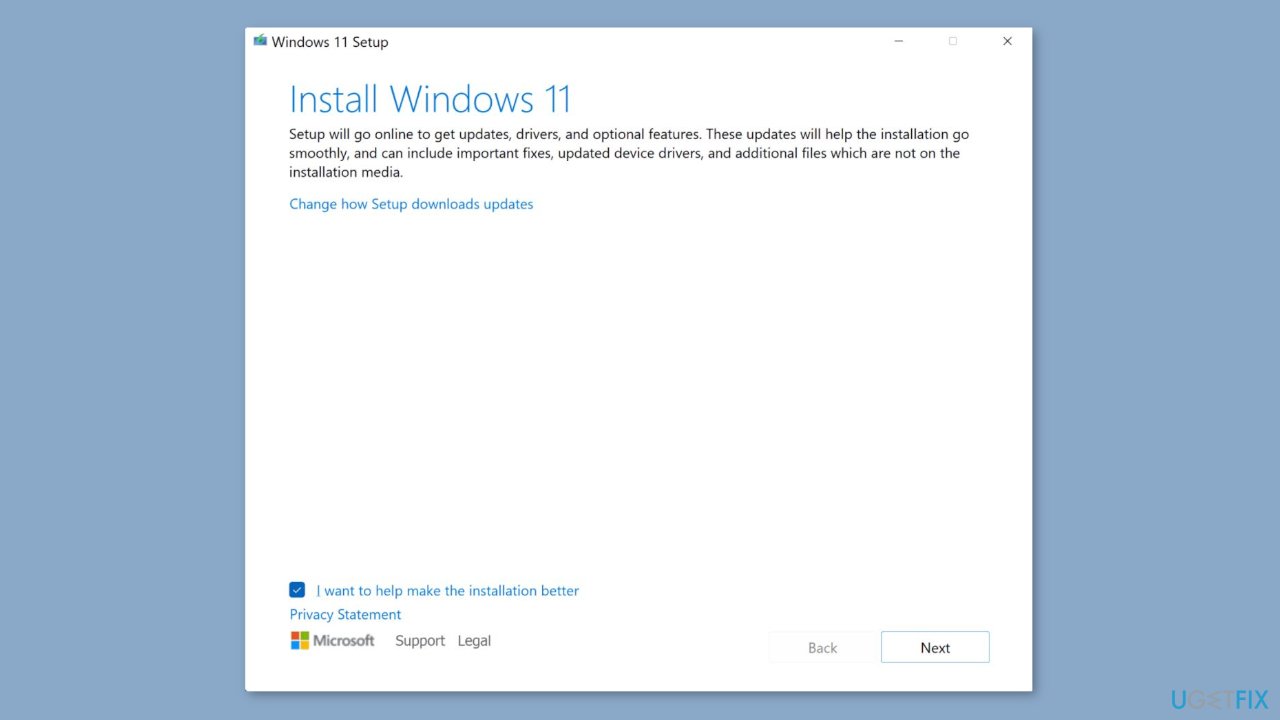
- Open the Removable drive and click Setup.exe
- Accept the license terms on the next screen
- Confirm the Upgrade options – Files, apps and Settings are kept
- Click Install, and the upgrade should start
Bottom line
To fix the KB5030219 installation failure, users can repair corrupted system files, run maintenance tools, and follow specific step-by-step instructions provided in the guide. If these solutions do not resolve the issue, further debugging of the installation process may be necessary.
Frequently asked questions
You can try running the Windows Update Troubleshooter, which can help identify and fix issues preventing the update from installing.
Yes, common error codes include 0x800f0831 and 0x800f0922, which indicate problems with missing files or network connectivity.
You can visit the Microsoft Update Catalog website, search for KB5030219, and download the appropriate version for your system to install it manually.




Report an issue
What's wrong with this guide? We review every report and update or remove content.
Report received — thank you. We'll review and fix it.
You need a free account to submit a report.
Be the first to comment