How to fix
KB5032288 fails to install
on Windows
Resolve KB5032288 installation issues in Windows 11 quickly and easily. Follow our expert-tested solutions and get back on track in minutes.

What causes How to fix KB5032288 fails to install in Windows 11?
- Conflicts with existing software
- Insufficient storage space
- Corrupted system files
- Interruptions during the download process
- Incompatibility issues with specific hardware configurations
Repairs Windows system files, removes malware, and restores a clean OS state — without reinstalling.
Today I initiated a Windows update KB5032288 on my machine, and I soon noticed that it failed, telling me to try later. Several hours have passed and the update is still not working. Anything I can do to resolve this?
KB5032288 represents a significant update package for Windows 11, designed to enhance various aspects of the operating system. In the realm of technology, KB (Knowledge Base) updates are crucial as they not only introduce new features but also resolve existing bugs and security vulnerabilities, thereby improving the overall performance and security of the system.
Specifically, KB5032288, released on December 4, 2023, targeted Windows 11 versions 22H2 and 23H2. This update was notable for its comprehensive scope, encompassing enhancements to Copilot, Spotlight, and other integral Windows features. Additionally, it aimed to rectify cursor-related issues and problems encountered with Microsoft app updates, among other improvements.
However, for some users, KB5032288 fails to install in Windows 11, which can be attributed to various factors. Common causes include conflicts with existing software, insufficient storage space, or corrupted system files. Additionally, interruptions during the download process or incompatibility issues with specific hardware configurations might also lead to installation failures.
If you are experiencing difficulty in installing KB5032288, there are several steps that could potentially resolve the issue. Ensuring that your device has adequate storage space is a fundamental step. Additionally, running the Windows Update troubleshooter can help identify and rectify issues specific to the update process.
It's also advisable to check for any conflicting software that might hinder the installation and temporarily disable any non-essential applications, including security software, during the update process. In cases where system file corruption is suspected, utilizing the System File Checker tool can be beneficial in repairing and restoring any corrupted files.
For those seeking a more straightforward solution, the use of a PC repair tool, such as [d1], can be an effective way to automatically address and resolve underlying issues within the Windows operating system.
Fix 1. Perform Disk Cleanup
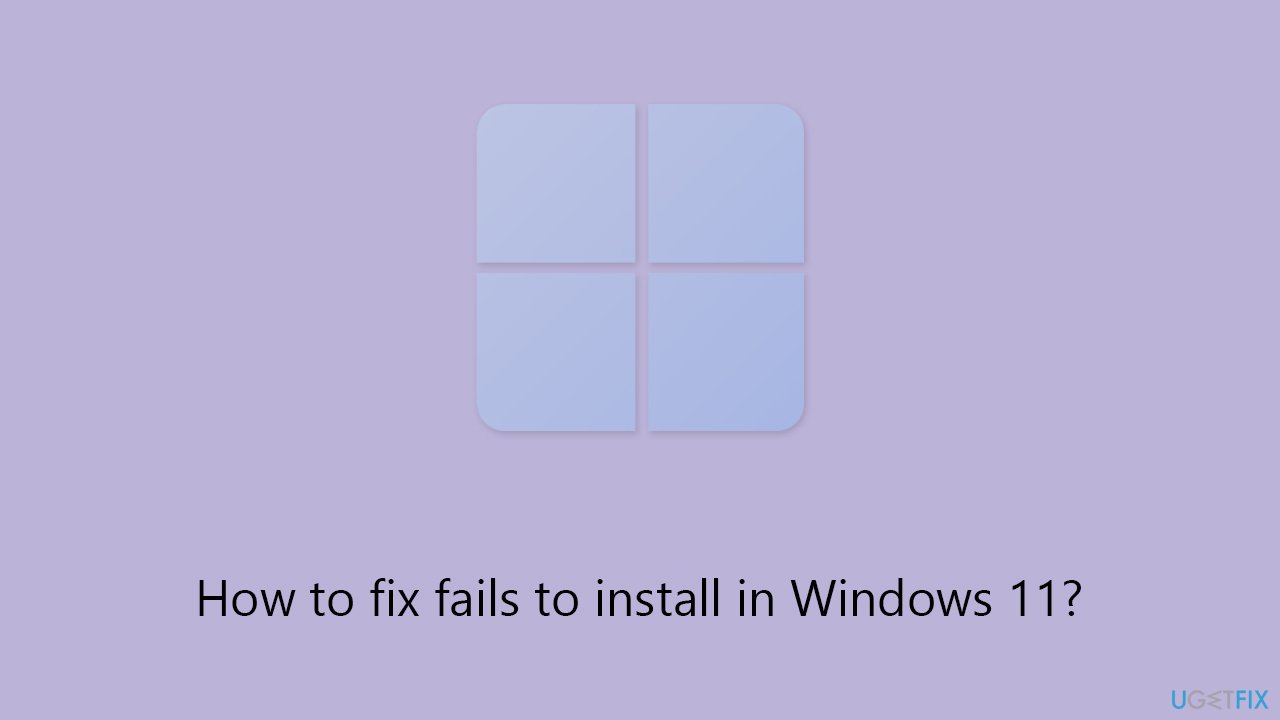
Perform Disk Cleanup by following these steps:
- Type Disk Cleanup in Windows search and hit Enter.
- If your Windows is installed on drive C, pick it from the list (it should be by default) and press OK.
- Click Clean up system files.
- Select your main disk again and click OK.
- Here, select the largest portions of the data used - these typically include Temporary Internet Files, Windows Update, Temporary Files, Recycle Bin, Delivery Optimization Files, and others.
- Click OK - the process should be finished shortly.
Fix 2. Run Windows update troubleshooter
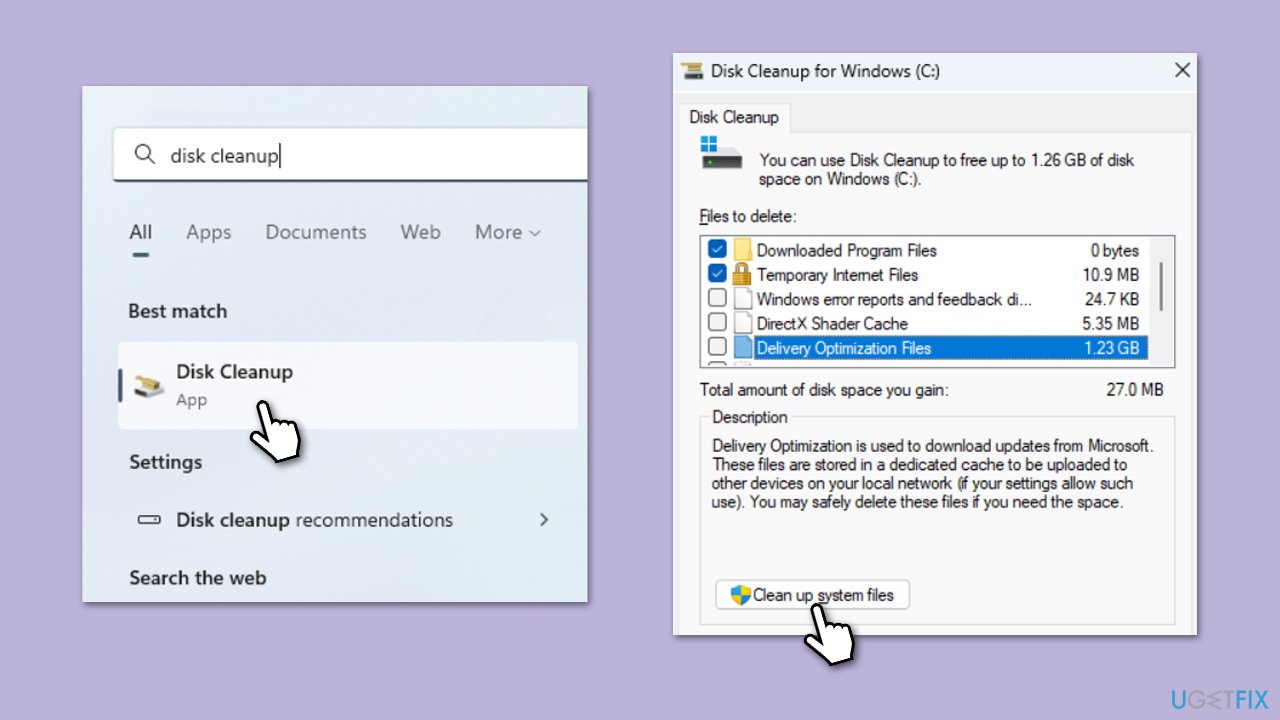
Run the Windows Update troubleshooter with these instructions:
- Type Troubleshoot in Windows search and press Enter.
- Go to Other troubleshooters.
- Find Windows Update from the list and click Run.
- The troubleshooter will automatically scan your system for potential problems and display any issues it finds.
- If the troubleshooter finds any issues, it will provide recommended solutions.
Fix 3. Check for file corruption
Carry out System File Checker and Deployment Imaging Service and Management Tool scans to rectify corrupted system files:
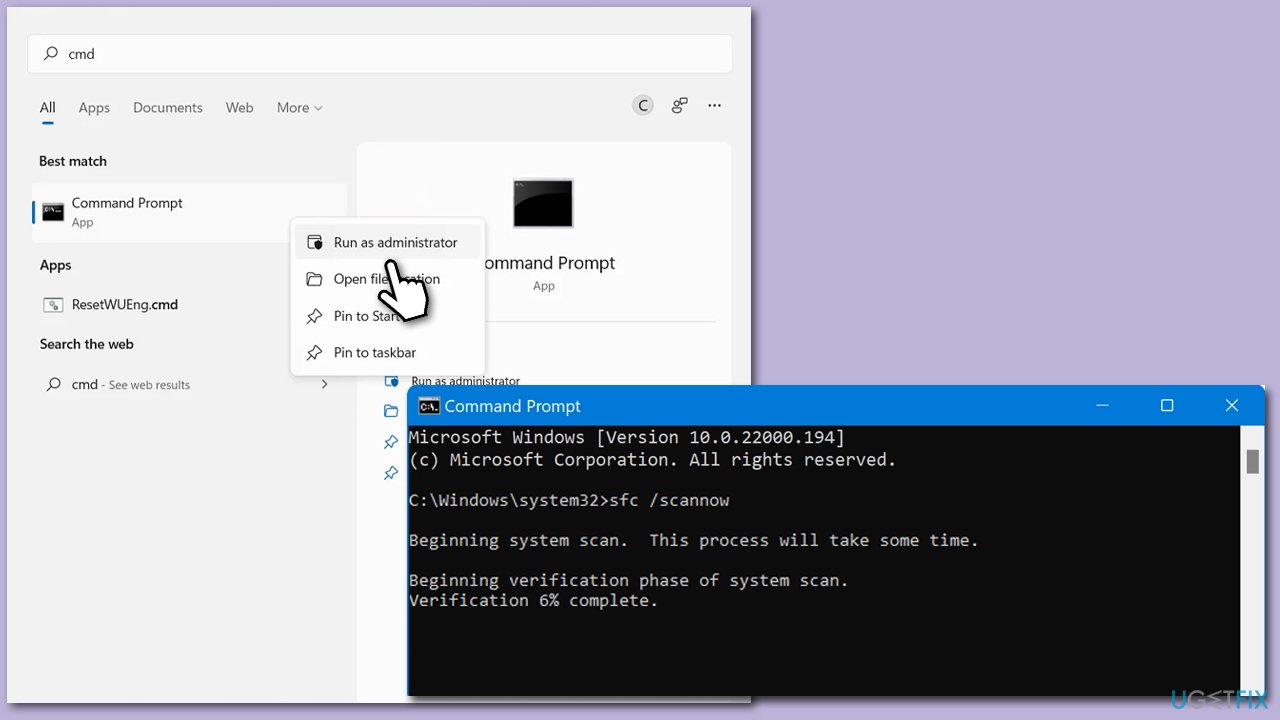
- Type cmd in Windows search.
- Right-click on the Command Prompt result and select Run as administrator.
- When the UAC window pops up, click Yes.
- In the Command Prompt window, paste the following command and press Enter:
sfc /scannow - Wait for the scan to complete.
- Once the SFC scan is finished, run the following set of DISM commands, pressing Enter after each one:
DISM /Online /Cleanup-Image /CheckHealth
DISM /Online /Cleanup-Image /ScanHealth
DISM /Online /Cleanup-Image /RestoreHealth - After completing the DISM commands, restart your computer.
Fix 4. Check relevant Services
Check and adjust relevant services for Windows Update:
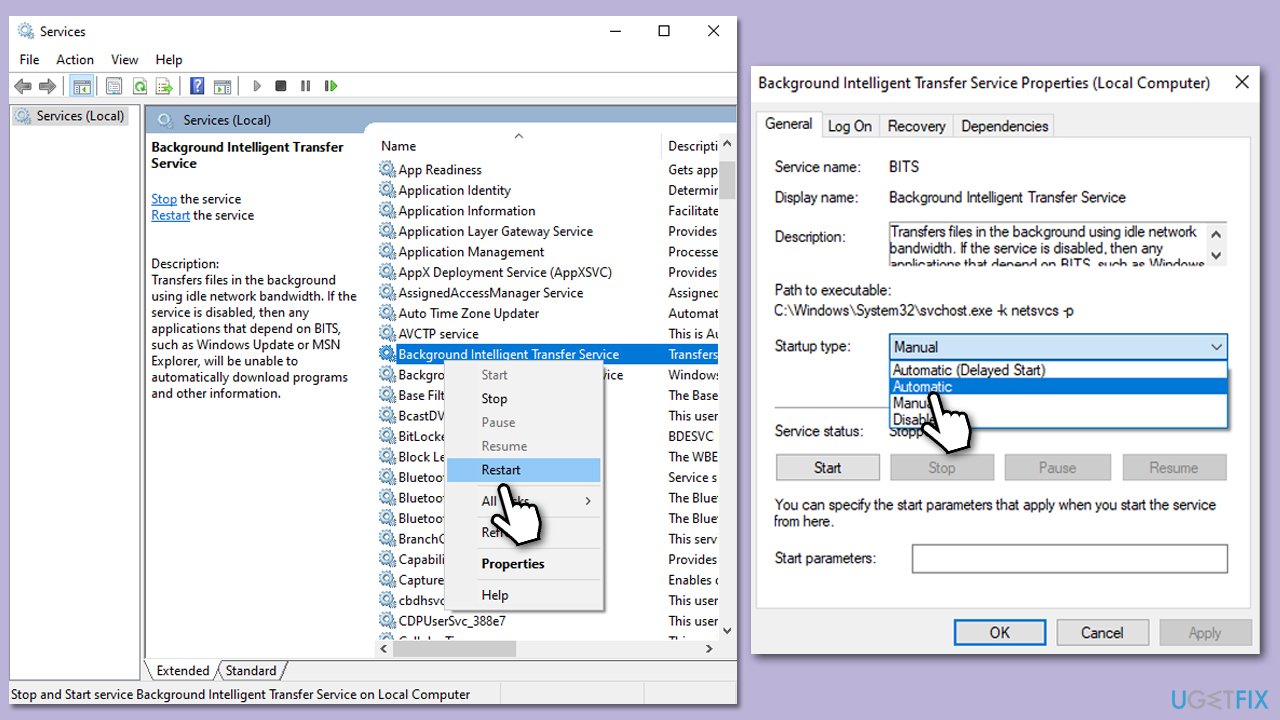
- In Windows search, type services.msc and press Enter to open the Services window.
- In the Services window, locate and double-click on the following services one by one (if these are already running, right-click and hit Restart):
- Windows Update
- Background Intelligent Transfer Service (BITS)
- Cryptographic Services
- For each service, ensure that the Startup type is set to Automatic. If it's not, select Automatic from the drop-down menu.
- Check the Service status. If the service is not running, click the Start button to start it.
- Click Apply and then OK for each service.
- Close the Services window and restart your computer.
Fix 5. Reset Windows update components
To address Windows update problems effectively, it is essential to reset Windows update components:
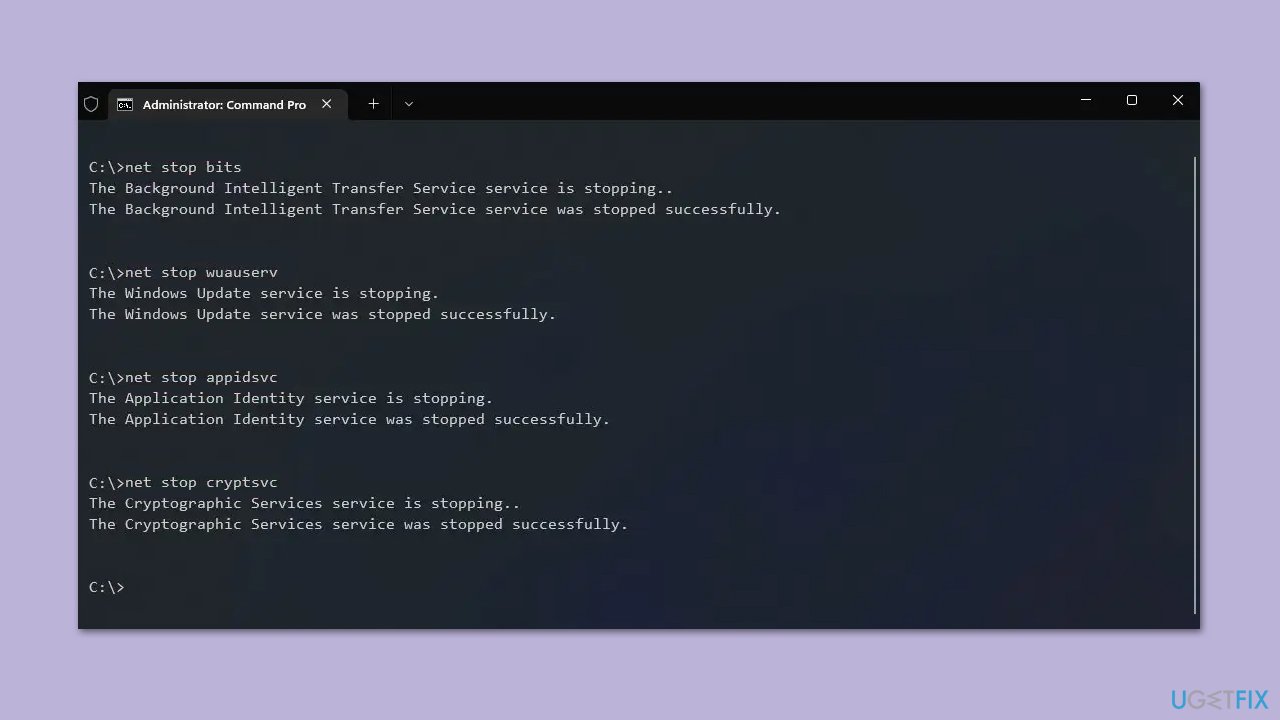
- Open Command Prompt as an administrator.
- Stop the BITS, Cryptographic, MSI Installer, and Windows Update Services by typing the following commands and pressing Enter after each:
- net stop wuauserv
- net stop cryptSvc
- net stop bits
- net stop msiserver
- Rename the SoftwareDistribution and Catroot2 folders by typing the following commands and pressing Enter after each:
- ren C:\Windows\SoftwareDistribution SoftwareDistribution.old
- ren C:\Windows\System32\catroot2 Catroot2.old
- Restart the BITS, Cryptographic, MSI Installer, and Windows Update Services by typing the following commands and pressing Enter after each:
- net start wuauserv
- net start cryptSvc
- net start bits
- net start msiserver
- Close the Command Prompt and restart your PC.
Fix 6. Install the update manually
Manually installing a Windows update can be a bit more involved, but it's a viable option if automatic updates are failing. Here's how to manually install a Windows update:
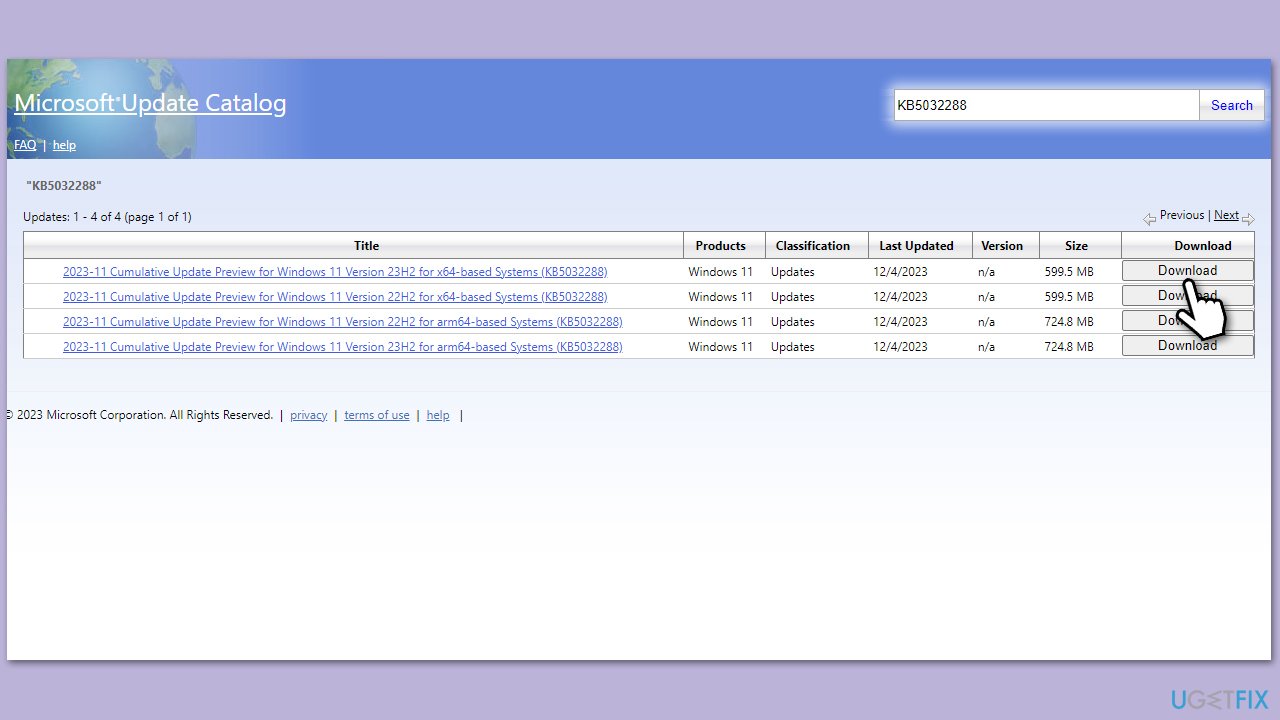
- Open your web browser and navigate to the Microsoft Update Catalog where you can find the KB5032288 update.
- Locate the correct version of the update for your operating system by checking your System type (Right-click on Start and select System. Under Windows specifications, check the Version).
- Click on Download and follow the prompts to complete the process.
- Once the update is installed, reboot your device.
Fix 7. Use Media Creation Tool
Using the Media Creation Tool is another method to manually install Windows updates and can also be helpful for performing major Windows upgrades. Here's how to use the Media Creation Tool to install updates or upgrade your Windows version:
- Visit the official Microsoft website and download Windows 11 installation media.
- Double-click the installer and select Yes when UAC shows up.
- Agree to terms.
- Select Upgrade this PC now and click Next.
- Windows will start downloading the needed files.
- Agree to the terms once again and click Next.
- Before installing, make sure that you are happy with your choices (otherwise, you can click Change what to keep option).
- Finally, click Install to begin the upgrade process.
Bottom line
To resolve the installation failure of KB5032288, ensure adequate storage space, run the Windows Update troubleshooter, and check for conflicting software. Additionally, consider using the System File Checker tool to repair corrupted files. If these steps do not work, using a PC repair tool may help address underlying issues.
Frequently asked questions
First, try restarting your computer and then check for updates again. If the issue persists, use the Windows Update Troubleshooter to automatically detect and fix problems.
Yes, sometimes antivirus programs can prevent updates from installing correctly. Temporarily disabling your antivirus software during the installation may help resolve the issue.
You can manually download the update by visiting the Microsoft Update Catalog website and searching for KB5032288, then follow the on-screen instructions to install it on your Windows 11 system.




Report an issue
What's wrong with this guide? We review every report and update or remove content.
Report received — thank you. We'll review and fix it.
You need a free account to submit a report.
Be the first to comment