How to fix
KB5033372 fails to install
on Windows
Resolve the KB5033372 installation error on Windows 10 quickly and easily. Get expert-tested solutions for a smoother update experience!

What causes How to fix KB5033372 fails to install in Windows 10?
- Corrupted update caches
- Corrupted system files
- Essential Windows services not running correctly
- Underlying system irregularities
Repairs Windows system files, removes malware, and restores a clean OS state — without reinstalling.
Hello. Today, I got a prompt to install Windows update KB5033372, so I clicked to install it. Unfortunately, after some time, the update failed, and repeated tries did not bring any positive results. How do I make it install?
Windows updates are essential for maintaining the optimal performance and security of your computer. Regularly released by Microsoft, these updates address various issues, ranging from minor bug fixes to significant security enhancements, and often introduce new features or improvements to existing ones. Their importance cannot be overstated, as they play a crucial role in keeping your system running smoothly and securely.
A key aspect of Windows updates is the KB number, a unique identifier assigned to each update. This alphanumeric code helps users identify specific updates and understand their purpose. Microsoft typically releases these updates on a regular schedule (every second or third Tuesday of every month), ensuring that Windows users receive timely improvements and fixes for their operating systems.
However, not all updates are installed without issues. A notable example is KB5033372, a Windows 10 update that has been causing installation issues for some users. Released on December 12, 2023, for Windows 10 versions 21H2 and 22H2, KB5033372 aims to enhance both the security and quality aspects of the system. This includes improvements to the servicing stack, the component responsible for managing Windows updates.
You might encounter an issue where KB5033372 fails to install, and it can happen due to several reasons. Common issues include corrupted update caches or system files, which can hinder the update process. Additionally, essential Windows services not running correctly can also lead to installation failures. Such problems are not uncommon and can usually be traced back to underlying system irregularities.
To address these installation challenges, various steps can be taken. For instance, ensuring that your system files are intact and that all necessary Windows services are operational can be a good starting point. These actions aim to create a conducive environment for the successful installation of KB5033372.
If you are dealing with a situation where you are dealing with multiple Windows problems in addition to KB5033372 failing to install, you can handle them by employing [d1] PC repair tool. Besides, it can complete several of the manual troubleshooting steps in seconds.
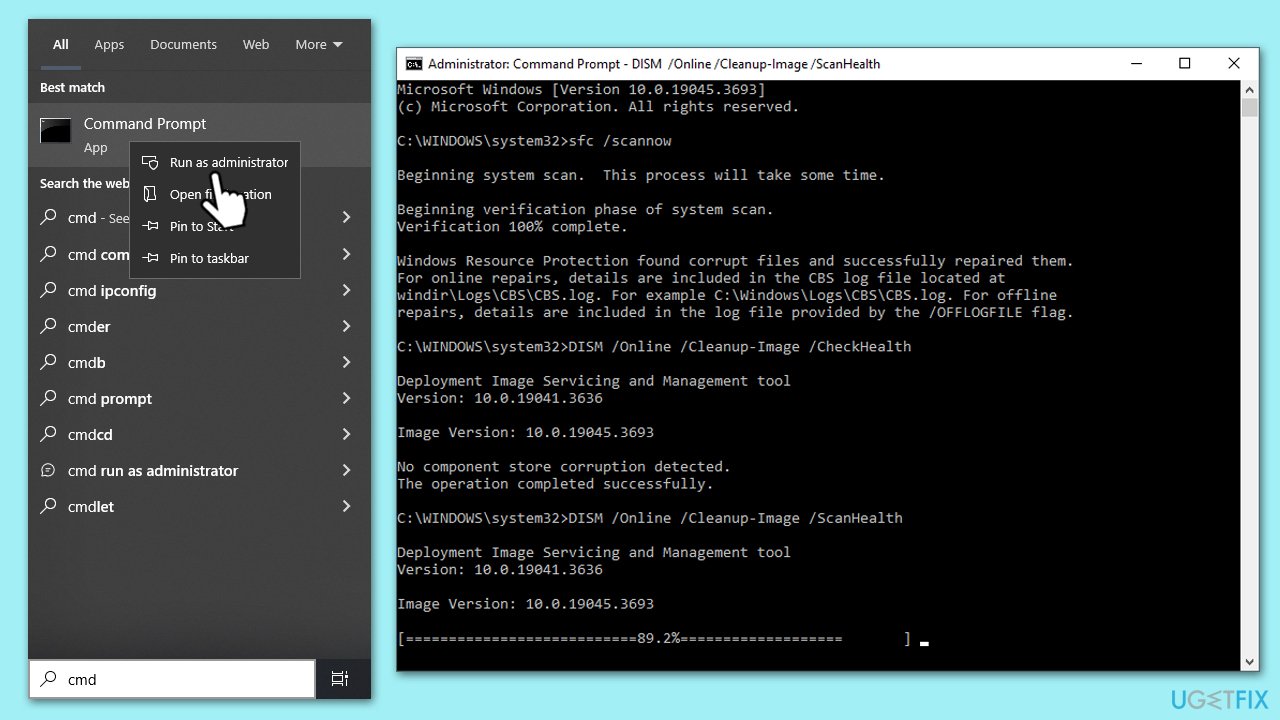
Fix 1. Perform SFC and DISM scans
SFC (System File Checker) and DISM (Deployment Image Servicing and Management) are tools provided by Windows to repair corrupted system files and Windows images. SFC scans and fixes any corrupted or missing system files, while DISM repairs the Windows image, including the Windows Update files. Running these scans can resolve issues preventing the installation of updates like KB5033372.
- Type in cmd in Windows search.
- Right-click on Command Prompt and select Run as administrator.
- User Account Control will ask you whether you want to allow to make changes to the system - click Yes.
- In the Command Prompt window, paste the following command and hit Enter:
sfc /scannow - Next, use these commands (don't forget to press Enter every time):
Dism /Online /Cleanup-Image /CheckHealth
Dism /Online /Cleanup-Image /ScanHealth
Dism /Online /Cleanup-Image /RestoreHealth - Restart your system.
Fix 2. Ensure relevant services are running. Otherwise, restart them
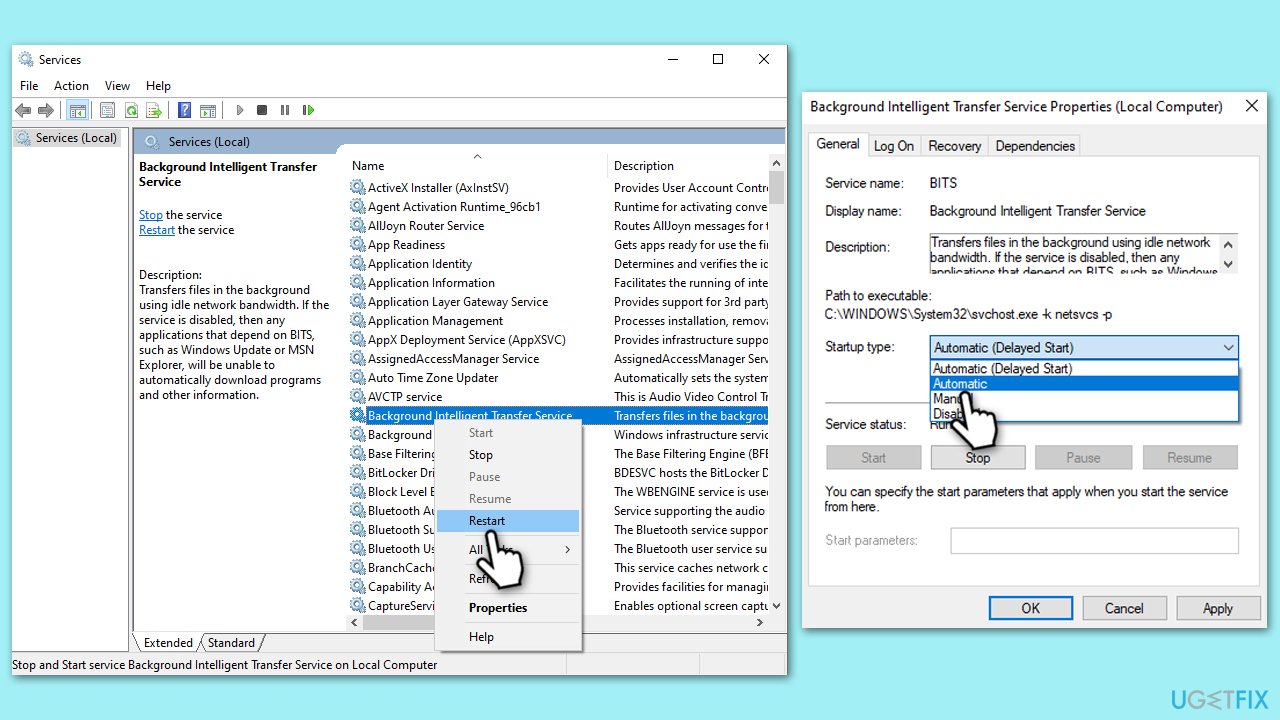
Windows Update depends on certain services to be running. If these services are stopped or malfunctioning, updates may fail to install. Checking and restarting these services can resolve update installation issues.
- Type in Services in Windows search and press Enter.
- Find Background Intelligent Transfer Service (BITS).
- If it is already running, right-click and pick Restart.
- If the service is not running, double-click it, and select Automatic under the Startup type from the drop-down menu.
- Click Start, Apply, and OK.
- Repeat this process for Windows Update and Cryptographic services.
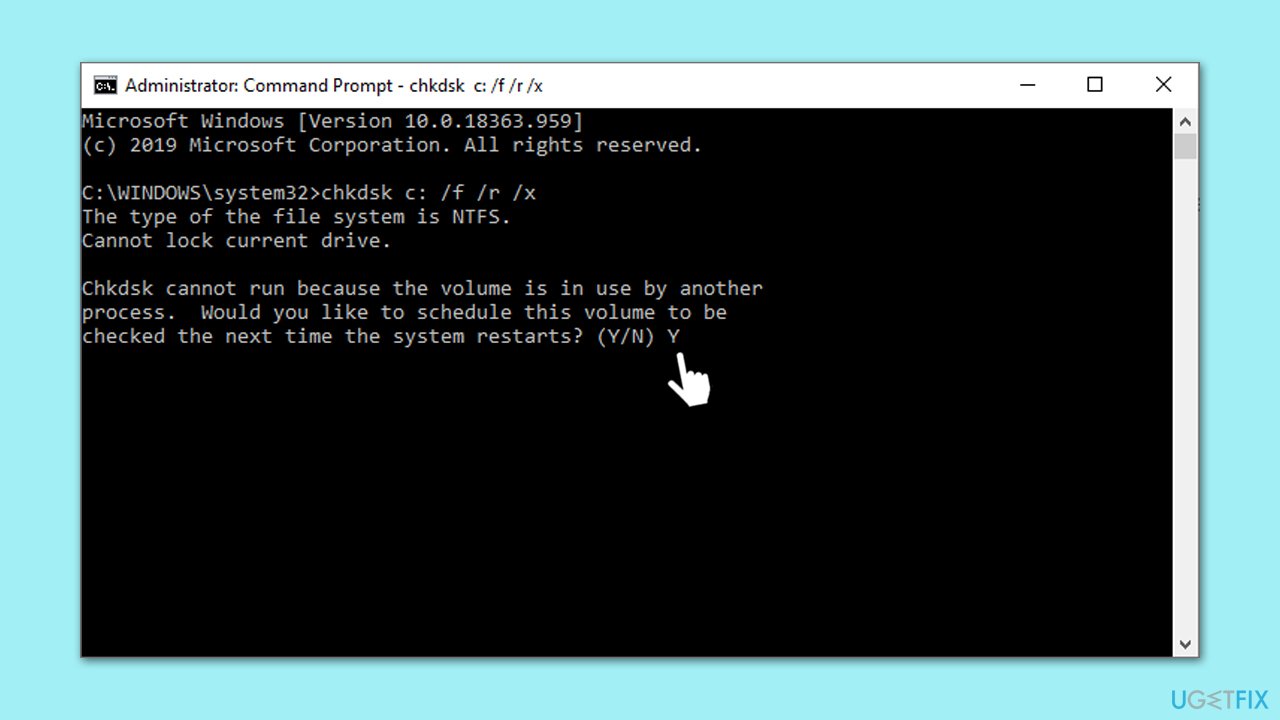
Fix 3. Perform Check Disk
Check Disk is a utility that checks the integrity of the file system on your hard drive. Running this tool can fix errors on your hard drive that might be causing update issues.
- Open Command Prompt as administrator.
- In the new window, type in the following command and press Enter after:
chkdsk c: /f
(Note: use chkdsk c: /f /r /x command if you are using SSD as your primary partition) - If you receive an error, type in Y, close down Command Prompt and restart your system.
- Wait until the scan is finished - you can find the results in the Event Viewer.
Fix 4. Run Windows update troubleshooter
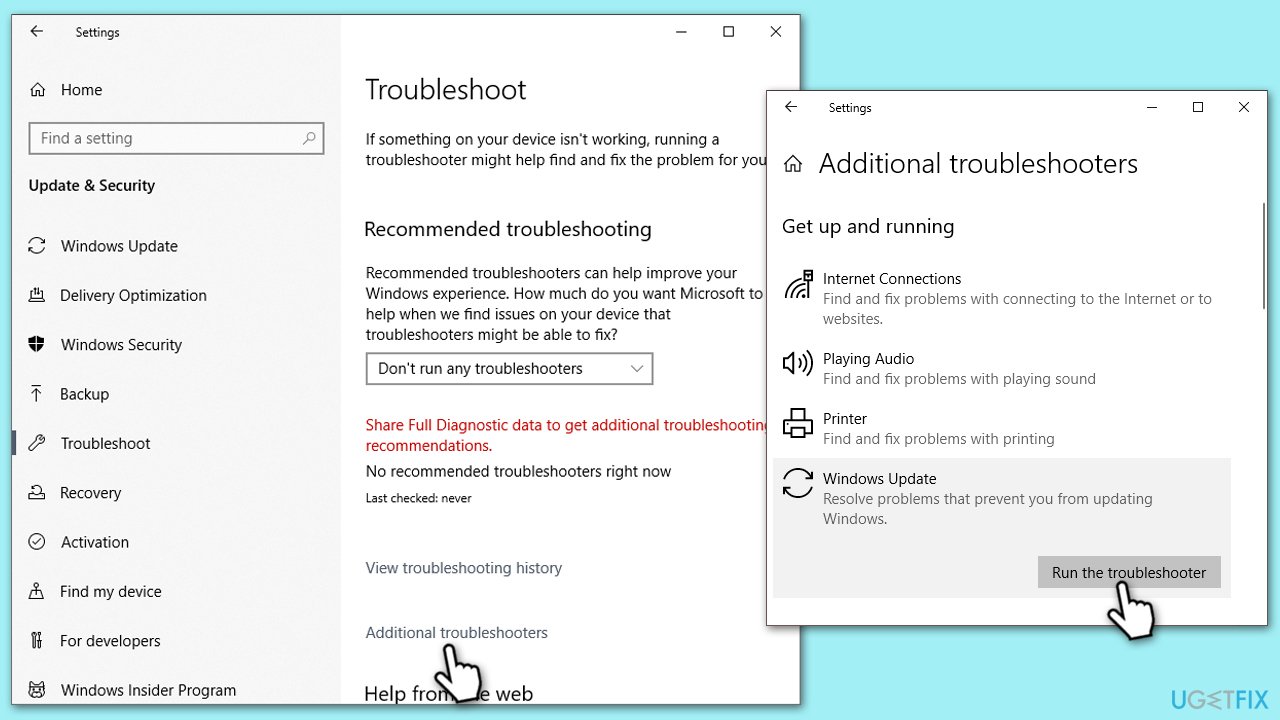
The Windows Update Troubleshooter is an automated tool that finds and fixes common problems with Windows Update.
- Type Troubleshoot in Windows search and press Enter.
- On the right side of the window, click Additional troubleshooters.
- Scroll down to find Windows update and click it.
- Click Run the troubleshooter - let the process run.
- Once finished, apply the suggested fixes and reboot your system.
Fix 5. Reset Windows update components
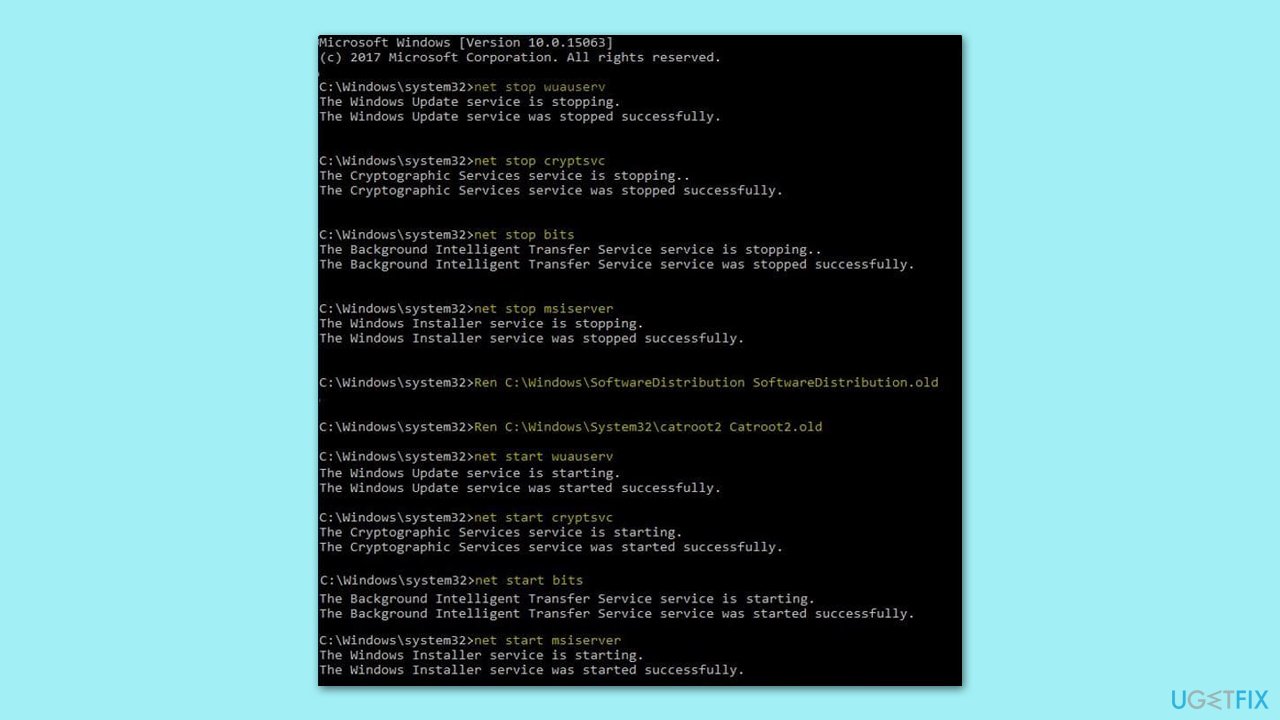
Resetting Windows Update components involves stopping the Windows Update services, clearing the update cache, and then restarting the services. This can solve issues with corrupt update files or configurations.
- Open Command Prompt as administrator.
- Copy and paste each of these commands, pressing Enter each time:
net stop bits
net stop wuauserv
net stop appidsvc
net stop cryptsvc
Del “%ALLUSERSPROFILE%\Application Data\Microsoft\Network\Downloader\*.*”
rmdir %systemroot%\SoftwareDistribution /S /Q
rmdir %systemroot%\system32\catroot2 /S /Q
regsvr32.exe /s atl.dll
regsvr32.exe /s urlmon.dll
regsvr32.exe /s mshtml.dll
netsh winsock reset
netsh winsock reset proxy
net start bits
net start wuauserv
net start appidsvc
net start cryptsvc - Restart your device.
Fix 6. Install the update manually
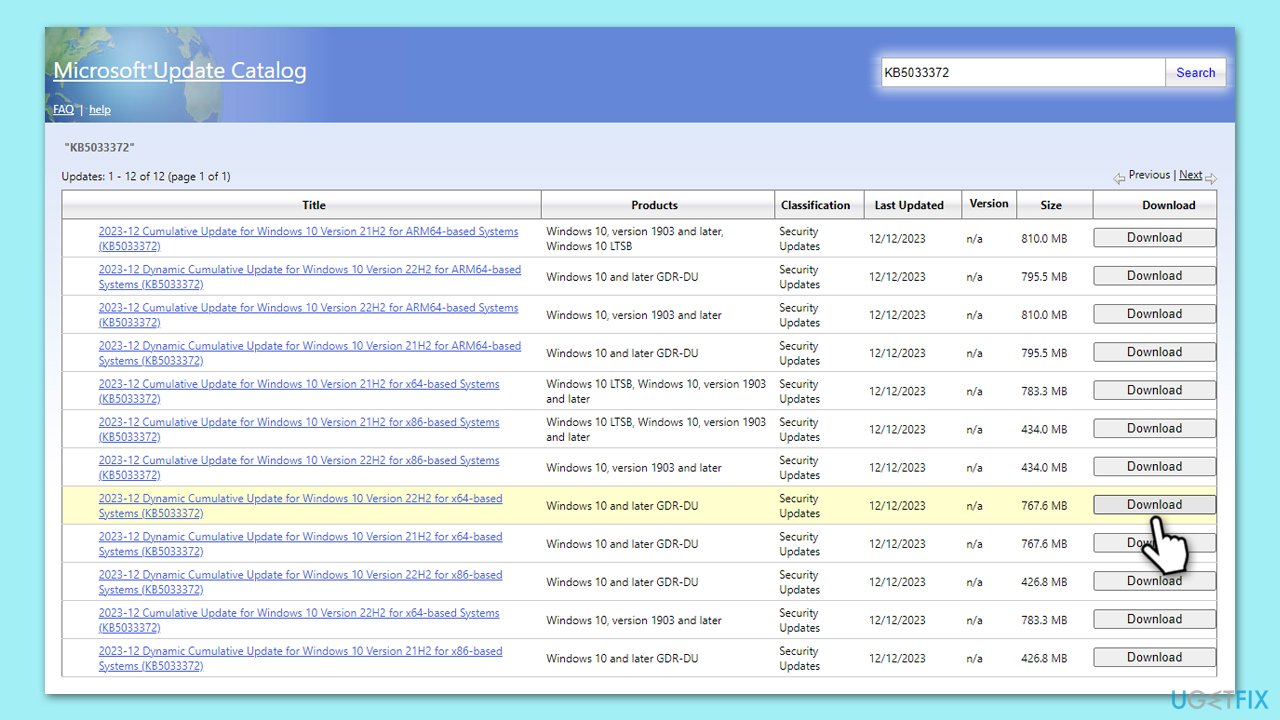
If automatic updates fail, you can manually download and install the update package from the Microsoft Update Catalog.
- Open your browser and go to Microsoft Update Catalog.
- In the search bar, type in KB5033372 and click Search.
- Find the correct version of the update for your operating system (to check this, right-click on Start and pick System. Under Device specifications and check the System type) and click Download.
- Use on-screen guidelines to finish the installation process and restart your system.
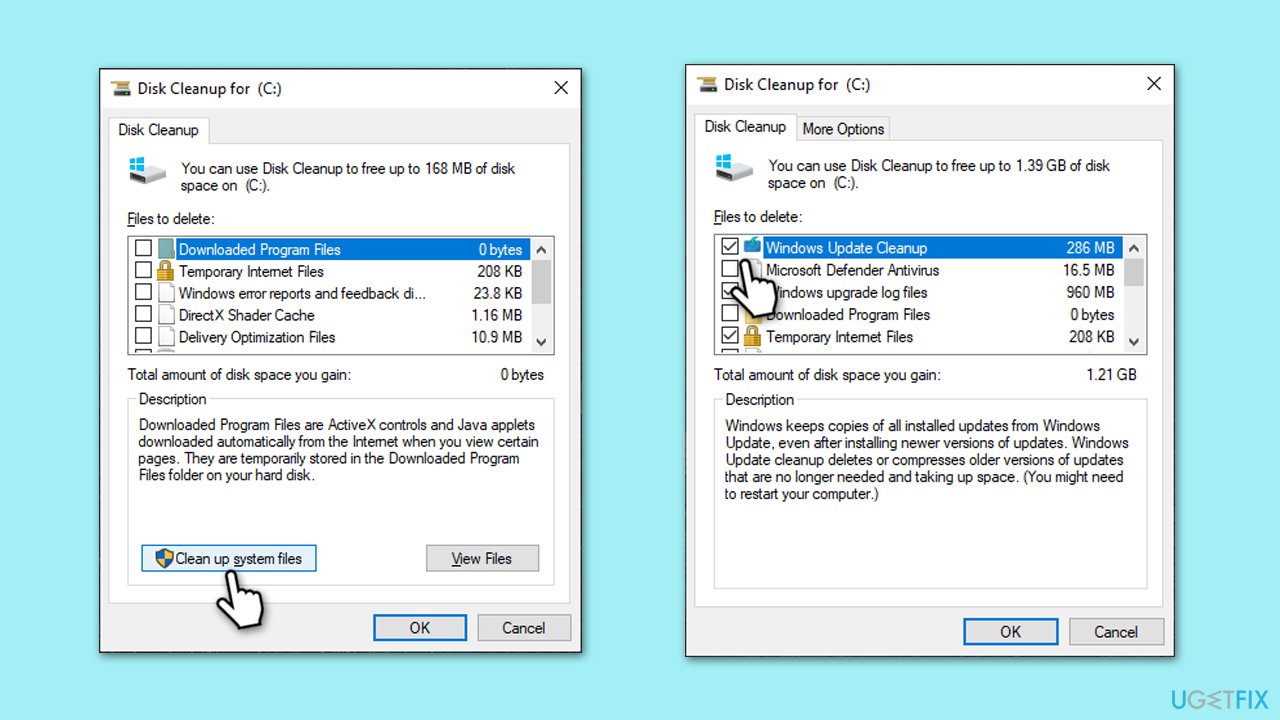
Fix 7. Perform Disk Cleanup
Disk Cleanup is a built-in Windows utility that helps free up disk space on your computer's hard drive. Removing unnecessary files, including temporary files, system files, and even previous Windows installations, can improve your system's performance and potentially resolve issues affecting the installation of updates like KB5033372.
- Type Disk Cleanup in Windows search and hit Enter.
- If your Windows is installed on drive C, pick it from the list (should be by default) and press OK.
- Click Clean up system files.
- Select your main drive again and click OK.
- Here, select the largest portions of the data used - these typically include Temporary Internet Files, Windows Update, Temporary Files, Recycle Bin, Delivery Optimization Files, and others. Marking Windows Update is vital here.
- Click OK - the process should be finished shortly.
Fix 8. Use Media Creation Tool to upgrade your PC
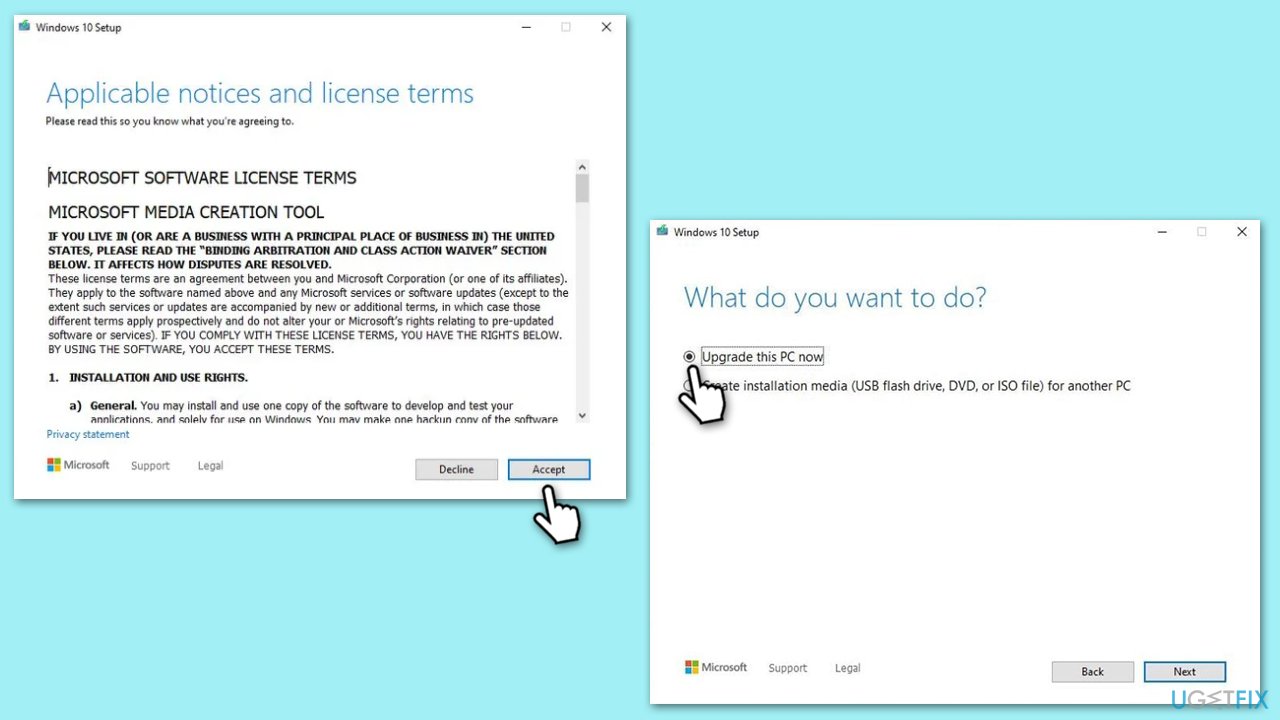
The Media Creation Tool can upgrade your Windows 10 to the latest version, which includes all the recent updates. This can be a workaround if specific updates fail to install.
- Visit the official Microsoft website and download Windows 10 installation media.
- Double-click the installer, select Yes when UAC shows up, and agree to the terms.
- Select Upgrade this PC now and click Next.
- Windows will start downloading the needed files.
- Agree to the terms once again and click Next.
- Before installing, ensure you are happy with your choices (otherwise, you can click the Change what to keep option).
- Finally, click Install to begin the upgrade process.
Bottom line
To fix the installation issue with KB5033372, ensure that your system files are intact and that all necessary Windows services are operational. If these steps do not resolve the problem, consider seeking further assistance or exploring additional troubleshooting methods.
Frequently asked questions
Try running the Windows Update Troubleshooter to detect and fix issues that may be preventing the installation of KB5033372.
Yes, you can manually download the KB5033372 update from the Microsoft Update Catalog and install it on your Windows 10 system.
Common reasons include corrupted Windows Update components, insufficient disk space, or conflicts with third-party software on your Windows 10 device.




Report an issue
What's wrong with this guide? We review every report and update or remove content.
Report received — thank you. We'll review and fix it.
You need a free account to submit a report.
Be the first to comment