How to fix
KB5033453 fails to install
on Windows
Resolve KB5033453 installation issues in Windows 11 effortlessly. Follow our expert-tested solutions to get your updates fixed in minutes.

What causes How to fix KB5033453 fails to install in Windows 11?
- Incomplete or corrupted previous updates
- Insufficient storage space on the device
- Conflicts with existing software
- Corrupted or outdated system files
Repairs Windows system files, removes malware, and restores a clean OS state — without reinstalling.
I was Windows Insider for a while but for some reason, the newest build KB5033453 fails to install for me.
Windows updates are a crucial aspect of maintaining the security and functionality of any Windows operating system. In an effort to continually improve and update its software, Microsoft has implemented an Insider system. This system allows participants to receive and test updates before they are rolled out to the broader user base, providing valuable feedback and insights. One such update under this program is KB5033453, which was released for Windows 11 users on December 8, 2023.
This new update, KB5033453, brings a host of exciting changes and enhancements to Windows 11. Among these improvements are features like the ability to instantly share a file to WhatsApp directly from the "Share using" section, a streamlined process for installing apps directly from the web by simply hovering over an app and pressing 'Install', and significant advancements in the discoverability of instant games.
Additionally, it boasts improvements in the performance of the Microsoft Store, making the user experience more efficient and enjoyable. However, despite these promising updates, some users have encountered issues, specifically with the installation of KB5033453 on their Windows 11 systems.
The failure of KB5033453 to install can stem from various underlying issues. It could be due to incomplete or corrupted previous updates, insufficient storage space on the device, or conflicts with existing software. In some cases, the problem may lie with the system files themselves being corrupted or outdated.
If you are facing this issue, it is advisable to check for adequate storage space and ensure that your system is up to date with all previous updates. Additionally, running a system file check to identify and repair any corrupted files could be beneficial. It's important to approach this process with caution, as incorrect handling could lead to further complications.
While KB5033453 promises to enhance the Windows 11 experience significantly, installation issues can occur. In such cases, using reliable PC repair software [d1] can be an effective solution. These tools are designed to automatically detect and fix any underlying issues within the Windows system, thereby facilitating a smoother update process.
Fix 1. Run Windows Update troubleshooter
Windows Update troubleshooter is a built-in tool that automatically diagnoses and resolves issues related to Windows updates. It is particularly useful for identifying and fixing problems that prevent updates from installing correctly.
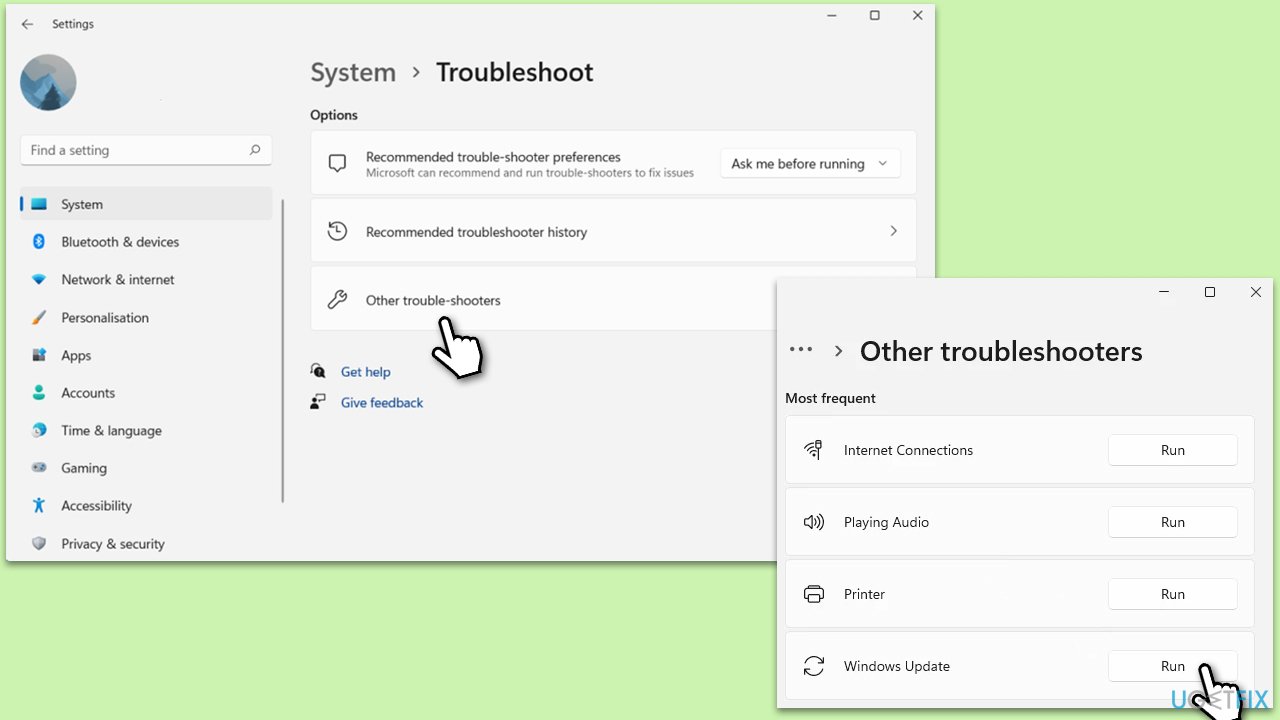
- Type Troubleshoot in Windows search and press Enter.
- Go to Other troubleshooters.
- Find Windows Update from the list and click Run.
- The troubleshooter will automatically scan your system for potential problems and display any issues it finds.
- If the troubleshooter finds any issues, it will provide recommended solutions.
Fix 2. Check relevant services
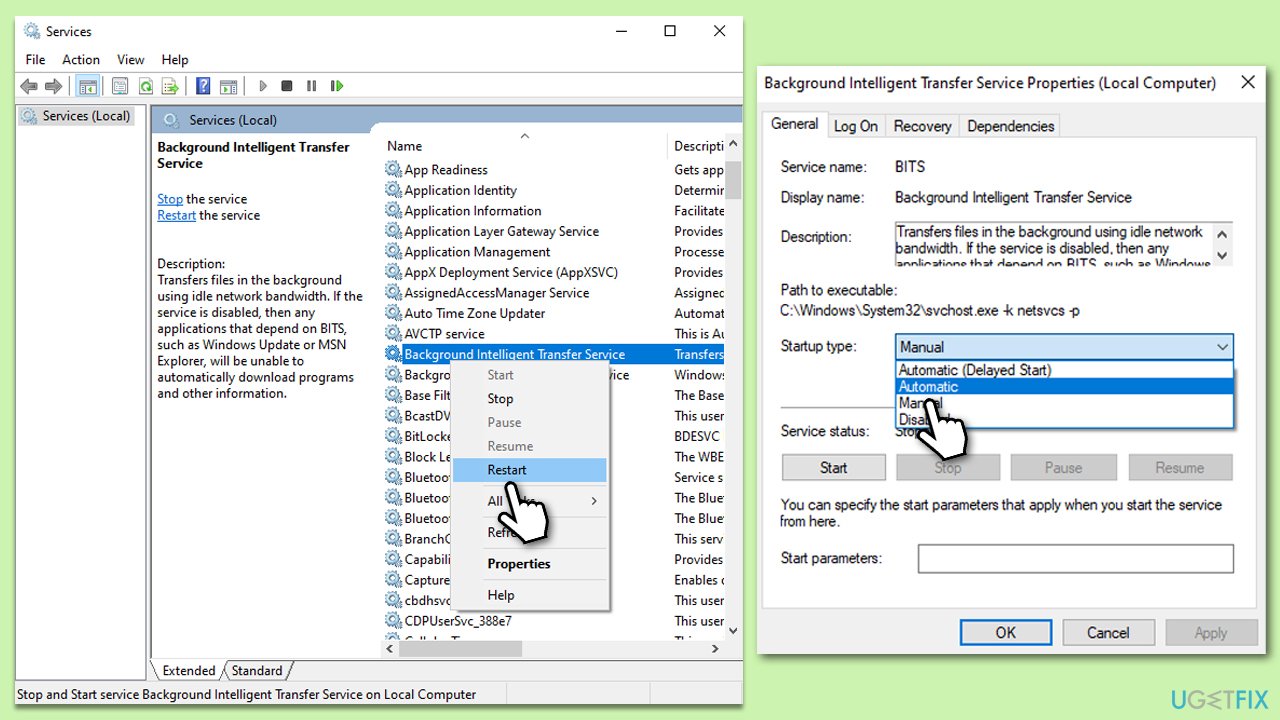
Certain services must be running for Windows updates to install successfully. These include the Background Intelligent Transfer Service (BITS), Windows Update service, and Cryptographic service. Ensuring these services are running can help resolve update installation issues.
- Type in Services in Windows search and press Enter.
- Locate Background Intelligent Transfer Service (BITS).
- If it is already running, right-click and select Restart.
- If the service is not running, double-click it, and pick Automatic under the Startup type from the drop-down menu.
- Click Start, Apply, and OK.
- Repeat this process with Windows Update and Cryptographic services.
Fix 3. Perform SFC and DISM scans
System File Checker (SFC) and Deployment Image Servicing and Management (DISM) are tools that repair Windows system files and system image. Running these scans can fix corrupted files that may hinder the update installation.
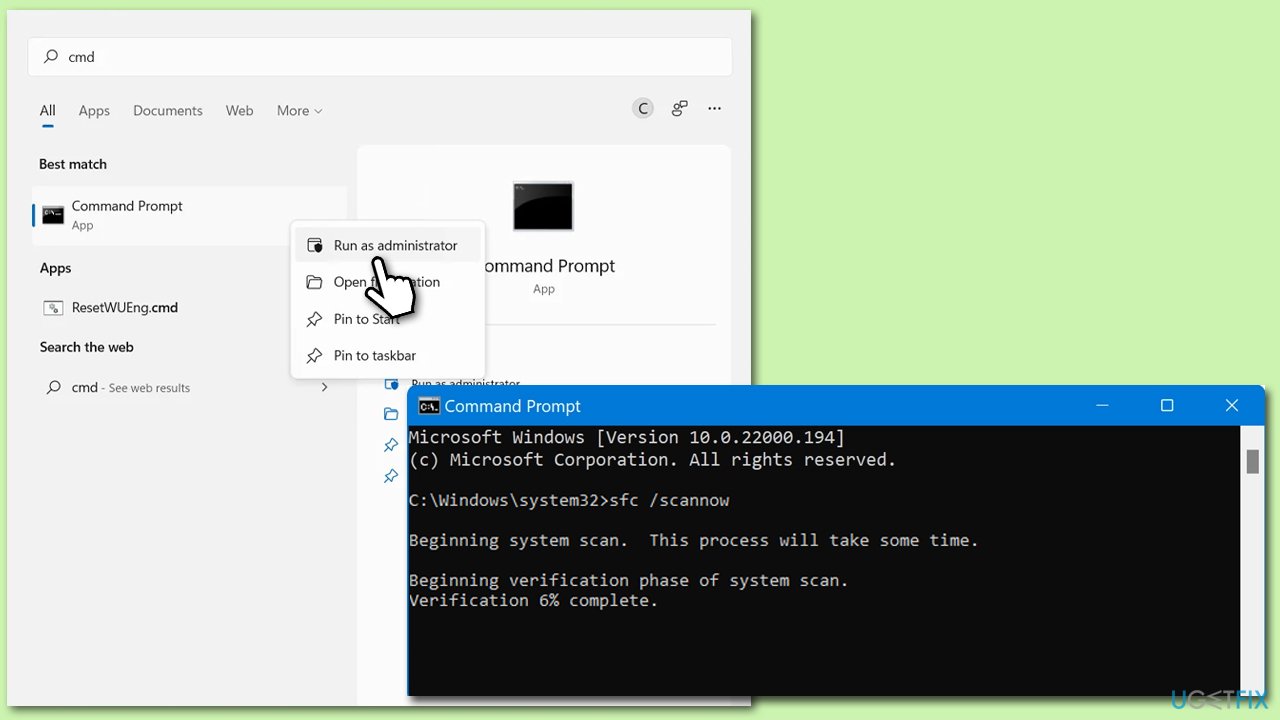
- Type cmd in Windows search.
- Right-click on Command Prompt and pick Run as administrator.
- User Account Control window will show up - click Yes when prompted.
- Then, copy and paste the following command, pressing Enter after:
sfc /scannow - Wait till the scan is finished. If Windows finds system file integrity violations, it will attempt to fix them. After this, use the set of the following commands, pressing Enter each time:
DISM /Online /Cleanup-Image /CheckHealth
DISM /Online /Cleanup-Image /ScanHealth
DISM /Online /Cleanup-Image /RestoreHealth - (Note: if you get an error executing this last command, add /Source:C:\RepairSource\Windows /LimitAccess to it and try again).
- Close down the Command Prompt and restart your system.
Fix 4. Reset Windows update components
Resetting Windows Update components involves restarting the BITS and Windows Update services and deleting temporary update files. This can resolve issues with failed update installations.
- Open Command Prompt as administrator.
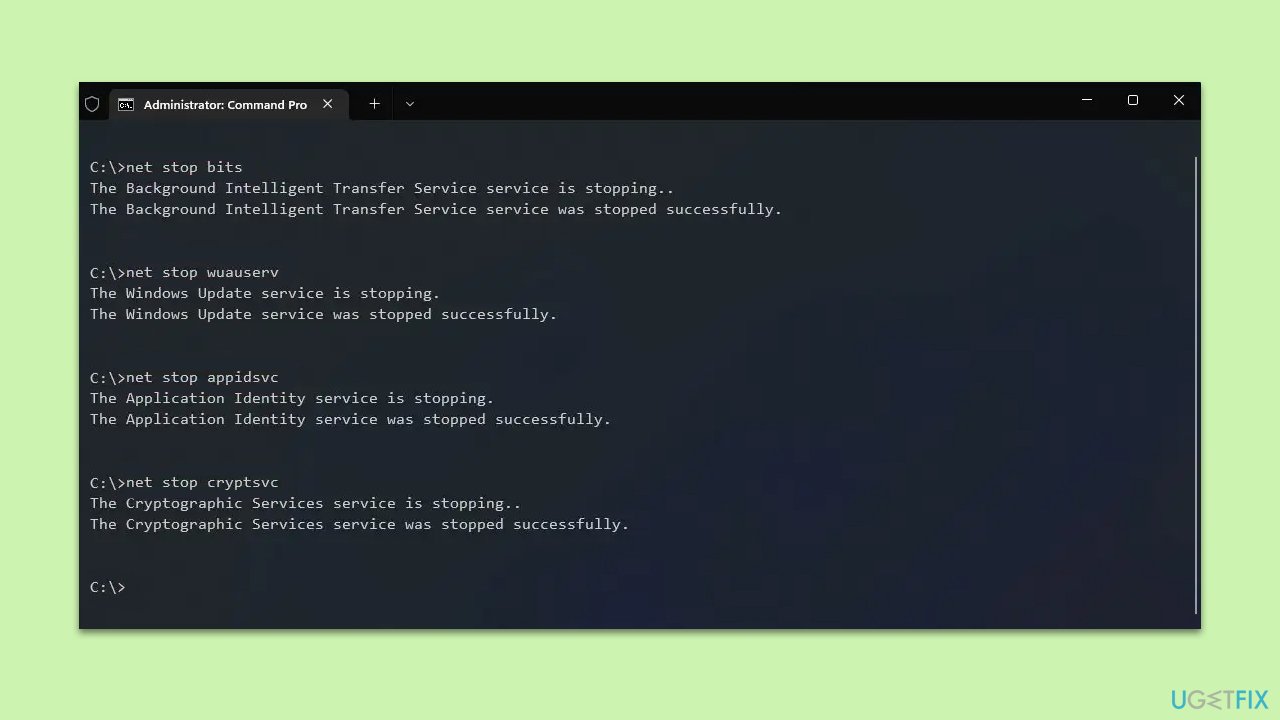
- Stop the Windows Update Services by entering the following commands, one at a time, and pressing Enter after each:
net stop wuauserv
net stop cryptSvc
net stop msiserver
net stop bits - Rename the SoftwareDistribution and Catroot2 folders with the following commands:
ren C:\Windows\SoftwareDistribution SoftwareDistribution.old
ren C:\Windows\System32\catroot2 catroot2.old - Restart the services you stopped earlier with these commands:
net start wuauserv
net start cryptSvc
net start msiserver
net start bits - Close the Command Prompt window and try running the Windows Update again.
Fix 5. Run Disk Cleanup
Disk Cleanup helps free up space on your drive by removing temporary files, system files, and other unnecessary files. Adequate space is crucial for installing updates.
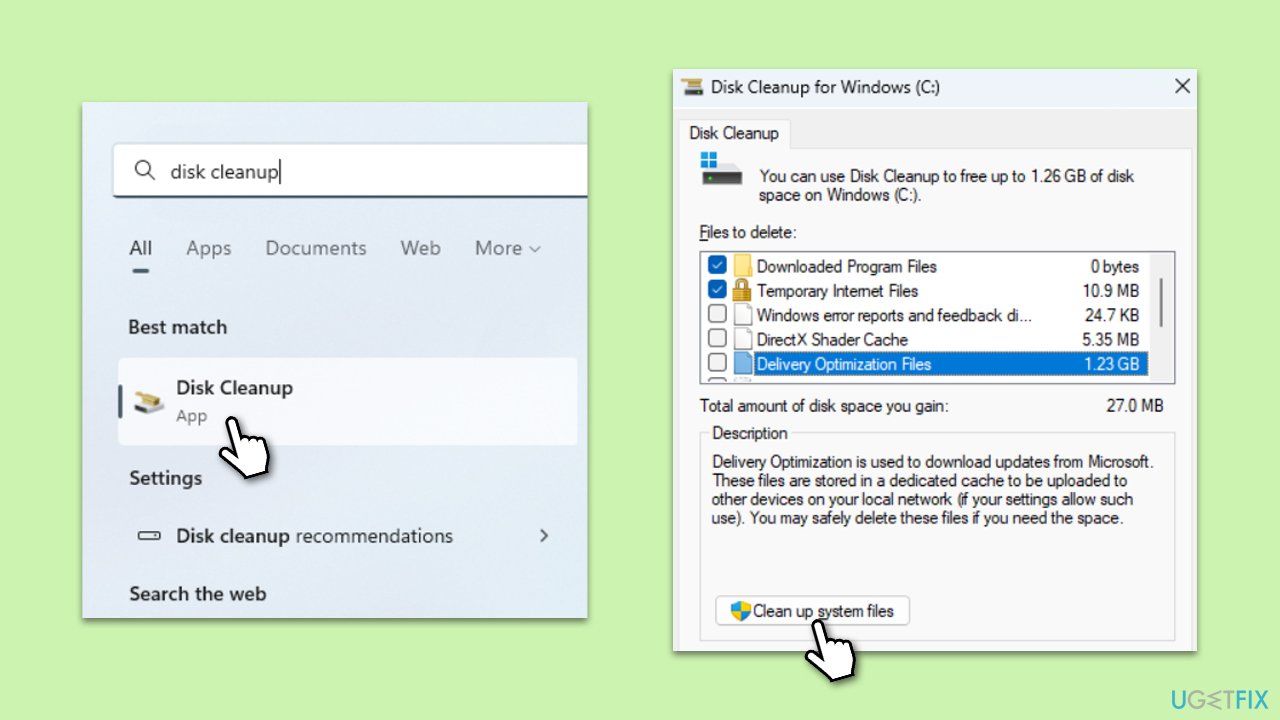
- Open the Windows search bar and type Disk Cleanup. Press Enter to open the Disk Cleanup utility.
- In the Disk Cleanup window, click Clean up system files.
- Select the drive again and click OK.
- In the list of files that can be cleaned up, select the largest portions of data, such as Windows Update, Temporary Internet Files, Temporary Files, and others.
- Click OK to begin the cleanup process.
Fix 6. Temporarily disable security and similar software
Sometimes, antivirus, firewall, or other security software can interfere with the update process. Temporarily disabling these can allow the update to be installed.
- Open your security software.
- Look for an option to temporarily disable it.
- Remember to re-enable it after attempting the update.
Fix 7. Check Disk for errors
Checking the disk for errors can identify and fix issues with the file system or hard drive that may prevent Windows updates from installing.
- Open Command Prompt as administrator.
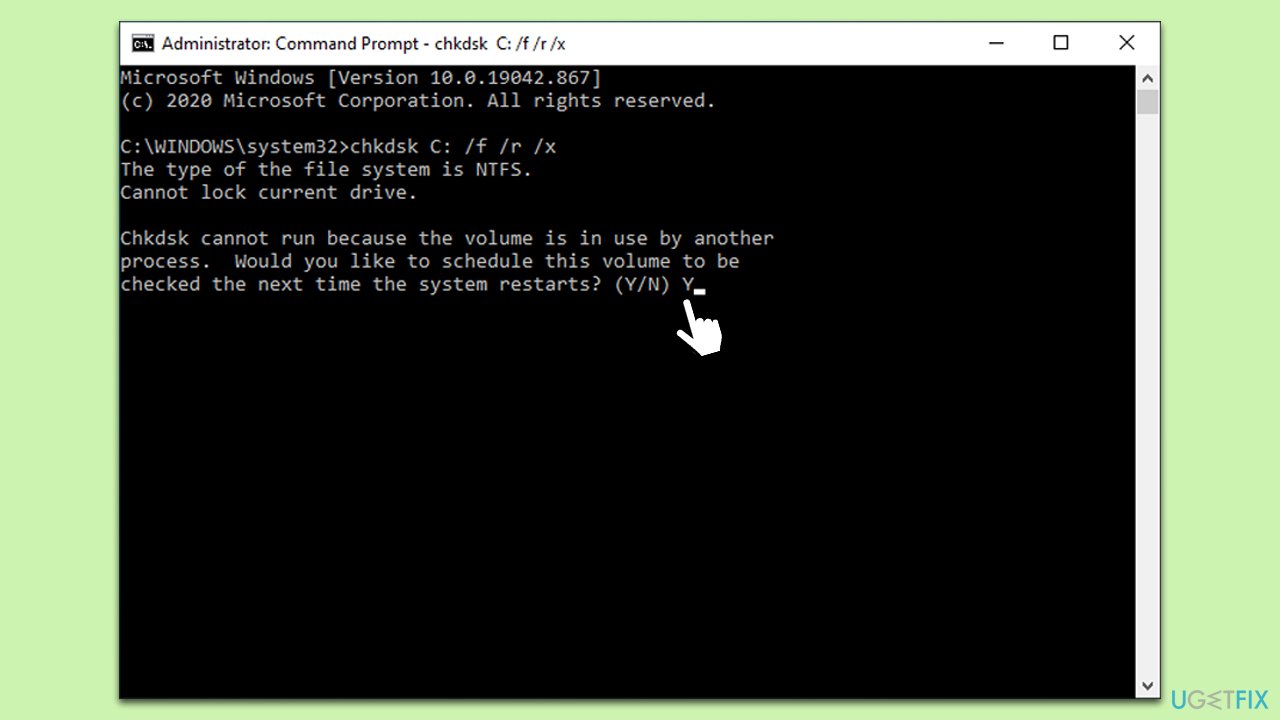
- In the new window, type in the following command and press Enter after:
chkdsk c: /f
(Note: use chkdsk c: /f /r /x command if you are using SSD as your primary partition. Also, replace c: with another drive letter if you are not using default) - If you receive an error, type in Y, close down Command Prompt and restart your computer.
- Wait till the scan is finished.
Bottom line
To resolve the installation failure of KB5033453, ensure you have adequate storage space and that your system is up to date with all previous updates. Running a system file check can help identify and repair any corrupted files. If these steps do not work, consider using reliable PC repair software to automatically detect and fix underlying issues.
Frequently asked questions
First, try running the Windows Update Troubleshooter, which can help identify and fix issues with updates. If that doesn't work, consider manually downloading and installing the update from the Microsoft Update Catalog.
Yes, third-party antivirus programs can sometimes block updates like KB5033453; temporarily disabling them may allow the installation to proceed. Remember to re-enable your antivirus after the update.
You can use the Disk Cleanup tool to remove unnecessary files and free up space for updates. Additionally, consider uninstalling unused applications or moving files to an external drive.




Report an issue
What's wrong with this guide? We review every report and update or remove content.
Report received — thank you. We'll review and fix it.
You need a free account to submit a report.
Be the first to comment