How to fix
KB5034015 fails to install
on Windows
Resolve the KB5034015 installation error in Windows 11 quickly and easily. Get expert-tested solutions for a seamless update experience. Fixed in minutes!

What causes How to fix KB5034015 fails to install in Windows 11?
- Corrupted system files
- Conflicts with existing software
- Driver compatibility issues
- Limited storage space
- Specific system configurations
Repairs Windows system files, removes malware, and restores a clean OS state — without reinstalling.
I can't install KB5034015 Windows Preview build 26010. Is there anything that can be done to resolve this?
Microsoft's Windows Insider Program is essential in evolving the Windows operating system, allowing participants to access and provide feedback on preview builds. These early versions of software updates, like the Cumulative update KB5034015, released on December 12, 2023, are tested for stability and performance before general release.
KB5034015 is particularly noteworthy, offering substantial enhancements to Windows 11, including updates to the Copilot feature, taskbar, and settings interface, and addressing various known issues such as system hangs and application crashes.
However, for some users, KB5034015 fails to install in Windows 11. The failure to install the update can be attributed to several factors, such as corrupted system files in Windows can obstruct the update process, while conflicts with existing software or drivers might impede compatibility with the new update. Limited storage space or specific system configurations may also play a role in these installation difficulties.
For those who can't install KB5034015, a few general steps can be considered. Conducting a system file check to identify and repair corrupted files, ensuring ample storage space, and updating drivers and software can be beneficial. These are broad recommendations and not precise troubleshooting instructions.
While KB5034015 aims to enhance Windows 11, its installation issues underscore the complexity of software updates. For persistent problems, a PC repair tool like [d1] can offer an automated solution, potentially smoothing the update process.
Fix 1. Run Windows update troubleshooter
The Windows update troubleshooter is an automated tool provided by Microsoft that can identify and fix problems related to Windows updates. It works by scanning your system for issues that might be preventing Windows updates from installing properly and then attempting to resolve them automatically.
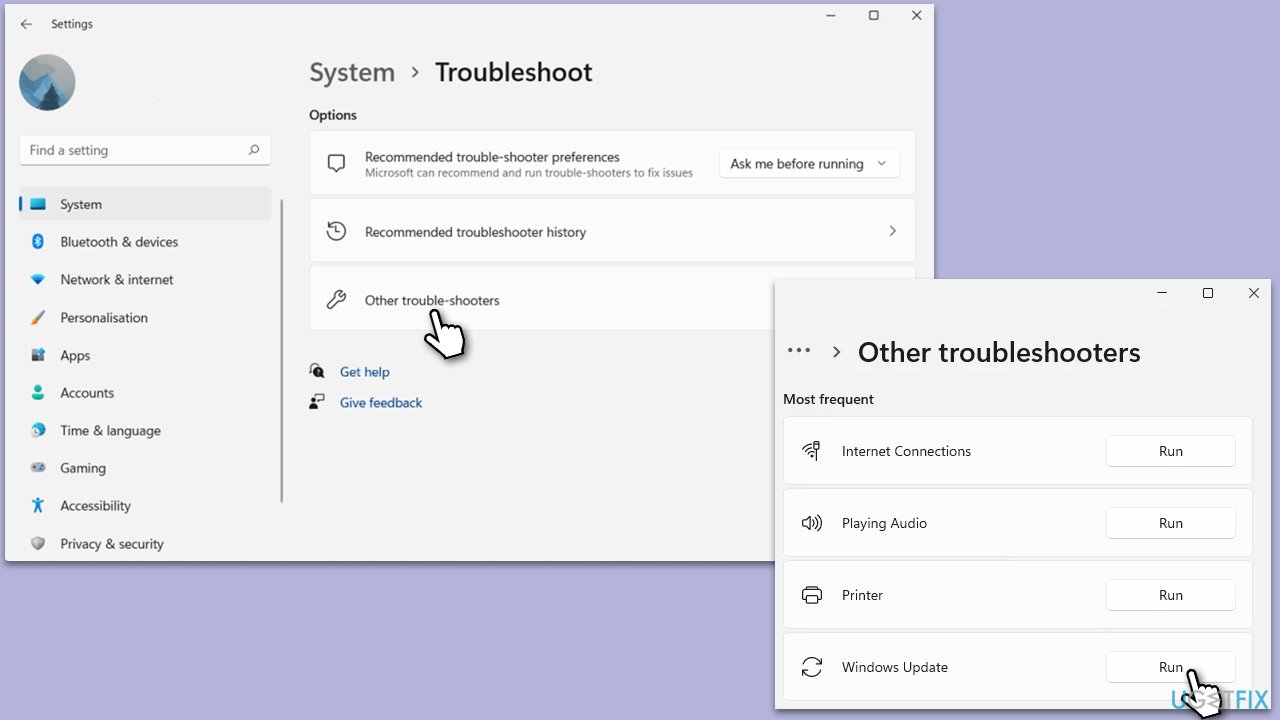
- Type Troubleshoot in Windows search and press Enter.
- Go to Other troubleshooters.
- Find Windows Update from the list and click Run.
- The troubleshooter will automatically scan your system for potential problems and display any issues it finds.
- If the troubleshooter finds any issues, it will provide recommended solutions.
Fix 2. Check relevant services
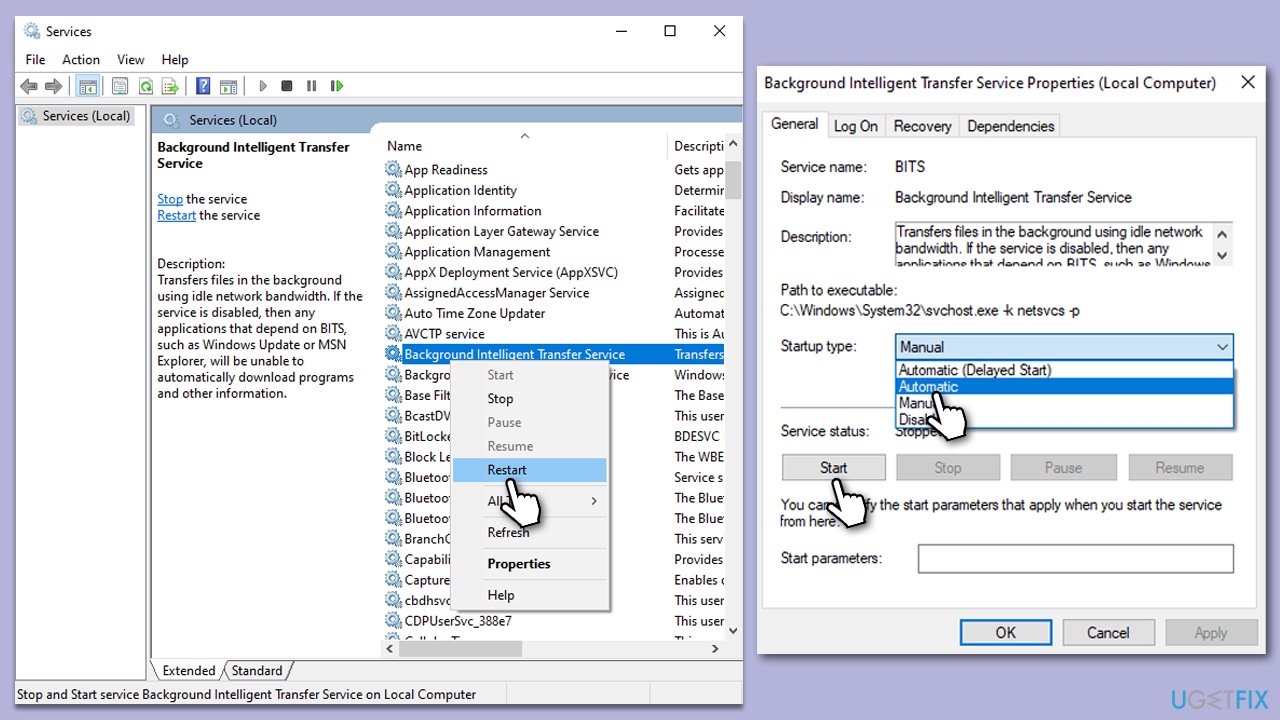
Windows relies on certain services for updates to install correctly. Ensuring that these services are running properly can sometimes resolve update installation issues. The main services to check are the Windows Update service and the Background Intelligent Transfer Service (BITS).
- In Windows search, type Services and press Enter.
- Scroll down and find the Windows Update service.
- Right-click on it and select Properties.
- If the service is not running, click Start. If it is running, restart it by clicking Stop and then Start again.
- Ensure the Startup type is set to Automatic.
- Repeat the same steps for the Background Intelligent Transfer Service (BITS).
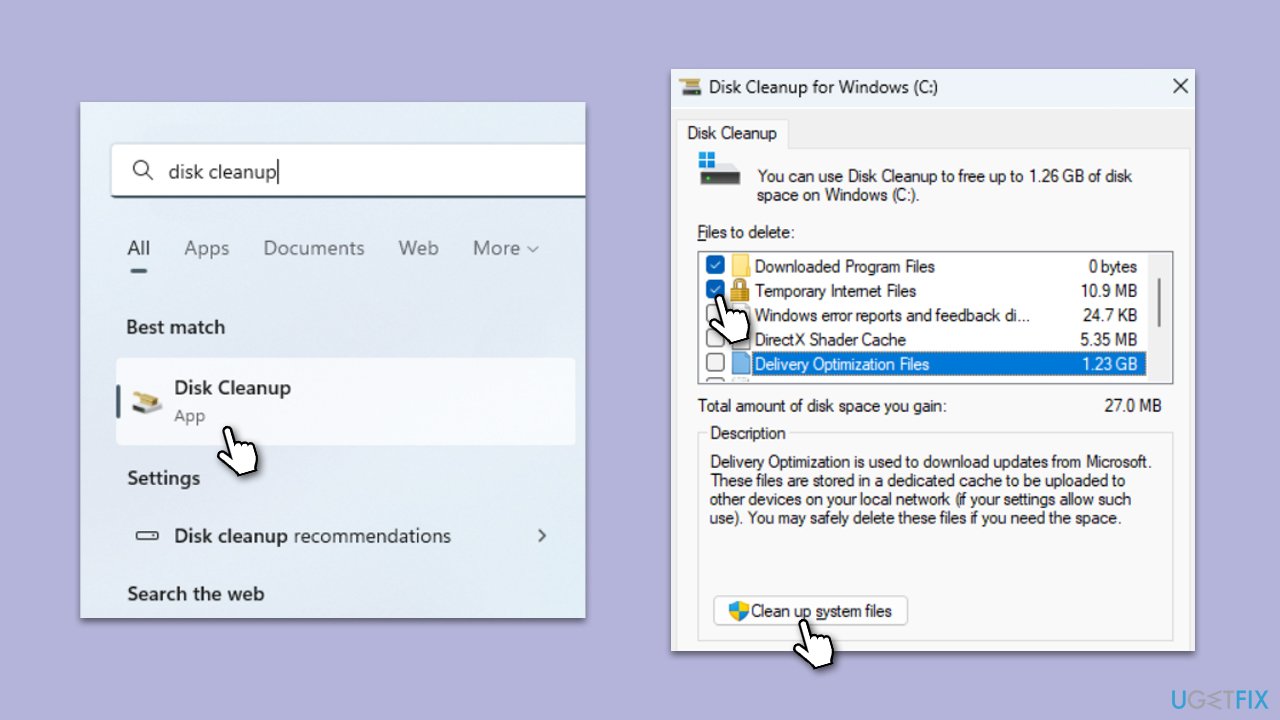
Fix 3. Perform Disk Cleanup
Disk Cleanup is a built-in utility that helps you free up space on your hard disk by removing temporary files, system files, and other unnecessary data. A lack of space can prevent updates from being downloaded and installed.
- Type Disk Cleanup in Windows search and hit Enter.
- If your Windows is installed on drive C, pick it from the list (should be by default) and press OK.
- Click Clean up system files.
- Select your main drive again and click OK.
- Here, select the largest portions of the data used - these typically include Temporary Internet Files, Windows Update, Temporary Files, Recycle Bin, Delivery Optimization Files, and others. Marking Windows Update is vital here.
- Click OK - the process should be finished shortly.
Fix 4. Temporarily disable third-party security software
Sometimes, third-party security software can interfere with the installation of Windows updates. Temporarily disabling this software can help to determine if it is the cause of the update issue.
- Open your third-party antivirus or security software.
- Navigate to the settings within the software.
- Look for an option to disable or turn off the protection temporarily.
- Select the duration for which you want to disable the security software.
- Try updating Windows again.
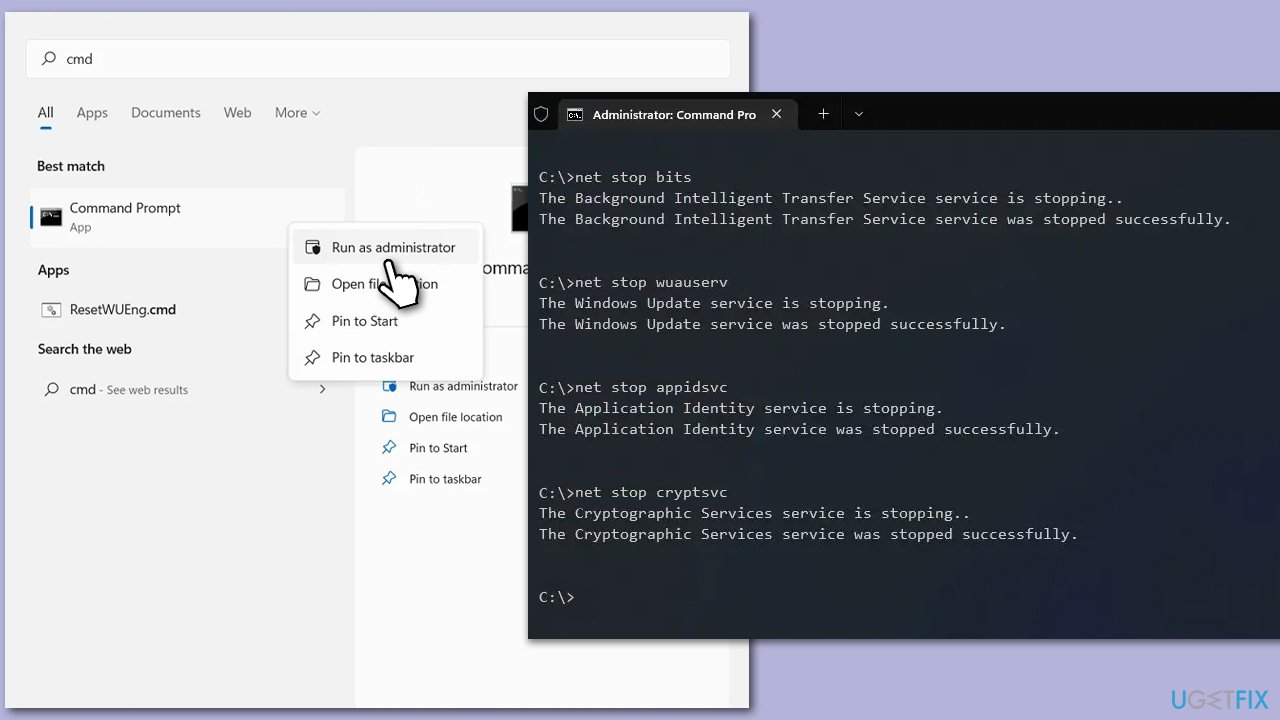
Fix 5. Reset Windows update components
Resetting the Windows update components involves stopping the Windows update service and clearing the temporary files and cache that may be causing the problem.
- Type cmd in Windows search, right-click on Command Prompt result and select Run as administrator.
- When the UAC window pops up, click Yes.
- In the new window, copy and paste the following commands, pressing Enter after each to execute them:
net stop bits
net stop wuauserv
net stop appidsvc
net stop cryptsvc
Del “%ALLUSERSPROFILE%\Application Data\Microsoft\Network\Downloader\*.*”
rmdir %systemroot%\SoftwareDistribution /S /Q
rmdir %systemroot%\system32\catroot2 /S /Q
regsvr32.exe /s atl.dll
regsvr32.exe /s urlmon.dll
regsvr32.exe /s mshtml.dll
netsh winsock reset
netsh winsock reset proxy
net start bits
net start wuauserv
net start appidsvc
net start cryptsvc - Restart your PC.
Fix 6. Check for corrupted files
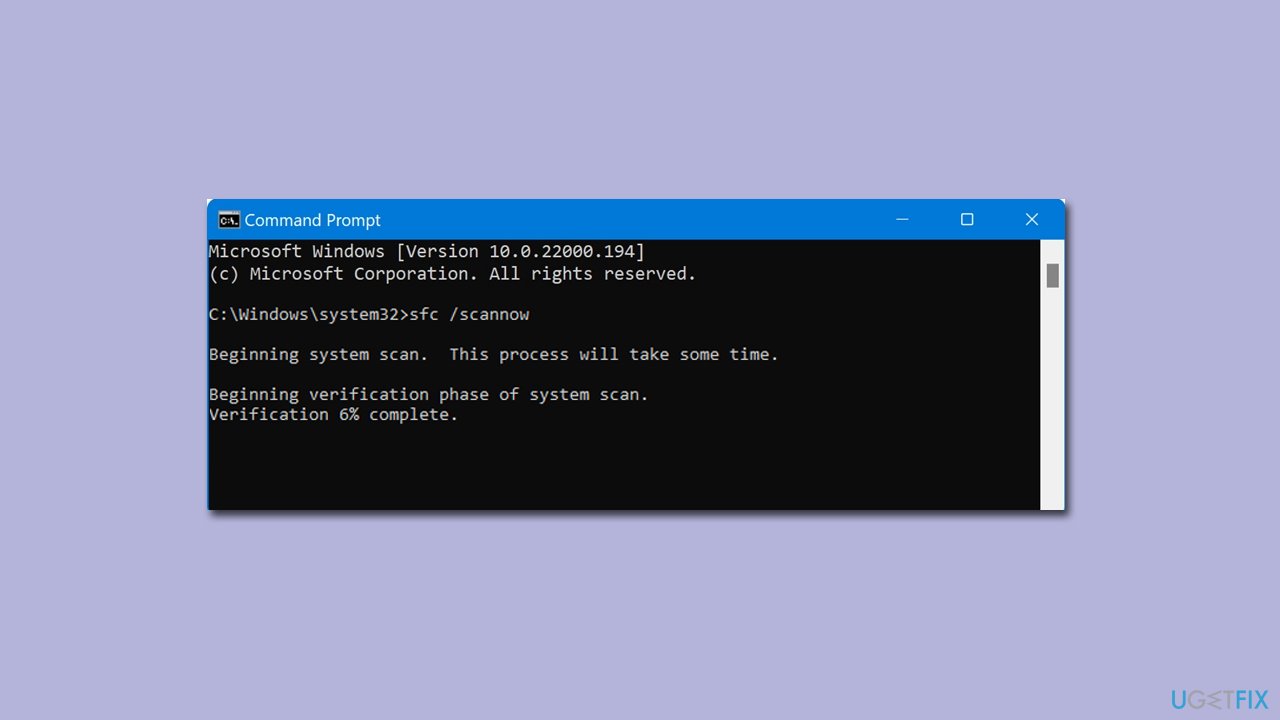
System File Checker and Deployment Image Servicing and Management are utilities in Windows that can find and repair corrupt system files. Running these scans can help fix issues that are preventing Windows updates from installing.
- Open Command Prompt as administrator, as explained before.
- Copy and paste the following command and press Enter:
sfc /scannow - Next, use the following commands, pressing Enter each time:
Dism /Online /Cleanup-Image /CheckHealth
Dism /Online /Cleanup-Image /ScanHealth
Dism /Online /Cleanup-Image /RestoreHealth
(Note: if you get an error executing this last command, add /Source:C:\RepairSource\Windows /LimitAccess to it and try again). - Reboot your device.
Bottom line
To resolve the installation failure of KB5034015, you can run the Windows update troubleshooter, conduct a system file check, ensure you have ample storage space, and update your drivers and software. If these steps do not resolve the issue, consider using a PC repair tool for an automated solution.
Frequently asked questions
First, try restarting your computer and attempt the installation again. If it still fails, consider running the Windows Update Troubleshooter to diagnose and fix potential issues.
Yes, you can manually download the update from the Microsoft Update Catalog and install it directly on your Windows 11 system.
Common reasons include corrupted system files, insufficient disk space, or conflicts with third-party software. Running a system file check or ensuring adequate space may help resolve these issues.




Report an issue
What's wrong with this guide? We review every report and update or remove content.
Report received — thank you. We'll review and fix it.
You need a free account to submit a report.
Be the first to comment