How to fix
KB5034122 fails to install
on Windows
Resolve KB5034122 installation issues on Windows 10 quickly and effectively. Follow our expert-tested solutions to get your system back on track!

What causes How to fix KB5034122 fails to install in Windows 10?
- Problems with the update cache
- Corruption of system files
- Complexity of services supporting the update process
- Temporary files needed for updates are corrupted
Repairs Windows system files, removes malware, and restores a clean OS state — without reinstalling.
I can't install the latest update KB5034122 on Windows, as it keeps coming up with an error, saying that updates failed. Any tips you can provide me so I can be able to install it?
The Windows operating system is known for its consistent updates and regularly receives enhancements from Microsoft to improve functionality, address security concerns, and fix bugs. These updates are typically shipped in a monthly cycle called "Patch Tuesday" and are each identified by a unique Knowledge Base (KB) number. This identifier is very important because it links to a detailed description of the update on the Microsoft website and helps users and professionals identify and understand the details and significance of each update.
However, the process does not always go smoothly. In some cases, you may encounter issues that prevent you from installing certain updates that are important to the security and optimization of your system. This may prevent your system from updating to the latest version. For example, consider update KB5034122, released on January 9, 2024. This particular update aims to address security issues and improve the Windows 10 servicing stack, a critical component responsible for installing and managing updates.
There could be plenty of reasons why KB5034122 fails to install. The most common causes include problems with the update cache, which stores temporary files needed for updates, or corruption of system files essential to the functioning of the operating system. Additionally, the complexity of the services that support the update process can lead to installation issues.
If you face such problems, it is important to consider some troubleshooting steps. This may include repairing corrupted system files, clearing the update cache to remove corrupted temporary files, resetting update components to default settings, and more. Such measures are aimed at resolving underlying issues that may be interfering with the update process.
For those looking for an easier method, using a professional PC repair tool like [d1] can be an effective solution. These tools are designed to automatically identify and fix underlying issues in your Windows system and remove obstacles that prevent the successful installation of updates like KB5034122.
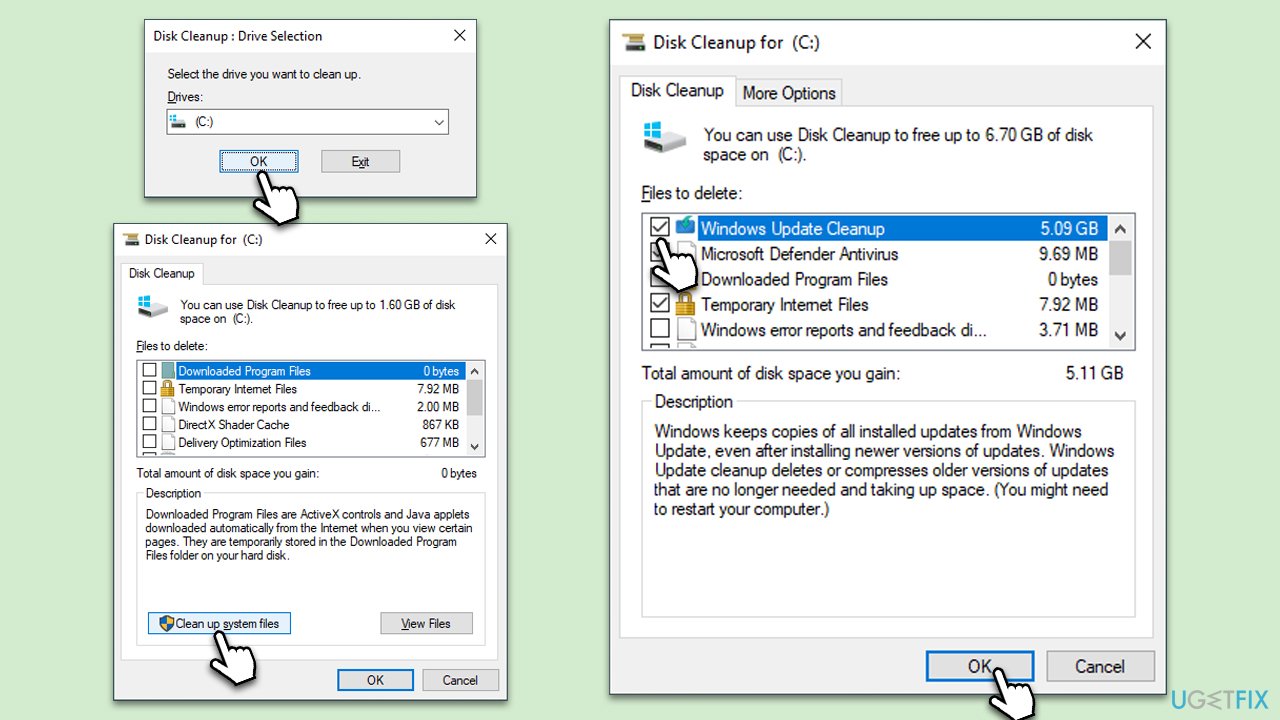
Fix 1. Perform Disk Cleanup
Removing unnecessary files from your system can free up space and potentially resolve certain issues. It removes temporary files, system files, and other items that you might no longer need, including Windows update caches.
- Type Disk Cleanup in Windows search and press Enter to open the Disk Cleanup utility.
- Select the correct drive (C: by default).
- In the Disk Cleanup window, click Clean up system files.
- Select the drive again and click OK.
- In the list of files that can be cleaned up, select the largest portions of data, such as Windows Update, Temporary Internet Files, Temporary Files, and others.
- Click OK to begin the cleanup process.
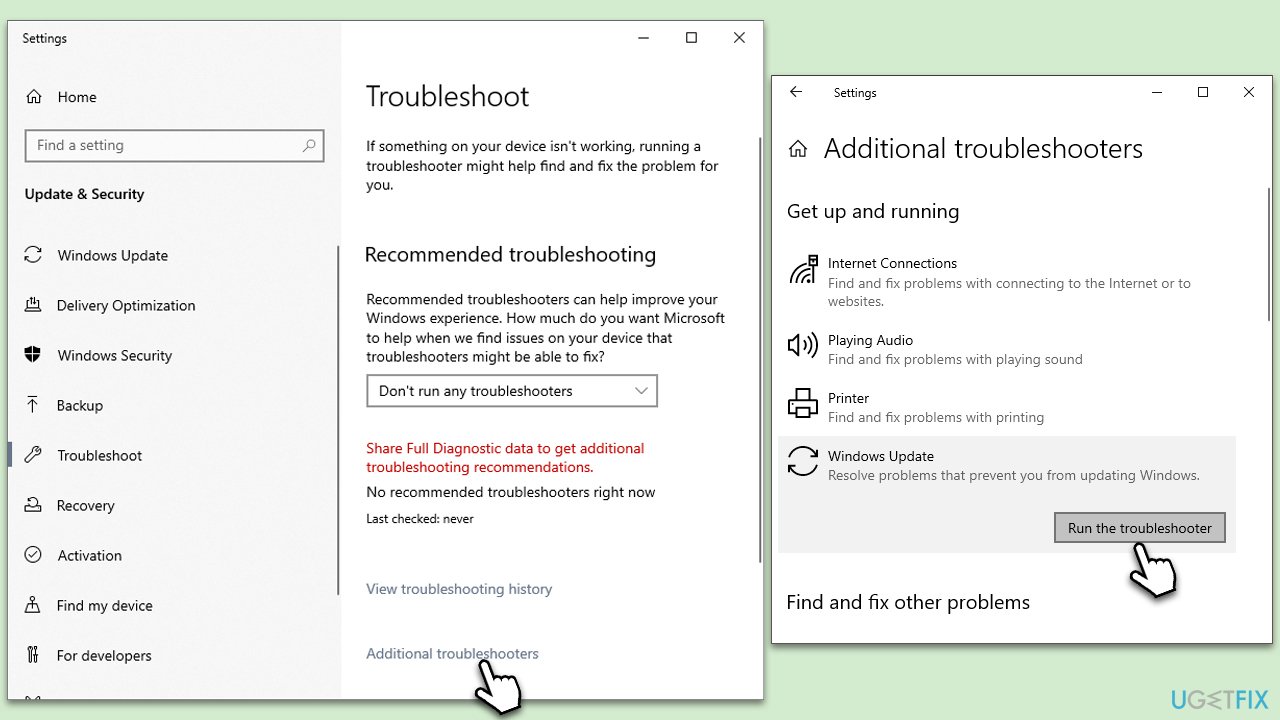
Fix 2. Run Windows update troubleshooter
Windows update troubleshooter is a built-in tool that can automatically find and fix some common problems with Windows updates.
- Type Troubleshoot in Windows search and hit Enter.
- Select Additional troubleshooters.
- Find Windows Update from the list and select Run the troubleshooter.
- Wait till the scan is finished - you will be provided with potential causes so you can proceed with fixes.
- If no suggestions were given, proceed with the solutions below.
Fix 3. Run SFC and DISM scans
Ensure that your system files are not corrupted by running commands in the elevated Command Prompt.
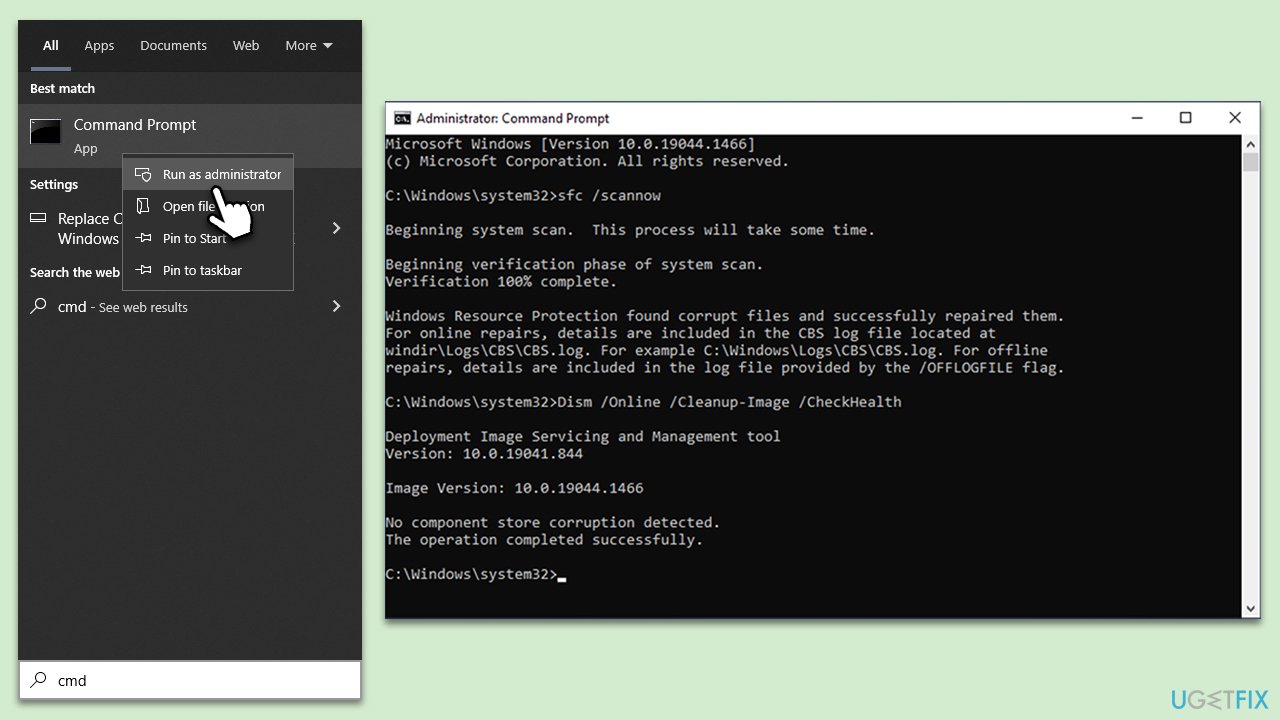
- Type in cmd in Windows search.
- Right-click on Command Prompt and select Run as administrator.
- User Account Control will ask you whether you want to allow making changes to the system - click Yes.
- In the Command Prompt window, paste the following command and hit Enter:
sfc /scannow - Next, use these commands (don't forget to press Enter every time):
Dism /Online /Cleanup-Image /CheckHealth
Dism /Online /Cleanup-Image /ScanHealth
Dism /Online /Cleanup-Image /RestoreHealth - Restart your system.
Fix 4. Check relevant services
Ensuring that certain services related to Windows Update are running properly can help resolve installation issues.
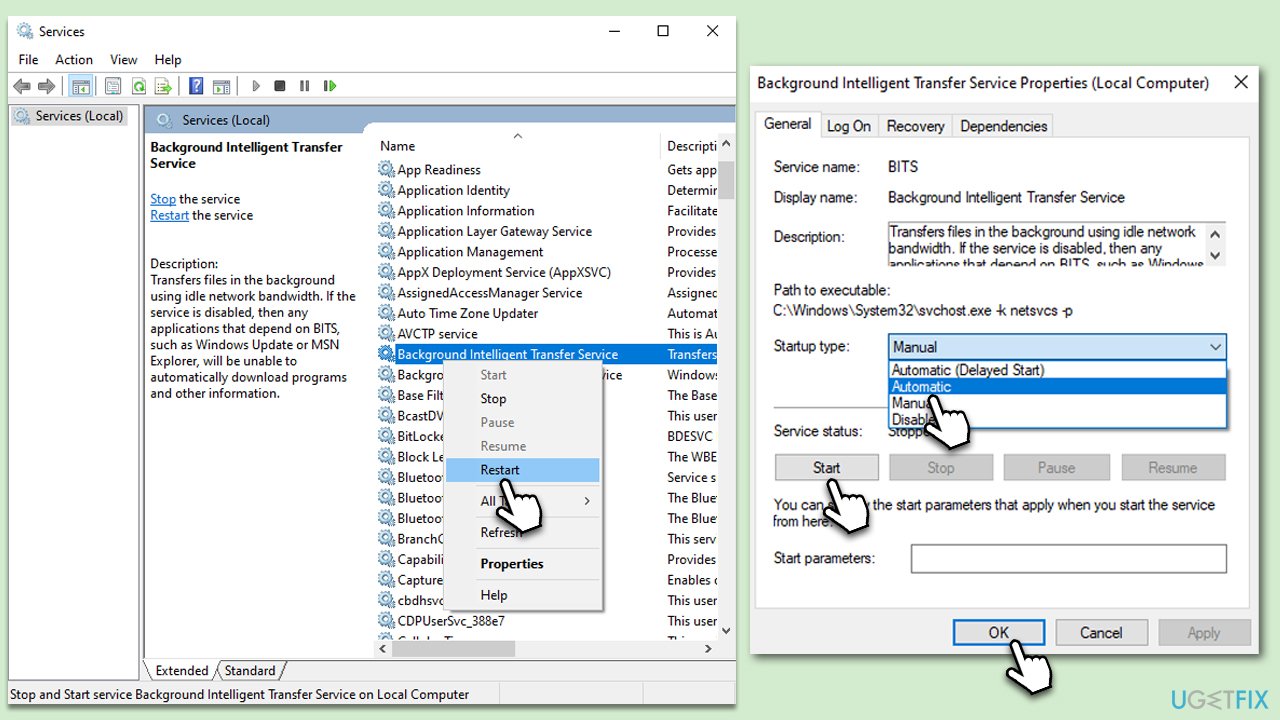
- Type in Services in Windows search and press Enter.
- Find Background Intelligent Transfer Service (BITS).
- If it is already running, right-click and pick Restart.
- If the service is not running, double-click it, and select Automatic under the Startup type from the drop-down menu.
- Click Start, Apply, and OK.
- Repeat this process for Windows Update and Cryptographic services.
Fix 5. Use Clean boot
Performing a clean boot starts Windows with a minimal set of drivers and startup programs. This can help eliminate software conflicts that occur when installing a Windows update.
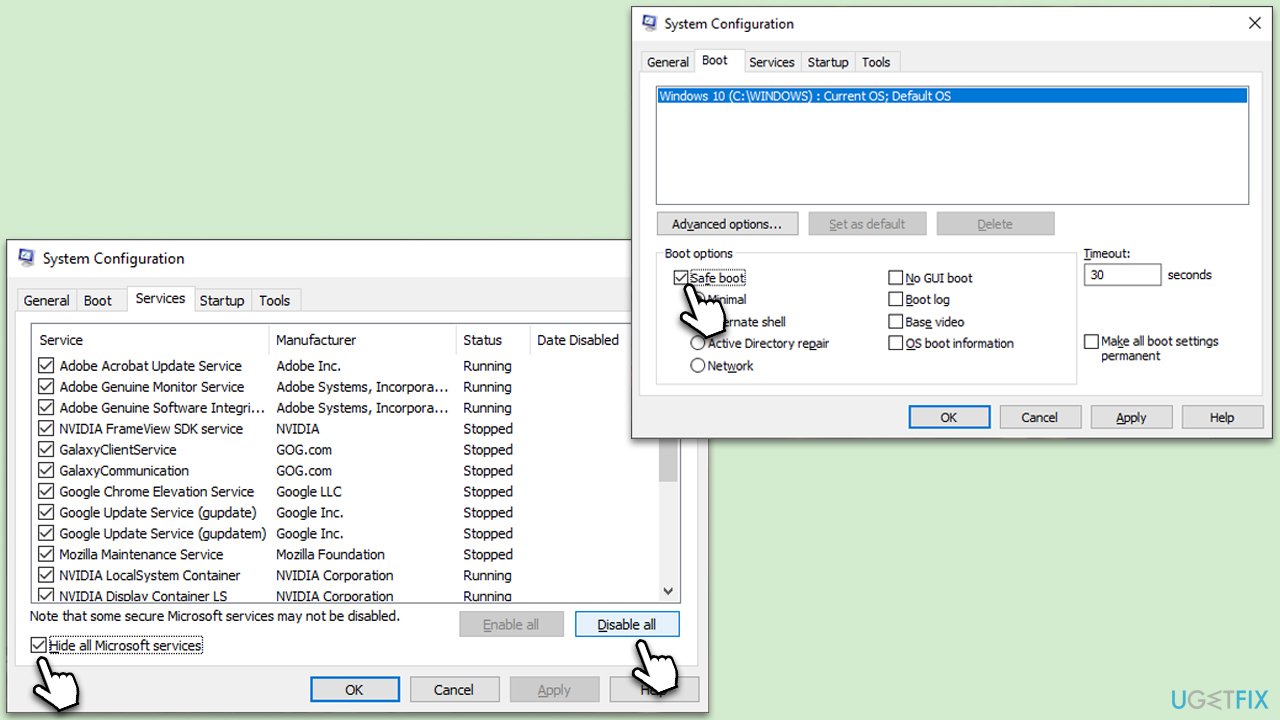
- Type msconfig in Windows search and hit Enter.
- Go to the Services tab and tick the Hide all Microsoft services checkbox.
- Select Disable all.
- Go to the Startup tab and click Open Task Manager.
- Here, right-click on each of the non-Windows entries and select Disable.
- Close down the Task Manager.
- Go to the Boot tab and tick the Safe boot option.
- Restart your device.
- Attempt to update Windows again.
Fix 6. Reset Windows update components
Resetting Windows Update components can resolve issues preventing updates from installing by refreshing the update process.
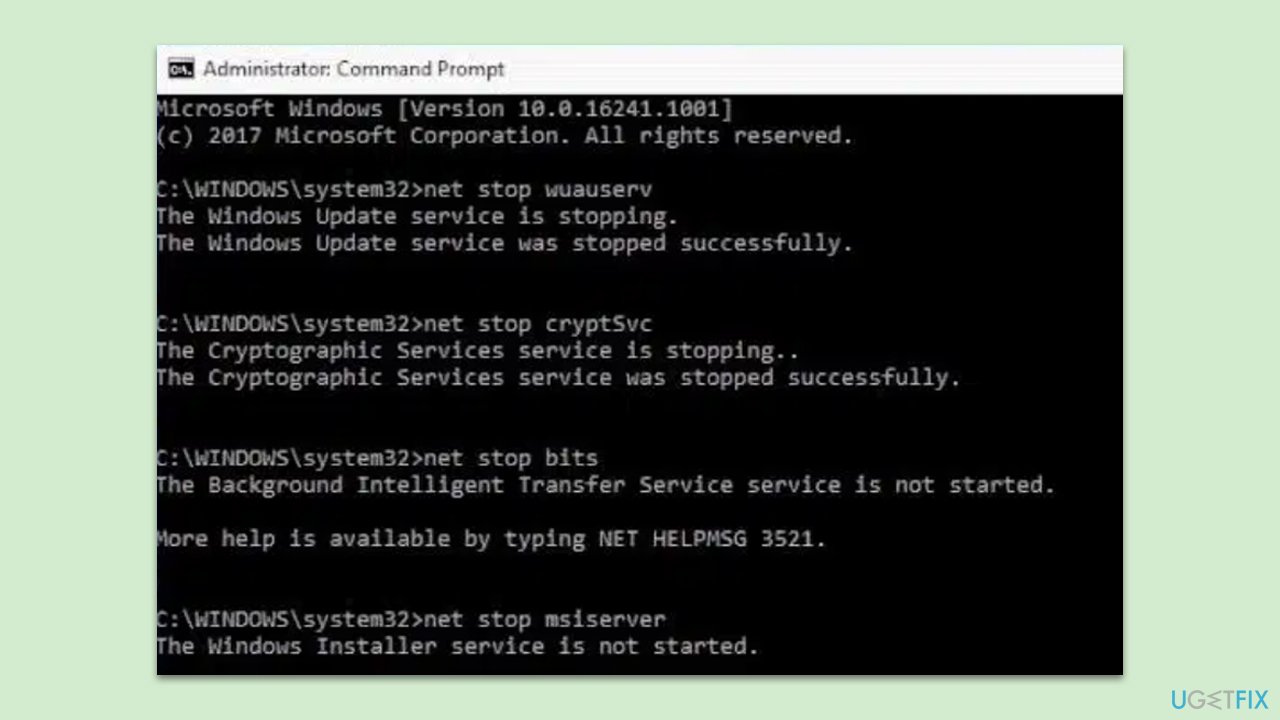
- Open Command Prompt as administrator.
- Stop the Windows Update-related services by running the following commands one at a time, pressing Enter after each one:
net stop wuauserv
net stop cryptSvc
net stop bits
net stop msiserver - Rename the SoftwareDistribution and Catroot2 folders by running the following commands:
ren C:\Windows\SoftwareDistribution SoftwareDistribution.old
ren C:\Windows\System32\catroot2 Catroot2.old
Note: If your Windows installation is not on the C drive, replace "C" with the appropriate drive letter. - Restart the Windows Update-related services by running the following commands:
net start wuauserv
net start cryptSvc
net start bits
net start msiserver - Reboot your system.
Fix 7. Install the update manually
If automatic updates fail, you can manually download and install the update from the Microsoft Update Catalog.
- Open your browser and go to Microsoft Update Catalog.
- In the search bar, type in KB5034122 and click Search.
- Find the correct version of the update for your operating system (to check this, right-click on Start and pick System. Under Device specifications, check the System type. Also check Windows version) and click Download.
- Use on-screen guidelines to finish the installation process and restart your system.
Bottom line
To resolve the installation issue with update KB5034122, consider repairing corrupted system files, clearing the update cache, and resetting update components to their default settings. If these steps do not work, using a professional PC repair tool may help identify and fix underlying issues.
Frequently asked questions
First, try running the Windows Update Troubleshooter to identify and fix any issues. If that doesn't work, consider manually downloading the update from the Microsoft Update Catalog.
You can view the update history in the Settings app under Update & Security to see if KB5034122 is listed as failed. Additionally, check for any error codes that may provide more insight into the problem.
To minimize installation issues, ensure your Windows 10 is fully updated and that you have sufficient disk space. Regularly running system maintenance tools can also help keep your system in good condition.




Report an issue
What's wrong with this guide? We review every report and update or remove content.
Report received — thank you. We'll review and fix it.
You need a free account to submit a report.
Be the first to comment