How to fix
KB5034203 fails to install
on Windows
Resolve KB5034203 installation issues in Windows 10 effortlessly with expert tips and solutions. Get your updates fixed in minutes!

What causes How to fix KB5034203 fails to install in Windows 10?
- Corrupted system files
- Issues with Windows update components
- Problems with the Windows image
- Interference from third-party software
- Insufficient disk space
Repairs Windows system files, removes malware, and restores a clean OS state — without reinstalling.
Hi there. I would like you to help me with a Windows update issue. I noticed that there are new updates (KB5034203) available and they should've been installed but they failed. It says that Windows will try later but it does not help.
KB5034203 is a Preview build released on January 23, 2024, for all Windows users. It allows them to check new Windows features and bug fixes before they are officially released on Path Tuesday, hence making the whole process exciting.
In this month's Preview, Microsoft addressed an issue that affected single-function printers, improved numerous functions, and implemented a new feature meant to weather widgets in the lock screen. This update is only applicable to users who run Windows 10 version 22H2.
Unfortunately, KB5034203 fails to install for some users, which can annoying for those who want to check the new Windows versions. This happens when users initiate the update, and it stops at a certain percentage, then provides the "Updates failed" error message, which may or may not include an error code.
While it is not always clear why KB5034203 is failing to install, there are several board solutions that work for most users when it comes to problems with Windows updates. Running Windows update troubleshooter, resetting Windows update components, fixing corrupted files, and other solutions can be used to address this issue.
Below we provide 6 methods you can use in order to install the Preview update correctly. If the issue persists, you can always try a powerful automatic PC repair solution [d1].
Fix 1. Check your system files for corruption
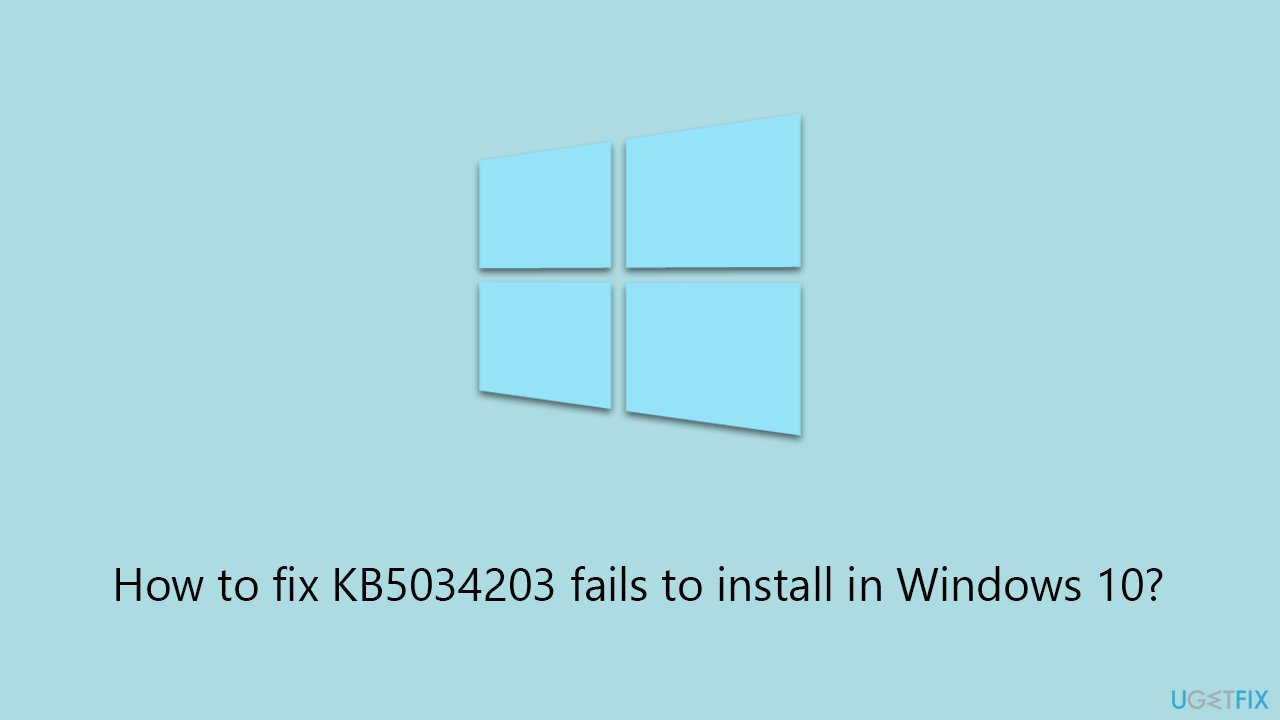
SFC and DISM are tools that can repair corrupted files and restore Windows Image if it's damaged. For that, you need to run elevated Command Prompt:
- Type cmd in Widnows search.
- Right-click on Command Prompt and pick Run as administrator.
- Type in the following command and press Enter:
sfc /scannow - When done, run the following commands as well:
dism /online /cleanup-image /scanhealth
dism /online /cleanup-image /checkhealth
dism /online /cleanup-image /restorehealth
(Note: if you get an error executing this last command, add /Source:C:\RepairSource\Windows /LimitAccess to it and try again). - Restart your computer.
Fix 2. Disable anti-malware software or try Clean Boot
- Disable your anti-malware software temporarily and try the update again.
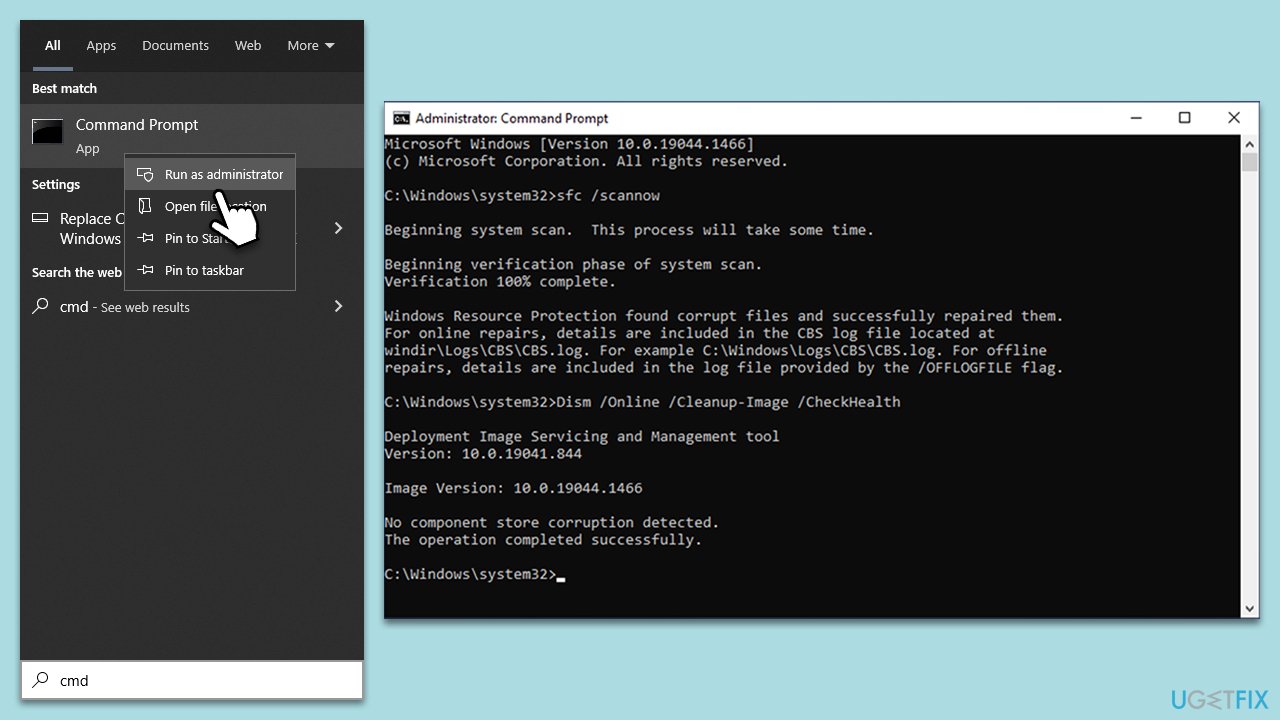
- If the problem persists, press Win + R, type msconfig, and hit Enter.
- Go to the Services tab and tick the Hide all Microsoft services checkbox.
- Select Disable all.
- Go to the Startup tab and click Open Task Manager.
- Here, right-click on each of the non-Windows entries and select Disable.
- Close down the Task Manager.
- Go to the Boot tab and tick the Safe boot option.
- Restart your device and attempt to apply the update.
Fix 3. Run the troubleshooter
These built-in tools are convenient and often provide a solution to a particular problem one is having in Windows. In this case, we will be running Windows update troubleshooter:
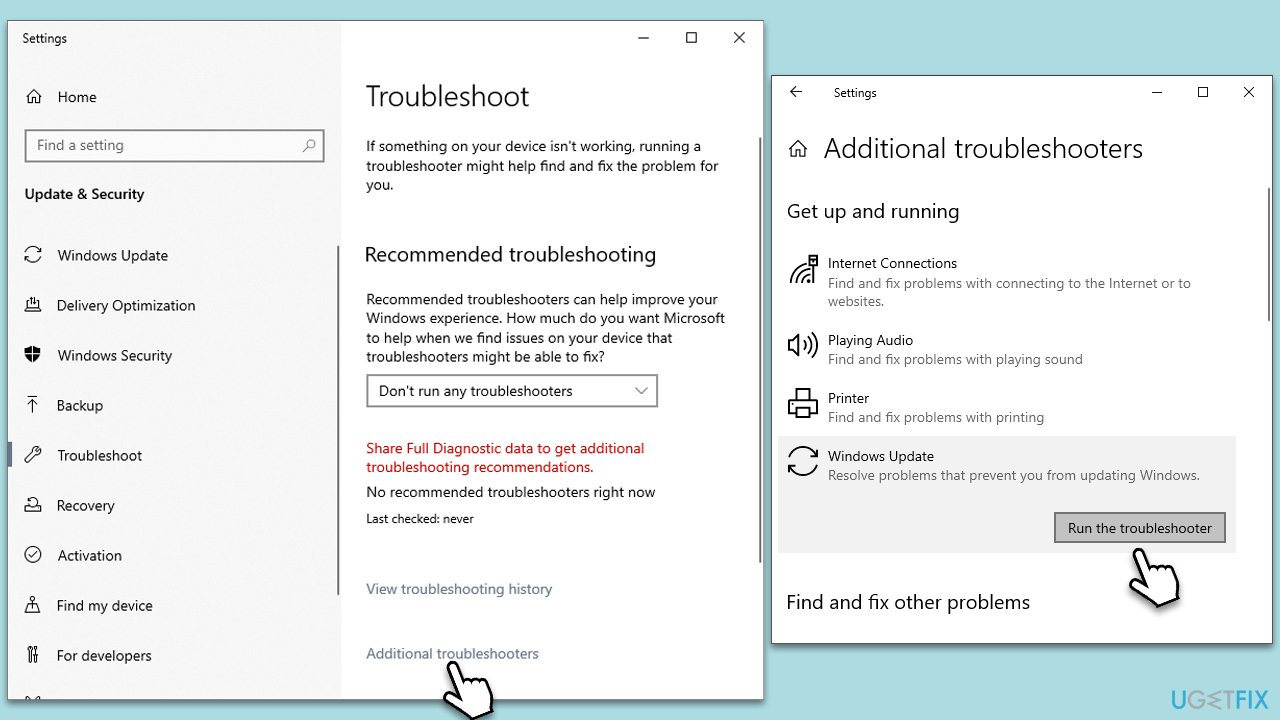
- Type Troubleshoot into the Windows search bar and press Enter.
- Next, on the right side of the window, select Additional troubleshooters.
- Scroll down to locate the Windows update option and click on it.
- Click on Run the troubleshooter and allow the process to complete.
- Once it is finished, implement any recommended fixes and restart your computer.
Fix 4. Enable or restart relevant services
Certain system services are needed for Windows updates to install successfully, so make sure they are running or restart them as an alternative.
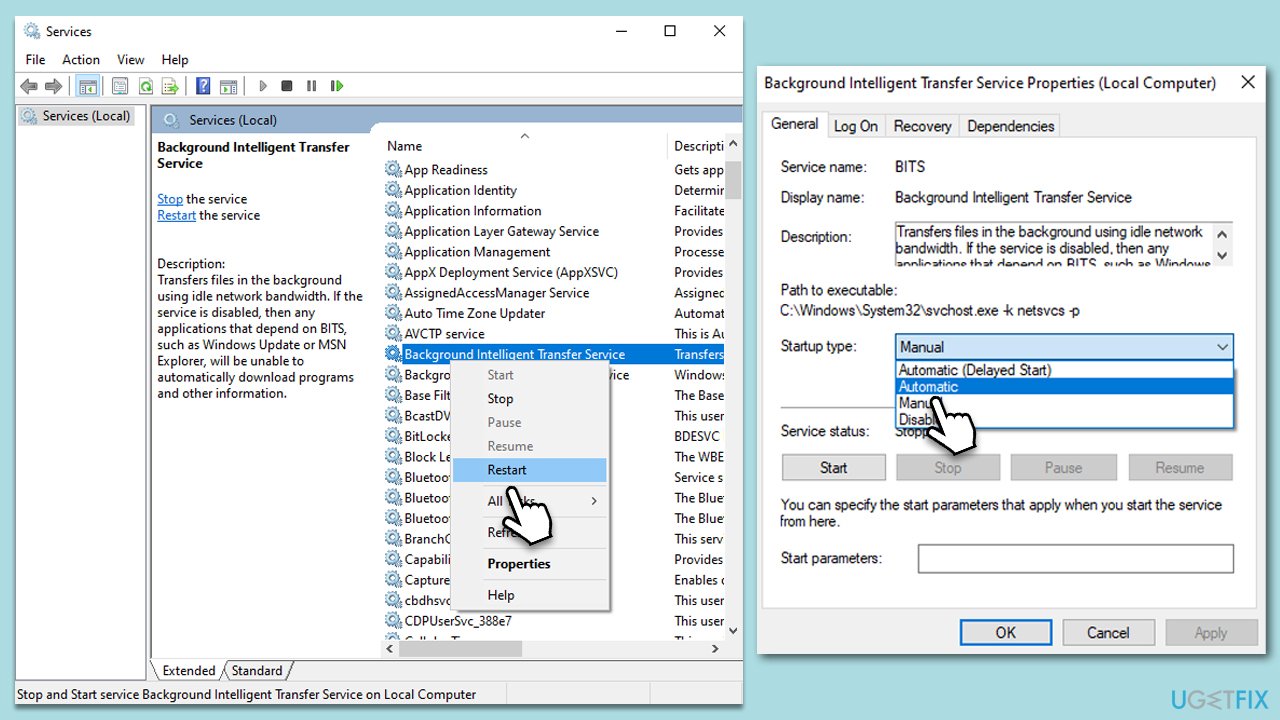
- Press the Win + R, type services.msc, and hit Enter.
- Locate the following services: Background Intelligent Transfer Service, Windows Update, and Cryptographic Services.
- Right-click each service and select Restart.
- If any service is not running, double-click the service to open Properties.
- Under the Startup type, select Automatic from the drop-down menu.
- Click Start, Apply, and OK.
Fix 5. Perform Disk Cleanup
Sometimes various caches, such as Windows update caches, might get bugged and affect the smooth installation of new Windows updates. You can use Disck Cleanup to do so.
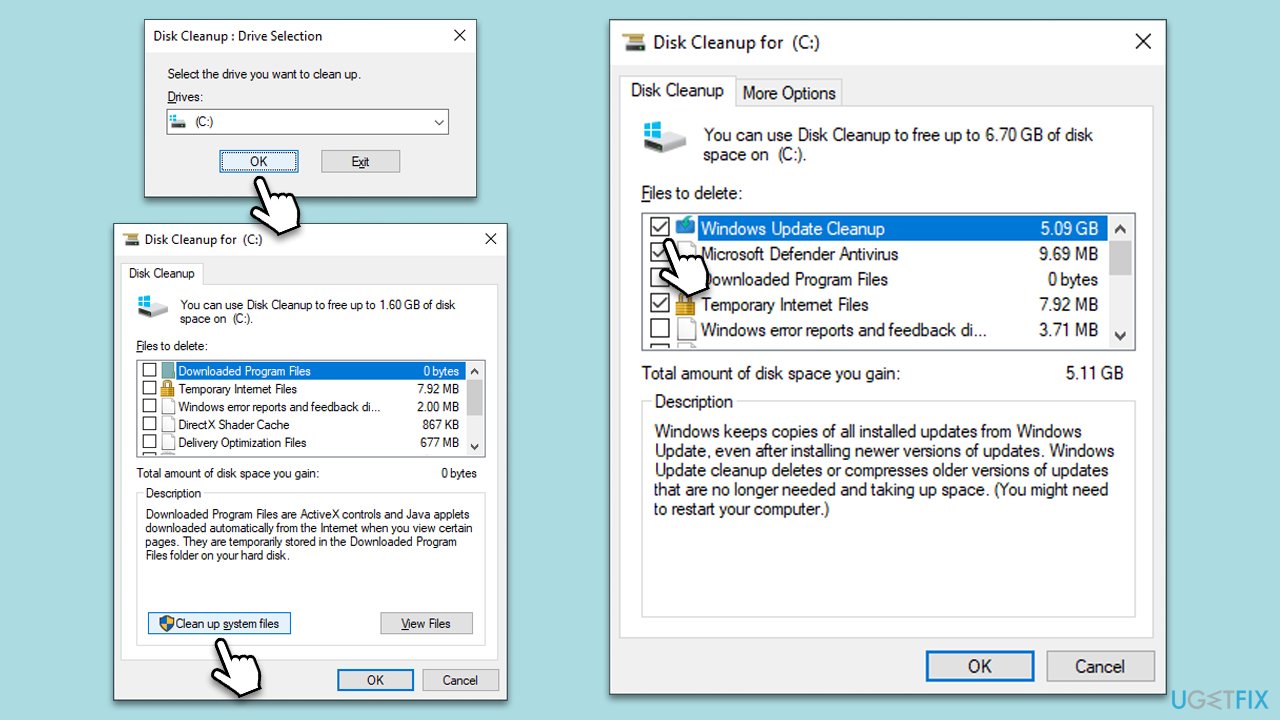
- Open the Windows search bar and type Disk Cleanup. Press Enter to open the Disk Cleanup utility.
- In the Disk Cleanup window, click Clean up system files.
- Select the drive again and click OK.
- In the list of files that can be cleaned up, select the largest portions of data, such as Temporary Internet Files, Windows Update, Temporary Files, and others.
- Click OK to begin the cleanup process.
Fix 6. Reset Windows update components
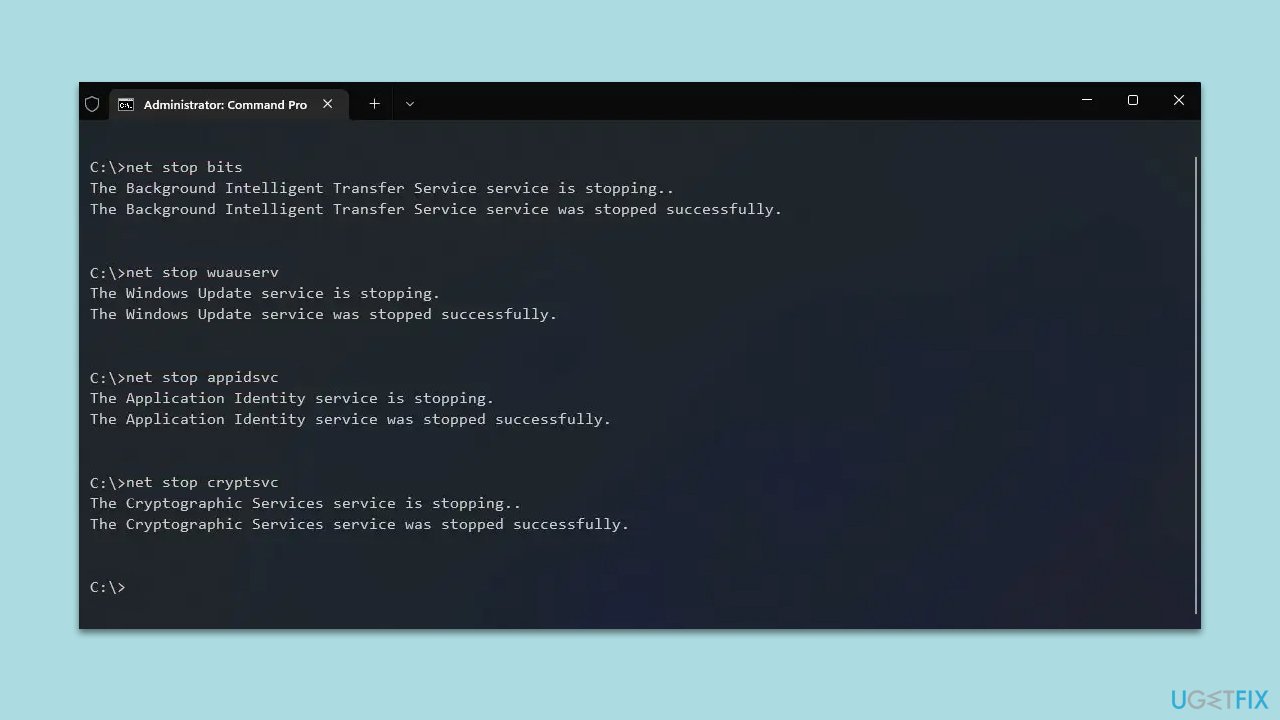
- Open Command Prompt as administrator.
- Paste in each of these commands, pressing Enter every time:
net stop bits
net stop wuauserv
net stop appidsvc
net stop cryptsvc
Del “%ALLUSERSPROFILE%\Application Data\Microsoft\Network\Downloader\*.*”
rmdir %systemroot%\SoftwareDistribution /S /Q
rmdir %systemroot%\system32\catroot2 /S /Q
regsvr32.exe /s atl.dll
regsvr32.exe /s urlmon.dll
regsvr32.exe /s mshtml.dll
netsh winsock reset
netsh winsock reset proxy
net start bits
net start wuauserv
net start appidsvc
net start cryptsvc - Restart your device.
Bottom line
To fix the KB5034203 installation failure, you can try several methods such as checking your system files for corruption using SFC and DISM tools, resetting Windows update components, and ensuring sufficient disk space. If these solutions do not resolve the issue, consider using a powerful automatic PC repair solution.
Frequently asked questions
First, try running the Windows Update Troubleshooter, which can help identify and fix common update issues. If that doesn't work, consider manually downloading and installing the update from the Microsoft Update Catalog.
Yes, common error codes include 0x800f0922 and 0x80073712, which indicate issues with the update components or system files. You can search for these error codes for targeted troubleshooting steps.
Make sure your Windows 10 system is fully updated and that you have enough disk space available for the installation. Additionally, disabling third-party antivirus software temporarily may help prevent conflicts during the update process.




Report an issue
What's wrong with this guide? We review every report and update or remove content.
Report received — thank you. We'll review and fix it.
You need a free account to submit a report.
Be the first to comment