How to fix
KB5034220 fails to install
on Windows
Struggling with KB5034220 installation in Windows 11? Discover effective solutions to resolve the issue quickly, with expert-tested methods.

What causes How to fix KB5034220 fails to install in Windows 11?
- Corrupted system files
- Outdated or faulty caches
- Antivirus programs blocking updates
- Minor glitches or configuration errors
Repairs Windows system files, removes malware, and restores a clean OS state — without reinstalling.
I wanted to install KB5034220 in the Beta channel but it failed. This never happened before so I am not sure what to do.
The Windows Insider Program enables users to access pre-release versions of the Windows operating system, allowing Microsoft to refine its software through user feedback before official releases. Insiders receive updates that introduce new features and bug fixes, enhancing the overall user experience ahead of public availability.
Windows 11 update KB5034220 for Insiders was released on February 1st, 2024, to resolve minor issues such as Task Manager crashes. Nevertheless, some users have had trouble installing this update. Numerous system-related issues may be the cause of these installation errors.
For example, corrupted system files might seriously impede the updating process. Similar to outdated or faulty caches, installation problems can also result from caches that store temporary data to increase system performance. Additionally, antivirus programs often block updates because they believe them to be harmful.
If KB5034220 fails to install for you, it's advisable to check the system for corrupted files, clear caches regularly, and consider temporarily disabling antivirus software during the update process to avoid potential conflicts. These steps aim to mitigate common obstacles that could impede the update installation.
Even though KB5034220 installation failures are challenging, they frequently result from recognizable and fixable system problems. A PC repair program [d1] can be a practical and efficient way to tackle underlying Windows issues automatically. It provides a faster way to solve common problems and makes updating updates easier.
Fix 1. Run Windows update troubleshooter
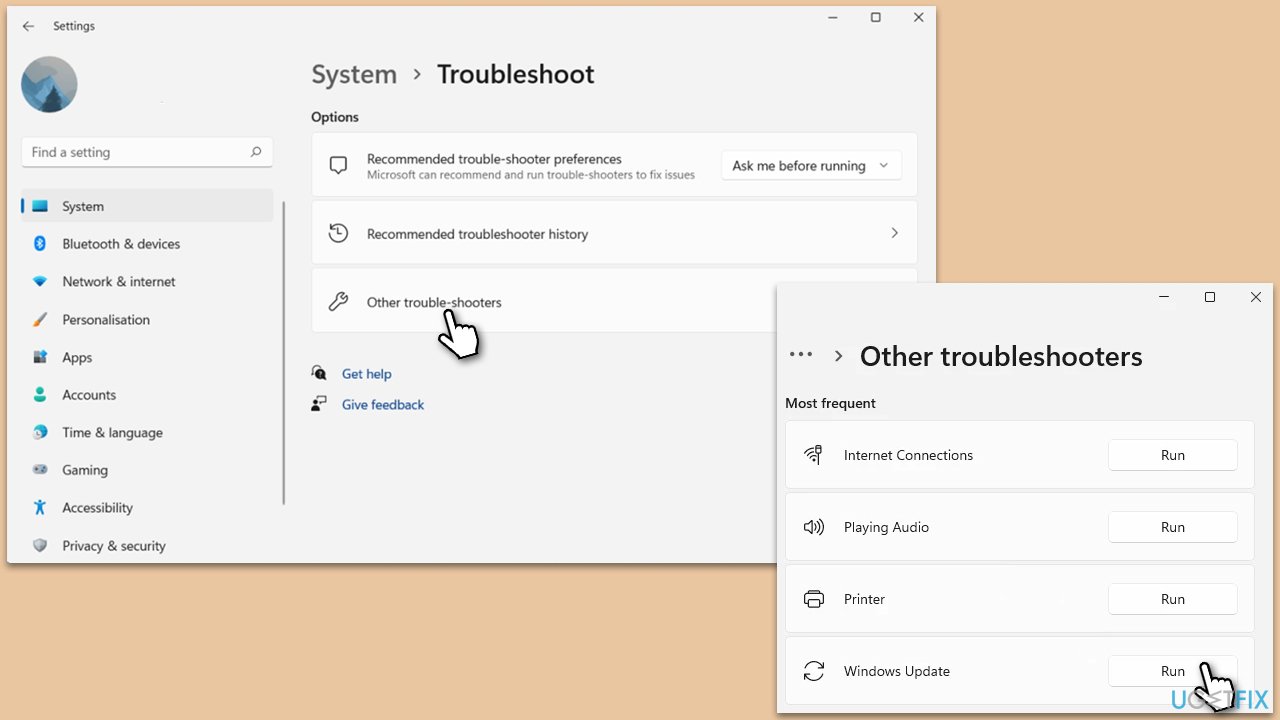
The Windows Update Troubleshooter is a built-in utility that can automatically detect and fix common problems with Windows updates. It works by scanning the system for issues related to Windows Update and attempting to resolve them automatically, which can be particularly useful if KB5034220 fails to install due to minor glitches or configuration errors.
- Type Troubleshoot in Windows search and press Enter.
- Select Other troubleshooters.
- Find Windows Update from the list.
- Click it and select Run.
- Restart your PC when the update process finishes.
Fix 2. Disable third-party security software/VPN
Microsoft Defender, a built-in security program in Windows, does a good job of shielding users from malware and potentially undesirable programs. The utility never experienced compatibility problems because it was built by the same company that made the operating systems. It also has superior detection performance in comparison to other antivirus software.
On the other hand, if a third-party antivirus program is too active in shielding the computer from both inbound and outgoing connections, it might stop data packets from being downloaded. The security app can be disabled (some security apps are hard to disable) or temporarily uninstalled.
Fix 3. Perform Clean Boot
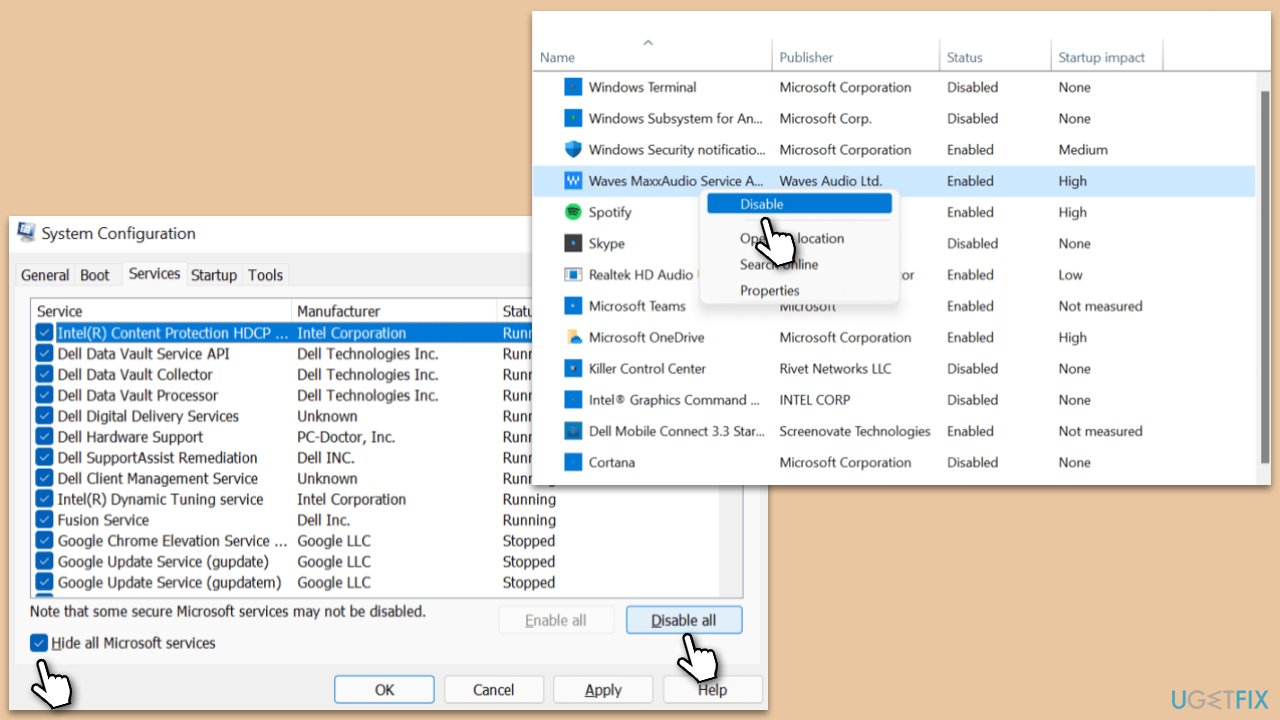
When you perform a clean boot, Windows launches with the minimum possible drivers and startup apps. This can assist in determining whether background apps are interfering with the update.
- Type msconfig in Windows search and hit Enter.
- Go to the Services tab and tick the Hide all Microsoft services checkbox.
- Select Disable all.
- Go to the Startup tab and click Open Task Manager.
- Here, right-click on each of the non-Windows entries and select Disable.
- Close down the Task Manager.
- Go to the Boot tab and tick the Safe boot option.
- Restart your device.
- Try updating Windows again.
Fix 4. Check relevant services
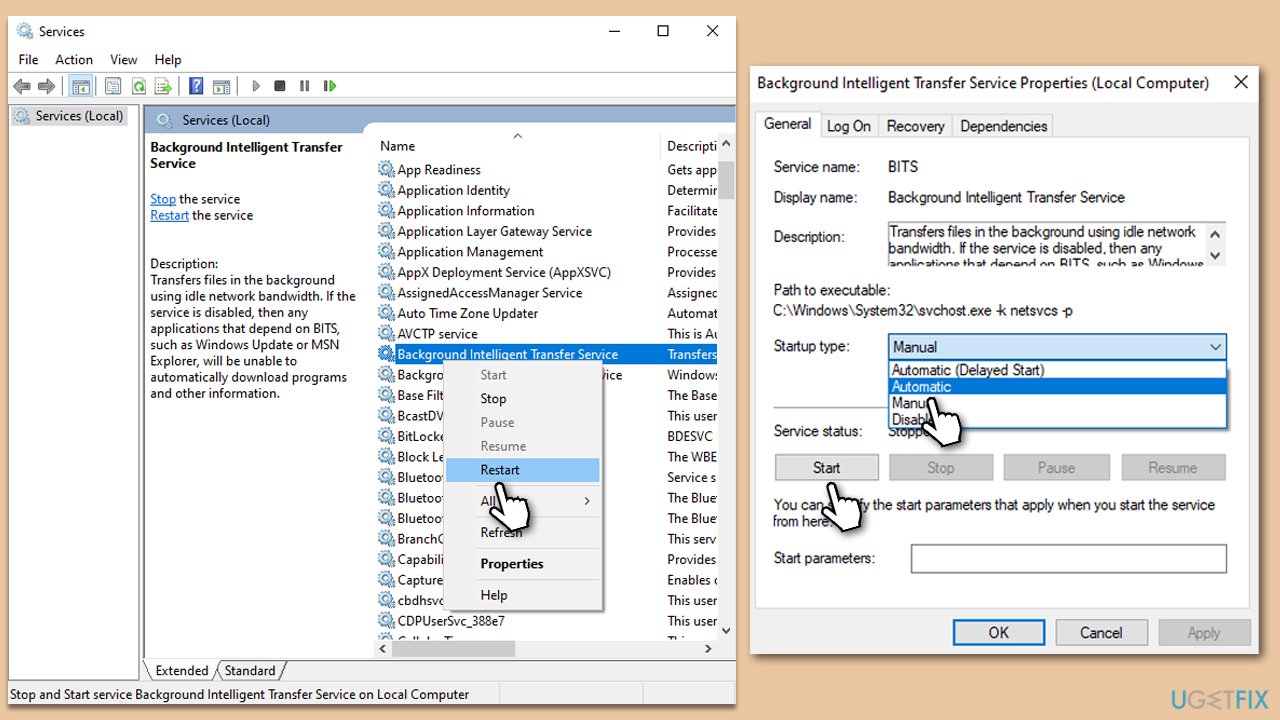
Certain services, such as the Windows Update service, need to be running for updates to install successfully. Ensuring these services are active can resolve installation issues.
- Type in Services in Windows search and press Enter.
- Find Background Intelligent Transfer Service (BITS).
- If it is already running, right-click and pick Restart.
- If the service is not running, double-click it, and select Automatic under the Startup type from the drop-down menu.
- Click Start, Apply, and OK.
- Repeat this process for Windows Update and Cryptographic services.
Fix 5. Perform Disk Cleanup
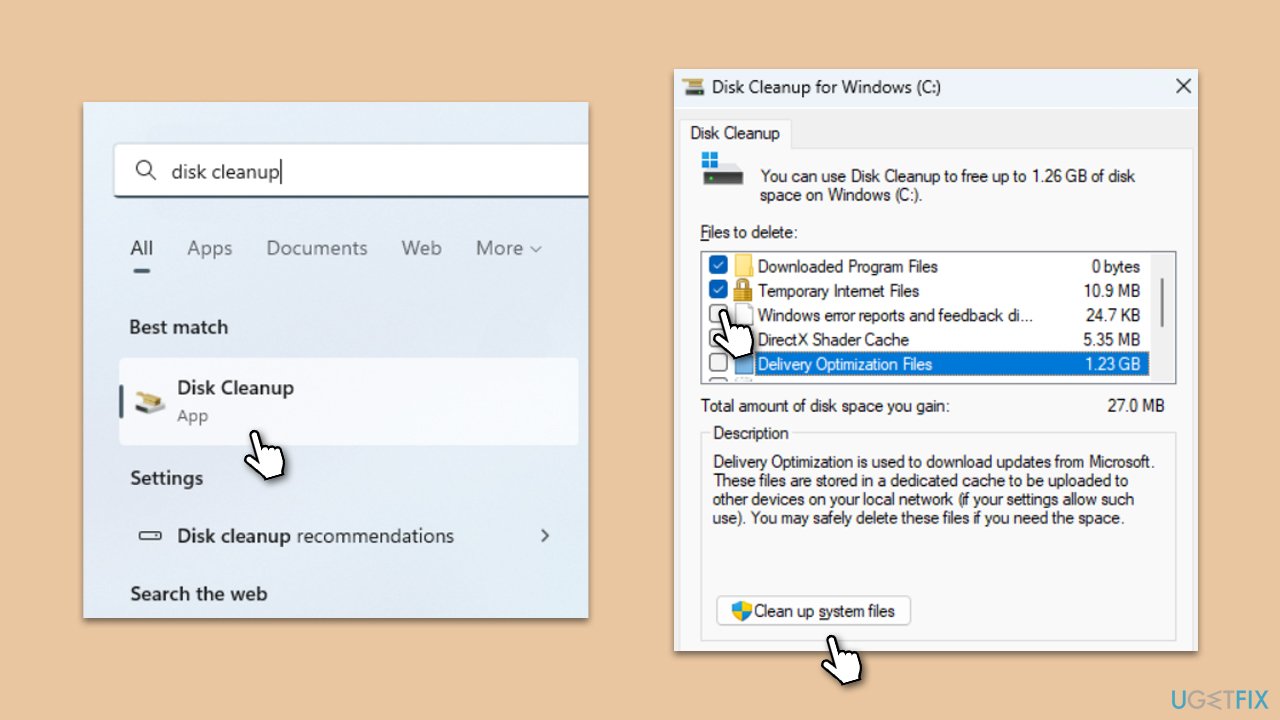
Disk Cleanup can delete temporary files that may be hindering the updating process and help clear up space on your hard disk.
- Type Disk Cleanup in Windows search and hit Enter.
- If your Windows is installed on drive C, pick it from the list (it should be by default) and press OK.
- Click Clean up system files.
- Select your main disk again and click OK.
- Here, select the largest portions of the data used - these typically include Temporary Internet Files, Windows Update, Temporary Files, Recycle Bin, Delivery Optimization Files, and others.
- Click OK - the process should be finished shortly.
Fix 6. Check for corrupted system files
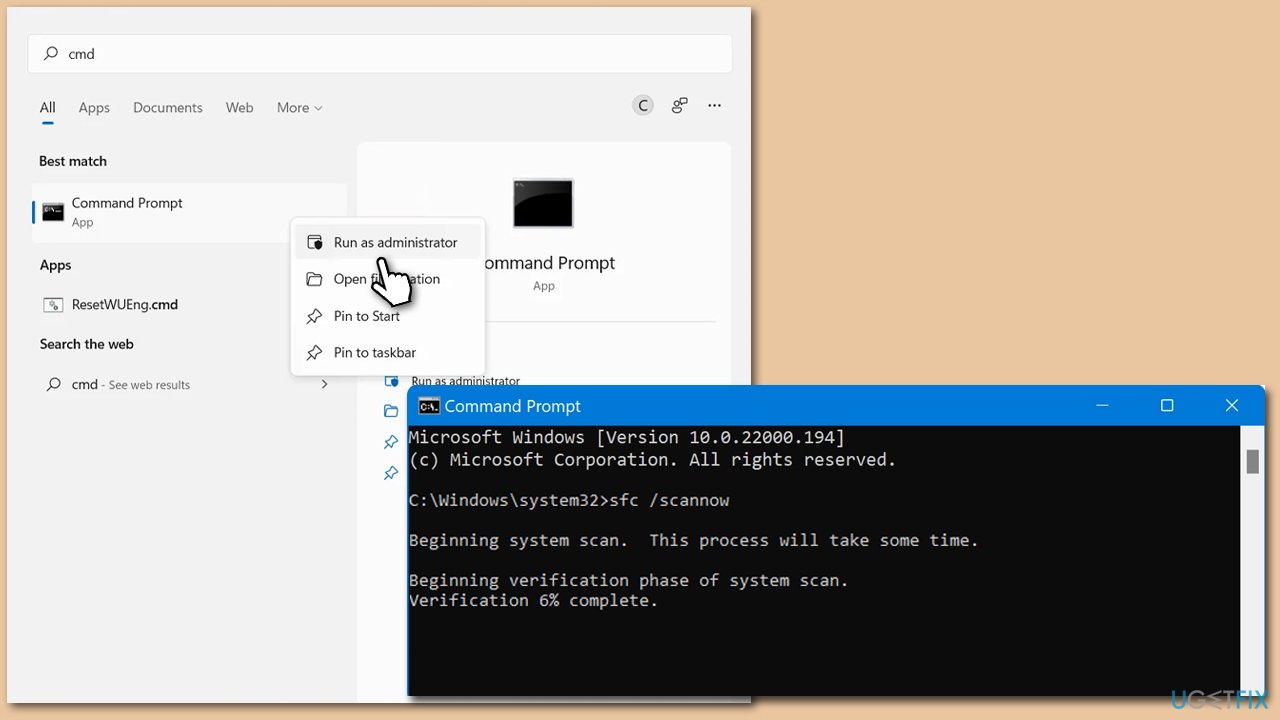
System File Check and Deployment Image Servicing and Management scans can fix corrupted system files, restore Windows functionality, and possibly fix problems with update installation.
- Type cmd in Widnows search.
- Right-click on Command Prompt and pick Run as administrator.
- When UAC shows up, click Yes.
- Type in the following command and press Enter:
sfc /scannow - When done, run the following commands as well:
dism /online /cleanup-image /scanhealth
dism /online /cleanup-image /checkhealth
dism /online /cleanup-image /restorehealth
(Note: if you get an error executing this last command, add /Source:C:\RepairSource\Windows /LimitAccess to it and try again). - Restart your device.
Fix 7. Reset Windows update components
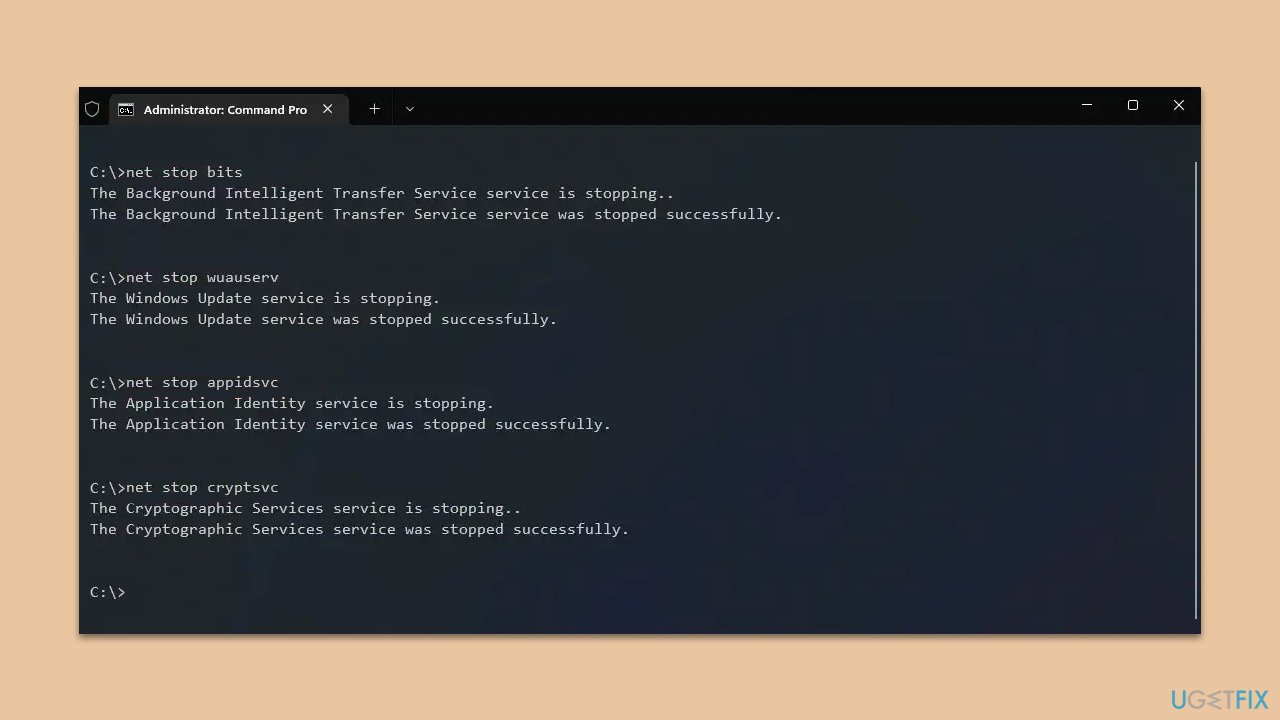
Resetting the Windows Update components manually can resolve issues by clearing the update cache and restarting related services.
- Open Command Prompt as administrator, as previously explained
- In the new window, use the following commands, pressing Enter after each:
net stop bits
net stop wuauserv
net stop appidsvc
net stop cryptsvc
Del “%ALLUSERSPROFILE%\Application Data\Microsoft\Network\Downloader\*.*”
rmdir %systemroot%\SoftwareDistribution /S /Q
rmdir %systemroot%\system32\catroot2 /S /Q
regsvr32.exe /s atl.dll
regsvr32.exe /s urlmon.dll
regsvr32.exe /s mshtml.dll
netsh winsock reset
netsh winsock reset proxy
net start bits
net start wuauserv
net start appidsvc
net start cryptsvc - Restart your system.
Bottom line
To fix the installation failure of KB5034220, you can run the Windows Update Troubleshooter, check for corrupted files, clear caches, and consider temporarily disabling your antivirus software. If these steps do not resolve the issue, consider using a PC repair program to tackle underlying Windows problems automatically.
Frequently asked questions
First, ensure your system is connected to the internet and then try running the Windows Update Troubleshooter to identify any issues. If the problem persists, consider manually downloading the update from the Microsoft Update Catalog.
You can check for installed updates by going to Settings > Windows Update > Update history, where you'll find a list of updates including KB5034220 if it’s installed.
Common reasons include insufficient disk space, conflicts with antivirus software, or corrupted system files. Running a system scan with the DISM and SFC tools may help resolve underlying issues.




Report an issue
What's wrong with this guide? We review every report and update or remove content.
Report received — thank you. We'll review and fix it.
You need a free account to submit a report.
Be the first to comment