How to fix
KB5034582 fails to install
on Windows
Resolve KB5034582 installation issues on Windows 10 effortlessly. Follow our expert-tested tips and fix the problem in minutes!

What causes How to fix KB5034582 fails to install in Windows 10?
- Corrupted system files
- Errors in the update cache
- Incompatibilities with other updates
- Stopped Windows Update service
- Stopped Background Intelligent Transfer Service (BITS)
Repairs Windows system files, removes malware, and restores a clean OS state — without reinstalling.
Hey. I am struggling to install the NET Framework update KB5034582 for Windows 10. Are any fixes available?
The KB5034582 update, released on January 23, 2024, is a Cumulative Update Preview for the .NET Framework versions 3.5, 4.8, and 4.8.1 targeted at Windows 10 Version 22H2. The objective of this upgrade is to give the .NET Framework on Windows 10 platforms more security, quality, and reliability. But a noteworthy problem has surfaced whereby some users fail to install the KB5034582 update, which prevents the anticipated improvements from being used.
There are several technical reasons why the KB5034582 fails to install. These problems usually entail corrupted system files, which are essential to the updating process, errors in the update cache, which stores temporary files, or incompatibilities with other updates or system parts. These issues may interfere with the update process, making installation efforts ineffective.
It is advised to take various diagnostic and corrective actions in order to address these KB5034582 installation issues. Launching the Windows Update Troubleshooter can be a useful intervention since it is made to automatically identify and resolve issues related to Windows Update.
Resetting Windows Update components can also be helpful because it updates the update infrastructure of the system and may remove any obstacles. Furthermore, clearing the update cache can remove temporary files that have become corrupted and are blocking the update process.
Below you will find several solutions that should help you fix KB5034582 failing to install on Windows. Keep in mind that you might have to try several of them before one works for you. If you instead would like to take a more hands-off approach, you can always rely on automatic tools such as [d1].
Fix 1. Check if relevant services are running
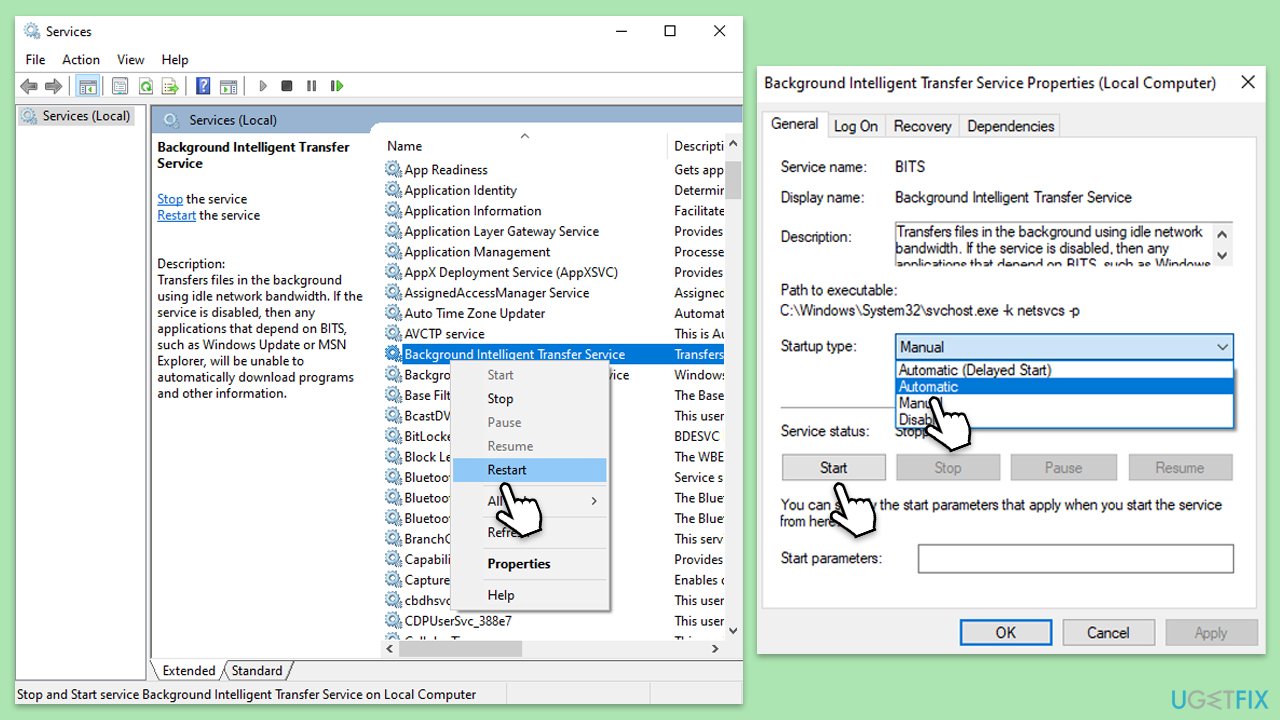
Ensuring that crucial Windows services related to updating are active and set to automatically start can resolve issues where updates fail to initiate or complete. Services such as the Windows Update service and Background Intelligent Transfer Service (BITS) play key roles in the update process. If these services are stopped or set to manual start, it may prevent updates from being downloaded or installed.
- Type in Services in Windows search and press Enter.
- Scroll down to locate Background Intelligent Transfer Service (BITS).
- If it is already running, right-click and pick Restart.
- If the service is not running, double-click it, select Automatic under the Startup type from the drop-down menu.
- Click Start, Apply, and OK.
- Perform the same steps with Windows update and Cryptographic services.
Fix 2. Run Windows Update troubleshooter
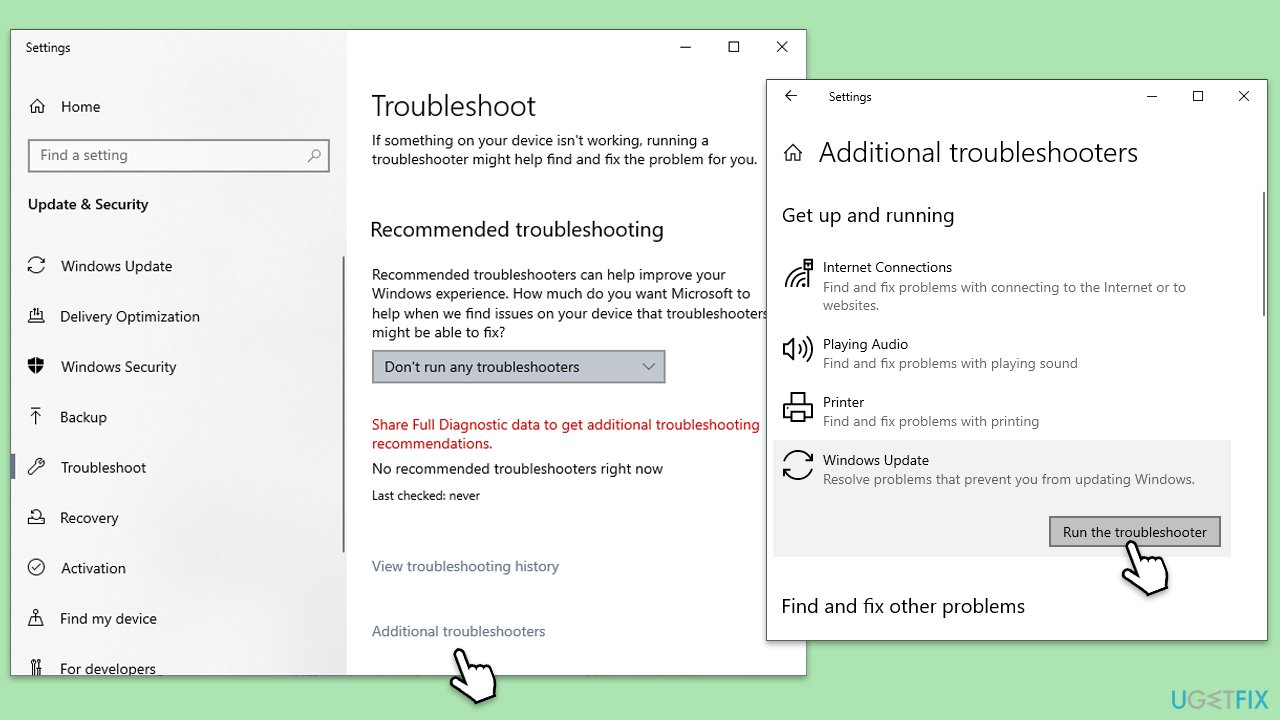
The Windows Update troubleshooter is a built-in tool that can automatically find and fix common problems with Windows Update. Running this troubleshooter can resolve issues by resetting update components, clearing caches, and fixing corrupted files.
- Type Troubleshoot in Windows search and press Enter.
- Click Additional troubleshooters.
- Scroll down to find the Windows Update option.
- Click and select Run the troubleshooter.
- Apply the offered changes and close down the troubleshooter - see if that helps solve your problem.
Fix 3. Perform Disk Cleanup
Disk Cleanup can free up space on your hard drive and remove temporary files that might be interfering with the update process. Clearing out these files can sometimes resolve update installation issues.
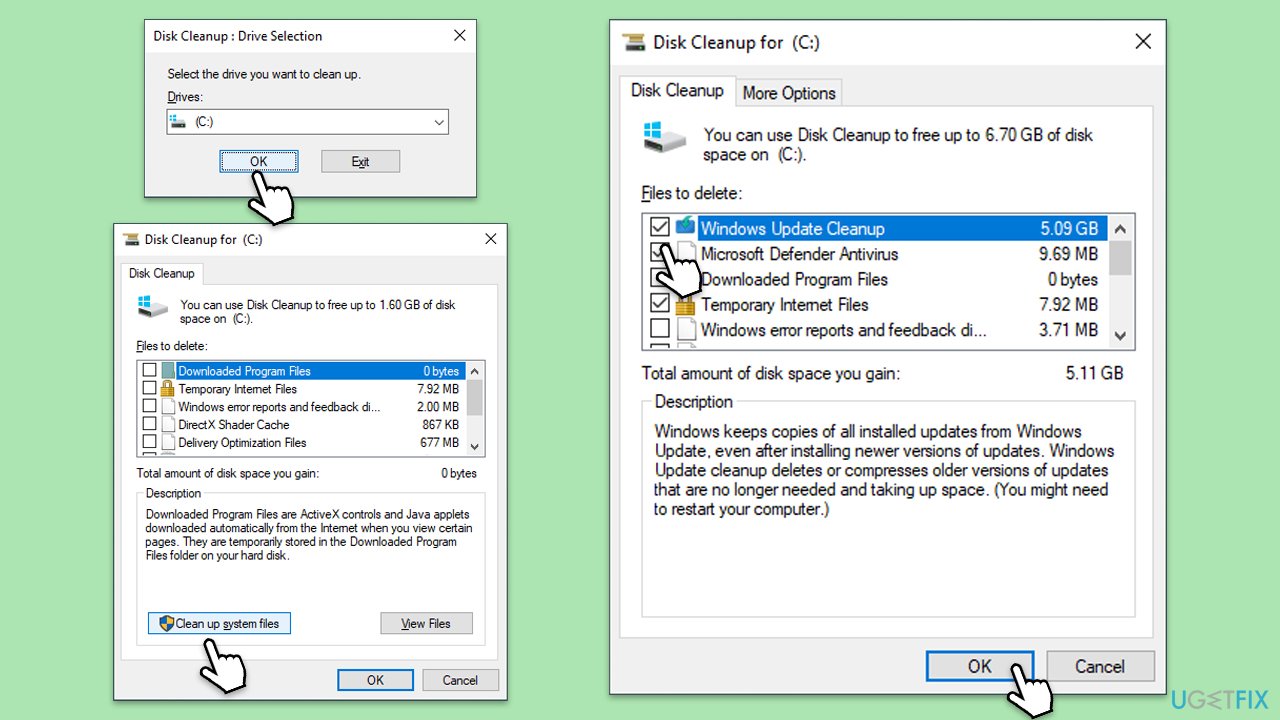
- In the Windows search bar, enter Disk Cleanup, then press Enter to launch the utility.
- Pick the main drive (C: by default) and select the option for Clean up system files.
- Choose the drive once more and press OK.
- From the array of files that can be cleaned, choose those taking up the most space, for example, Temporary Internet Files, Windows Update, and Temporary Files, among others.
- Hit OK to begin the cleanup process.
Fix 4. Repair corrupted system files
The System File Checker (SFC) and Deployment Image Servicing and Management (DISM) tools can repair corrupted Windows system files. Corrupted system files can prevent updates from installing correctly.
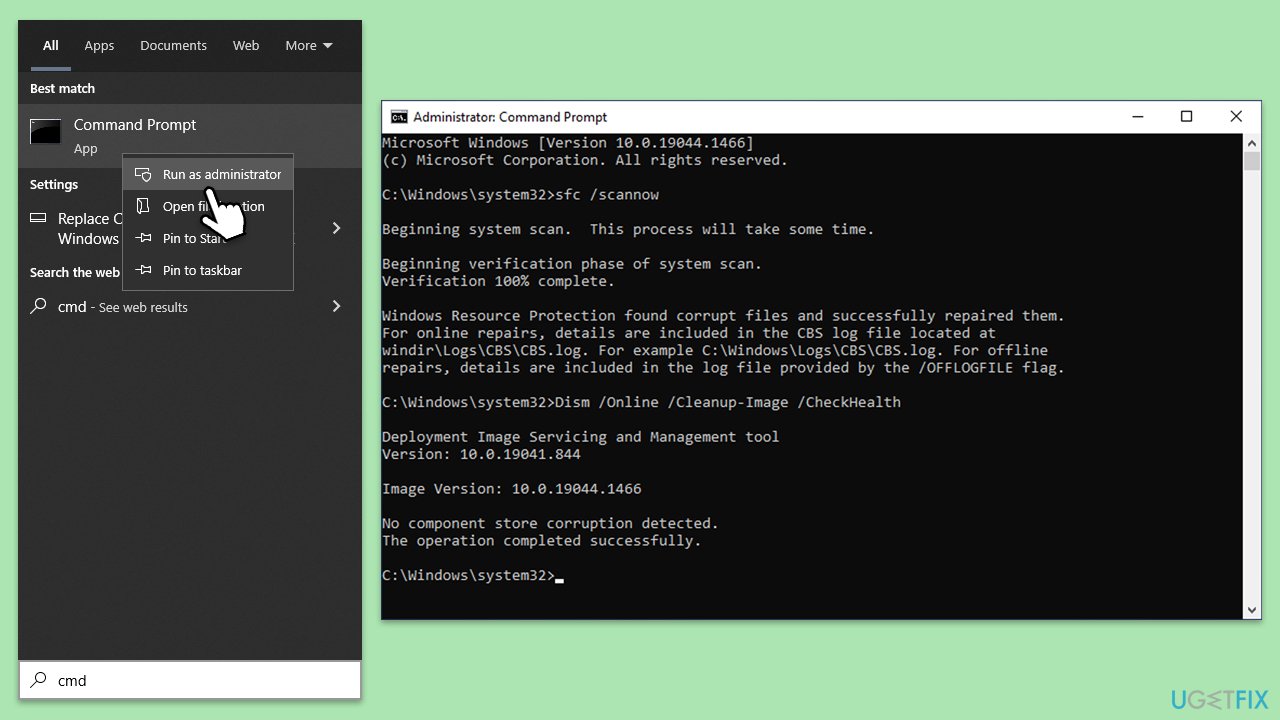
- Type cmd in Windows search.
- Right-click on Command Prompt and pick Run as administrator.
- User Account Control will ask you whether you want to allow changes – click Yes.
- Copy and paste this command and hit Enter:
sfc /scannow - Wait for the scan to finish.
- As soon as it finishes, Windows will report whether integrity violations were found and if they could be fixed. Regardless of the outcome, use these commands next, pressing Enter after each:
Dism /Online /Cleanup-Image /CheckHealth
Dism /Online /Cleanup-Image /ScanHealth
Dism /Online /Cleanup-Image /RestoreHealth - Close down the Command Prompt and restart your device.
Fix 5. Reset Windows update components
Resetting Windows Update components manually can fix updates that won't install or get stuck. This involves stopping update services, clearing cache folders, and restarting the services.
- Open Command Prompt as administrator.
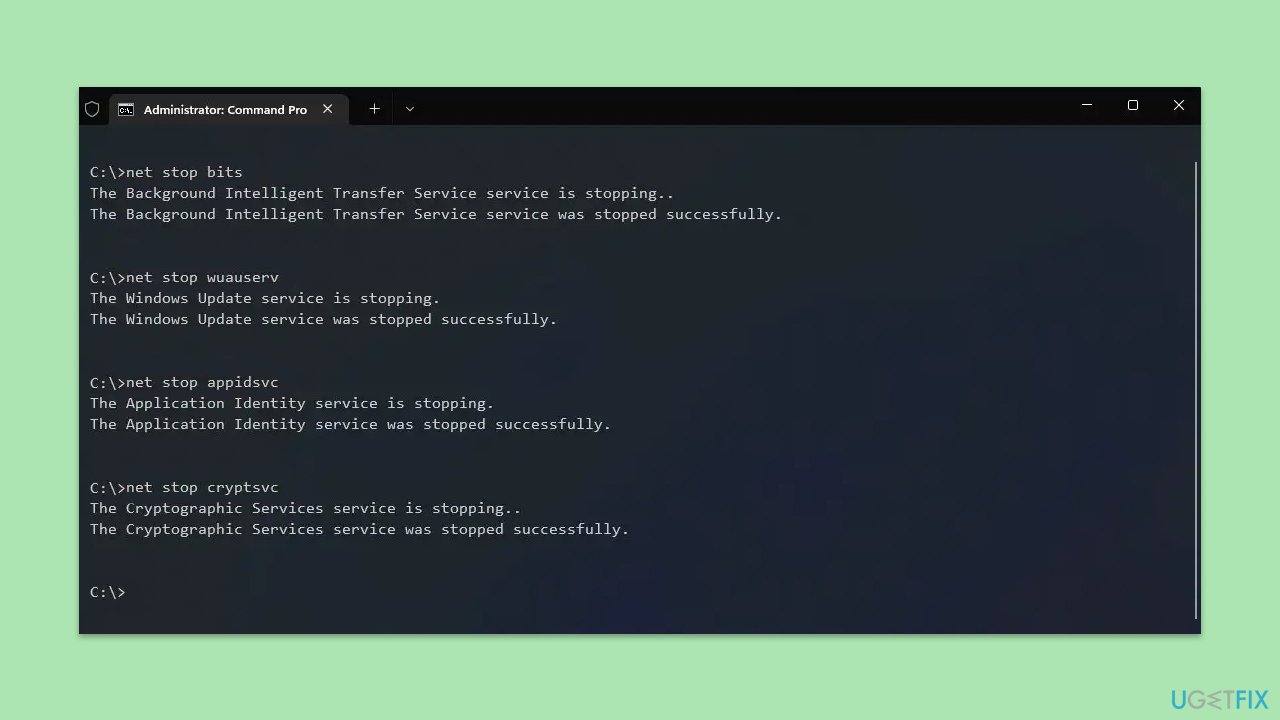
- Stop the Windows Update Services by entering the following commands, one at a time, and pressing Enter after each:
net stop wuauserv
net stop cryptSvc
net stop msiserver
net stop bits - Rename the SoftwareDistribution and Catroot2 folders with the following commands:
ren C:\Windows\SoftwareDistribution SoftwareDistribution.old
ren C:\Windows\System32\catroot2 catroot2.old - Restart the services you stopped earlier with these commands:
net start wuauserv
net start cryptSvc
net start msiserver
net start bits - Close the Command Prompt window and try running the Windows Update again.
Fix 6. Install the update manually
If automatic updates fail, downloading and installing the update manually from the Microsoft Update Catalog can bypass issues with the Windows Update service.
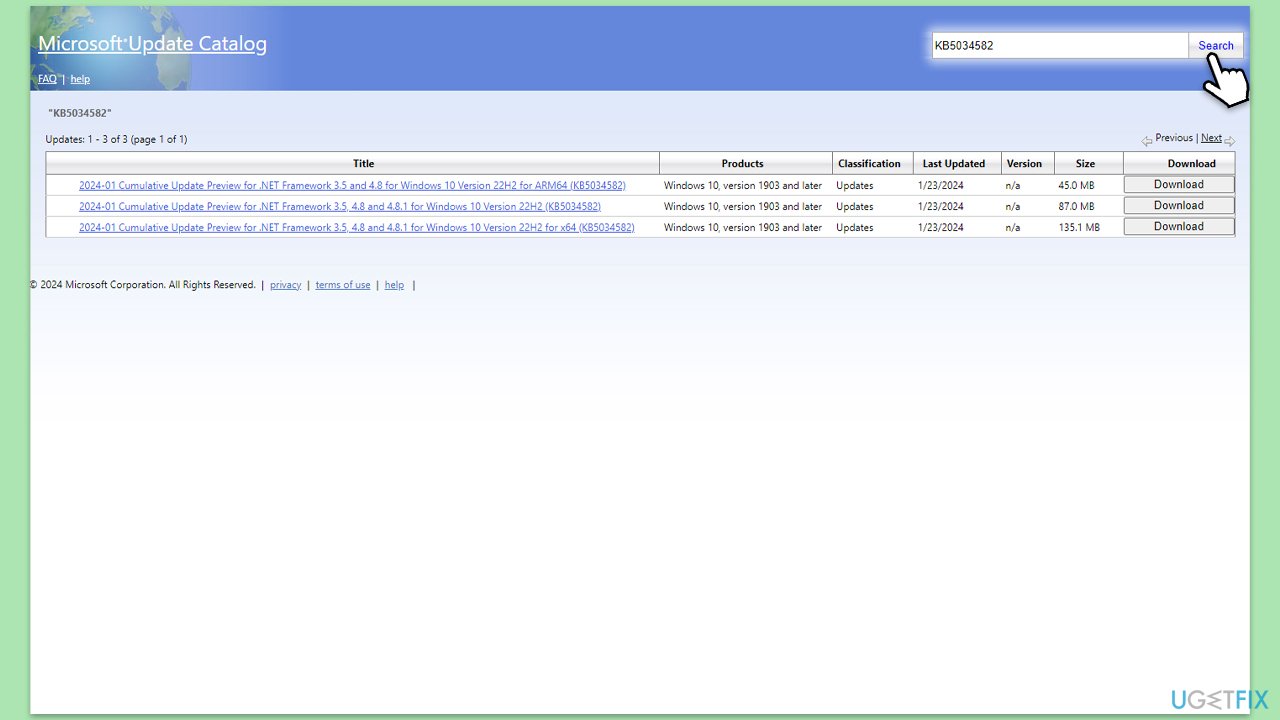
- Open your browser and go to Microsoft Update Catalog.
- Within the search bar, type in KB5034582 and click Search.
- Find the correct version of the update for your operating system (to check this, right-click on Start and pick System. Under Device specifications and check the System type) and click Download.
- Use on-screen guidelines to finish the installation process and restart Windows.
Bottom line
To fix the KB5034582 installation issue, you can launch the Windows Update Troubleshooter, reset Windows Update components, and clear the update cache. If these solutions do not resolve the problem, consider using automatic tools for assistance.
Frequently asked questions
First, try running the Windows Update Troubleshooter by going to Settings > Update & Security > Troubleshoot. If that doesn't work, consider manually downloading the update from the Microsoft Update Catalog.
Yes, third-party antivirus programs can interfere with the update process, so it's recommended to temporarily disable them while installing KB5034582.
You can check the update history by going to Settings > Update & Security > Windows Update and clicking on 'View update history' to see if KB5034582 was attempted or failed.




Report an issue
What's wrong with this guide? We review every report and update or remove content.
Report received — thank you. We'll review and fix it.
You need a free account to submit a report.
Be the first to comment