How to fix
KB5034843 fails to install
on Windows
Resolve the KB5034843 installation error on Windows 10 quickly and efficiently. Expert-tested solutions ensure your system runs smoothly. Fixed in minutes!


What causes How to fix KB5034843 fails to install in Windows 10?
- Insufficient disk space
- Corrupted system files
- Issues with the update cache
- Problems with Windows Update components
Repairs Windows system files, removes malware, and restores a clean OS state — without reinstalling.
Hello, I was wondering if you could help me with an issue where KB5034843 doesn't install for me. Any tips would be appreciated.
Software updates are essential for performance, security, and for discovering new features. Security updates, feature updates, and cumulative updates are the three different types of Windows 10 updates. Each type of update has a specific function, such as repairing vulnerabilities or improving user experience. Before these updates are released to the public, Windows Insiders have access to preview builds, which lets them test and give input.
KB5034843 is one such update for Windows 10 version 22H2 Insiders, released on February 15, aimed at fixing bugs and introducing new features like enabling Desktop Spotlight as a desktop background. However, some users face difficulties installing this update, missing out on these improvements.
There are a number of reasons why the KB5034843 installation fails. Updates need plenty of room to download and install, therefore having insufficient disk space is a regular problem. Corrupted system files and issues with the update cache or Windows Update components might also impede a proper installation.
Making sure there is adequate disk space, cleaning the update cache, resetting the Windows Update components, and fixing corrupted system files are the steps involved in resolving these problems.
For those who have issues with KB5034843 failing to install and would rather take a simpler route, employing a PC repair tool [d1] can be a straightforward solution. This app is designed to automatically diagnose and fix common Windows problems, offering an efficient way to resolve installation issues and maintain the system's health, thereby facilitating access to the latest updates and features for Windows 10.
Fix 1. Perform Disk Cleanup
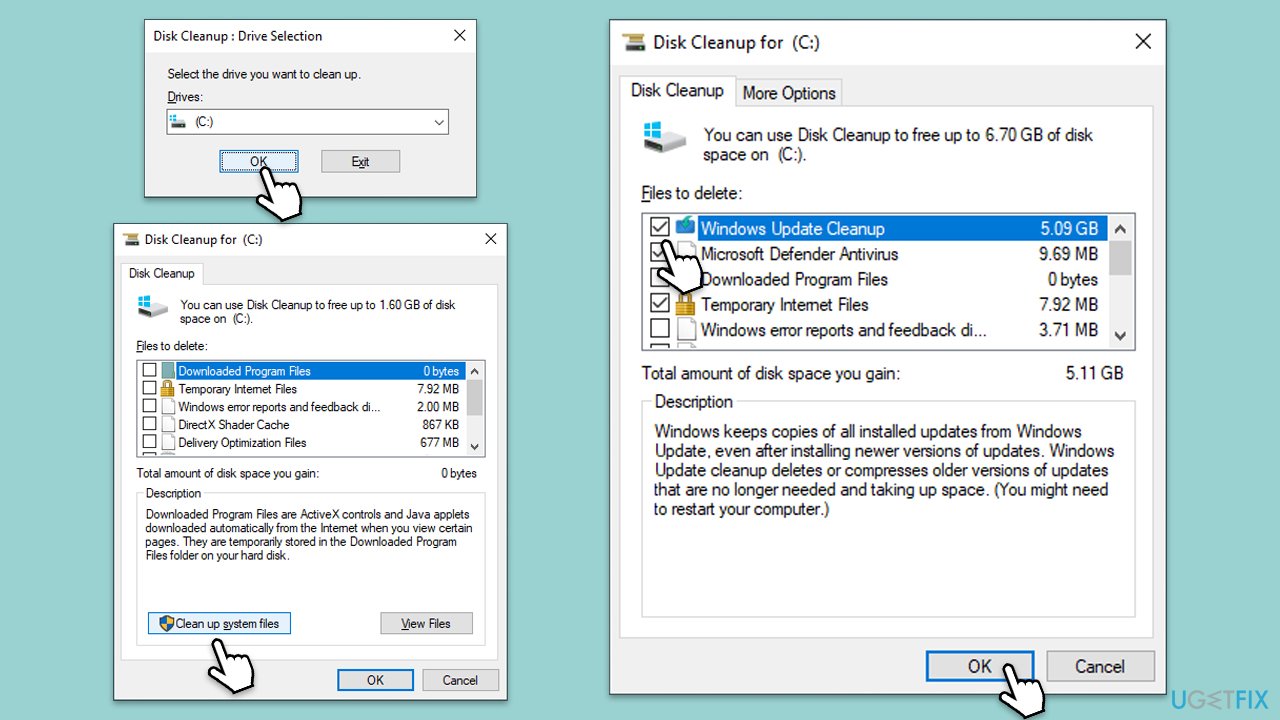
Disk Cleanup frees up space on your computer, which is necessary for updating. Insufficient disk space may prevent updates from downloading and installing properly. You can make sure there is adequate room for the update by eliminating temporary and system files, as well as emptying the recycle bin.
- Type Disk Cleanup in Windows search and press Enter.
- Pick the main drive (C: by default) and select the option Clean up system files.
- Choose the drive once more and press OK.
- From the array of files that can be cleaned, choose those taking up the most space, including Temporary Internet Files, Windows Update, and Temporary Files, among others.
- Hit OK to begin the cleanup process.
Fix 2. Run Windows Update troubleshooter
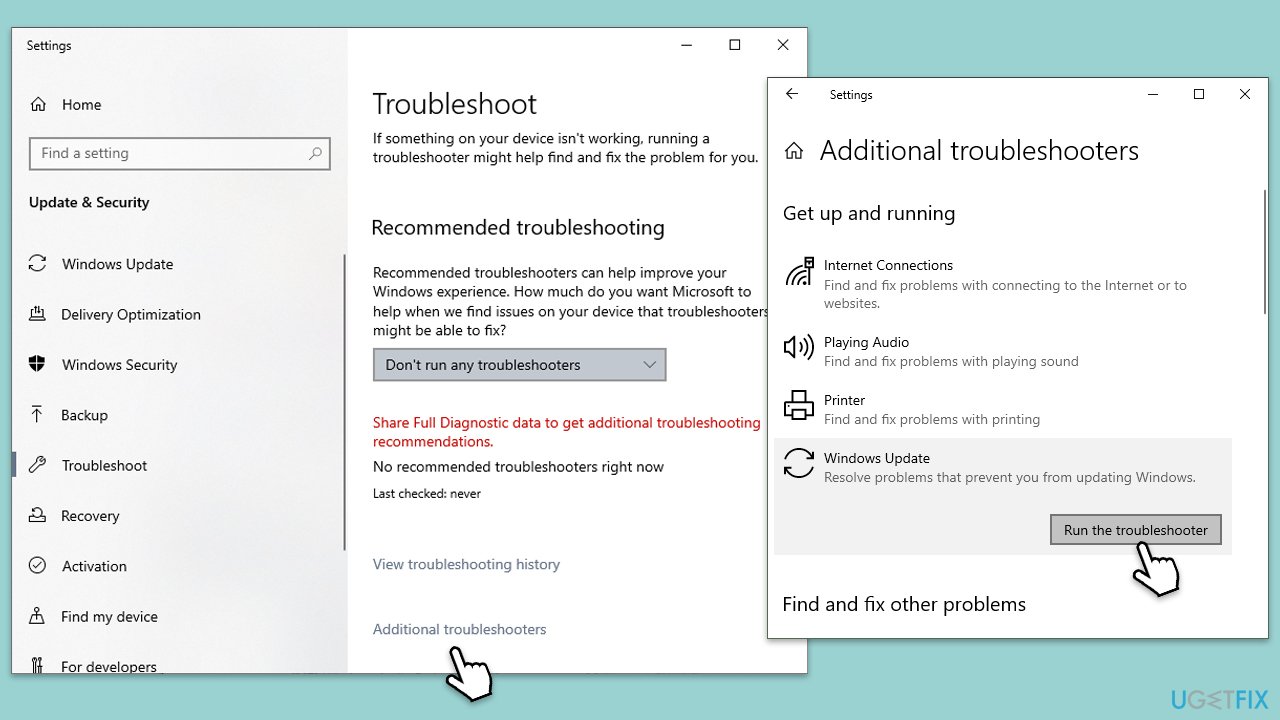
The Windows Update Troubleshooter diagnoses and fixes common problems with the update process. Running this tool can resolve issues preventing updates from installing correctly.
- Type Troubleshoot in Windows search and hit Enter.
- Select Additional troubleshooters/Other troubleshooters.
- Find Windows update from the list and select Run the troubleshooter/Run.
- Wait till the scan is finished - you will be provided with potential causes so you can proceed with fixes.
- If no suggestions were given, proceed with the solutions below.
Fix 3. Check relevant services
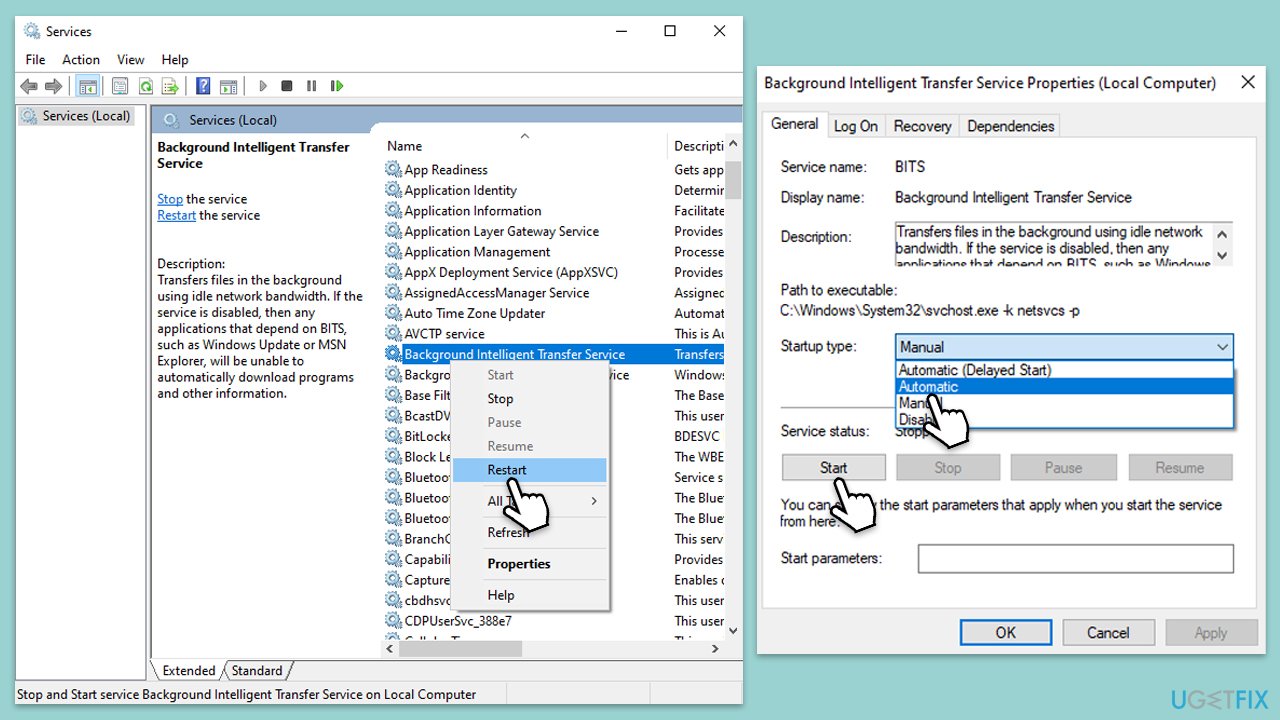
Certain services must be running for Windows Update to function correctly. Ensuring these services are running can help resolve update installation problems.
- Press Win + R, type services.msc, and press Enter.
- Locate Background Intelligent Transfer Service (BITS).
- If it is already running, right-click and select Restart.
- If the service is not running, double-click it, select Automatic under the Startup type from the drop-down menu.
- Click Start, Apply, and OK.
- Repeat the process with the Windows Update, Cryptographic, and Windows Installer services.
Fix 4. Reset Windows update components
Resetting Windows Update components can resolve issues by clearing the update cache and restarting related services.
- Type cmd in Windows search.
- Right-click on Command Prompt and select Run as administrator.
- In the User Account Control window, click Yes.
- Stop the Windows Update Services by entering the following commands, one at a time, and pressing Enter after each:
net stop wuauserv
net stop cryptSvc
net stop msiserver
net stop bits - Rename the SoftwareDistribution and Catroot2 folders with the following commands:
ren C:\Windows\SoftwareDistribution SoftwareDistribution.old
ren C:\Windows\System32\catroot2 catroot2.old - Restart the services you stopped earlier with these commands:
net start wuauserv
net start cryptSvc
net start msiserver
net start bits - Close the Command Prompt window and try running the Windows Update again.

Fix 5. Temporarily disable third-party security software/VPN/firewall
Third-party security software, VPNs, or firewalls can interfere with the update process. Temporarily disabling these can help determine if they are causing the issue.
- Locate the security software icon in the system tray, right-click it, and select Disable, Stop, or a similar option. The exact steps may vary depending on the software.
- If you are using a VPN or firewall, disable these as well through their respective settings or control panel.
Fix 6. Install the update manually
If automatic updates fail, manually downloading and installing the update can bypass issues with the update process.
- Visit the official Microsoft website for Windows Insiders.
- Click on the drop-down menu and select Windows 10 build 19045.4116.
- Download the update that matches your system type (x64, x86, or ARM64).
- After downloading the ISO file, make it bootable and mount it.
- Then follow the on-screen instructions to finish the process.
- Once done, reboot your device.
Fix 7. Repair corrupted system files
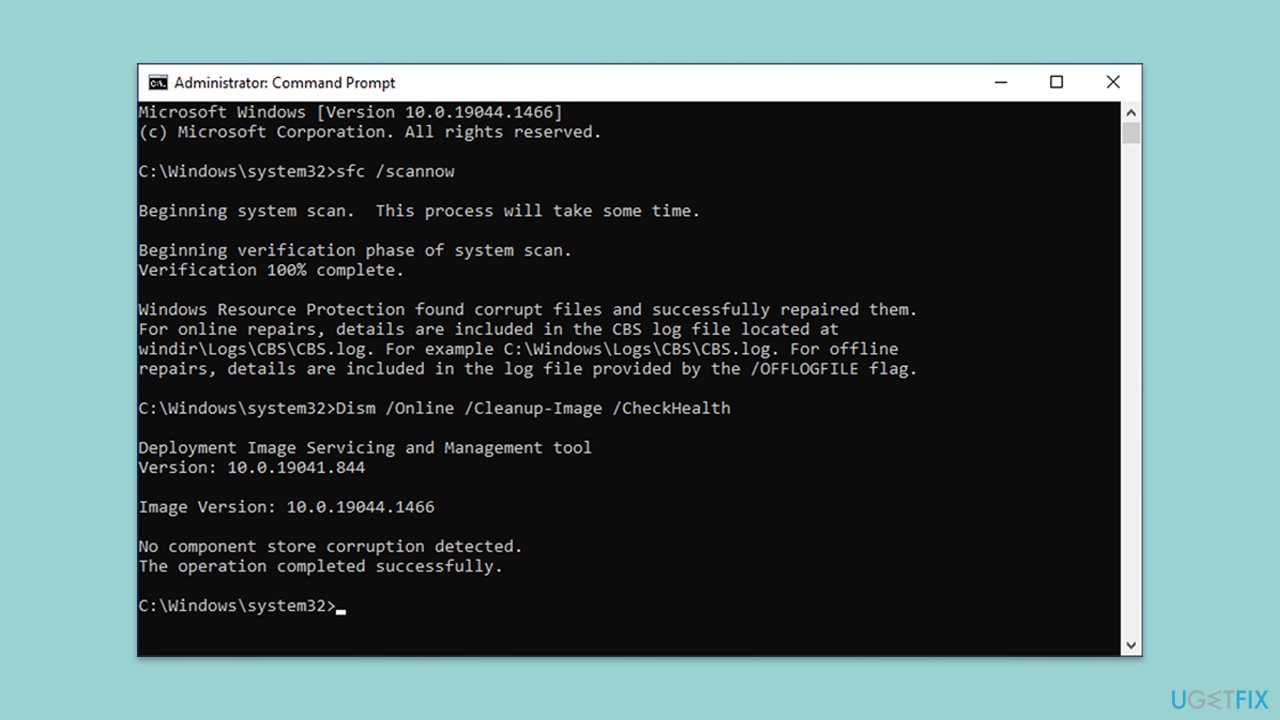
System File Checker (SFC) and Deployment Image Servicing and Management (DISM) tools can repair corrupted system files and Windows image files, respectively.
- Open Command Prompt as administrator.
- In the Command Prompt window, paste the following command and hit Enter:
sfc /scannow - Once the scan is complete, use the following commands and press Enter after each:
Dism /Online /Cleanup-Image /CheckHealth
Dism /Online /Cleanup-Image /ScanHealth
Dism /Online /Cleanup-Image /RestoreHealth - (Note: if you get an error executing this last command, add /Source:C:\RepairSource\Windows /LimitAccess to it and try again).
- Restart your device.
Bottom line
To resolve the KB5034843 installation failure, you can perform Disk Cleanup to free up space, clean the update cache, reset the Windows Update components, and fix any corrupted system files. If these steps do not work, consider using a PC repair tool for a more straightforward solution.
Frequently asked questions
First, try running the Windows Update Troubleshooter to identify and fix issues automatically. If that doesn't work, consider resetting the Windows Update components manually.
Yes, common error codes include 0x800f0922 and 0x800f081f, which indicate issues with missing files or system corruption.
You can check the installation status by going to Settings > Update & Security > Windows Update > View update history, where installed updates are listed.




Report an issue
What's wrong with this guide? We review every report and update or remove content.
Report received — thank you. We'll review and fix it.
You need a free account to submit a report.
Be the first to comment