How to fix
KB5034848 fails to install
on Windows
Resolve the KB5034848 installation error in Windows 11 quickly and easily. Get expert-tested solutions to fix the issue in minutes!

What causes How to fix KB5034848 fails to install in Windows 11?
- Bugged caches holding outdated information
- Corrupted system files
- Incorrectly configured settings or services
- Windows Update services not running correctly
Repairs Windows system files, removes malware, and restores a clean OS state — without reinstalling.
Hello. I can't install the Windows 11 update for Beta Insider KB5034848 since I keep getting an error saying that an error was encountered and I should try later. Unfortunately, later does not work either, as I have been trying numerous times each day. How do I fix this?
The Windows Insider Program offers IT enthusiasts and professionals to interact with and test new features and updates for Windows operating systems. This program, which has millions of participants worldwide, lets members preview builds and provide direct feedback to Microsoft to polish and improve the Windows experience prior to general release.
Among the most recent builds made available to Windows 11 Insiders is KB5034848, which was released on February 15, 2024. This version is significant for providing a number of bug fixes as well as numerous improvements. Despite these anticipated improvements, a significant issue has arisen: the KB5034848 upgrade does not install for some users.
Bugged caches may disrupt the installation process by holding onto outdated or conflicting information. Clearing these caches or performing a cache reset could potentially resolve the installation failure. Corrupted system files may also hinder the update process. Utilizing tools such as System File Checker (SFC) or Deployment Imaging Servicing and Management (DISM) can help repair corrupted files and allow the update to proceed.
Incorrectly configured settings or services may interfere with the update process. Reviewing and adjusting these settings or services, such as ensuring Windows Update services are running correctly, may resolve the installation issue.
If troubleshooting these potential causes does not resolve the issue, consider using a PC repair tool like [d1]. This tool can automatically identify and fix underlying Windows issues, potentially resolving the installation failure of KB5034848 and ensuring a smoother update process.
Fix 1. Run Windows Update troubleshooter
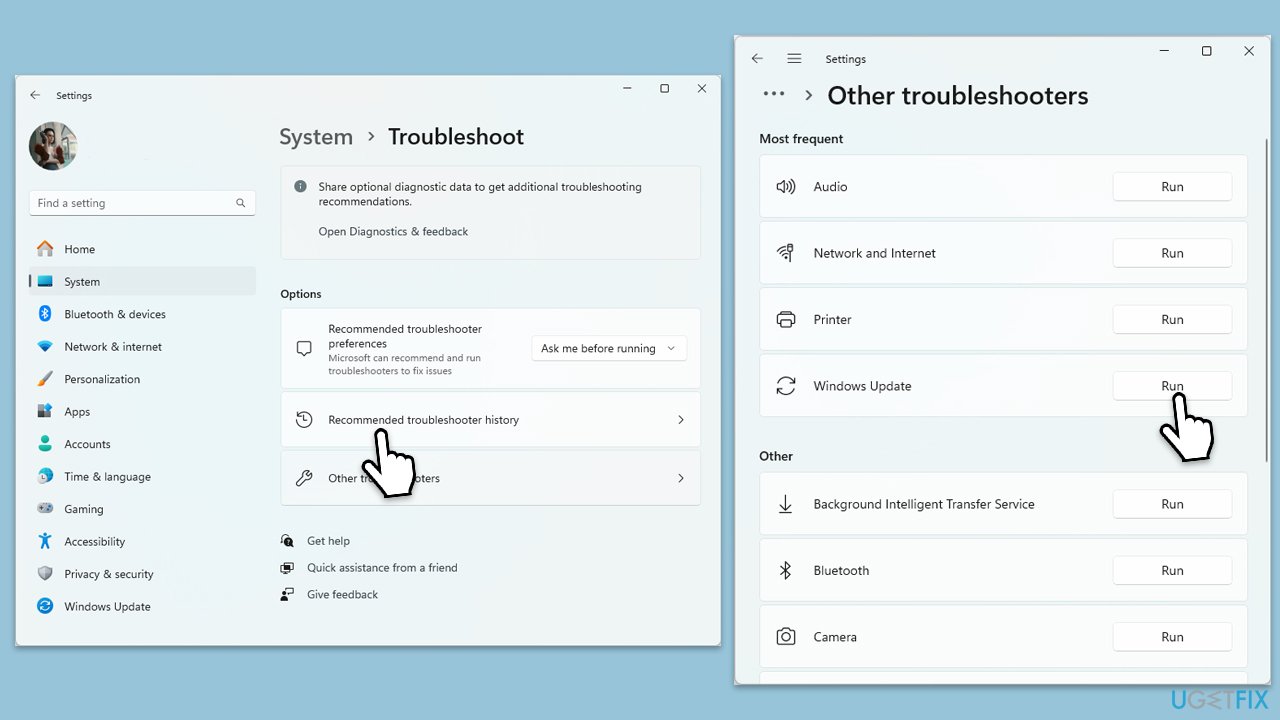
The Windows Update troubleshooter is a built-in tool designed to identify and resolve common issues preventing updates from installing correctly. It works by scanning the system for update-related problems and attempting automatic repairs.
- Type Troubleshoot in Windows search and press Enter.
- Go to Other troubleshooters.
- Find Windows Update from the list and click Run.
- The troubleshooter will automatically scan your system for potential problems and display any issues it finds.
- If the troubleshooter finds any issues, it will provide recommended solutions.
Fix 2. Check relevant services
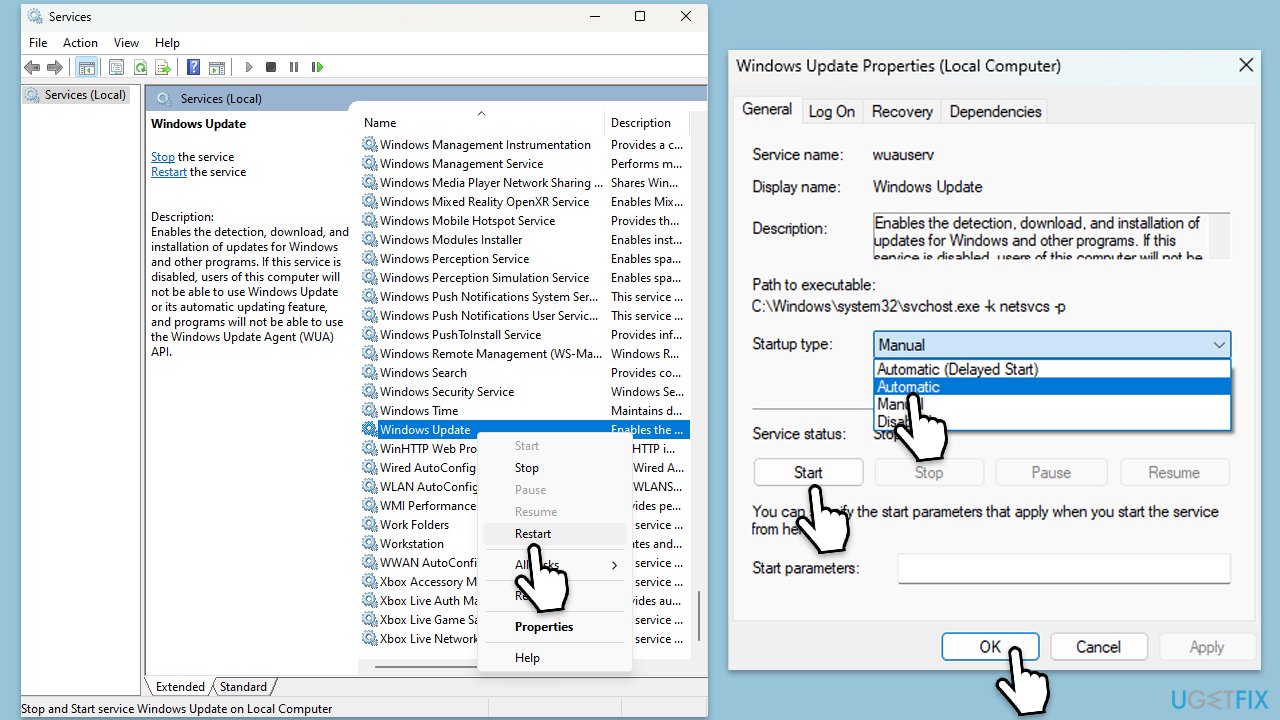
Windows Update relies on certain services to run smoothly. Ensuring these services are running correctly can resolve installation issues.
- Type Services in Windows search and press Enter.
- Next, locate the Background Intelligent Transfer Service, Cryptographic Service, and Windows Update Service by scrolling through the list of services.
- Right-click on each service, and from the context menu, select Restart.
- In case a service is not running, double-click on it and select Automatic under the Startup type. Afterward, click on Start and then click OK.
Fix 3. Temporarily disable third-party security and other software
Third-party security software or VPNs can sometimes interfere with the update process. Temporarily disabling these can help determine if they are causing the issue.
- Locate the antivirus, firewall, or VPN icon in the system tray.
- Right-click the icon and select the option to disable temporarily. This option varies by software.
- Attempt to install the KB5034848 update again.
Fix 4. Repair corrupted files
Windows is equipped with tools that can repair Windows system files and restore system health, potentially fixing update installation issues.
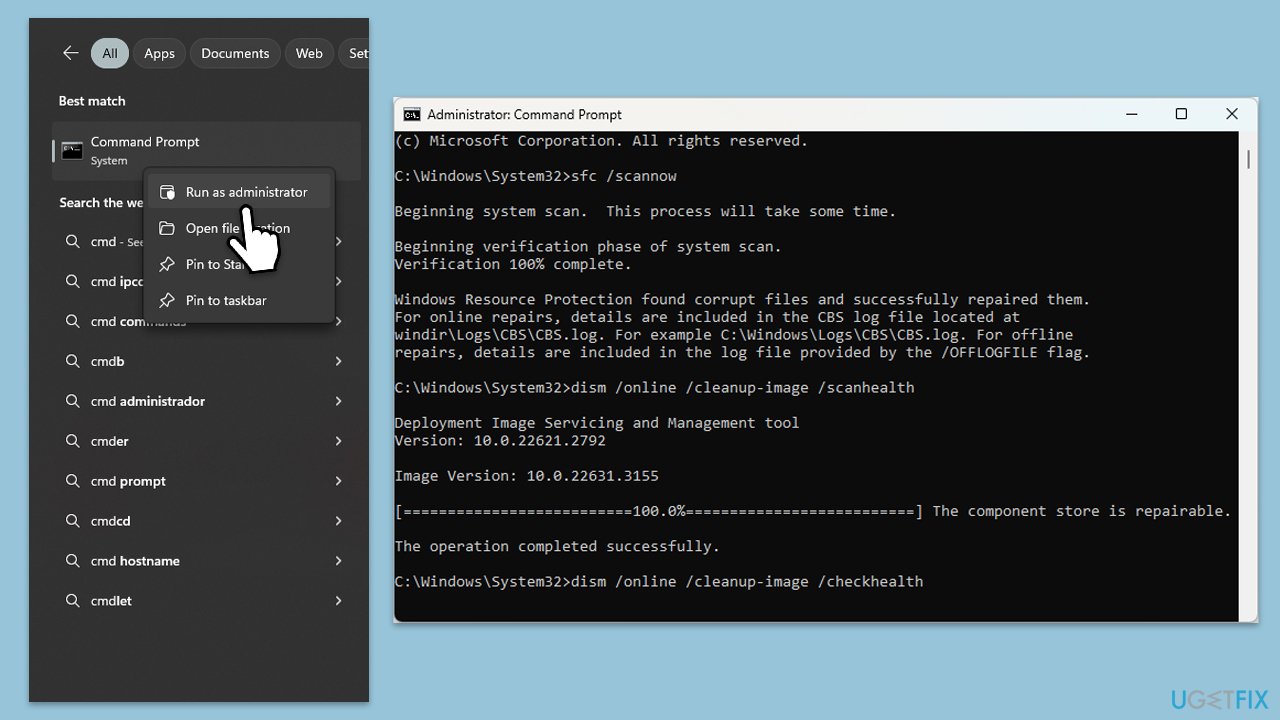
- Type cmd in Windows search.
- Right-click on Command Prompt and pick Run as administrator.
- When User Account Control asks you whether you want to allow changes, click Yes
- Paste the following command and press Enter:
sfc /scannow - Wait till the scan is finished
- Once that is done, use the following commands, pressing Enter each time:
dism /online /cleanup-image /scanhealth
dism /online /cleanup-image /checkhealth
dism /online /cleanup-image /restorehealth - Reboot your PC.
Fix 5. Perform Disk Cleanup
This process can ensure that the bugged caches and other junk files are removed.
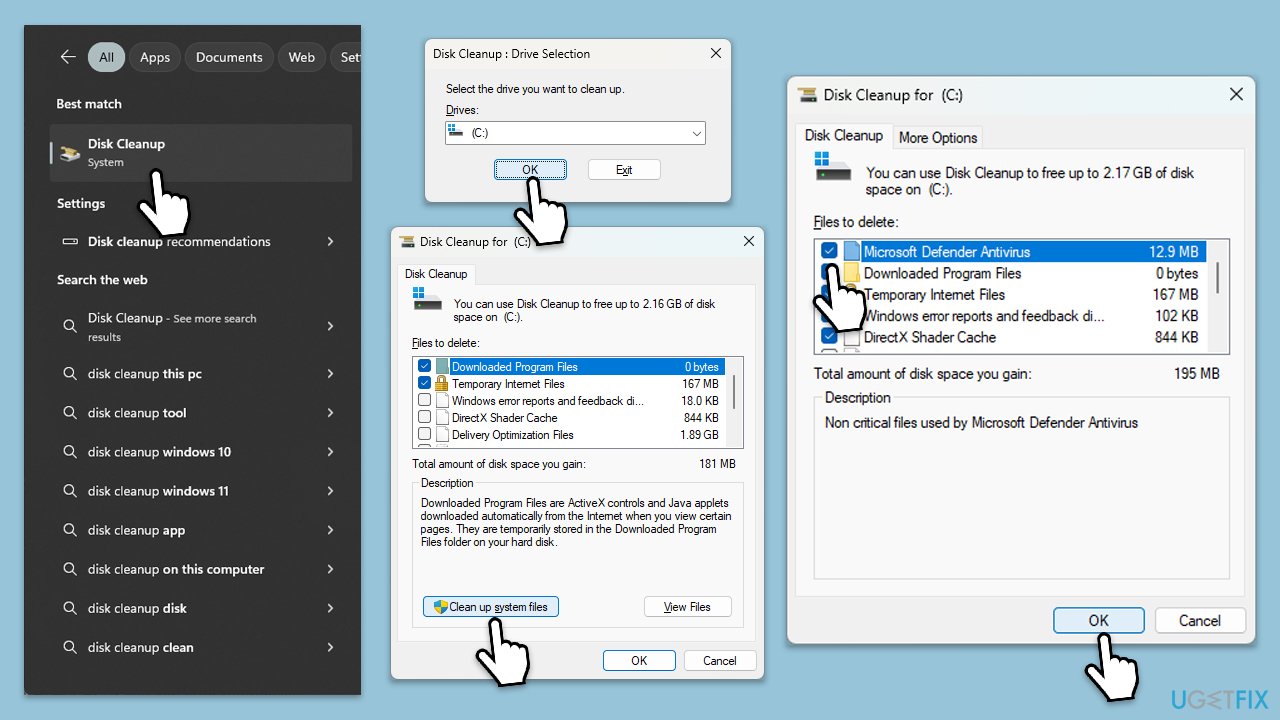
- Type Disk Cleanup in Windows search and hit Enter.
- If your Windows is installed on drive C, pick it from the list (it should be by default) and press OK.
- Click Clean up system files.
- Select your main disk again and click OK.
- Here, select the largest portions of the data used - these typically include Temporary Internet Files, Windows Update, Temporary Files, Recycle Bin, Delivery Optimization Files, and others.
- Click OK - the process should be finished shortly.
Fix 6. Run Check Disk
Check Disk can scan for and fix disk-related errors that might prevent updates from installing.
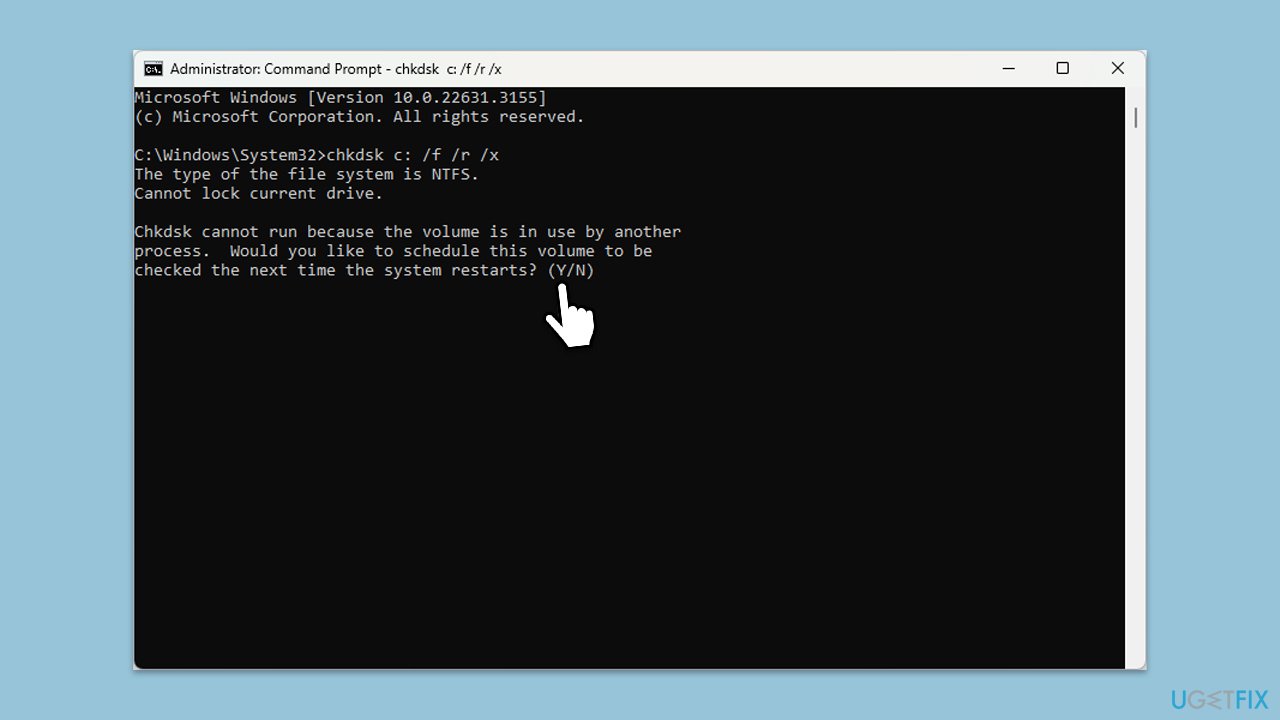
- Open Command Prompt as administrator.
- In the new window, type in the following command and press Enter after:
chkdsk c: /f
(Note: use chkdsk c: /f /r /x command if you are using SSD as your primary partition) - If you receive an error, type in Y, close down Command Prompt and restart your system.
- Wait until the scan is finished - you can find the results in the Event Viewer.
Fix 7. Try installing in a Clean Boot state
Performing a Clean Boot starts Windows with a minimal set of drivers and startup programs, which can help identify if background programs are interfering with the update.
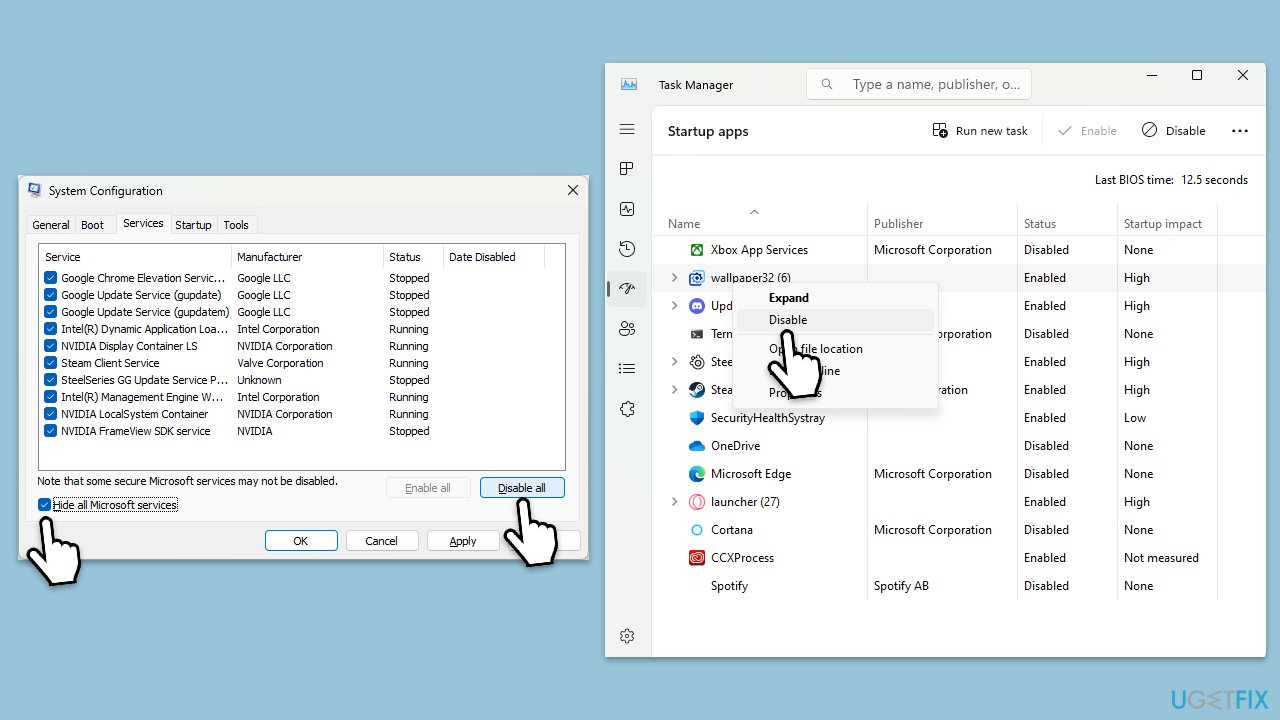
- Type msconfig inWindows Search and press Enter to open the System Configuration window.
- Click on the Services tab and check the Hide all Microsoft Services box.
- Click Disable all to disable non-Microsoft services, then click the Startup tab.
- Open the Task Manager, disable all startup items, and close the Task Manager.
- Go to the Boot tab and mark the Safe boot option.
- Click OK on the System Configuration window and restart your computer.
- Try installing update again.
Fix 8. Reset Windows Update components
Resetting Windows Update components can resolve persistent update installation issues by refreshing the update environment.
- Open Command Prompt as administrator.
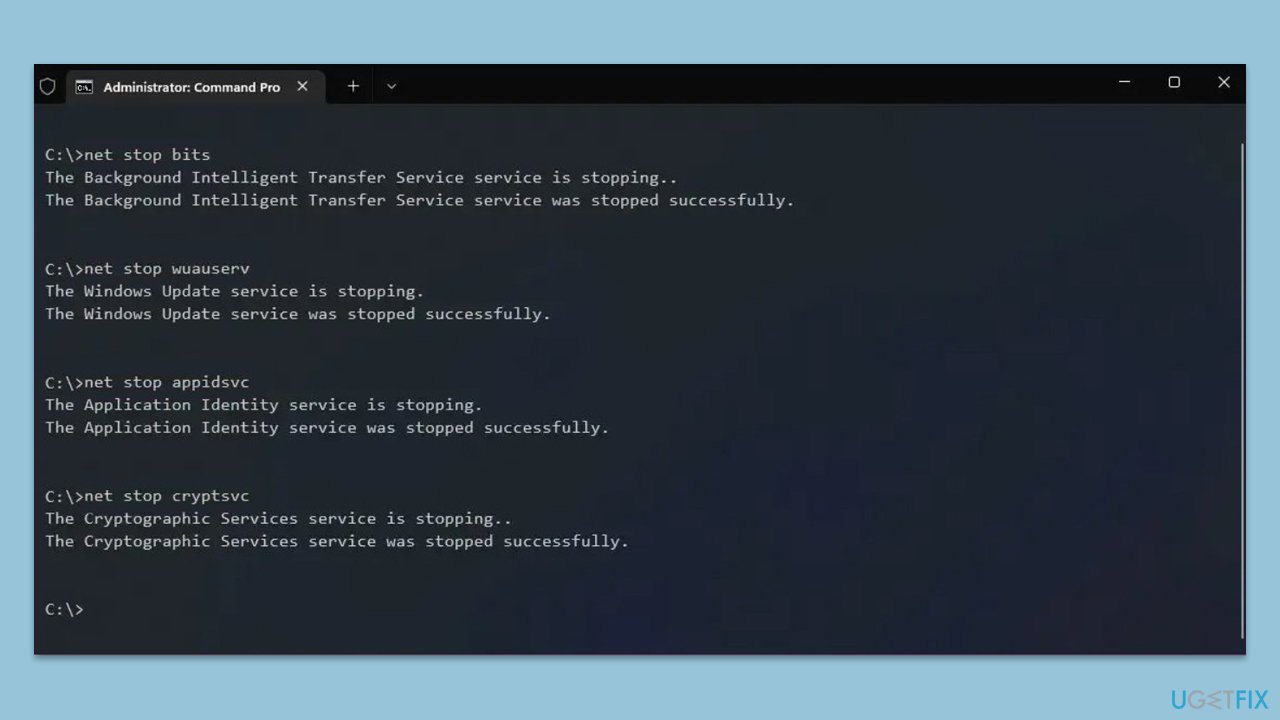
- Stop the BITS, Windows Update, and Cryptographic services by typing the following commands, and pressing Enter after each:
- net stop bits
- net stop wuauserv
- net stop appidsvc
- net stop cryptsvc
- To rename the SoftwareDistribution and Catroot2 folders (where Windows stores update files), type the following commands:
- ren %systemroot%\SoftwareDistribution SoftwareDistribution.old
- ren %systemroot%\system32\catroot2 catroot2.old
- Restart the services stopped earlier by typing the following commands:
- net start bits
- net start wuauserv
- net start appidsvc
- net start cryptsvc
- Close the Command Prompt and restart your computer, then try updating Windows again.
Bottom line
To fix the installation failure of KB5034848, you can clear bugged caches, use System File Checker (SFC) or Deployment Imaging Servicing and Management (DISM) to repair corrupted files, and ensure Windows Update services are configured correctly. If these solutions do not resolve the issue, consider using a PC repair tool to identify and fix underlying Windows problems.
Frequently asked questions
First, try running the Windows Update Troubleshooter by navigating to Settings > Update & Security > Troubleshoot. If that doesn't work, consider manually downloading the update from the Microsoft Update Catalog.
Yes, resetting the Windows Update components can resolve installation issues; you can do this by running specific commands in the Command Prompt as an administrator. Make sure to follow the steps carefully to reset the services.
You can check if KB5034848 is installed by going to Settings > Update & Security > Windows Update, then clicking on 'View update history.' This will show you all installed updates.




Report an issue
What's wrong with this guide? We review every report and update or remove content.
Report received — thank you. We'll review and fix it.
You need a free account to submit a report.
Be the first to comment