How to fix
KB5034855 fails to install
on Windows
Resolve KB5034855 installation issues in Windows 11 effortlessly. Get expert-tested solutions and tips to fix it in minutes with zero traces left.

What causes How to fix KB5034855 fails to install in Windows 11?
- Lack of sufficient disk space
- Corrupted update caches
- Malfunctioning Windows Update components
- Corrupted system files
Repairs Windows system files, removes malware, and restores a clean OS state — without reinstalling.
I can't install the latest Insider update KB5034855 for Windows 11. I was waiting for several days for the issue to resolve by itself but nothing has changed and the update is still failing.
Maintaining an up-to-date operating system is essential for ensuring the security, efficiency, and feature set of Windows 11. Microsoft categorizes updates into security, feature, and cumulative updates to systematically enhance user security, introduce performance improvements, and roll out new functionalities. For participants of the Windows Insider Program, Preview builds offer a glimpse into future updates, allowing users to test new features and provide feedback ahead of general availability.
One such Preview update is KB5034855, targeted at Windows 11 version 23H2 Insiders, released on February 16. This update is significant for its comprehensive bug fixes and enhancements, especially to Copilot, designed to improve user experience and productivity tools within the operating system.
However, the process of installing KB5034855 may not go smoothly for all users. Installation failures can arise from a variety of issues, which could hamper the ability to benefit from the latest improvements. A frequent issue is the lack of sufficient disk space, a critical requirement for the installation of substantial updates.
Problems within the update mechanism, such as corrupted update caches or malfunctioning Windows Update components, can also prevent successful update installations. Moreover, the presence of corrupted system files poses a significant barrier to the update process.
To tackle the challenge of installing KB5034855, it is important to identify and address these potential stumbling blocks. Clearing sufficient disk space is a basic yet vital step, ensuring that the update has the necessary room to download and install. Addressing issues with the update mechanism involves clearing the update cache and ensuring that the Windows Update components are functioning correctly. For corrupted system files, utilizing built-in Windows utilities to scan and repair these files can be an effective solution.
Navigating the hurdles to install KB5034855 is crucial for accessing the latest enhancements and ensuring the optimal performance and security of Windows 11. For users seeking a simpler resolution, leveraging a dedicated PC repair tool [d1] may provide an efficient alternative. These tools are adept at diagnosing and rectifying prevalent Windows issues automatically, facilitating a smoother update process and enabling users to enjoy the advancements brought by updates like KB5034855 with minimal hassle.
Fix 1. Temporarily disable third-party security software/VPN/firewall
Third-party antivirus and security software seek to protect systems by continually monitoring and blocking suspicious activity, which may mistakenly include Windows Update processes. These security software frequently include real-time scanning tools that prevent unwanted alterations to the system.
When a Windows update, such as KB5034855, attempts to modify system files during the installation process, some antivirus programs may interpret it as a potential threat. As a result, the security software may prevent or impede the update installation, leading it to fail.
Given this, it is recommended that users temporarily stop any third-party antivirus or security software while installing Windows updates. By doing so, potential conflicts between the update and the security program can be avoided, resulting in a more seamless updating procedure.
Fix 2. Run SFC and DISM
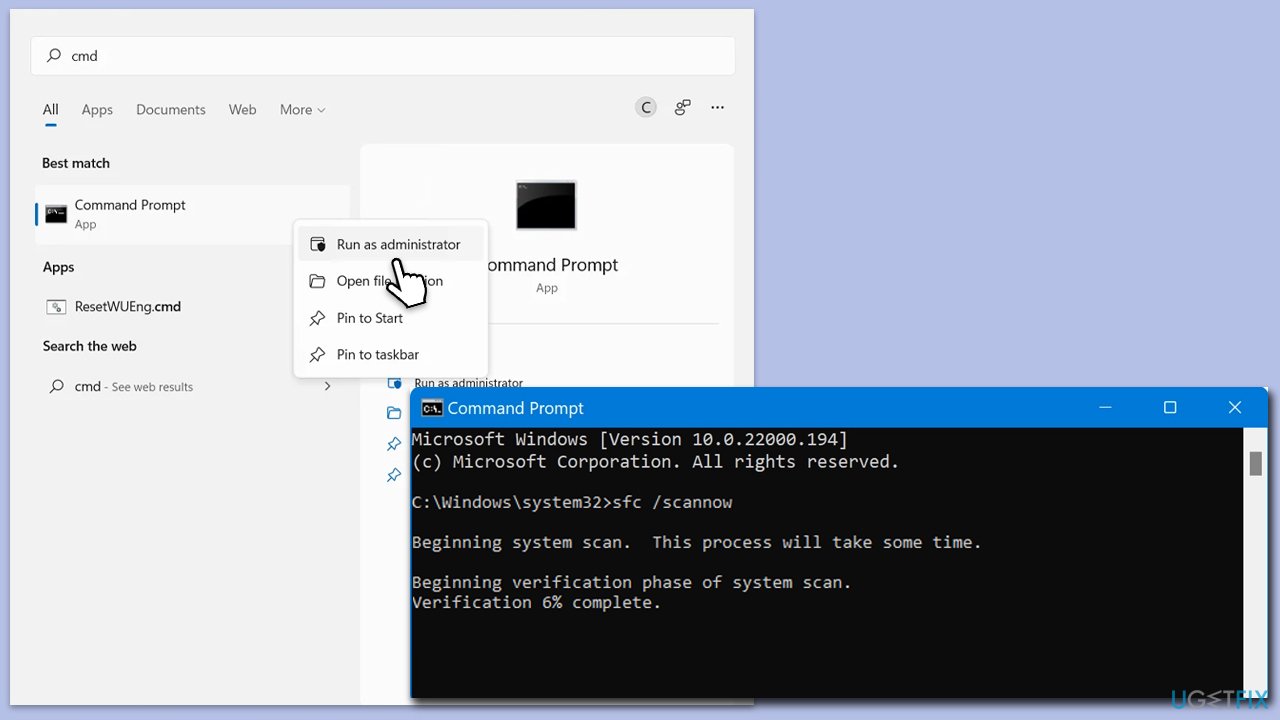
Make sure corrupted Windows files are not causing KB5034855 to fail to install. To address, this run the elevated Command Prompt as follows:
- Type cmd in Windows search.
- Right-click on the Command Prompt result and select Run as administrator.
- When the UAC window pops up, click Yes.
- In the Command Prompt window, paste the following command and press Enter:
sfc /scannow - Wait for the scan to complete.
- Once the SFC scan is finished, run the following set of DISM commands, pressing Enter after each one:
DISM /Online /Cleanup-Image /CheckHealth
DISM /Online /Cleanup-Image /ScanHealth
DISM /Online /Cleanup-Image /RestoreHealth - After completing the DISM commands, restart your computer.
Fix 3. Perform Disk Cleanup
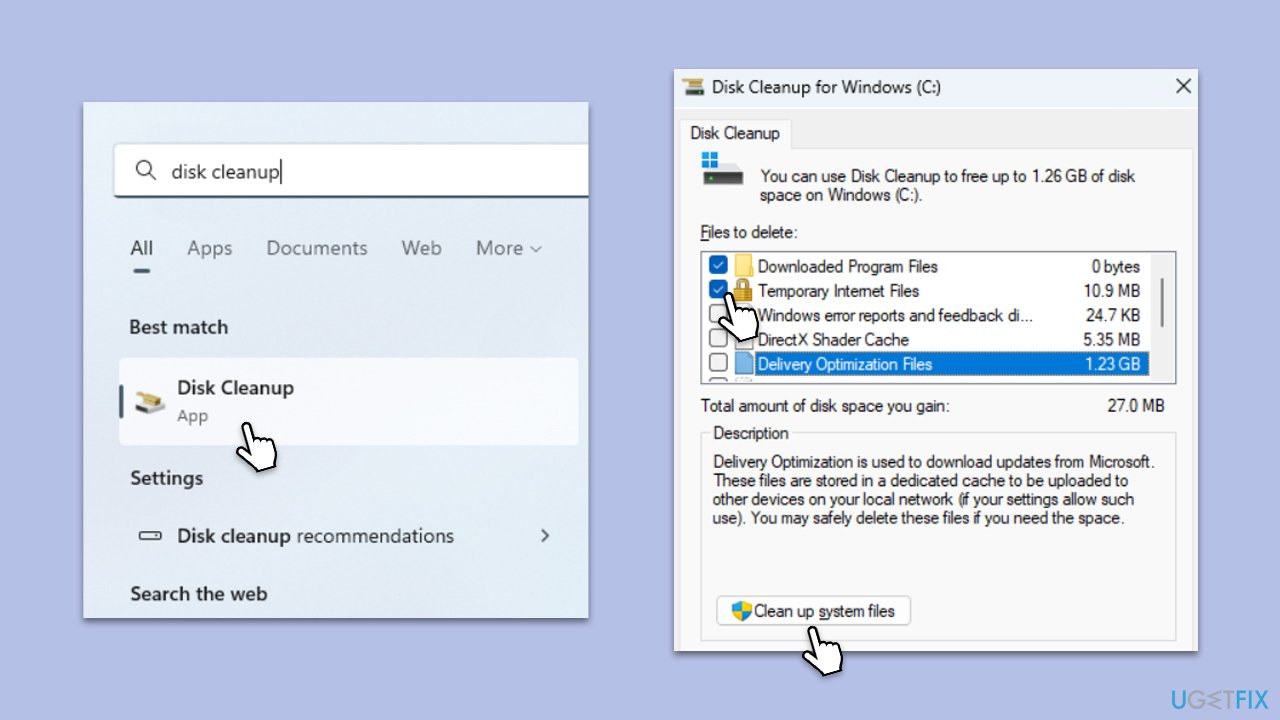
Freeing up storage space is critical for update delivery. Disk cleanup deletes temporary files, system files, and empties the Recycle Bin to make a space for updates.
- Type Disk Cleanup in Windows search and hit Enter
- If your Windows is installed on drive C, pick it from the list (should be by default) and press OK
- Click Clean up system files
- Select your main disk again and click OK
- Here, select the largest portions of the data used - these typically include Temporary Internet Files, Windows Update, Temporary Files, Recycle Bin, Delivery Optimization Files, and others.
- Click OK and wait for the cleanup process to finish.
Fix 4. Run Windows Update troubleshooter
The Windows Update Troubleshooter can identify and fix problems with the update mechanism, facilitating a smoother installation process.
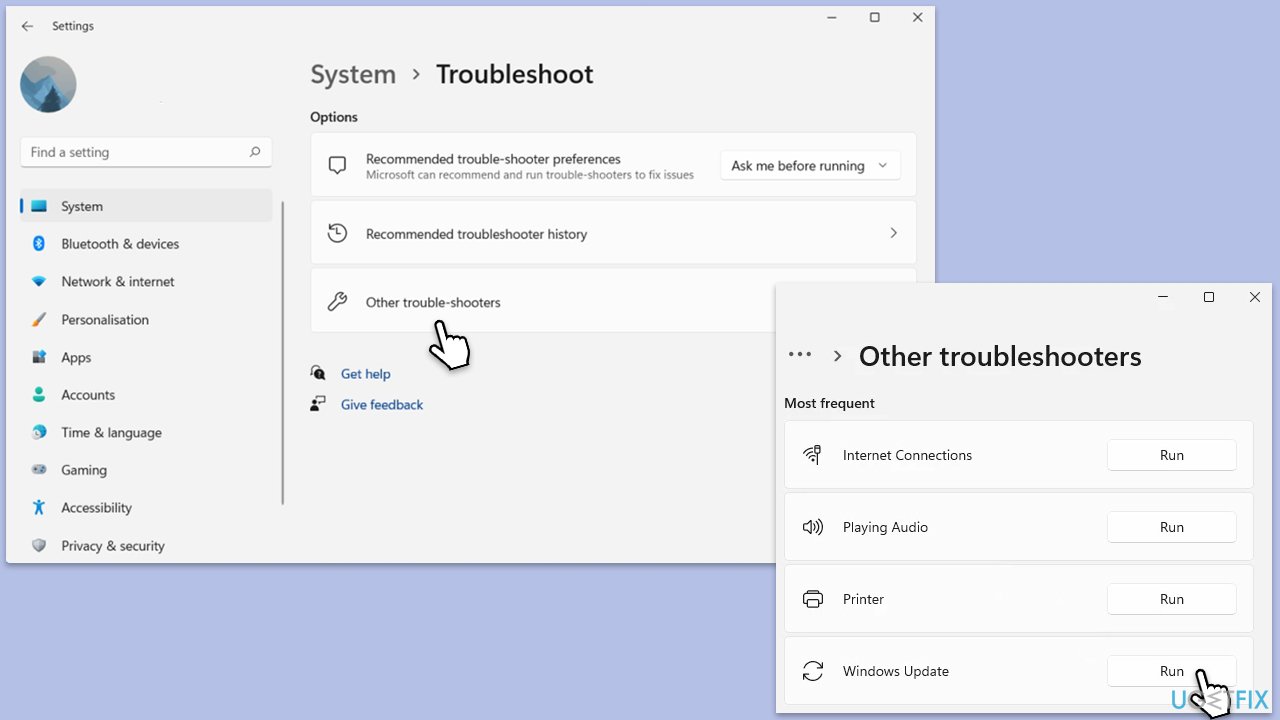
- In Windows search, type in troubleshoot and press Enter (you can also go to Start > Settings > System > Troubleshoot).
- Pick Other trouble-shooters (in Windows 10, pick Additional troubleshooters).
- Scroll down to locate the Windows Update option and click Run.
- Wait until the scan is finished, apply the changes, and try running the update process again.
Fix 5. Check relevant services
Ensuring that essential services for Windows Update are running can address installation failures.
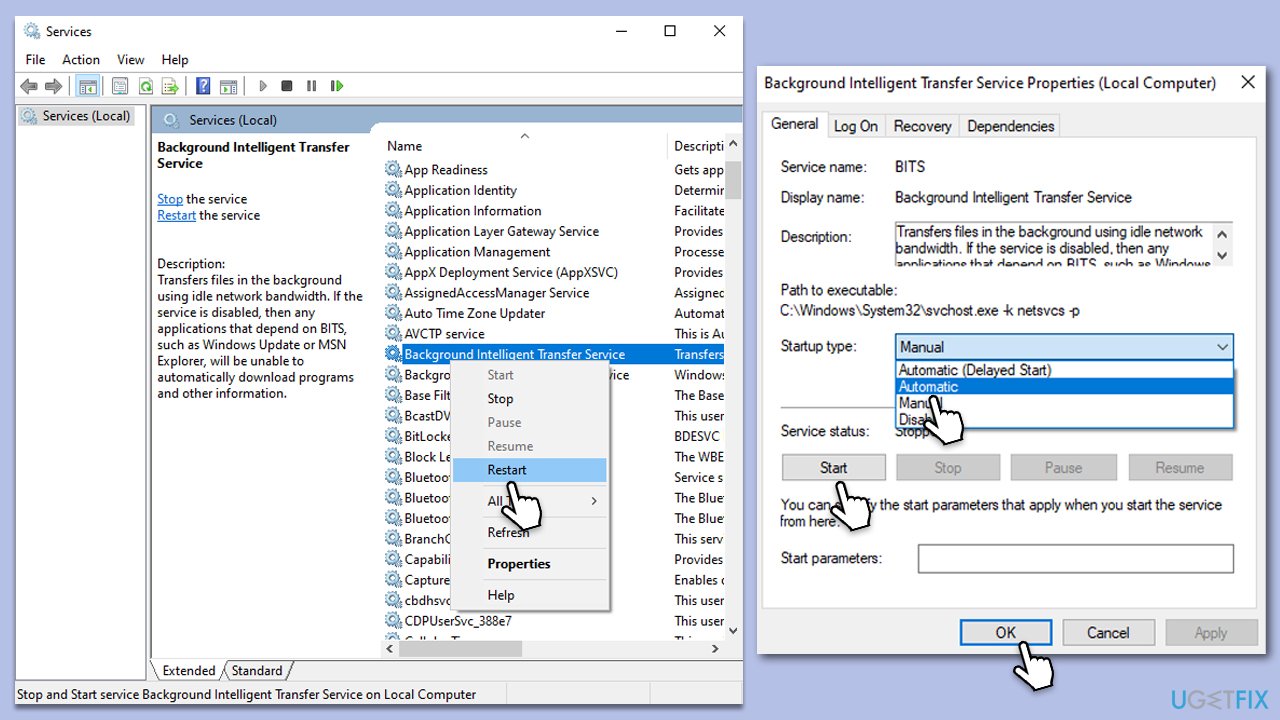
- In Windows Start search, type in Services and press Enter.
- When the new window opens, scroll down a bit to find Background Intelligent Transfer Service (BITS).
- If the service is already running, right-click and select Restart.
- Otherwise, double-click the service and select Automatic under the Startup type.
- Click Start, Apply, and OK.
- Perform the same steps with the Windows update service and Cryptographic services.
Fix 6. Reset Windows update components
Resetting the components of Windows Update can clear caches and restart services, potentially overcoming installation barriers.
- Open Command Prompt as administrator again
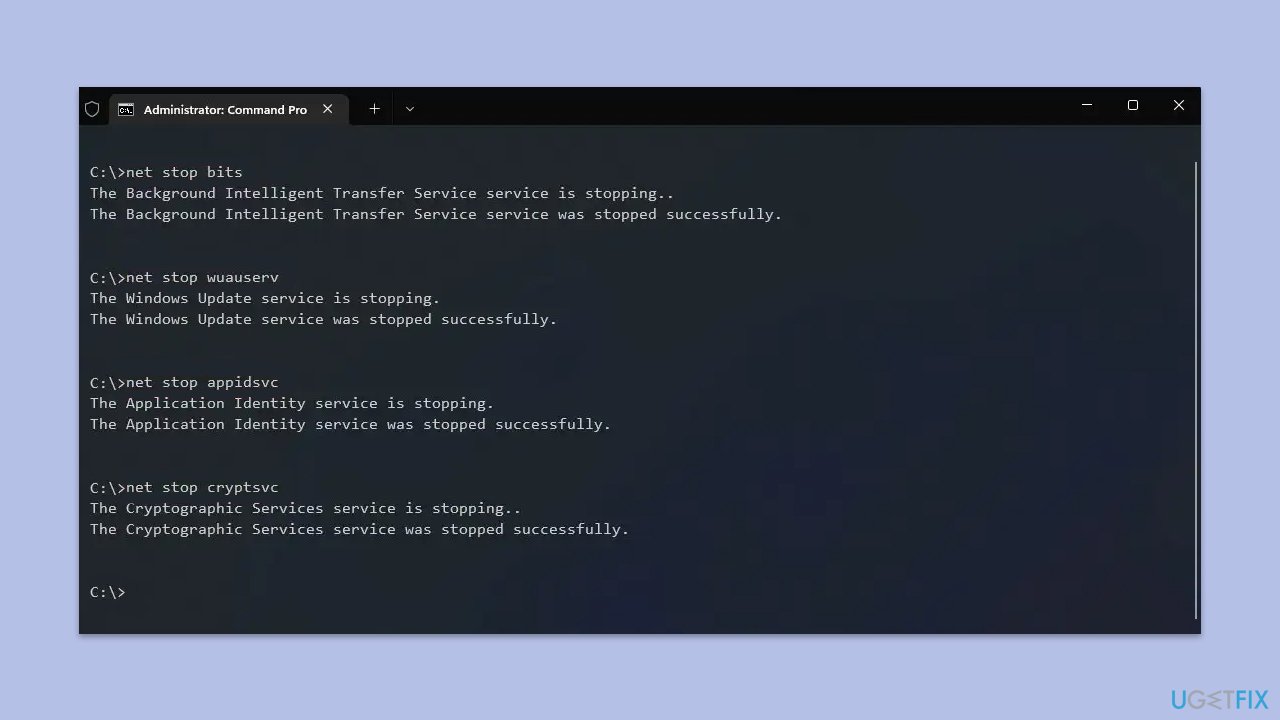
- In the new window, copy and paste each of these commands, pressing Enter every time:
net stop bits
net stop wuauserv
net stop appidsvc
net stop cryptsvc
Del "%ALLUSERSPROFILE%\Application Data\Microsoft\Network\Downloader\*.*"
rmdir %systemroot%\SoftwareDistribution /S /Q
rmdir %systemroot%\system32\catroot2 /S /Q
regsvr32.exe /s atl.dll
regsvr32.exe /s urlmon.dll
regsvr32.exe /s mshtml.dll
netsh winsock reset
netsh winsock reset proxy
net start bits
net start wuauserv
net start appidsvc
net start cryptsvc - Restart your device and try updating again.
Bottom line
To fix the installation failure of KB5034855, ensure there is enough disk space, clear the update cache, and check that Windows Update components are functioning correctly. Additionally, utilize built-in Windows utilities to scan and repair any corrupted system files. If these solutions do not resolve the issue, further troubleshooting may be necessary.
Frequently asked questions
First, try running the Windows Update Troubleshooter by going to Settings > Update & Security > Troubleshoot. If that doesn't work, consider manually downloading the update from the Microsoft Update Catalog.
Yes, some antivirus programs can block updates; temporarily disabling your antivirus might help resolve the installation issue. Remember to re-enable it after the update process.
You can check the installation history by going to Settings > Update & Security > Windows Update, then clicking on 'View update history'. This will show if the update was attempted and any errors encountered.




Report an issue
What's wrong with this guide? We review every report and update or remove content.
Report received — thank you. We'll review and fix it.
You need a free account to submit a report.
Be the first to comment