How to fix
KB5036620 fails to install
on Windows
Resolve the KB5036620 installation error on Windows 11 effortlessly. Follow our expert-tested solutions for quick fixes and seamless updates. Fixed in m…

What causes How to fix KB5036620 fails to install in Windows 11?
- Conflicts with existing software
- Corrupted system files
- Issues with the update components
- Network problems
- Insufficient system resources
Repairs Windows system files, removes malware, and restores a clean OS state — without reinstalling.
Why is the KB5036620 update for the .NET Framework on Windows 11 failing to install on my system? It was released recently but seems to encounter errors during the installation process.
Patch Tuesday, which is usually held on the second Tuesday of each month, is an organized method by which Microsoft regularly distributes updates to its operating systems. The deployment of cumulative updates, security patches, and sporadic feature upgrades across all supported Windows versions depends on this routine event.
These updates are categorized into several types, including security updates to fix vulnerabilities, cumulative updates encompassing security and non-security fixes, and optional updates that usually provide early access to upcoming features.
Even with this delivery mechanism in place, updates can still fail to install. KB5036620 is one instance of this, which some users have reported having trouble installing on their Windows 11 PCs.
KB5036620 is a cumulative update for the.NET Framework versions 3.5 and 4.8.1 in Windows 11 versions 23H2 and 22H2, which came along with other updates like KB5036893 and KB5036892. It was released on April 9, 2024, and addresses a number of key issues. This version offers fixes for security flaws like CVE-2024-21409 and other Framework Defense in Depth flaws. These are safeguards meant to keep the system secure in the event that other security measures malfunction.
Beyond enhancing security, the update also includes quality and stability improvements for the .NET Framework package, ensuring better performance and fewer crashes.
KB5036620 can fail to install due to various factors. Commonly, these failures are caused by conflicts with existing software, corrupted system files, or even issues with the update components themselves. Network problems or insufficient system resources during the update process can also result in unsuccessful installations.
To mitigate these issues and stop KB5036620 from failing, users can try running the Windows Update troubleshooter, resetting the Windows Update components, or manually downloading and installing the update from the Microsoft Update Catalog. For those less comfortable with these technical steps, employing a professional PC repair tool [d1] might provide a simpler solution.
Fix 1. Run the Windows Update troubleshooter
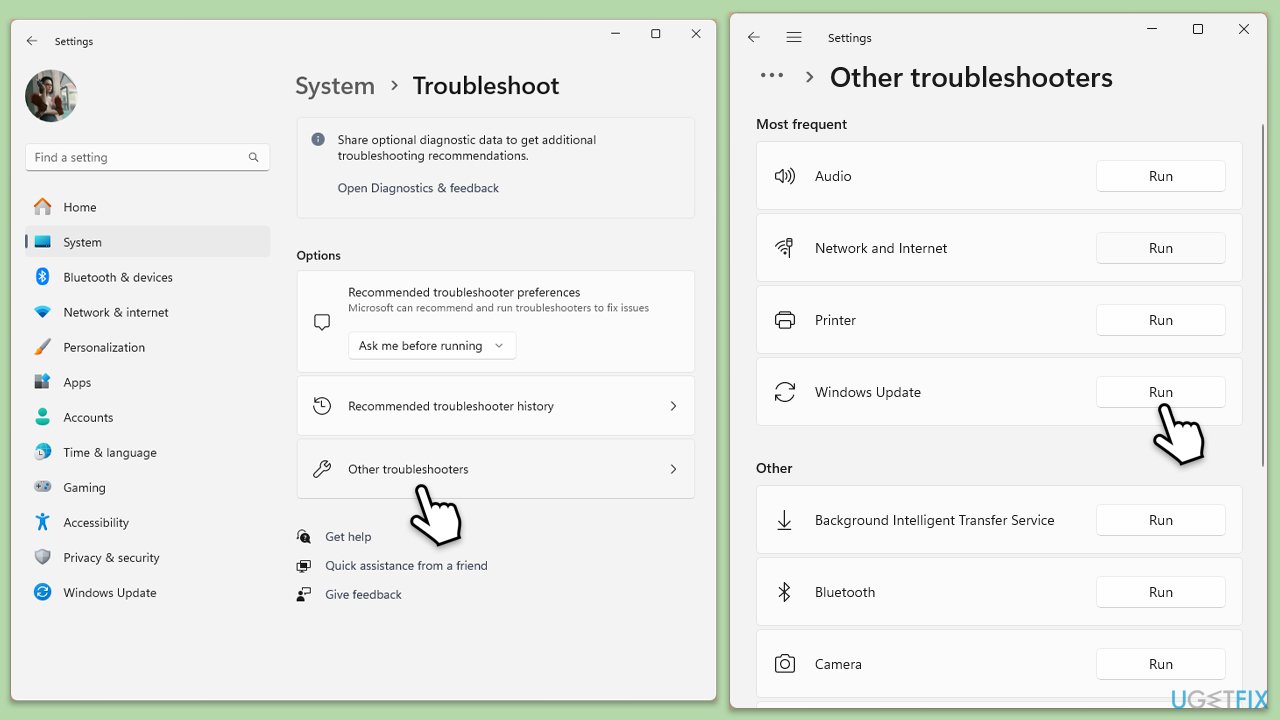
The Windows Update troubleshooter can help resolve common issues that prevent updates from installing correctly.
- Type troubleshoot in Windows search and press Enter or go to Start > Settings > System > Troubleshoot.
- From the list of Options, pick Other troubleshooters.
- Scroll down to locate the Windows Update and click Run.
- Wait for it to finish, then apply changes and reboot the system.
Fix 2. Check relevant services
Sometimes, a simple restart can resolve issues by clearing temporary glitches in the system.
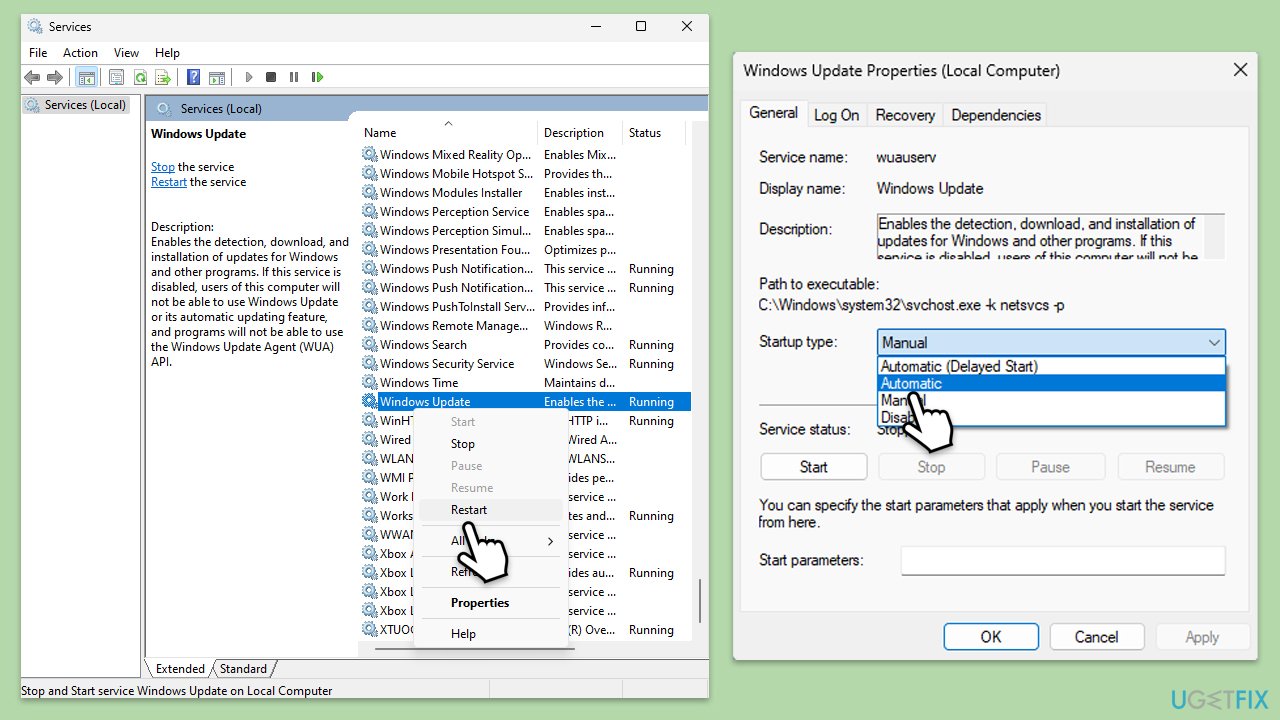
- In Windows search, type Services and press Enter.
- Scroll down and find the Windows Update service.
- Right-click on it and select Properties.
- If the service is not running, click Start. If it is running, restart it by clicking Stop and then Start again.
- Ensure the Startup type is set to Automatic.
- Repeat the same steps for the Background Intelligent Transfer Service (BITS).
Fix 3. Check your internet connection
A stable internet connection is crucial for downloading updates properly.
- Ensure your device is connected to the internet.
- Try using a wired connection if Wi-Fi is unstable.
- Restart your router if you are experiencing connectivity issues.
Fix 4. Scan your system for malware
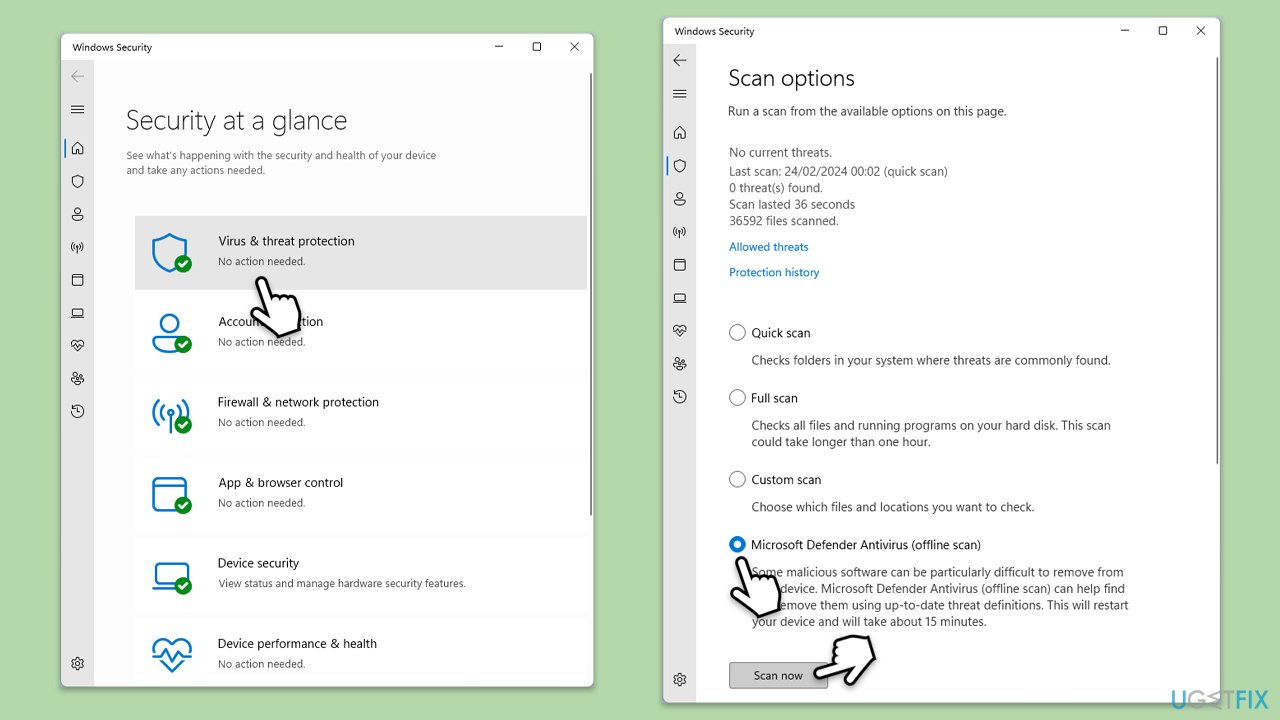
A malware infection can prevent the system from installing updates, as these often patch security vulnerabilities (as is in this case). You can use Microsoft Safety Scanner, employ a third-party software, or run an offline scan with Microsoft Defender as follows:
- Type Windows Security in the Windows search bar and hit Enter.
- Select Virus & threat protection.
- Pick Scan options.
- Choose Microsoft Defender Offline scan and click Scan now.
- Your computer will immediately reboot and begin a deep scan.
Fix 5. Run SFC and DISM scans
Corrupted system files can prevent updates from installing correctly.
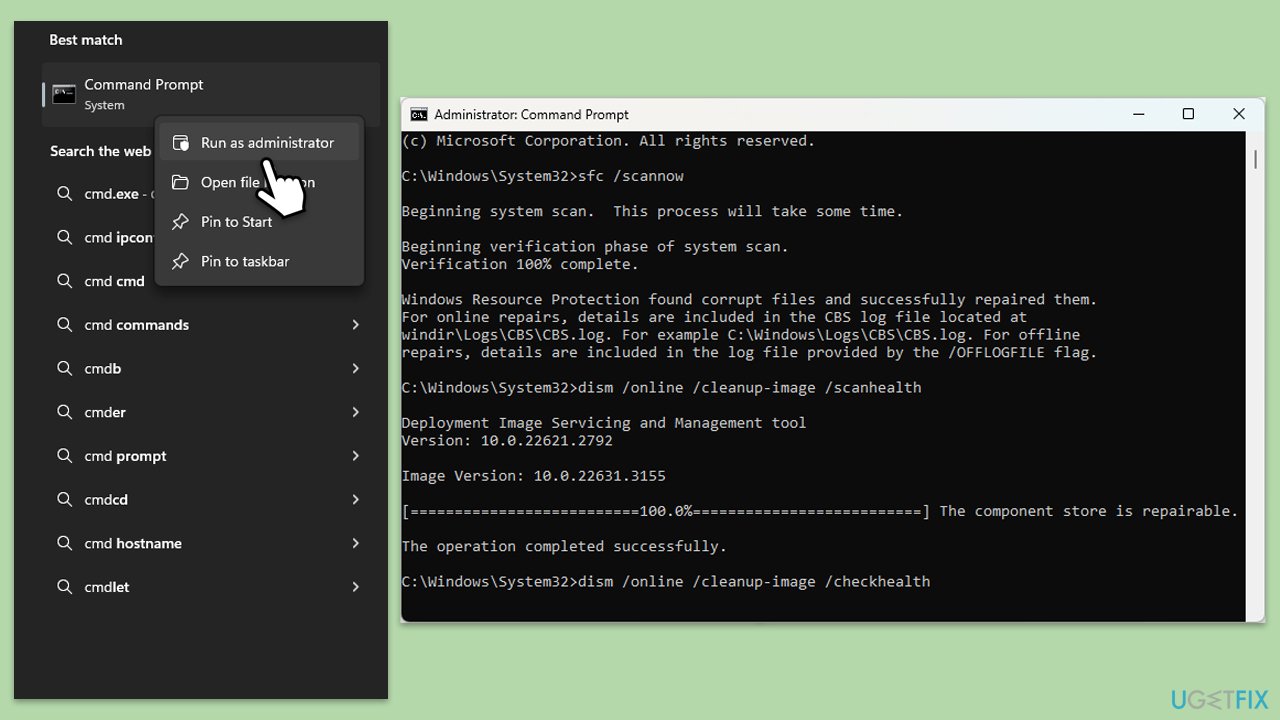
- Type cmd in Windows search.
- Right-click on Command Prompt and pick Run as administrator.
- User Account Control window will show up - click Yes when prompted.
- Then, copy and paste the following command, pressing Enter after:
sfc /scannow - Wait till the scan is finished. If Windows finds system file integrity violations, it will attempt to fix them. After this, use the set of the following commands, pressing Enter each time:
DISM /Online /Cleanup-Image /CheckHealth
DISM /Online /Cleanup-Image /ScanHealth
DISM /Online /Cleanup-Image /RestoreHealth - Close down the Command Prompt and restart your device.
Fix 6. Reset Windows update components
If updates still fail to install, resetting the Windows Update components can clear out any stuck or corrupted files or settings that might be causing the issue.
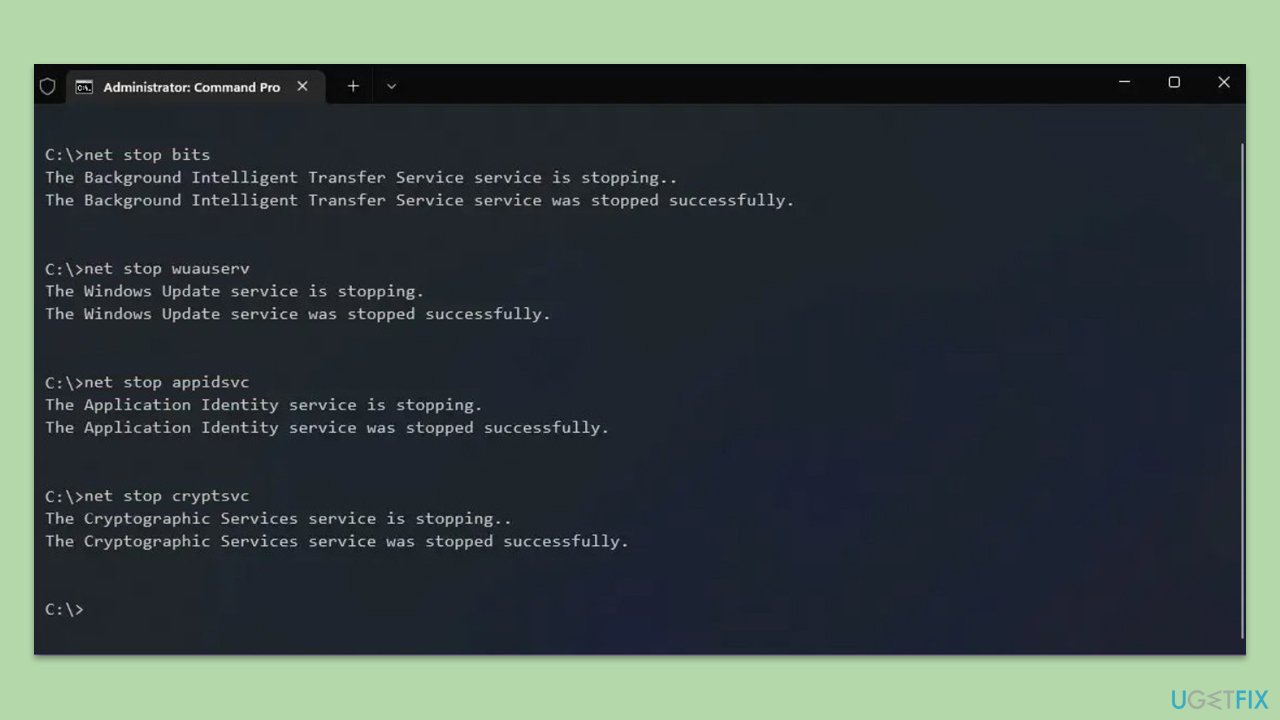
- Open Command Prompt as administrator.
- In the new window, copy and paste the following commands, pressing Enter after each to execute them:
net stop bits
net stop wuauserv
net stop appidsvc
net stop cryptsvc
Del “%ALLUSERSPROFILE%\Application Data\Microsoft\Network\Downloader\*.*”
rmdir %systemroot%\SoftwareDistribution /S /Q
rmdir %systemroot%\system32\catroot2 /S /Q
regsvr32.exe /s atl.dll
regsvr32.exe /s urlmon.dll
regsvr32.exe /s mshtml.dll
netsh winsock reset
netsh winsock reset proxy
net start bits
net start wuauserv
net start appidsvc
net start cryptsvc - Reboot your system.
Fix 7. Perform a Clean Boot
Running your computer in a clean boot state can help identify if third-party applications are causing conflicts.
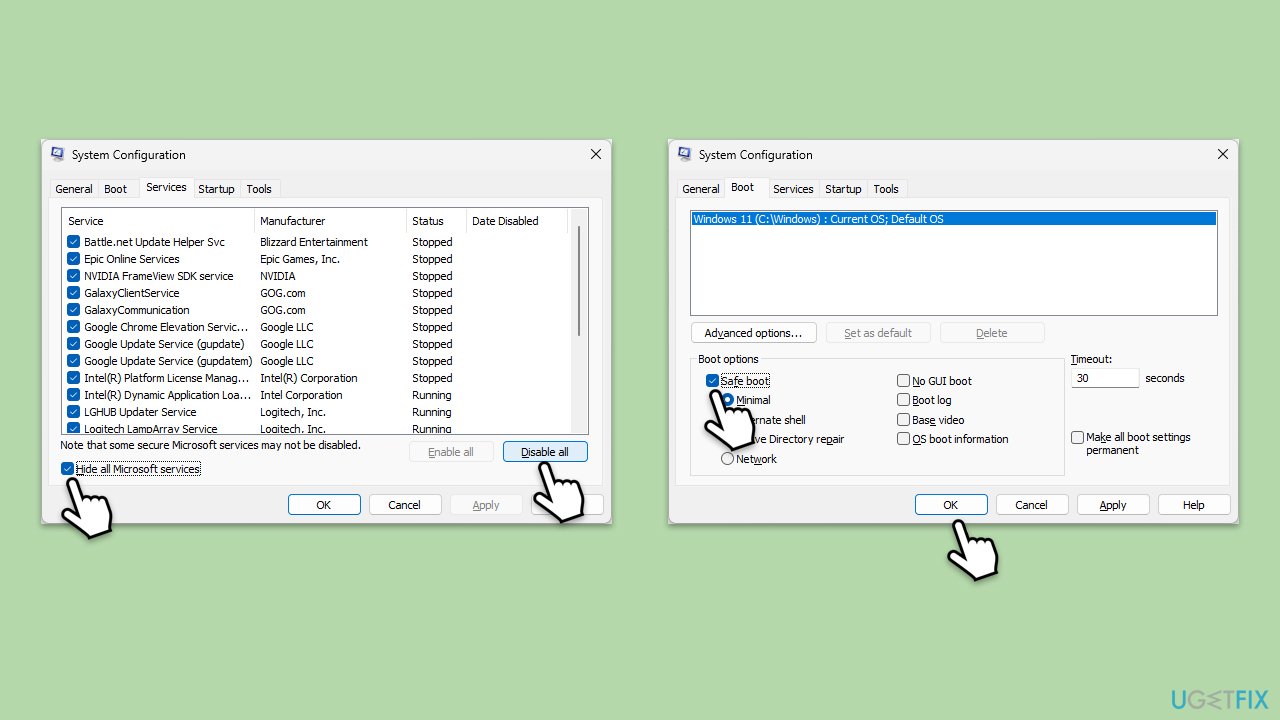
- Press Win + R, type msconfig, then press Enter.
- Select the Services tab and tick the Hide all Microsoft services checkbox.
- Pick Disable all.
- Go to the Startup tab and click Open Task Manager.
- Here, right-click on each of the non-Windows entries and select Disable.
- Close down the Task Manager.
- Go to the Boot tab and tick the Safe boot option
- Reboot your system.
- Try updating your system.
Fix 8. Manually install the update
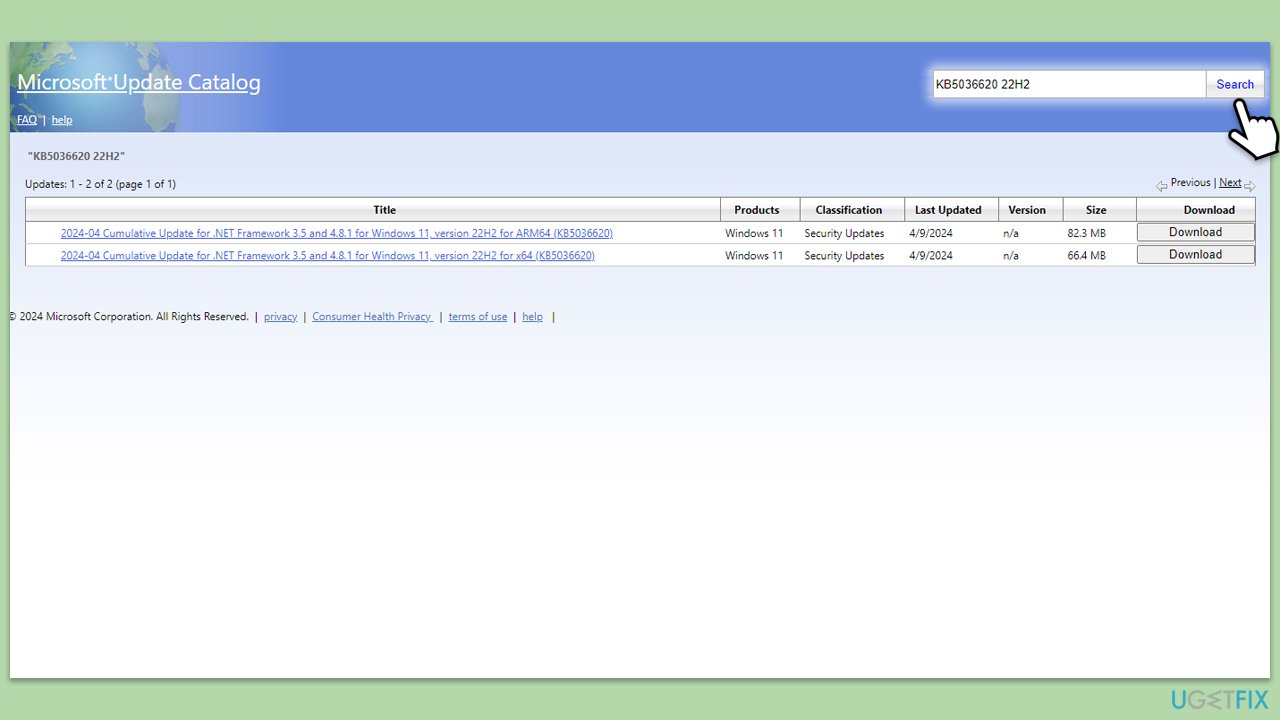
If all else fails, you can download and install the update manually from the Microsoft Update Catalog.
- Open your browser and go to Microsoft Update Catalog
- In the search box, type in KB5036620 and press Search.
- Find the correct version of the update for your operating system (to check this, right-click on Start and pick System. Under Device specifications check the System type) and click Download.
- Use on-screen guidelines to finish the installation process and reboot your computer.
Bottom line
To fix the installation failure of KB5036620, users can run the Windows Update troubleshooter, reset the Windows Update components, or manually download and install the update from the Microsoft Update Catalog. If these steps do not resolve the issue, consider employing a professional PC repair tool for assistance.
Frequently asked questions
Try running the Windows Update Troubleshooter, which can be found in Settings under Update & Security, then click on Troubleshoot. If that doesn't work, consider temporarily disabling your antivirus software and attempting the installation again.
Free up space on your system drive by deleting unnecessary files or using the Disk Cleanup tool. After clearing space, retry the installation of the update.
Yes, you can manually download the update from the Microsoft Update Catalog website by searching for KB5036620 and selecting the appropriate version for your system. Follow the prompts to install it after downloading.




Report an issue
What's wrong with this guide? We review every report and update or remove content.
Report received — thank you. We'll review and fix it.
You need a free account to submit a report.
Be the first to comment