How to fix
KB5036892 fails to install
on Windows
Troubleshoot and resolve the KB5036892 installation failure in Windows 10 quickly and effectively. Expert-tested solutions for seamless updates.

What causes How to fix KB5036892 fails to install in Windows 10?
- Incompatibilities with current applications
- Limited storage space
- Corrupted update files
- Intervention from security software
- Disabled or malfunctioning Windows Update service
- Network problems such as irregular or intermittent connections
Repairs Windows system files, removes malware, and restores a clean OS state — without reinstalling.
I recently tried to update my Windows 10 system with the KB5036892 update, but it keeps failing to install. I've tried several times, and each time, the installation process starts but then abruptly stops and reverts the changes. What could be causing this issue, and how can I update my system?
Windows updates play a crucial role in Microsoft's ongoing efforts to guarantee the safety and functionality of its operating systems. In addition to fixing a number of problems, including system errors and security flaws, these updates also boost overall performance, guaranteeing customers get the most out of their devices. A Knowledge Base (KB) number is assigned to each update, making it simple for users to determine certain improvements or changes made to their system.
One such update is KB5036892, which was released on April 9, 2024, for Windows versions 22H2 and 21H2. This update primarily aims to improve security by fixing known vulnerabilities and improving the Windows servicing stack. These modifications are critical for ensuring the operating system's integrity and resistance against external threats.
Despite its importance, several users have reported issues installing KB5036892. The installation may begin but then fail halfway through, restoring any changes made up until that point. This failure can be attributable to multiple factors. Common problems include incompatibilities with current applications, limited storage space, and problems with the Windows Update components itself.
Updates may not install properly due to corrupted update files or intervention from security software. The update process may occasionally halt because the Windows Update service is either disabled or not operating correctly. The update may not install or download properly due to network problems, such as irregular or intermittent connections.
There are several things you can do to fix KB5036892 failing to install; for example, perform system scans to clean up corrupted files, check network settings, or temporarily disable firewall and antivirus programs during the update installation. Furthermore, ensuring that there is enough disk space and that all necessary services are running can also be crucial.
Alternatively, if you want to repair Windows issues automatically, we advise trying a comprehensive PC repair application [d1], which can conduct many of the manual steps automatically and quickly for you.
Fix 1. Run Windows update troubleshooter
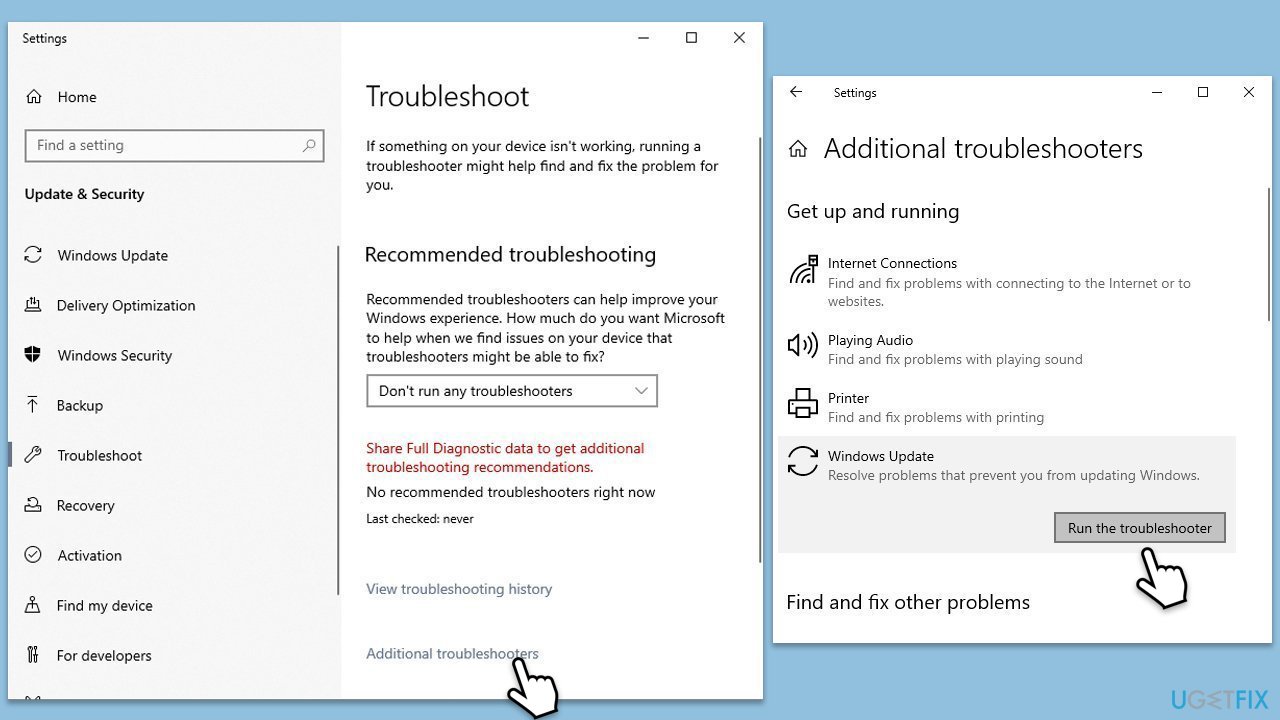
The Windows Update troubleshooter is an automated tool designed by Microsoft to identify and fix common issues that prevent updates from being installed properly. It can help resolve any glitches by resetting network settings or repairing update-related files.
- Type Troubleshoot in Windows search.
- Select Additional troubleshooters.
- Find Windows Update from the list.
- Click it and pick Run the troubleshooter.
- Apply the suggested steps and restart your device.
Fix 2. Reset Windows update components
Resetting the update components clears the cache and restarts the related services, which can solve issues with stuck or failing updates.
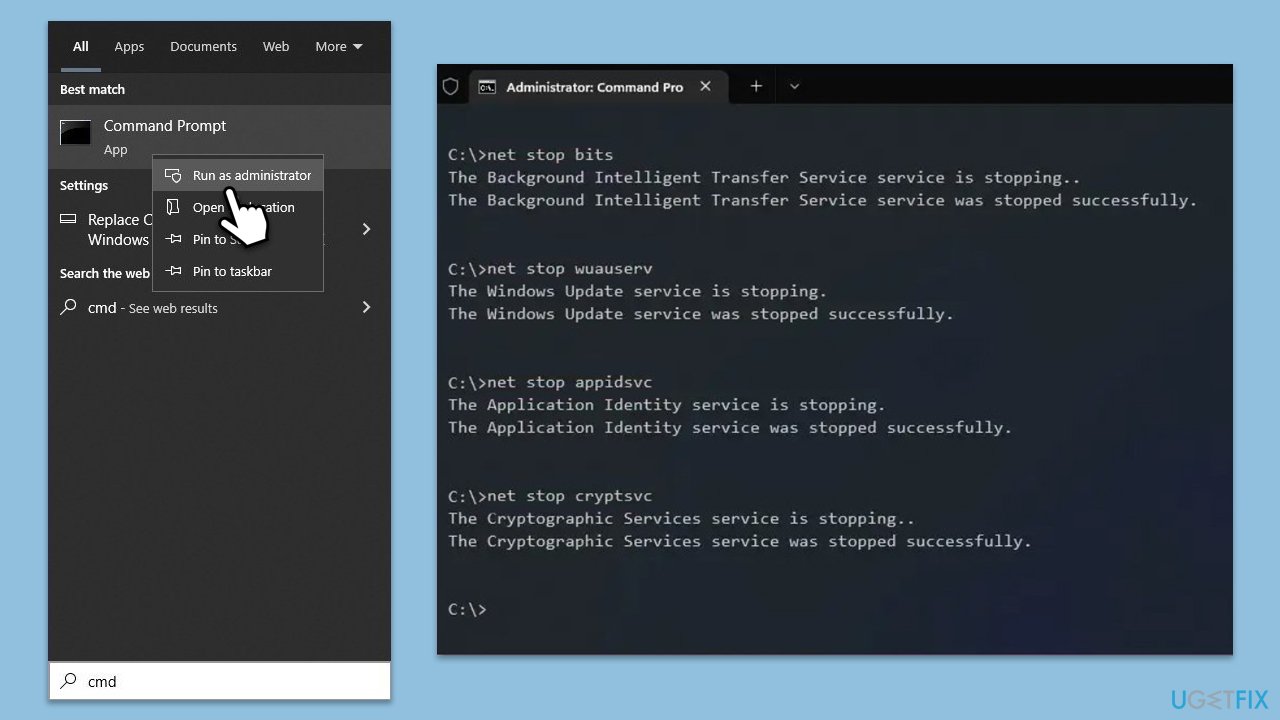
- Type cmd in Windows search.
- Right-click on Command Prompt and pick Run as administrator.
- User Account Control window will show up - click Yes when prompted.
- Stop the BITS, Windows Update, and Cryptographic services by typing the following commands, and pressing Enter after each:
- net stop bits
- net stop wuauserv
- net stop appidsvc
- net stop cryptsvc
- To rename the SoftwareDistribution and Catroot2 folders (where Windows stores update files), type the following commands:
- ren %systemroot%\SoftwareDistribution SoftwareDistribution.old
- ren %systemroot%\system32\catroot2 catroot2.old
- Restart the services stopped earlier by typing the following commands:
- net start bits
- net start wuauserv
- net start appidsvc
- net start cryptsvc
- Close the Command Prompt and restart your computer, then try updating Windows again.
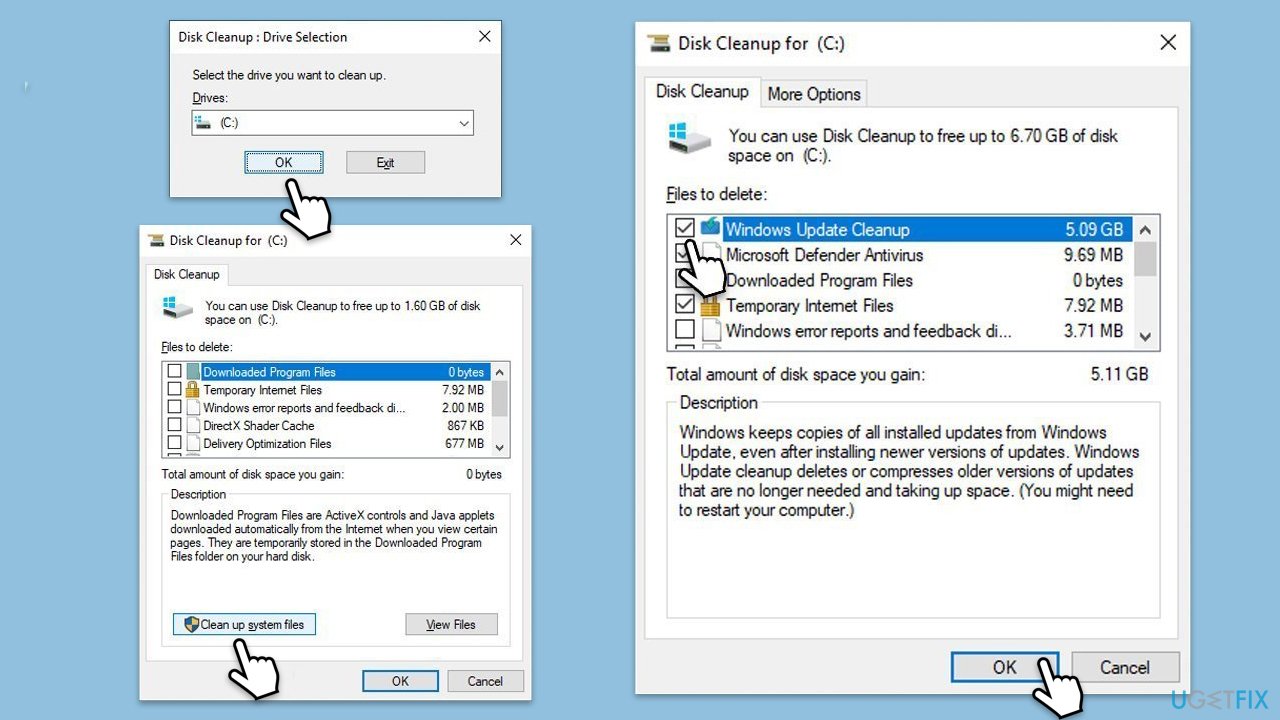
Fix 3. Use Disk Cleanup
Disk Cleanup removes temporary and unnecessary files that might be taking up space and interfering with update processes.
- Open the Windows search bar and type Disk Cleanup. Press Enter to open the Disk Cleanup utility.
- In the Disk Cleanup window, select the drive where your Windows operating system is installed (usually drive C:) and click OK.
- Click Clean up system files.
- Select the drive again and click OK.
- In the list of files that can be cleaned up, select the largest portions of data, such as Temporary Internet Files, Windows Update, Temporary Files, and others.
- Click OK to begin the cleanup process.
Fix 4. Install the update manually
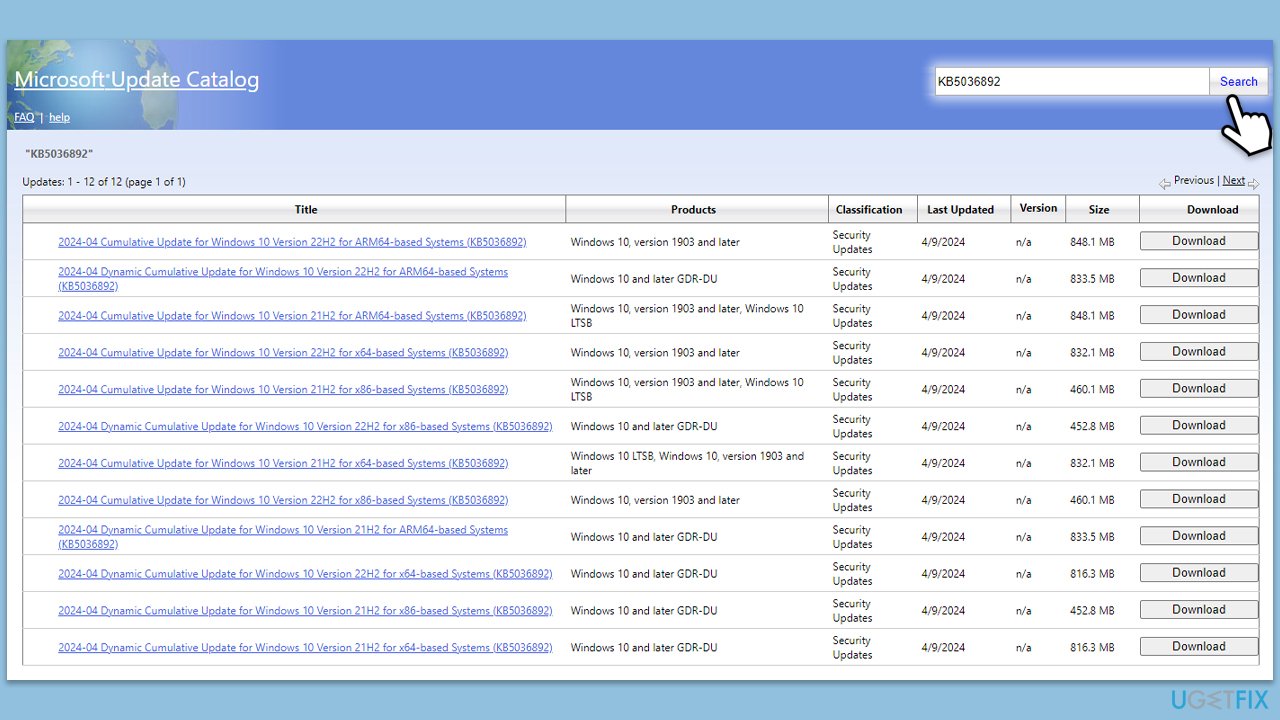
If automatic updates aren't working, you can manually download and install the update package.
- Go to the official Microsoft Update Catalog website.
- Type the KB5036892 into the search bar, and press Enter or click Search.
- You will find many different versions on the update – you need to find the one that matches your PC specs and Windows version (as a home user, ignore Windows server versions).
- Right-click on Start and pick System.
- Under Device specifications, check the System type section: it should either be 64-bit or 32-bit.
- Scroll down to Windows specifications and check the Version section.
- Return to the Microsoft Update catalog, download the correct version and install it.
- Restart your system.
Fix 5. Disable third-party security software
Sometimes, antivirus or firewall software can block the update process. Temporarily disabling this software can help.
- Right-click on the antivirus icon in the system tray.
- Select Disable protection.
- Specify the duration for which you want the protection to be disabled.
- Try installing the update again.
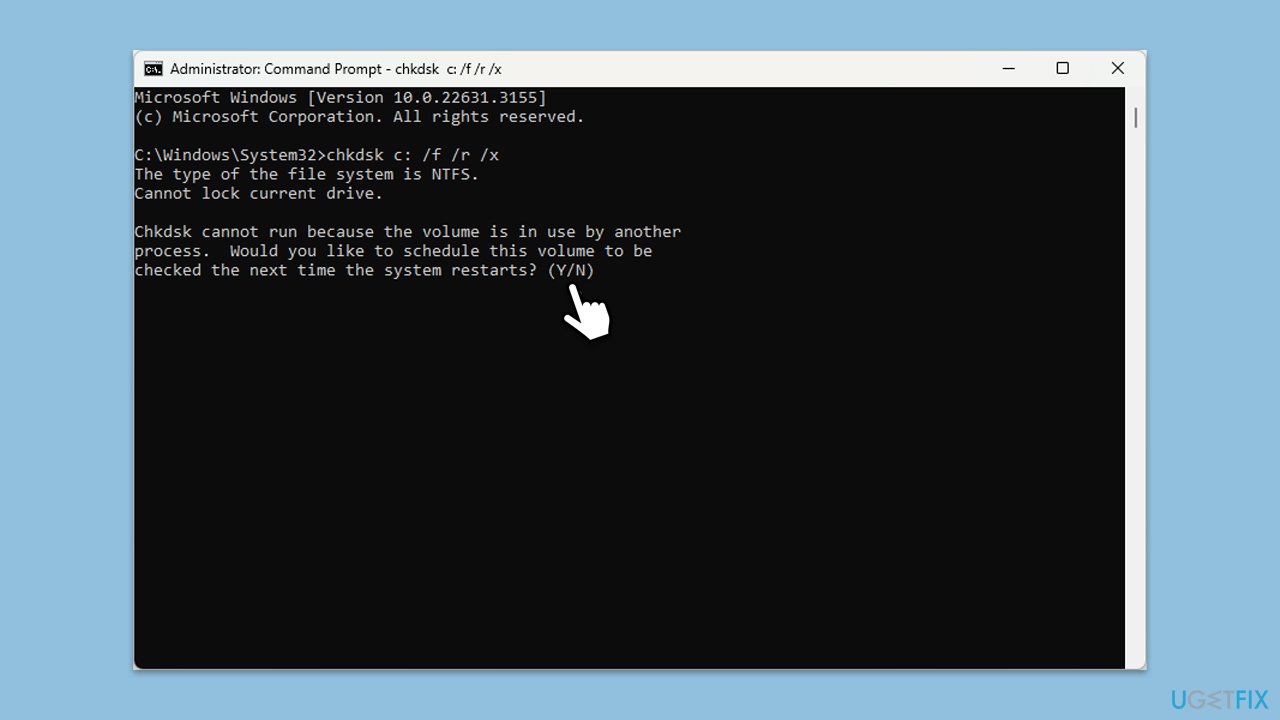
Fix 6. Run Check Disk
Check Disk can scan the file system and file system metadata of a volume for logical and physical errors.
- Open Command Prompt as administrator.
- In the new window, type in the following command and press Enter after:
chkdsk c: /f
(Note: use chkdsk c: /f /r /x command if you are using SSD as your primary partition. Also, replace c: with another drive letter if you are not using default) - If you receive an error, type in Y, close down Command Prompt and restart your computer.
- Wait till the scan is finished.
Fix 7. Use Media Creation Tool
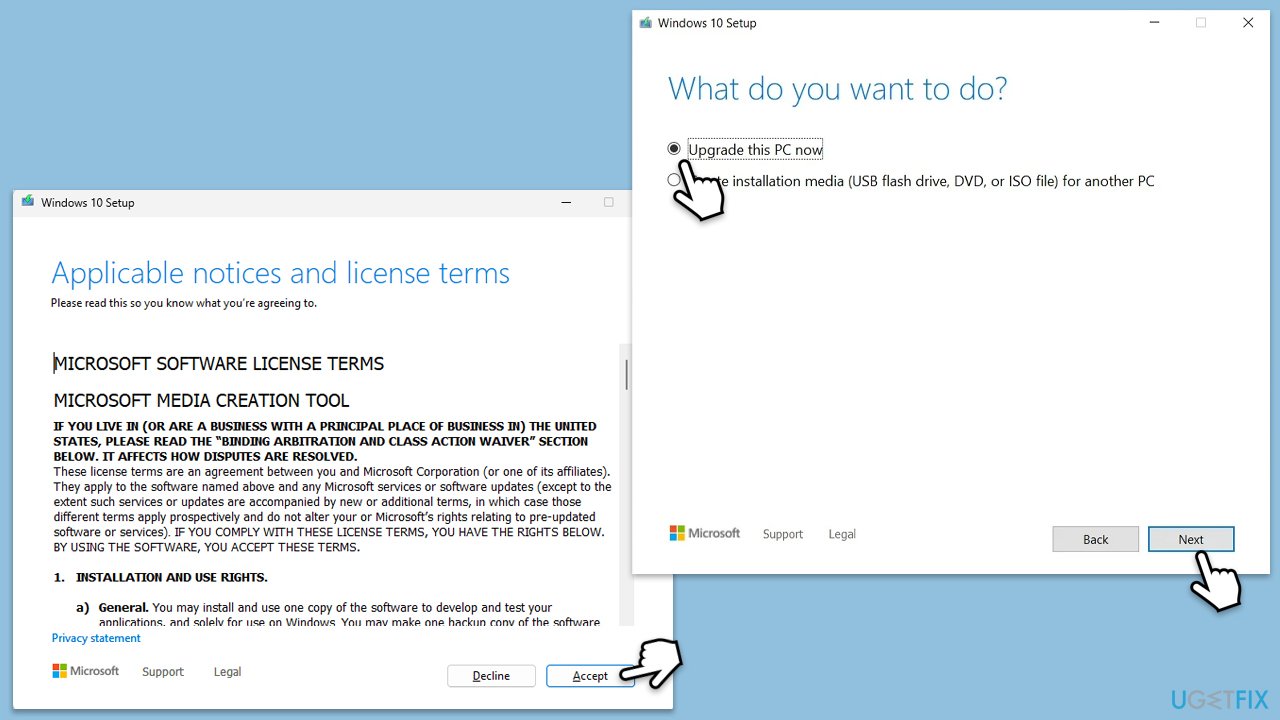
Using the Media Creation Tool to upgrade your system can resolve underlying issues that prevent updates from being applied.
- Visit the official Microsoft website and download Windows 10 installation media.
- Double-click the installer and select Yes when UAC shows up.
- Agree to terms.
- Select Upgrade this PC now and select Next.
- Windows will now download all the necessary files – it might take a while.
- Agree to the terms once again and click Next.
- Before installing, ensure you are happy with your choices (otherwise, you can click the Change what to keep option).
- Click Install to begin the upgrade process.
Bottom line
To fix the KB5036892 installation failure, you can perform system scans to clean up corrupted files, check network settings, and temporarily disable firewall and antivirus programs during the update installation. Additionally, ensure there is enough disk space and that all necessary services are running. If none of these solutions work, consider trying a comprehensive PC repair tool.
Frequently asked questions
First, try running the Windows Update Troubleshooter to identify and fix issues. If that doesn't work, consider manually downloading the update from the Microsoft Update Catalog.
Yes, you can uninstall the update by going to Settings > Update & Security > Windows Update > View update history > Uninstall updates.
Make sure your system has enough disk space and that any third-party antivirus software is temporarily disabled during the installation.




Report an issue
What's wrong with this guide? We review every report and update or remove content.
Report received — thank you. We'll review and fix it.
You need a free account to submit a report.
Be the first to comment