How to fix
KB5036893 fails to install
on Windows
Fix the KB5036893 installation error in Windows 11 effortlessly with our expert-tested solutions and detailed screenshots. Resolve issues in minutes!

What causes How to fix KB5036893 fails to install in Windows 11?
- Broken update caches
- Corrupted system files
- Interfering software or programs
- Outdated temporary files
- Insufficient disk space
Repairs Windows system files, removes malware, and restores a clean OS state — without reinstalling.
Hello, I can't install KB5036893 - the latest Windows 11 update. Is there something wrong with Microsoft servers? I've been trying all day but I keep getting a message that the installation has failed and I should try again later.
KB5036893 is a recent Windows 11 update that targets versions 22H2 and 23H2 and launched on April 9, 2024. A KB, or Knowledge Base update, is a component of Microsoft's ongoing attempt to improve the operating system's functionality and security. This update contains a variety of improvements, including increased security measures and new features for Voice Access, Windows Share, Nearby Share, Snap Layouts, Windows 365 Switch, and more.
Despite the numerous changes KB5036893 delivers, some users have reported issues installing this update. This failure can show as an error during the installation process, resulting in the system lacking the most recent security measures and features.
There could be many reasons why KB5036893 fails to install, but one common cause is broken update caches, which are temporary files that might become defective or outdated. Corrupted system files can also prevent updates from being installed properly. Additionally, problems with other software or programs already installed on your PC may impede the update process.
If you can't install KB5036893, you could start by deleting your update cache or repairing corrupted system files. It's also a good idea to check for any software that may interfere with the upgrade (usually, security or similar software). These steps will most likely help you to resolve issues that prevent system updates from being installed successfully.
If these methods seem intimidating, try employing a professional PC repair tool [d1]. An app like this is intended to automatically find and resolve underlying Windows issues that may be preventing system updates.
Fix 1. Perform Disk Cleanup
Clearing temporary files, system files, and other unnecessary data can free up space and prevent conflicts during the installation process of an update.
- Type Disk Cleanup in Windows search and hit Enter.
- If your Windows is installed on drive C, pick it from the list (it should be by default) and press OK.
- Click Clean up system files.
- Select your main disk again and click OK.
- Here, select the largest portions of the data used, including Windows Update, Temporary Internet Files, Temporary Files, Recycle Bin, Delivery Optimization Files, and others.
- Click OK - the process should be finished shortly.
Fix 2. Run Windows update troubleshooter
Windows Update troubleshooter is designed to detect and fix common issues that can prevent updates from installing properly. This tool automatically diagnoses and resolves any problems found.
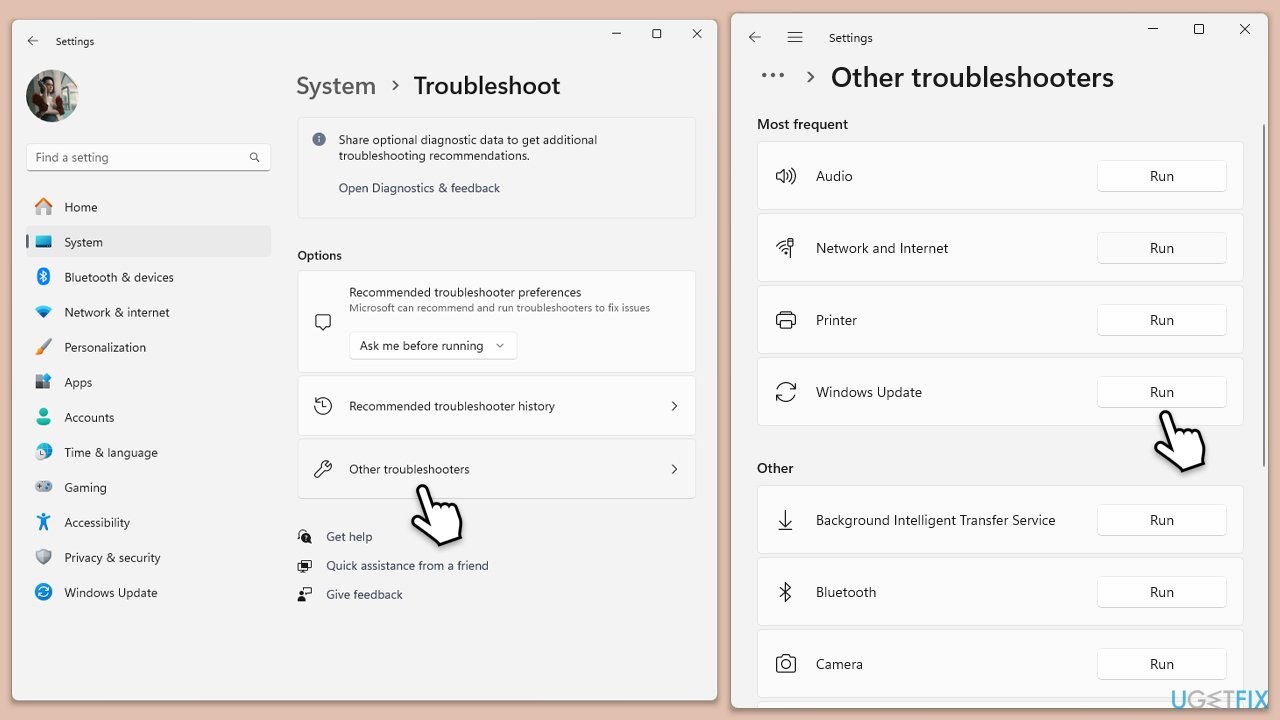
- Type Troubleshoot in Windows search and press Enter.
- Go to Other troubleshooters.
- Find Windows Update from the list and click Run.
- The troubleshooter will automatically scan your system for potential problems and display any issues it finds.
- If the troubleshooter finds any issues, it will provide recommended solutions.
Fix 3. Check for relevant services
Certain services must be running for Windows Update to function correctly. Ensuring these services are active can help resolve installation issues.
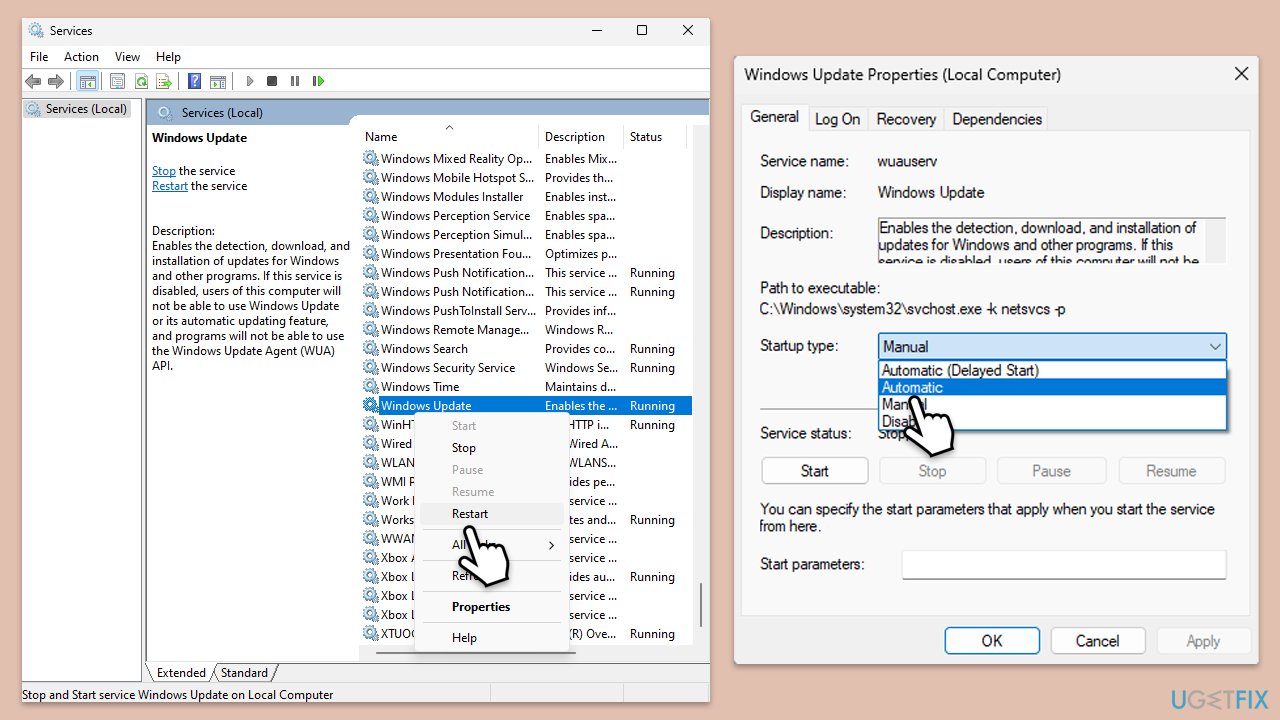
- In Windows search, type services.msc and press Enter to open the Services window.
- In the Services window, locate and double-click on the following services one by one (if these are already running, right-click and hit Restart):
- Windows Update
- Background Intelligent Transfer Service (BITS)
- Cryptographic Services
- For each service, ensure that the Startup type is set to Automatic. If it's not, select Automatic from the drop-down menu.
- Check the Service status. If the service is not running, click the Start button to start it.
- Click Apply and then OK for each service.
- Close the Services window and restart your computer.
Fix 4. Check for system file corruption
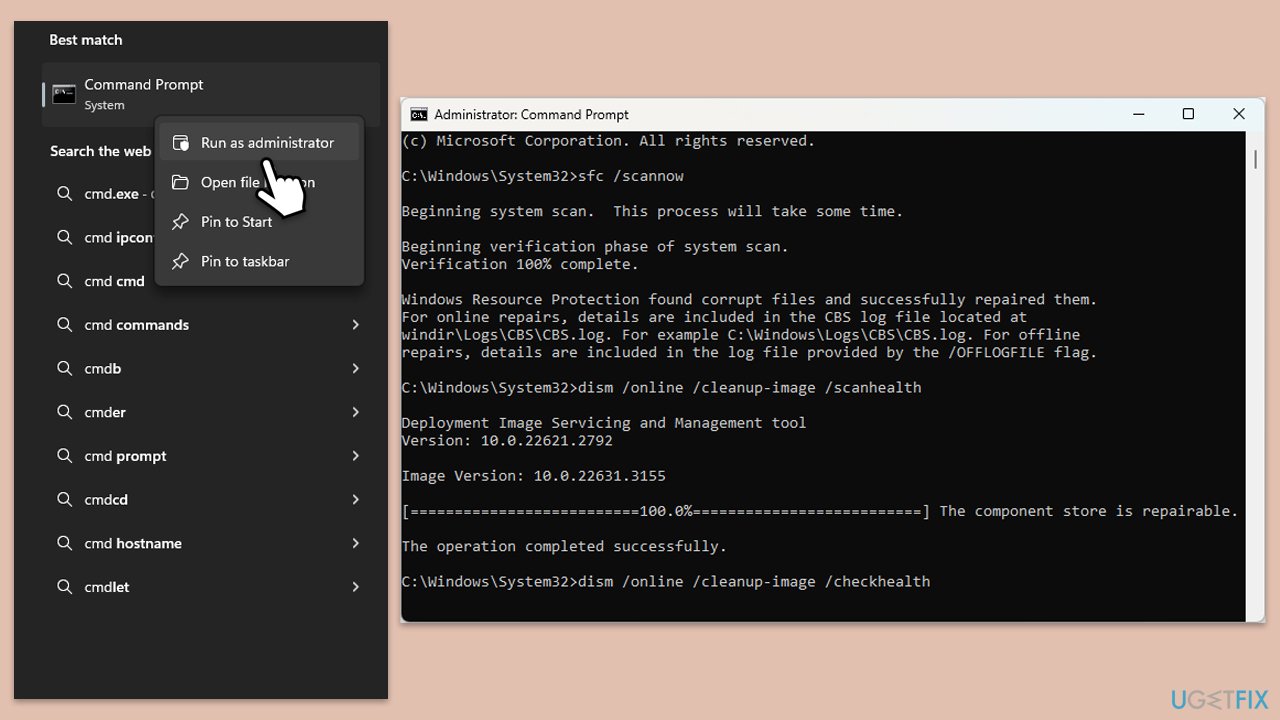
To fix corrupted system files, run SFC and DISM
- Type cmd in Windows search.
- Right-click on Command Prompt and pick Run as administrator.
- The User Account Control window will ask whether you want to allow changes - click Yes.
- In the Command Prompt window, paste the following command and hit Enter:
sfc /scannow - Once the scan is complete, use the following commands and press Enter after each:
Dism /Online /Cleanup-Image /CheckHealth
Dism /Online /Cleanup-Image /ScanHealth
Dism /Online /Cleanup-Image /RestoreHealth - (Note: if you get an error executing this last command, add /Source:C:\RepairSource\Windows /LimitAccess to it and try again).
- Restart your computer.
Fix 5. Disable security or similar software
Security applications, firewalls, or VPNs can occasionally block the Windows update process by mistakenly identifying update actions as threats. Temporarily disabling these programs can eliminate this potential blockage, enabling the update process to proceed without interference.
It's advisable, however, to ensure that you're disconnected from the internet while these security services are disabled to prevent exposure to online threats. After the update is installed, remember to re-enable your security software to maintain your system's protection.
Fix 6. Install the update manually
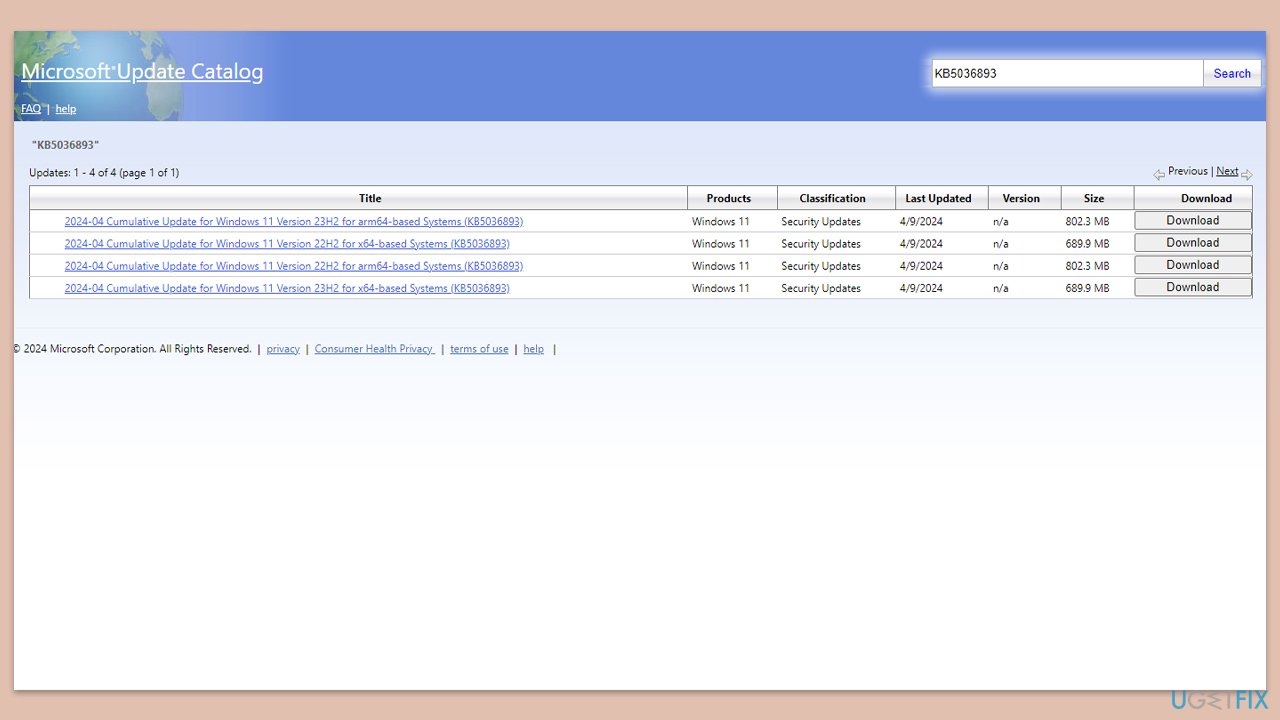
If automatic updates fail, you can manually download and install the update package from the Microsoft Update Catalog.
- Open your browser and go to Microsoft Update Catalog.
- In the search box, type in KB5036893 and press Search.
- Find the correct version of the update for your operating system (to check this, right-click on Start and pick System. Under Windows specifications, check the Version) and click Download.
- Follow on-screen guidelines to finish the installation process and restart your computer.
Fix 7. Reset Windows update components
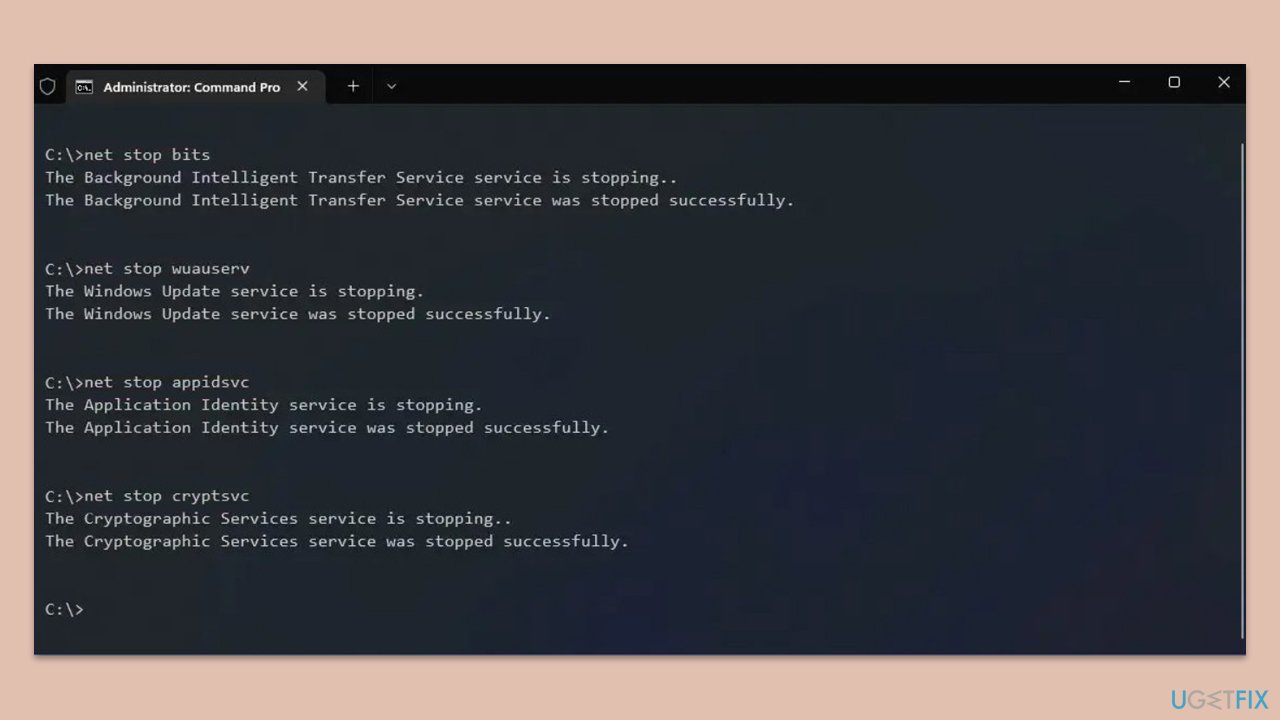
Resetting Windows update components involves restarting the services associated with Windows Update and clearing the cache where update files are stored.
- Open Command Prompt as administrator.
- Then, copy and paste the following command, pressing Enter after:
net stop wuauserv
net stop cryptSvc
net stop bits
net stop msiserver
Ren C:\Windows\SoftwareDistribution SoftwareDistribution.old
Ren C:\Windows\System32\catroot2 Catroot2.old - When these commands are executed, the last thing to do is to re-enable relevant services:
net start wuauserv
net start cryptSvc
net start bits
net start msiserver - Restart your system.
Bottom line
To resolve the installation failure of KB5036893, you can start by deleting your update cache and repairing any corrupted system files. Additionally, ensure that no software is interfering with the update process. If these methods do not work, consider using a professional PC repair tool to automatically address underlying issues.
Frequently asked questions
Try running the Windows Update Troubleshooter by going to Settings > Update & Security > Troubleshoot > Additional troubleshooters, then select Windows Update. If the issue persists, consider resetting the Windows Update components manually.
Yes, you can manually download the KB5036893 update from the Microsoft Update Catalog website and install it by following the on-screen instructions. Ensure that you download the correct version for your system architecture.
Disabling your antivirus temporarily can sometimes help resolve installation issues, as certain security software may interfere with the update process. Remember to enable it again once the update is successfully installed.




Report an issue
What's wrong with this guide? We review every report and update or remove content.
Report received — thank you. We'll review and fix it.
You need a free account to submit a report.
Be the first to comment