How to fix
KB5036980 fails to install
on Windows
Resolve KB5036980 installation issues in Windows 11 quickly and easily. Follow our expert-tested solutions to get back on track with zero traces left.

What causes How to fix KB5036980 fails to install in Windows 11?
- Incomplete or corrupt download files
- Conflicts with existing software
- Issues within the operating system
- Insufficient storage space
- Antivirus software interfering with installation
Repairs Windows system files, removes malware, and restores a clean OS state — without reinstalling.
I was unable to install the newest Windows Insider Preview build KB5036980. Is there something I can do to fix this?
Windows Insider Program is an initiative that allows participants to access pre-release builds of the Windows operating system. This program is designed for developers, tech enthusiasts, and early adopters to test and provide feedback on upcoming features and functionalities, helping Microsoft to refine its software before public release.
Among the updates released under this program was KB5036980, introduced on April 11, 2024. This particular update was aimed at enhancing system performance and addressing various bugs identified in earlier versions.
However, some participants have encountered difficulties with installing KB5036980 on their Windows 11 systems. This issue prevents them from accessing the latest improvements and fixes, which can be frustrating. The failure of this update to install might be due to several factors including incomplete or corrupt download files, conflicts with existing software, or issues within the operating system itself that prevent the update from installing properly.
If KB5036980 fails to install for you, the first step might be to check your internet connection to ensure the updated file downloads completely and correctly. Additionally, running a system scan to look for and resolve any conflicts or errors that could be affecting the update process might be helpful. Ensuring that there is sufficient storage space on your device for the update and temporarily disabling any antivirus software during the installation might also alleviate the problem.
One possible remedy for individuals who have problems even after following these instructions could be to use a maintenance and repair app [d1]. KB5036980 and other similar updates may not install properly on Windows PCs due to underlying problems that these tools are meant to automatically identify and resolve.
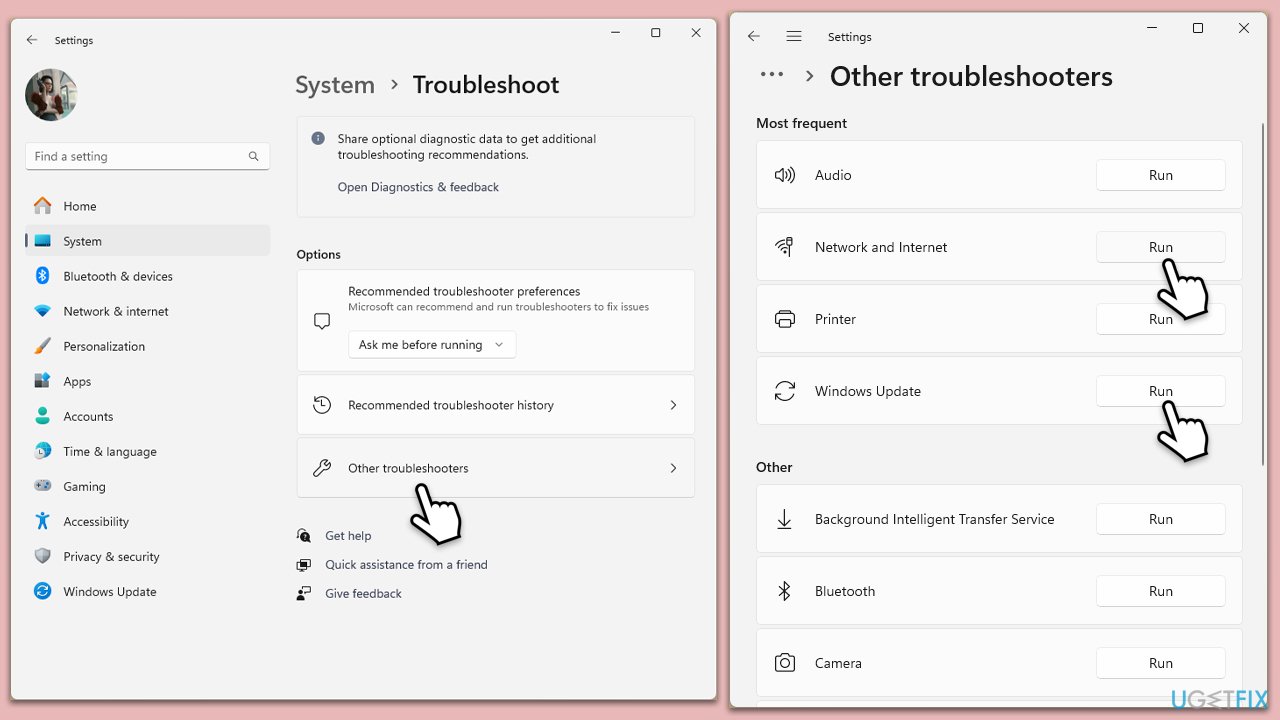
Fix 1. Run Windows Update and network troubleshooters
These troubleshooters can identify and automatically fix issues related to Windows updates and network connectivity, which might be preventing the installation of updates.
- Type Troubleshoot in Windows search and press Enter.
- Go to Other troubleshooters.
- Find Windows Update from the list and click Run.
- The troubleshooter will automatically scan your system for potential problems and display any issues it finds.
- If the troubleshooter finds any issues, it will provide recommended solutions.
- After that, run Network and Internet troubleshooter.
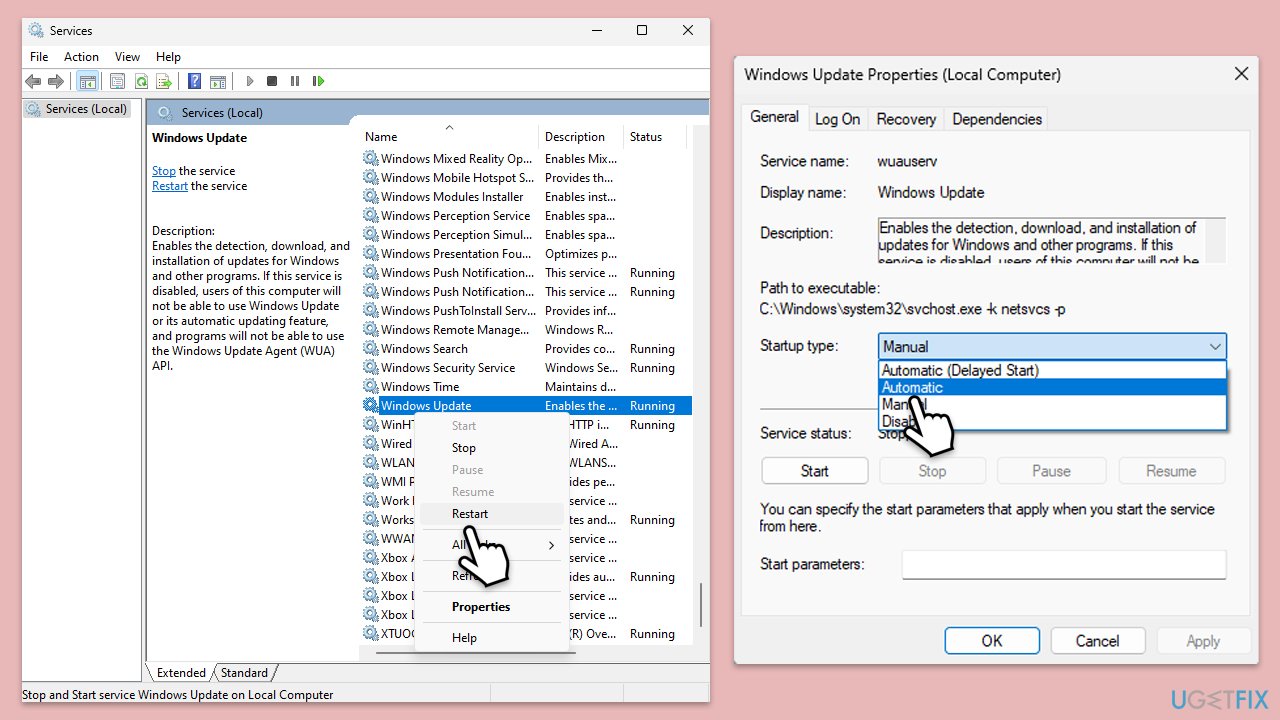
Fix 2. Check relevant services
Ensuring that essential Windows Update services are running can resolve issues with updates not installing.
- Type in Services in Windows search and press Enter.
- Find Background Intelligent Transfer Service (BITS).
- If it is already running, right-click and pick Restart.
- If the service is not running, double-click it, and select Automatic under the Startup type from the drop-down menu.
- Click Start, Apply, and OK.
- Repeat this process for Windows Update and Cryptographic services.
Fix 3. Perform Disk Cleanup
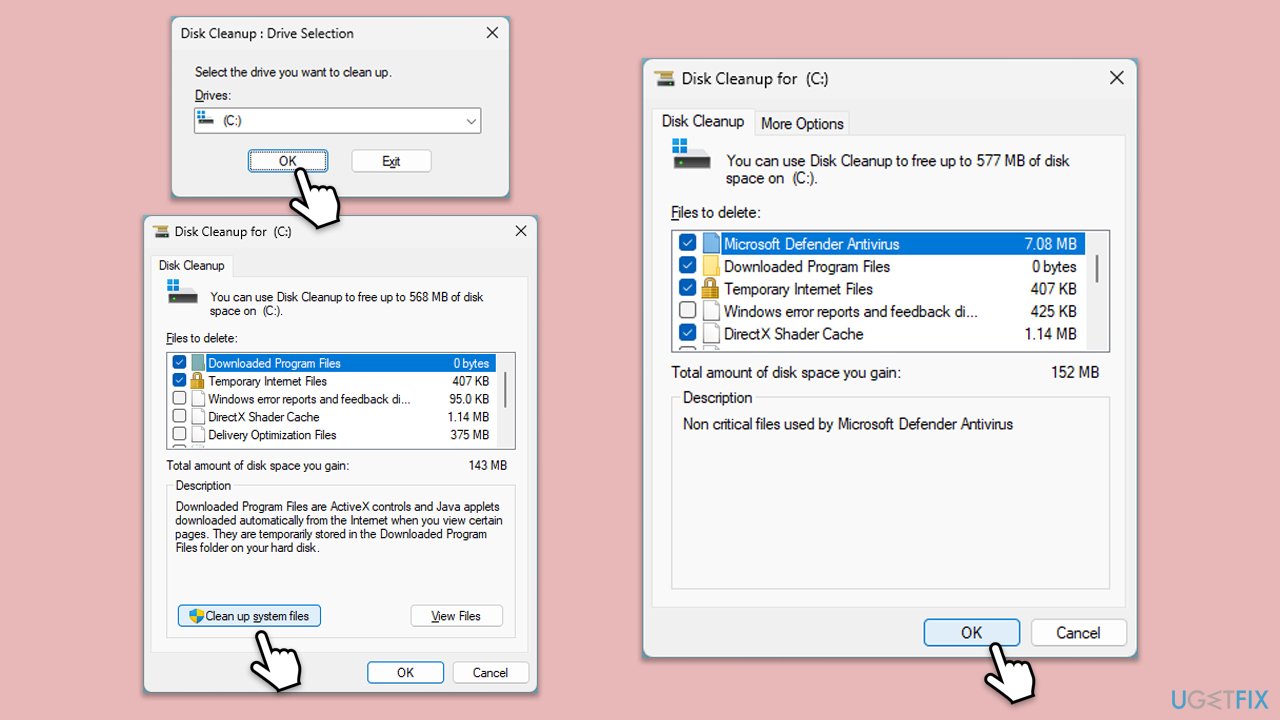
This tool helps free up disk space which can be crucial for update installation by removing temporary files and system files that are no longer needed.
- Type Disk Cleanup in Windows search and hit Enter
- If your Windows is installed on drive C, pick it from the list (should be by default) and press OK
- Click Clean up system files
- Select your main disk again and click OK
- Here, select the largest portions of the data used - these typically include Temporary Internet Files, Windows Update, Temporary Files, Recycle Bin, Delivery Optimization Files, and others.
- Click OK and wait for the cleanup process to finish.
Fix 4. Reset Windows update components
Resetting these components clears the update cache and restarts the update process, which can resolve problems with updates that won't install.
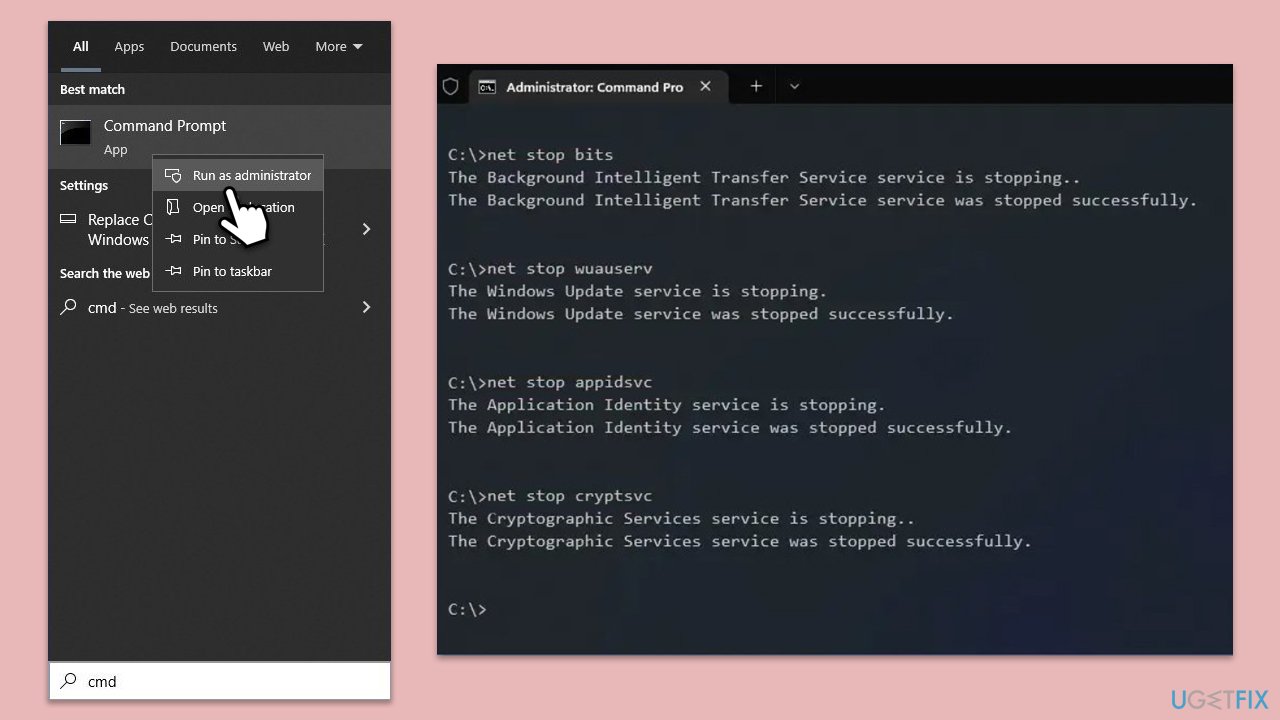
- Type cmd in Windows search.
- Right-click on Command Prompt and pick Run as administrator.
- When UAC asks you whether you want to make changes, agree by pressing Yes.
- Open Command Prompt as administrator.
- Type the following commands one by one in Command Prompt and press Enter after each:
net stop wuauserv
net stop cryptSvc
net stop bits
net stop msiserver
Ren C:\Windows\SoftwareDistribution SoftwareDistribution.old
Ren C:\Windows\System32\catroot2 Catroot2.old - When these commands are executed, the last thing to do is to re-enable relevant services:
net start wuauserv
net start cryptSvc
net start bits
net start msiserver - Reboot your computer.
Fix 5. Run Check Disk
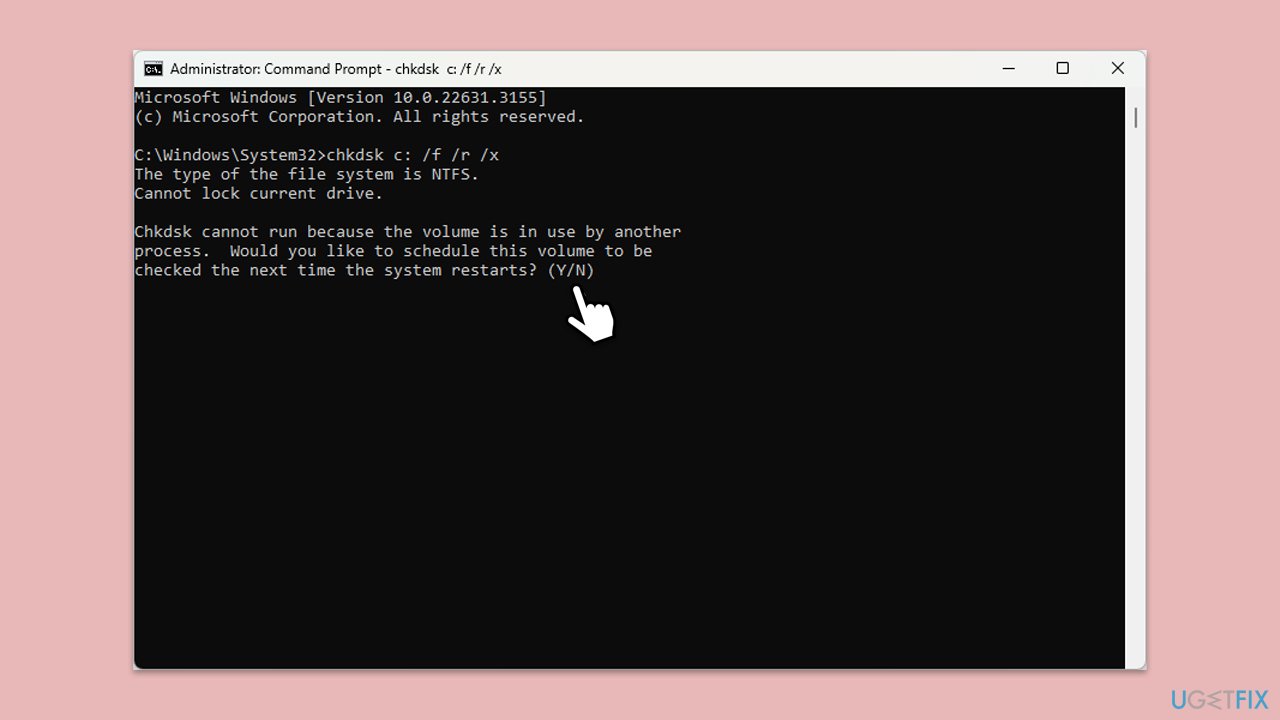
This tool scans the disk for file system errors and bad sectors that might be causing issues with the update process.
- Open Command Prompt as administrator.
- In the new window, type in the following command and press Enter after:
chkdsk c: /f
(Note: use chkdsk c: /f /r /x command if you are using SSD as your primary partition. Also, replace c: with another drive letter if you are not using default) - If you receive an error, type in Y, close down Command Prompt, and restart your computer.
- Wait till the scan is finished.
Fix 6. Repair corrupted system files
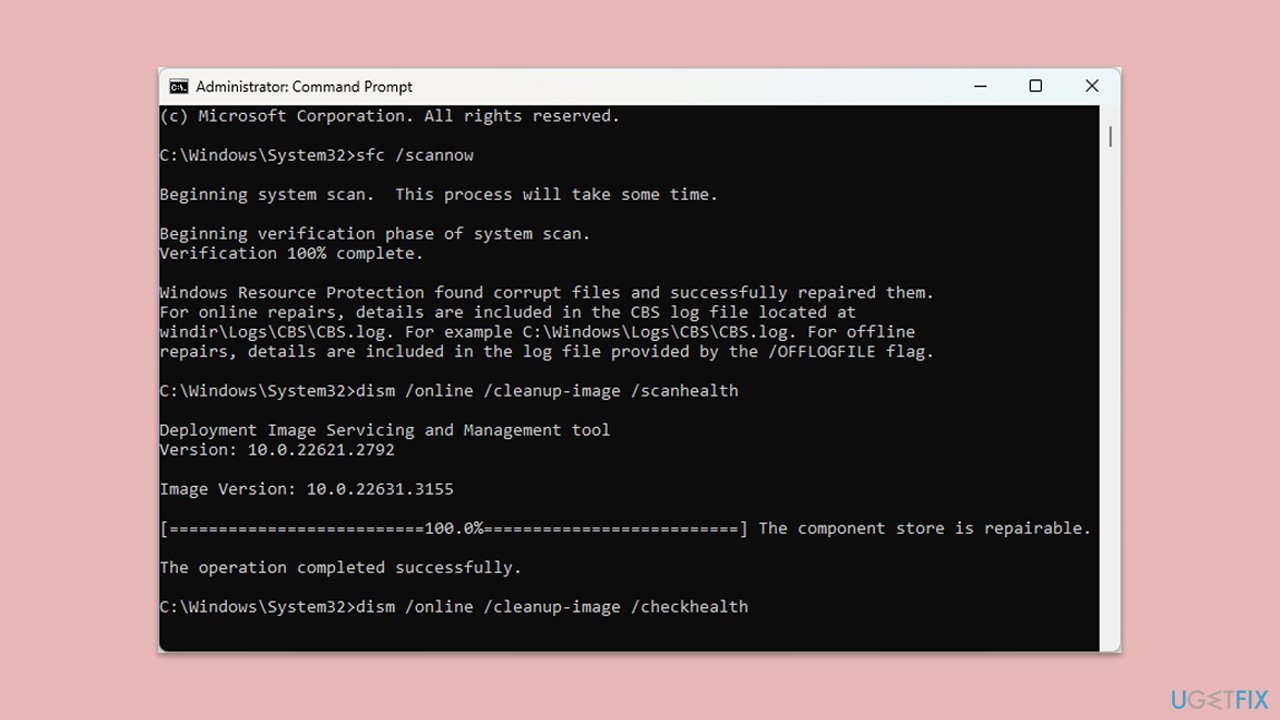
SFC and DISM can repair Windows system files, potentially resolving update issues.
- Open Command Prompt as administrator.
- Next, copy and paste the following commands, pressing Enter each time:
sfc /scannow
DISM /Online /Cleanup-Image /CheckHealth
DISM /Online /Cleanup-Image /ScanHealth
DISM /Online /Cleanup-Image /RestoreHealth
(Note: if you get an error executing the last command, add /Source:C:\RepairSource\Windows /LimitAccess to it and try again.) - Restart your device.
Fix 7. Disable third-party security and similar software
Third-party antivirus or firewall programs can interfere with the installation of updates by blocking system changes.
- Temporarily disable any non-Microsoft antivirus or firewall software.
- Check if the update can be installed without these programs running.
- Remember to enable the software again after trying the update.
Bottom line
To fix the installation failure of KB5036980, you can run Windows Update and network troubleshooters, check your internet connection, ensure sufficient storage space, and temporarily disable antivirus software. If these steps do not resolve the issue, consider using a maintenance and repair app to identify and fix underlying problems.
Frequently asked questions
First, try running the Windows Update Troubleshooter, which can automatically detect and fix issues related to updates. If that doesn't work, consider resetting the Windows Update components manually.
Yes, common error codes include 0x800f0831 and 0x8007000d, which indicate problems with the update files or corruption. You can look up these codes for more targeted solutions.
You can manually download the update from the Microsoft Update Catalog website by searching for KB5036980 and selecting the appropriate version for your system. After downloading, run the installer and follow the prompts to complete the installation.




Report an issue
What's wrong with this guide? We review every report and update or remove content.
Report received — thank you. We'll review and fix it.
You need a free account to submit a report.
Be the first to comment