How to fix
KB5036985 fails to install
on Windows
Resolve the KB5036985 installation issue on Windows 11 quickly and effectively. Follow our expert-tested solutions for seamless updates and hassle-free …

What causes How to fix KB5036985 fails to install in Windows 11?
- Corrupted system files
- Problems with the Windows update cache
- Bugged or improperly configured Windows-related services
- Conflicts with third-party software
Repairs Windows system files, removes malware, and restores a clean OS state — without reinstalling.
Hello, I was wondering if you could help me fix KB5036985 not installing on Windows 11? I've tried restarting my PC several times but that did not do anything.
Windows Insider Program allows participants to access and test upcoming features of Windows operating systems before they are released to the general public. This early access aims to gather feedback and improve the overall quality of the updates. Typically, these preview builds are distributed via the Beta Channel and are later finalized for broader release on the subsequent Patch Tuesday.
One of the recent updates available to Insiders is KB5036985, intended for Windows 11. Released on April 19, 2024, under the build number 22635.3500, this update introduces a new Microsoft Account manager in the Start menu and brings improvements to the Windows Share and Settings features. Despite its promising enhancements, KB5036985 may fail to install for some users.
You may find that the KB5036985 update fails to install, which can be quite frustrating. There are several common causes for this problem. Corrupted system files are a frequent culprit, where essential files needed for updates become damaged or lost. Problems with the Windows update cache or its components can also prevent successful installation.
Sometimes, Windows-related services that should facilitate the update process are bugged or improperly configured. Additionally, conflicts with third-party software can interfere with the update, as these programs might prevent Windows from updating correctly.
If you are experiencing persistent issues with installing Windows updates, it might be beneficial to consider using a PC repair tool [d1]. Such tools are designed to automatically identify and fix underlying problems with Windows that might be affecting your system's ability to update.
Fix 1. Perform Disk Cleanup
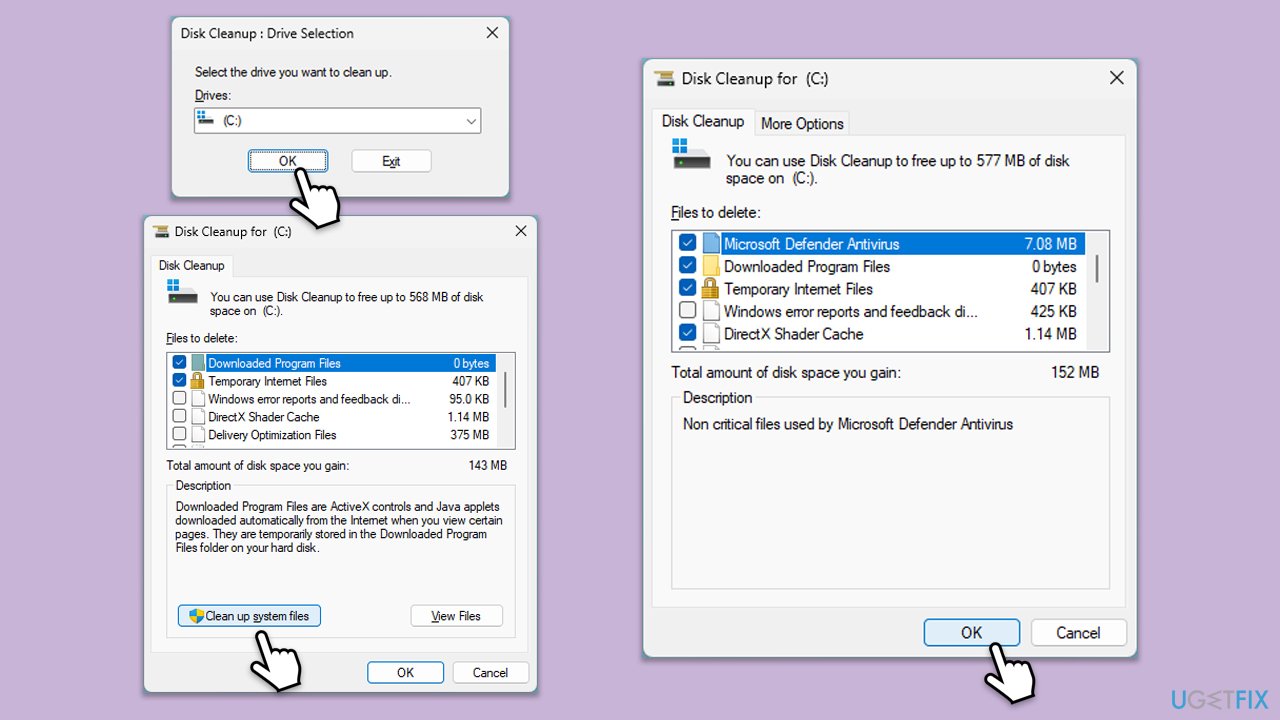
Disk Cleanup helps by removing temporary files and system files that might be causing the update to fail. It frees up disk space and removes potential obstacles for the update process.
- Open the Windows search bar and type Disk Cleanup. Press Enter to open the Disk Cleanup utility.
- In the Disk Cleanup window, select the drive where your Windows operating system is installed (usually drive C:) and click OK.
- Click Clean up system files.
- Select the drive again and click OK.
- In the list of files that can be cleaned up, select the largest portions of data, such as Temporary Internet Files, Windows Update, Temporary Files, and others.
- Click OK to begin the cleanup process.
Fix 2. Check relevant services
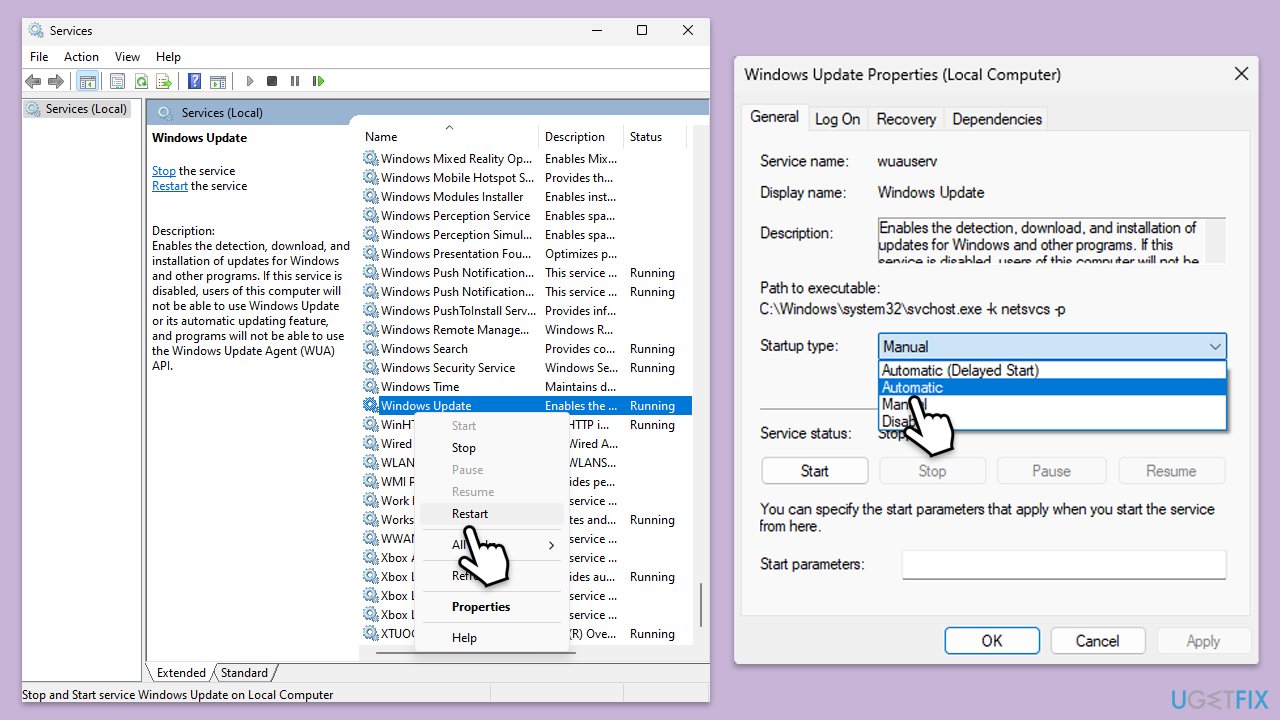
Ensuring that essential Windows Update services are running can resolve issues where updates fail to install due to service interruptions.
- Type in Services in Windows search and press Enter.
- Scroll down to locate Background Intelligent Transfer Service (BITS).
- If it is already running, right-click and pick Restart.
- If the service is not running, double-click it, select Automatic under the Startup type from the drop-down menu.
- Click Start, Apply, and OK.
- Perform the same steps with Windows update and Cryptographic services.
Fix 3. Run Windows Update troubleshooter
Windows Update troubleshooter can automatically detect and fix common problems with the Windows Update process.
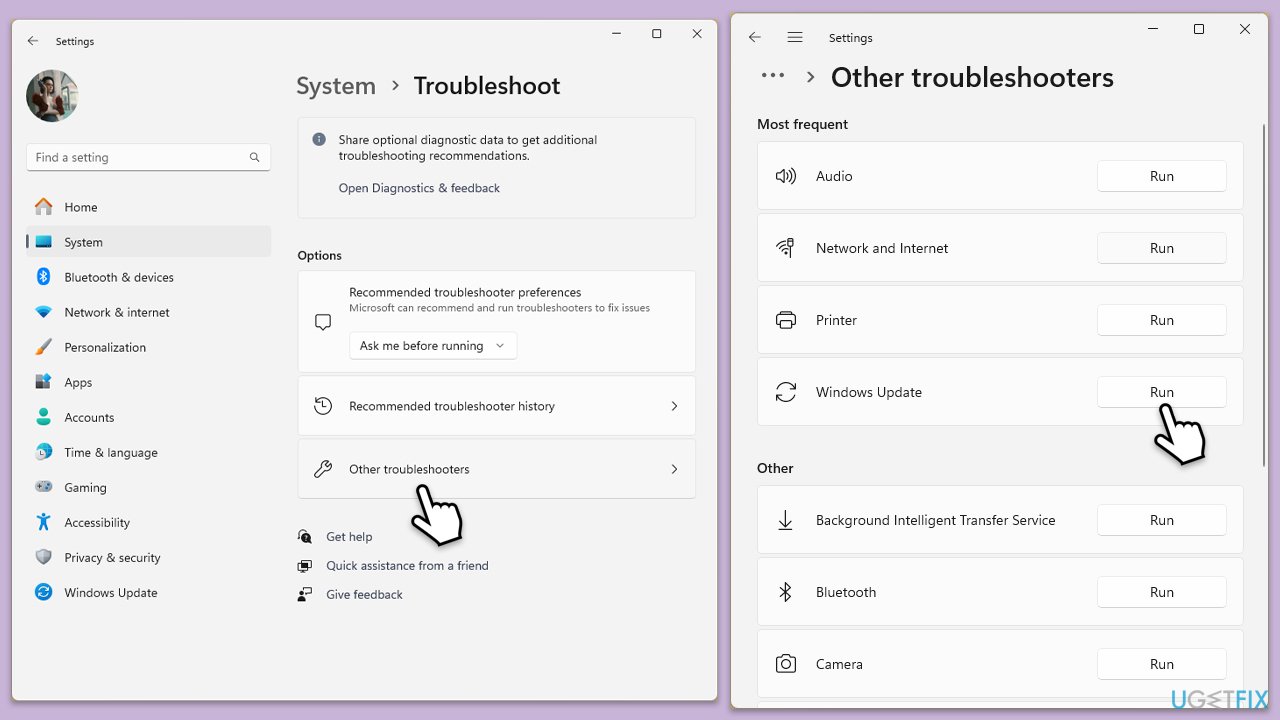
- Type Troubleshoot in Windows search and hit Enter.
- Select Other troubleshooters.
- Find Windows Update from the list and select Run.
- Wait till the scan is finished - you will be provided with potential causes so you can proceed with fixes.
- If no suggestions were given, proceed with the solutions below.
Fix 4. Repair corrupted system files
These tools help repair corrupted system files and restore system health, which can be essential for successful updates.
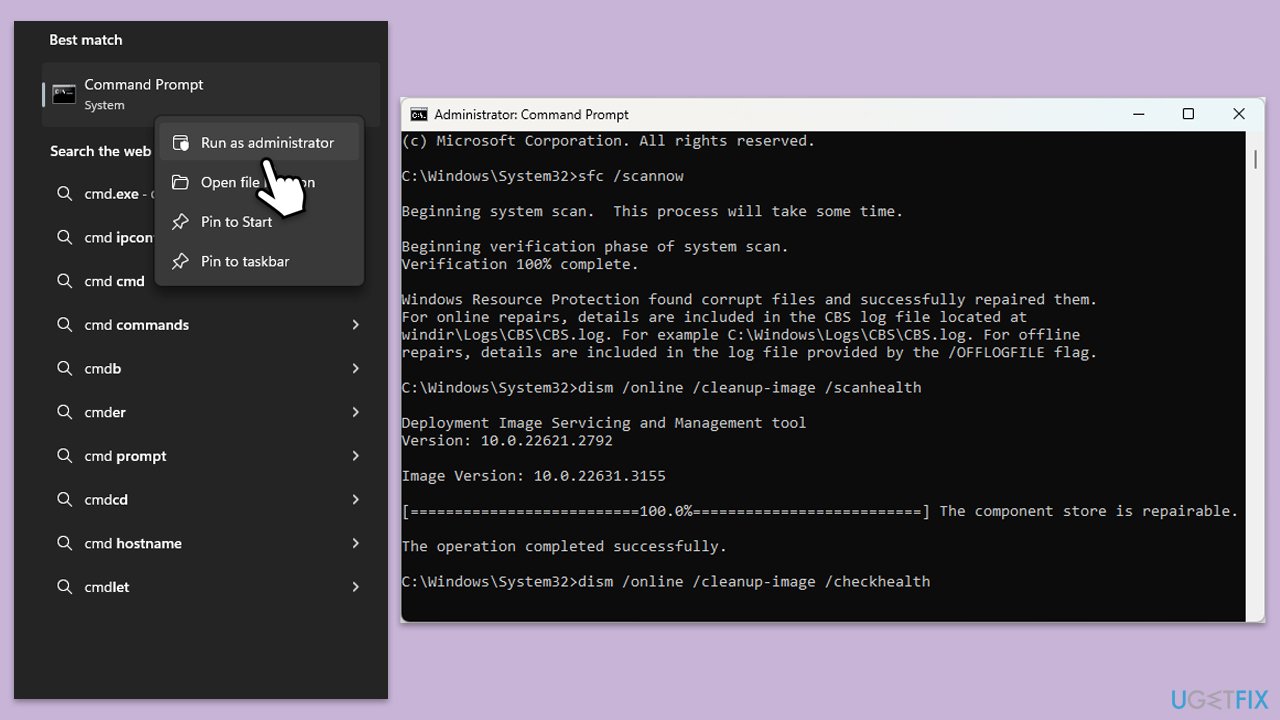
- Type cmd in Windows search.
- Right-click on the Command Prompt result and select Run as administrator.
- UAC (User Account Control) will ask whether it can make changes, click Yes
- In the Command Prompt window, paste the following command and press Enter:
sfc /scannow - Wait for the scan to complete.
- Once the SFC scan is finished, run the following set of DISM commands, pressing Enter after each one:
DISM /Online /Cleanup-Image /CheckHealth
DISM /Online /Cleanup-Image /ScanHealth
DISM /Online /Cleanup-Image /RestoreHealth
(Note: if you get an error executing this last command, add /Source:C:\RepairSource\Windows /LimitAccess to it and try again). - After completing the DISM commands, restart your device.
Fix 5. Perform Clean Boot
A Clean Boot starts Windows with a minimal set of drivers and startup programs, which can help eliminate software conflicts that impede the update process.
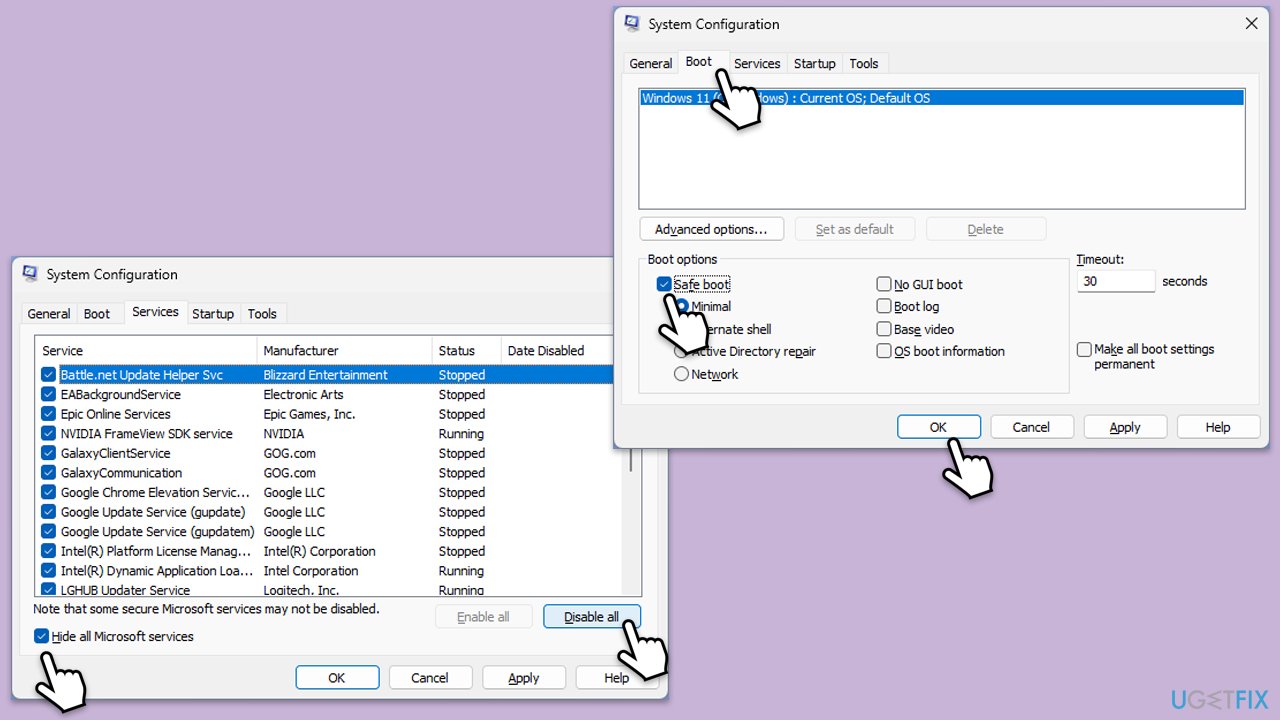
- Type msconfig in the Windows search box and press Enter.
- Pick the Services tab.
- Mark Hide all Microsoft services and select Disable all.
- Select the Startup tab and click Open Task Manager.
- In the Task Manager, right-click on each of the items and select Disable, then close the Task Manager.
- Go to the Boot tab, mark the Safe Boot option, then click Apply and OK.
- On the System Configuration window, click OK.
- Restart your computer.
- Attempt to update Windows again.
Fix 6. Reset Windows Update components
Resetting Windows Update components clears the update history and re-registers the components, which can resolve update failures.
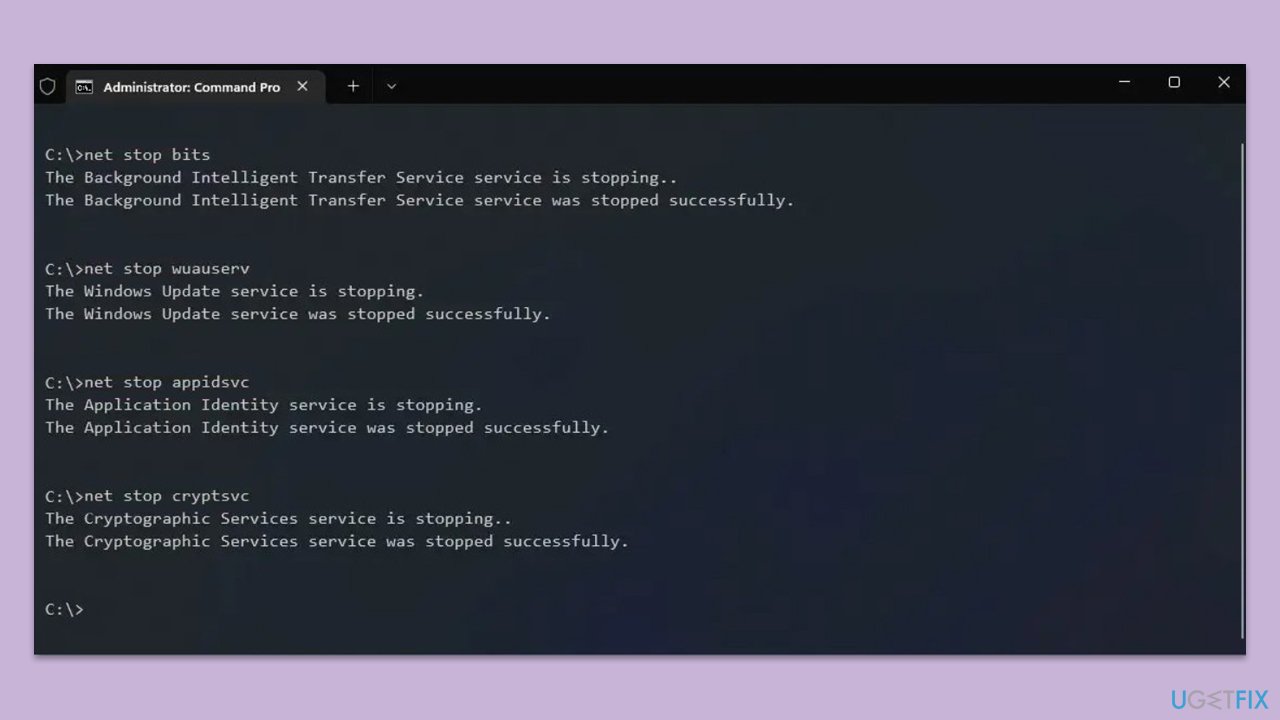
- Open Command Prompt as an administrator.
- Stop the BITS, Cryptographic, MSI Installer, and Windows Update Services by typing the following commands and pressing Enter after each:
- net stop wuauserv
- net stop cryptSvc
- net stop bits
- net stop msiserver
- Rename the SoftwareDistribution and Catroot2 folders by typing the following commands and pressing Enter after each:
- ren C:\Windows\SoftwareDistribution SoftwareDistribution.old
- ren C:\Windows\System32\catroot2 Catroot2.old
- Restart the BITS, Cryptographic, MSI Installer, and Windows Update Services by typing the following commands and pressing Enter after each:
- net start wuauserv
- net start cryptSvc
- net start bits
- net start msiserver
- Close the Command Prompt and restart your computer.
Bottom line
To fix the KB5036985 installation issue, you can perform Disk Cleanup to remove temporary and system files that may be causing the failure. If the problem persists, consider using a PC repair tool to identify and resolve underlying issues. If none of these solutions work, further troubleshooting may be necessary.
Frequently asked questions
First, try running the Windows Update Troubleshooter to identify and fix common issues. If that doesn't work, consider manually downloading the update from the Microsoft Update Catalog.
Yes, antivirus programs can sometimes block updates; temporarily disabling your antivirus might help the installation process. Remember to re-enable it after the update is complete.
You can check by going to Settings > Update & Security > Windows Update, then selecting 'View update history' to see if KB5036985 appears in the list.




Report an issue
What's wrong with this guide? We review every report and update or remove content.
Report received — thank you. We'll review and fix it.
You need a free account to submit a report.
Be the first to comment