How to fix
KB5036992 fails to install
on Windows
Resolve the KB5036992 installation error on Windows 11 effortlessly. Get expert-tested solutions to fix it in minutes and keep your system running smoot…

What causes How to fix KB5036992 fails to install in Windows 11?
- Corrupted update files from previous builds
- Damaged system files
- Issues with cache files
- Incomplete data preventing installation
Repairs Windows system files, removes malware, and restores a clean OS state — without reinstalling.
Hi, I'm having trouble with the Windows 11 Build 22635.343 Beta update for Insiders. The KB5036992 update fails to install on my system. I've tried the usual steps like restarting and checking for other updates, but no luck.
The Windows Insider Program is a software testing initiative that allows registered users to access pre-release versions of the Windows operating system. This program aims to collect feedback and data on the performance and functionality of new features, updates, and fixes before they are released to the general public. Insiders can choose from different channels or levels of stability and frequency of updates, helping Microsoft enhance the overall user experience based on real-world usage.
One recent update within this program is KB5036992, intended for Windows 11 and released on April 5, 2024, to all Insiders. This particular update promises a range of enhancements, notably including Microsoft's new AI-based Copilot and enhanced Share functions.
Despite these improvements, some insiders are encountering issues with installing KB5036992. The update may fail to install due to several potential complications, such as corrupted update files from previous builds, damaged system files, or issues with cache files that hinder the update process.
If you are experiencing difficulties with installing KB5036992, it is possible that these issues stem from corrupted or incomplete data that prevents the update from installing correctly. To address this, clearing the update cache or scanning for and repairing damaged system files may be beneficial. However, since direct instructions are not provided here, these are general directions to consider if you encounter such problems.
For a more streamlined solution, utilizing a specialized PC repair tool [d1] that automatically detects and fixes underlying issues with Windows might be effective. This approach ensures any compatibility or system integrity problems that could interfere with updates like KB5036992 are resolved efficiently.
Fix 1. Run Windows update troubleshooter
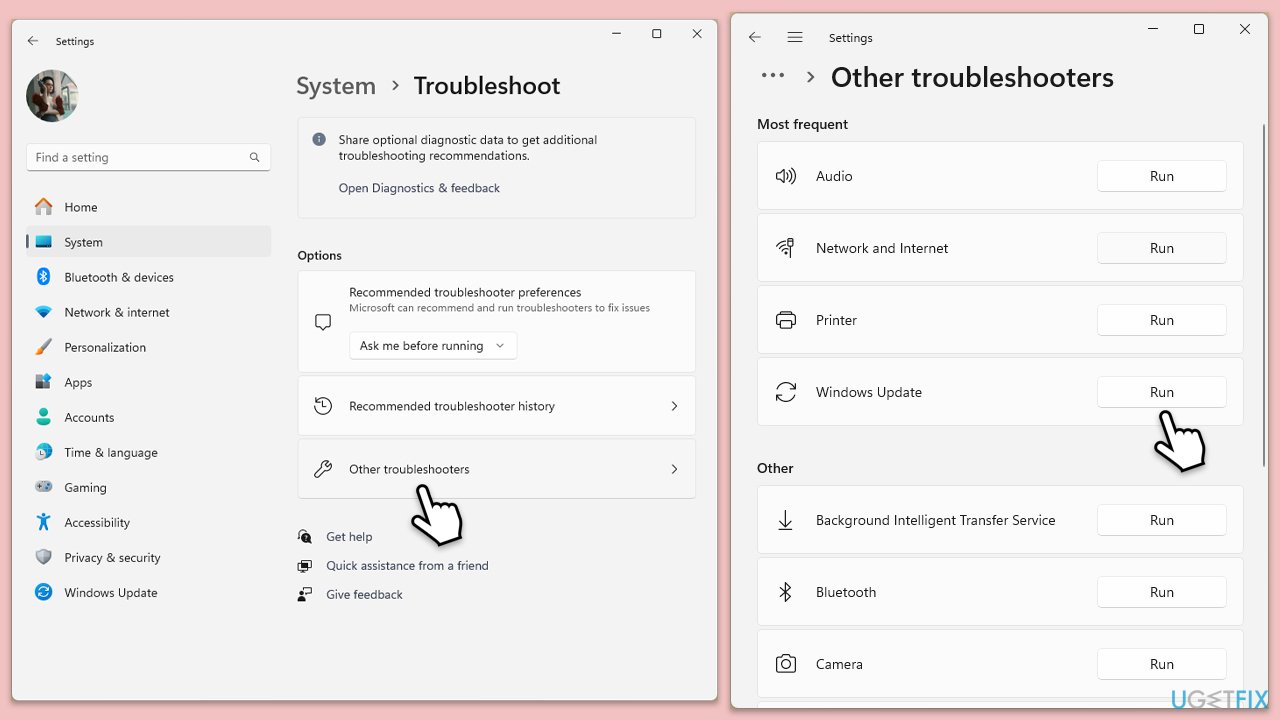
The Windows Update Troubleshooter is a built-in tool designed to detect and automatically resolve common issues with Windows updates. It works by scanning the system for update-related problems and applying fixes or resetting update components to their default state.
- Type Troubleshoot in Windows search and hit Enter.
- Select Additional troubleshooters/Other troubleshooters.
- Find Windows Update from the list and click Run the troubleshooter/Run.
- The troubleshooter will automatically scan your system for potential problems and display any issues it finds.
- If the troubleshooter finds any issues, it will provide recommended solutions.
- Follow the on-screen instructions to apply the recommended solution.
Fix 2. Disable third-party security and similar software
Third-party security programs can sometimes interfere with the installation of Windows updates by blocking or restricting system modifications. Temporarily disabling these can help determine if they are causing the installation issue.
- Right-click on the icon of your antivirus software in the system tray.
- Select the option to disable protection.
- Try to install the update again.
Fix 3. Check relevant services
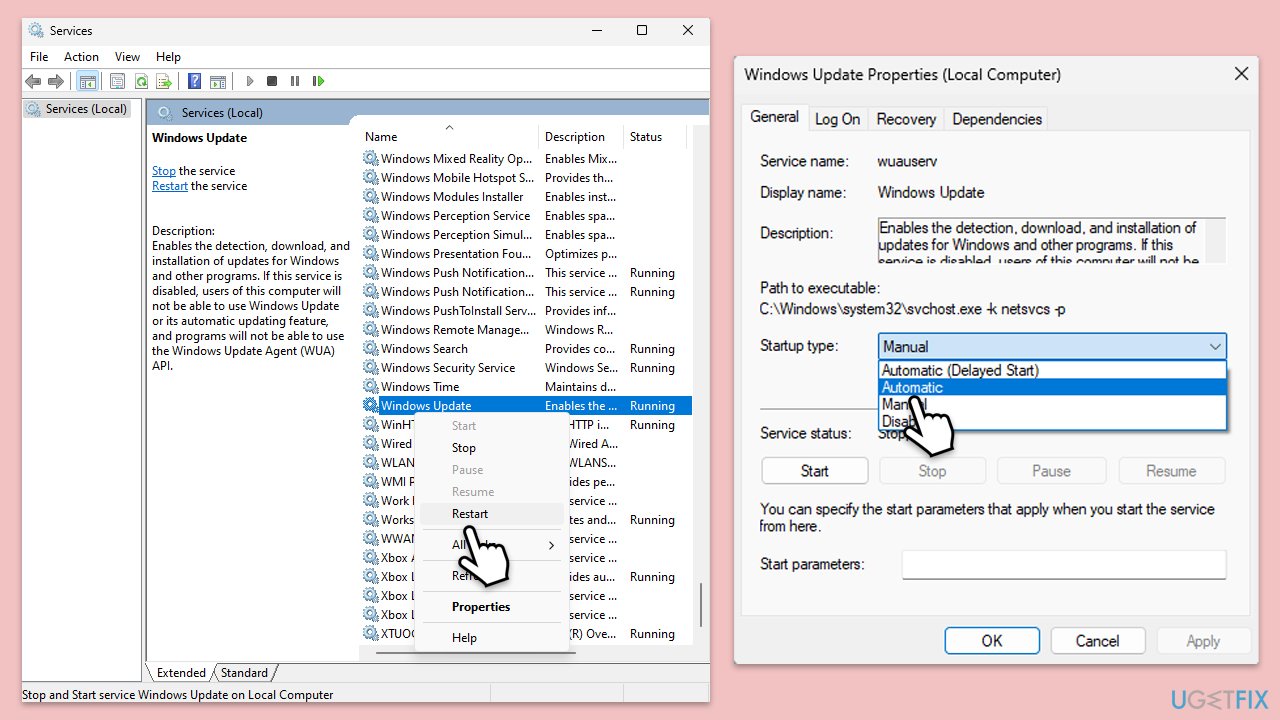
Certain Windows services must be running for updates to install properly. Ensuring these services are active is crucial.
- Type in Services in Windows search and hit Enter.
- Scroll down a bit to find Background Intelligent Transfer Service (BITS).
- If it is already running, right-click and select Restart.
- If the service is not running, double-click it, and pick Automatic under the Startup type drop-down menu.
- Click Start, Apply, and OK.
- Repeat this process for Windows Update and Cryptographic services.
Fix 4. Reset Windows update components
Resetting the Windows Update components clears the update cache and restarts related services, which can resolve many update problems.
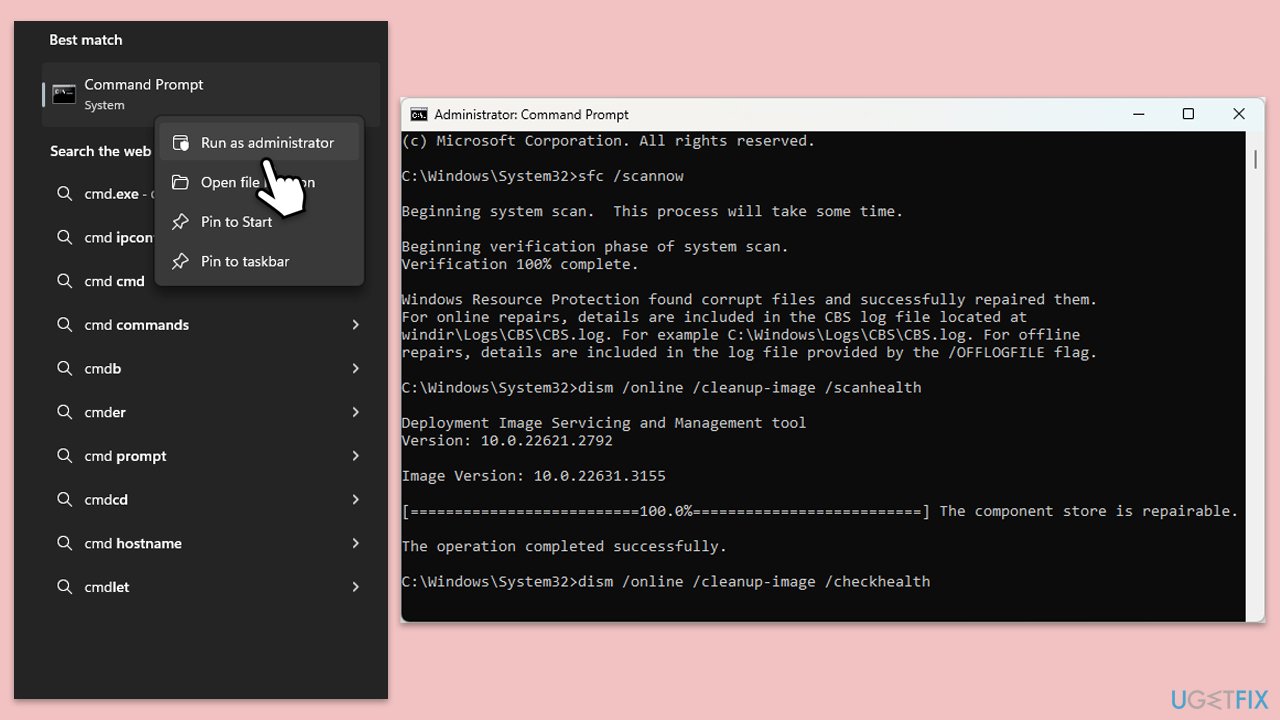
- Type cmd in Windows search.
- Right-click on Command Prompt and pick Run as administrator.
- The User Account Control window will ask whether you want to allow changes - click Yes.
- Stop the Windows Update-related services by running the following commands one at a time, pressing Enter after each one:
net stop wuauserv
net stop cryptSvc
net stop bits
net stop msiserver - Rename the SoftwareDistribution and Catroot2 folders by running the following commands:
ren C:\Windows\SoftwareDistribution SoftwareDistribution.old
ren C:\Windows\System32\catroot2 Catroot2.old
Note: If your Windows installation is not on the C drive, replace "C" with the appropriate drive letter. - Restart the Windows Update-related services by running the following commands:
net start wuauserv
net start cryptSvc
net start bits
net start msiserver - Reboot your device.
Fix 5. Perform Disk Cleanup
Disk Cleanup helps free up space on your hard drive and can remove temporary files that might be causing update issues.
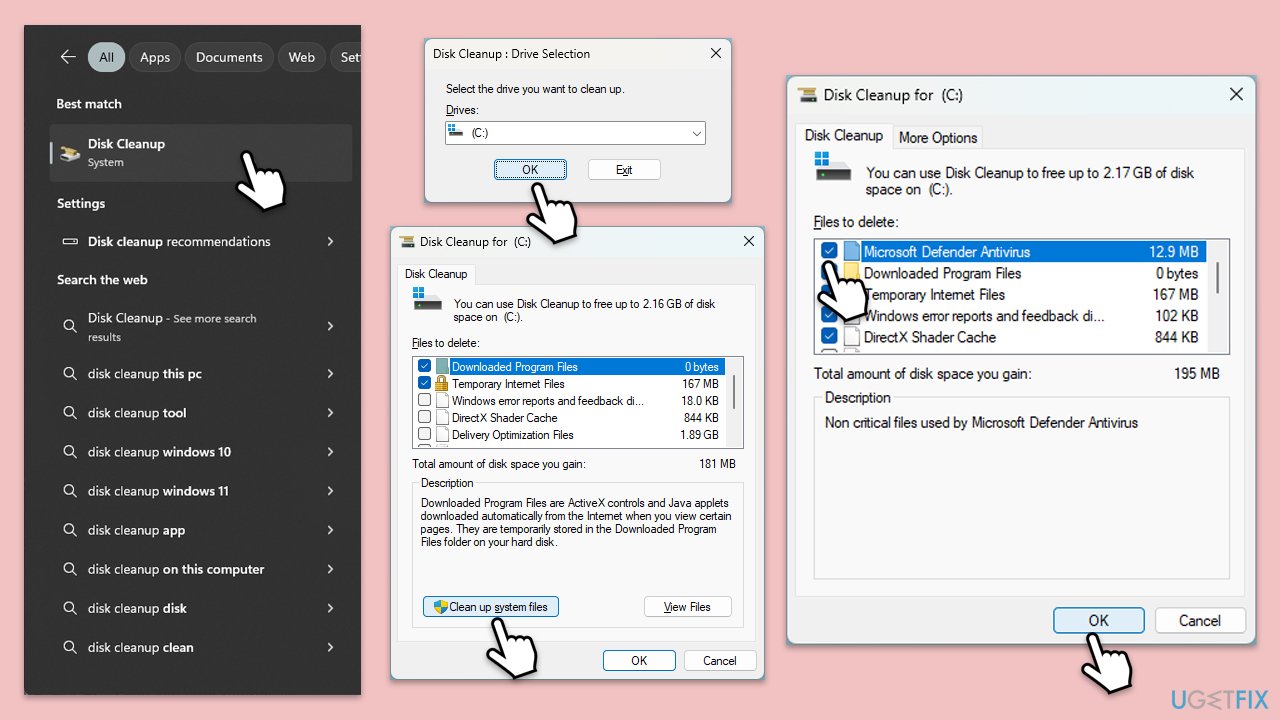
- Type Disk Cleanup in Windows search and hit Enter.
- If your Windows is installed on drive C, pick it from the list (should be by default) and press OK.
- Click Clean up system files.
- Select your main drive again and click OK.
- Here, select the largest portions of the data used - these typically include Temporary Internet Files, Windows Update, Temporary Files, Recycle Bin, Delivery Optimization Files, and others. Marking Windows Update is vital here.
- Click OK - the process should be finished shortly.
Fix 6. Check for file corruption
SFC and DISM tools can fix corrupted system files and restore system health, which can affect updates.
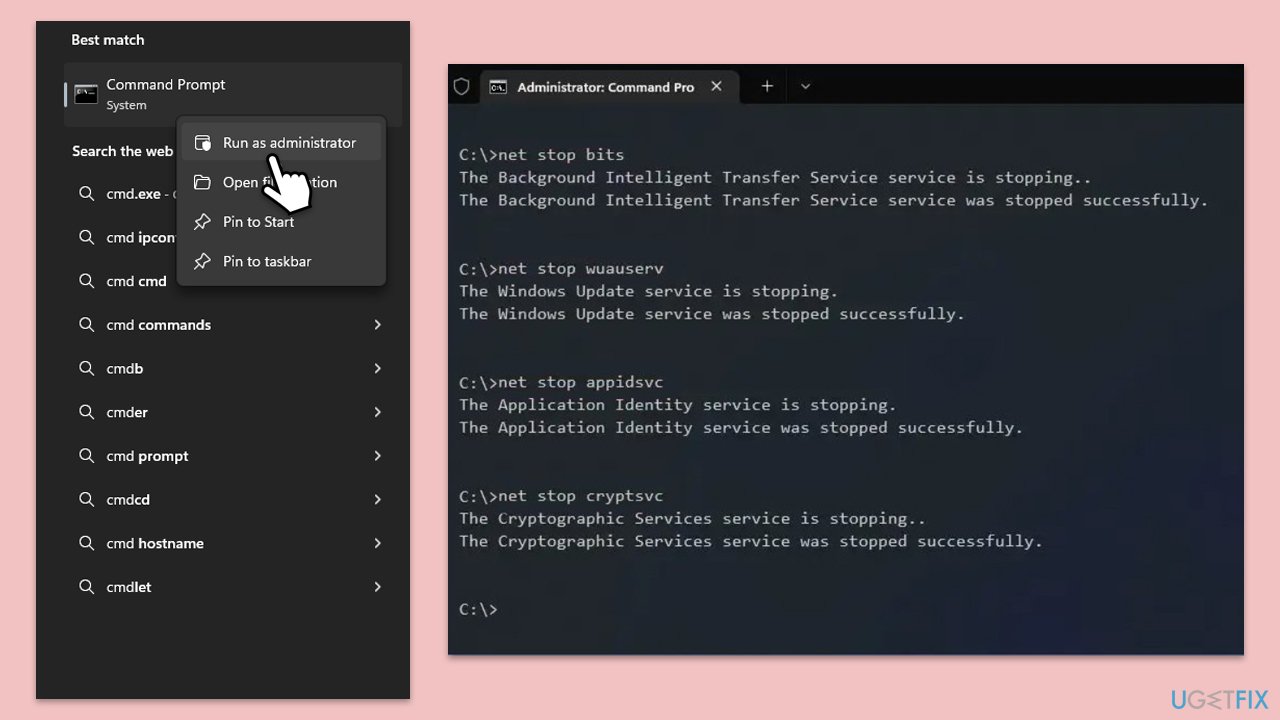
- Open Command Prompt as administrator.
- Copy and paste the following command, pressing Enter after:
sfc /scannow - Wait till the scan is finished. If Windows finds system file integrity violations, it will attempt to fix them. After this, use the set of the following commands, pressing Enter each time:
DISM /Online /Cleanup-Image /CheckHealth
DISM /Online /Cleanup-Image /ScanHealth
DISM /Online /Cleanup-Image /RestoreHealth - (Note: if you get an error executing this last command, add /Source:C:\RepairSource\Windows /LimitAccess to it and try again).
- Close down the Command Prompt and restart your PC.
Bottom line
To fix the KB5036992 installation issue, you can run the Windows Update Troubleshooter, clear the update cache, or scan for and repair damaged system files. If these steps do not resolve the problem, consider using a specialized PC repair tool to detect and fix underlying issues.
Frequently asked questions
Start by running the Windows Update Troubleshooter, which can automatically detect and fix common issues related to Windows Update failures.
Yes, common error codes like 0x800f081f or 0x8007000d indicate specific problems that can help in diagnosing the installation issue.
You can manually download the update from the Microsoft Update Catalog website and install it by following the provided instructions for your Windows 11 version.




Report an issue
What's wrong with this guide? We review every report and update or remove content.
Report received — thank you. We'll review and fix it.
You need a free account to submit a report.
Be the first to comment