How to fix
KB5037770 fails to install
on Windows
Struggling with KB5037770 installation issues on Windows 11? Discover effective solutions to get updates installed effortlessly. Expert-tested fixes await!

What causes How to fix KB5037770 fails to install in Windows 11?
- Insufficient disk space
- Corrupted system files
- Network issues
- Conflicts with third-party software
- System configuration issues
- Hardware incompatibilities
Repairs Windows system files, removes malware, and restores a clean OS state — without reinstalling.
Hi. I have an issue where KB5037770 is not installing on Windows, so I was wondering if you could help me. I am relatively new to Windows operating system so I am not sure what to do. The message simply says to try again later but it still doesn't work days later.
KB5037770 (OS Build 22000.2960) was released on May 14, 2024, as part of the Patch Tuesday update from Microsoft. This update is specifically for Windows 11 versions 21H2. Among its features, KB5037770 enables the transition from the kuna to the euro in Croatia.
Additionally, it resolves an Internet Explorer mode issue where pressing the left arrow key in an empty text box with caret browsing causes a freeze. This update also fixes a known VPN connection failure issue that appeared after the April 9, 2024, update KB5036992.
Besides these major fixes, it includes numerous quality improvements and bug fixes. Despite the anticipation surrounding these improvements, some have encountered issues where KB5037770 fails to install on Windows 11.
There are several reasons why the KB5037770 update might fail to install on your system, and understanding them can help people resolving the issue. Here are some common causes:
- Insufficient Disk space
- Corrupted system files
- Network issues
- Conflicts with third-party software
- System configuration issues
- Hardware incompatibilities
If KB5037770 fails to install, there are a few steps you can take to resolve the issue. Ensuring sufficient disk space and a stable internet connection is crucial. Running system file checks and ensuring all drivers are up to date can help address underlying issues. Temporarily disabling third-party software and using the built-in Windows Update Troubleshooter may also prove effective. Detailed instructions will be provided below.
For a more comprehensive solution, consider using the [d1] PC repair tool, which can automatically fix various Windows issues, including those related to Windows updates.
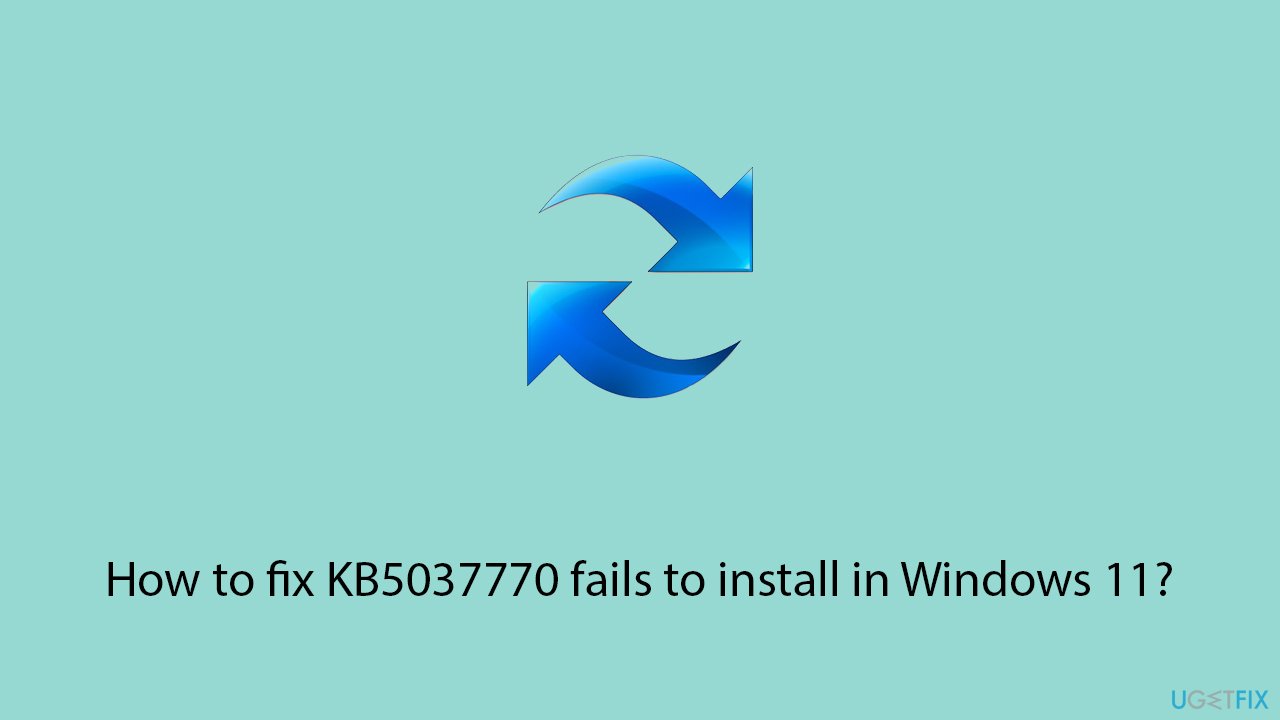
Fix 1. Check all the relevant services
Ensuring that the necessary Windows Update services are running is crucial for the update process to work properly.
- Type in Services in Windows search and hit Enter.
- Scroll down a bit to find Windows Update.
- If it is already running, right-click and select Restart.
- If the service is not running, double-click it, and pick Automatic under the Startup type drop-down menu.
- Click Start, Apply, and OK.
- Repeat the process with the Background Intelligent Transfer Service (BITS), Cryptographic, and Windows Installer services.
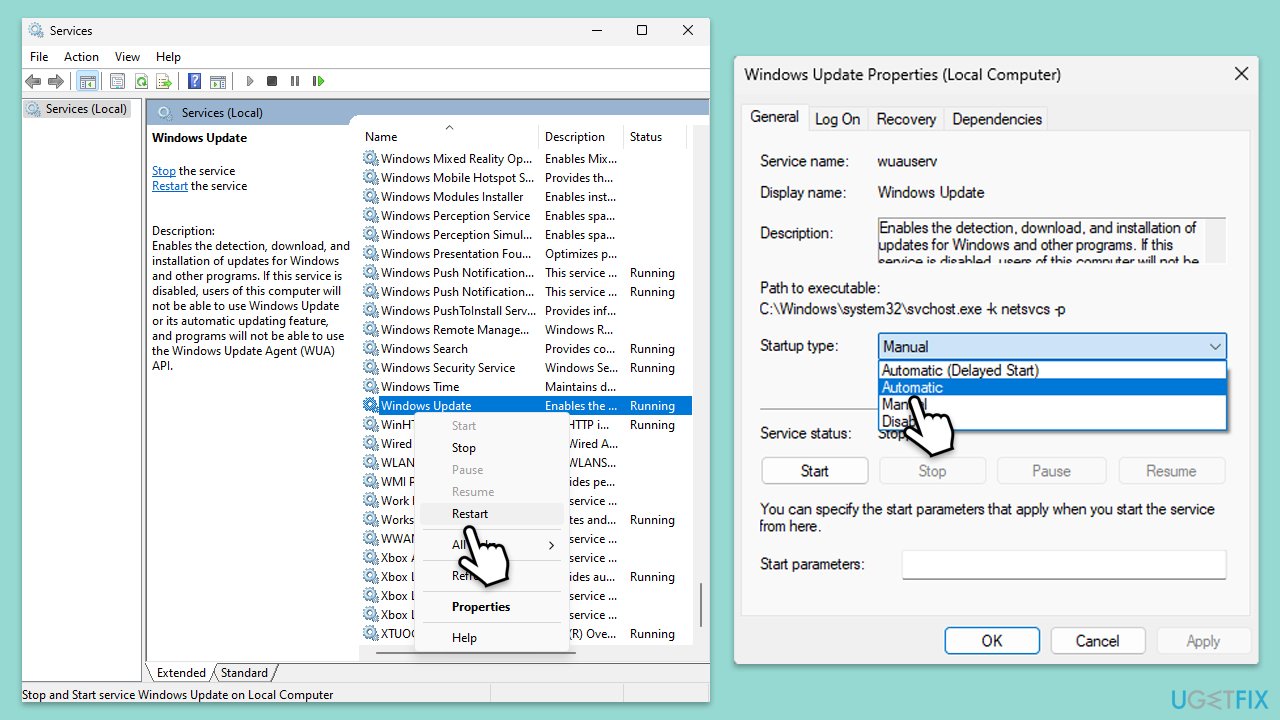
Fix 2. Perform Disk Cleanup
Clearing unnecessary files can free up disk space, allowing the update to download and install without issues.
- Type Disk Cleanup in Windows search and press Enter.
- Select your main drive (C: by default).
- Select appropriate fields (Temporary files, Recycle Bin, etc.) and click OK.
- If you want a more thorough cleanup and require even more space, select Clean system files in the Disk Cleanup window.
- Select your main drive again - Windows will compute how much space can be retrieved.
- The largest data dumps are usually accumulated in Windows Update and Delivery Optimization sections, although Temp files can also take a lot if it hasn't been cleaned.
- Select appropriate fields and click OK - Windows will remove all these files from your device and free up space.
Fix 3. Run troubleshooters
The built-in Windows Update Troubleshooter can identify and fix common issues that prevent updates from installing.
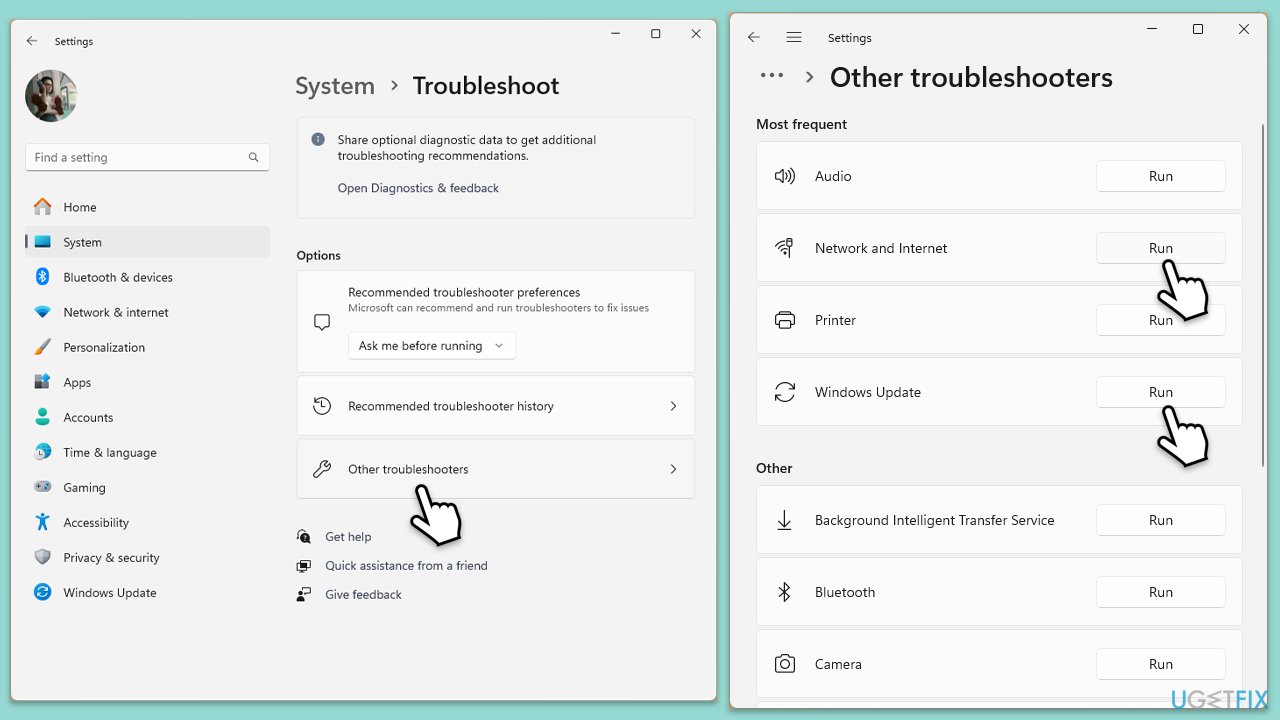
- Type Troubleshoot in Windows search and hit Enter.
- Select Other troubleshooters.
- Find Windows Update from the list and click Run.
- The troubleshooter will automatically scan your system for potential problems and display any issues it finds.
- Repeat the process with Network & Internet troubleshooter.
- If the troubleshooter finds any issues, it will provide recommended solutions.
- Follow the on-screen instructions and restart your computer.
Fix 4. Disable third-party security software
Third-party antivirus programs can sometimes interfere with the update process, so temporarily disabling them can help.
- Right-click the antivirus program icon in the system tray.
- Select Disable, Turn off, or a similar option.
- Choose a time duration.
- Attempt to install the update again.
Fix 5. Reset Windows update components
Resetting the Windows Update components can resolve issues related to corrupted files or settings.
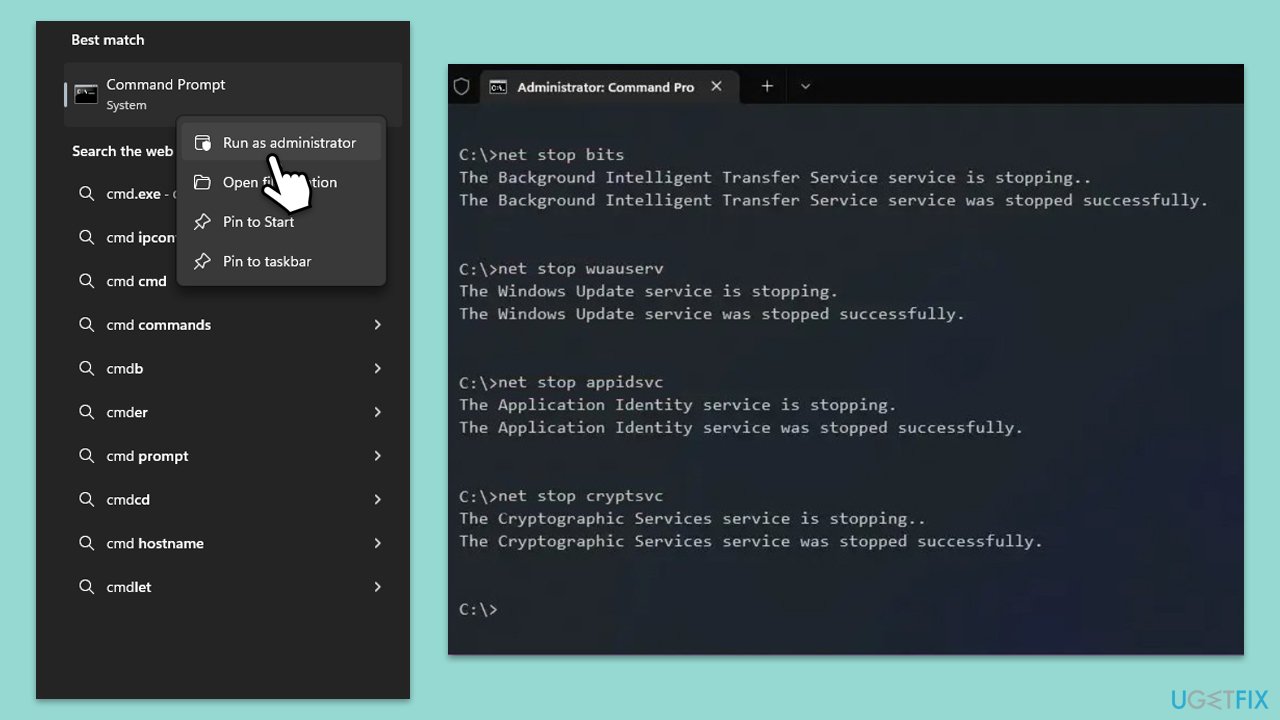
- Type in cmd in Windows search.
- Right-click on Command Prompt and select Run as administrator.
- User Account Control will ask you whether you want to allow to make changes to the system - click Yes.
- Copy and paste each of these commands, pressing Enter each time:
net stop bits
net stop wuauserv
net stop appidsvc
net stop cryptsvc
Del “%ALLUSERSPROFILE%\Application Data\Microsoft\Network\Downloader\*.*”
rmdir %systemroot%\SoftwareDistribution /S /Q
rmdir %systemroot%\system32\catroot2 /S /Q
regsvr32.exe /s atl.dll
regsvr32.exe /s urlmon.dll
regsvr32.exe /s mshtml.dll
netsh winsock reset
netsh winsock reset proxy
net start bits
net start wuauserv
net start appidsvc
net start cryptsvc - Restart your device.
Fix 6. Repair corrupted files
Make sure you repair corrupted files in Windows as follows:
- Open Command Prompt as administrator.
- Paste the following command into the new window:
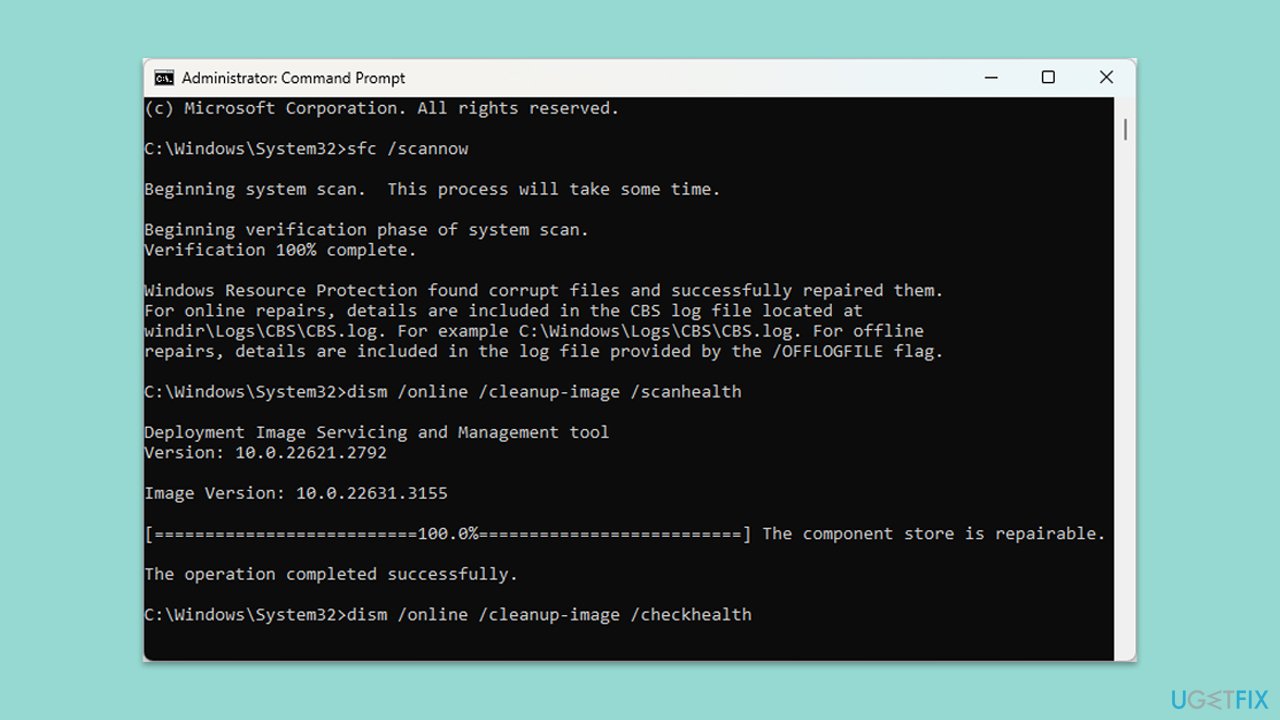
sfc /scannow - Press Enter and wait till the scan is executed.
- As soon as the scan finishes, Windows will report whether integrity violations were found and if they could be fixed. Regardless of the outcome, use these commands next, pressing Enter after each:
DISM /Online /Cleanup-Image /CheckHealth
DISM /Online /Cleanup-Image /ScanHealth
DISM /Online /Cleanup-Image /RestoreHealth - Restart your computer.
Fix 7. Install the update manually
Downloading and installing the update manually can bypass issues related to the automated update process.
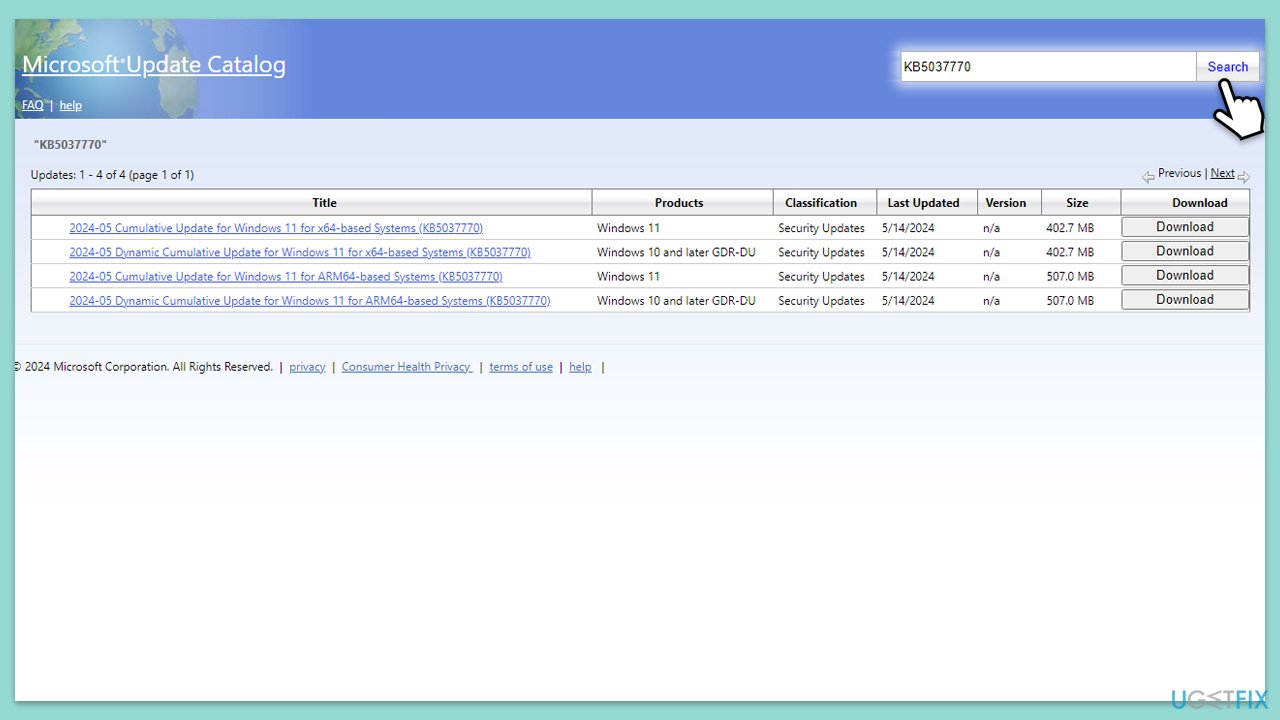
- Go to the official Microsoft Update Catalog website.
- Type the KB5037770 into the search bar, and click Search.
- You will find many different versions on the update – you need to find the one that matches your PC specs and Windows version (as a home user, ignore Windows server versions).
- After picking the correct version, click the Download button and proceed with the on-screen instructions.
- Restart your computer to implement the new updates.
Bottom line
To resolve the KB5037770 installation issue, ensure you have sufficient disk space and a stable internet connection. Running system file checks, updating drivers, and temporarily disabling third-party software can also help. If these steps do not work, consider using a PC repair tool for further assistance.
Frequently asked questions
First, ensure your Windows 11 is up to date and run the Windows Update Troubleshooter. If the problem persists, you may need to manually download and install the update from the Microsoft Update Catalog.
Yes, you can uninstall KB5037770 by going to Settings > Update & Security > Windows Update > View update history > Uninstall updates. This will revert your system to the previous state before the update.
You can check the installation status of KB5037770 by navigating to Settings > Update & Security > Windows Update and clicking on 'View update history.' This will show you if the update was successfully installed or if there were any errors.




Report an issue
What's wrong with this guide? We review every report and update or remove content.
Report received — thank you. We'll review and fix it.
You need a free account to submit a report.
Be the first to comment