How to fix
KB5037941 fails to install
on Windows
Resolve the KB5037941 installation error on Windows 11 quickly and efficiently. Follow our expert-tested solutions to fix it in minutes.

What causes How to fix KB5037941 fails to install in Windows 11?
- Incompatibilities with the system
- Conflicts with other programs
- Problems with the update files
- Underlying systemic issues
- Unfinished features causing instability
Repairs Windows system files, removes malware, and restores a clean OS state — without reinstalling.
Hello, I have noticed that a new preview update for Insiders is available (KB5037941) but when I tried to install it, it failed. I have a 26100.1 build currently and running an OEM license so I am not sure what's wrong.
If KB5037941 fails to install on Windows 11 for you, you came to the right place. This article will guide you through the steps to understand and address installation issues with this particular update. Understanding the context of this update within the Windows Insider Program is essential, as it offers pre-release versions of Windows updates to users who sign up to test and provide feedback on new features before they are broadly released.
KB5037941, identified as build 26100.2, is part of the upcoming Windows 11 version 24H2 update. As of now, it is not widely available to all Windows users. Microsoft has released this update quietly, without a separate changelog, indicating that it is mainly intended for testing and feedback.
The update is specifically available for OEM licenses and users who previously installed build 26100.1. Since KB5037941 is part of a development cycle for a version set to be released later in the year, it may include unfinished features that could lead to instability or bugs.
If you have access to this update and decide to install it, there may be occasions when KB5037941 fails to install. There could be a number of causes for this, including incompatibilities with the system, conflicts with other programs, or problems with the update files themselves.
Making sure your system fulfills the update requirements and that there are no underlying systemic issues that could interfere with the installation process are essential steps in resolving these problems. It might also be helpful to run a system update troubleshooter or verify the integrity of the system.
For those experiencing persistent issues, using a PC repair tool [d1] might be a viable solution. This tool can automatically diagnose and resolve any underlying issues with Windows that might be preventing the update from installing correctly.
Fix 1. Run Windows update troubleshooter
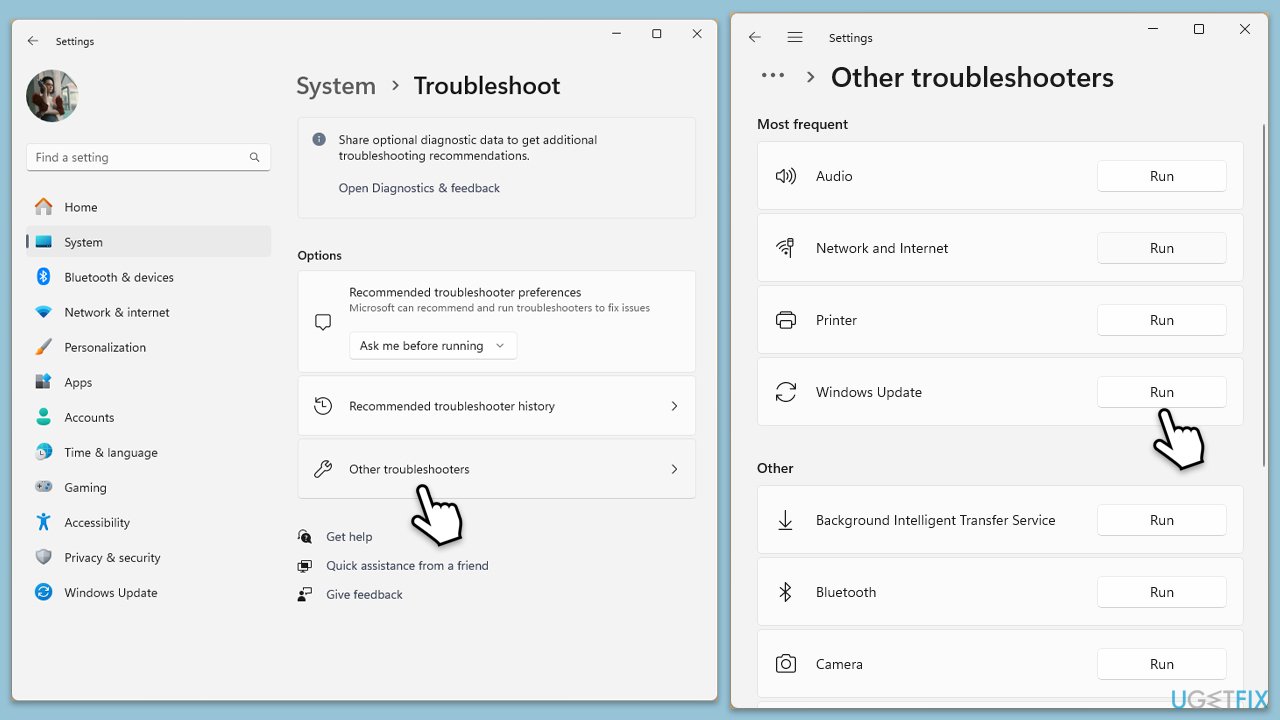
The Windows Update Troubleshooter is a built-in tool that can automatically find and fix common problems with Windows updates. It checks for issues that might prevent updates from installing correctly and attempts to resolve them.
- Type Troubleshoot in Windows search and press Enter.
- Go to Other troubleshooters.
- Find Windows Update from the list and click Run.
- The troubleshooter will automatically scan your system for potential problems and display any issues it finds.
- If the troubleshooter finds any issues, it will provide recommended solutions.
Fix 2. Perform SFC and DISM scans
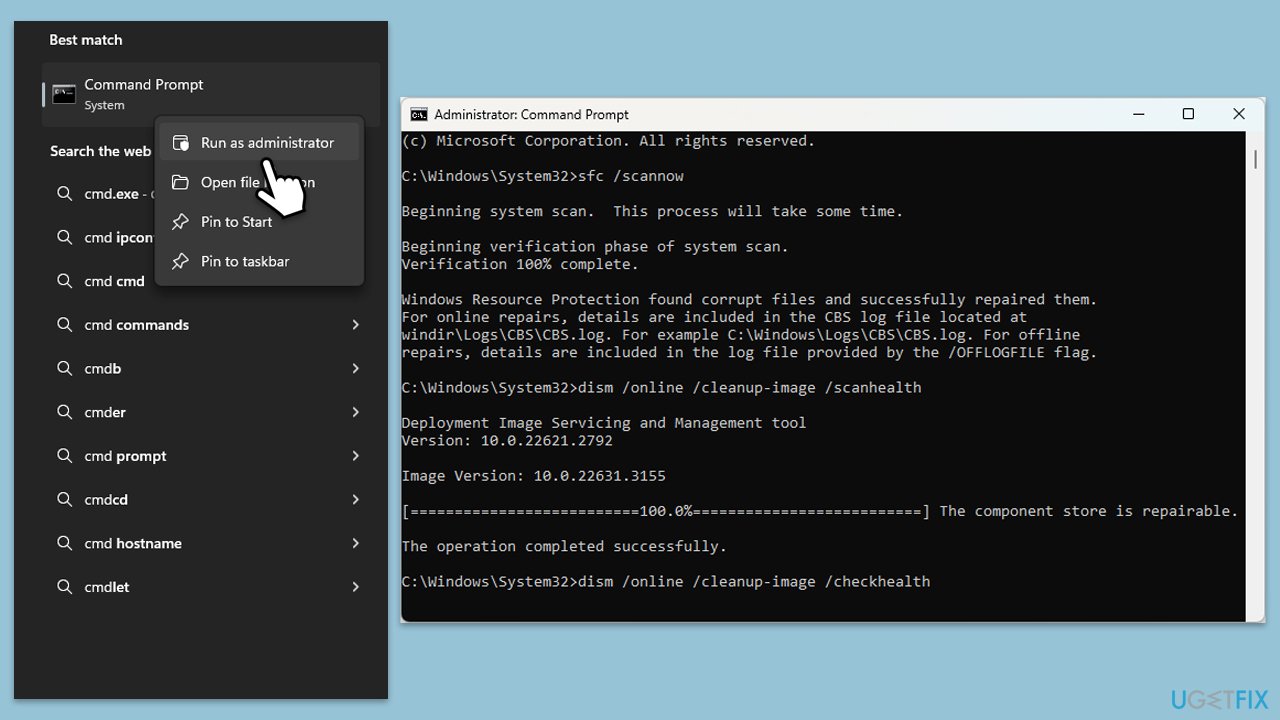
System File Checker (SFC) and Deployment Imaging Service and Management (DISM) tools scan and repair system files and Windows image issues. These scans can fix corrupted files and system inconsistencies which might be causing the update to fail.
- Type cmd in Windows search.
- Right-click on Command Prompt and pick Run as administrator.
- User Account Control window will show up - click Yes when prompted.
- Then, copy and paste the following command, pressing Enter after:
sfc /scannow - Wait till the scan is finished. If Windows finds system file integrity violations, it will attempt to fix them. After this, use the set of the following commands, pressing Enter each time:
DISM /Online /Cleanup-Image /CheckHealth
DISM /Online /Cleanup-Image /ScanHealth
DISM /Online /Cleanup-Image /RestoreHealth - (Note: if you get an error executing this last command, add /Source:C:\RepairSource\Windows /LimitAccess to it and try again).
- Close down the Command Prompt and restart your computer.
Fix 3. Check relevant services
Ensuring that all necessary Windows services are running can help in successfully installing updates. Some services must be active for the update process to initiate and complete properly.
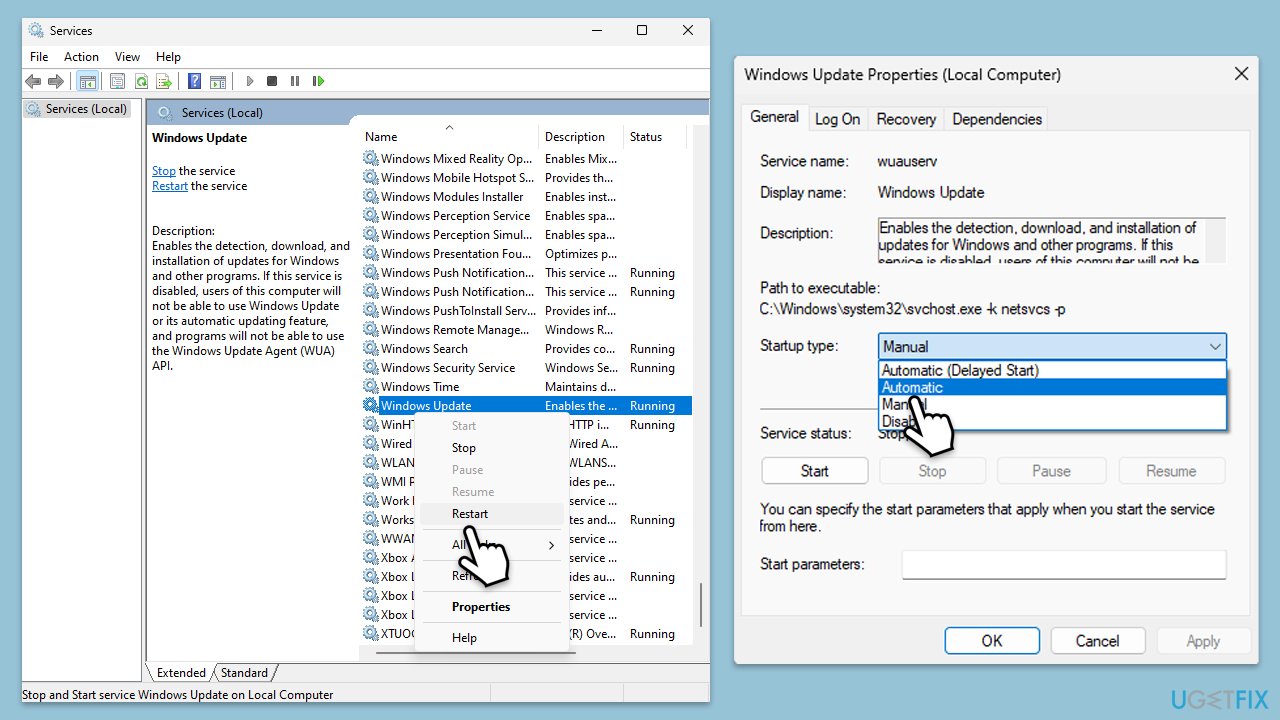
- TypeServices in Windows search and hit Enter.
- Scroll down to locate Windows Update.
- If it is already running, right-click and pick Restart.
- If the service is not running, double-click it, and select Automatic under the Startup type from the drop-down menu.
- Click Start, Apply, and OK.
- Repeat this process for Background Intelligent Transfer Service (BITS) and Cryptographic services.
Fix 4. Perform Disk Cleanup
Disk Cleanup helps free up space on your hard drive and removes temporary files that might interfere with Windows updates.
- Type Disk Cleanup in Windows search and hit Enter.
- If your Windows is installed on drive C, pick it from the list (it should be by default) and press OK.
- Click Clean up system files.
- Select your main disk again and click OK.
- Here, select the largest portions of the data used - these typically include Temporary Internet Files, Windows Update, Temporary Files, Recycle Bin, Delivery Optimization Files, and others.
- Click OK - the process should be finished shortly.
Fix 5. Run Clean Boot
Performing a Clean Boot starts Windows with a minimal set of drivers and startup programs. This can help identify if background software is interfering with the update installation.
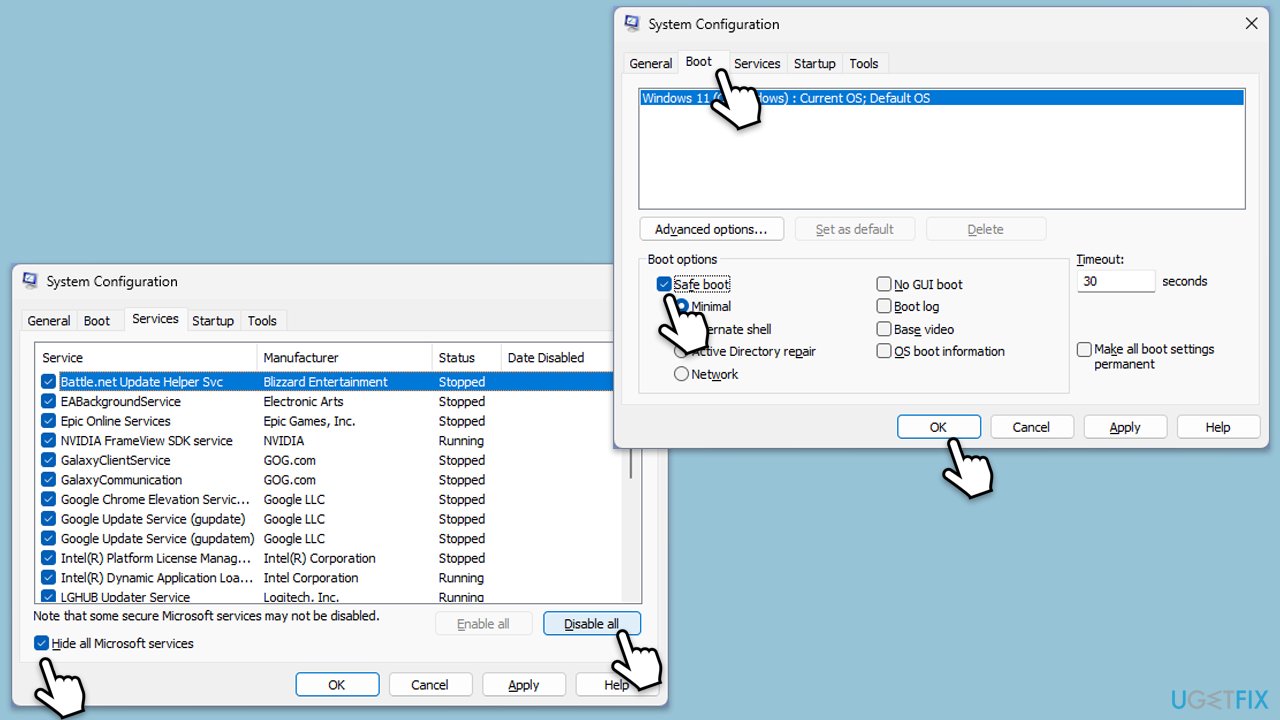
- Type msconfig in the Windows search box and press Enter.
- Pick the Services tab.
- Mark Hide all Microsoft services and select Disable all.
- Select the Startup tab and click Open Task Manager.
- In the Task Manager, right-click on each of the items and select Disable, then close the Task Manager.
- Go to the Boot tab, mark the Safe Boot option, then click Apply and OK.
- On the System Configuration window, click OK.
- Restart your PC.
- After restarting, try installing the update again.
Fix 6. Install the update from the UUP dump website
If the update fails through the standard Windows Update process, downloading it directly from a UUP dump website can be an alternative. These sites provide update files directly from Microsoft but are organized for easier access.
- Open any browser.
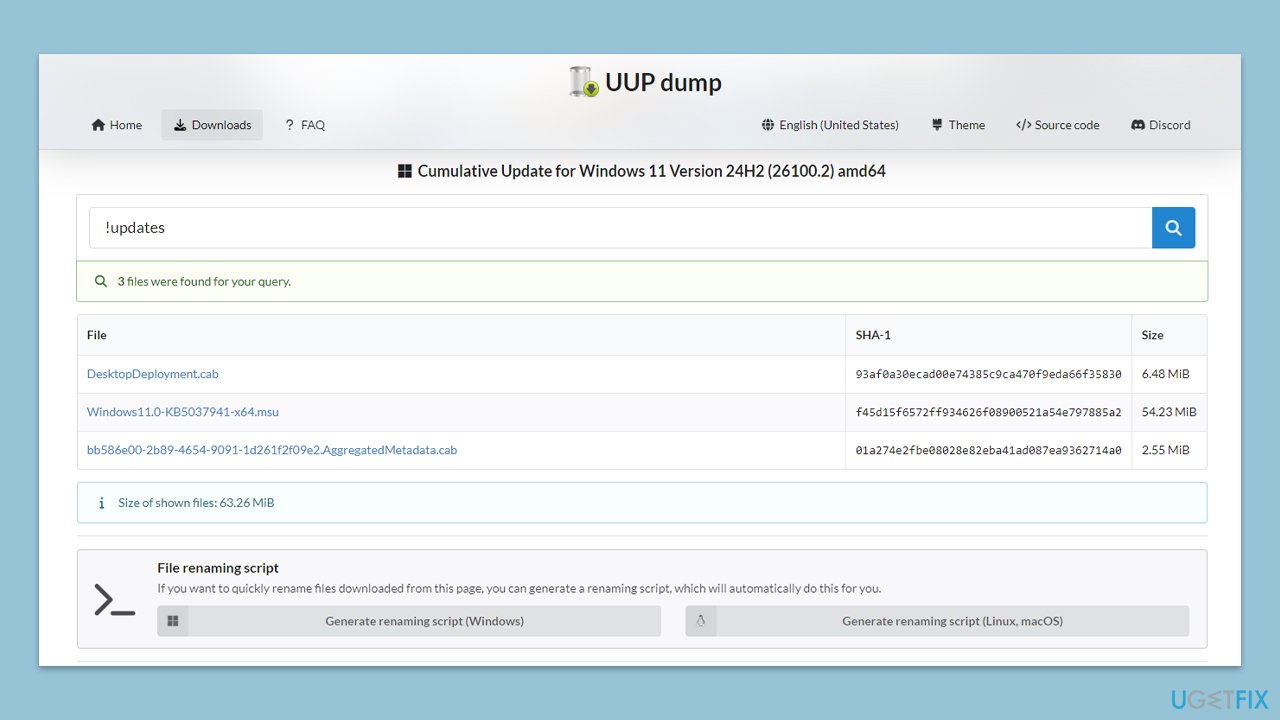
- Go to the UUP dump page hosting KB5037941 (24H2) update.
- Download all the files and apply as required.
- Restart your computer to implement the changes.
Bottom line
To resolve the installation failure of KB5037941, ensure your system meets the update requirements, run a system update troubleshooter, and verify the integrity of your system. If issues persist, consider using a PC repair tool to diagnose and fix underlying problems. If none of these solutions work, further assistance may be needed.
Frequently asked questions
First, try running the Windows Update Troubleshooter, which can help identify and fix issues preventing the update from installing. If that doesn't work, consider manually downloading the update from the Microsoft Update Catalog.
Yes, common error codes include 0x800f0988 and 0x8007000d, which indicate problems with missing files or corrupted components. You can search for these error codes for tailored solutions.
Yes, if you have a restore point created before the update attempt, you can use System Restore to revert your system to a stable state. Just access the recovery options in Windows 11 settings to start the process.




Report an issue
What's wrong with this guide? We review every report and update or remove content.
Report received — thank you. We'll review and fix it.
You need a free account to submit a report.
Be the first to comment