How to fix
KB5039217 fails to install
on Windows
Resolve KB5039217 installation issues on Windows 10 and 11 effortlessly. Expert-tested solutions to get your updates fixed in minutes.

What causes How to fix KB5039217 fails to install in Windows?
- Corrupted system files
- Bugged update caches
- Poor internet connection
- Issues with relevant services
- Inconsistent Windows update service configurations
Repairs Windows system files, removes malware, and restores a clean OS state — without reinstalling.
I'm having trouble with the KB5039217 update failing to install on my Windows machine. Every time I try to update, it fails during the process, and I can't seem to find a solution. Any tips would be appreciated.
A security update KB5039217 was released on June 11, 2024, for Windows Enterprise editions and Windows servers. The main purpose of the patch is to improve and fix security issues in the system, although several issues related to Isass.exe (crashes and memory leaks) have been addressed as well.
To maintain the device's security and integrity, installing the latest updates is a necessity, regardless of which version of Windows you are using. Unfortunately, for some users, KB5039217 fails to install on the mentioned Windows versions, which can cause a number of usability and security issues.
What is the reason for KB5039217 not installing?
There could be various reasons why KB5039217 fails to install. For instance, corrupted system files or bugged update caches might prevent the update process from completing. Similarly, a poor internet connection or issues with relevant services could hinder the successful installation.
Typically, Windows update errors resolve themselves, as they are often caused by minor bugs. However, issues become more problematic when users attempt to apply the update repeatedly over days or even weeks without success. The KB5039217 installation failures can stem from various causes, usually involving inconsistent Windows update service configurations, bugged caches, or system file corruption. The guide below addresses these and other potential causes.
Before proceeding with manual fixes, we recommend running a scan with a [d1] PC tool. This tool can detect and remove installed malware, repair system file corruption, clean browsers from trackers, and eliminate various junk files to improve performance. The app can quickly and easily fix BSODs, registry corruption, DLL errors, system crashes, and other common issues on Windows.
Fix 1. Restart your computer
A simple restart can resolve many update-related issues by refreshing the system and clearing temporary bugs.
- Click on the Start menu.
- Select the Power icon.
- Choose Restart from the options.
Fix 2. Run Windows Update Troubleshooter
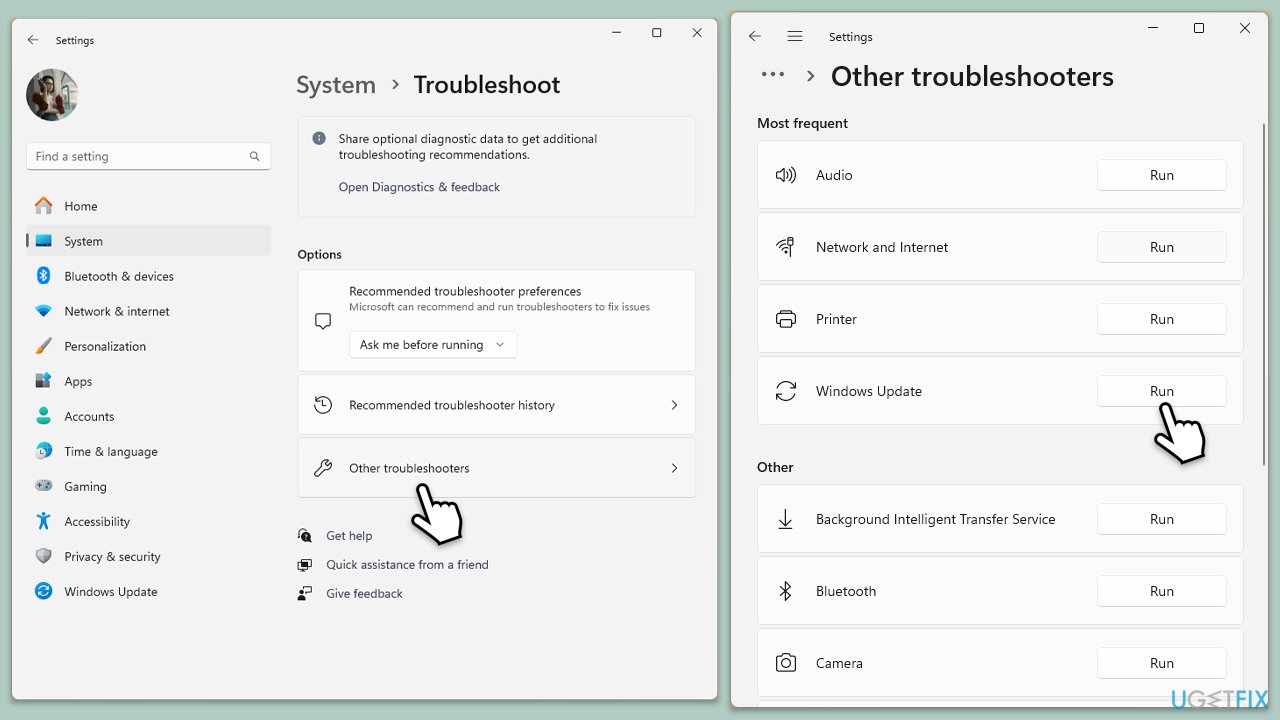
The Windows Update Troubleshooter is designed to automatically find and fix common update problems.
- Type Troubleshoot in Windows search and press Enter.
- Select Additional troubleshooters/Other troubleshooters.
- Find Windows Update from the list.
- Click it and select Run the troubleshooter/Run.
- Restart your PC when the update process finishes.
Fix 3. Check disk space
Insufficient disk space can prevent updates from installing properly. Ensure there is enough free space on your drive.
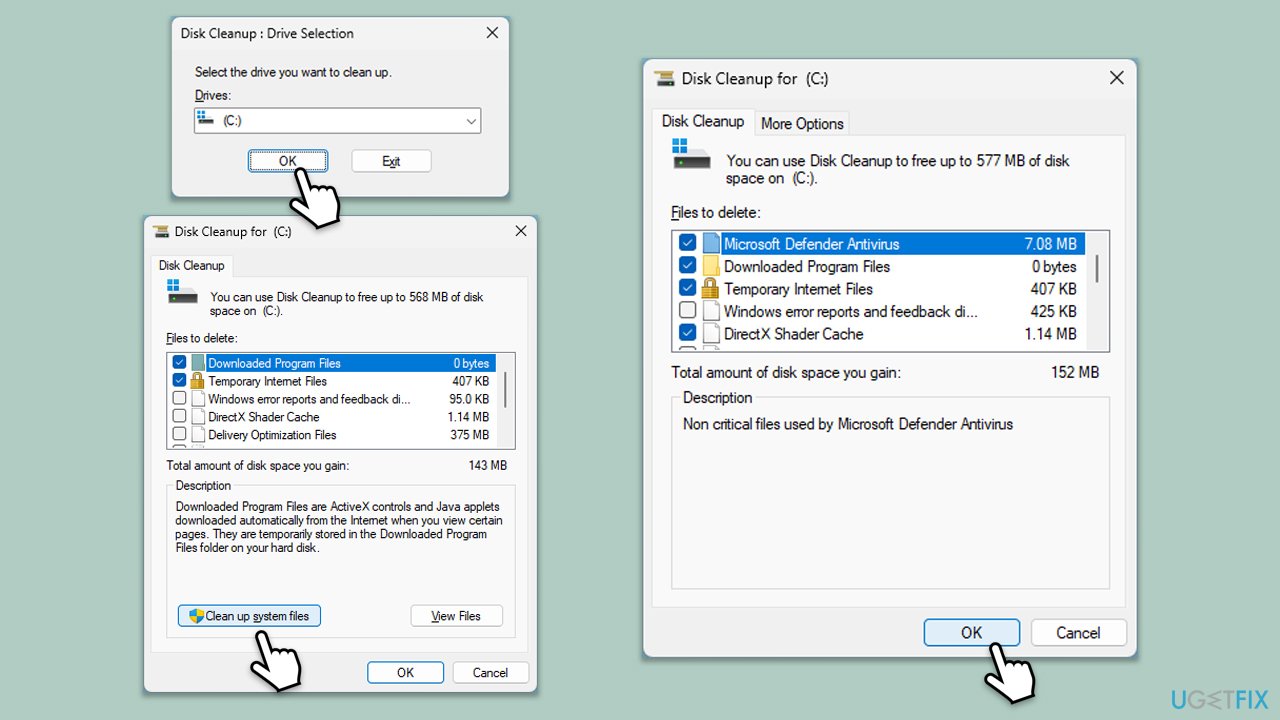
- Type Disk Cleanup in Windows search and hit Enter.
- If your Windows is installed on drive C, pick it from the list (it should be by default) and press OK.
- Click Clean up system files.
- Select your main disk again and click OK.
- Here, select the largest portions of the data used - these typically include Temporary Internet Files, Windows Update, Temporary Files, Recycle Bin, Delivery Optimization Files, and others.
- Click OK - the process should be finished shortly.
Fix 4. Repair system files
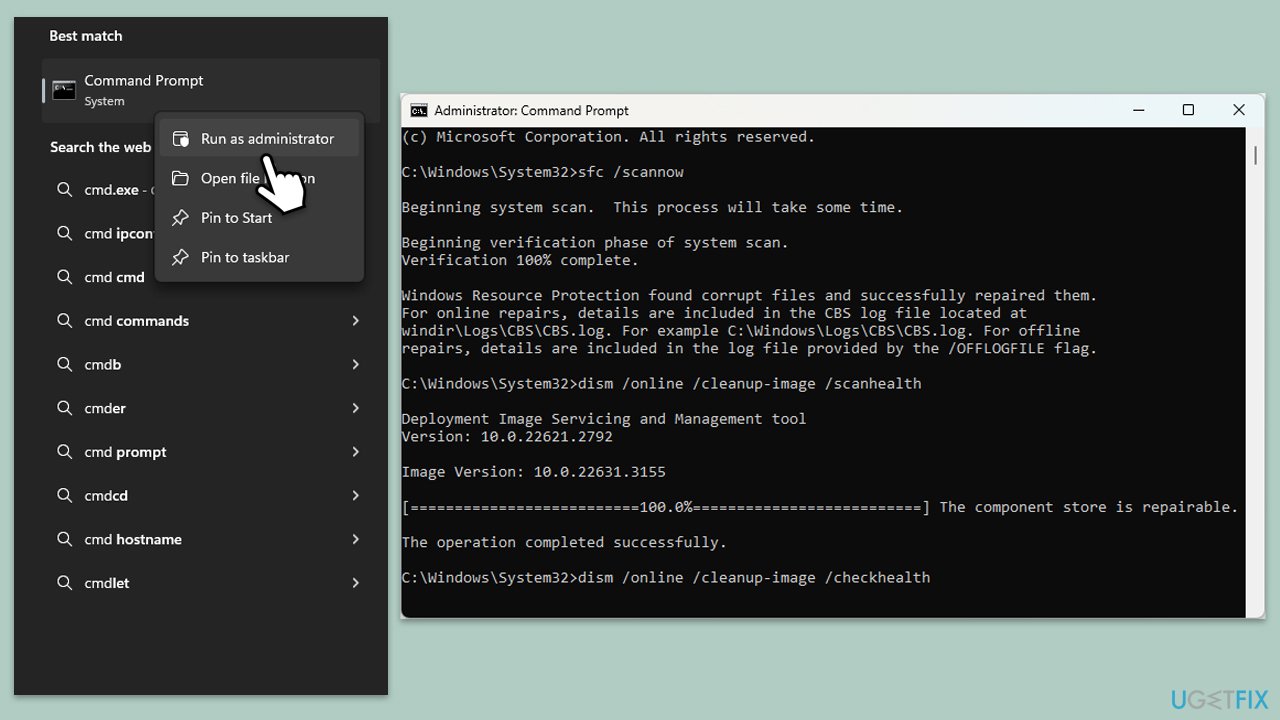
Corrupted system files can interfere with updates. Using tools like SFC and DISM can help repair these files.
- Type cmd in Windows search.
- Right-click on Command Prompt and pick Run as administrator.
- When User Account Control shows up, click Yes.
- Use the following command lines, pressing Enter after each:
sfc /scannow
DISM /Online /Cleanup-Image /CheckHealth
DISM /Online /Cleanup-Image /ScanHealth
DISM /Online /Cleanup-Image /RestoreHealth
(Note: if you get an error executing this last command, add /Source:C:\RepairSource\Windows /LimitAccess to it and try again). - Restart your computer.
Fix 5. Reset Windows Update components
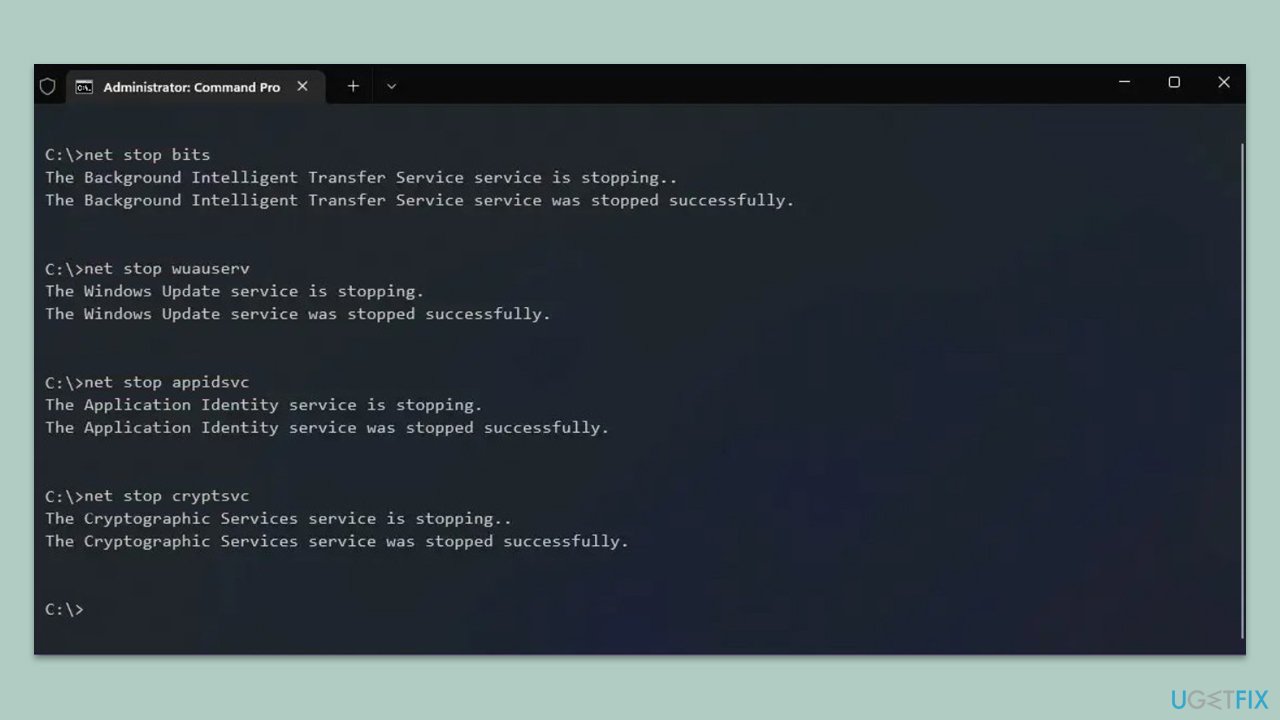
Resetting Windows Update components can resolve issues related to the update service.
- Open Command Prompt as administrator again.
- In the new window, copy and paste the following commands, pressing Enter each time:
net stop bits
net stop wuauserv
net stop appidsvc
net stop cryptsvc
Del “%ALLUSERSPROFILE%\Application Data\Microsoft\Network\Downloader\*.*”
rmdir %systemroot%\SoftwareDistribution /S /Q
rmdir %systemroot%\system32\catroot2 /S /Q
regsvr32.exe /s atl.dll
regsvr32.exe /s urlmon.dll
regsvr32.exe /s mshtml.dll
netsh winsock reset
netsh winsock reset proxy
net start bits
net start wuauserv
net start appidsvc
net start cryptsvc - Restart your system.
Fix 6. Update drivers
Outdated drivers can cause conflicts with Windows updates. Ensure all drivers are up to date by downloading them from the official vendors' websites, using tools like [ref id="DriverFix"] or employing Device Manager as follows:
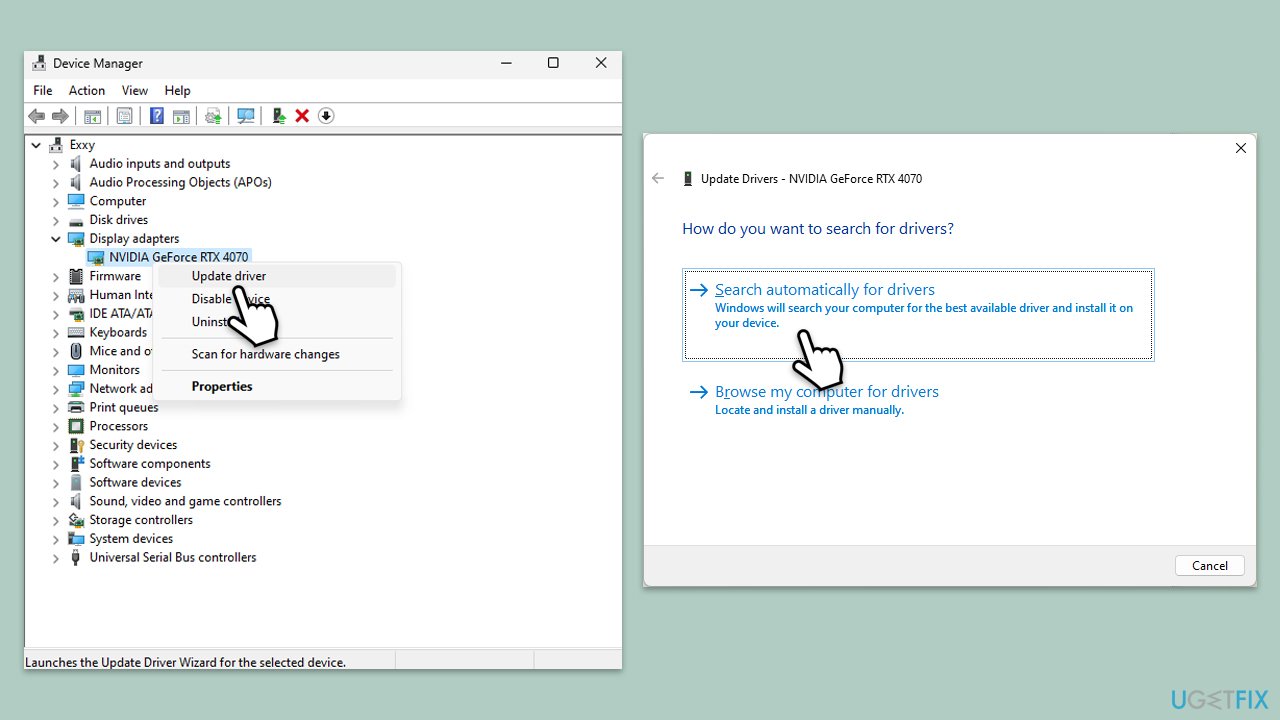
- Open Device Manager.
- Expand the section you want to update drivers for, for example, Display adapters.
- Right-click on your graphics card and choose Update driver.
- Select Search automatically for drivers.
- Follow the on-screen instructions to complete the process.
- Repeat this process for the other sections.
Fix 7. Try Clean Boot
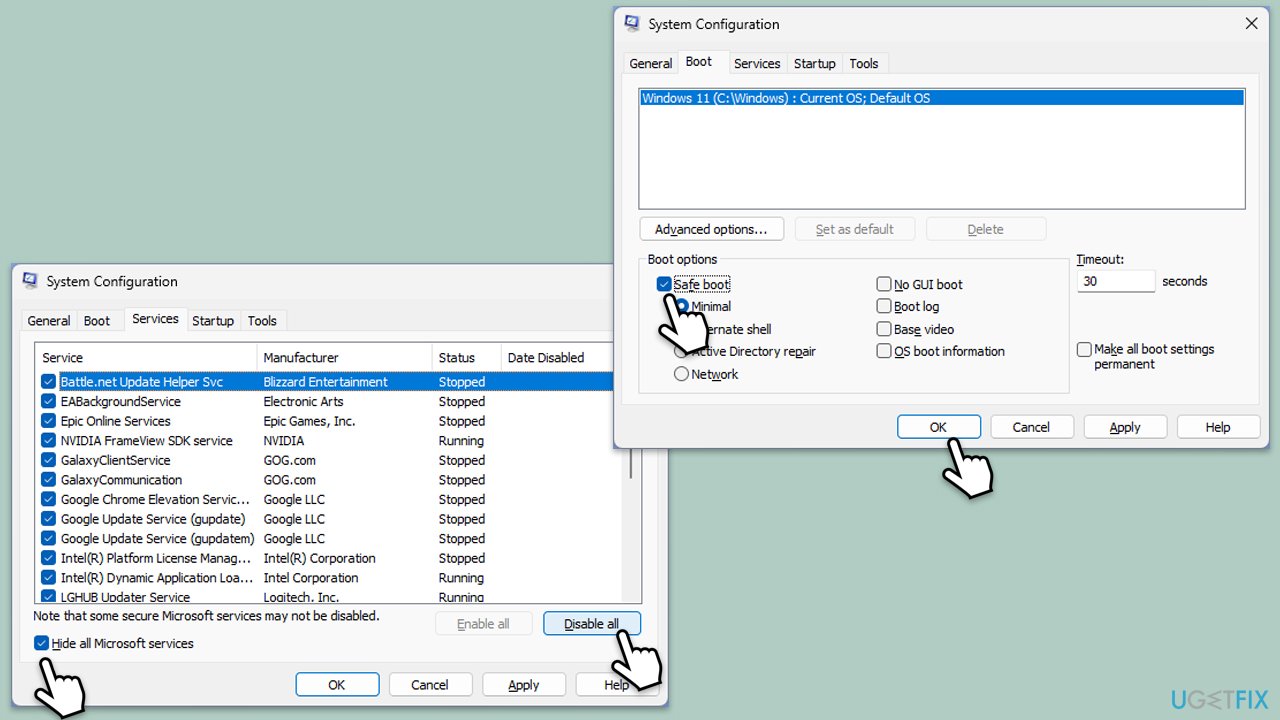
- Type msconfig inWindows Search and press Enter to open the System Configuration window.
- Click on the Services tab and check the Hide all Microsoft Services box.
- Click Disable all to disable non-Microsoft services, then click the Startup tab.
- Open the Task Manager, disable all startup items, and close the Task Manager.
- Go to the Boot tab and mark the Safe boot option.
- Click OK on the System Configuration window and restart your PC.
- After the restart, check if you can log in again. If you can, it means that one of the disabled services or startup items is causing the issue.
- Re-enable services and startup items one by one (or in groups), restarting your computer each time, to identify the specific program or service responsible for the issue.
- Once identified, keep the problematic program or service disabled or uninstall it if necessary.
Fix 8. Disable antivirus software
Sometimes, antivirus software can interfere with the update process. Temporarily disabling it can help.
- Open your antivirus software.
- Find the option to disable protection.
- Try running the update again.
Fix 10. Manually install the update
If automatic updates fail, manually downloading and installing the update can be a solution.
- Open your browser and go to Microsoft Update Catalog.
- Within the search bar, type in KB5039217 and click Search.
- Find the correct version of the update for your operating system (to check this, right-click on Start and pick System. Under Device specifications and check the System type) and click Download.
- Use on-screen guidelines to finish the installation process and restart your computer.
Bottom line
To fix the KB5039217 installation failure, you can try restarting your computer, which may resolve temporary bugs. If the issue persists, consider running a PC tool to detect and repair system file corruption and other common issues. If none of these solutions work, further troubleshooting may be necessary.
Frequently asked questions
Try running the Windows Update Troubleshooter, which can identify and fix issues related to updates, including KB5039217. If that doesn't work, consider manually downloading the update from the Microsoft Update Catalog.
Yes, you can clear the Windows Update cache by stopping the Windows Update service, deleting the contents of the SoftwareDistribution folder, and then restarting the service before attempting the installation again.
Absolutely, third-party antivirus programs can sometimes block updates like KB5039217; temporarily disabling your antivirus during the installation may help resolve the issue.




Report an issue
What's wrong with this guide? We review every report and update or remove content.
Report received — thank you. We'll review and fix it.
You need a free account to submit a report.
Be the first to comment